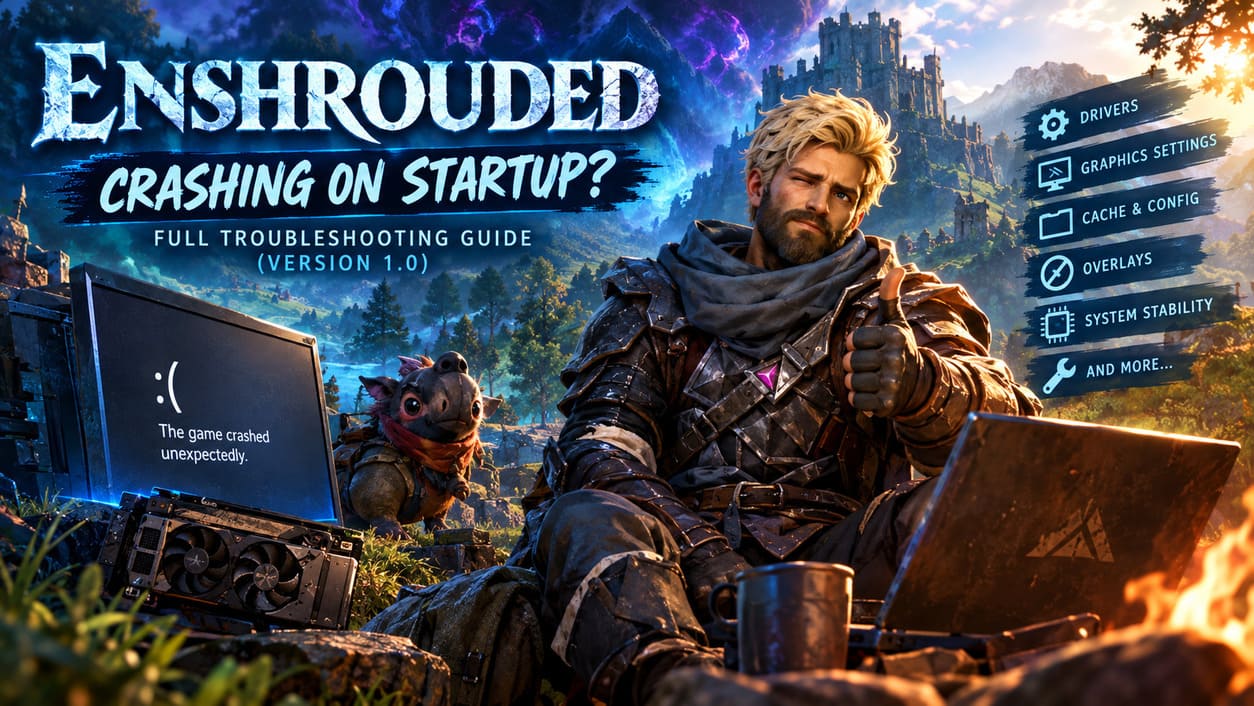
How to Fix Enshrouded Crashing on Startup PC: Full Troubleshooting Guide (Version 1.0)
The full 1.0 release of Enshrouded is exactly the kind of launch that makes you want to sit down, lose an entire evening, and forget what time it is. Embervale is packed with huge environments, dangerous Shroud-covered areas, demanding combat encounters, and enough building freedom to make some survival games look positively tiny. Unfortunately, getting into the game is not always as easy as actually surviving it.
Some PC players can launch Enshrouded without trouble, while others are greeted by an immediate desktop crash, a frozen loading screen, or absolutely nothing after pressing the Play button. I have dealt with enough PC game crashes over the years to know that the most annoying part is rarely the fix itself. It is figuring out which part of your system is actually causing the problem.
With Enshrouded, startup crashes can come from several different places. GPU memory limitations, damaged shader caches, graphics configuration files, drivers, Windows settings, overlays, unstable hardware profiles, and corrupted installation files can all potentially get in the way. The game is particularly demanding because of the way it handles its large voxel-based world, so a system that appears perfectly fine in older games can still run into problems here.
This guide goes through the fixes I would personally try, starting with the simple stuff and moving toward the more serious troubleshooting. You do not need to perform every step immediately. In fact, I would strongly recommend testing the game after each major change so you know what actually solved the problem.
Enshrouded Best Settings for Low End PC: Max FPS & Performance Guide
First: Check Your PC Before Changing Anything
Before deleting caches, changing BIOS settings, or reinstalling drivers, check whether your computer is actually close to the game’s requirements. This sounds obvious, but it is one of those steps people skip because they assume that if another modern game runs, Enshrouded should automatically run too.
The GPU is especially important here. Enshrouded can be surprisingly demanding during asset loading and shader compilation, and VRAM capacity can become a genuine limitation rather than simply reducing your average FPS.
Enshrouded Minimum PC Requirements
| Component | Minimum Requirement |
|---|---|
| Operating System | Windows 10 64-bit |
| CPU | Intel Core i5-6400 / AMD Ryzen 5 1500X |
| RAM | 16 GB |
| GPU | NVIDIA GTX 1060 6GB / AMD Radeon RX 580 8GB |
| Storage | 60 GB |
| Recommended Storage | SSD |
If you have a graphics card with only 3GB or 4GB of VRAM, that does not automatically prove that Enshrouded can never run. However, you are operating below the listed minimum GPU memory specification, and startup failures can become much more likely depending on the rest of your configuration.
If the crash log mentions things such as “Vulkan device lost” or an unrecoverable GPU crash, pay particular attention to your graphics card, driver installation, temperatures, and VRAM usage.
Fix 1: Run Enshrouded With Administrator Permissions
This is one of the easiest things to test, and it costs practically nothing. Windows permissions can occasionally interfere with games when they need to create or modify configuration files, shader data, crash reports, or other files during startup.
Open your Steam Library, right-click Enshrouded, select Manage → Browse local files, and find the game’s executable.
Right-click enshrouded.exe, open Properties, and go to the Compatibility tab. From there, enable Run this program as an administrator, apply the setting, and start the game again.
I would not immediately start stacking every compatibility option Windows offers. Older compatibility modes are sometimes useful for specific legacy software, but Enshrouded is a modern game and random compatibility settings can just introduce another variable into the troubleshooting process. Test administrator mode first.
If that changes nothing, you can return the executable to its normal settings and move on.
Fix 2: Reset Enshrouded’s Local Graphics Configuration
One of the more useful troubleshooting tricks for a game that crashes immediately after changing graphics settings is to reset its local configuration.
This is especially worth trying if Enshrouded worked previously and then suddenly stopped launching after you changed resolution, texture quality, display mode, or another graphics option.
Look inside the game’s local files for enshrouded_local.json. Before deleting anything, I recommend copying the file somewhere else as a backup. If the file is responsible for the problem, removing it allows Enshrouded to generate a fresh configuration.
How to Reset the Local Configuration
- Open Steam and find Enshrouded.
- Select Manage → Browse local files.
- Locate enshrouded_local.json.
- Move it to another folder or delete it.
- Start Enshrouded again.
The important thing here is that you are resetting the game’s local graphics state rather than randomly changing settings you cannot currently access.
If the game suddenly reaches the main menu afterward, you have a pretty good indication that the previous configuration was causing the startup problem.
Fix 3: Delete the Enshrouded Shader Cache
Shader compilation is one of the first things I investigate when a PC game begins crashing after a driver update, Windows update, or unexpected shutdown.
Enshrouded relies heavily on modern graphics rendering, and damaged cached shader data can cause strange behavior. You may see the game reach partway through its loading sequence before disappearing, or it may crash almost instantly.
Clear the Steam Shader Cache
For the Steam shader cache, navigate to your Steam installation directory and open:
steamapps → shadercache
The Enshrouded Steam AppID is 1203620, so look for the corresponding folder and remove it.
You can also use Windows’ built-in Disk Cleanup utility and clear the DirectX Shader Cache. Once finished, restart Windows before launching the game.
The first launch after clearing shader data may take longer than normal. That is expected. Do not assume the game has crashed simply because the initial loading process takes more time. Give the shader compilation process a chance to finish.
This is one of those fixes that I would absolutely try before reinstalling a game that is otherwise installed correctly.
Fix 4: Check Your NVIDIA or AMD Driver Configuration
Enshrouded’s Vulkan rendering path means the graphics driver is extremely important. A driver can be technically installed and still behave badly with a particular game after an update or configuration change.
If you use an NVIDIA GPU, open the NVIDIA App or NVIDIA Control Panel and locate Enshrouded under the program-specific graphics settings. If your driver exposes a Vulkan/OpenGL presentation-related setting, check that it is not configured in an unusual way.
I would also avoid forcing experimental driver settings while troubleshooting. Start from relatively normal defaults and remove unnecessary overrides.
If you recently updated your GPU driver and the crashes began immediately afterward, consider testing a clean driver installation. Conversely, if your driver is several versions old, updating to a current stable release can eliminate known compatibility problems.
The same general principle applies to AMD users: make sure the graphics driver is current, avoid aggressive per-game overrides, and consider a clean driver reinstall if normal updating does not help.
Should You Disable Hardware-Accelerated GPU Scheduling?
Hardware-Accelerated GPU Scheduling, or HAGS, is another Windows feature worth testing when a game has unexplained graphics instability.
You can find it through Windows Graphics settings under the default graphics options. If HAGS is enabled, temporarily turn it off, restart Windows, and test Enshrouded.
I would treat this as a diagnostic step rather than a universal performance recommendation. HAGS can work perfectly well on one PC and cause no problems whatsoever, so there is no reason to disable it permanently unless testing actually shows a difference.
Fix 5: Look at CPU, RAM, and BIOS Stability
This is where I would slow down.
If Enshrouded is merely closing to the desktop, there is no reason to immediately start changing BIOS settings. But if the game is causing complete system crashes, blue screens, reboots, or suspicious memory errors, hardware stability becomes much more relevant.
Certain high-end Intel systems, particularly some 13th- and 14th-generation desktop configurations, have historically required careful attention to motherboard power settings and CPU stability. If your motherboard is applying aggressive automatic performance profiles, returning the system to appropriate Intel default power behavior can be a useful diagnostic step.
Also check your memory profile. XMP and EXPO are technically overclocking profiles, even when they are widely used and normally stable. If your machine crashes under heavy shader compilation or other demanding workloads, temporarily running RAM at standard settings can help determine whether memory stability is involved.
I would also check whether your BIOS is reasonably up to date and whether features such as Resizable BAR are configured correctly for your hardware.
Do not randomly change voltages or advanced CPU parameters if you are unfamiliar with BIOS tuning. A bad setting can create much bigger problems than an Enshrouded crash.
Fix 6: Turn Off Overlays and Monitoring Programs
This is another classic PC gaming troubleshooting step, and it is surprisingly effective.
Modern PCs can have a ridiculous number of applications hooking into games simultaneously. Steam Overlay, Discord, recording software, FPS counters, RGB utilities, hardware monitoring tools, and mod managers can all interact with the rendering pipeline.
For a clean test, close applications such as:
- Steam Overlay
- Discord Overlay
- MSI Afterburner
- RivaTuner Statistics Server
- Overwolf
- CurseForge
- GPU recording or performance overlays
You do not necessarily have to uninstall anything. Just shut the applications down completely and try launching Enshrouded.
If the game suddenly works, reopen your programs one at a time. This makes it much easier to identify the application responsible for the conflict.
Check Microsoft GameInput If Controllers Are Involved
Input-related Windows components can occasionally produce confusing game behavior, particularly when multiple versions or device-related components are installed.
If you have recently connected different controllers, wheels, flight sticks, or other USB input devices, disconnect unnecessary hardware and try launching the game with only your normal keyboard and mouse.
You can also inspect Windows Settings → Apps → Installed Apps for Microsoft GameInput-related entries. Do not blindly remove Windows components simply because there are multiple entries, though. Different versions can exist for legitimate reasons, and uninstalling the wrong component can create new problems.
The safer approach is to investigate this only if your crash appears connected to input hardware or a recent controller or software change.
Fix 7: Force Enshrouded Into Windowed Mode
Sometimes a game crashes before you ever get the chance to change its resolution or display mode.
This can happen after switching monitors, changing refresh rates, using ultrawide displays, or changing fullscreen settings.
Steam allows you to add launch parameters to games. Right-click Enshrouded in your Library, open Properties, find the Launch Options field, and enter:
-windowed
Then start the game.
If it reaches the menu successfully, go into the graphics settings and select the resolution and display mode you actually want.
This is a simple workaround, but it is worth trying because it takes less than a minute and does not modify your hardware or Windows installation.
Verify the Game Files Before Reinstalling
Before deleting the entire game, use Steam’s built-in file verification.
Open Enshrouded’s Properties and find the installed-files section. Select Verify integrity of game files and let Steam complete the process.
This should be one of the first things you try if the crash started after an interrupted update, disk error, unexpected shutdown, or manual modification of the installation folder.
A full reinstall is considerably more annoying, especially for a large game, so there is little reason to jump straight to it when Steam can check the installation for you.
When a Clean Reinstall Actually Makes Sense
If every reasonable troubleshooting step has failed, a clean reinstall becomes the final option.
First uninstall Enshrouded through Steam. Afterward, check whether the old installation directory contains leftover files that should not be there, particularly if you have experimented with mods or manually changed files.
If possible, install the game on an internal SSD. I would especially avoid using an old mechanical HDD for a game as demanding as Enshrouded. An HDD is not automatically going to cause a crash, but an SSD provides much faster access to the huge amount of data the game needs during loading.
After reinstalling, verify the files again and launch the game with as few background applications running as possible. If it works in that clean state, gradually restore your normal software and settings.
My Troubleshooting Order for Enshrouded
If I were sitting at a friend’s PC with Enshrouded crashing before the main menu, I would not start by changing BIOS settings or reinstalling Windows. I would work through the problem in a controlled order:
- Check GPU VRAM and system requirements.
- Verify Enshrouded’s Steam files.
- Reset the local configuration.
- Clear shader caches.
- Update or clean-install GPU drivers.
- Disable overlays and monitoring software.
- Test windowed mode.
- Investigate RAM, CPU, BIOS, and power stability if the entire PC crashes.
- Perform a clean reinstall on an SSD if nothing else works.
That order matters because it keeps the troubleshooting relatively safe and gives you useful information after every step.
Final Thoughts
Enshrouded crashing on startup is incredibly frustrating because the game itself gives you very little information when it simply disappears back to the desktop. The good news is that you usually do not need some mysterious magic fix. A methodical approach can narrow the problem down considerably.
VRAM limitations, corrupted shaders, broken local settings, GPU drivers, overlays, unstable hardware profiles, and damaged game files are the areas I would investigate first. I have played enough demanding PC games to know that reinstalling everything at the first sign of trouble is usually unnecessary. Start with the least invasive fixes, test after every change, and only move toward BIOS or hardware troubleshooting when the symptoms actually point in that direction.
If Enshrouded launches after one of these fixes, resist the temptation to immediately restore every overlay, overclock, graphics tweak, and background utility. Add your normal settings back gradually. That way, if the crashing returns, you have a much better chance of knowing exactly what caused it.
Enshrouded is far too good a game to spend your evening staring at the desktop instead of fighting through the Shroud. Hopefully, one of these fixes gets you back into Embervale without having to turn your entire PC upside down.