How to Fix Anymaker Online Co-Op Connection Issues: Complete Guide
Anymaker is exactly the kind of game that makes you want to grab a friend and start building ridiculous machines together. With its physics-heavy vehicle construction, programmable systems, cables, engines, and open-world survival mechanics, co-op feels like a natural fit. Unfortunately, the networking side of the Early Access experience can be considerably less exciting than the engineering sandbox.
Players trying to join friends can run into everything from “unable to connect to testing server” messages and endless loading screens to failed invites and random disconnects halfway through a session. And because Anymaker is constantly dealing with complicated physical objects and player-built systems, multiplayer has more things to synchronize than a typical survival game.
The good news is that most connection problems don’t necessarily mean your entire network is broken. A mismatched game build, corrupted local data, firewall rule, restrictive NAT, or router configuration can be enough to ruin an otherwise perfectly good co-op session.
I’d work through the fixes below in order rather than immediately messing around with router settings. The early steps are quick, safe, and often solve the problem without requiring you to rebuild your entire network.
Common Anymaker Multiplayer Problems at a Glance
| Problem | Likely Cause | First Thing to Try |
|---|---|---|
| Unable to connect to testing server | Build or beta branch mismatch | Match both players’ Steam versions and beta settings |
| Infinite loading screen | Corrupted local data or save conflict | Test a clean world and temporarily disable Steam Cloud |
| Invite arrives but joining fails | Firewall or NAT restrictions | Check Windows Firewall and router UPnP |
| Random disconnects | Network instability or router restrictions | Restart networking equipment and test another world |
| Friend cannot see the session | Networking or matchmaking configuration | Verify firewall access and Steam networking settings |
| Nothing else works | ISP routing, double NAT, or unusual network setup | Try a virtual LAN as a last-resort workaround |
1. Make Sure Both Players Are Running the Same Anymaker Build
This is the boring fix, but it’s also one of the first things I check whenever a multiplayer game suddenly refuses to cooperate. Early Access games change constantly, and Anymaker is no exception. A small patch can be enough to prevent two clients from establishing a proper session.
Both players should open Steam and check that Anymaker is completely up to date. Don’t assume Steam installed the latest patch just because the game launched normally. A pending download, paused update, or different testing branch can create an immediate compatibility problem.
Open the game’s Steam properties and check the Betas section. If one player is using a testing branch while the other is on the standard public build, put both clients on the same branch before trying again.
I’d also completely restart Steam after changing the branch. Steam sometimes needs a fresh client session before the correct game files and matchmaking configuration are picked up.
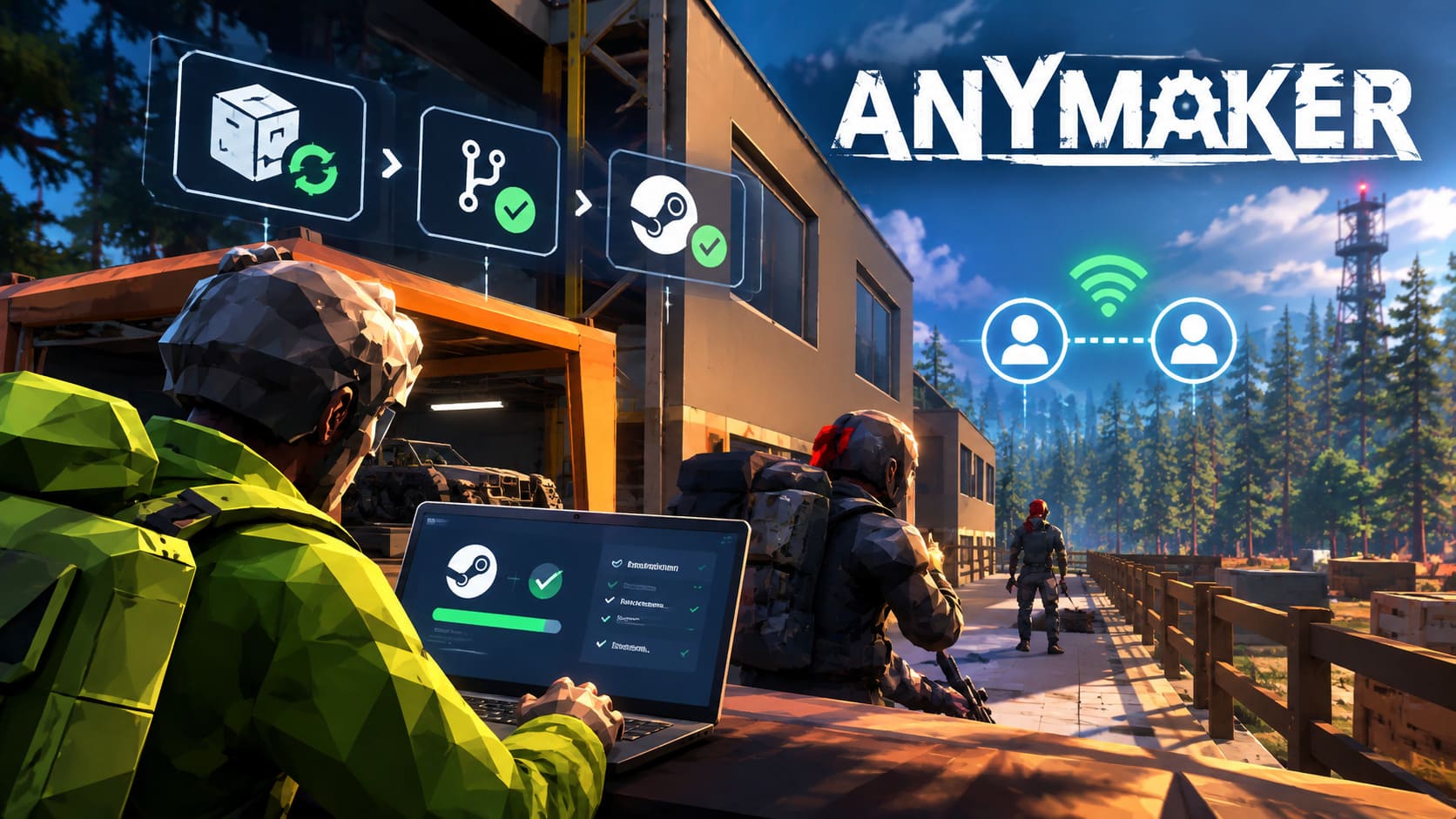
- Update Anymaker on both PCs.
- Check that both players are using the same Steam beta branch.
- Restart Steam after changing the branch.
- Launch a short single-player session before testing multiplayer again.
That last step sounds unnecessary, but it’s a useful way to make sure the local game environment and saves have initialized correctly before you start throwing multiplayer invites around.
2. Test a Completely New World
Before deleting anything, try something simple: have the host create a fresh world.
If your friend can join a new map but can’t enter an older save, the problem may not be your internet connection at all. The original world could contain corrupted local data or a save synchronization problem that prevents the multiplayer session from loading correctly.
This distinction matters because there’s no reason to start changing router settings if the actual problem is a broken save.
Steam Cloud can also complicate troubleshooting. If you suspect that an old save or configuration is being restored automatically, temporarily disable Steam Cloud for Anymaker, then test the game again with a clean world.
Don’t permanently delete your saves just because multiplayer failed once. Back up anything important first. The goal here is to isolate the problem, not accidentally erase hours of vehicle-building work.
3. Clear Potentially Corrupted Local Anymaker Data
If a clean world doesn’t help, it’s worth checking Anymaker’s local configuration and cache data. Windows stores application information in locations such as %appdata% and %localappdata%, although the exact folder structure can vary between games and versions.
Press Windows Key + R, enter the relevant AppData location, and look for folders associated with Anymaker or Geometa. You’re looking for temporary configuration, cache, or networking-related files rather than blindly deleting every file you find.
If you’re unsure which folder belongs to the game, don’t start deleting random AppData directories. That’s an easy way to create a completely different problem.
A safer troubleshooting sequence is:
- Close Anymaker completely.
- Back up important local saves.
- Temporarily disable Steam Cloud.
- Remove only clearly identified temporary or corrupted game cache/configuration data.
- Restart Steam and launch Anymaker again.
- Test multiplayer using a brand-new world.
If the new session works, you’ve narrowed the issue down considerably.
4. Check Windows Firewall Before Blaming Your Router
Windows Firewall is another classic multiplayer troublemaker. Sometimes the game launches normally, single-player works perfectly, and Steam invites arrive — yet the actual connection gets blocked somewhere between the two PCs.
Open Windows Defender Firewall and select the option for allowing apps or features through the firewall. Find Anymaker in the list and make sure it is allowed on the network profiles you’re actually using.
If Anymaker isn’t listed, you can use the Allow another app option and manually locate the game’s executable inside your Steam installation.
It’s important to understand what you’re changing here. You aren’t magically improving your internet connection; you’re telling Windows that Anymaker is allowed to communicate through the firewall.
After changing the rule, restart the game on both machines and test the connection again.
5. Restart Your Network Equipment and Look at NAT
If both clients are configured correctly but the invitation still dies during the connection process, your router becomes a much more likely suspect.
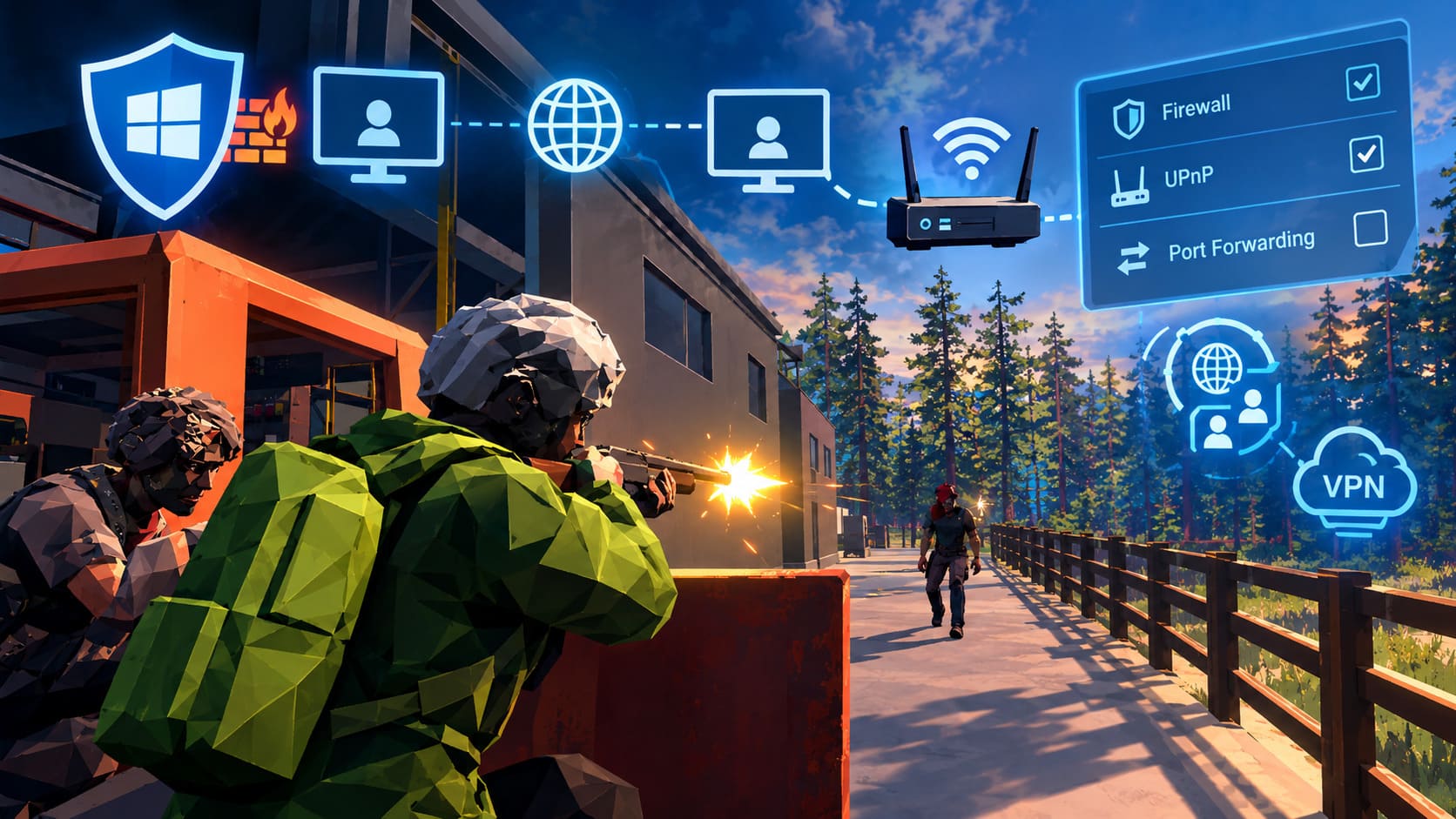
Online co-op can behave badly when one or both players are behind a restrictive NAT configuration. Double NAT is particularly annoying because another router or gateway may be sitting between your PC and the public internet.
Start with the simple stuff. Restart your modem/router, wait for the connection to return fully, then restart Steam and Anymaker.
After that, log into your router’s administration page and look for UPnP. Universal Plug and Play allows compatible applications to request the network mappings they need without requiring you to manually create every rule.
If UPnP is disabled, enabling it can sometimes resolve multiplayer connectivity problems immediately. However, router interfaces vary significantly, so the exact location of this option depends on your hardware.
If your ISP uses carrier-grade NAT or your home network has multiple routers, fixing the problem may require more than changing one setting.
6. Port Forwarding: Useful, but Don’t Start Here
Port forwarding is one of those PC gaming fixes that gets recommended for almost every multiplayer problem. Sometimes it helps. Sometimes you’re just spending an hour staring at a router interface for no reason.
If UPnP doesn’t solve the issue and you know your network requires manual forwarding, you can configure a port forwarding rule that directs traffic to the gaming PC’s local IP address.
Steam commonly uses ports in the 27015–27030 range for various services, but you should not assume every Anymaker multiplayer function uses the same ports. Game-specific networking requirements can change during Early Access.
For that reason, don’t blindly open huge ranges of ports based on a random forum post. Use the currently documented requirements for the game or the relevant Steam networking service whenever available.
If you do configure forwarding, make sure the destination is the correct local IP address of the host PC. A rule pointing at the wrong device won’t do anything useful.
7. Watch Out for Double NAT and ISP Restrictions
Here’s where things can get genuinely annoying.
If your PC connects to a router, which connects to another router or ISP gateway, you may have double NAT. In some setups, your ISP may also use carrier-grade NAT, meaning you don’t receive a conventional public IPv4 address at home.
This can interfere with peer-to-peer connections even when your PC and game settings are completely fine.
Check your network topology before spending hours changing individual game settings. If another router is sitting between your gaming PC and the internet, putting one device into bridge/access-point mode may be more appropriate than creating a pile of overlapping port-forwarding rules.
8. Try a Virtual LAN Only as a Last Resort
If conventional networking refuses to cooperate, a virtual LAN can sometimes provide another route around complicated NAT or ISP routing problems.
Tools such as Radmin VPN or Hamachi create a virtual network that can make computers appear to be connected through the same private network. Both players need to install and configure the same service.
The basic idea is straightforward:
- Create a virtual network on the host.
- Have the other player join that network.
- Confirm both PCs can see the virtual connection.
- Start the appropriate Anymaker multiplayer/local session.
- Test the connection through the virtual network.
This isn’t my first choice. Adding another networking layer means another potential point of failure, and VPN software can introduce its own latency or firewall conflicts. But when an ISP or complicated NAT setup is the real culprit, a virtual LAN can be a useful diagnostic tool and potential workaround.
What I Would Try First
When a game like Anymaker refuses to connect, it’s tempting to immediately start forwarding ports and changing router settings. I wouldn’t.
Start with the cheap fixes: match game versions, restart Steam, test a new world, check the firewall, and reboot the router. Those steps take minutes and can eliminate a surprising number of multiplayer problems.
Only move into NAT configuration and port forwarding if the basic troubleshooting doesn’t change anything. And if a completely fresh world connects while your main save doesn’t, focus your investigation on the save or local game data instead of your internet connection.
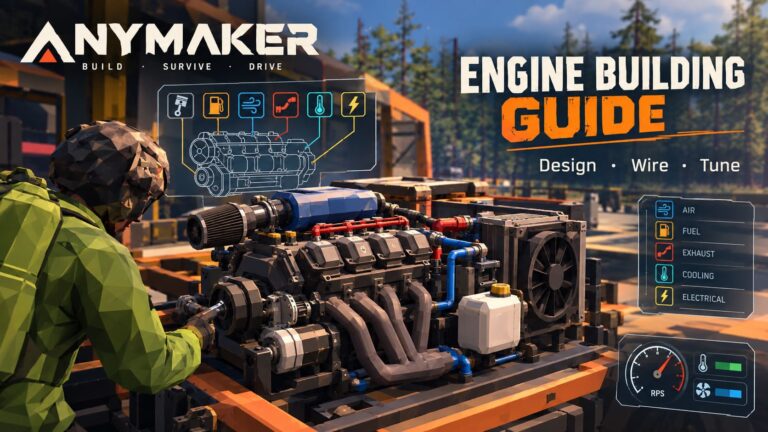
Anymaker Engine Building Guide: How to Design, Wire, and Tune Your Modular Motor
Anymaker Co-Op Troubleshooting Checklist
For a quick reference, this is the order I’d personally follow:
- Update both copies of Anymaker.
- Match Steam beta/test branches.
- Restart Steam and the game.
- Try joining a brand-new world.
- Temporarily test without Steam Cloud.
- Check Windows Firewall permissions.
- Restart your modem/router.
- Check UPnP and NAT configuration.
- Investigate double NAT or ISP restrictions.
- Use port forwarding only when necessary.
- Try a virtual LAN as a final workaround.
Anymaker PC Download Size, System Requirements, and Full Gameplay Guide (2026)
Final Thoughts
Anymaker’s multiplayer problems are especially frustrating because the actual game is built around experimentation. You want to spend an evening building an absurd vehicle with a friend, not spend that evening digging through router menus.
The important thing is to troubleshoot systematically. Don’t change five networking settings at once. Make one change, test the connection, and keep track of what happened. That makes it much easier to identify whether the culprit is the game build, a particular save, Windows Firewall, your router, or the wider ISP connection.
Because Anymaker is still in Early Access, networking behavior can also change as Geometa updates the game. A workaround that works today may become unnecessary after a future patch, while a previously harmless configuration could suddenly cause problems after a networking update.
For most players, though, the best starting point remains simple: get both clients on the same version, test a clean world, verify firewall access, and only then start investigating NAT and router configuration. That approach saves time and keeps you focused on the part of Anymaker that actually matters — building ridiculous machines with your friends.