Wand & Order Low FPS Fix: How to Boost Performance and Stop Stuttering
After spending a lot of time with different management games, co-op simulators, and those wonderfully chaotic titles where the entire challenge is basically keeping a room from turning into a disaster, I can say that Wand & Order: Tidy up the magic shop! has a surprisingly good idea at its core. You are not fighting monsters every five seconds or chasing some enormous open-world quest. Instead, you are trying to keep a magical shop under control while dealing with wands, potions, tarot cards, shelves, and plenty of objects that seem determined to end up in the wrong place.
That relaxed gameplay loop makes performance problems particularly frustrating. There is nothing more distracting than carefully organizing a shelf only for the game to suddenly drop frames, hitch for a moment, or become noticeably less responsive when the shop gets crowded with interactive objects. I have seen similar behavior in other simulator-style games, especially newer releases where physics, object interaction, lighting, and background simulation can quietly become much heavier than the visuals initially suggest.
If you are searching for a Wand & Order low FPS fix, the good news is that you do not necessarily need a powerful new PC. Some performance problems can be reduced simply by changing the right graphics options, controlling frame pacing, cleaning up background applications, and making sure Windows and your GPU driver are not fighting the game for resources.
Wand & Order: How to Sort Tarot Decks (Ultimate Tidy Up Guide)
Why Wand & Order Can Stutter on PC
One thing I have learned from playing a ridiculous number of PC games is that low FPS does not always mean your graphics card is too weak. A game can look relatively simple while still placing considerable pressure on the CPU because it has to track dozens or hundreds of individual objects. In a game like Wand & Order, that can become especially noticeable when the shop is filled with items that can be picked up, moved, stacked, knocked over, or otherwise interacted with.
There is also a difference between average FPS and frame-time consistency. You might see 70 FPS in a counter and still feel the game stuttering because individual frames are arriving unevenly. That is why I would not blindly chase the highest possible FPS. A stable 60 FPS often feels much better than a system jumping between 90, 45, and 70 FPS every few seconds.
Start With the In-Game Graphics Settings
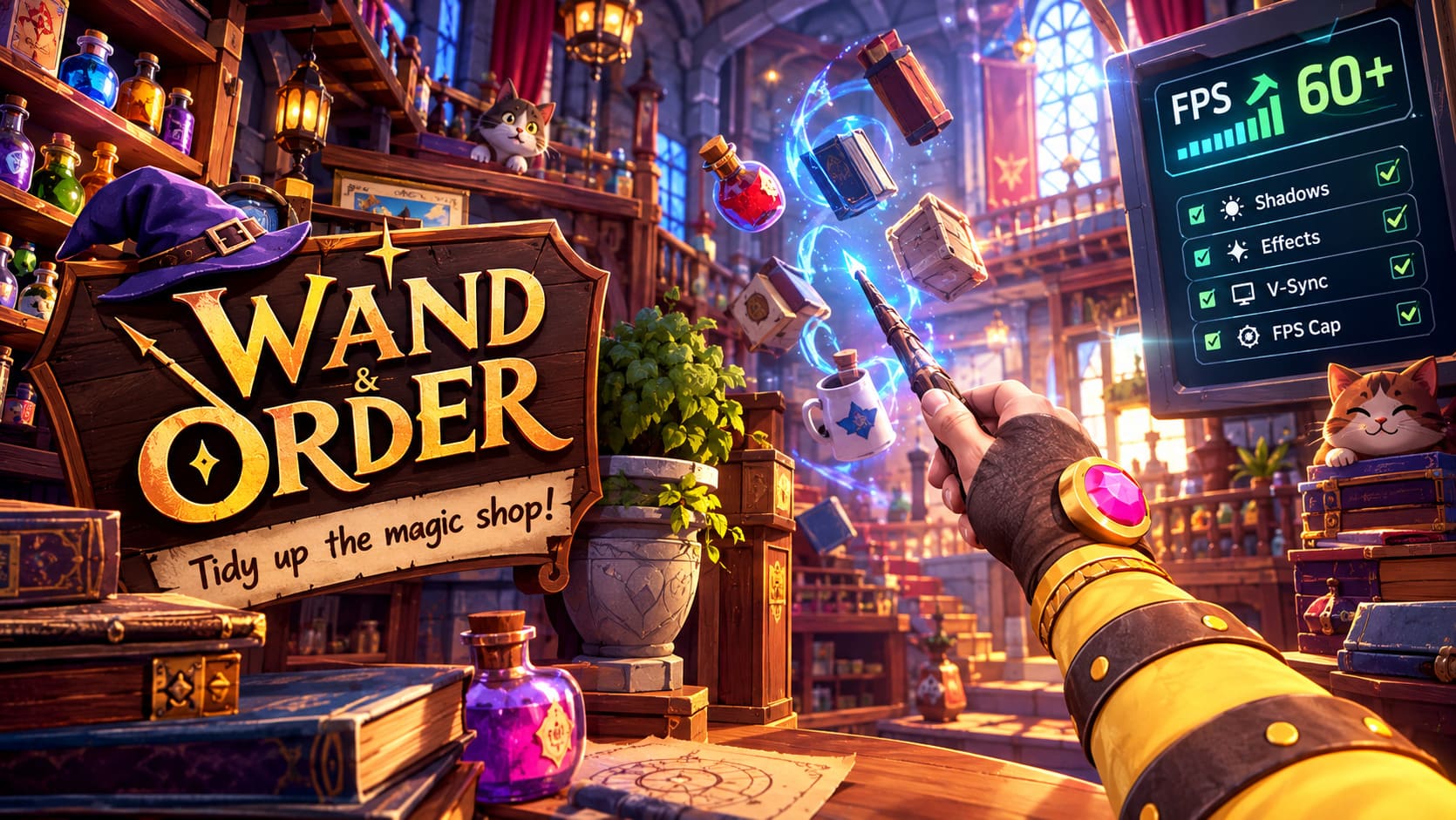
The first thing I would change is the graphics configuration inside the game itself. Before touching Windows settings, configuration files, or third-party utilities, it makes sense to establish a stable baseline. Change one setting at a time and test the same busy area of the shop so you can actually tell which option is helping.
| Setting | Recommended Starting Point | Why It Can Help |
|---|---|---|
| Display Mode | Fullscreen | Can improve consistency on some systems |
| Shadows | Medium | Reduces GPU rendering workload |
| Volumetric Effects | Medium or Low | Reduces expensive lighting effects |
| V-Sync | Off for testing | Helps identify frame-pacing problems |
| Effects Quality | Medium | Useful when visual effects cause GPU spikes |
Shadows are one of the first settings I would lower. High-quality shadows can be surprisingly expensive, particularly in an environment containing lots of shelves, objects, corners, and dynamic lighting. You do not necessarily need to turn everything down to Low either. Medium is usually a much more sensible starting point because the visual difference is often considerably smaller than the performance difference.
I would also experiment with volumetric lighting and effects quality. Magical games naturally want to make potions, glowing objects, and atmospheric lighting look impressive, but these effects can become expensive when several are being rendered simultaneously. If your FPS drops mainly when looking toward a particularly busy part of the shop, lowering these options is worth testing.
Do Not Automatically Blame V-Sync
V-Sync is one of those settings that gets blamed for almost everything, even though the real situation is more complicated. On some configurations it can produce perfectly smooth gameplay, while on others it can make sudden drops feel more noticeable. If your system cannot consistently maintain the refresh rate of your monitor, the interaction between V-Sync and frame delivery can sometimes make the game feel worse than the FPS number suggests.
For troubleshooting, I recommend temporarily disabling V-Sync. Run the game for several minutes and see whether the stuttering changes. If it improves, you can later experiment with a frame limiter or adaptive synchronization rather than simply leaving everything uncapped.
Find a Stable FPS Target Instead of Chasing Maximum FPS
This is probably the most practical lesson I have taken from years of PC gaming. You do not need the biggest FPS number possible if your frame times are inconsistent. If Wand & Order runs between 55 and 80 FPS depending on what is happening, I would rather test a stable 60 FPS cap and see how it feels.
For example, someone with a 60 Hz monitor may get a better experience by targeting approximately 60 FPS instead of allowing the GPU to render 90 or 100 frames in simple scenes before collapsing during heavier moments. The same principle applies to higher-refresh displays. The important part is finding a target your PC can maintain consistently during the most demanding parts of the shop, not just when you are staring at an empty corner.
NVIDIA Control Panel Settings Worth Testing
If you have an NVIDIA GPU, open the NVIDIA Control Panel and go to Manage 3D Settings. Under Program Settings, add Wand & Order if it does not appear automatically, then create a profile specifically for the game. This prevents you from unnecessarily changing settings for every game installed on your PC.
- Test Power Management Mode with Prefer Maximum Performance if the GPU appears to be aggressively lowering clocks.
- Set a reasonable Max Frame Rate rather than leaving the game completely uncapped.
- Keep unnecessary image-quality overrides disabled while troubleshooting.
- Test changes individually instead of applying ten different driver settings at once.
I would especially avoid turning every NVIDIA option to its most aggressive performance setting just because you found a random optimization guide online. Driver-level tweaks can interact differently with different hardware, monitors, and game engines. The goal is controlled testing, not creating a mysterious configuration that nobody remembers how to undo.
AMD Users Can Take a Similar Approach
AMD users can perform comparable testing through AMD Software: Adrenalin Edition. Look for the game’s profile under the Gaming section and experiment with frame-rate control features such as Radeon Chill where appropriate. The exact options available can vary depending on your GPU and driver version, so I would use the current driver interface rather than copying an old tutorial word for word.
Again, the objective is simple: find a frame-rate target that your hardware can maintain without constantly bouncing between GPU clock states and workload levels. A stable frame-time graph is ultimately more valuable than an impressive peak FPS number.
Windows Game Mode and Background Applications
Windows itself can also contribute to inconsistent performance, although I would not expect Game Mode to magically transform a struggling system into a high-end gaming machine. Still, it is worth making sure Windows Game Mode is enabled. Go to Settings, select Gaming, then Game Mode, and check that it is turned on.
After that, look at what is actually running in the background. Open Task Manager with Ctrl + Shift + Esc and check CPU, memory, GPU, and disk usage while Wand & Order is running. If you see a browser with dozens of tabs, a cloud synchronization service, video recording software, or another application suddenly consuming resources, close it temporarily and test again.
Overlays are another easy variable to eliminate. Steam, Discord, GPU recording software, and other overlays can sometimes introduce conflicts or additional frame-time spikes. I would not claim that disabling an overlay will fix every stutter, but it is an inexpensive troubleshooting step and makes it easier to establish a clean test environment.
Update or Reinstall Your Graphics Driver
If the performance problem appeared after a driver update, or if several games are behaving strangely at the same time, the graphics driver deserves attention. Start with the latest driver supplied for your GPU and perform a clean installation if necessary. Tools such as Display Driver Uninstaller can be useful when a normal reinstall does not resolve persistent driver-related problems, although I would treat DDU as a troubleshooting tool rather than something that needs to be run every time a game stutters.
Also check whether the problem exists only in Wand & Order. If other games suddenly experience the same hitching, the issue may be broader than the game itself. On the other hand, if everything else runs normally, that is useful evidence that you should concentrate on the game’s settings, files, engine behavior, or a game-specific update.
Be Careful With Mods and Third-Party Tools
Another mistake I have made more than once is assuming that because an application is useful, it cannot possibly interfere with a game. Trainers, overlays, monitoring applications, recording software, RGB utilities, and mod managers can all interact with games in unexpected ways. If you are experiencing unusually large FPS drops, temporarily launch Wand & Order with as clean an environment as possible.
This is particularly important if the stuttering started after installing another utility. Disable the extra software, restart the PC, and test the game again. If performance suddenly improves, you have a much better starting point for identifying the actual conflict instead of randomly lowering every graphics setting.
Check the Game Files Before Going Deeper
Before editing configuration files, I would also verify the game’s installation through Steam. Corrupted or incomplete files are not the most exciting explanation, but they are easy to rule out. A verification pass is considerably safer than immediately editing engine configuration files that you may not fully understand.
It is also worth watching your temperatures while testing. If CPU or GPU temperatures climb high enough to trigger thermal throttling, performance can fall even when your graphics settings are reasonable. In that situation, changing an INI file will not solve the underlying problem; airflow, cooling, power limits, or another hardware-related factor needs to be investigated instead.
Advanced Configuration File Tweaks
If you have already tried the normal settings and the game remains problematic, configuration files may offer additional options. Depending on the game’s engine and version, configuration data can potentially be found under %localappdata%, inside a folder associated with the game or developer, followed by directories such as Saved and Config.
Files such as GameUserSettings.ini or Engine.ini may contain graphics-related variables. However, I strongly recommend backing up the original file before changing anything. Do not blindly paste a huge block of supposedly magical optimization commands from an internet forum; engine variables can change between versions, and an invalid tweak can create new problems rather than fixing the original one.
For example, scalable settings related to shadows, effects, post-processing, or other rendering features can sometimes be adjusted manually. The safest approach is to change a small number of known settings, test the game, and keep a record of what you changed. If something breaks, restore the backup rather than continuing to stack more tweaks on top of the problem.
My Practical Troubleshooting Order
When I troubleshoot low FPS in a new PC game, I try not to turn the process into a six-hour ritual involving twenty different utilities. I start with the game settings, establish a repeatable test area, and then work outward toward Windows, drivers, background software, and finally configuration files. That approach makes it much easier to identify the actual cause.
- Lower shadows, effects, and volumetric settings.
- Test fullscreen and temporarily disable V-Sync.
- Choose a realistic FPS cap based on sustained performance.
- Disable overlays and unnecessary background applications.
- Update or clean-install the GPU driver if necessary.
- Verify the game files through Steam.
- Only then experiment with advanced configuration files.
Final Thoughts on the Wand & Order Low FPS Problem
Wand & Order: Tidy up the magic shop! is exactly the kind of game where performance consistency matters more than people might expect. When the entire experience revolves around picking things up, moving them around, organizing shelves, and reacting to a constantly changing environment, even short stutters are immediately noticeable. From my perspective, the best solution is not simply turning every setting to Low, but finding the combination that keeps frame times stable while preserving the atmosphere that makes the magical shop enjoyable.
Start with shadows and effects, establish a sensible FPS target, clean up background applications, and make sure your GPU driver is behaving correctly. If those steps do not help, investigate temperatures, game files, and only then move toward advanced configuration changes. The most useful FPS fix is the one that makes the game consistently smooth without sacrificing more visual quality than necessary.
And honestly, that is what I would want from a cozy co-op game like this. I can tolerate a messy magical shop, shelves full of potions, and a complete organizational disaster. What I do not want is a frame-time spike every time I pick up the next bottle.