GreedFall The Dying World PC Guide – System Requirements and Save File Location
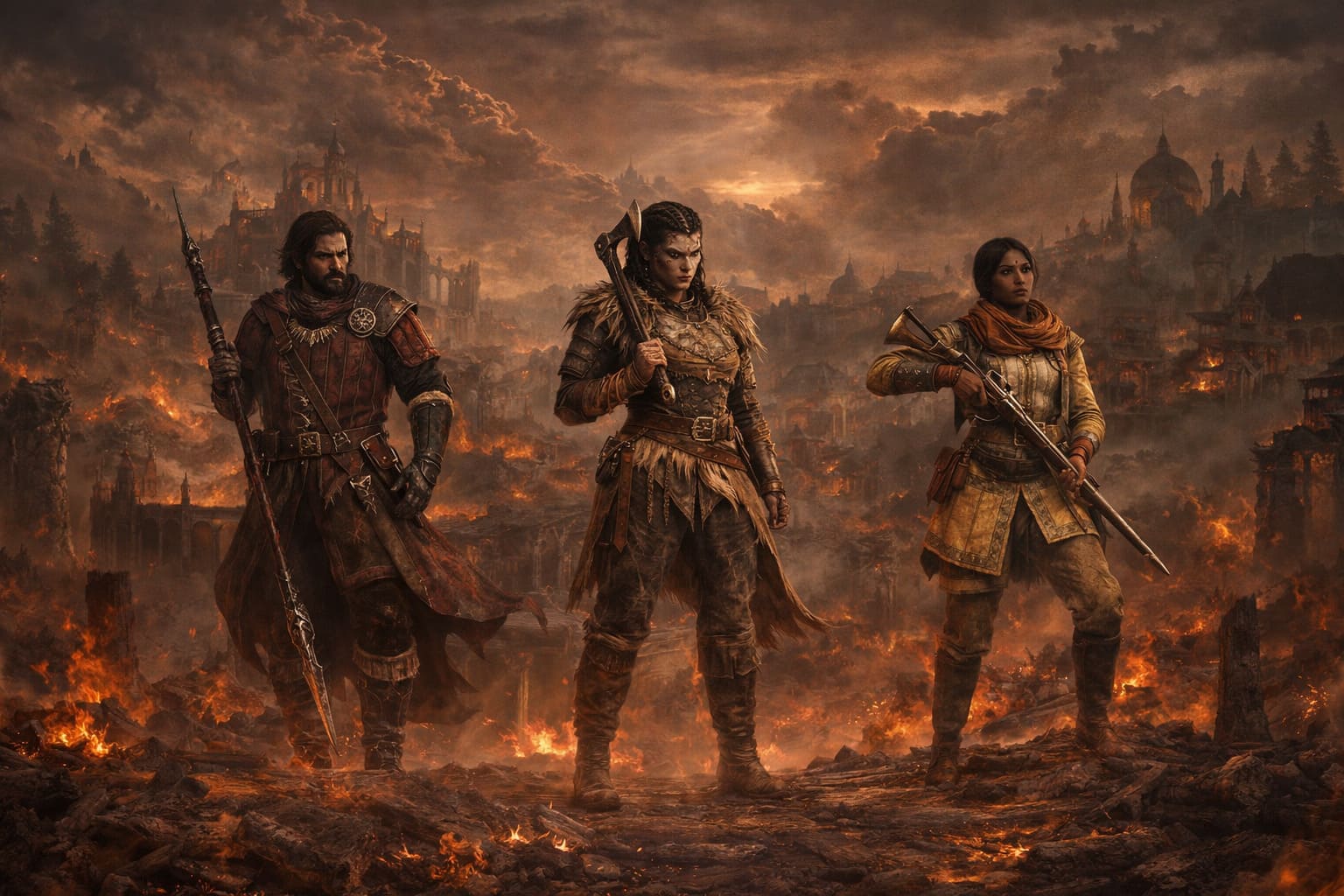
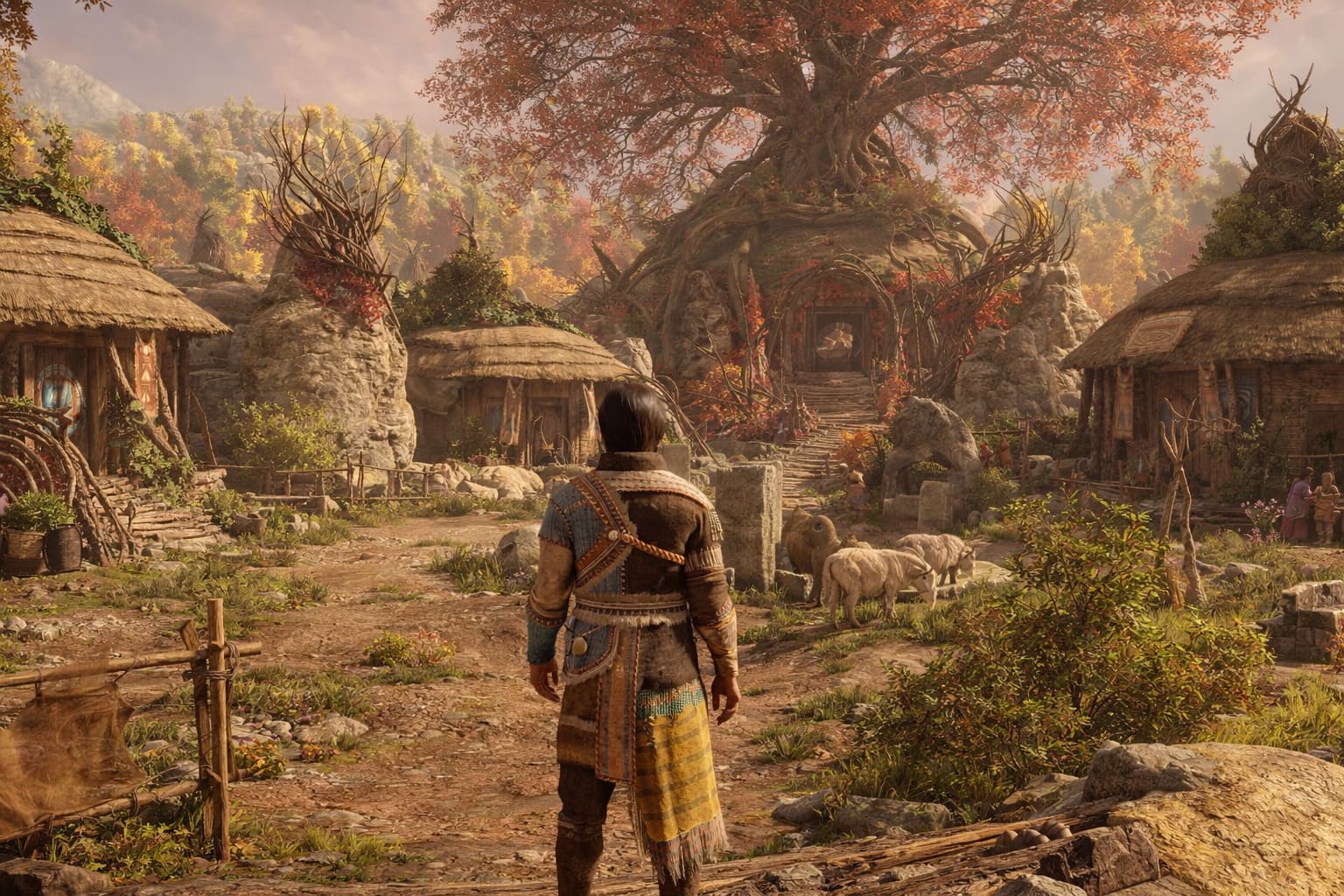
If you’re a fan of action RPGs with rich world-building, then GreedFall 2: The Dying World is finally about to deliver the full experience. Exiting Early Access on March 10, 2026, this sequel promises to expand on everything we loved—and sometimes debated—about the first game.
For PC gamers, understanding whether your system can handle the 1.0 release is now more important than ever.
Docked Game 2026: Ship-to-Shore Crane & Container Handling Tutorial
Official PC System Requirements
Spiders has laid out the minimum and recommended specs for running GreedFall 2 smoothly. Here’s a quick look at the details:
| Component | Minimum (1080p @ 30 FPS, Low) | Recommended (1080p @ 60 FPS, High) |
|---|---|---|
| OS | Windows 10 (64-bit) | Windows 10/11 (64-bit) |
| CPU | Intel Core i7-4790 / AMD Ryzen 5 1500X | Intel Core i7-10700K / AMD Ryzen 5 5600X |
| RAM | 16 GB | 16 GB |
| GPU | NVIDIA GTX 1060 (6GB) / AMD RX 5500 XT (8GB) | NVIDIA RTX 3060 Ti (8GB) / AMD RX 6700 XT (12GB) |
| DirectX | 12 | 12 |
| Storage | 30 GB | 30 GB SSD recommended |
Community Performance Insights
Players who have been exploring the Early Access version since September 2024 have noticed several key trends that could influence your gaming experience:
- RAM Intensity: Unlike the first game, which ran on 8GB, this sequel really pushes for 16GB even at the lowest settings.
- Combat Mechanics: The shift to a Real-Time with Pause (RTWP) system has divided opinions. Some players find large tactical battles surprisingly CPU-heavy.
- Optimization Updates: Early Access suffered from frequent crashes and bugs. However, previews in early 2026 show much better stability, including smoother facial animations.
- Graphics Tips: Cards like the GTX 1660 can hit ~60 FPS if you reduce foliage and model details, though large grassy areas remain GPU-intensive.
Why the 1.0 Release Is Worth the Wait
GreedFall 2’s full launch isn’t just about improved performance. The 1.0 version delivers the complete story, new companions, and finalized skill trees. Players who bought the game during Early Access will get this update for free. For newcomers, the full release will come at a higher price, but the experience promises to be worth it.
Overall, if you love tactical RPGs with intricate narratives, immersive worlds, and strategic combat, this release could be a standout in 2026. Make sure your rig is up to the challenge, and prepare for a deep dive into the “Old Continent.”
GreedFall II: The Dying World – Complete Guide to Save Files on PC
If you’re diving into the mystical and dangerous world of Teer Fradee in GreedFall II: The Dying World, keeping your progress safe is just as crucial as leveling up your gear or exploring hidden secrets. From corrupted saves to transferring your adventures to a new PC, knowing where the game stores its files can save you a lot of headaches.
Where Are My GreedFall II Save Files?
On Windows 10 or 11, the game conveniently keeps your saves in your Documents folder. This makes it easy to find and back up your files without digging through system directories.
Default Windows Save Location:
%USERPROFILE%\Documents\GreedFall 2\
Inside this folder, you’ll typically find:
- Save Files: Usually with a
.fsavextension, these are your actual progress files. - Settings: A
settings.jsonfile storing graphics and gameplay preferences. - Logs: A subfolder called
silk_logsthat can help diagnose crashes or other issues.
Steam Players on Linux or Steam Deck
If you’re running the Steam version on Linux or a Steam Deck, your save files live in the compatibility folder:
<SteamLibrary-folder>/steamapps/compatdata/1997660/pfx/
Backing Up Your Saves Manually
Since GreedFall II is still in Early Access, save corruption and bugs are unfortunately more common than in fully polished releases. I personally back up my progress every time there’s a big patch. Here’s a simple way to do it:
- Press Win + R to open the Run dialog.
- Type
%USERPROFILE%\Documentsand hit Enter. - Find the folder GreedFall 2, right-click, and select Copy.
- Paste it somewhere safe like Google Drive, Dropbox, or an external USB stick.
Troubleshooting Common Save Issues
Sometimes the game refuses to save or your latest progress doesn’t appear. Here are some solutions that have worked for me and the community:
- Check Folder Permissions: Make sure the Documents folder and the GreedFall 2 folder are not set to read-only.
- Antivirus Exclusions: Some antivirus programs block the game from writing files. Add
GreedFall2.exeto your exclusions. - Steam Cloud Sync: Wait for Steam to finish syncing your files before switching devices.
- Too Many Saves: Old or very large save files (over 150MB) can sometimes cause performance or sync issues. Deleting unnecessary backups can help.
Editing Configuration and Graphics Settings
If the game won’t launch or your resolution isn’t right, you can manually tweak settings:
File: settings.json
Location: %USERPROFILE%\Documents\GreedFall 2\settings.json
Open with Notepad to adjust values like resolutionX, resolutionY, or displayMode.
Quick Reference Table
| Platform | Save Location | Notes |
|---|---|---|
| Windows 10/11 | %USERPROFILE%\Documents\GreedFall 2\ | Contains save files (.fsav), settings.json, and silk_logs folder |
| Linux / Steam Deck | <SteamLibrary-folder>/steamapps/compatdata/1997660/pfx/ | Steam compatibility folder for Proton |
Keeping your saves safe is simple but essential. Personally, I treat every manual backup like a mini quest—it’s a small but satisfying way to make sure all my hard-earned progress isn’t lost to a random bug or crash.