How to Fix Aniimo CPU Freezing, Sudden Game Crashes, and Low FPS on PC
Aniimo has finally arrived, and if you’ve spent any real time wandering around Idyll, you already know why people were waiting for it. Pawprint Studio’s creature-catching RPG isn’t exactly a tiny technical project. It’s a huge open world packed with creatures, dynamic environments, combat effects, online features, cross-platform progression and systems such as Twining that let Pathfinders take on the form of captured creatures.
The September 2026 global launch has brought a massive wave of players into the game. It has also exposed something less exciting: Aniimo’s PC version can be surprisingly unstable on certain hardware configurations.
Players have reported everything from annoying micro-stutters to complete freezes, sudden desktop crashes, black screens, loading loops and, in the worst cases, a locked-up Windows desktop that makes the entire machine feel like it has crashed.
The problem becomes especially interesting on powerful multi-core Intel systems. Owners of 13th Gen, 14th Gen and newer Intel Core desktop CPUs have reported situations where the processor appears to have plenty of horsepower available, yet Aniimo still manages to hammer individual cores while leaving other resources barely touched.
That is the kind of PC gaming problem that drives you insane.
You look at your GPU. It’s fine.
You look at your RAM. Fine.
You look at total CPU usage. Nothing looks outrageous.
And Aniimo still freezes.
I’ve broken down the most useful fixes currently circulating around the Aniimo PC community and organized them into a practical troubleshooting guide. Some solutions take less than a minute. Others require a little more digging, but they’re worth trying before you start blaming your GPU or reinstalling Windows.
Why Does Aniimo Freeze, Stutter or Crash on PC?
Before changing random settings, it’s worth understanding what may actually be happening.
A modern open-world game such as Aniimo has several systems running simultaneously: world streaming, creature AI, shader compilation, physics, networking, animation, asset loading and rendering. When those systems aren’t communicating properly with Windows or the hardware, you can end up with a game that looks perfectly playable one second and completely locks up the next.
The major trouble spots reported by the PC community fall into three broad categories.
| Potential Problem | Typical Symptom | What It Can Cause |
|---|---|---|
| CPU thread/core allocation | Sudden CPU spikes, freezes | Stuttering, lockups, FPS drops |
| Shader compilation / DX12 | Freezes during traversal or effects | Hitching, crashes, black screens |
| Antivirus / background software | Launch or login problems | Failed loading, crashes, freezes |
| Corrupted game files | 100% loading freeze | Missing assets, desktop crashes |
| Power/graphics configuration | Low or inconsistent performance | Low FPS, traversal stutter |
These aren’t necessarily the only causes, and not every Aniimo crash has the same origin. That’s important. If your game is crashing because of a damaged driver, changing CPU affinity isn’t magically going to fix it.
But if you’re experiencing the classic pattern of brief freezes followed by heavy stuttering, CPU spikes or sudden lockups, the CPU configuration is absolutely worth checking.
Fix 1: Check Aniimo CPU Affinity
This is the first thing I’d investigate if Aniimo is freezing on a high-core-count Intel processor.
Some community reports point toward Aniimo occasionally behaving poorly when distributing its workload across modern CPUs. Instead of efficiently spreading demanding game threads across the available processor resources, the game may concentrate activity on a smaller group of logical processors.
When that happens, you can get a bizarre situation where Windows reports plenty of overall CPU headroom while individual cores are getting hammered.
The result?
Hard stutters, sudden frame-time spikes and multi-second freezes.
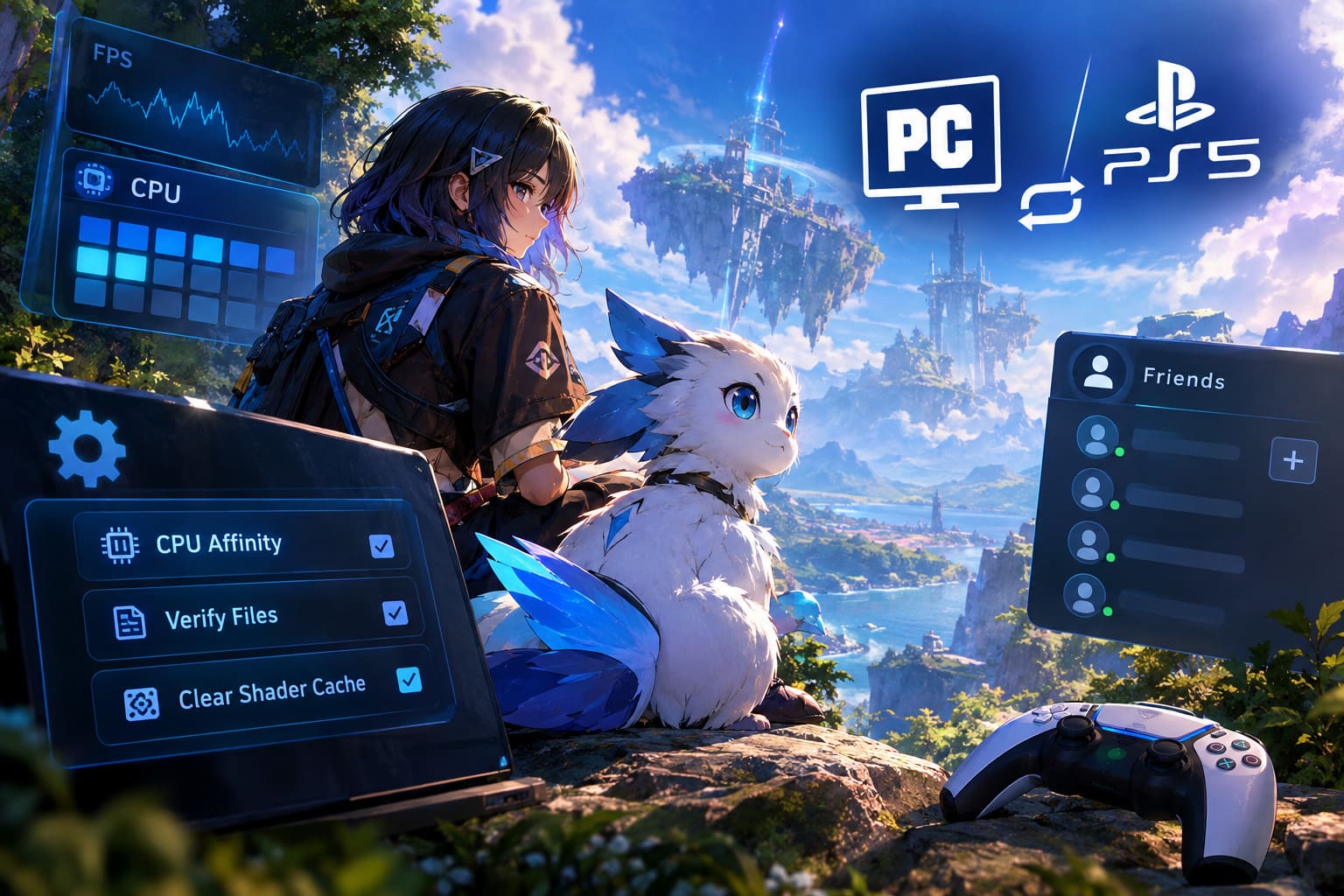
How to Check CPU Affinity
- Start Aniimo and leave it running at the main menu or in a window.
- Press Ctrl + Shift + Esc to open Windows Task Manager.
- Select the Details tab.
- Find the Aniimo executable, usually listed as Aniimo.exe or a similarly named process.
- Right-click the process.
- Select Set affinity.
- Check which processors are enabled.
- If only a small selection of processors is active, enable the available processors and confirm the change.
Using Process Lasso
If the change helps, Process Lasso can make the configuration more convenient.
Instead of manually changing the affinity every time Aniimo launches, you can create a persistent rule for the executable.
This is particularly useful if you’re the kind of player who launches the game every evening and absolutely doesn’t want to play “open Task Manager simulator” before every session.
Important: CPU affinity is a troubleshooting step, not a universal performance setting. If changing it makes the game worse, revert the configuration.
Fix 2: Repair Aniimo’s Installation
Don’t underestimate corrupted files.
A massive game can download hundreds of thousands of individual assets, libraries and packages. One damaged or incomplete file is enough to produce bizarre behavior later.
Aniimo freezing at 100% loading, crashing immediately after entering the world or failing during asset streaming can be a sign that something in the installation isn’t right.
If you’re playing through Steam, the process is simple.
Steam File Verification
- Open Steam.
- Find Aniimo in your Library.
- Right-click the game.
- Select Properties.
- Open Installed Files.
- Select Verify integrity of game files.
- Wait for Steam to complete the scan.
- Allow it to replace damaged or missing files.
- Restart Windows before launching the game again.
If you’re using the standalone Aniimo launcher, look for a Quick Repair, Repair Game Files, Verify Files, or similarly named option.
The exact wording can change between launcher versions, so don’t worry if your menu isn’t identical.
A repair operation may take some time because the client has to compare your local installation against its expected files.
And yes, if you’ve got a slow connection, this is the annoying fix. Still, it’s a lot less annoying than spending three hours trying random registry tweaks.
Fix 3: Clear the DirectX Shader Cache
Shader compilation is one of those invisible PC gaming processes that you don’t think about until it starts ruining your evening.
Aniimo can encounter heavy shader activity when you’re:
- entering a new area;
- moving through densely populated environments;
- triggering combat effects;
- watching cinematics;
- fast traveling;
- loading complex creature effects;
- entering locations with large amounts of environmental detail.
If the shader cache becomes corrupted or conflicts with an updated driver or game build, you can see sudden hitching and inconsistent frame pacing.
Clear the Windows Shader Cache
- Open the Windows Start menu.
- Search for Disk Cleanup.
- Select your Windows system drive.
- Find DirectX Shader Cache.
- Select it.
- Run the cleanup.
Afterward, Windows and your games will rebuild the necessary shader data.
Don’t panic if the first launch after clearing the cache feels a little slower. The system may need to rebuild shaders again.
Check Your GPU Driver Settings
If you’re using an NVIDIA GPU, open the NVIDIA Control Panel and check the shader cache configuration.
A larger shader cache can prevent unnecessary recompilation, particularly on games with large modern rendering pipelines.
For troubleshooting Aniimo, a setting of 10 GB or Unlimited may be worth testing if available on your driver version.
AMD users should check the corresponding shader and driver-cache settings in AMD Software.
Fix 4: Match Aniimo’s Resolution to Windows
This sounds almost too simple, but display configuration can cause some surprisingly ugly problems.
Make sure Aniimo is using a resolution that matches your monitor’s native Windows resolution.
For example, if Windows is running your display at 2560×1440, don’t randomly force the game into an unusual resolution and then combine that with aggressive scaling, borderless-window settings and driver-level overrides.
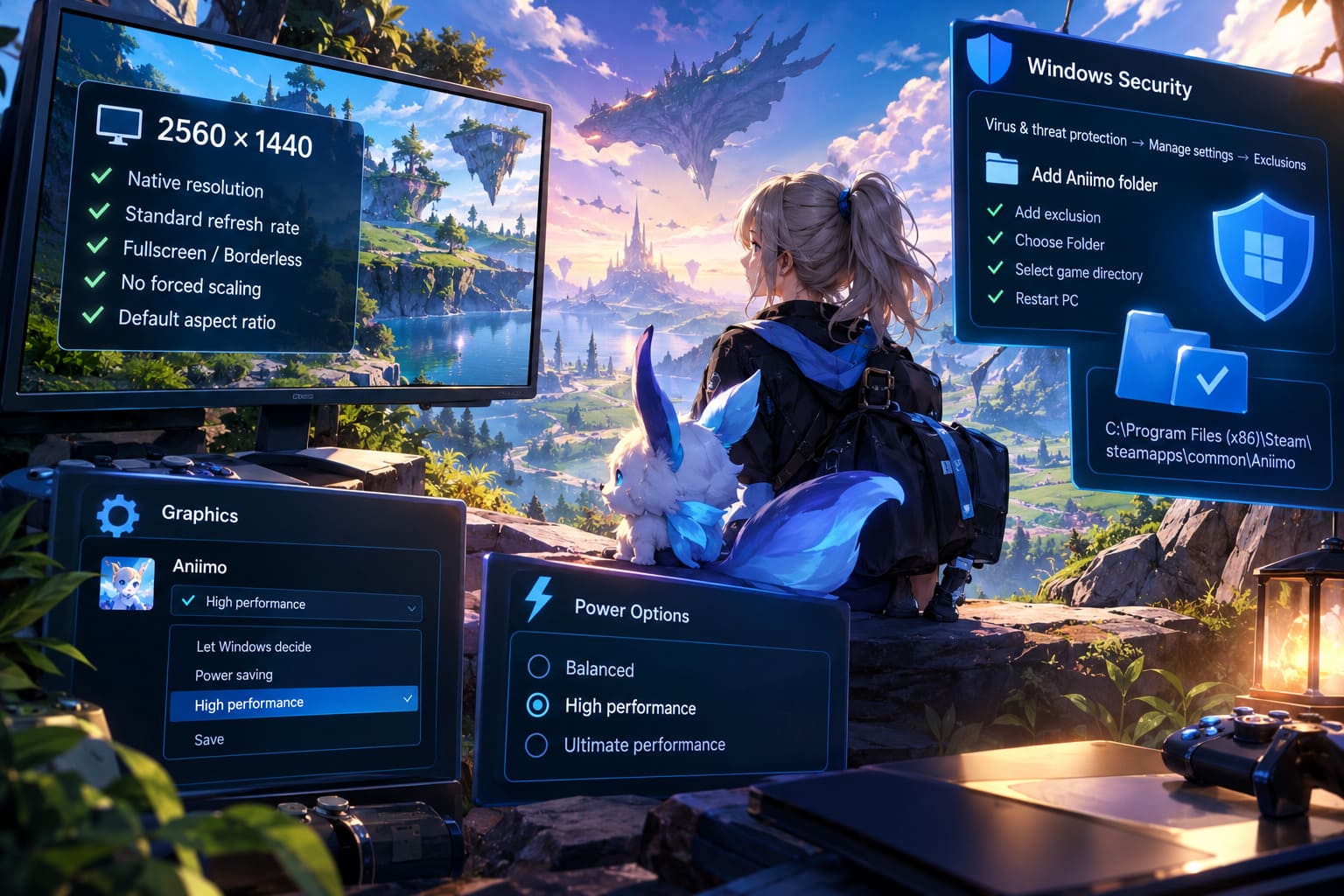
For troubleshooting, start with:
- Native monitor resolution
- Standard refresh rate
- Fullscreen or borderless fullscreen
- No forced driver-level scaling
- Default aspect ratio
Once the game is stable, you can start experimenting with upscalers, resolution scaling and other performance settings.
The goal here isn’t maximum FPS.
The goal is finding a stable baseline first.
Fix 5: Check Windows Security and Antivirus Interference
Security software can occasionally interfere with games that use launchers, anti-cheat systems, protected executables or additional background services.
If Aniimo freezes almost immediately after launching, gets stuck on a black screen, fails during authentication or produces an error involving il2cpp, antivirus interference is worth investigating.
Windows Defender can quarantine a file it considers suspicious, while third-party antivirus software can block a game process from communicating correctly.
Add the Aniimo Folder as an Exclusion
Open:
Windows Security → Virus & threat protection → Manage settings → Exclusions
Then:
- Select Add or remove exclusions.
- Choose Add an exclusion.
- Select Folder.
- Locate your Aniimo installation directory.
- Add the game folder.
- Restart the PC.
- Test the game again.
A Steam installation may be located somewhere similar to:
C:\Program Files (x86)\Steam\steamapps\common\Aniimo
Your actual installation path may be different.
Also check your antivirus quarantine.
If a legitimate Aniimo component has been quarantined, the game may fail in ways that look completely unrelated to security software.
Don’t Disable Your Antivirus Permanently
You don’t need to turn your entire security setup off just to play a game.
If you’re testing whether antivirus interference is responsible, use the smallest possible exclusion and restore your normal security configuration afterward.
Fix 6: Set Aniimo to High Performance in Windows
Windows can assign different graphics preferences to individual applications, and it’s worth explicitly telling the operating system that Aniimo is a performance-sensitive game.
Open:
Settings → System → Display → Graphics
Find Aniimo in the application list.
If it isn’t there, use Browse and manually select the game’s executable.
Then:
- Select Aniimo.
- Click Options.
- Choose High Performance.
- Save the setting.
- Restart the game.
This is especially useful on systems with integrated and dedicated graphics hardware, because you want Windows to clearly understand which GPU should handle the game.
Fix 7: Check Your Windows Power Plan
If you’re troubleshooting inconsistent clocks, severe FPS drops or aggressive performance fluctuations, Windows’ power configuration is another setting worth checking.
Open:
Control Panel → Power Options
Depending on your Windows configuration, you may have options such as:
- Balanced
- High Performance
- Ultimate Performance
For troubleshooting, you can test High Performance.
On systems where the option is available, Ultimate Performance can also be tested.
Don’t expect a miracle FPS increase from the power plan alone. Modern CPUs and GPUs already manage power dynamically, and the actual benefit varies dramatically between systems.
The point is to eliminate aggressive power-saving behavior as a variable while you’re diagnosing Aniimo.
Aniimo PC System Requirements
Before blaming the game, make sure your system isn’t simply struggling with the workload.
The following specifications from the provided launch reference give you a useful baseline.
| Component | Minimum | Recommended |
|---|---|---|
| OS | Windows 10 64-bit | Windows 11 64-bit |
| CPU | Intel Core i7-4770 / AMD Ryzen 7 2700 / Intel 9th Gen i5 | Intel Core i7-10700 / Ryzen 5 5600 / Ryzen 7 3700 or better |
| RAM | 8 GB | 16 GB |
| GPU | GTX 970 / RX 5600 / Arc A580 | RTX 3060 / RX 6700 / RX 6600 or better |
| DirectX | Version 11/12 compatible | Version 11/12 compatible |
| Storage | 30–40 GB | 40 GB SSD |
If you’re running Aniimo below the recommended configuration, don’t expect every performance problem to disappear through software tweaks.
A CPU that is simply too weak for the game’s workload can’t be transformed into a high-end gaming processor by changing a Windows option.
The same applies to RAM.
If you’re still running 8 GB of memory, moving to a dual-channel 16 GB configuration can make a meaningful difference in modern open-world games.
Storage matters too.
An older mechanical HDD can become a serious bottleneck when a game constantly streams textures, geometry, creature data and environmental assets.
If Aniimo is installed on an HDD, moving it to an SSD is one of the first hardware changes I’d consider.
What Should You Fix First?
If you’re staring at a frozen Aniimo screen and don’t know where to begin, don’t change twenty settings simultaneously.
You’ll never know which one actually solved the problem.
Use this order:
- Verify Aniimo’s game files.
- Restart Windows.
- Clear the DirectX shader cache.
- Check CPU affinity if you’re experiencing CPU-related freezes.
- Set Aniimo to High Performance in Windows Graphics settings.
- Check antivirus exclusions and quarantine.
- Test the Windows High Performance power plan.
- Move the game to an SSD if you’re using an HDD.
Change one thing at a time.
That’s the boring answer, but it’s also the answer that saves the most time.
Aniimo Low FPS vs Freezing: Know the Difference
Not every performance problem should be attacked with the same solution.
Low FPS usually means your system is consistently struggling to render the game. This can be caused by GPU load, CPU limitations, insufficient RAM, high graphics settings or demanding resolution scaling.
Stuttering is different. Your average FPS might look perfectly respectable while frame times suddenly spike.
Freezing is more severe. If Aniimo completely stops responding for several seconds, you’re dealing with something beyond a normal FPS limitation.
And a full system lockup is another level entirely.
If Windows itself becomes unresponsive, don’t automatically assume Aniimo is solely responsible. Driver instability, hardware instability, overheating, memory errors and CPU-related problems can also produce system-wide failures.
That distinction matters because the troubleshooting path changes depending on the symptom.
Aniimo Crossplay Guide: How to Add Friends and Play PC vs PS5 (2026)
Don’t Forget Intel CPU Stability
There is one extra point worth mentioning for owners of powerful Intel desktop processors.
If you’re using a 13th Gen or 14th Gen Intel Core desktop CPU and you’re experiencing not only Aniimo crashes but also instability in other demanding games, don’t limit your investigation to Aniimo.
Check that your motherboard BIOS is up to date and that your CPU is operating according to the motherboard manufacturer’s current recommended power and voltage configuration.
Aniimo might simply be exposing a system instability that another game hasn’t triggered yet.
If multiple games are crashing, Windows is producing BSODs, applications are randomly closing, or system stability has deteriorated across different workloads, treat that as a broader PC troubleshooting problem rather than an Aniimo-only issue.
Aniimo Omega World Bosses Guide: How to Unlock Every End-Game Boss (2026)
Final Thoughts
Aniimo is exactly the kind of game that can expose weaknesses in a PC configuration.
You’ve got a massive open world, creature AI, constant asset streaming, combat effects, networking and modern rendering systems all fighting for CPU, GPU, memory and storage resources.
When everything works, exploring Idyll is the fun part.
When it doesn’t, watching Aniimo freeze every few minutes is enough to make you want to throw the keyboard out of the window.
The good news is that several of the most common problems can be approached without reinstalling Windows or performing ridiculous registry surgery.
Start with game-file verification, then clear the DirectX shader cache. If you’re running a modern high-core-count Intel CPU and seeing unusual CPU-related freezes, investigate CPU affinity. Check Windows Graphics settings, make sure your antivirus isn’t interfering with the installation, and test a High Performance power configuration.
If you’re still experiencing crashes after all of that, look beyond the game itself. Update the motherboard BIOS, GPU drivers and Windows, check system temperatures, monitor CPU/GPU utilization and investigate whether other games show similar instability.
And honestly, this is the sort of problem that should eventually be addressed at the developer level. Community workarounds can keep you playing, but players shouldn’t have to babysit CPU affinity settings or hunt through Windows Security just to get an open-world RPG to remain stable.
Pawprint Studio’s future client updates will be important here. As Aniimo’s PC player base grows and more hardware configurations are tested, the developers should have a much larger pool of crash reports and performance data to work with.
Until then, if your Pathfinder keeps freezing in the middle of Idyll, work through the fixes above one by one. Don’t randomly change everything at once. Find the setting that actually fixes your particular machine, lock it in, and get back to playing.