How to Fix THE DEAD WE KNEW: Open World Survival Crashing on Launch, Freezing, and Black Screen Issues
THE DEAD WE KNEW: Open World Survival has exactly the kind of setup that makes survival-game fans curious: a dangerous post-apocalyptic world, unpredictable weather, thick fog hiding hostile zombies, and the freedom to build your own base while trying to stay alive. After spending a lot of time with survival games over the years, I know how quickly that excitement can disappear when the game refuses to get past the first loading screen.
That is particularly frustrating with an open-world game. You can spend more time staring at a black screen than actually exploring the world, or the game may simply freeze during startup and throw you back to the desktop without explaining what went wrong. If THE DEAD WE KNEW is crashing on launch, freezing during loading, or showing a permanent black screen, there are several things worth trying before assuming your hardware cannot handle it.
Some of these fixes are basic, but don’t skip them just because they look obvious. I’ve lost count of how many times a supposedly complicated PC game problem turned out to be a corrupted file, an overlay conflict, or a graphics driver behaving badly after an update. The important thing is to work through the solutions in a sensible order rather than changing ten settings at once.
How to Fix Low FPS and Stuttering in THE DEAD WE KNEW on RTX 3060
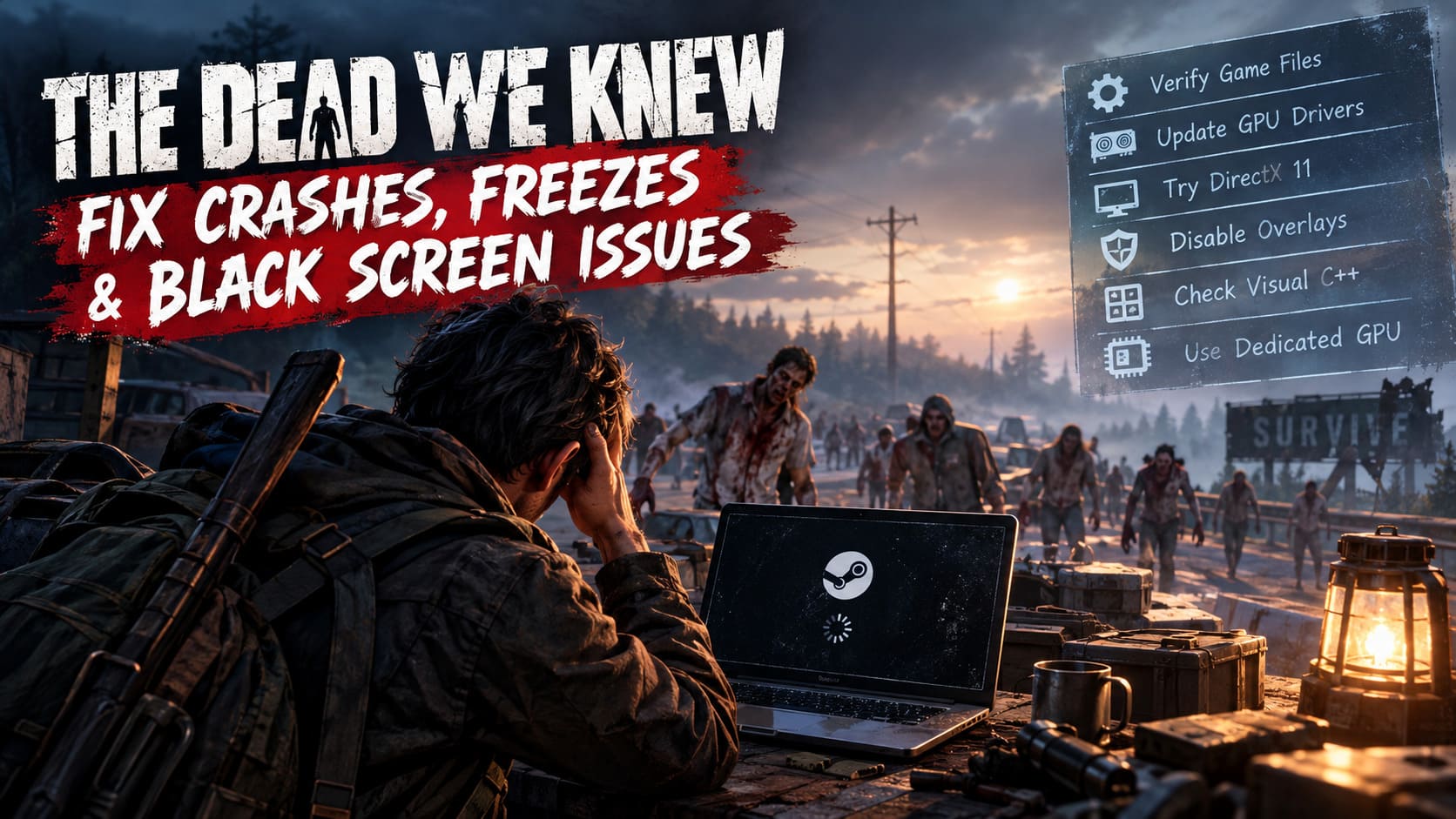
Start With Steam’s File Verification
If the game crashes almost immediately after pressing Play, checking the installation files should be your first move. Modern games are enormous, and even a small damaged or missing file can prevent the engine from initializing correctly. This can happen after an interrupted update, a failed download, a disk error, or sometimes simply after Steam has installed a patch that did not go perfectly.
Steam has a built-in tool for checking this, so there is no reason to manually reinstall the entire game straight away. Open your Steam Library, right-click THE DEAD WE KNEW: Open World Survival, select Properties, and then open Installed Files. Choose Verify integrity of game files and let Steam finish the scan.
If damaged files are discovered, Steam should download replacements automatically. Once the process is complete, I recommend restarting Steam before launching the game again. It sounds simple, but this is one of those fixes that is genuinely worth trying before getting into more complicated Windows troubleshooting.
Try Launching the Game With DirectX 11
Modern survival games can be surprisingly sensitive to graphics APIs, especially when they are using advanced lighting, volumetric fog, large environments, and demanding visual effects. If THE DEAD WE KNEW crashes before reaching the main menu or gets stuck on a black screen, DirectX 12 could be part of the problem on certain systems.
You can test an alternative rendering mode through Steam’s launch options. Right-click the game in your Library, select Properties, stay on the General tab, and find the Launch Options field. Enter:
-dx11
Close the Properties window and launch the game normally. This doesn’t mean DirectX 11 will automatically perform better on every PC. In fact, newer hardware can often benefit from DirectX 12. The point here is troubleshooting: if DX11 gets you past a crash or black screen, you’ve learned something useful about where the problem may be coming from.
Update Your GPU Drivers — But Consider a Clean Install
Graphics drivers are one of the first things I check when a new PC game starts crashing unexpectedly. A game may work perfectly one day and then suddenly refuse to launch after a Windows update, driver update, or game patch. Survival games with heavy environmental rendering can expose driver problems particularly quickly.
If you’re using an NVIDIA graphics card, open the NVIDIA App and check for the latest Game Ready Driver. AMD users should do the same through AMD Software: Adrenalin Edition. Install the newest driver available for your GPU and restart Windows afterward.
If you already have the latest driver but THE DEAD WE KNEW continues to crash, don’t immediately assume drivers aren’t responsible. A corrupted driver installation can survive a normal update. In that situation, using the driver’s clean installation or factory reset option can be worthwhile because it removes old profiles and configuration leftovers that may be interfering with the game.
Run the Game as Administrator
This is not the fix I would try first, but it can help when Windows permissions are interfering with the game’s ability to access folders or create configuration and save files. A game may appear to launch normally before silently failing when it tries to write something to a protected directory.
To test administrator privileges, open the game’s installation folder through Steam by right-clicking the title, choosing Manage, and selecting Browse local files. Find the game’s main executable, right-click it, select Properties, and open the Compatibility tab.
From there, enable Run this program as an administrator. You can also test Disable full-screen optimizations if you’re specifically dealing with a black screen during startup. Apply the changes and launch the game again.
I wouldn’t permanently enable compatibility settings unless they actually solve the problem. Windows compatibility options can sometimes create new quirks, so treat this as a troubleshooting test rather than a universal optimization.
Repair Microsoft Visual C++ Redistributables
Another easy-to-overlook cause of launch failures is a broken Windows runtime component. PC games depend on several Microsoft libraries behind the scenes, and if one of those components is missing or damaged, the game may crash before it even has a chance to display a useful error message.
The Microsoft Visual C++ Redistributable packages are particularly important. If you already have the relevant packages installed, you don’t necessarily need to remove everything. Open the installed Visual C++ Redistributable entry in Windows and use the Repair option where available.
It’s also worth making sure both the x64 and x86 versions are installed. After repairing or installing the packages, restart your PC and test the game again. This is a boring fix compared with tweaking graphics settings, but boring fixes are often the ones that save the most time.
Make Sure the Game Uses Your Dedicated GPU
This one is mainly aimed at gaming laptops. If your laptop has integrated graphics alongside a dedicated NVIDIA or AMD GPU, Windows can occasionally assign the wrong graphics processor to a game. For something as demanding as an open-world survival title, that can result in terrible performance, insufficient VRAM, freezing, or even a crash during initialization.
Open Windows Graphics Settings and add the game’s executable to the list of applications. Select the game, choose Options, and set it to High Performance. This tells Windows to prefer the dedicated GPU instead of allowing the operating system to make the decision automatically.
After changing the setting, restart the game. If you’re playing on a laptop, I would also make sure it is plugged into AC power. Battery-saving modes can aggressively reduce GPU performance, which is not exactly ideal when you’re trying to load a huge zombie-infested open world.
Disable Steam, Discord, and GPU Overlays
Overlays are incredibly convenient, but they can also be surprisingly annoying when troubleshooting a new game. Steam, Discord, NVIDIA, AMD, recording utilities, monitoring programs, and other background applications may inject themselves into the game’s rendering process.
When everything works, you barely notice them. When something goes wrong, however, an overlay can be the difference between reaching the main menu and getting a frozen screen. That’s why I recommend temporarily disabling them rather than trying to guess which one is responsible.
- Steam Overlay: Disable the in-game overlay from the game’s Steam Properties.
- Discord Overlay: Turn off the in-game overlay in Discord’s settings.
- NVIDIA/AMD Overlay: Temporarily disable the relevant performance or recording overlay.
- Monitoring software: Close tools that inject overlays or display hardware statistics.
You don’t have to keep everything disabled forever. If the game launches normally afterward, enable your applications one at a time until you identify the culprit. This takes a little patience, but it is much more reliable than changing multiple things simultaneously.
Don’t Forget Your Antivirus
Security software can occasionally interfere with games, particularly when a newly released title creates or modifies a large number of files. Windows Defender and third-party antivirus programs sometimes quarantine or block an executable or a file that the game needs during startup.
Rather than completely disabling your antivirus for an extended period, check its quarantine and protection history first. If you find that a legitimate game file has been blocked, you can consider adding the game’s installation directory to the appropriate exclusion list.
Only do this if you’re confident the game installation is legitimate and came from a trusted source. There’s no reason to weaken your system’s security just because one game is refusing to launch.
What to Try Based on the Problem You’re Seeing
Different symptoms can point toward different causes. If you’re getting an immediate crash to desktop, I’d start with file verification and GPU drivers. A black screen during startup makes me more suspicious of rendering mode, overlays, fullscreen behavior, or GPU selection, while a complete freeze during loading can also be connected to corrupted assets or system resource problems.
| Problem | First Things to Try |
|---|---|
| Crash immediately after pressing Play | Verify files, update GPU drivers, repair Visual C++ |
| Permanent black screen | Try DX11, disable overlays, disable fullscreen optimizations |
| Game freezes during loading | Verify files, close background applications, check GPU selection |
| Very poor performance on laptop | Force the dedicated GPU and use AC power |
| Game closes without an error | Check antivirus history and Windows runtime components |
Don’t Change Everything at Once
This is probably the most important piece of advice I can give. When a game refuses to launch, it’s tempting to install three driver utilities, change half a dozen Windows settings, edit configuration files, disable security software, and then wonder which change actually fixed it.
Instead, change one thing at a time. Start with Steam file verification, then test the game. If that doesn’t help, move to the graphics driver. After that, try DX11 or disable overlays. Keeping track of what you changed makes troubleshooting much easier and means you can reverse a setting if it causes another problem.
Check Your Hardware Before Blaming the Game
Finally, don’t overlook the obvious possibility that the system is simply struggling with the game’s requirements. Open-world survival games can be much more demanding than their screenshots suggest because the engine has to handle large environments, AI, lighting, weather, streaming assets, and potentially many enemies at once.
The supplied troubleshooting guidance points toward a system with at least 12 GB of RAM and a GPU around the NVIDIA GTX 1070 level or better. Those specifications shouldn’t necessarily be treated as a guarantee of perfect performance, though. Real-world performance can vary considerably depending on CPU, GPU drivers, RAM configuration, storage speed, background applications, and the game’s current optimization.
Final Thoughts
THE DEAD WE KNEW: Open World Survival is exactly the kind of game where technical problems can be especially irritating because the whole appeal is getting lost in its world. When you’re looking forward to exploring a fog-covered wasteland with friends, spending twenty minutes fighting a black screen is obviously not part of the plan.
The good news is that launch crashes and freezing don’t automatically mean you need a new graphics card or a complete Windows reinstall. Verify the game files, update or clean-install your GPU driver, test DirectX 11, disable overlays, repair Visual C++ components, and make sure Windows is using the correct GPU. Work through those fixes methodically, and there’s a good chance you’ll identify the problem without resorting to drastic measures.
And if none of these solutions work, don’t keep randomly changing system settings. At that point, the crash may be related to a game-specific bug, a particular hardware configuration, or a newly introduced patch issue. For a recently released open-world survival game, sometimes the most honest answer is that the developers need to patch something — and no amount of Windows tweaking can completely fix a bug that exists inside the game itself.