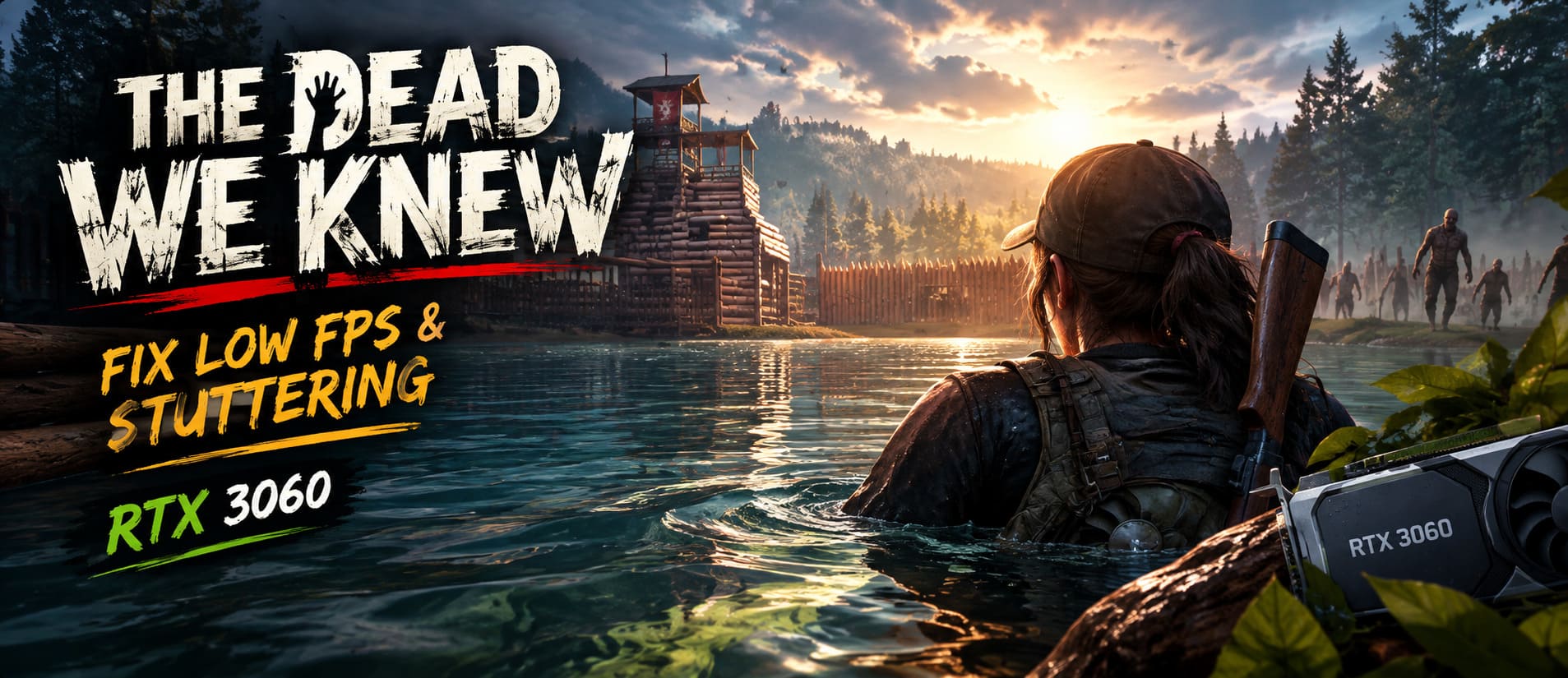
How to Fix Low FPS and Stuttering in THE DEAD WE KNEW on RTX 3060
THE DEAD WE KNEW is the kind of survival game where performance problems can ruin the experience surprisingly quickly. Exploring a dangerous open world is supposed to feel tense, but when the frame rate suddenly drops, the image starts hitching, or controls feel delayed during a zombie encounter, that tension stops being fun. If you are playing on an NVIDIA GeForce RTX 3060, you might reasonably expect the game to run well, yet demanding lighting, fog, vegetation, AI activity, and world streaming can still put noticeable pressure on a mid-range PC.
I’ve played plenty of survival games where the difference between a stable 60 FPS and an unstable 45 FPS feels much bigger than the numbers suggest. A game can technically be ‘playable’ while still feeling awful because frame times are inconsistent. That’s why I wouldn’t focus exclusively on chasing the highest possible average FPS in THE DEAD WE KNEW. For the RTX 3060, I’d much rather have a stable, responsive image with sensible graphics settings than a beautiful preset that constantly produces stutters whenever I enter a new area or a horde appears.
The Dead We Knew Crossplay Support: Is MAY19 STUDIO’s Survival Game Cross-Platform?
Why THE DEAD WE KNEW Can Stutter on an RTX 3060
The RTX 3060 is still a capable graphics card for 1080p gaming, but newer open-world survival games can stress more than just the GPU. Large environments require the game to constantly stream textures, geometry, vegetation, effects, and other assets while your CPU handles AI, physics, background simulation, and world logic. When several of those systems become busy at the same time, the GPU may not even be the only problem.
One of the biggest performance troublemakers in a game like this is volumetric fog. Fog can look fantastic in screenshots, but volumetric effects are expensive because they involve rendering large numbers of samples through the environment. When dynamic weather or heavy fog appears alongside lighting, shadows, particles, and zombies, the performance hit can become much more obvious than it was during normal exploration.
Another common problem is asset streaming. If the game has to load a large amount of new environmental data while you’re moving quickly through the world, you can experience short freezes or frame-time spikes even when your average FPS looks acceptable. In my experience with open-world games, these little hitches are often more annoying than simply having a consistently lower frame rate.
My Recommended RTX 3060 Settings for 1080p
If you’re looking for a good starting point, I’d begin with 1920×1080 and tune the expensive settings individually rather than immediately dropping everything to Low. The RTX 3060 has enough power to preserve much of the game’s atmosphere, so there is no reason to make the world look like a decade-old game just to gain a few frames.
| Graphics Setting | Recommended Setting | Reason |
|---|---|---|
| Resolution | 1920×1080 | Good balance for RTX 3060 performance |
| Display Mode | Fullscreen | Useful starting point for consistent performance |
| Volumetric Fog | Medium | Reduces expensive atmospheric rendering |
| Shadows | Medium | Lower GPU load without destroying visual quality |
| Foliage | Medium | Helps reduce rendering and streaming pressure |
| View Distance | Medium | Can improve frame consistency in large areas |
| Textures | High | RTX 3060 has enough VRAM for sensible texture quality |
| Effects | Medium | Useful during combat and heavy particle scenes |
| Upscaling | DLSS Quality | Improves performance while retaining good image quality |
Volumetric Fog is the first setting I’d change. If your FPS looks fine inside a building but collapses when you’re outside during a heavy fog event, don’t immediately blame your entire PC. Try lowering the fog quality first and compare the frame-time behavior. Personally, I would choose Medium almost every time because the visual difference is usually much less noticeable during actual gameplay than the performance difference.
Don’t Automatically Put Everything on Low
This is one of the mistakes I see constantly in PC optimization guides. People experience low FPS, select Low for every graphics option, and assume they have optimized the game. That isn’t necessarily true. Some settings have a huge performance cost while others barely affect your frame rate, so lowering everything can make the game look significantly worse without fixing the actual bottleneck.
Textures are a good example. Texture quality primarily affects VRAM usage rather than simply hammering your GPU in the same way that shadows, volumetric effects, or certain lighting settings can. If your RTX 3060 has enough available VRAM, keeping textures at High can make the environment considerably sharper. I’d sacrifice shadow quality and fog quality before turning the entire game into a blurry mess.
Use DLSS Before Destroying Image Quality
If THE DEAD WE KNEW supports NVIDIA DLSS on your version of the game, this is one of the first features I’d test on an RTX 3060. Start with DLSS Quality rather than immediately selecting Performance. Quality mode usually provides a nice improvement in rendering performance while retaining much more detail than aggressive resolution scaling.
If you are still dropping below your desired frame rate during large zombie encounters, try DLSS Balanced. I would only go further if you genuinely need the additional performance. There’s little point in gaining extra FPS if distant objects, foliage, and character details become noticeably soft, especially in a survival game where spotting movement in the environment matters.
Also remember that DLSS won’t magically fix every type of stutter. If your GPU usage is relatively low during a major FPS drop, the problem could be CPU-related, shader compilation, asset streaming, or another engine-side limitation. That’s why monitoring GPU and CPU utilization while playing is much more useful than blindly changing settings.
Check the NVIDIA Control Panel
After configuring the game itself, it’s worth checking the NVIDIA Control Panel. I prefer creating a dedicated profile for demanding games rather than changing global settings, because aggressive global tweaks can sometimes cause unexpected behavior in other titles.
For Power Management Mode, you can test Prefer Maximum Performance for the game’s profile. This can prevent overly aggressive clock-speed changes in certain situations, although it isn’t a guaranteed FPS booster. Modern NVIDIA GPUs generally manage power and clocks quite well, so don’t expect a miracle simply from changing this one option.
I’d also leave most image-quality options controlled by the game itself unless you have a specific reason to override them. For shader caching, allowing NVIDIA’s driver to maintain a sufficiently large cache can help reduce repeated shader-compilation stutters in games that compile shaders dynamically. If you’re troubleshooting severe hitching, make sure you haven’t accidentally disabled shader caching or limited the available cache unnecessarily.
Be Careful With Engine.ini Tweaks
This is where I would slow down. Editing configuration files can sometimes help, but internet optimization guides often present individual Unreal Engine commands as if they are universal magic fixes. They aren’t. A command that improves performance in one build can do absolutely nothing in another, and a poorly chosen value can create texture pop-in, excessive VRAM usage, visual glitches, or even worse frame-time behavior.
If you decide to experiment with an Engine.ini file, make a backup before changing anything. Never copy a giant block of commands from a random forum post without understanding what each setting is supposed to change. I strongly recommend testing one modification at a time so you can immediately identify which change helped or caused a problem.
Texture streaming pool settings are particularly easy to misuse. The RTX 3060 commonly comes with 12GB of VRAM, but that doesn’t mean you should simply allocate a huge percentage of it to a manually specified texture pool. Windows, the game engine, the driver, and other graphical resources also need VRAM. A sensible configuration is much safer than trying to force the GPU to reserve an arbitrary amount of memory.
Don’t Ignore CPU Usage
If lowering the graphics settings barely changes your FPS, that’s an important clue. It can indicate that your GPU isn’t the primary bottleneck. Open-world zombie games can put substantial pressure on the CPU because of AI, navigation, physics, world simulation, and background streaming.
Try monitoring individual CPU core usage rather than looking only at the overall percentage. A game can show something like 50% total CPU utilization while one or two heavily used cores are effectively limiting the frame rate. This is one reason why simply buying a faster GPU doesn’t always solve stuttering in simulation-heavy games.
Background applications are worth checking too. Browser tabs, recording software, overlays, launchers, RGB utilities, monitoring programs, and other applications can occasionally interfere with frame pacing. You don’t need to turn your PC into a completely stripped-down gaming machine, but closing unnecessary background programs is an easy troubleshooting step.
Install the Game on an SSD
For an open-world survival game, storage speed matters for more than loading screens. Modern games constantly stream information from storage as you move through their environments, and an older mechanical hard drive can become a noticeable weak point. If you’re experiencing long pauses, texture pop-in, or hitching whenever you enter new areas, installing the game on an SSD is one of the first hardware-side changes I’d consider.
An SSD won’t automatically increase your average FPS by a huge amount. What it can do is make asset delivery and loading considerably more responsive. That’s an important distinction. If your problem is purely GPU rendering performance, changing drives won’t suddenly turn 45 FPS into 90 FPS, but if your stuttering is related to streaming, storage can absolutely be worth investigating.
Check Temperatures Before Blaming the Game
Thermal throttling is another easy thing to overlook. Monitor your GPU and CPU temperatures during an actual gameplay session rather than checking them while sitting in the menu. If temperatures become unusually high and clock speeds start dropping, your hardware may be protecting itself by reducing performance.
Dust buildup, restricted airflow, poorly positioned case fans, and inadequate cooling can all contribute to this. You don’t need to panic because your GPU reaches a high temperature under load, but if you see sustained temperatures approaching the limits of your particular hardware alongside declining clock speeds, it’s worth investigating the cooling setup.
Keep Your NVIDIA Driver and Windows Installation Healthy
Driver updates can be especially important when you’re playing a relatively new or frequently updated game. If performance suddenly became worse after several driver installations, a clean driver installation can sometimes eliminate configuration problems left behind from previous versions. NVIDIA’s current Game Ready drivers should generally be your first choice when troubleshooting a new PC game.
I wouldn’t recommend using Display Driver Uninstaller every time a game stutters, though. It’s a useful troubleshooting tool, not something you need to run routinely. Start with a normal driver update, verify the game files, restart the PC, and only move toward a complete driver cleanup if the simpler fixes don’t solve the problem.
What I’d Actually Do First
If I had an RTX 3060 and was trying to get THE DEAD WE KNEW running smoothly, I wouldn’t spend an entire evening changing fifty obscure settings. I’d approach it systematically. That makes it much easier to identify the real problem instead of ending up with a configuration where you don’t even know which tweak helped.
- Start at 1080p with Medium settings.
- Set Volumetric Fog to Medium or Low.
- Use DLSS Quality, then test Balanced if necessary.
- Keep Textures High if VRAM usage remains reasonable.
- Lower shadows, foliage, and view distance before sacrificing texture quality.
- Monitor GPU usage, CPU usage, temperatures, and frame times.
- Install the game on an SSD whenever possible.
- Update NVIDIA drivers and verify the game installation.
- Only experiment with configuration files after making backups.
Final Thoughts on RTX 3060 Performance
The RTX 3060 is not a bad card for THE DEAD WE KNEW, and I wouldn’t write it off simply because you’re seeing low FPS or stuttering. In my experience, the most frustrating PC performance problems are often caused by a combination of settings rather than one piece of hardware being completely incapable of running the game.
The important thing is to separate low average FPS from bad frame pacing. If you’re sitting at a consistent 50–60 FPS, the game can feel perfectly enjoyable depending on your monitor and preferences. If the counter says 70 FPS but the game freezes for a fraction of a second every few seconds, however, that experience can feel much worse.
For most RTX 3060 owners, I’d start with a sensible 1080p configuration, reduce volumetric fog and shadows, enable DLSS Quality, and then monitor what actually happens during the worst parts of gameplay. Don’t blindly copy extreme registry edits or configuration commands from optimization videos. A little patience and controlled testing will usually get you much closer to a smooth survival experience without sacrificing the atmosphere that makes THE DEAD WE KNEW worth playing in the first place.