Fix BLACKWOOD Save File Corruption Glitch: AttritoM7 Data Recovery Guide
There are few things more frustrating in gaming than finally getting into a game, spending hours building up progress, and then discovering that your save file suddenly refuses to load. That is exactly the kind of problem some BLACKWOOD players are currently running into. After completing missions, managing Anton Blackwood’s strange double life, and getting comfortable with the game’s combination of cinematic storytelling and brutal close-quarters combat, the last thing anyone wants to see is a corrupted save warning or an endless loading screen.
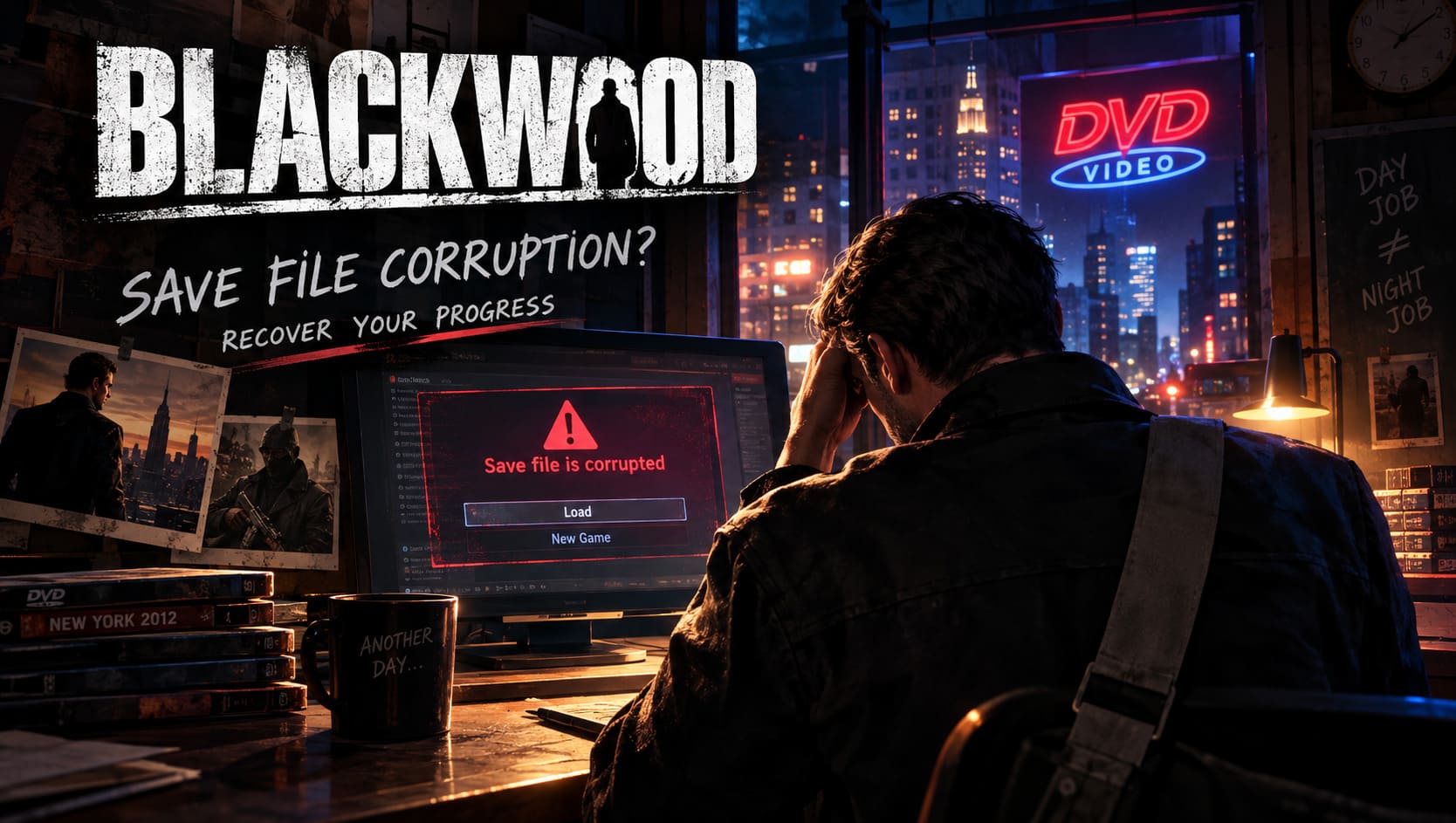
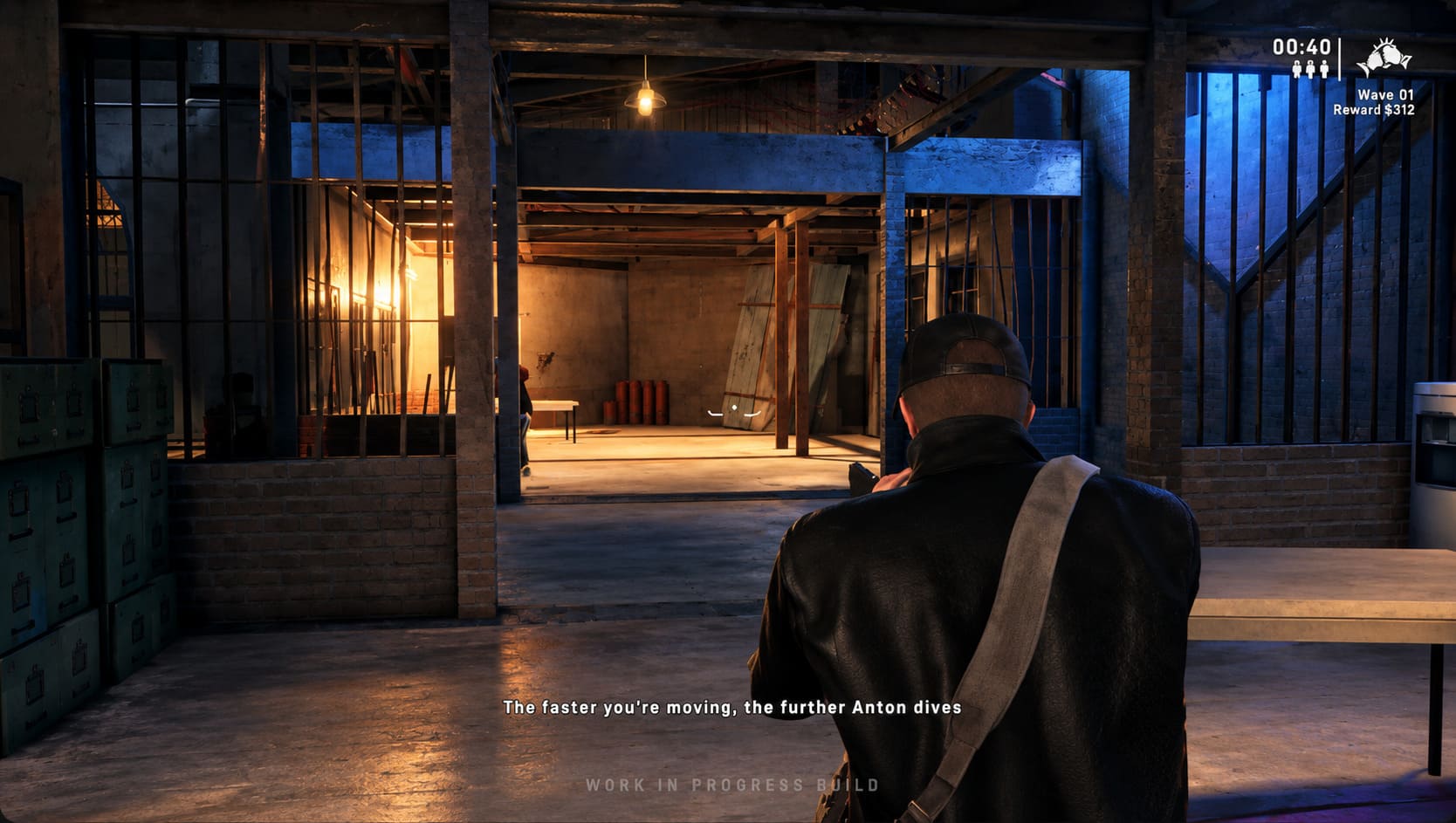
BLACKWOOD has a particularly interesting setup. Anton spends his days running a retro DVD store in 2012 New York and his nights working as a contract killer, which gives the game a nice contrast between ordinary shop management and violent action. From a player’s perspective, that mixture is one of the things that makes the game stand out. Unfortunately, technical problems such as save corruption can completely interrupt that rhythm, especially when a corrupted file appears after a major mission or during an automatic checkpoint.
If your BLACKWOOD save file is corrupted, don’t immediately assume that all of your progress is gone. There are several recovery methods worth trying before you start a new game. The most important thing is to avoid repeatedly launching and overwriting the affected save, because every additional write operation can make recovery more difficult.
BLACKWOOD (2026) RX 570 Optimization Guide: Best Settings for Smooth 60 FPS
Why Is the BLACKWOOD Save File Becoming Corrupted?
Save corruption can happen for several reasons, and it isn’t always caused by the game itself. Modern games constantly write information in the background, including mission progress, inventory states, settings, character equipment, checkpoint information, and other variables that players never see. When something interrupts that process at exactly the wrong moment, the resulting save can become unreadable.
One particularly common suspect is the interaction between local save data and Steam Cloud. If BLACKWOOD is writing a local save while Steam is attempting to synchronize the same data, a sudden connection interruption, application crash, forced shutdown, or premature exit can potentially leave you with mismatched versions. This is especially annoying because you may have a perfectly usable local backup while Steam keeps attempting to synchronize an older or damaged version.
I’ve seen similar problems in plenty of PC games over the years. Sometimes the actual save isn’t permanently destroyed; the game is simply being presented with the wrong version of the file. That distinction is important, because it means you should try local recovery and Steam Cloud troubleshooting before giving up.
Method 1: Restore a BLACKWOOD Backup Save
The first method I’d try is the simplest one: look for a backup created by the game. Depending on the installation and version of BLACKWOOD, your save files may be stored inside the game’s local application data directory or within Steam’s user data folders. The exact filenames can also vary, so don’t worry if your files don’t have precisely the same names mentioned in other guides.
Before touching anything, make a copy of the entire save folder. This is one of those boring PC gaming habits that can save hours of frustration later. Put the copied folder somewhere safe, such as your desktop or a separate backup drive, and don’t modify that copy.
- Close BLACKWOOD completely.
- Exit Steam rather than leaving the client running in the background.
- Press Windows + R and enter
%LocalAppData%. - Look for the BLACKWOOD save directory, typically under an AttritoM7 Productions folder.
- Open the
SavedandSaveGamesfolders if they are present. - Create a complete backup of the folder before changing anything.
- Look for files with extensions such as
.bakor similarly named backup files. - If a backup corresponds to your damaged save, rename the original corrupted file first and then make a copy of the backup using the original save filename.
Some players may instead find their data in a Steam UserData directory. If you use multiple Steam accounts or have several installations, be careful when browsing these folders. The safest approach is always to identify the BLACKWOOD files by their timestamps and filenames rather than blindly replacing everything in the directory.
Once the backup has been restored, launch the game and test the save. If it loads successfully, immediately create another backup of the working file. I strongly recommend doing this before continuing with a long play session.
Method 2: Stop Steam Cloud From Restoring the Broken File
This is the method I’d try next if restoring a local backup doesn’t work. Steam Cloud is incredibly useful, but when local and cloud saves disagree, it can sometimes feel like you’re fighting the system rather than fixing the game. A repaired local save can be overwritten or replaced if the cloud version is considered newer or otherwise becomes the version Steam chooses to synchronize.
Start by temporarily disabling Steam Cloud for BLACKWOOD. You can normally do this by opening the game’s Steam Properties, going to the General section, and disabling the cloud-save option. The wording can change slightly between Steam updates, but the setting itself is easy to locate.
After disabling synchronization, return to the local save folder and make sure your recovered save is in place. Then start BLACKWOOD and check whether your progress loads correctly. If it does, don’t immediately turn Steam Cloud back on. First, make a small amount of progress and allow the game to create a fresh save.
For example, change Anton’s outfit, complete a minor activity, or perform another action that reliably triggers saving. Exit the game normally through its menus rather than using Alt+F4. Once you’re certain the new local save works, you can enable Steam Cloud again and carefully choose the local version if Steam presents a conflict-resolution prompt.
This is an important step. If Steam asks you to choose between local and cloud data, don’t click through the warning without reading it. Selecting the wrong version could put the corrupted data right back where you just removed it.
Method 3: Verify BLACKWOOD Game Files
Not every loading problem is actually a corrupted save. A damaged game installation can produce surprisingly similar symptoms, especially if the problem occurs during a cinematic, checkpoint transition, or loading sequence. If BLACKWOOD crashes while attempting to read your save, verifying the installation is therefore worth doing.
In Steam, open your Library, right-click BLACKWOOD, and select Properties. Navigate to Installed Files and choose Verify integrity of game files. Steam will compare your installed files against the expected versions and replace anything it determines to be damaged or missing.
This process shouldn’t delete your personal save data, but I’d still recommend keeping a manual backup before performing any troubleshooting. After verification finishes, restart Steam and test the affected save again.
Check Windows Components If BLACKWOOD Crashes During Loading
Another possibility is that what looks like save corruption is actually a crash occurring while the game is loading a particular sequence. Cinematic-heavy games can depend on Windows media components, codecs, graphics drivers, and other system dependencies that aren’t immediately obvious when you’re staring at a save screen.
Players using certain Windows editions, particularly versions without the standard media components, should check whether the appropriate Media Feature Pack is installed. If the crash consistently happens around a cutscene or cinematic transition rather than immediately after selecting the save, this is one area worth investigating.
I’d also make sure Windows and your GPU drivers are up to date. A driver update isn’t guaranteed to fix a save problem, but if the game is crashing during a rendering or video-loading stage, eliminating common system-level causes is sensible before assuming the save itself is permanently damaged.
How to Prevent BLACKWOOD Save Corruption
Once you’ve recovered your progress, prevention becomes much more important. I’ve lost saves in games before, and it changes the way you treat automatic saving. You start noticing those little moments when a game is writing data and suddenly realize that giving it an extra few seconds is much better than replaying several hours.
- Don’t force-close the game immediately after a mission. Give the autosave a few seconds to finish.
- Avoid Alt+F4 after major checkpoints. Return to the menu and exit normally whenever possible.
- Back up your BLACKWOOD save folder regularly. Especially do this after completing a major section of the story.
- Be careful with Steam Cloud conflicts. Always read which version is local and which one is stored in the cloud.
- Keep Windows and graphics drivers updated. This can reduce unrelated crashes that may interrupt saving.
For players who really don’t want to lose progress, I’d go one step further and keep several historical backups rather than only one. For example, you could keep a copy after each major story chapter and give the folders simple names based on the date. Storage space is cheap compared with the time required to replay an entire campaign.
Should You Start a New BLACKWOOD Game?
Definitely not as your first reaction. Starting over should be the final option, particularly if the problem appeared suddenly and you haven’t tested the backup and Steam Cloud solutions yet. In many cases, the original progress may still exist somewhere on the PC even when BLACKWOOD’s main menu refuses to recognize it.
If none of the recovery methods work, however, the problem could involve a genuinely damaged save structure rather than a simple synchronization conflict. At that point, keep your original files untouched and consider waiting for an official patch or contacting the game’s support channels. Deleting every version of the save in frustration only removes potential recovery options.
Final Thoughts
A save corruption bug is one of the worst technical problems a story-driven game can throw at you because it doesn’t just cause a crash—it threatens the time you’ve already invested. BLACKWOOD’s unusual mix of everyday shop management, cinematic action, and contract-killer gameplay makes losing progress particularly painful because you aren’t simply replaying combat encounters; you’re rebuilding a whole section of Anton Blackwood’s journey.
The good news is that a corrupted save doesn’t automatically mean your campaign is gone forever. Check for local backups first, disable Steam Cloud temporarily if necessary, verify the game installation, and always preserve the original damaged files before experimenting. Those steps give you the best chance of getting back into the game without starting from scratch.
And once you’ve recovered everything, take the lesson from it: make manual backups. It’s not glamorous, but after playing enough PC games, I’ve learned that a two-minute backup is infinitely more enjoyable than replaying five hours of content because a save decided to implode at the worst possible moment.