How to Fix PolyClassic Wild Now Loading Crash and Infinite Loading Screen (2026 Guide)
There is something uniquely annoying about a game that looks like it should run on a toaster suddenly refusing to launch.
PolyClassic Wild has that old-school low-poly charm that makes you expect instant loading, ridiculous gunfights, and a soundtrack loud enough to wake the neighbors. Instead, some PC players are being greeted by the dreaded “Now Loading” screen, followed by an infinite wait or an immediate crash straight back to the desktop.
I’ve seen enough PC games implode during startup to know that the obvious solution is rarely the right one. Reinstalling the entire game is usually the nuclear option, and in cases like this, it can waste an hour without touching the actual problem.
The good news is that the PolyClassic Wild loading crash can usually be attacked from several angles: shader caches, Unreal Engine configuration files, GPU drivers, overlays, DirectX settings, CPU scheduling, Windows permissions, and damaged system components.
I’ve put together the fixes I would personally run through before considering a full reinstall.
Why PolyClassic Wild Gets Stuck on the “Now Loading” Screen
PolyClassic Wild runs on Unreal Engine, and that immediately gives us a few suspects.
When the game reaches the “Now Loading” stage, the engine isn’t simply sitting there doing nothing. It can be preparing shaders, loading configuration data, communicating with Steam services, initializing graphics APIs, and preparing assets for the first playable area.
That means a surprisingly small problem can stop the entire startup chain.
The most common culprits include:
- Corrupted or outdated shader cache data
- Broken Unreal Engine configuration files
- GPU driver conflicts
- Steam, Discord, OBS, or monitoring overlays
- DirectX 11/12 compatibility problems
- CPU scheduling conflicts on some modern Intel systems
- Windows permission issues
- Damaged Visual C++ or Windows system components
The important part is not to throw every fix at the game simultaneously. Change one thing, launch PolyClassic Wild, and see what happens. Otherwise, you’ll never know what actually solved the problem.
Fix #1: Verify the Game Files and Clean Up Shader Data
This is where I would start.
A shader cache can become problematic after a game update or graphics driver change. You don’t necessarily need a massive hardware failure for this to happen. Sometimes an update simply leaves old compiled data sitting around where the new version doesn’t expect it.
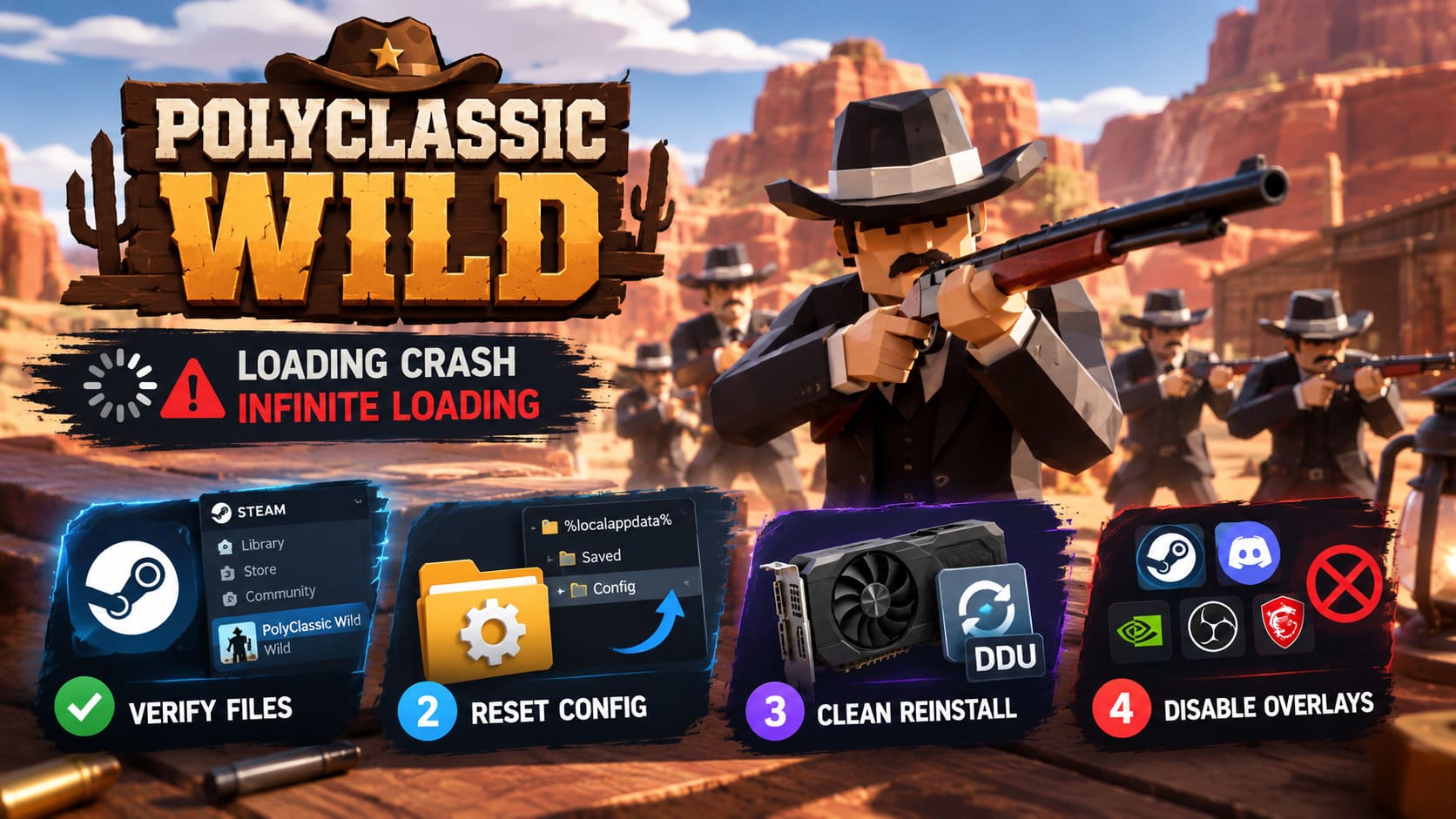
Start with Steam’s file verification
- Open your Steam Library.
- Right-click PolyClassic Wild.
- Select Properties.
- Open Installed Files.
- Click Verify integrity of game files.
- Let Steam complete the scan before launching anything else.
Steam will compare the local installation against its available files and replace missing or damaged data when necessary.
If you’re comfortable working inside the installation directory, you can also look for obvious leftover cache files associated with shaders. Do not randomly delete folders you aren’t sure about. If a cache file is clearly identified as temporary shader data, removing it can force the engine to rebuild it.
The first launch afterward may actually take longer. That’s normal when fresh shader data needs to be generated.
Give it a little time before deciding the fix failed.
Fix #2: Reset PolyClassic Wild’s Unreal Engine Configuration
If verifying files changes absolutely nothing, I’d move straight to the local configuration.
This is one of those fixes that feels almost too simple, but I’ve lost count of how many Unreal Engine games have behaved strangely because of a bad resolution, graphics setting, or configuration entry.
Reset the local configuration
- Press Windows + R.
- Enter
%localappdata%. - Press Enter.
- Look for a folder associated with PolyClassic Wild, Quacky Games, or the game’s Unreal Engine data.
- Search for a Saved folder.
- Look for Config inside it.
- Before deleting anything, make a backup copy somewhere safe.
- Remove or rename the Config folder.
- Start PolyClassic Wild again.
Renaming the folder instead of deleting it is my preferred approach.
For example, changing Config to Config_Backup gives the game a clean configuration while preserving your old files if you need them later.
If the game suddenly launches, you’ve basically confirmed that a corrupted local setting was responsible.
Fix #3: Give Your GPU Driver a Proper Clean Reinstall
A normal GPU driver update doesn’t always mean you’re starting from a perfectly clean slate.
If PolyClassic Wild crashes exactly when graphics initialization begins, a damaged driver installation becomes much more interesting.
For serious troubleshooting, use Display Driver Uninstaller (DDU) rather than simply installing another driver over the top.
Recommended clean-driver process
| Step | Action |
|---|---|
| 1 | Download the correct NVIDIA, AMD, or Intel driver |
| 2 | Download DDU from a trusted source |
| 3 | Disconnect from the internet temporarily |
| 4 | Boot Windows into Safe Mode |
| 5 | Run DDU and remove the existing GPU driver |
| 6 | Restart Windows |
| 7 | Install the fresh graphics driver |
| 8 | Reconnect to the internet |
| 9 | Test PolyClassic Wild |
This is especially worth trying if the problem appeared immediately after a GPU driver update.
Don’t randomly downgrade to ancient drivers unless you have a reason. Start with a current stable driver for your hardware.
Fix #4: Kill Every Overlay Before Launching
This one is ridiculously easy to test, which is exactly why I like it.
Overlays and monitoring applications hook into games at a low level. Most of the time they work perfectly. Sometimes they absolutely do not.
For a troubleshooting session, shut them all down.
Potential suspects include:
- Steam Overlay
- Discord Overlay
- MSI Afterburner
- RivaTuner Statistics Server
- OBS game capture
- Third-party performance monitors
- Mod loaders
- DLL injectors
For Steam, open:
PolyClassic Wild → Properties → General
Then disable the Steam Overlay.
Also completely close Discord and monitoring utilities rather than simply minimizing them.
If you’ve experimented with mods, inspect the game directory for third-party DLL files. Something like dinput9.dll or another injected component can be enough to turn a perfectly healthy launch into a crash.
Test the completely vanilla installation.
If PolyClassic Wild suddenly works, don’t blame the game immediately. Your mod or overlay setup may be the actual culprit.
Fix #5: Try DX11, DX12, and Windowed Mode
Graphics API problems can be surprisingly hardware-specific.
A configuration that behaves perfectly on one GPU can produce a black screen, crash, or infinite loading state on another.
Steam gives you an easy way to test alternative startup parameters.
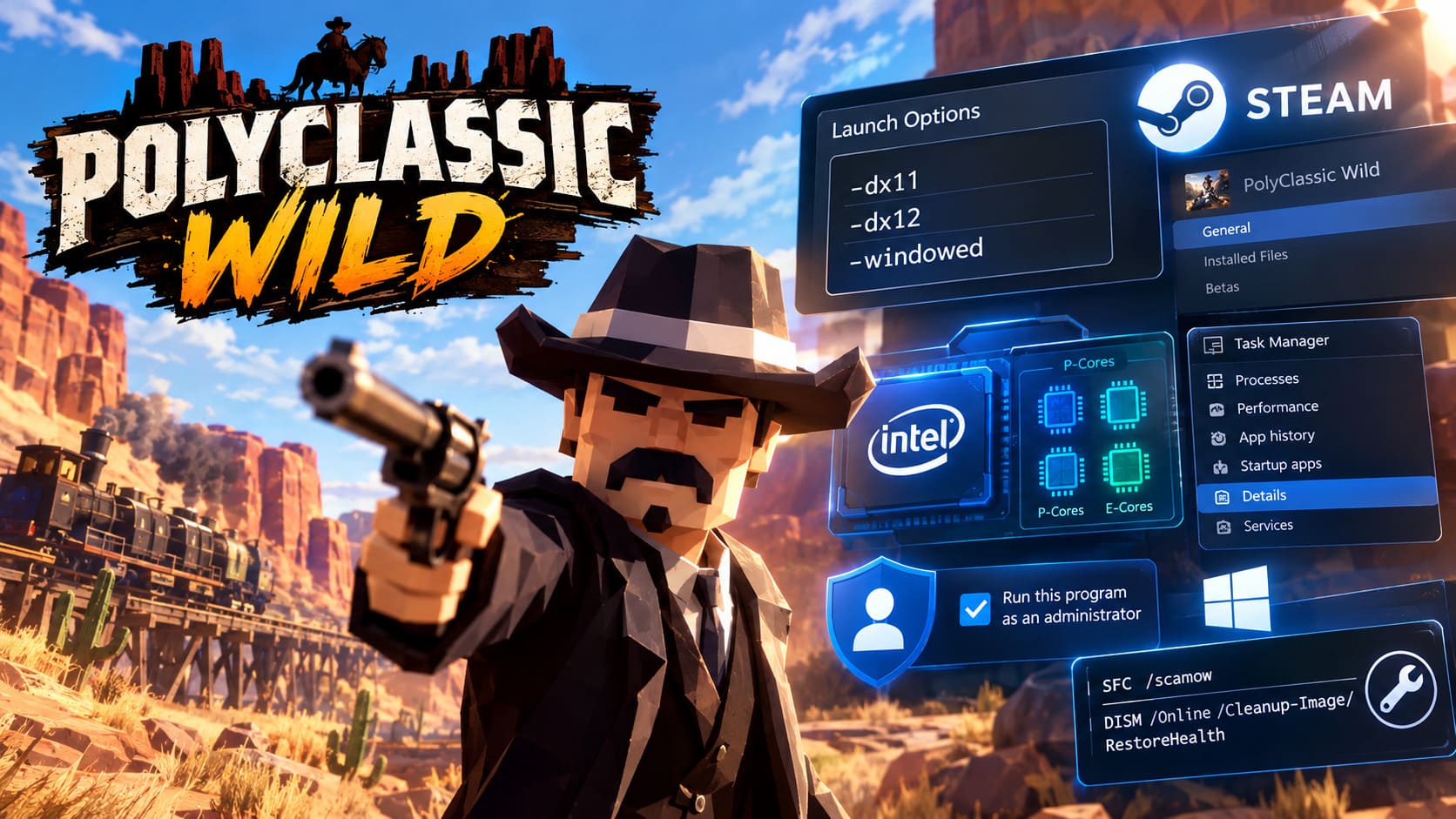
Open:
Steam → PolyClassic Wild → Properties → General → Launch Options
Then test:
-dx11
Launch the game.
If nothing changes, remove it and test:
-dx12
You can also experiment with:
-windowed
I wouldn’t leave random launch parameters permanently enabled just because one combination happens to boot once. The goal here is diagnosis.
If DX11 works while DX12 crashes, you’ve learned something useful about the graphics initialization path.
If windowed mode works while fullscreen doesn’t, your display configuration becomes a much stronger suspect.
Fix #6: Check Intel CPU Core Scheduling
This is the more advanced rabbit hole, but it can matter on some modern Intel systems.
Recent Intel desktop CPUs use combinations of Performance Cores (P-Cores) and Efficiency Cores (E-Cores). Certain older or poorly optimized game workloads don’t always behave nicely with hybrid CPU scheduling.
If PolyClassic Wild sits on the loading screen for an absurd amount of time while CPU activity looks strange, CPU scheduling is worth investigating.
You can test this through Task Manager:
- Start PolyClassic Wild.
- Open Task Manager with Ctrl + Shift + Esc.
- Go to Details.
- Find the game’s executable.
- Right-click it.
- Select Set affinity.
- Test a reduced set of CPU threads.
Do this carefully. Don’t randomly disable half your processor permanently.
If changing affinity suddenly turns a 20-minute loading nightmare into a normal launch, you’ve discovered a useful clue.
For persistent problems, advanced users can also test E-Core or Hyper-Threading changes through motherboard firmware, but I would treat BIOS changes as a last-resort diagnostic step, not the first thing to touch.
Fix #7: Test Administrator Permissions
Sometimes Windows simply gets in the way.
If the game cannot properly create or modify the files it needs during initialization, you can end up with a crash that doesn’t provide a useful error message.
Find the game’s executable through:
Steam → Properties → Installed Files → Browse
Then:
- Right-click the main
.exe. - Select Properties.
- Open Compatibility.
- Enable Run this program as an administrator.
- Apply the change.
- Launch the game.
You can also experiment with compatibility mode if you’re dealing with a particularly stubborn installation.
The important thing here is testing rather than assuming compatibility mode is automatically beneficial. Windows 8 compatibility should be treated as an experiment, not a guaranteed PolyClassic Wild fix.
Fix #8: Repair Windows System Components
If multiple games are crashing and PolyClassic Wild is only the latest victim, stop blaming PolyClassic Wild.
Your Windows installation or runtime libraries may need attention.
Open Command Prompt as Administrator and run:
SFC /scannow
Wait for it to finish.
Then run:
DISM /Online /Cleanup-Image /RestoreHealth
These tools can repair corrupted Windows components that games depend on.
It’s also worth checking your Microsoft Visual C++ Redistributable installations. If the relevant runtime is damaged or missing, reinstalling or repairing the current x86 and x64 packages can eliminate another possible failure point.
Restart Windows after completing the repairs.
Yes, it’s boring.
Yes, it works often enough that I wouldn’t skip it when troubleshooting persistent PC crashes.
The Fastest Troubleshooting Order
If you don’t want to spend an entire evening going down the technical rabbit hole, I’d personally attack the problem in this order:
- Verify Steam files
- Reset the local Config folder
- Disable all overlays
- Remove mods and injected DLLs
- Try DX11/DX12
- Clean reinstall the GPU driver
- Test CPU affinity on problematic Intel systems
- Repair Windows system files and Visual C++
This order starts with the safest and easiest fixes before moving toward more invasive troubleshooting.
PolyClassic: Wild Save File Location: PC & Steam Backup Guide (2026)
PolyClassic Wild Loading Crash Checklist
| Problem | First Thing to Try |
|---|---|
| Infinite “Now Loading” screen | Verify files and reset Config |
| Crash immediately after launch | Disable overlays and test GPU drivers |
| Crash after GPU update | Clean driver installation |
| DX12 startup failure | Test -dx11 |
| Fullscreen crash | Test -windowed |
| Modded installation crash | Remove third-party DLLs |
| Extremely long loading on modern Intel CPU | Test CPU affinity |
| Multiple games crashing | Run SFC and DISM |
| Game cannot save settings | Test administrator permissions |
PolyClassic: Wild Beginner’s Guide and All Levels Walkthrough (2026 Edition)
Final Verdict: Don’t Reinstall Yet
The temptation when a PC game refuses to launch is always the same: uninstall it, reinstall it, pray to the Steam servers, and hope for the best.
I’d resist that urge with PolyClassic Wild.
An infinite “Now Loading” screen is often pointing toward something more specific than a completely broken installation. Shader data, Unreal Engine configuration, overlays, graphics drivers, rendering APIs, CPU scheduling, and Windows permissions can all interfere with startup.
The biggest wins are usually the least dramatic fixes: verify the files, reset the local configuration, disable overlays, and test the graphics API.
If those don’t work, move deeper into driver cleanup and system-level troubleshooting.
And don’t change ten settings at once. That’s the classic PC-gaming mistake. You finally get the game running and have absolutely no idea whether it was the shader cache, Discord, DX11, a rogue DLL, or something else entirely.
Work through the list methodically, keep backups of anything you remove, and test after every major change.
Once PolyClassic Wild finally pushes past that cursed loading screen and drops you back into its low-poly Wild West gunfights, the troubleshooting headache should be over.
At that point, grab your weapon, stop staring at loading bars, and get back to shooting things.