How to Fix Shroom and Gloom Black Screen on Startup: Complete Troubleshooting Guide
There are few things more annoying than discovering a game you have been waiting for has finally launched, only to be greeted by a completely black screen.
That is exactly the headache some players are running into with Shroom and Gloom, the wonderfully strange first-person roguelike deckbuilder from Team Lazerbeam and Devolver Digital. The Early Access release brings the game’s bizarre fungal-punk world to a much larger audience, but, as is often the case with a fresh PC release, technical problems are also making an appearance.
The particularly nasty one is the Shroom and Gloom black screen on startup.
For some players, the game goes dark immediately. Others make it through the opening presentation before the picture disappears. There are also reports of the game appearing to freeze while audio continues playing normally in the background. In more unusual cases, players can encounter visual corruption or a brief green flashing effect before the screen gives up completely.
The good news? A black screen does not automatically mean the installation is broken.
In many cases, the game is still running underneath the missing image. That gives us several things to try before resorting to a reinstall.
I’ve put together the fixes I’d work through myself, starting with the ridiculously simple solutions and gradually moving toward deeper Windows and driver troubleshooting.
1. Don’t Kill the Game Immediately — Give the First Launch Time
This is easily the strangest solution on the list, but it is also one worth trying first.
If Shroom and Gloom becomes black immediately after its developer introduction or thank-you sequence, leave it running for a couple of minutes.
Yes, really.
The important clue is whether the game still responds in some way. If pressing Escape produces a sound, you can hear page-turning effects, or ambient audio continues normally, the application may not actually be frozen.
Instead, the visual side of the initialization process may simply be taking longer than expected.
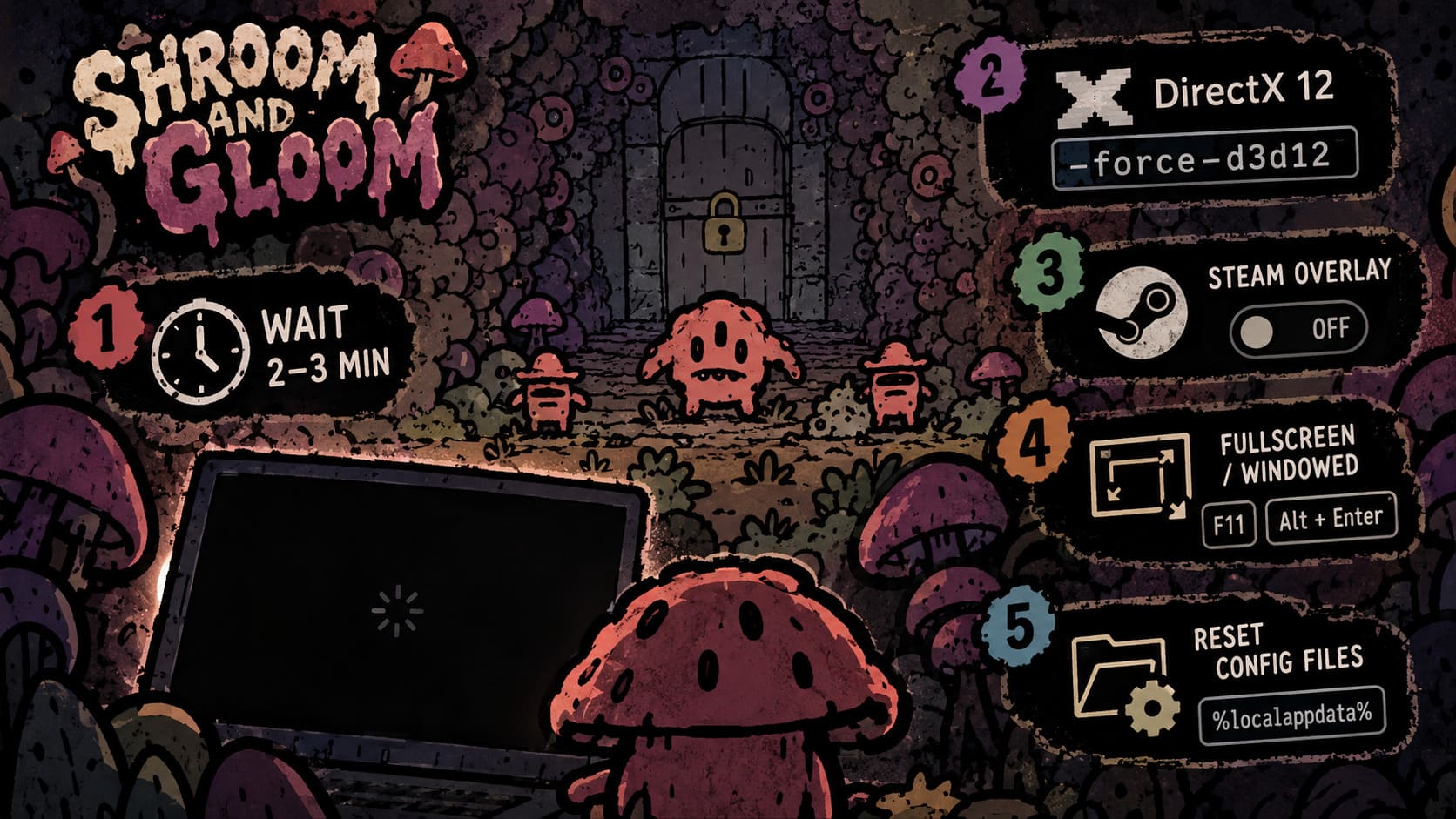
What to Do
- Launch Shroom and Gloom normally.
- If the screen turns black after the intro, don’t immediately Alt+F4.
- Leave the game alone for around 2–3 minutes.
- Listen for menu sounds, footsteps, environmental audio, or other changes.
- Once the game appears to have finished loading, try Spacebar, a mouse click, or Escape.
This is one of those fixes that feels almost too stupid to work. Yet when an Early Access game is still initializing assets in the background, patience can occasionally beat ten minutes of angry troubleshooting.
If absolutely nothing happens after several minutes, move on.
2. Force DirectX 12 With -force-d3d12
If waiting does nothing, this is one of the first technical fixes I’d test.
A graphics API initialization problem can prevent the game from displaying correctly even when the application itself launches. Forcing Direct3D 12 gives the game an explicit rendering path rather than leaving the startup process to negotiate its default configuration.
Steam Version
Open Steam and:
- Go to your Library.
- Right-click Shroom and Gloom.
- Select Properties.
- Stay in the General section.
- Find Launch Options.
- Enter:
-force-d3d12
Close the Properties window and launch the game again.
If the black screen was caused by the default graphics initialization path, this can be enough to get the picture back.
Standalone Build
For a standalone executable, you can create a shortcut and append the launch argument to the executable’s target.
The important detail is to place a space after the closing quotation mark around the executable path before entering:
-force-d3d12
Then launch the game using that modified shortcut.
Don’t pile on a dozen launch commands at once. Test one change at a time so you actually know what fixed the problem.
3. Disable the Steam Overlay
Steam Overlay is convenient, but overlays can occasionally be the first thing I’d sacrifice when troubleshooting a game that refuses to render.
The overlay injects additional functionality into the game while it is running. In a title experiencing unusual rendering behavior, that extra layer is simply another variable we don’t need.
Disable It for Shroom and Gloom
Go to:
Steam Library → Shroom and Gloom → Properties → General
Find:
Enable the Steam Overlay while in-game
Turn it off and launch the game again.
This is especially worth trying if you are seeing green flashing, partial-screen corruption, or black screen + working audio.
Don’t assume that because the overlay works perfectly in every other game it cannot be involved here. Different engines and rendering configurations can react very differently to overlays.
4. Switch Out of Fullscreen
This is one of my favorite old-school PC troubleshooting tricks because it takes about five seconds.
If you are staring at a black screen but can still hear the game, press:
F11
If that does nothing, try:
Alt + Enter
The goal is to force the game to switch between fullscreen and windowed presentation modes.
Why can this help?
Sometimes the game successfully launches but gets stuck trying to present an image using a display mode that doesn’t play nicely with the current monitor configuration. This becomes more likely with:
- Multiple monitors
- High-refresh-rate displays
- Unusual resolutions
- Laptop displays
- Ultrawide monitors
- Steam Deck or other unusual display configurations
If switching modes suddenly brings the game back, you have probably found a display initialization problem rather than a completely broken installation.
Force Windowed Mode
You can also test:
-windowed -noborder
Put this into Steam’s Launch Options and start the game.
Once you reach the settings menu, configure the game’s resolution manually and match it to your display.
After everything is working, remove the launch argument and test a normal startup.
5. Reset Old Configuration Files
This one deserves special attention if you played the Shroom and Gloom demo or prototype before installing the Early Access version.
Old configuration files can sometimes survive an update or installation and cause unexpected problems when the newer version expects different settings.
A bad resolution, graphics setting, or initialization parameter can potentially prevent the game from displaying correctly.
Resetting the Configuration
Press:
Windows Key + R
Enter:
%localappdata%
Press Enter.
Look for folders associated with Shroom and Gloom, Team Lazerbeam, or the game’s publisher.
If you find configuration files such as:
settings.iniconfig.json- Other obvious graphics/settings files
Back them up first.
Copy them somewhere safe, such as your desktop. Then remove the original configuration files and launch the game again.
The objective isn’t to delete random files from AppData. You’re forcing the game to rebuild its local settings using a clean configuration.
If the black screen disappears afterward, congratulations: the culprit was probably hiding in the old settings.
6. Turn Off Fullscreen Optimizations
Windows has its own ideas about how fullscreen games should behave.
Usually, you never notice. Occasionally, however, Windows’ fullscreen handling can become another source of weirdness.
If nothing else has worked, it is worth testing the game’s compatibility settings.
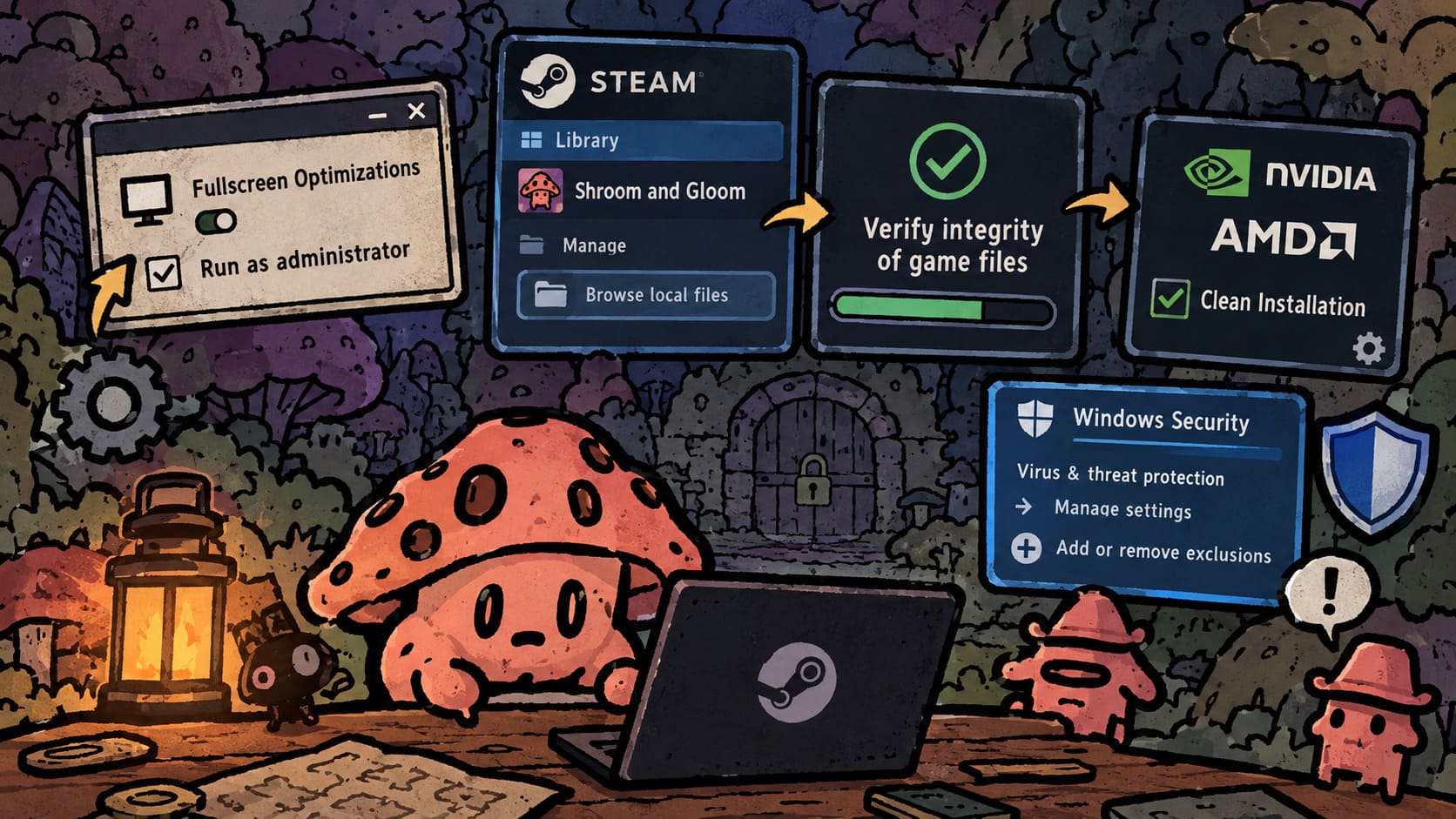
Open Steam and select:
Library → Shroom and Gloom → Manage → Browse local files
Find the game’s executable.
Right-click it and select Properties, then open the Compatibility tab.
Test:
Disable fullscreen optimizations
Apply the change and launch the game.
You can also test Run this program as an administrator if the game appears to launch but cannot properly initialize its files or resources.
I would not permanently run every game as administrator without a reason. For troubleshooting, though, it can help determine whether Windows permissions are part of the problem.
7. Verify the Steam Installation
Before you start messing with drivers or Windows settings, make Steam check the installation.
This is the boring fix, but boring fixes are often surprisingly effective.
A corrupted or incomplete download can result in a missing texture, shader, UI resource, or other asset that the game needs during startup.
In Steam:
- Open your Library.
- Right-click Shroom and Gloom.
- Select Properties.
- Open Installed Files.
- Choose Verify integrity of game files.
- Let Steam complete the scan.
If Steam finds damaged or missing files, it can replace them automatically.
I’d do this before reinstalling the entire game. A full reinstall takes considerably longer and may accomplish exactly the same thing.
8. Perform a Clean GPU Driver Installation
If your graphics driver installation has become messy, simply clicking “Update” isn’t always enough.
This is particularly relevant if:
- You recently changed graphics cards.
- You have experienced display problems in other games.
- The black screen started after a driver update.
- Multiple driver versions have been installed over time.
- Other games are also showing rendering glitches.
NVIDIA
Download the current driver package from NVIDIA and select the Custom (Advanced) installation option.
If available for your driver package, choose:
Perform a clean installation
This resets the driver configuration instead of simply layering another version over the existing setup.
AMD
Install the latest appropriate driver through AMD’s official support software or driver package.
If your system appears to have a seriously corrupted driver installation, AMD’s cleanup utility can be used before reinstalling the driver.
9. Check Windows Security Before Blaming the Game
Security software can occasionally interfere with newly released games, especially during Early Access when the executable and supporting files may change frequently.
If Shroom and Gloom appears to start but fails to initialize properly, check whether Windows Security or another antivirus program has quarantined or blocked one of its files.
Open:
Windows Security → Virus & threat protection → Manage settings
Then look for:
Add or remove exclusions
You can add the game’s installation folder as an exclusion if you have a legitimate reason to believe security software is interfering.
However, don’t blindly disable antivirus protection just because a game won’t start. First check the protection history to see whether anything was actually blocked.
That distinction matters.
Shroom and Gloom Steam Deck Best Settings: Fix Slowdowns, Bugs & Maximize Battery Life
Which Shroom and Gloom Black Screen Fix Should You Try First?
If you’re staring at a black screen right now, don’t randomly bounce between solutions. I’d use this order:
| Priority | Fix | Best For |
|---|---|---|
| 1 | Wait 2–3 Minutes | Intro/loading hang |
| 2 | -force-d3d12 | Rendering/API problems |
| 3 | Disable Steam Overlay | Overlay conflicts |
| 4 | F11 / Alt+Enter | Fullscreen issues |
| 5 | -windowed -noborder | Resolution problems |
| 6 | Reset Config Files | Old or corrupted settings |
| 7 | Verify Game Files | Missing/corrupt installation files |
| 8 | Clean GPU Driver Install | Driver-related rendering problems |
| 9 | Check Windows Security | Antivirus interference |
The big thing I would not do immediately is delete everything and reinstall Windows, Steam, or the game.
That’s the nuclear option, and this particular problem has several much easier troubleshooting paths.
Shroom and Gloom Beginner Guide: Tips, Tricks, and Strategies
Final Thoughts
A Shroom and Gloom black screen on startup is exactly the sort of Early Access problem that can make an otherwise fantastic game look broken when the underlying issue is actually much smaller.
The most interesting scenario is the one where the screen is black but the audio still works. That strongly suggests the game hasn’t necessarily crashed outright. In that situation, waiting briefly, switching display modes, disabling the Steam Overlay, or forcing another rendering path should be among your first moves.
I’d personally start with the 2–3 minute wait, then test -force-d3d12, followed by F11/Alt+Enter and windowed mode. After that, verify the files and only then start digging into configuration files and GPU drivers.
Early Access games are living projects, and launch-day bugs can disappear surprisingly quickly once developers get enough player reports and diagnostic information. If Team Lazerbeam pushes a hotfix addressing the startup renderer, make sure you update before spending an afternoon fighting Windows.
For now, though, don’t let a black screen stop you from getting into the Gloom. Work through the fixes methodically, change one thing at a time, and there is a good chance you’ll be back to building your decks and crawling through those wonderfully weird fungal tunnels without needing to reinstall half your PC.