Honeycomb The World Beyond System Requirements: Download Size and PC Storage Guide
If you’re planning to jump into Honeycomb: The World Beyond on PC, there’s one thing I’d check before getting too excited about exploring Sota7: your hardware.
This isn’t one of those survival games where you can throw it onto an old hard drive, turn everything down to Low, and magically get a smooth experience. Honeycomb is built around a surprisingly busy world. You’re not just collecting resources and building a wooden shack. The game is constantly dealing with alien plants, creatures, farming systems, genetic experiments, laboratories, physics, and large player-built bases.
And honestly, that’s part of what makes it interesting.
The good news is that the PC requirements aren’t nearly as terrifying as some modern survival games. You don’t need an RTX 4090 or a 100 GB SSD just to get started. But there are a few details in the Honeycomb: The World Beyond system requirements that are easy to overlook, particularly the SSD requirement and the amount of VRAM you’ll want.
So, here’s my practical breakdown of the Honeycomb PC requirements, download size, storage needs, minimum specs, recommended hardware, and performance expectations.
Honeycomb: The World Beyond Download Size and Storage
Let’s start with the question most people will probably ask before anything else:
How much space does Honeycomb: The World Beyond need?
The official requirement is 40 GB of available storage space on PC.

That’s actually pretty reasonable for a modern survival sandbox. Compared with plenty of recent releases that happily consume 80, 100, or even 150+ GB, Honeycomb’s footprint is refreshingly manageable.
However, there’s an important distinction between the download size and installed size.
| Storage Detail | PC Requirement |
|---|---|
| Estimated Download | 25–30 GB |
| Required Free Space | 40 GB |
| Recommended Drive | NVMe SSD |
| Minimum Storage Type | SATA SSD |
| HDD | Not Recommended |
The game can arrive as a compressed download of roughly 25–30 GB, while the installed game can occupy around 40 GB after the files are unpacked.
I’d personally recommend having a little more than the stated 40 GB free, though. Games patch. Games generate shader caches. Launchers need temporary working space. Nothing is more annoying than trying to install a 40 GB game when Windows tells you that you have 41 GB available and somehow that’s still not enough.
If you’re installing Honeycomb, I’d aim for at least 50 GB of genuinely free SSD space.
SSD Isn’t Just a Recommendation
This is probably the hardware requirement I’d pay the most attention to.
Honeycomb is designed around a world with lots of environmental assets and biome transitions. As you’re moving around Sota7, the game needs to stream terrain, vegetation, creatures, structures, and other assets without constantly stopping to load everything.
That’s why an SSD is effectively essential.
A SATA SSD should be sufficient for the minimum configuration, but an NVMe SSD is the better choice if your system supports one.
Could you technically install a game like this on an HDD? Maybe. But that’s not the same thing as having a good experience.
Expect longer loading times, more noticeable asset streaming, and potentially more stuttering when moving rapidly through the world. For a game that encourages exploration, that would drive me crazy pretty quickly.
If your PC has both an HDD and SSD, I’d put Honeycomb on the SSD without hesitation.
Honeycomb Minimum System Requirements
The minimum specifications are fairly approachable for a 2026 release.
According to the supplied specifications, you’ll need:
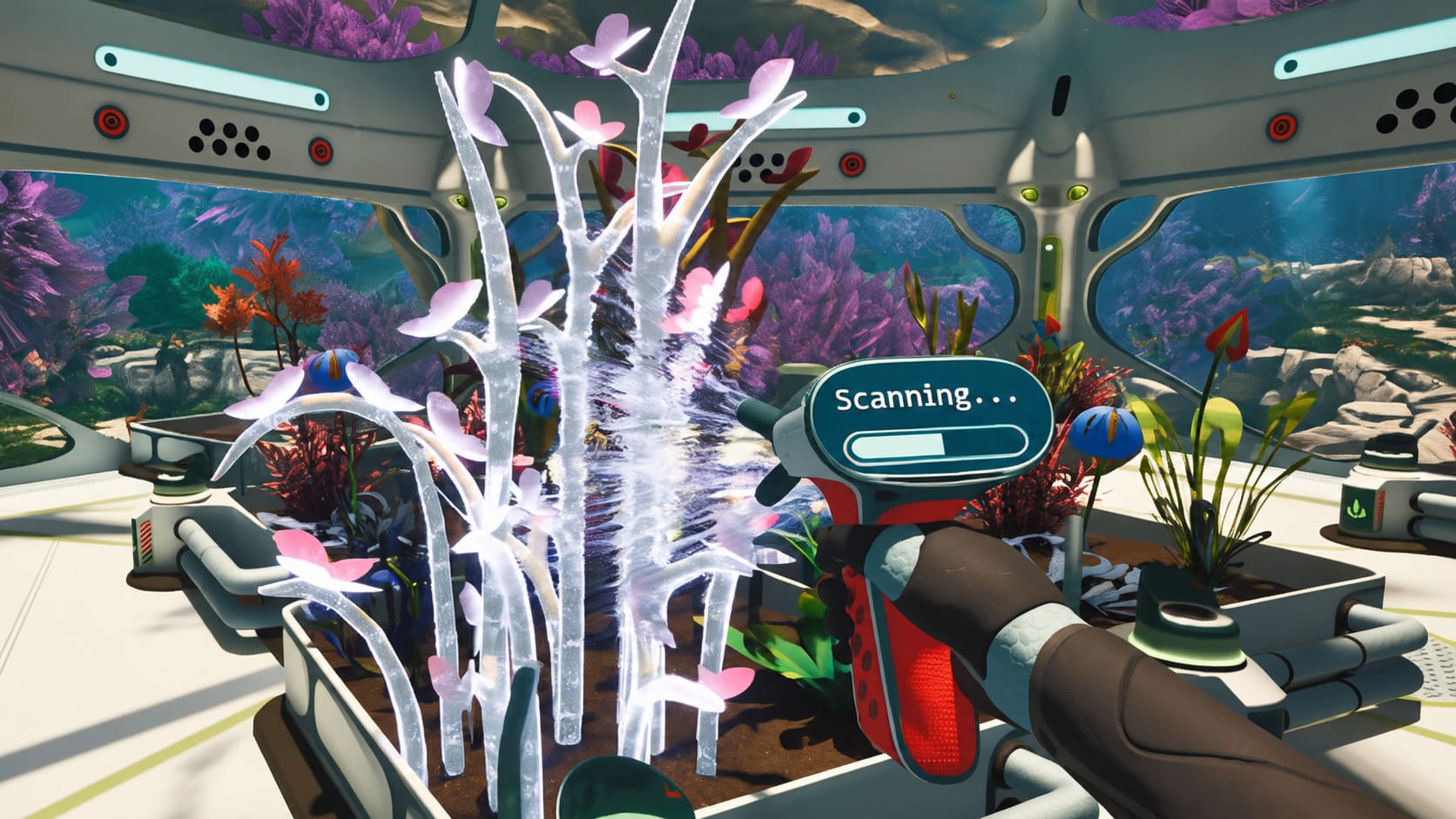
- OS: Windows 10 64-bit or newer
- CPU: AMD Ryzen 5 3600 or equivalent Intel processor
- RAM: 8 GB
- GPU: AMD Radeon RX 6500 8GB or NVIDIA GeForce GTX 1660 equivalent
- DirectX: Version 11
- Storage: 40 GB
- Drive: SATA SSD minimum
On paper, this looks friendly enough.
But there’s a difference between “can run the game” and “I’d actually recommend playing it this way.”
The 8 GB RAM requirement is the first thing I’d be cautious about. In a modern survival game, 8 GB can disappear surprisingly quickly once Windows, Steam, Discord, browser tabs, and everything else are running in the background.
If you’re genuinely limited to 8 GB, I’d close unnecessary applications before launching Honeycomb.
The GPU requirement is also worth watching. The game appears to expect a reasonable amount of VRAM, particularly because Sota7 is built around detailed vegetation, environmental effects, and high-resolution assets.
So while the minimum hardware should get you into the game, don’t expect the prettiest version of Sota7.
Recommended PC Specs for 60 FPS
This is where I’d rather see most players land.
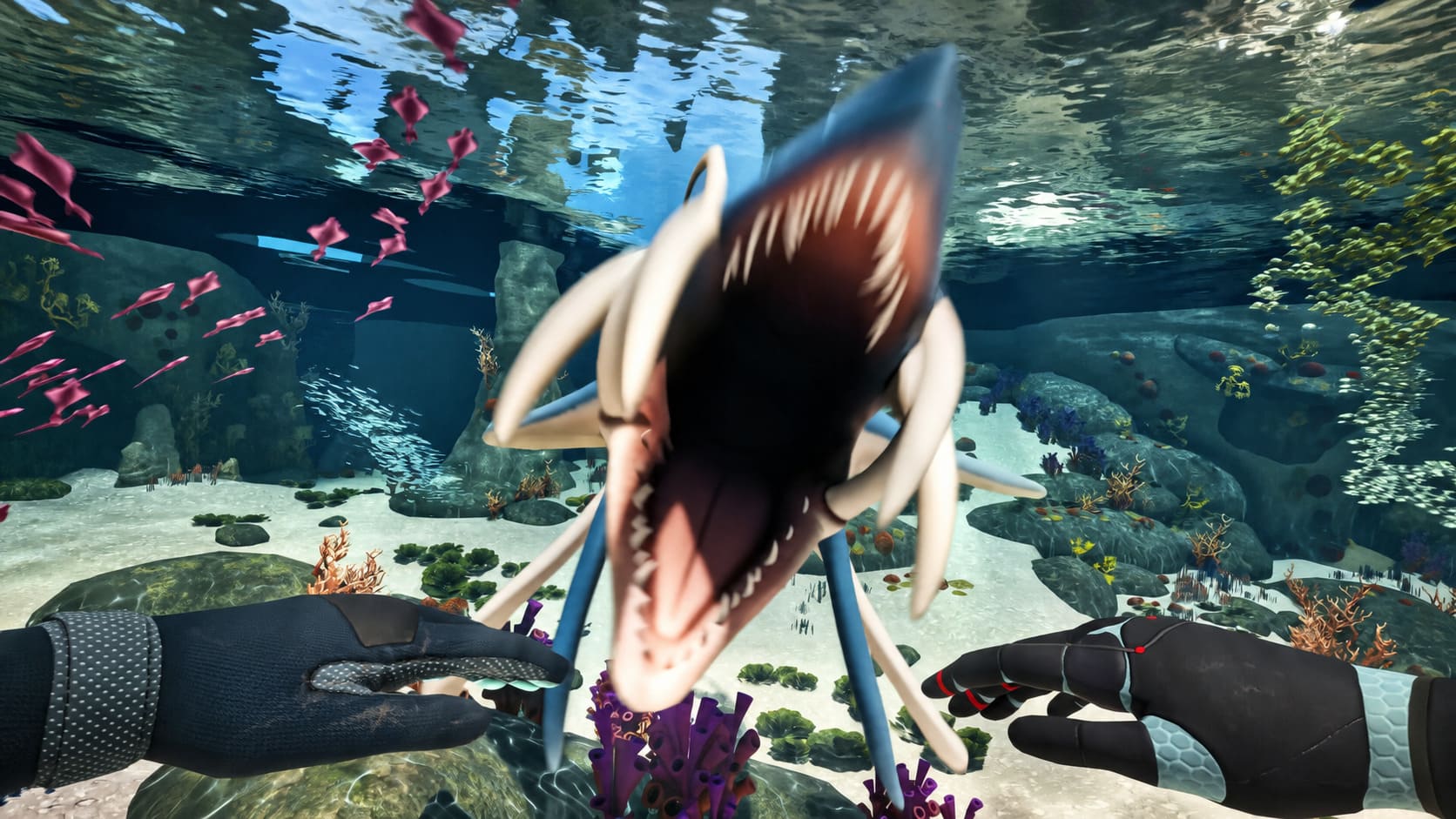
The recommended configuration targets a much more comfortable experience:
| Component | Recommended Specification |
|---|---|
| OS | Windows 11 64-bit or newer |
| CPU | Intel Core i5-9600K / Ryzen 5 5600X |
| RAM | 16 GB |
| GPU | RTX 2070 / RX 6700 |
| VRAM | 8 GB or more |
| DirectX | Version 12 |
| Storage | 40 GB |
| Drive | NVMe SSD |
The 16 GB RAM requirement makes much more sense for a game like this.
You’ll have significantly more breathing room for background applications, world streaming, simulation systems, and large bases.
And that’s an important point: Honeycomb isn’t only GPU-heavy.
Your base can potentially become a little performance laboratory of its own.
As you build more structures, automate systems, grow plants, manage creatures, and expand your operations, there’s simply more for the CPU to keep track of. That’s the sort of situation where a game can run beautifully while you’re wandering through an empty biome but suddenly lose frames when you return to your enormous home base.
I’ve seen this pattern in plenty of survival games, so I wouldn’t be surprised if Honeycomb follows it.
GPU and VRAM: Don’t Ignore the 8 GB Target
If there’s one specification I’d keep in mind when buying or upgrading hardware for Honeycomb, it’s VRAM.
The recommended GPU class comes with around 8 GB of VRAM, and that seems sensible for the game’s visual ambitions.
Textures are particularly important here. If you’re running a GPU with less VRAM, dropping texture quality can make a bigger difference than people sometimes expect.
My first adjustments would be:
- Texture Quality → Medium
- Shadow Quality → Medium
- View Distance → Medium
- Reduce heavy environmental effects if necessary
I’d rather sacrifice a little texture sharpness than deal with constant hitching while exploring.
A game like Honeycomb is about discovering a strange alien world. Smooth movement is much more important to me than making every leaf look like it was photographed individually.
Can You Run Honeycomb at 1080p 60 FPS?
If your PC is close to the recommended specifications, 1080p at 60 FPS should be the sensible target.
The minimum configuration is more appropriate for lower settings and a roughly 30 FPS experience.
For players with an RTX 2070, RX 6700, or similar hardware, I’d start at 1080p High and see where the frame rate lands before changing anything.
If performance isn’t quite where you want it, don’t immediately turn everything to Low.
Instead, I’d lower the settings that have the biggest performance impact while keeping the overall image quality intact.
Shadows, view distance, volumetric effects, and heavy environmental effects are usually better candidates for reduction than textures.
What About 1440p?
1440p is where things get more interesting.
The recommended hardware should give you a decent starting point, but I wouldn’t automatically assume that every scene will hold a perfect 60 FPS at native 1440p.
Large bases and visually dense environments are the situations I’d watch most closely.
This is also where upscaling can become extremely useful.
If Honeycomb supports the expected implementations of NVIDIA DLSS and AMD FSR, using the Quality preset would be my first move.
The goal isn’t simply to make the FPS number bigger. It’s to get additional performance without turning Sota7 into a blurry mess.
DLSS and FSR Could Be Your Best Friends
Upscaling technology has become one of the easiest ways to squeeze extra performance from demanding games.
For NVIDIA users, DLSS Quality is the obvious setting to test first.
For AMD hardware, FSR Quality should serve a similar purpose.
The supplied testing notes suggest that Quality-mode upscaling can potentially provide a meaningful performance increase while keeping image quality relatively close to native rendering.
That’s exactly how I prefer to use upscaling.
I don’t want a huge FPS number if everything in front of me looks like it was smeared with Vaseline. A moderate performance boost with good image quality is a much better trade-off.
macOS Requirements
Apple players aren’t completely left out either.
Honeycomb: The World Beyond is listed with native macOS support, although the requirements are aimed at Apple Silicon machines rather than Intel Macs.
The listed requirements are:
- CPU: Apple M1 Pro or better
- Memory: 16 GB unified memory
- Storage: 30 GB available space
The 30 GB storage requirement is notably lower than the 40 GB PC requirement.
The important part here is the M1 Pro baseline. If you’re using an older Intel Mac, this isn’t really the target hardware.
Apple Silicon systems are particularly interesting for a game like Honeycomb because the unified memory architecture allows the CPU and GPU to share memory resources. Whether the real-world performance matches expectations will obviously depend on the specific Mac configuration, but the hardware target is reasonably clear.
My Biggest Performance Concern? Large Bases
If I had to guess where Honeycomb will push PCs hardest, I’d put my money on large player bases.
Exploring an untouched biome is one thing.
Returning to a giant laboratory filled with machines, crops, creatures, storage systems, automated setups, and other interactive objects is something else entirely.
That’s when CPU simulation can become much more important.
If your FPS is fantastic everywhere except your home base, don’t immediately blame your GPU.
Try lowering:
- View Distance
- Simulation-related settings
- Shadow quality
- Environmental detail
And, most importantly, keep an eye on CPU usage.
Honeycomb PC Optimization Checklist
Before you start tweaking obscure Windows settings, I’d keep things simple:
- Install Honeycomb on an SSD, preferably NVMe.
- Make sure you have at least 40 GB free, with around 50 GB being a safer cushion.
- Use 16 GB RAM if possible.
- Keep your GPU drivers updated for the launch.
- Start with 1080p High if your hardware is around recommended specifications.
- Use DLSS or FSR Quality if you need additional FPS.
- Lower shadows and view distance before destroying texture quality.
- Watch CPU performance when returning to large bases.
That should get most players much closer to a smooth setup without spending hours obsessing over individual graphics sliders.
Final Verdict: Honeycomb Is Surprisingly Reasonable on PC
The thing I like most about these requirements is that Honeycomb: The World Beyond doesn’t appear to demand ridiculous hardware just to get through the front door.
A Ryzen 5 3600-class processor, 8 GB of RAM, and a GTX 1660-class GPU can get you into the game, while a Ryzen 5 5600X or Core i5-9600K, 16 GB RAM, and RTX 2070/RX 6700-class graphics card put you in a much more comfortable position.
The real takeaway isn’t that you need an outrageous gaming PC.
It’s that you need a balanced PC.
A decent CPU, enough RAM, a GPU with around 8 GB of VRAM, and—most importantly—an SSD should give you a solid foundation for exploring Sota7.
And honestly, 40 GB of storage is one of the nicer surprises here. In 2026, I’ll happily take a detailed alien survival sandbox that doesn’t demand half my SSD just to install itself.
If you’re sitting somewhere around the recommended specifications, I’d be reasonably confident going in. Just don’t cheap out on the storage. Put Honeycomb on your fastest SSD, keep the drivers updated, and give the game enough RAM to breathe.
Then you can get back to the important stuff: building an unnecessarily gigantic alien laboratory and seeing just how many genetically modified plants you can cram into it before your CPU starts begging for mercy.