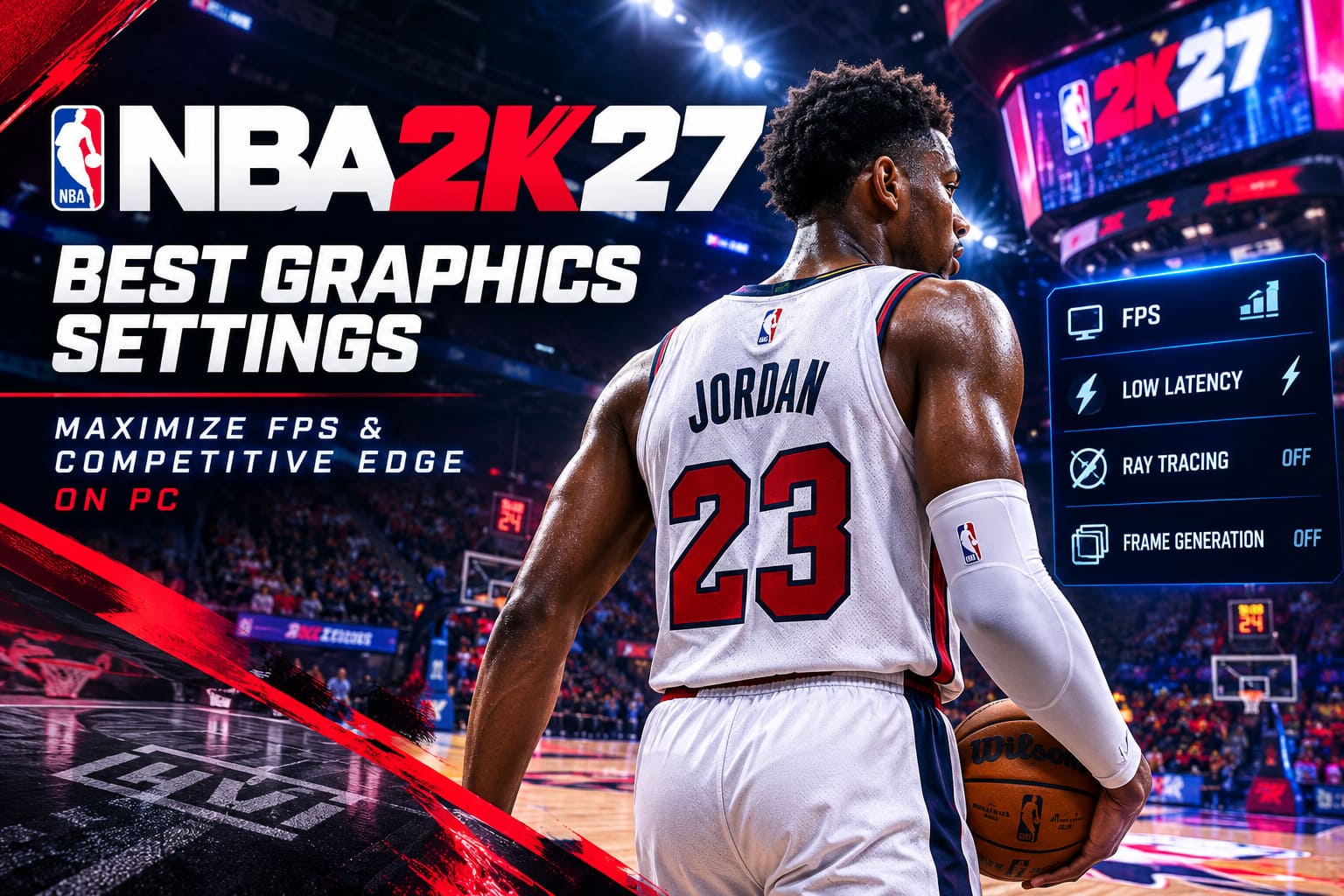
NBA 2K27 Best Graphics Settings: Maximize FPS & Competitive Edge on PC
NBA 2K27 finally feels like the PC version has caught up with the current generation, and that is both fantastic news and a bit of a problem. Visual Concepts has pushed the presentation much harder this year, with thousands of new ProPlay animations, improved player detail, a revamped Dunk Meter, a bigger nighttime presence across The City, and a much more demanding rendering pipeline.
It looks seriously good when everything is cranked to the ceiling. The problem? Maximum graphics settings are not automatically the best settings for actually playing basketball. If you spend most of your time in REC, Pro-Am, MyCAREER online games, or competitive 3v3, I would much rather have a rock-solid high refresh-rate experience than prettier reflections on the hardwood.
After spending far too many hours tweaking PC games for competitive performance, my approach with NBA 2K27 is pretty simple: cut the settings that waste GPU and CPU resources, keep the options that preserve player readability, and eliminate anything that adds unnecessary latency. You do not need your virtual opponent’s pores rendered in ultra-high definition to hit a green.
This NBA 2K27 PC graphics settings guide focuses on exactly that. The goal is not to make the game look ugly. The goal is to make it fast, clean, stable, and responsive while keeping the court easy to read.
Why NBA 2K27 Needs a Competitive Graphics Setup
The move toward a current-generation PC presentation means NBA 2K27 can put considerably more pressure on modern hardware than older entries. Higher-quality assets, more elaborate lighting, crowds, reflections, volumetric effects, and advanced reconstruction technologies can quickly turn a perfectly playable system into a stuttery mess when everything is enabled.
That matters much more in basketball than it does in a slow single-player game. NBA 2K is all about timing. A tiny hitch while defending a crossover is annoying. A delayed visual response while releasing a jumper can be the difference between a green and a brick. When ten players are moving around the paint, you need the game to remain predictable.
My priority list for competitive NBA 2K27 is: stable FPS first, low latency second, visual clarity third, and graphical eye candy somewhere way down the list.
DLSS 5 and Frame Generation: Impressive Technology, Wrong Tool for Competitive Play?
This is probably the most controversial part of the setup. NBA 2K27’s use of modern neural rendering and Multi Frame Generation sounds incredible on a specification sheet. Seeing an enormous FPS number in the corner of your screen is certainly satisfying.
But competitive players need to be careful about confusing displayed FPS with actual responsiveness.
Frame generation creates additional frames between traditionally rendered frames. That can make motion appear substantially smoother, but those generated frames do not magically make your underlying input processing instantaneous. For a game where you are reacting to animations, shot releases, defensive movements, and dribble combinations, latency matters more than an inflated counter.
That is why I recommend turning Multi Frame Generation off for serious online play. If you are playing casually and love the smoother cinematic presentation, experiment with it. If you are sweating through a close REC game with your squad, I would rather have fewer genuine frames with tighter response than a giant generated FPS number.
The same logic applies to aggressive neural upscaling. If your GPU can comfortably render NBA 2K27 at native resolution, use it. If you need more performance, DLSS or FSR in Quality mode is a much safer compromise than immediately dropping to Performance or Ultra Performance modes.
Best NBA 2K27 Display Settings for FPS and Low Input Lag
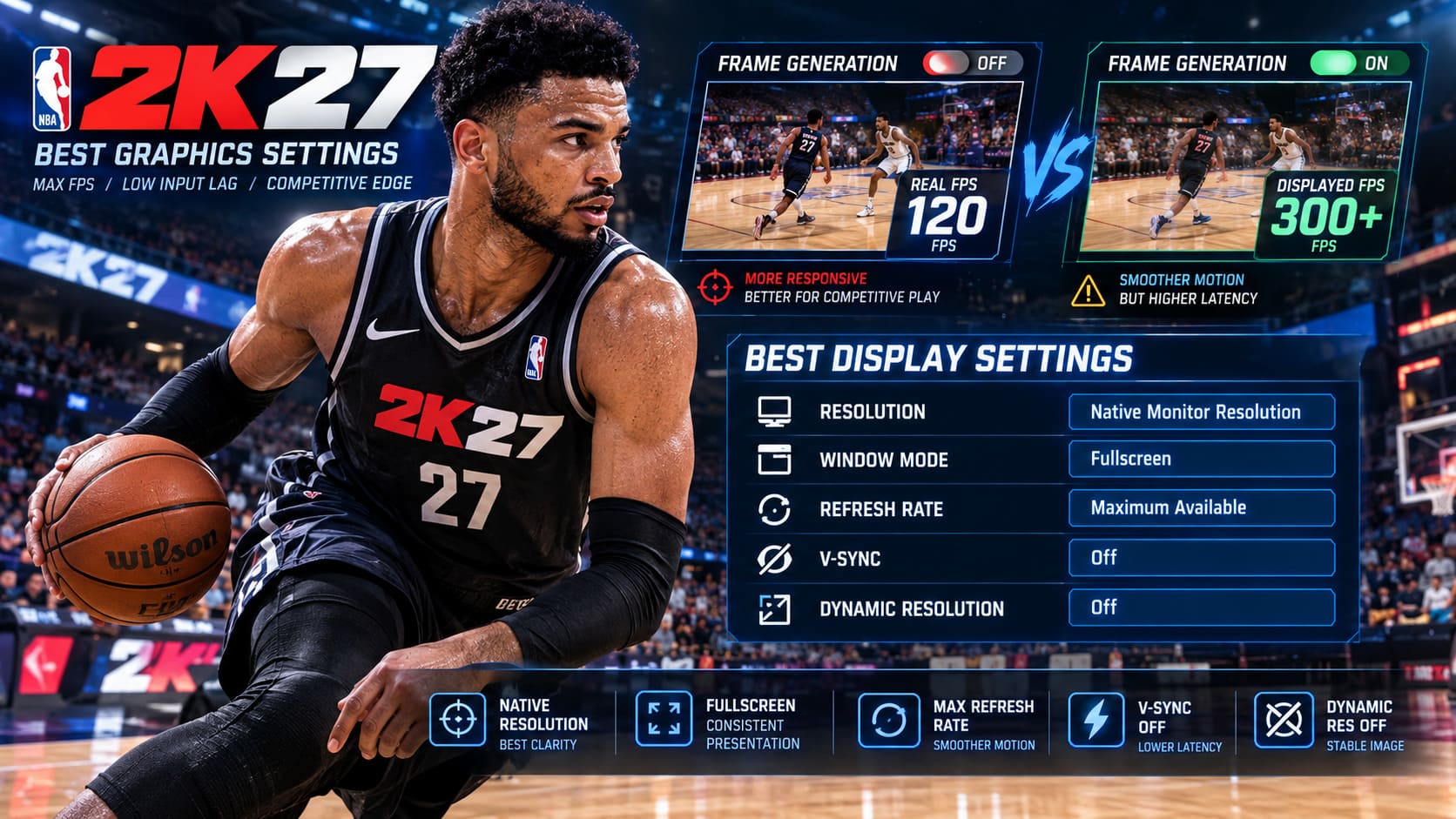
| Setting | Recommended Value | Why It Matters |
|---|---|---|
| Resolution | Native Monitor Resolution | Best clarity |
| Window Mode | Fullscreen | Consistent presentation |
| Refresh Rate | Maximum Available | Smoother motion |
| V-Sync | Off | Lower latency |
| Dynamic Resolution | Off | Stable image clarity |
Resolution
Run the resolution your monitor is designed for whenever your GPU can handle it. A 1080p monitor should generally stay at 1920×1080, while a 1440p display should use 2560×1440.
I would not recommend lowering resolution immediately just because you want more FPS. First attack the expensive graphics settings. NBA 2K27 benefits from a sharp image because you need to distinguish players, movement animations, court markings, and shot cues at a glance.
Fullscreen
Fullscreen is my preferred choice for competitive play. Borderless is convenient, especially if you frequently alt-tab, but when I am trying to squeeze every bit of consistency out of a competitive game, I want as little presentation-layer nonsense as possible.
V-Sync
Keep V-Sync Off. Traditional V-Sync can add latency because the GPU may wait for the display’s refresh cycle. If screen tearing bothers you, a variable-refresh solution such as G-Sync or FreeSync is generally the better direction.
Dynamic Resolution
Turn it off. Dynamic resolution can be useful when a game struggles to maintain a target frame rate, but competitive basketball is not where I want the image suddenly becoming softer during a chaotic possession. Consistency wins here.
NBA 2K27 Advanced Graphics Settings: My Competitive Profile
This is where most of the performance gains are hiding. Some settings barely matter to gameplay while quietly chewing through your GPU or CPU resources. Others make the game look prettier but actively make it harder to read what’s happening.
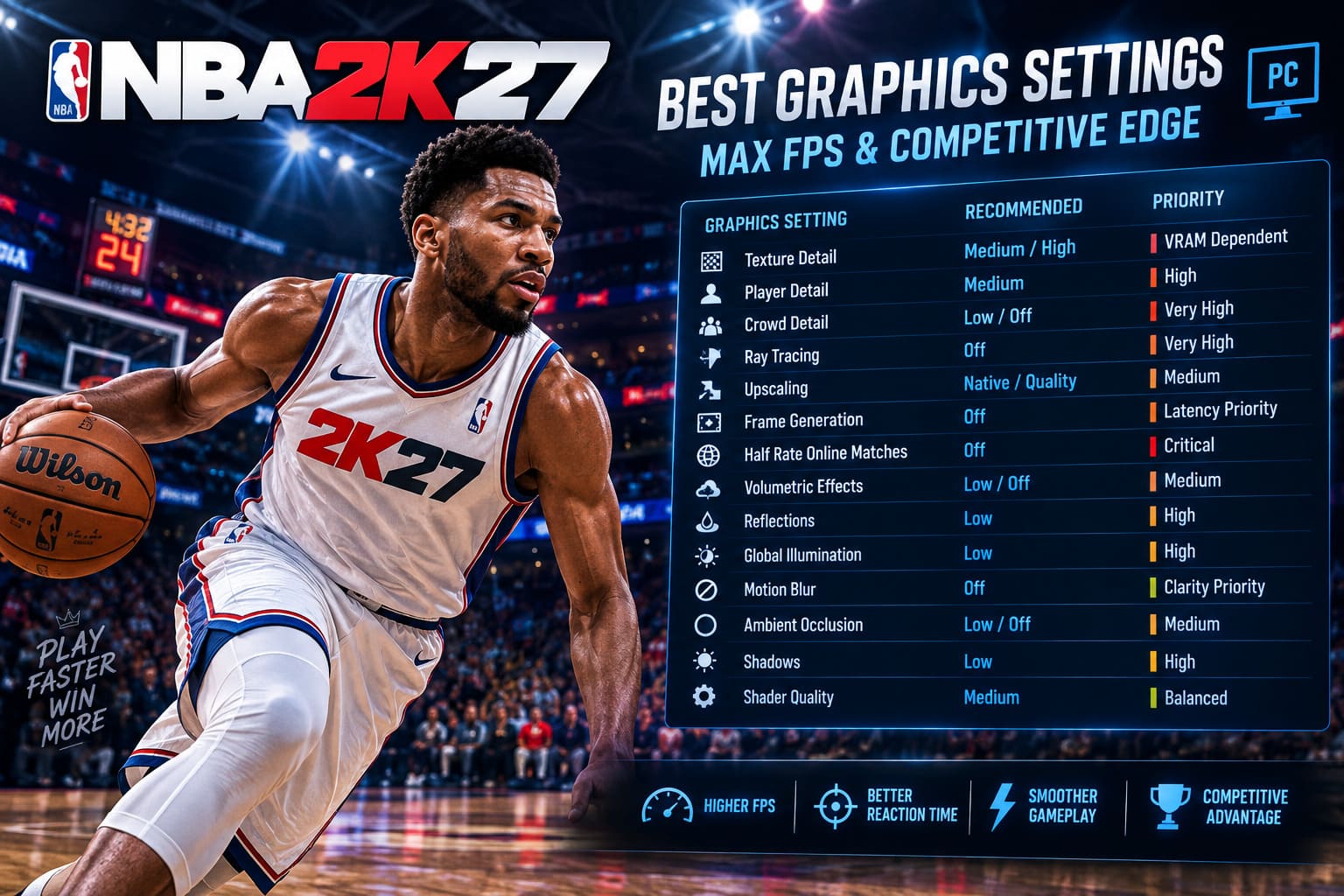
| Graphics Setting | Competitive Recommendation | Performance Priority |
|---|---|---|
| Texture Detail | Medium / High | VRAM Dependent |
| Player Detail | Medium | High |
| Crowd Detail | Low / Off | Very High |
| Ray Tracing | Off | Very High |
| Upscaling | Native / Quality | Medium |
| Frame Generation | Off | Latency Priority |
| Half Rate Online Matches | Off | Critical |
| Volumetric Effects | Low / Off | Medium |
| Reflections | Low | High |
| Global Illumination | Low | High |
| Motion Blur | Off | Clarity Priority |
| Ambient Occlusion | Low / Off | Medium |
| Shadows | Low | High |
| Shader Quality | Medium | Balanced |
Texture Detail: Medium or High
Textures are one of the few areas where I am willing to spend some performance budget. They can consume VRAM, but they do not necessarily hammer GPU compute in the same way as ray tracing or heavy lighting effects.
Medium is the safe recommendation. If you have 12GB or more VRAM and plenty of GPU headroom, High is perfectly reasonable. Player jerseys, court surfaces, and arena assets still look sharp without pushing the system unnecessarily hard.
Player Detail: Medium
NBA 2K27’s detailed player models are impressive, but I would not prioritize tiny cosmetic improvements during an online match. Medium keeps players visually distinct while reducing the amount of work required when multiple characters occupy the same area of the court.
Crowd Detail: Low or Off
This is an easy cut. Thousands of spectators are not helping you defend the corner or find the open cutter. High crowd settings can place additional pressure on the CPU, particularly in large arenas.
Drop the crowd quality and spend those resources where they actually matter.
Ray Tracing: Off
If you are building a competitive profile, this one should not even require much debate. Ray-traced reflections and lighting can look fantastic, especially on polished hardwood, but the performance cost is difficult to justify when the goal is maximum FPS.
Turn ray tracing off. Your court will still look good, and your GPU will thank you.
Upscaling: Native or Quality Mode
Use native rendering if your system can maintain your desired frame rate. On a weaker GPU, switch to DLSS or FSR Quality.
I strongly recommend avoiding Performance and Ultra Performance modes unless you are genuinely struggling to run the game. Excessive reconstruction can soften player outlines and UI elements, which is exactly the opposite of what you want in a competitive environment.
Half Rate Online Matches: Absolutely Off
If there is one setting in this entire guide that I want competitive players to double-check, it is Half Rate Online Matches.
Leave this option off. A reduced online rendering update rate can make animations appear noticeably less fluid. In a game built around timing, movement recognition, and quick reactions, that is a terrible trade.
If your online gameplay feels strangely choppy despite having a strong PC, check this setting before blaming your GPU.
Reflections, Global Illumination, Shadows and Ambient Occlusion
These are the classic “looks cool in screenshots, costs frames in actual gameplay” settings.
Set Reflection Quality to Low, Global Illumination to Low, Ambient Occlusion to Low or Off, and Shadow Quality to Low. You retain enough environmental depth to understand where players are standing without asking your GPU to simulate every little lighting interaction.
Motion Blur: Off
This should be off in virtually every competitive game I play. Motion blur might make cinematic camera movements look smoother, but during a fast crossover or defensive rotation, I want sharp information—not a smeared screen.
Camera Settings That Actually Help Competitive Players
Graphics settings are only half the equation. Your camera can have a huge impact on how easily you read the floor.
- Camera: 2K Camera
- Zoom: 1–3
- Height: 5–7
- Shot Meter: Personal preference; consider turning it Off
The classic 2K Camera remains my favorite competitive choice because it gives you a strong view of the entire floor. You can see passing lanes, corner shooters, defensive rotations, and cutters developing before they become obvious from a tighter cinematic angle.
A lower zoom level can also give you more peripheral information. I would not blindly copy somebody else’s exact camera numbers, though. Your monitor size, resolution, and personal playstyle all matter. Start around Zoom 2 and Height 6, then adjust until the court feels natural.
As for the shot meter, this is where personal preference takes over. If you have learned your player’s visual release animation, turning the meter off can provide a cleaner screen and encourage you to rely on timing rather than an on-screen indicator.
Windows Settings for Better NBA 2K27 Performance
Enable Windows Game Mode
Open Windows Settings → Gaming → Game Mode and make sure Game Mode is enabled. It is not some magical “double your FPS” button, but it can help Windows prioritize the active game and reduce interference from background processes.
Force NBA 2K27 to Use the High-Performance GPU
On systems with integrated and discrete graphics, verify that Windows is assigning NBA 2K27 to your dedicated GPU.
Search Windows for Graphics Settings, add the NBA 2K27 executable, select its options, choose High Performance, and save the change.
This is particularly important on gaming laptops and hybrid graphics systems where Windows can occasionally make questionable decisions about GPU allocation.
Nvidia Control Panel Settings Worth Changing
Nvidia users have a few additional options worth checking. Open the Nvidia Control Panel, find Manage 3D Settings → Program Settings, add NBA 2K27, and use a performance-focused profile.
- Low Latency Mode: Ultra
- Power Management Mode: Prefer Maximum Performance
- Texture Filtering – Quality: High Performance
The goal here is not to blindly change every Nvidia setting you can find. More tweaks do not automatically equal better performance. I prefer a small, controlled set of changes that targets frame delivery and prevents unnecessary GPU power-state fluctuations.
My Final NBA 2K27 Competitive PC Preset
| Category | Recommended Setting |
|---|---|
| Display Mode | Fullscreen |
| Resolution | Native |
| Refresh Rate | Maximum Available |
| V-Sync | Off |
| Dynamic Resolution | Off |
| Ray Tracing | Off |
| DLSS / FSR | Native or Quality |
| Frame Generation | Off |
| Half Rate Online Matches | Off |
| Texture Quality | Medium / High |
| Player Detail | Medium |
| Crowd Detail | Low / Off |
| Reflections | Low |
| Global Illumination | Low |
| Shadows | Low |
| Motion Blur | Off |
| Ambient Occlusion | Low / Off |
| Volumetric Effects | Low / Off |
| Shader Quality | Medium |
NBA 2K27 Save File Location: PC Guide to Saves & Config Files
Final Verdict: More FPS, Less Eye Candy, Better Basketball
There is nothing wrong with playing NBA 2K27 with every visual option maxed out. If you are playing offline, taking screenshots, or simply want The City and arenas to look spectacular, crank things up and enjoy it.
Competitive NBA 2K is different.
When you are fighting for a win in REC or Pro-Am, I would happily sacrifice expensive reflections, ray-traced lighting, detailed crowds, volumetric effects, and unnecessary shadows for a stable high-FPS presentation. Those settings do not make your jumper better. They do not improve your defensive positioning. They certainly do not make your controller respond faster.
The most important changes are straightforward: disable ray tracing, turn off frame generation, keep Half Rate Online Matches disabled, use native resolution or Quality upscaling, reduce crowds and shadows, eliminate motion blur, and run the game in fullscreen with V-Sync off.
Once the game is running smoothly, stop obsessively changing ten settings at once. Play a few REC games. Test your shot timing. Watch for stutters when the paint gets crowded. If everything feels consistent, leave it alone.
NBA 2K27 Shooting Guard Build: The Unstoppable 2-Way Demi-God Guide
Because honestly, the best NBA 2K27 graphics settings are not the ones that make the game look best in a screenshot. They are the ones that disappear while you are playing. When your eyes stay locked on the ball, your inputs feel immediate, and your FPS remains stable during the ugliest fourth-quarter possession imaginable, that is when you know you have the setup right.