NBA 2K27 Save File Location: PC Guide to Saves & Config Files
If you’ve spent dozens of hours building a MyPLAYER in NBA 2K27, the last thing you want is to lose your progress because of a corrupted save, a bad Steam Cloud sync, or a move to a new PC. I’ve always thought that knowing where a game’s save files are located is one of those small PC gaming skills that becomes incredibly valuable the moment something goes wrong.
NBA 2K27 doesn’t make this particularly obvious. Unlike games that simply drop everything into a Documents folder, the PC version relies heavily on Steam’s userdata structure, while other configuration and temporary files can live inside Windows AppData folders. That can make finding the right files surprisingly confusing, especially if you’re troubleshooting a missing MyCAREER file or trying to preserve a favorite setup before reinstalling Windows.
So, if you’re looking for the NBA 2K27 save file location on PC, want to back up your MyCAREER progress, or need to find configuration files for graphics troubleshooting, here’s the practical version of what you need to know.
Where Are NBA 2K27 Save Files Located on PC?
For the Steam version of NBA 2K27, your local save data is generally stored inside your Steam userdata directory. The usual path looks like this:
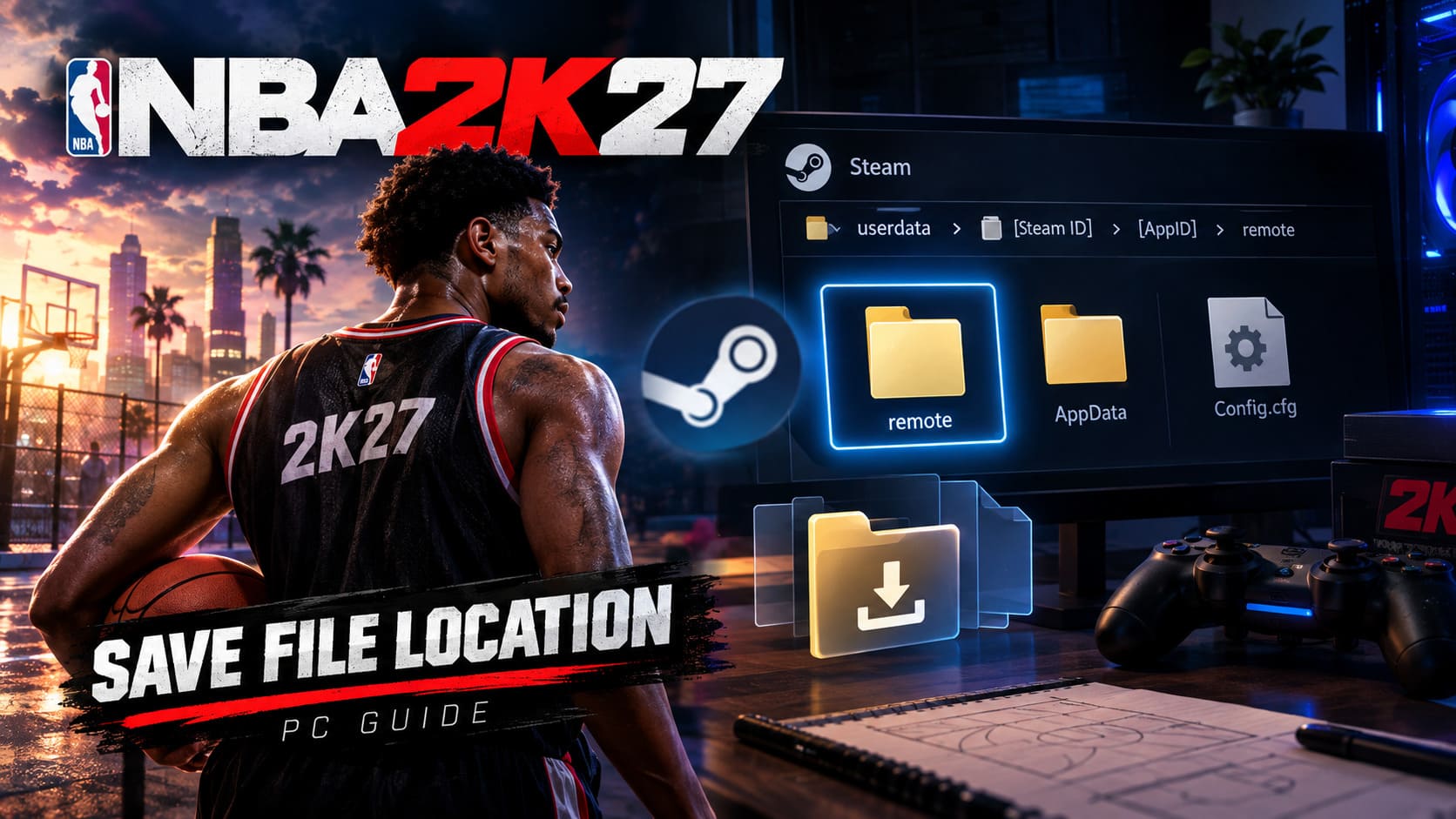
C:\Program Files (x86)\Steam\userdata\[Your Steam Account ID]\[NBA 2K27 AppID]\remote
The exact drive can obviously be different if you installed Steam somewhere else. I personally recommend not assuming that Steam is on C:. If you’ve got a large gaming SSD, your Steam installation may be sitting on D:, E:, or another custom library location.
The important part of the structure is userdata → your Steam ID → NBA 2K27 AppID → remote. That’s the folder you should investigate when you’re specifically looking for local Steam save data.
How to Find the Folder
- Press Windows + E to open File Explorer.
- Navigate to your Steam installation directory.
- Open the userdata folder.
- Find the numbered folder belonging to your Steam account.
- Locate the numeric AppID folder associated with NBA 2K27.
- Open the remote folder.
One thing worth mentioning is that the AppID isn’t something you should guess. Every NBA 2K release has its own Steam AppID, and those numbers change from one annual release to another. NBA 2K25 and NBA 2K26, for example, use different identifiers. For NBA 2K27, use the AppID associated with your current Steam installation rather than copying an old path from a previous NBA 2K guide.
| What You’re Looking For | Typical Location | Why It Matters |
|---|---|---|
| Steam Save Data | Steam\userdata\[Steam ID]\[AppID]\remote | Local gameplay and profile-related data |
| Windows AppData | AppData\Roaming\2K Sports\NBA 2K27 | Configuration, cache and supporting files |
| Steam Cloud Data | Managed through Steam | Cloud synchronization and recovery |
| Manual Backup | Your chosen backup folder | Extra protection against local save problems |
What Files Should You Expect to See?
Once you’re inside the remote folder, don’t expect a beautifully organized collection of folders with labels like “MyCareer” and “MyLeague.” PC game save structures are rarely that friendly.
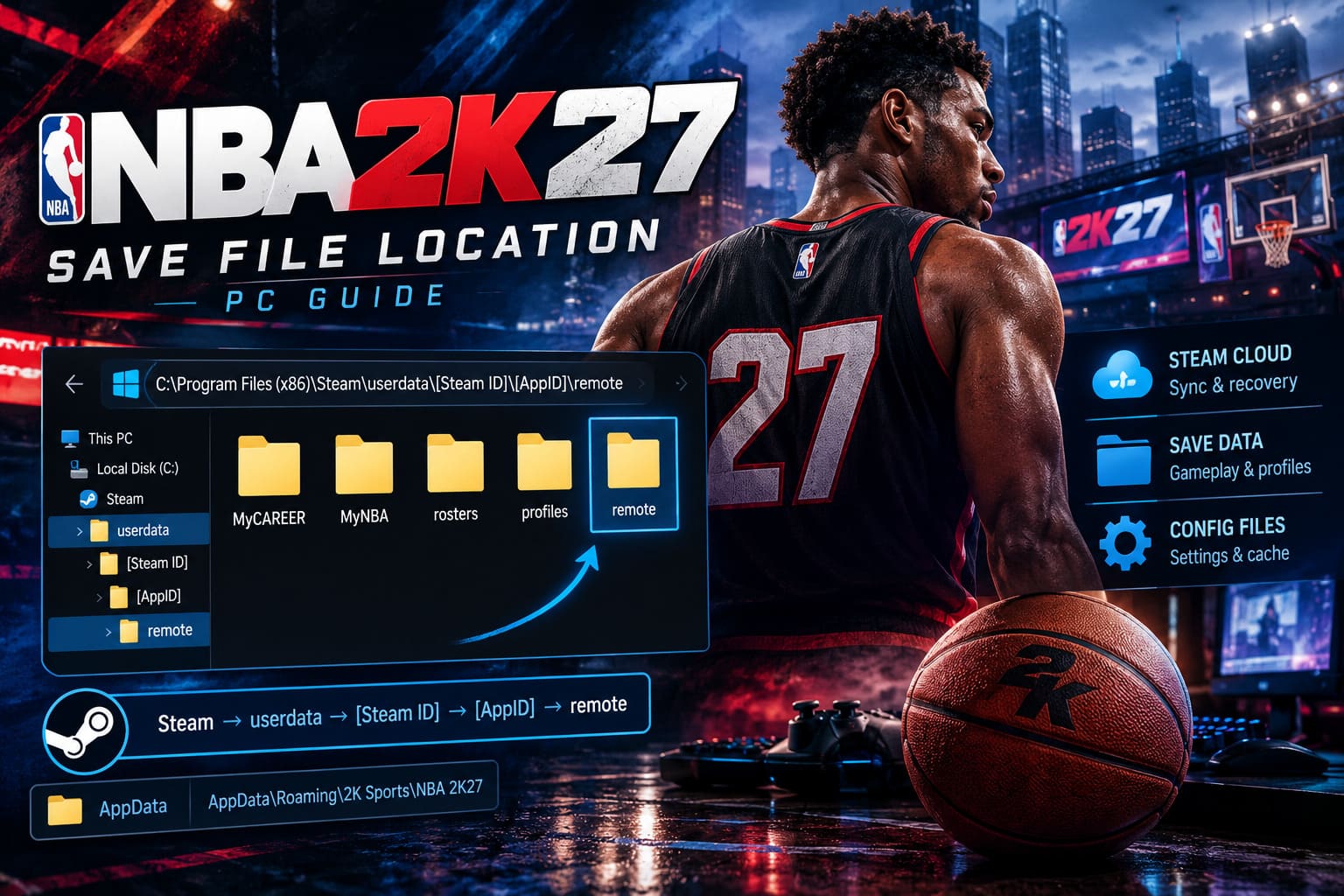
Depending on the current build and how the game handles your data, you may see files associated with MyCAREER, MyNBA, rosters, profiles, and other game systems. Files can have names that aren’t immediately meaningful, so I strongly recommend backing up the entire remote folder rather than trying to guess which individual file contains your favorite character.
This is one of those situations where being too clever can actually make things worse. If you’re preparing for a reinstall, copy everything relevant instead of deleting files simply because you don’t recognize their names.
NBA 2K27 AppData Location: Where Config and Cache Files Live
Steam userdata isn’t the only location worth knowing about. Windows games often use the hidden AppData directory for settings, temporary files, logs and other supporting data.
For NBA 2K27, the commonly referenced location is:
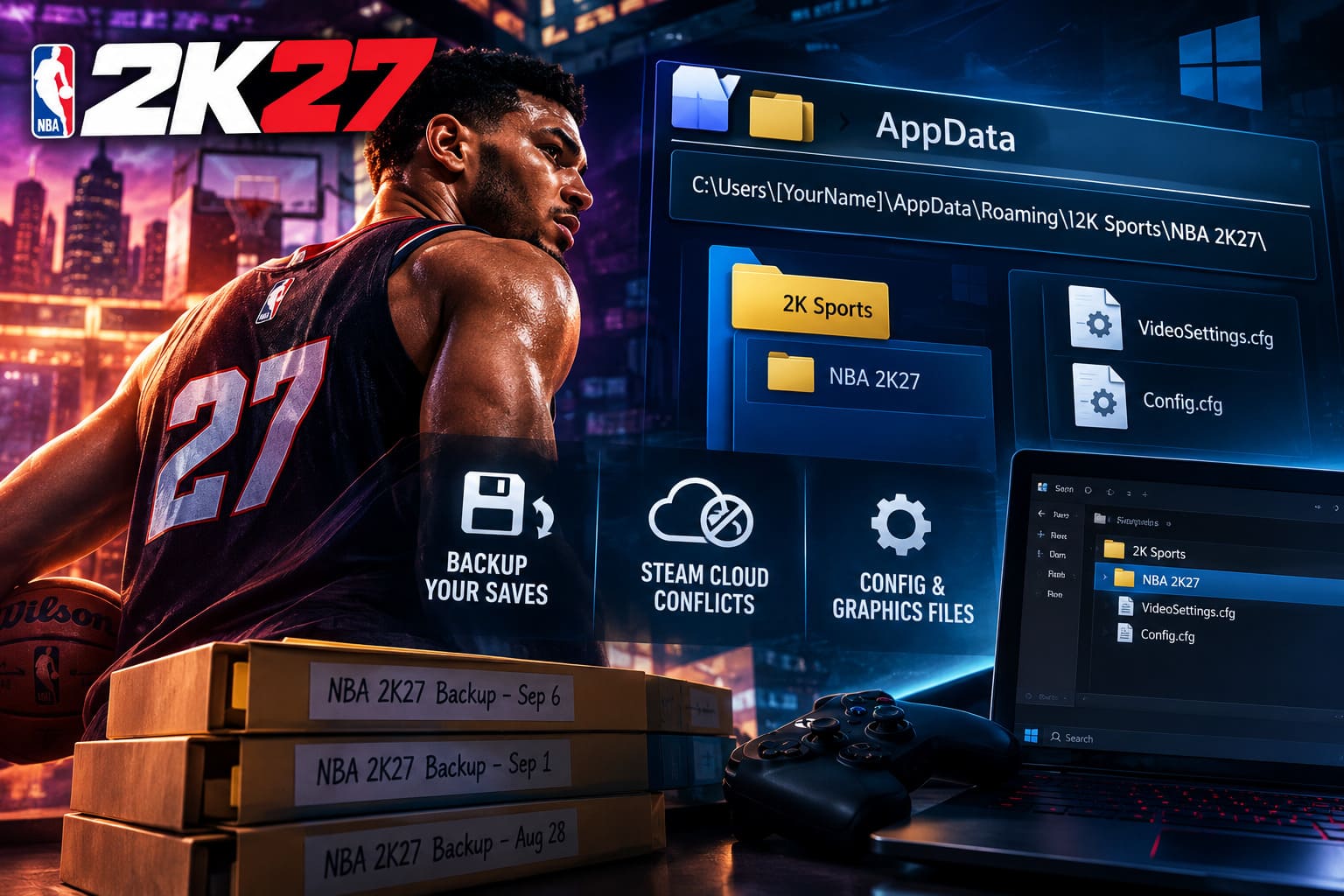
C:\Users\[Your Windows Username]\AppData\Roaming\2K Sports\NBA 2K27\
If you haven’t spent much time digging around Windows before, AppData can seem like it’s missing. That’s because Windows hides it by default.
The easiest shortcut is actually my preferred method:
- Press Windows + R.
- Type %appdata%.
- Press Enter.
- Look for the 2K Sports folder.
- Open the NBA 2K27 directory if it exists.
You can also enable Hidden items from File Explorer’s View menu if you’d rather browse to the folder manually.
Where Are NBA 2K27 Graphics and Configuration Files?
This is the part that becomes interesting when NBA 2K27 refuses to behave. If you’re dealing with a strange resolution, startup issue, black screen, incorrect display mode, or graphics settings that don’t seem to stick, checking the game’s local configuration files can be useful.
Depending on the current PC build, configuration data may use filenames such as VideoSettings.cfg or Config.cfg, with the relevant files potentially located under the game’s AppData directory.
Before editing anything, though, make a backup of the original file. It takes seconds and can save you a lot of frustration.
If you find a configuration file that can be edited as plain text, Notepad is enough for basic changes. However, I wouldn’t randomly change values just because they look interesting. A single incorrect parameter can turn a working setup into another troubleshooting session.
For display problems, the useful settings are generally related to things such as window mode, resolution and refresh-rate behavior. If NBA 2K27 suddenly launches with an unusable display configuration, restoring the original configuration file is usually safer than experimenting with a dozen variables at once.
How I Recommend Backing Up Your NBA 2K27 Saves
If your MyCAREER character is important to you, don’t rely exclusively on Steam Cloud. Cloud saves are incredibly convenient, but synchronization systems can also create conflicts when something goes wrong. Having a second copy gives you an escape route.
My preferred approach is simple: close NBA 2K27 completely, copy the relevant local save directory, and keep several dated backups.
- Exit NBA 2K27.
- Make sure Steam isn’t still processing the game in the background.
- Open the NBA 2K27 remote folder.
- Copy the files to a separate backup directory.
- Add the date to the backup folder name.
For example, you could create folders such as NBA 2K27 Backup – September 6. If you play heavily, keeping multiple snapshots is even better. That way, if a save becomes corrupted today, you aren’t forced to restore the only backup you made three months ago.
How to Restore an NBA 2K27 Save
Restoring a backup is slightly more delicate because of Steam Cloud. You don’t want Steam immediately replacing your healthy local file with an older or corrupted cloud version.
If you’re attempting a restoration, first make another copy of the current files. Then temporarily prevent Steam from synchronizing the problematic data while you put your known-good backup back into place.
Once the correct files are restored, launch the game and check whether your MyCAREER or other progression appears normally. Don’t immediately start deleting additional files if the first attempt doesn’t work. Make a backup before every major change.
After confirming that the local version is correct, you can reconnect Steam and carefully deal with the cloud synchronization prompt. If Steam asks you to choose between local and cloud versions, pay attention to the timestamps and choose the copy that actually contains your latest working progress.
What to Do When Steam Cloud Shows a Conflict
Steam Cloud conflicts are scary mainly because the wrong click can replace the version you actually wanted to keep.
If your PC has the newest version of your MyCAREER save, you generally want the local version to win. If you’ve just installed NBA 2K27 on another PC and the cloud contains your latest progression, downloading the cloud version may be the correct choice instead.
Don’t make the decision based purely on the words “cloud” or “local.” Think about where you last played the game and which version has the newest valid progress.
What About Corrupted or Stuck Save Files?
Sometimes the problem isn’t simply that a file disappeared. You may find that NBA 2K27 stops saving correctly, fails to recognize certain data, or behaves strangely after repeated crashes and synchronization problems.
One troubleshooting approach used by PC players involves checking the game’s Steam userdata directory and the remotecache.vdf metadata file in the relevant AppID folder. If Steam’s local tracking information becomes corrupted, rebuilding that metadata can sometimes help with synchronization problems.
However, I would treat this as a troubleshooting step rather than something to do routinely. Always create a backup first. Save management is one area where “I’ll just delete this and see what happens” is a particularly bad strategy.
NBA 2K27 Shooting Guard Build: The Unstoppable 2-Way Demi-God Guide
Can 2K Support Restore a Lost MyPLAYER?
This is an important distinction: not everything associated with your NBA 2K27 character necessarily exists as a simple file that you can copy between computers.
Online-connected progression and account-related information can involve server-side systems. That means having a backup of local files doesn’t necessarily give you complete control over every part of your MyPLAYER account.
If your character has genuinely disappeared and normal local recovery doesn’t work, contacting 2K Support is the safer option. Give them as much relevant information as possible about your account, platform and what happened. In situations involving server-side progression, a support ticket may be more useful than endlessly replacing local files.
NBA 2K27 Badge Tokens Guide: How to Earn, Equip, and Maximize Your MyPLAYER
My Final Advice for NBA 2K27 PC Players
Honestly, I think every serious NBA 2K27 PC player should spend five minutes finding their save directory before they actually need it. That’s especially true if you’ve built a MyPLAYER that represents weeks or months of playing time.
The basic rule is simple: know where your Steam userdata is, know where your AppData configuration files are, and keep an independent backup. Don’t wait until a corrupted save or Windows reinstall forces you to learn all of this under pressure.
And if you’re modifying configuration files to fix performance or display issues, change one thing at a time and keep the original file untouched. That makes troubleshooting dramatically easier.
NBA 2K27 can be demanding enough without adding a missing-save headache to the experience. A small backup routine is probably the least exciting part of playing basketball on PC, but when something goes wrong, you’ll be very glad you did it.
Quick Reference
| Task | What to Check |
|---|---|
| Find Local Saves | Steam userdata → Steam ID → NBA 2K27 AppID → remote |
| Find AppData Files | %appdata% → 2K Sports → NBA 2K27 |
| Back Up MyCAREER | Copy the relevant save files before making changes |
| Fix Cloud Conflicts | Compare local and cloud timestamps before choosing a version |
| Troubleshoot Metadata | Check the relevant Steam AppID folder and remotecache.vdf |
| Recover Server Data | Contact 2K Support if local recovery isn’t enough |