How to Fix Onimusha Way of the Sword Crashing, Black Screen, and Not Loading on PC
There are few things more annoying than finally sitting down to play a game you’ve been waiting years for, only for Windows to greet you with a crash to desktop.
That is exactly the kind of headache some PC players can run into with Onimusha: Way of the Sword. Capcom’s legendary samurai series has finally returned, and this time we’re following Miyamoto Musashi through a dark, demon-infested version of Edo-period Kyoto. The Oni Gauntlet is back, the Genma are waiting, and the combat is built around the kind of fast reactions that make an Issen counter feel fantastic when you nail it.
But none of that matters if the game refuses to load.
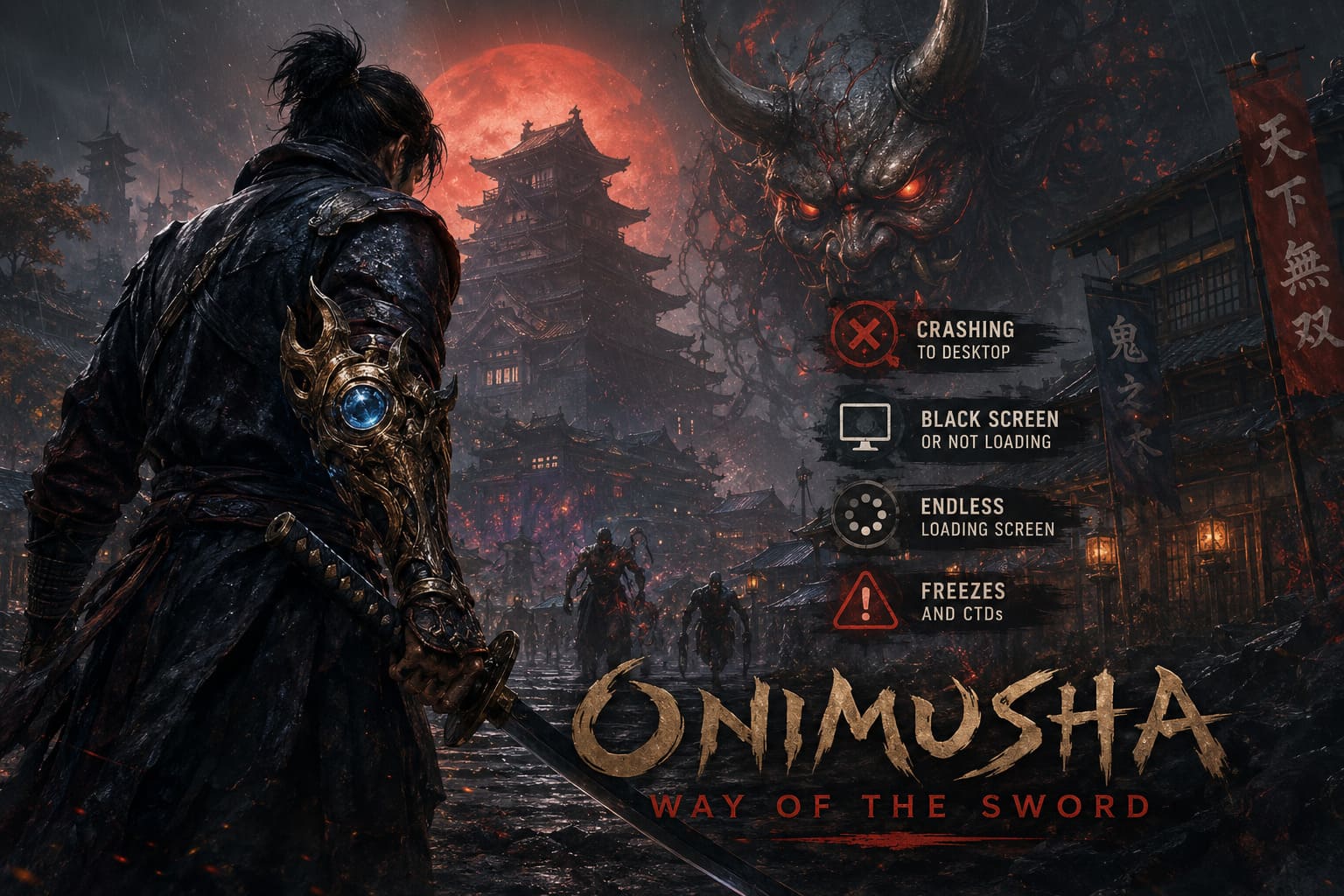
Players can encounter several different problems on PC: crashes during startup, black screens, freezes while loading, sudden CTDs, or seemingly endless loading screens. Some problems can be caused by corrupted files, outdated GPU drivers, shader-cache issues, Windows settings, overlays, or simply trying to run the game from hardware that isn’t quite up to the job.
I’ve put together this guide around the fixes I’d personally work through first. The idea is simple: don’t start deleting random system files or changing ten Windows settings at once. Work from the easy stuff toward the more aggressive fixes, and test the game after each major change.
First, Check Your PC Hardware
Before blaming Capcom, Steam, Windows, your GPU, or some mysterious Genma curse, check the basics.
Onimusha: Way of the Sword is a modern PC release with demanding graphics and heavy asset streaming. If your system is below the game’s baseline requirements, crashes and loading problems can become much more difficult to troubleshoot.
Onimusha: Way of the Sword PC Requirements
| Component | Minimum | Recommended |
|---|---|---|
| Operating System | Windows 10/11 64-bit | Windows 10/11 64-bit |
| Processor | Intel Core i5-8400 / Ryzen 5 2600 | Intel Core i7-10700K / Ryzen 7 3700X |
| Memory | 16 GB RAM | 16-32 GB RAM |
| Graphics | GTX 1070 / Radeon RX 590 | RTX 3070 / Radeon RX 6800 XT |
| DirectX | Version 12 | Version 12 |
| Storage | 70 GB SSD Recommended | 70 GB High-Speed NVMe SSD |
The SSD requirement deserves special attention.
If you’re trying to run the game from an old mechanical HDD, don’t be surprised if you encounter long loading times, texture-streaming problems, or loading screens that appear to have completely given up on life. Modern games constantly pull environmental assets, animations, effects, textures, and other data from storage.
An SSD isn’t a magical cure for every crash, but for a game like this, it’s absolutely the storage solution I’d want.
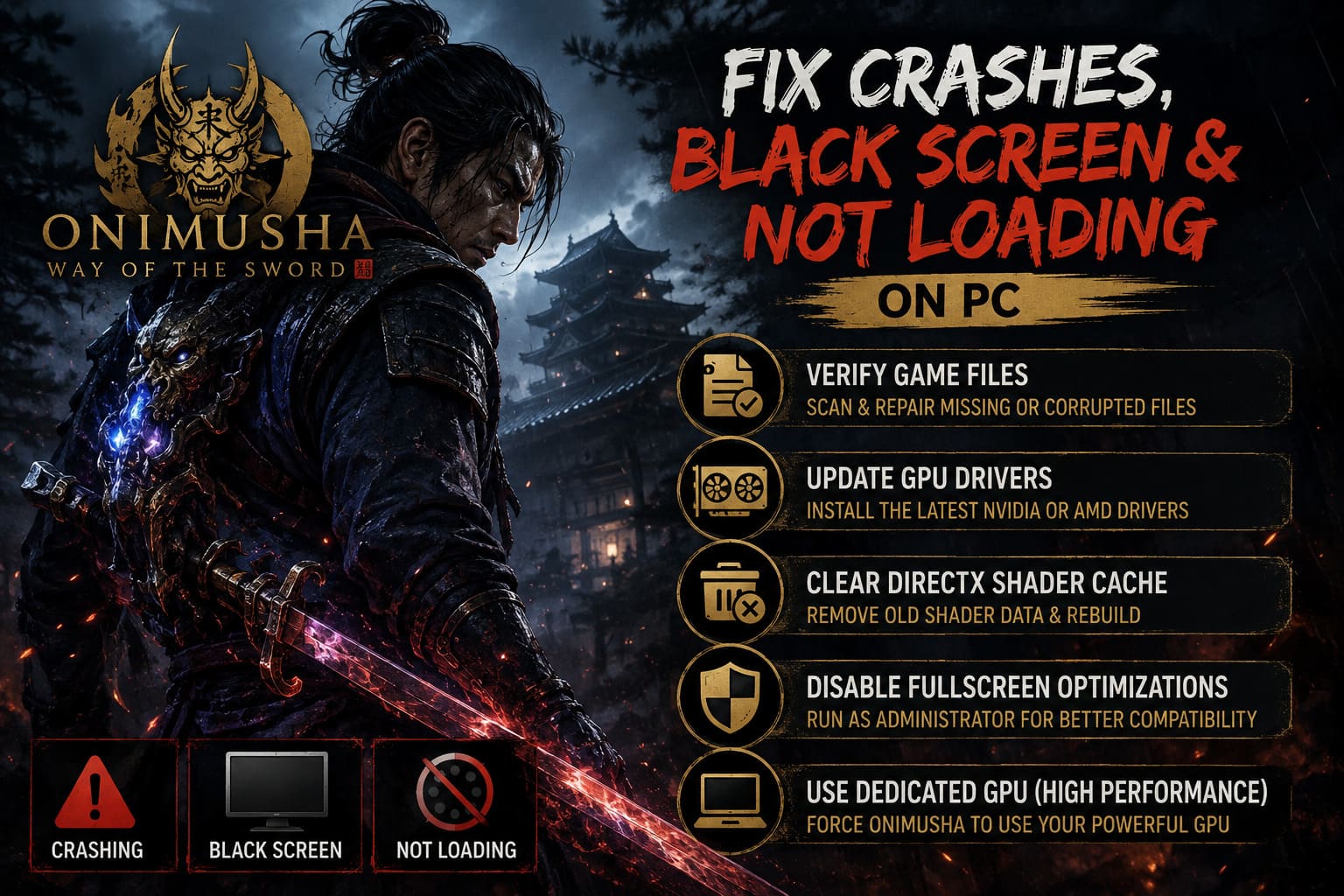
1. Verify the Game Files
This is boring advice.
It’s also one of the first things I’d do.
A broken or incomplete game file can cause everything from a startup crash to a black screen several minutes into a session. Large games are especially vulnerable to installation hiccups, particularly if you downloaded them during a busy launch period or resumed an interrupted download.
Steam
If you’re playing through Steam:
- Open Steam and go to your Library.
- Find Onimusha: Way of the Sword.
- Right-click the game and select Properties.
- Open Installed Files.
- Select Verify integrity of game files.
- Let Steam finish the scan.
- If damaged or missing files are discovered, Steam will download replacements.
Don’t panic if the process takes a while. A game installation of roughly 70 GB isn’t something Steam can inspect instantly.
Epic Games Store
Epic users can perform essentially the same check:
- Open the Epic Games Launcher.
- Go to your Library.
- Find Onimusha.
- Click the three dots next to the game.
- Select Manage.
- Click Verify.
Once verification finishes, launch the game again before changing anything else.
2. Update Your NVIDIA or AMD Graphics Driver
If your GPU driver is ancient, this should be your next stop.
New PC games often expose problems that older drivers never encountered. A game using modern DirectX 12 rendering features can behave perfectly in one title and then immediately explode when another game starts compiling shaders or initializing a different rendering pipeline.
For NVIDIA hardware, open the NVIDIA App and check the Drivers section. Install the latest available driver and, where appropriate, use the clean installation option.
For AMD graphics cards, open AMD Software: Adrenalin Edition and check for the newest available driver package.
After installing the driver, restart Windows.
Yes, actually restart it.
I’ve seen plenty of troubleshooting sessions where somebody installs a display driver, immediately launches the game, gets the exact same crash, and assumes the driver didn’t help. A proper reboot matters because Windows needs to reload the graphics stack and related services cleanly.
If you’re running an especially old driver, this is one of the fixes I’d prioritize.
3. Clear the DirectX Shader Cache
This one is particularly worth trying if Onimusha: Way of the Sword crashes during its first launch or immediately after a GPU driver update.
Modern games can compile a substantial amount of shader data. When something goes wrong during that process, you can end up with a nasty loop where the game keeps crashing at roughly the same point.
Windows allows you to clear the DirectX shader cache without manually hunting through obscure folders.
How to Clear the Shader Cache
- Press Windows Key + R.
- Enter
cleanmgr. - Press Enter.
- Select your main Windows drive, usually C:.
- Let Disk Cleanup calculate the available files.
- Find DirectX Shader Cache.
- Check it.
- Click OK and confirm the deletion.
If you don’t want to remove other temporary data, simply leave those other categories unchecked.
Afterward, launch Onimusha again.
The first launch may take longer than usual while the game rebuilds required shader data. Don’t immediately kill the process just because the initial startup isn’t instant. Give it some time.
4. Disable Fullscreen Optimizations and Try Administrator Mode
Windows has accumulated a rather impressive collection of compatibility features over the years. Most of the time they work quietly in the background. Occasionally, a game disagrees with one of them.
If you’re dealing with an immediate crash, black screen, or strange fullscreen behavior, it’s worth testing the executable directly.
First, locate the game’s installation folder.
On Steam, you can usually get there by right-clicking the game in your Library and selecting:
Manage → Browse local files
Find the main Onimusha executable. The exact filename can vary depending on the final PC build, so look for the primary .exe associated with the game.
Then:
- Right-click the executable.
- Select Properties.
- Open the Compatibility tab.
- Enable Disable fullscreen optimizations.
- Enable Run this program as an administrator.
- Click Apply.
- Click OK.
Now test the game again.
I wouldn’t permanently change a dozen compatibility settings at once. Start with these two, test the game, and only move on if the problem remains.
5. Force Windows to Use Your Dedicated GPU
This fix is especially important for gaming laptops and PCs with integrated graphics.
Windows can sometimes make questionable choices about which GPU should handle an application. If Onimusha is being launched on integrated graphics instead of your dedicated NVIDIA or AMD GPU, performance isn’t going to be pretty, and in some configurations the game may fail to initialize correctly.
Fortunately, Windows lets you manually assign a graphics preference.
Set Onimusha to High Performance
- Open Windows Search.
- Type Graphics Settings.
- Open the graphics settings page.
- Find the section for custom graphics preferences.
- Choose Browse.
- Navigate to the Onimusha installation folder.
- Select the game’s main executable.
- Add it to the application list.
- Select the game.
- Choose Options.
- Set it to High Performance.
- Save the change.
Restart the game afterward.
For laptops, also make sure you’re playing while connected to AC power. Some power-management profiles aggressively reduce GPU performance, and that’s the last thing you want when troubleshooting a demanding DirectX 12 title.
6. Turn Off Every Overlay You Don’t Need
This is one of my favorite troubleshooting steps because it takes about two minutes and can eliminate a surprisingly annoying number of crashes.
Overlays aren’t inherently bad. The problem is that they have to hook into the game while it is rendering. When multiple programs try to interact with the same rendering layer, things can get messy.
If you’re experiencing random crashes, freezes, black screens, or crashes during gameplay, temporarily disable them.
Steam Overlay
Open Steam settings and navigate to the In-Game section. Disable the option that enables the Steam Overlay while playing.
Discord Overlay
In Discord:
User Settings → Game Overlay → Disable in-game overlay
NVIDIA Overlay
If you’re using the NVIDIA App, open its settings and temporarily disable the In-Game Overlay.
You may also have overlays from other applications such as recording software, monitoring utilities, RGB tools, or performance trackers.
For troubleshooting purposes, I’d turn off anything that injects itself into the game.
Then launch Onimusha and test it.
If the crashes disappear, you’ve got a much smaller list of suspects.
7. Check Windows Security and Antivirus Permissions
Security software can occasionally get a little too enthusiastic.
A newly released game may contain executables and background processes that haven’t yet established a strong reputation with antivirus software. If security software blocks something the game needs, the result can look like a completely random crash.
Windows Defender is usually pretty good at avoiding false positives, but it’s still worth checking if the game refuses to start.
Add the Game Folder as an Exception
- Open the Windows Start menu.
- Search for Windows Security.
- Open Virus & threat protection.
- Select Manage settings.
- Scroll down to Exclusions.
- Choose Add or remove exclusions.
- Select Add an exclusion.
- Choose Folder.
- Select the folder where Onimusha is installed.
If you’re using third-party antivirus software, check its quarantine and blocked-app history as well.
Important: Only whitelist the legitimate game installation directory. Don’t randomly disable your entire antivirus protection or add suspicious files to exclusions.
If security software has actually quarantined one of the game’s files, verifying the game installation afterward is a good idea.
8. What to Do About an Infinite Black Loading Screen
A black screen can be particularly confusing because it doesn’t always mean the game has crashed.
Sometimes the application is still working.
If you launch Onimusha and get a black screen, give it a reasonable amount of time before immediately forcing it closed. Watch for signs of system activity, disk usage, or eventual audio/menu sounds.
If it never progresses, work through the fixes above in this order:
- Verify the game files.
- Update your GPU driver.
- Clear the DirectX Shader Cache.
- Disable overlays.
- Force the dedicated GPU through Windows Graphics Settings.
- Try disabling fullscreen optimizations.
- Make sure the game is installed on an SSD with plenty of free space.
I’d also close unnecessary background applications before trying again. You don’t need twenty browser tabs, RGB control software, recording tools, hardware monitors, and three different launchers fighting for resources while you’re diagnosing a game that won’t boot.
9. If Onimusha Crashes During Gameplay
A game that launches successfully but crashes during combat is a slightly different beast.
If the crash happens specifically during visually intense encounters, particularly sequences involving lots of effects, enemies, particles, or rapid camera movement, I’d look at GPU stability and graphics settings.
Start by lowering the most demanding options rather than destroying the entire visual presentation.
Reduce settings such as:
- Shadow quality
- Volumetric effects
- Reflections
- Effects and particles
- Overall rendering quality
If the game becomes stable after reducing these settings, gradually increase them again.
You want to find the setting that actually causes the problem instead of simply running everything on Low.
And if you’re using a GPU overclock, return it to stock settings while troubleshooting. An overclock that works perfectly in five games can still crash in the sixth.
PS5 Troubleshooting: Freezing and Loading Problems
The PC version gives you plenty of settings to experiment with. Console troubleshooting is thankfully much simpler.
If Onimusha: Way of the Sword freezes or refuses to load properly on PS5, completely close the game from the console dashboard.
Don’t just leave it suspended in the background.
Then:
- Shut down the PS5 completely.
- Do not use Rest Mode.
- Unplug the console’s power cable.
- Leave it disconnected for around 30 seconds.
- Reconnect the power.
- Start the console.
- Launch Onimusha again.
- Test the affected save or loading sequence.
Also make sure your PS5 system software is fully updated.
If the issue continues, check your installed game updates as well. A launch-day title can receive patches quickly, and a problem that exists on one build may already be addressed by a newer update.
Xbox Series X|S Troubleshooting
Xbox players can take a similar approach.
If the game freezes:
- Press the Xbox button.
- Highlight Onimusha: Way of the Sword.
- Press the Menu button.
- Select Quit.
- Open My games & apps.
- Select See all.
- Highlight Onimusha.
- Press the Menu button.
- Select Manage game and add-ons.
- Check for available updates.
Make sure the game has downloaded any available patches or hotfixes before testing again.
A full restart of the console is also worth trying if the game has been running for a long time or has repeatedly frozen.
How to Fix Onimusha: Way of the Sword Black Screen on Launch and Crashing Issues
The Fastest Troubleshooting Order I’d Personally Use
If you don’t want to spend an entire evening jumping between Windows menus, here’s the order I’d follow on a gaming PC:
| Priority | Fix | Why Try It |
|---|---|---|
| 1 | Verify Game Files | Fixes corrupted or incomplete installation data |
| 2 | Update GPU Driver | Addresses driver-level DX12 compatibility issues |
| 3 | Restart PC | Gives Windows and the graphics stack a clean start |
| 4 | Clear Shader Cache | Useful for startup and shader-related crashes |
| 5 | Disable Overlays | Removes common software conflicts |
| 6 | Force High-Performance GPU | Prevents integrated GPU selection |
| 7 | Disable Fullscreen Optimizations | Helps with certain Windows display conflicts |
| 8 | Check Antivirus | Rules out blocked game files or processes |
This approach saves time because you’re starting with fixes that are relatively safe and easy to reverse.
Onimusha Way of the Sword Plot Explained: The Full Story of Miyamoto Musashi’s Demonic War
Final Thoughts
Onimusha: Way of the Sword is exactly the kind of comeback I’ve wanted from this franchise: aggressive swordplay, supernatural enemies, a gorgeous historical setting, and that wonderfully old-school feeling of learning enemy attack patterns until your reactions become automatic.
So when the game crashes before you can even swing Musashi’s sword, it’s understandably frustrating.
The good news is that a lot of PC launch problems don’t require anything dramatic. Verifying the installation, updating your GPU drivers, rebuilding the shader cache, disabling overlays, selecting the correct GPU, and checking security software should cover a large portion of the common causes.
If you’re still crashing after going through everything here, don’t immediately start tearing apart Windows. At that point, the problem may be tied to a specific GPU model, driver version, game build, save file, or an issue that simply needs a Capcom patch.
Keep the game updated, keep Windows and your graphics drivers current, and pay attention to whether the crash happens at startup, during loading, or at a specific gameplay sequence. That detail can be incredibly useful when narrowing down the actual cause.
And honestly, once the game is finally running smoothly, it’s worth the effort. There’s nothing quite like landing a perfectly timed Issen after fighting with your PC for an hour. The demons can wait. First, we get the damn game to boot.