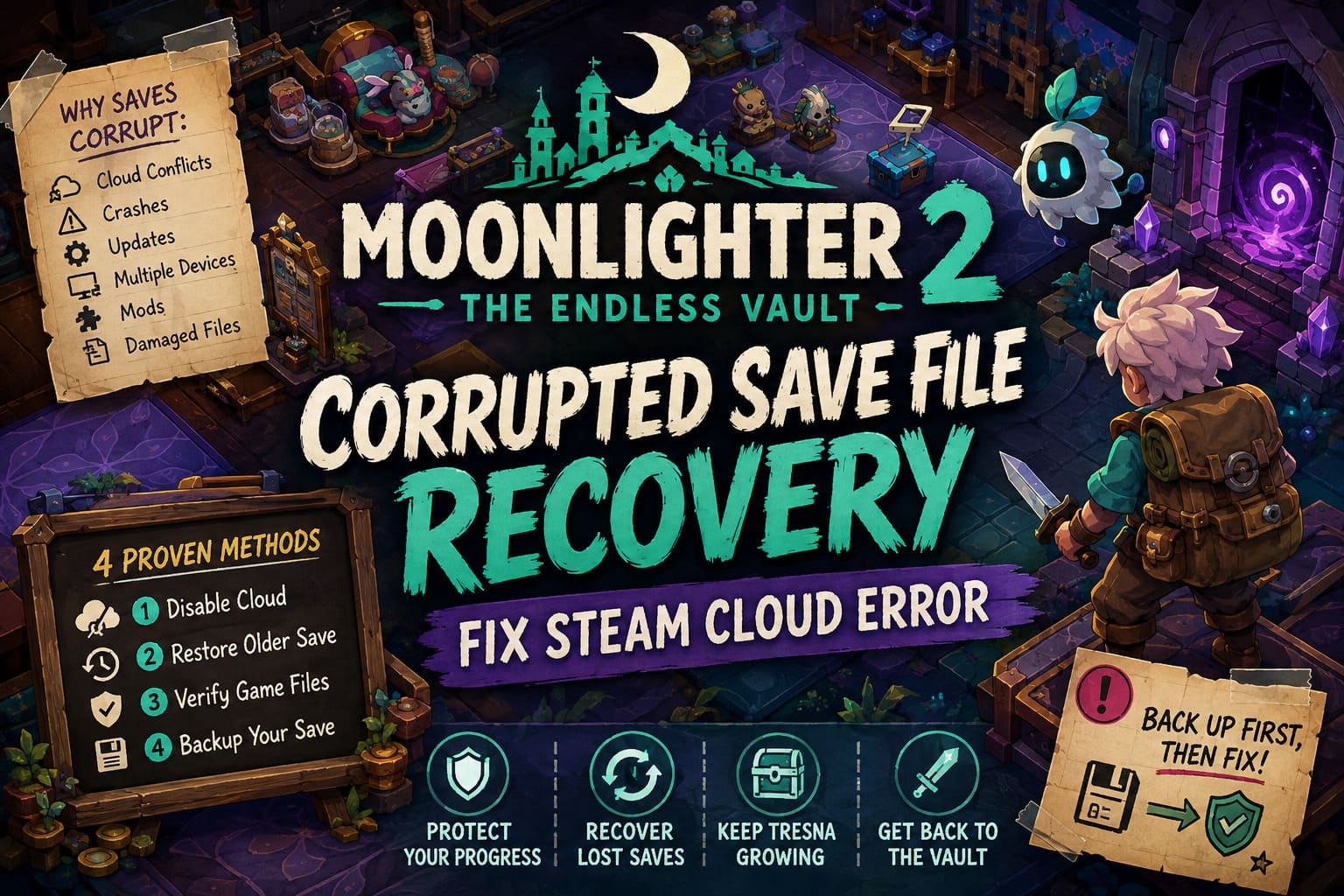
Moonlighter 2 Corrupted Save File Recovery: Fix Steam Cloud Error
There are few things more painful for a PC gamer than launching a game after several hours of progress and discovering that your save is suddenly broken. You know the feeling: the game loads, the screen hangs, or you are somehow staring at a save that looks as if you have never played before. Moonlighter 2: The Endless Vault is the kind of game where this hurts particularly badly because so much of the experience revolves around gradual progression.
You spend your days running a shop, sorting loot, deciding what is worth selling, upgrading the town of Tresna, and preparing for another expedition. Then you head into the Endless Vault, come back with better equipment, and repeat the process. After dozens of hours, losing that loop can feel brutal.
Having played plenty of roguelites and action RPGs over the years, I have learned one important lesson: never assume a corrupted save means your entire playthrough is gone. Steam Cloud, local save files, backups, and even simple file verification can sometimes give you a way back in. If Moonlighter 2 is stuck on an infinite loading screen, has reverted your progress, or refuses to load a character, here are the recovery methods I would try first.
Moonlighter 2 Crashing on Launch Steam Deck: How to Fix The Endless Vault Issues
Why Does Moonlighter 2 Have a Corrupted Save?
Before deleting anything, it helps to understand what may have gone wrong. Save corruption can happen for several reasons, and it is not always caused by the game itself.
One of the biggest suspects is Steam Cloud synchronization. If you play on more than one PC or switch between a desktop and something like a Steam Deck, Steam has to constantly decide which version of your files is the newest. Normally this happens invisibly in the background. Problems can appear when the game closes unexpectedly, the connection drops, or Steam tries to synchronize files while the local save is already in an inconsistent state.
Major patches can also complicate things. An update may change how certain systems, items, progression data, or other gameplay information are stored. That does not automatically mean an old save will break, but when an existing technical problem meets a major update, loading failures become much more plausible.
In my experience with PC games, the important rule is simple: don’t start deleting files randomly. Make a backup first, then troubleshoot methodically.
Common Causes Include:
- Steam Cloud synchronization conflicts
- A game or PC crash while saving
- Interrupted Steam Cloud uploads
- Switching between multiple devices
- Major game updates
- Damaged or missing game files
- Mod-related compatibility problems
Method 1: Disable Steam Cloud and Recover the Local Save
This is the first method I would try if your local save was working before the problem appeared. The idea is to prevent Steam from immediately replacing your potentially usable local data with an unwanted cloud version.
Step 1: Turn Off Steam Cloud
Open your Steam Library and find Moonlighter 2: The Endless Vault.
Right-click the game and select Properties. Under the General section, find the Steam Cloud option and temporarily disable cloud synchronization.
This step is extremely important. If Steam Cloud remains active while you are moving files around, the client may synchronize the wrong version before you have a chance to test your recovery.
Step 2: Find Your Local Save Folder
On Windows, press Windows + R to open the Run dialog.
Enter:
%localappdata%Low
Press Enter and navigate through the relevant publisher and game folders until you reach the Moonlighter 2 save directory. Inside, you should find a folder associated with your Steam account ID.
The exact folder structure can change between builds, so don’t worry if the names do not look exactly like screenshots or guides you may have seen online.
Step 3: Make a Backup Before Touching Anything
This is the part I would never skip.
Copy the entire folder containing your Moonlighter 2 save data and place the copy somewhere safe, such as your desktop or a dedicated backup folder.
Do not start experimenting with the original files before making this copy.
Even if the save appears broken, that original data may still become useful later. Having a backup means you can always return to your starting point.
Step 4: Look for the Save Data and Cloud Configuration
Inside the account-specific folder, look for the game’s primary save file, such as SaveData.bin, along with Steam Cloud-related configuration files.
If a steam_autocloud.vdf file is present and you suspect synchronization problems, removing that cloud tracking file can be worth trying after you have created your backup.
I would be much more cautious about deleting the actual save itself. Your backup is your safety net, so keep it untouched while testing different combinations.
Step 5: Start Moonlighter 2 Without Cloud Sync
With Steam Cloud still disabled, launch the game and see whether it can read the local save.
If your progression returns, check several things rather than immediately celebrating. Load your character, inspect your equipment, visit the shop, and make sure your town progression and inventory look correct.
If everything is intact, you have probably recovered the playable local version.
Method 2: Restore an Older Steam Cloud Save
What happens if the local save is genuinely damaged?
This is where Steam Cloud can actually become your best friend rather than the source of the problem.
Steam maintains cloud-stored versions of supported game data, which means an older copy may still exist even if the newest synchronized version is broken. If you know approximately when your save stopped working, look for a cloud version from before the crash or corruption occurred.
Open Steam’s remote storage interface through your browser while logged into the correct Steam account. Locate Moonlighter 2 and inspect the available files and timestamps.
The timestamps are particularly useful. If your save broke yesterday, for example, a version uploaded before yesterday’s crash may be much more valuable than the newest file.
What Should You Look For?
Ideally, you want:
- A save created before the corruption appeared
- A sensible file size
- A timestamp from a known-good session
- The primary save data file used by the game
Download the older version to your computer rather than immediately overwriting your local files.
Then, with Steam Cloud disabled, place the recovered save into the appropriate local save directory and make sure its filename matches the original expected filename.
For example:
SaveData.bin
Avoid accidentally creating something like:
SaveData (1).bin
Windows can sometimes append numbers when copying files, and the game may not recognize the renamed version.
Method 3: Verify Moonlighter 2’s Game Files
Sometimes the save isn’t actually the problem.
This is an easy mistake to make because a damaged game installation can produce symptoms that look very similar to save corruption. A missing or corrupted asset, configuration file, or executable component can prevent the game from properly initializing your profile.
Fortunately, Steam has a built-in solution.
Go to Moonlighter 2 → Properties → Installed Files and choose Verify integrity of game files.
Steam will compare the files installed on your PC with the expected versions and download replacements when necessary.
I always recommend trying this before performing anything too invasive. It is relatively safe, it does not require manually editing your save, and it can fix problems caused by interrupted updates or damaged installation files.
Once verification finishes, launch the game again and test your save.
What If the Game Still Gets Stuck on Loading?
An infinite loading screen is a little more complicated because several different problems can produce the same symptom.
If verifying the game files does not help, I would return to the basics:
- Keep Steam Cloud disabled temporarily.
- Confirm that your backup still exists.
- Test the newest local save separately.
- Try a known-good cloud save if one is available.
- Remove unnecessary mods or third-party modifications.
- Restart Steam completely before testing again.
The key is to change one thing at a time. If you delete five files, reinstall the game, restore a cloud save, and change several settings simultaneously, you may never know which action fixed the problem—or made it worse.
How to Safely Re-Enable Steam Cloud
Once you have recovered your progression, don’t immediately assume everything is finished.
This is where many players accidentally undo their own recovery.
First, launch Moonlighter 2 with Cloud disabled and confirm that your restored save is genuinely working. Play for a few minutes, make sure the correct character and progression are present, and ideally create a fresh save state by exiting the game normally.
After that, close Moonlighter 2 completely and re-enable Steam Cloud.
Steam may display a synchronization conflict because your local save differs from the cloud version. Pay very close attention to the options Steam presents.
If the local version is the one you just recovered and verified, you generally want to keep that local version and upload it to the cloud rather than downloading the older cloud copy over your working save.
This is one of those moments where slowing down for ten seconds can save you another hour of troubleshooting.
My Advice for Preventing Future Save Problems
After dealing with corrupted saves in different games, I have become a little obsessive about backups. It takes almost no time to make a copy of an important save, while rebuilding dozens of hours of progress can take weeks.
For Moonlighter 2, I would especially recommend backing up your save before:
- Installing a major game update
- Switching to another gaming PC
- Moving between PC and Steam Deck
- Installing or removing mods
- Making a significant progression milestone
- Troubleshooting an existing save problem
You don’t need some complicated backup system. Even keeping a few dated copies in a separate folder can be enough.
For example:
Moonlighter2_Save_2026-08-30.bin
That gives you a simple history of your progress and makes it much easier to identify a working version if something goes wrong.
Moonlighter 2 Save Recovery Methods at a Glance
| Recovery Method | Best For | Difficulty | Risk |
|---|---|---|---|
| Disable Steam Cloud + Local Save | Cloud conflicts and loading problems | Medium | Low if backed up |
| Restore Older Cloud Save | Damaged local save | Medium | Medium |
| Verify Game Files | Installation-related errors | Easy | Very Low |
| Manual Backup | Preventing future loss | Easy | Very Low |
Final Thoughts
Moonlighter 2: The Endless Vault is exactly the kind of game where losing a save hurts. The whole experience is built around small improvements that eventually add up to a powerful character, a better shop, stronger equipment, and a town that feels increasingly like your own.
The good news is that a corrupted save does not necessarily mean your entire adventure is finished. In many cases, the problem is sitting somewhere between Steam Cloud synchronization and the local files rather than the actual progression being permanently destroyed.
If I were troubleshooting this on my own PC, I would start conservatively: back up the save folder, disable Steam Cloud, test the local data, verify the game installation, and only then move toward an older cloud backup. That order minimizes unnecessary risk and gives you the best chance of preserving your latest progress.
And once you finally load back into Tresna and see all those upgrades still sitting there, you’ll probably appreciate the game a little more. After all, nothing makes a perfectly ordinary save file look more valuable than the moment you think you’ve lost it.