Brigandine Abyss Steam Deck Best Graphics Settings & Performance Guide
If you are playing Brigandine Abyss on Steam Deck, there is one mistake I would avoid right away: trying to force a perfect 60 FPS.
I get why people do it. Seeing that 60 FPS counter sitting there feels like the “correct” way to play a modern game. But Brigandine Abyss is a tactical RPG, not a competitive shooter. After spending time looking at how the game behaves during larger battles, I think a locked 40 FPS on Steam Deck LCD or 45 FPS on Steam Deck OLED is a much better target.
The game looks fantastic when you keep the important visual settings high, but Unreal Engine 5 can put a surprisingly heavy load on the handheld. The strategic map itself is usually comfortable, while large battles with multiple units, spell effects, shadows, and particles are where performance starts to fall apart.
The good news is that you don’t need to make Brigandine Abyss look ugly to get a stable experience. A few smart changes make a much bigger difference than simply turning everything down.
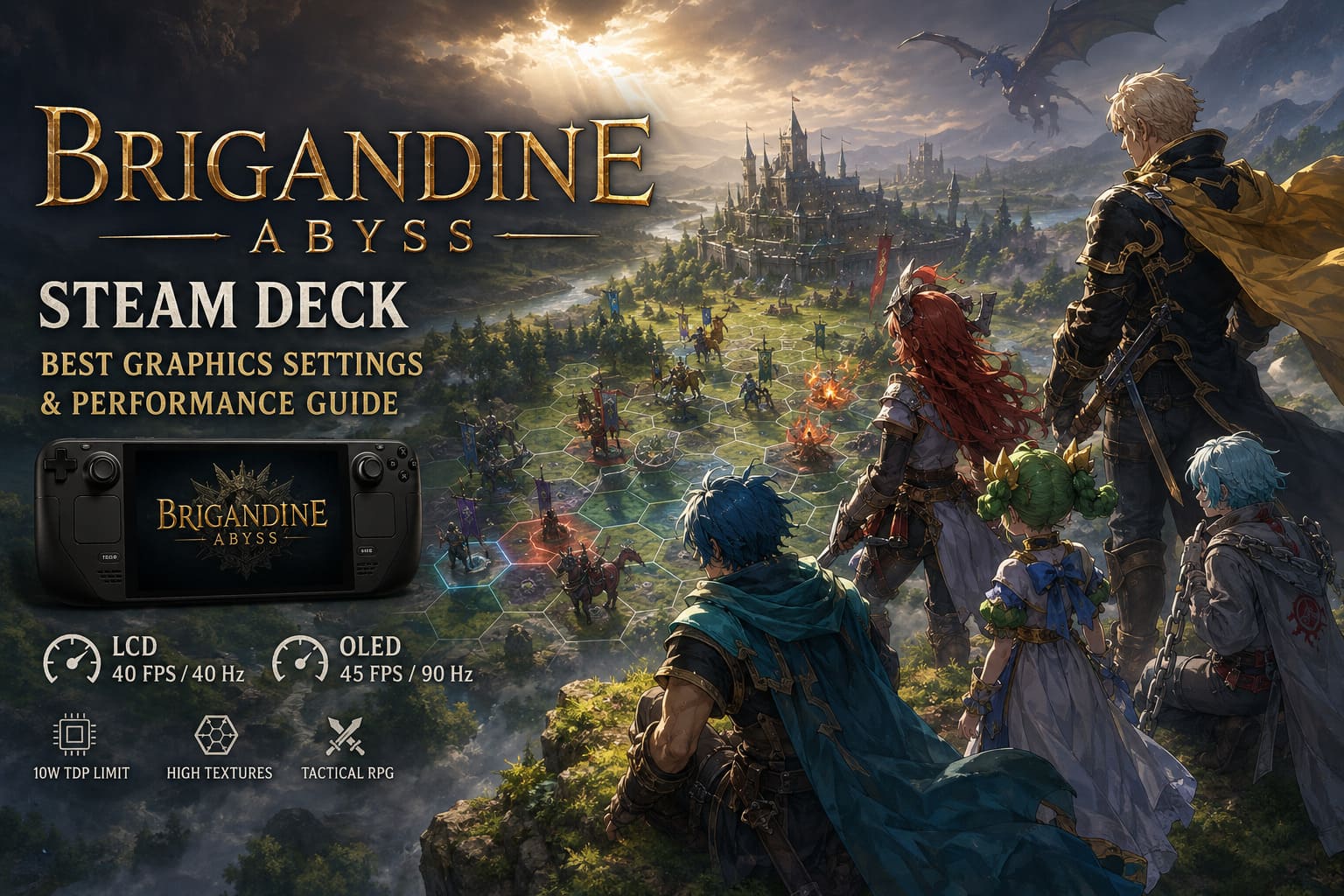
My Recommended Steam Deck Settings for Brigandine Abyss
Before getting into the more advanced SteamOS tweaks, this is the setup I would start with.
| Setting | Steam Deck LCD | Steam Deck OLED |
|---|---|---|
| Resolution | 1280×800 | 1280×800 |
| Frame Rate | 40 FPS | 45 FPS |
| Refresh Rate | 40 Hz | 90 Hz |
| V-Sync | Off | Off |
| Textures | High / Ultra | High / Ultra |
| Lighting | Medium | Medium |
| Shadows | Low / Medium | Low / Medium |
| Object Detail | Medium | Medium |
| Render Distance | Low | Low |
| Particles | Low | Low |
| Reflections | Low | Low |
| Motion Blur | Off | Off |
| Depth of Field | Off | Off |
| Bloom | Off | Off |
| Ambient Occlusion | Off | Off |
| Anti-Aliasing | TAA / TSR Balanced | TAA / TSR Balanced |
This combination keeps the parts of the game that I actually care about looking good while cutting back on effects that don’t add much during tactical battles.
Don’t Lower the Resolution Unless You Really Need Battery Life
1280×800 should stay your default resolution.
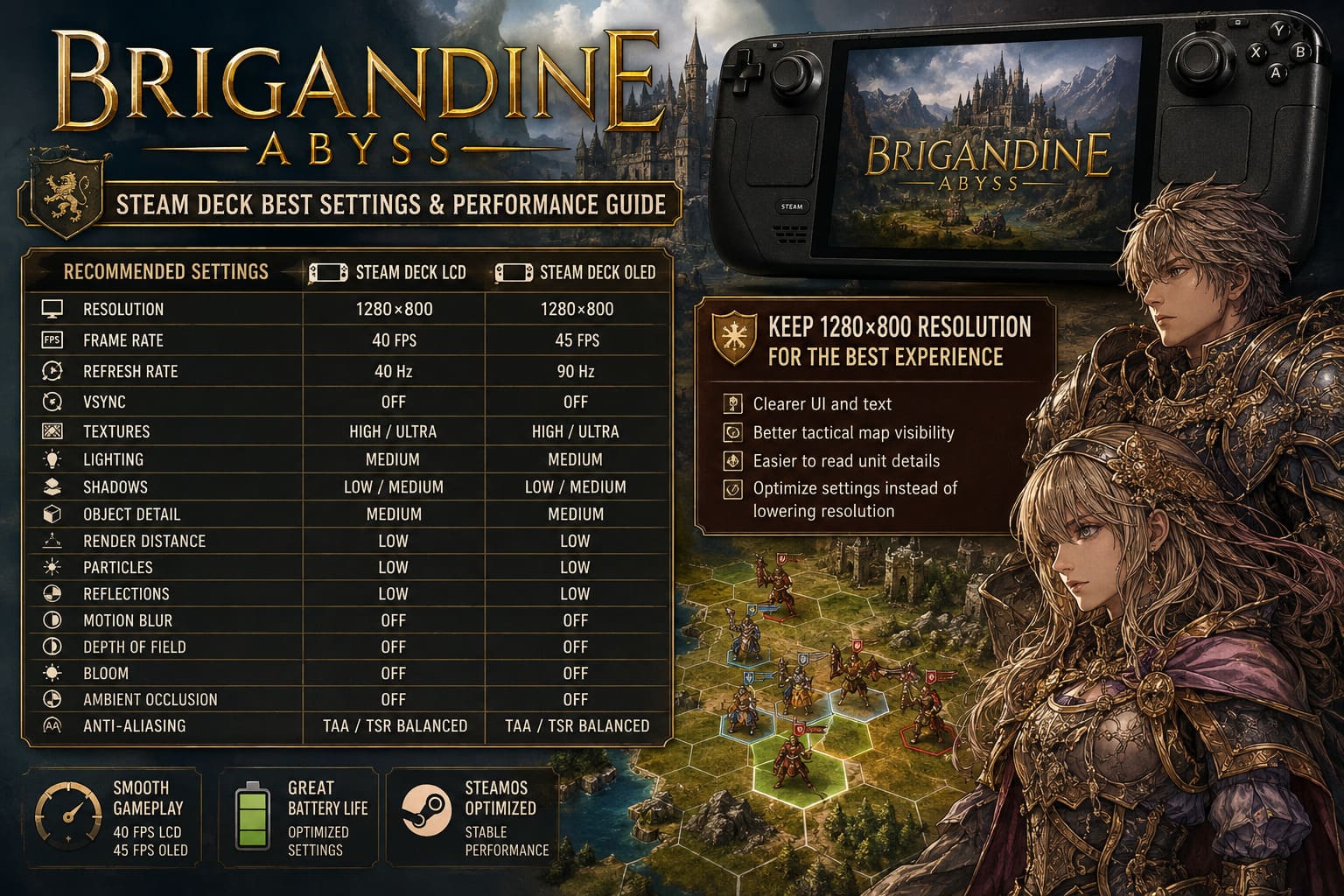
This is one of those settings where saving a little GPU power isn’t necessarily worth the visual sacrifice. Brigandine Abyss has a lot of small interface elements, tactical information, menus, character details, and text. On the Steam Deck screen, dropping the resolution can make those elements noticeably softer.
I would much rather reduce shadows, particles, reflections, and post-processing than sacrifice the native 800p image.
The tactical maps also benefit from the extra clarity. When you’re moving units around a busy battlefield, being able to clearly distinguish terrain, hexes, characters, and effects is more important than having another handful of frames.
Keep the resolution native and optimize around it.
Why I Prefer 40 FPS on the LCD Steam Deck
The LCD Steam Deck is still perfectly capable of running Brigandine Abyss nicely, but I wouldn’t treat it like a desktop PC.
My preferred target is:
- 40 FPS
- 40 Hz refresh rate
- 10W TDP
- V-Sync off
- SteamOS frame limiter enabled
A stable 40 FPS feels surprisingly good in a turn-based strategy RPG. More importantly, it gives the hardware enough breathing room to handle the moments when a battle suddenly fills the screen with spells and particle effects.
Trying to hold 60 FPS means the APU has to work considerably harder. You’ll generally get more heat, more fan noise, and faster battery drain for an improvement that isn’t particularly important in this genre.
For Brigandine Abyss, consistent frame pacing beats a higher but unstable frame rate.
OLED Steam Deck: 45 FPS Is the Sweet Spot
The OLED model gives you another interesting option.
If you’re using the 90 Hz display, I recommend setting:
45 FPS + 90 Hz
This is a particularly nice combination because 45 FPS divides evenly into 90 Hz. The result feels much smoother than you might expect from a strategy RPG, while still keeping the hardware under much less pressure than a 60 FPS target.
I’d personally use this setup for longer handheld sessions.
The OLED’s display is already excellent for this kind of game, and the combination of native resolution, high-quality textures, and a 45 FPS cap makes Brigandine Abyss feel much closer to a dedicated handheld experience than a compromised PC port.
The Graphics Settings That Actually Matter
Not every graphics option deserves the same attention. Some settings have a real performance impact, while others mostly waste GPU resources.
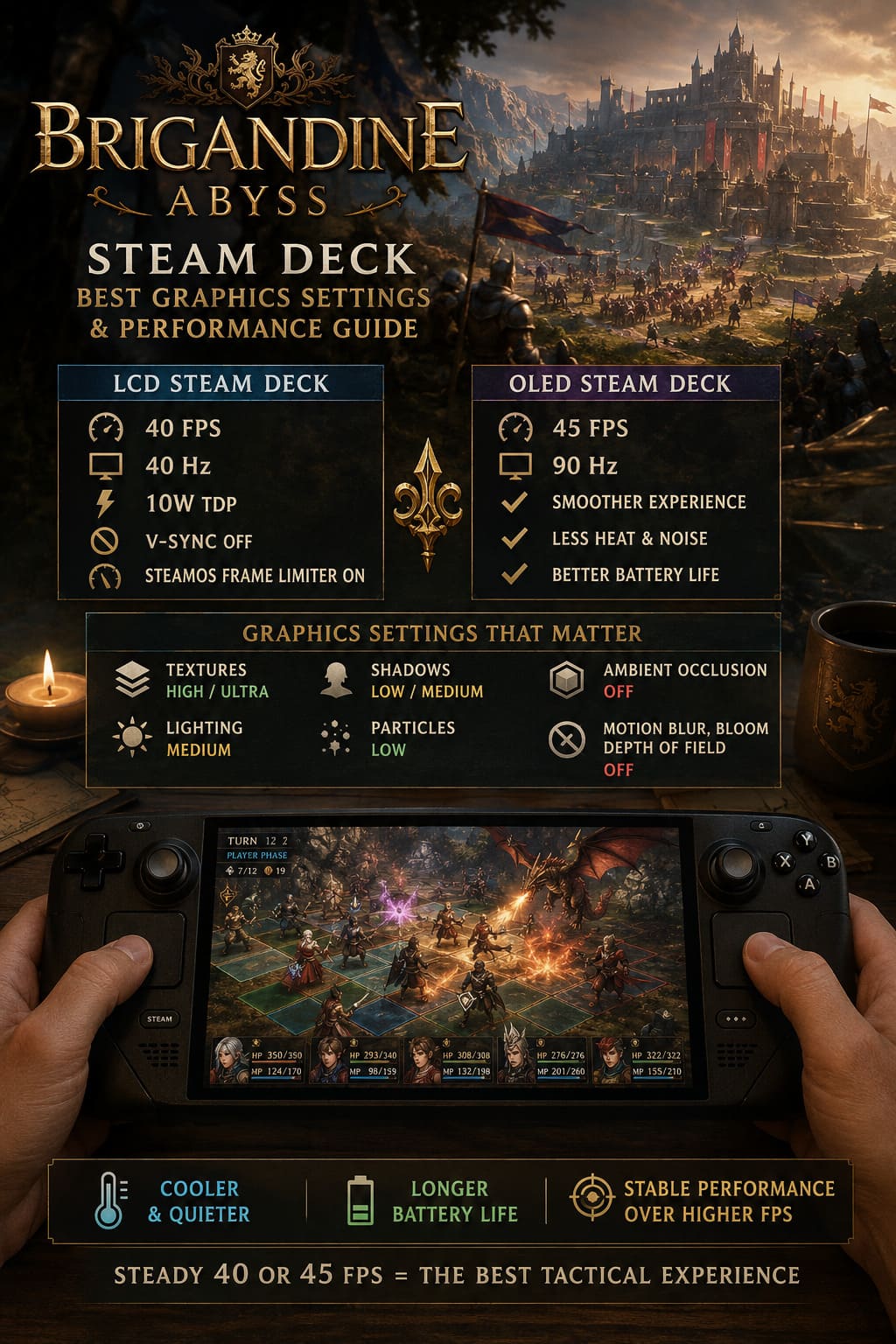
Texture Quality: High or Ultra
Keep textures high.
This is one of the settings I wouldn’t sacrifice unless you are running into serious memory problems.
Character artwork, armor, units, environments, and battlefield assets all benefit from sharper textures. Brigandine Abyss has a lot of visual information packed into relatively small areas, so dropping texture quality can make the game feel cheaper without providing a huge performance improvement.
If your Deck is behaving properly, High or Ultra textures are absolutely worth keeping.
Lighting: Medium
Lighting is one of my favorite examples of a setting where going all the way to Low makes the game worse than necessary.
At Low, environments lose some of their depth. Characters and battlefield objects can look flatter, and the atmosphere suffers.
Medium is the better compromise.
You retain the important lighting effects without asking the Steam Deck to constantly push maximum-quality lighting calculations during battles.
Shadows: Low or Medium
If you need extra performance, shadows are one of the first places I would look.
I’d personally start with Medium and then move to Low if the game struggles during large encounters.
The difference isn’t enormous on a small Steam Deck display, while the performance savings can become noticeable when several units are fighting simultaneously.
If you’re chasing the most consistent frame time possible, Low shadows are an easy recommendation.
Particles: Low
This one is especially important.
Brigandine Abyss can become much more demanding when combat effects start flying everywhere. Magical attacks, explosions, breath attacks, status effects, and other visual effects can create short but irritating performance spikes.
Set Particle Quality to Low.
I don’t think this hurts the overall presentation nearly as much as reducing resolution or textures. You’re still getting the important combat animations, but the Deck doesn’t have to work as hard processing layers of transparency and effects.
Ambient Occlusion: Off
I know some people hate turning Ambient Occlusion off because it can make environments look slightly less grounded.
On Steam Deck, though, I think it’s an easy sacrifice.
The effect is subtle compared with the performance cost it can introduce in a demanding Unreal Engine 5 scene. With AO disabled, the image remains clean and readable, which actually works nicely for a tactical game.
Turn it off and spend that GPU budget elsewhere.
Motion Blur, Bloom and Depth of Field: Off
These are the first effects I disable in almost every handheld game.
Motion blur makes text and small tactical objects harder to read. Depth of field is unnecessary when you’re constantly examining the battlefield. Bloom can also make bright magical effects bleed into nearby objects.
So my recommendation is simple:
- Motion Blur: Off
- Depth of Field: Off
- Bloom: Off
The result is a cleaner image that I find much easier to read during longer sessions.
SteamOS Performance Settings
Once the in-game graphics are configured, open the Steam Deck’s Quick Access Menu (…) and create a dedicated performance profile for Brigandine Abyss.
For the LCD model, I would use 40 FPS / 40 Hz.
For OLED, go with 45 FPS / 90 Hz.
I also recommend experimenting with a 10W TDP limit.
The point isn’t to make the Steam Deck artificially weak. It’s about preventing the system from constantly pushing toward its maximum power envelope when it doesn’t need to.
Brigandine Abyss doesn’t benefit much from running the APU flat-out if your target is already 40 or 45 FPS. A lower power limit can help reduce heat and fan noise while making battery consumption more reasonable.
For a tactical RPG, I would take quieter and steadier over hotter and faster every time.
Should You Change the Steam Deck’s UMA Frame Buffer?
This is where I would be a little more cautious than some performance guides.
The Steam Deck’s BIOS allows you to change the UMA Frame Buffer Size, and 4GB is commonly recommended for demanding games. However, I wouldn’t treat this as a magical performance switch.
The Steam Deck uses shared system memory, and changing UMA allocation doesn’t simply create additional RAM. Depending on the game and workload, the result can be negligible.
If you’re comfortable working in the BIOS, you can experiment with the 4GB setting, but I would first optimize the game’s graphics and frame-rate target.
Those changes are far more important.
What About CryoUtilities?
CryoUtilities has been popular in the Steam Deck community for years, particularly for games that experience memory pressure or inconsistent frame times.
For Brigandine Abyss, I wouldn’t consider it mandatory.
If you’re already getting a stable 40 or 45 FPS, there’s no reason to start changing system-level settings just because a guide says you should.
If you are experiencing unusual stutters during transitions between strategic management screens and combat maps, then memory-management tweaks may be worth testing.
Just remember that one tweak at a time is the sensible approach. Otherwise, you won’t know what actually helped.
Proton: Don’t Change It Unless You Have a Problem
I also wouldn’t immediately start experimenting with Proton versions.
If Brigandine Abyss works correctly using the default compatibility configuration, leave it alone.
If you’re experiencing controller problems, freezing, or strange behavior in menus, then trying a newer Proton build or a community version such as GE-Proton can make sense.
The important thing is not to turn troubleshooting into unnecessary tweaking.
A working default configuration is better than five experimental changes that happen to produce the same result.
My Final Brigandine Abyss Steam Deck Setup
After balancing image quality, battery life, thermals, and frame pacing, this is the setup I’d personally use:
Steam Deck LCD
- 1280×800
- 40 FPS
- 40 Hz
- 10W TDP
- High textures
- Medium lighting
- Low shadows
- Medium object detail
- Low render distance
- Low particles
- Low reflections
- TAA / TSR Balanced
- V-Sync Off
- AO Off
- Motion Blur Off
- Bloom Off
- Depth of Field Off
Steam Deck OLED
- 1280×800
- 45 FPS
- 90 Hz
- 10W TDP
- High textures
- Medium lighting
- Low/Medium shadows
- Medium object detail
- Low render distance
- Low particles
- Low reflections
- TAA / TSR Balanced
- V-Sync Off
- AO Off
- Motion Blur Off
- Bloom Off
- Depth of Field Off
Is Brigandine Abyss Worth Buying? Pre-Order Bonuses, DLC, and Full Review
Final Thoughts: 40/45 FPS Is the Way I’d Play It
Brigandine Abyss is exactly the kind of game I want on Steam Deck. You can pick it up for a short tactical session, play a few battles, and suddenly realize you’ve been sitting there for two hours.
That’s why I wouldn’t obsess over 60 FPS.
A stable 40 FPS on LCD or 45 FPS on OLED is a much better fit for the game. You get smooth animations, sharp native-resolution visuals, readable menus, and enough performance headroom for the bigger battles.
The biggest mistake is throwing everything onto Low just to chase a frame-rate number. Brigandine Abyss has beautiful character art and detailed tactical environments, so there’s no reason to strip those away. Keep textures high, leave the resolution at 1280×800, and reduce the expensive effects that don’t matter nearly as much on a handheld screen.
If I were setting up a new Steam Deck specifically for Brigandine Abyss, I’d start with 40/45 FPS, native resolution, Medium lighting, Low shadows and particles, and a 10W power limit. From there, only change something if you actually see a problem.
That approach gives the game what it needs without turning your Steam Deck into a tiny space heater. And for a long tactical campaign, that’s exactly the kind of balance I want.