How to Fix Gallipoli Game Crashing on Launch: Complete Troubleshooting Guide
If you have spent any time with the WW1 Game Series, you already know that these games are not exactly lightweight shooters. Gallipoli takes that formula into a new setting, with brutal close-range fighting, large objective-based battles, period weapons, and the kind of atmosphere that makes every push across open ground feel dangerous. Unfortunately, getting onto the battlefield can be a fight of its own for some PC players, with Gallipoli crashing during startup, freezing on a black screen, or closing back to the desktop before the main menu even appears.
I have dealt with enough PC game launch problems over the years to know that there usually isn’t one magic fix. A crash can come from damaged game files, a bad GPU driver, Windows security, overlays, fullscreen initialization, or simply a configuration that the game does not like. The good news is that most of these problems can be tested without reinstalling Windows or spending hours randomly changing settings.
This guide covers the fixes I would try first if Gallipoli refuses to launch, starting with the simple stuff and moving toward deeper Windows and driver troubleshooting.
Is Mortal Shell 2 Better Than Elden Ring? The Best 2026 Soulslike Compared
First, Check Whether Your PC Can Actually Run Gallipoli
Before changing system files or reinstalling drivers, check your hardware. Gallipoli is a modern PC shooter built around detailed environments and large multiplayer battles, so it asks considerably more from a computer than older entries such as Verdun or Tannenberg.
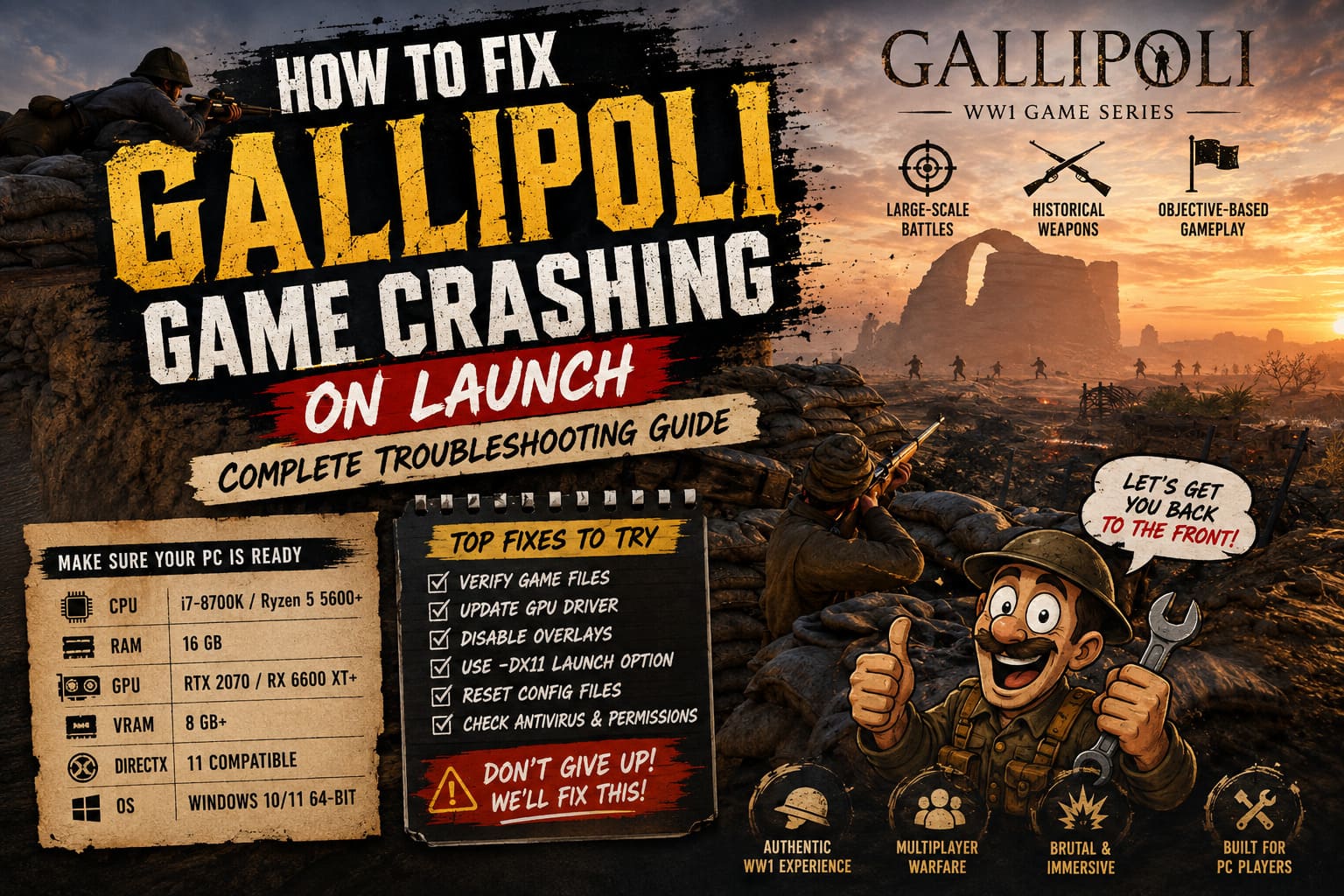
The basic hardware target should look roughly like this:
| Component | Minimum Target |
|---|---|
| Operating System | Windows 10/11 64-bit |
| CPU | Intel Core i7-8700K / AMD Ryzen 5 5600 or better |
| RAM | 16 GB |
| GPU | RTX 2070 / RX 6600 XT or comparable |
| VRAM | 8 GB or more recommended |
| DirectX | DirectX 11 compatible hardware |
If your system is comfortably above these specifications, I would not immediately blame your hardware for a startup crash. Even powerful PCs can have launch problems when a driver, overlay, corrupted configuration file, or Windows permission gets in the way.
One thing I would pay particular attention to is VRAM. Modern games can behave strangely when a graphics card is running close to its memory limit, especially during the initial shader and texture loading stage. An older GPU with limited VRAM may therefore produce a crash that looks like a software problem.
Verify Gallipoli’s Game Files First
This is boring advice, but it is also one of the fixes I would try before anything complicated. A damaged file can prevent the game from reaching the menu, and you don’t necessarily get an error message explaining what went wrong.
Steam makes checking the installation fairly painless. Open your Library, right-click Gallipoli, select Properties, and go to Installed Files. From there, choose Verify integrity of game files and let Steam complete the process.
The launcher will compare your local installation with the expected files and replace anything missing or corrupted. Depending on the size of the damaged files and the speed of your drive, the process can take a few minutes.
If you are playing through another launcher, look for its equivalent repair or verification option. The idea is the same: don’t assume the entire installation is broken just because one or two files may have been damaged.
Why This Fix Is Worth Trying
A failed download, interrupted update, storage error, or unexpected shutdown can leave a game with files that technically exist but cannot be loaded correctly. That is exactly the sort of problem that can produce a black screen followed by a desktop crash.
If verification finds and replaces files, restart the launcher afterward and try Gallipoli again before moving on to other fixes.
Try Launching the Game as Administrator
Windows permissions can occasionally interfere with games, particularly when the application needs to create or modify files in protected directories.
Find Gallipoli in your game library and use the option to browse its local files. Locate the game’s main executable, then right-click it and open Properties.
Under the Compatibility tab, try enabling:
- Run this program as an administrator
- Disable fullscreen optimizations
Apply the settings and launch the executable directly.
I wouldn’t permanently run every game on your PC as administrator without a reason, but it is a useful troubleshooting step. If Gallipoli suddenly launches normally, you have learned that Windows permissions or fullscreen handling may be involved.
Update Your GPU Driver — Or Perform a Clean Installation
Graphics drivers are one of the first things I look at when a new game crashes during startup. A driver can technically be ‘up to date’ and still have remnants of an older installation causing trouble.
Download the current driver package for your GPU from the manufacturer’s official software. NVIDIA, AMD, and Intel all provide their own driver installation tools.
If a normal update does nothing, consider performing a clean driver installation. For particularly stubborn problems, many PC gamers use Display Driver Uninstaller to remove old graphics driver components before installing the current driver from scratch.
The basic process is:
- Download the appropriate current GPU driver.
- Remove the existing driver if a clean installation is necessary.
- Restart the PC.
- Install the new driver.
- Restart Windows again.
- Test Gallipoli before enabling extra graphics utilities.
Personally, I would not jump straight to DDU after the first crash. If the game worked yesterday and suddenly stopped after a driver update, however, a clean driver reinstall becomes much more interesting.
Force Gallipoli to Use DirectX 11
If Gallipoli crashes before you reach the graphics settings menu, you obviously cannot change the renderer from inside the game. Launch options can sometimes help in that situation.
On Steam, open the game’s Properties and find the Launch Options field. Try:
-dx11
This tells the game to use DirectX 11 rather than attempting another graphics API configuration.
DirectX 11 remains a useful fallback for troubleshooting because it is mature and generally well understood by modern Windows systems. If Gallipoli starts after adding this option, the problem may be connected to graphics API initialization rather than the game installation itself.
If you are still getting a crash, you can also test:
-dx11 -windowed
Starting in windowed mode can bypass problems related to fullscreen initialization, unusual monitor resolutions, refresh rates, or multi-monitor configurations.
Once you get into the game, you can experiment with your normal display settings again.
Disable Overlays Before Launching
Overlays are convenient, but they are also surprisingly good at breaking games.
Steam, Discord, NVIDIA software, AMD Software, recording applications, FPS counters, and hardware monitoring utilities can all inject themselves into a running game. Most of the time this works perfectly. Occasionally, two programs fight over the same rendering hook and the game loses.
For troubleshooting, disable as many overlays as possible.
Pay particular attention to:
- Steam Overlay
- Discord Overlay
- NVIDIA in-game overlay
- AMD overlay features
- MSI Afterburner
- RivaTuner Statistics Server
- Screen recording software
- RGB or peripheral monitoring utilities
You don’t necessarily have to uninstall anything. Just close the applications temporarily and see whether Gallipoli reaches the main menu.
If the crash disappears, start re-enabling your background programs one at a time. That is much faster than blindly changing ten Windows settings at once.
Temporarily Check Your Antivirus and Windows Security
Security software can occasionally interfere with freshly installed games. This is especially possible immediately after release, when antivirus databases may not yet recognize every newly compiled executable or supporting file.
Instead of permanently disabling your antivirus, check whether Gallipoli is being blocked or quarantined. If you are certain the installation came from a legitimate source, you can test adding the game’s installation directory as an exclusion.
Windows Security users can check the Virus & threat protection section for recent protection history and blocked applications.
I recommend treating this as a diagnostic step rather than leaving your system with broad antivirus exclusions forever. Once you identify the cause, tighten the security settings again.
Delete or Reset Problematic Configuration Files
Sometimes the actual game installation is perfectly healthy, but a configuration file created during the first launch is not.
This can happen after changing resolution, switching monitors, crashing during shader compilation, or carrying settings over from another installation. A corrupted configuration can cause the game to crash before it reaches the point where you can change the settings back.
Look through Gallipoli’s local configuration or saved-game directories for settings files created by the game. If you find them, make a backup first rather than immediately deleting everything.
Rename the configuration folder instead of destroying it. For example, adding _backup to the folder name gives the game a chance to create a fresh configuration when it starts.
If Gallipoli launches after that, you have probably found the culprit. You can then restore individual files later if you need old settings or key bindings.
Repair Windows System Files
If multiple games are crashing and not just Gallipoli, I would start looking beyond the game itself.
Windows includes built-in tools that can scan for damaged system components. Open Command Prompt as administrator and run:
sfc /scannow
Allow the scan to finish. If Windows reports that it found corrupted files and repaired them, restart the computer and test the game again.
You can also run:
DISM /Online /Cleanup-Image /RestoreHealth
DISM can repair the Windows component store that SFC relies on. The process may appear to pause for a while, so don’t assume it has frozen simply because the percentage does not move immediately.
After DISM completes, restart Windows and try launching Gallipoli again.
Disconnect Unnecessary USB Devices
This one sounds ridiculous until it works.
Certain games can have problems with unusual controllers, virtual devices, audio interfaces, racing wheels, flight sticks, capture hardware, or other peripherals during initialization. If Gallipoli crashes immediately and you’ve already tried the obvious software fixes, unplugging unnecessary devices is a quick experiment.
Leave your keyboard, mouse, and primary display connected, then disconnect everything else temporarily. Launch the game and see whether anything changes.
If the game suddenly works, reconnect devices one by one until you find the problematic hardware or driver.
What I Would Try First
If Gallipoli were crashing on my own PC, I wouldn’t start with a massive Windows repair session. I’d work through the problem in this order:
- Restart the PC and close unnecessary background software.
- Verify Gallipoli’s game files.
- Disable Steam, Discord, GPU, and monitoring overlays.
- Try
-dx11in the launch options. - Try
-dx11 -windowedif the first option fails. - Update or clean-install the GPU driver.
- Reset the game’s configuration files.
- Check Windows Security for blocked files.
- Run SFC and DISM if other applications are also crashing.
- Try administrator mode and disable fullscreen optimizations.
The important part is doing these individually. If you change five things simultaneously and Gallipoli suddenly starts, you won’t know which fix actually solved the problem.
Don’t Reinstall the Whole Game Immediately
A complete reinstall is tempting when a game refuses to start, but it is not always the best first move. If the installation is already verified and the problem is actually caused by a GPU driver, overlay, Windows permission, or corrupted configuration file, downloading the entire game again won’t solve anything.
I would only move toward a full reinstall after verifying the files, testing a clean configuration, disabling overlays, and checking the graphics driver.
Also make sure you have enough free storage space. Modern games need room not only for the installation itself but also for updates, temporary files, shaders, and other cached data. A drive that is nearly full can create strange behavior that is easy to mistake for a game-specific crash.
Final Thoughts
Gallipoli has the potential to be one of those WW1 shooters where the atmosphere does a lot of the heavy lifting. The setting, large-scale battles, period weapons, and slower tactical pace are exactly what I want from this kind of game, which makes a crash on startup particularly frustrating when you’re ready to get into a match and instead find yourself staring at the Windows desktop.
The good news is that a launch crash does not automatically mean your PC is incompatible or that you need to reinstall everything. In my experience, file verification, disabling overlays, forcing DirectX 11, cleaning up GPU drivers, and resetting configuration files are the fixes I’d investigate first.
If none of those work, then the problem may be a genuine game-side bug that needs a patch rather than another hour of PC troubleshooting. At that point, collect the crash logs, system specifications, GPU driver version, and details about exactly where the crash occurs. That information is far more useful to developers than simply reporting that ‘the game doesn’t work.’