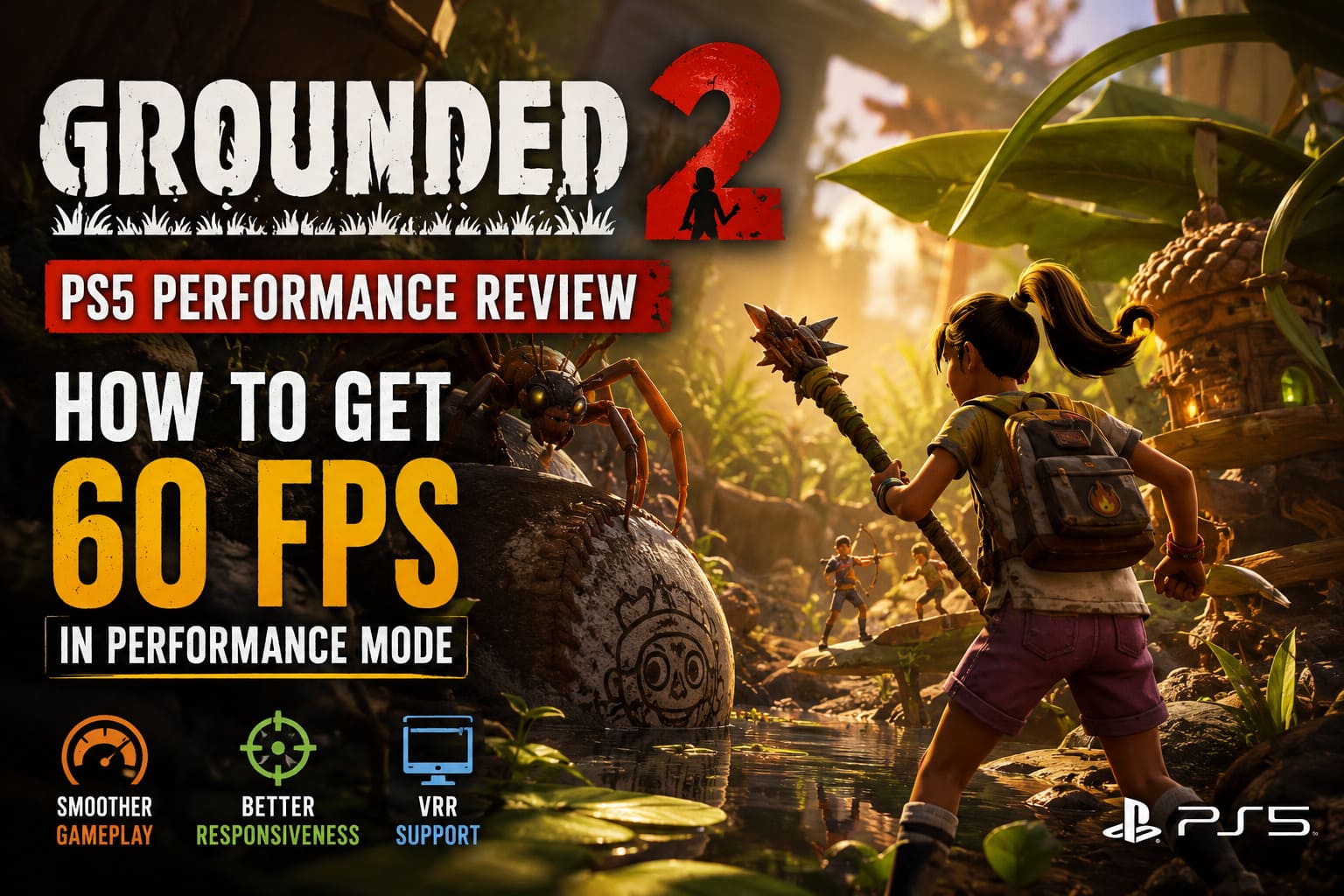
Grounded 2 PS5 Performance Review: How to Get 60 FPS in Performance Mode
I have always liked the original Grounded because it managed to make a familiar backyard feel like a completely different world. A blade of grass could become a wall, a puddle could feel like a lake, and an ordinary bug suddenly looked like a serious boss fight. With Grounded 2, Obsidian has taken that idea and pushed it much further.
The sequel is no longer simply about surviving in a backyard. Brookhollow Park is considerably larger, denser, and more ambitious, and that ambition comes with a noticeable cost on console hardware.
The PlayStation 5 version arrived on August 11, 2026, alongside the major Into the Abyss update. For PS5 players, this is a particularly interesting release because the game is being built with Unreal Engine 5, while also supporting cross-play with PC and Xbox players.
After spending time looking at the different visual options and thinking about what actually matters during gameplay, my conclusion is pretty simple: Performance Mode is the way I would play Grounded 2 on a base PS5.
It isn’t a flawless 60 FPS experience, but the improvement in responsiveness is absolutely worth the visual compromises.
Quality Mode vs. Performance Mode on PS5
The first decision is easy.
If you want the prettiest possible version of Grounded 2 and don’t mind playing at 30 FPS, Quality Mode is the obvious choice. It gives the game more room to show off its lighting, shadows, environmental detail, and overall image quality.
But personally, I would choose Performance Mode almost every time.
Survival games are constantly asking you to look around, react to enemies, dodge attacks, manage your inventory, build structures, and move through complicated environments. A higher frame rate makes all of those actions feel more responsive.
| Mode | Main Focus | My Take |
|---|---|---|
| Quality Mode | Visual quality and lighting | Best for screenshots and slow exploration |
| Performance Mode | Responsiveness and higher FPS | Best overall choice for gameplay |
The important thing to understand, though, is that Performance Mode shouldn’t be interpreted as “perfect 60 FPS.”
That’s not what the PS5 version delivers in every situation.
Is Grounded 2 Actually 60 FPS on PS5?
Yes, but with an important caveat.
In lighter areas, Performance Mode can feel impressively smooth and can stay close to its 60 FPS target. When you’re running through open sections without many enemies, structures, or effects on screen, the game can look and feel excellent.
The situation changes when the game starts throwing everything at the console at once.
Large player-built bases, four-player co-op, enemy encounters, busy environments, and some of the new underwater locations can push the hardware much harder. During those moments, frame rates can move into the 50s and occasionally lower, creating noticeable changes in frame pacing.
For me, that’s still preferable to a constant 30 FPS.
A 50–60 FPS experience with occasional dips simply feels better during normal gameplay than locking the entire experience to 30 FPS just to maintain a cleaner image.
The Early Access status is also important here. This isn’t necessarily the final performance ceiling of the game. Optimization can change considerably as development continues, especially for a technically demanding Unreal Engine 5 project.
Why Does Grounded 2 Look Softer in Performance Mode?
This is probably the first thing many PS5 players will notice.
The original Grounded could look surprisingly sharp, particularly when played on a modern television. Grounded 2 is doing considerably more behind the scenes, and the difference becomes obvious when Performance Mode starts dynamically adjusting its internal resolution.
The game uses Temporal Super Resolution (TSR) to reconstruct the final image. In simple terms, the console doesn’t always render every frame at the full output resolution. Instead, it can lower the internal resolution when necessary and reconstruct the image afterward.
That’s a sensible compromise.
The alternative would be allowing demanding scenes to cause much larger frame-rate drops.

The downside is that you may notice:
- Softer image quality during demanding scenes
- Shimmering around grass and thin objects
- Flickering details in vegetation
- Some reconstruction artifacts
- Less clarity than Quality Mode
Personally, I can live with that.
When I’m actually playing, I care much more about being able to turn quickly, dodge an attack, jump, aim, and react without the game feeling sluggish. A slightly softer image bothers me far less than a heavy 30 FPS presentation.
The Into the Abyss Update Makes Performance More Interesting
The new Into the Abyss content is one of the biggest reasons why PS5 performance deserves attention.
Skunk Pond introduces underwater environments that are much more complicated than simply adding another area to explore. There is underwater vegetation, atmospheric effects, lighting, water-related simulation, new enemies, and additional environmental detail.
Then you add vehicles and large player-built structures to the equation.
That’s where things can get interesting from a performance perspective.
The Toe Biter Buggy, for example, allows players to move quickly through environments while the game simultaneously has to stream new assets and maintain the surrounding simulation. In a large multiplayer session, the workload can become even more complicated.
Underwater bases can be particularly demanding because you’re combining construction systems with enemies, environmental effects, and additional simulation.
This is exactly the type of scenario where I would rather sacrifice some image sharpness and keep Performance Mode enabled.
My Recommended Grounded 2 PS5 Settings
If you’re playing on a standard PS5 and your priority is smooth gameplay, these are the settings I would start with.

1. Use Performance Mode
This should be your first change.
Performance Mode is the foundation of the entire setup. Don’t try to squeeze a higher frame rate out of Quality Mode by changing individual visual settings. The biggest improvement comes from choosing the correct graphics preset first.
2. Motion Blur: 100%
This one sounds strange, especially if you’re normally the first person to disable motion blur.
However, in Grounded 2, I actually think keeping motion blur relatively high can help disguise some of the reconstruction artifacts that become more visible when the internal resolution drops.
Fast camera movements can make shimmering and flickering easier to notice. Motion blur softens those transitions.
It’s not necessarily making the game faster. It simply makes the lower-resolution moments less distracting.
If you absolutely hate motion blur, turn it down. But for my preferred Performance Mode setup, I would leave it high.
3. Chromatic Aberration: Off
This is an easy one.
Turn Chromatic Aberration off.
The effect adds artificial color fringing around certain edges. I don’t think it improves the image enough to justify keeping it enabled, especially when the game is already using dynamic resolution and reconstruction.
With it disabled, the picture generally feels cleaner.
4. Depth of Field: Off or Low
Depth of field can look nice in screenshots, but I don’t find it particularly useful during actual survival gameplay.
When I’m exploring Brookhollow Park, I want to see what’s happening around me. Enemies, environmental hazards, resources, and other players all matter.
So I prefer Depth of Field Off or minimized.
It gives the presentation a less cinematic look, but that’s a trade-off I’m happy to make.
5. Keep FOV Around 90–95
The FOV slider deserves more attention than it usually gets.
It can be tempting to push FOV as high as possible because a wider view can make movement feel more comfortable. However, increasing the field of view also means the game has to display more of the surrounding environment.
For a performance-focused PS5 setup, I would keep it around 90–95 rather than immediately maxing it out.
It’s a good middle ground between visibility and rendering workload.
Don’t Forget PS5 VRR
If your television or monitor supports Variable Refresh Rate, enable VRR on the PS5.
This is probably the most useful system-level feature for a game like Grounded 2.
Performance Mode isn’t perfectly locked to 60 FPS in every demanding situation. When the frame rate moves from 60 toward the 50s or lower, VRR can help the display synchronize with those fluctuations.
The result isn’t magic. VRR doesn’t increase the game’s frame rate.
What it can do is make fluctuations feel considerably smoother and less distracting.
If you already own a VRR-compatible display, there’s little reason not to take advantage of it.
What About the Blurriness?
This is where I think expectations need to be realistic.
If you switch from Quality Mode to Performance Mode and immediately start staring at grass, tree bark, distant objects, and other fine details, you’re going to notice the difference.
That’s simply the price of the performance target.
But I wouldn’t judge the entire PS5 version based on a screenshot taken while standing still.
Once you’re running through the park, fighting insects, collecting resources, building, or playing with friends, the benefits of the higher frame rate become much more obvious.
Gameplay motion hides a lot of the imperfections that are obvious in static comparisons.
For me, the hierarchy is:
- Stable-feeling controls
- Consistent frame pacing
- Higher frame rate
- Image sharpness
Someone else may have a completely different priority, and that’s perfectly reasonable. If visual quality is your number-one concern, Quality Mode will probably be more appealing.
Path of Idle: Old Gods Rising Review 2026 – Is It Worth Buying?
Grounded 2 PS5 Performance: My Verdict
After looking at what the PS5 version is trying to accomplish, I think the performance situation is understandable.
Grounded 2 is significantly more ambitious than its predecessor. The environments are larger, the simulation is more complex, the game is built around a more advanced engine, and the new content adds another layer of environmental effects and gameplay systems.
So no, I wouldn’t describe Performance Mode as a flawless 60 FPS experience.
But I also wouldn’t call it a failure.
On a base PS5, Performance Mode gives you the responsive gameplay that suits Grounded 2 much better than a 30 FPS presentation. The frame rate can dip during particularly demanding scenes, especially with co-op players, large structures, underwater environments, and heavy effects.
That’s where VRR becomes extremely useful.
For my setup, the ideal combination would be:
- Performance Mode
- Motion Blur: 100%
- Chromatic Aberration: Off
- Depth of Field: Off/Low
- FOV: 90–95
- VRR: Enabled
The biggest thing I would recommend is not obsessing over whether every single scene hits exactly 60 FPS. Grounded 2 is an Early Access game, and its optimization is still evolving.
What matters more is whether the overall experience feels responsive and enjoyable.
And honestly, once you’re running around Brookhollow Park with a group of friends, fighting bugs and building ridiculous bases, you’ll probably stop thinking about the occasional frame-rate dip pretty quickly.
The PS5 version isn’t technically perfect, but the core experience is still extremely easy to get hooked on. If future optimization patches improve the heavier areas, Performance Mode could become even more impressive.
For now, though, Performance Mode with VRR enabled is my clear recommendation for PS5 players who value smooth gameplay over maximum visual fidelity.