Hellraiser: Revival Black Screen on Startup: How to Fix the Steam Crash
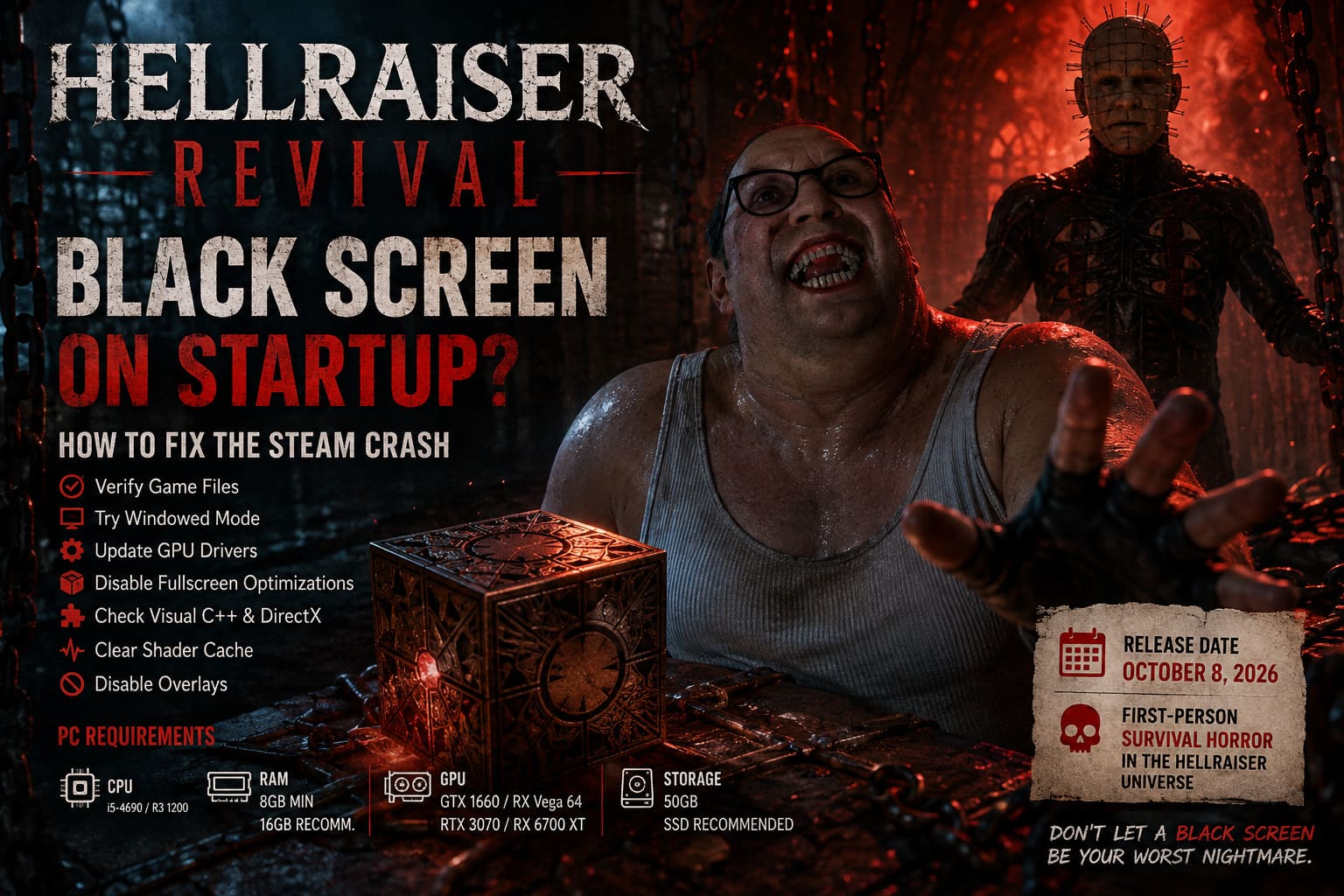
There is nothing quite as frustrating as finally launching a horror game you’ve been waiting for, only to get a completely black screen instead of the main menu. With Clive Barker’s Hellraiser: Revival, that would be especially painful. This is supposed to be a brutal first-person trip into the Hellraiser universe, with Aidan fighting through twisted environments, cultists and Cenobites while using the mysterious Configuration. The game is currently scheduled for release on October 8, 2026, so PC players should keep this troubleshooting checklist handy for launch day rather than assuming every reported startup problem is already a confirmed release bug.
I’ve played enough PC games to know that the dreaded black screen rarely has one universal cause. Sometimes the game files are damaged, sometimes Windows launches the executable with the wrong compatibility settings, and sometimes the GPU driver decides that today is the perfect day to ruin your evening. Display modes, shader caches, overlays and missing Microsoft runtime components can also get involved. The good news is that most of these problems can be checked without reinstalling the entire game.
Hellraiser Revival DLSS 3.5 Guide: How to Enable Ray Reconstruction and Fix Performance Issues
What Does the Hellraiser: Revival Black Screen Look Like?
The first thing I’d do is figure out exactly where the launch process stops. A black screen with music playing is a different problem from an immediate crash to desktop, while a frozen developer logo points somewhere else again. If Steam says the game is running but you can only see a blank display, Windows and the game may already be communicating correctly while the rendering pipeline is stuck.
Before changing anything complicated, give the game a minute on its first launch. Modern games can spend additional time preparing shaders and initializing graphics settings, especially after installing or updating drivers. If nothing happens after several minutes, that’s when I’d start working through the fixes below instead of repeatedly clicking Play and hoping for a miracle.
1. Verify Hellraiser: Revival Game Files Through Steam
This is the boring fix, but honestly, boring fixes are often the best ones. A damaged download, interrupted update or corrupted asset can prevent a game from reaching its main menu. I always run file verification before touching drivers or Windows settings because it takes relatively little effort and can immediately rule out a broken installation.
- Open Steam and go to your Library.
- Right-click Clive Barker’s Hellraiser: Revival.
- Select Properties.
- Open Installed Files.
- Choose Verify integrity of game files.
- Wait for Steam to complete the scan and repair anything it finds.
After Steam finishes, restart the client completely before launching the game again. If it downloaded replacement files, don’t skip that restart. In my experience, a clean second launch after verification is much more useful than immediately trying five different fixes at once.
2. Try Windowed Mode Before Blaming Your GPU
One of the first things I’d investigate with a black screen is the display mode. Games can occasionally inherit a resolution, refresh rate or fullscreen configuration that doesn’t play nicely with the current monitor. This is particularly worth checking if you’ve recently changed monitors, switched between 60Hz and high-refresh displays, or use multiple monitors.
Steam launch options can be useful here. Open the game’s Properties page and look for the Launch Options field. Enter:
-windowed
Then start the game. If it finally displays correctly in a window, head into the graphics settings and manually choose a sensible resolution and refresh rate before switching back to fullscreen. I’d also temporarily avoid unusual ultrawide resolutions or aggressive refresh-rate settings until the game is confirmed to launch normally.
3. Disable Fullscreen Optimizations
Windows fullscreen behavior has caused enough strange problems over the years that I never completely dismiss it. If Hellraiser: Revival launches but immediately produces a black screen, disabling fullscreen optimizations is a simple experiment. It won’t magically fix every PC, but it can remove one layer of Windows display handling from the equation.
- Open your Steam Library and browse to the game’s local files.
- Find the main Hellraiser: Revival executable.
- Right-click the .exe file and select Properties.
- Open the Compatibility tab.
- Enable Disable fullscreen optimizations.
- Apply the changes and try launching again.
I would test this setting by itself rather than changing every compatibility option at once. When troubleshooting PC games, knowing which setting actually fixed the problem is far more useful than ending up with a pile of random Windows tweaks.
4. Update Your NVIDIA, AMD or Intel Graphics Driver
A new game launching with a black screen is often a good reason to check your GPU driver. The official Steam requirements list the GTX 1660 or RX Vega 64 as minimum graphics hardware and the RTX 3070 or RX 6700 XT as recommended hardware, so this is not a game designed around ancient graphics APIs and ten-year-old PCs.
If your driver is several months old, update it before doing anything drastic. NVIDIA users can install the latest Game Ready driver, AMD owners can update through Adrenalin, and Intel users should check their current graphics package. If the black screen started immediately after a driver update, however, I’d consider a clean driver installation or, if necessary, rolling back to a known stable version rather than blindly installing newer software.
5. Don’t Ignore Shader Cache Problems
Shader compilation is one of those invisible PC gaming processes that can cause very visible problems when something goes wrong. A corrupted shader cache can sometimes produce crashes, stuttering or a blank display during startup. If the basic fixes haven’t helped, clearing the relevant GPU shader cache is worth trying.
I’d restart Windows first, close unnecessary GPU-heavy applications, and then clear the shader cache through the appropriate NVIDIA, AMD or Windows graphics settings. Afterward, the first launch may take longer because the game needs to rebuild cached data. That’s normal, so don’t immediately terminate the process just because the first boot is slower than expected.
6. Reinstall Microsoft Visual C++ Runtime Components
Another classic PC gaming headache is a missing or corrupted runtime library. A game can have perfectly healthy files and still fail to initialize because Windows is missing something the executable expects to find. Visual C++ Redistributables are particularly worth checking when a game crashes before displaying its first proper menu.
Install the current Microsoft Visual C++ Redistributable packages for both x64 and x86 where appropriate, then restart the PC. I wouldn’t download random DLL files from third-party websites. That’s a terrible troubleshooting habit and can create more problems than it solves.
7. Check DirectX and Windows Updates
Don’t assume that having Windows installed automatically means every gaming component is healthy. Make sure Windows itself is fully updated and that the DirectX components required by the game are present. The official Steam listing specifies Windows 10 64-bit with the 22H2 update or later, so running an old, unsupported Windows configuration is not something I’d overlook.
After installing pending Windows updates, reboot the machine rather than simply closing Settings. It sounds obvious, but I’ve lost count of how many supposedly mysterious game problems disappeared after an actual restart.
8. Turn Off Overlays Temporarily
Overlays are convenient until they aren’t. Steam Overlay, Discord, NVIDIA’s overlay, Xbox Game Bar and other monitoring software can hook into a game during startup. Most of the time they work perfectly, but when a game is already struggling to initialize its renderer, another application injecting itself into the process is one more variable you don’t need.
For testing, disable your overlays and monitoring utilities temporarily. That includes FPS counters, recording tools and aggressive hardware-monitoring software. If Hellraiser: Revival suddenly starts normally, turn those features back on one by one until you find the culprit.
9. Run the Game as Administrator – But Only as a Test
Permission problems are less common than graphics issues, but they’re easy enough to test. If the game cannot properly access a required folder or configuration file, launching the executable with administrator privileges may reveal whether Windows permissions are involved.
Right-click the game’s executable, open Properties > Compatibility, and enable Run this program as an administrator. Try the game once. If it changes nothing, I’d turn the option back off rather than permanently running every game with elevated privileges.
10. Check Your Hardware Before Chasing Software Ghosts
Sometimes the most complicated-looking launch problem has an extremely simple explanation: the PC isn’t meeting the requirements. According to Steam, Hellraiser: Revival requires at least 8GB of RAM, a GTX 1660 or RX Vega 64-class GPU, and 50GB of storage, while the recommended configuration moves up to 16GB RAM and an RTX 3070 or RX 6700 XT. An SSD is also recommended.
| Component | Minimum | Recommended |
|---|---|---|
| OS | Windows 10 64-bit, 22H2+ | Windows 10 64-bit, 22H2+ |
| CPU | Ryzen 3 1200 / Core i5-4690 | Ryzen 5 1500X / Core i5-6600 |
| RAM | 8GB | 16GB |
| GPU | GTX 1660 / RX Vega 64 | RTX 3070 / RX 6700 XT |
| Storage | 50GB | 50GB |
These are not demanding requirements by modern enthusiast-PC standards, but meeting the minimum doesn’t guarantee perfect behavior. If you’re sitting exactly at the minimum GPU specification, I’d be much more cautious about aggressive resolution settings, background applications and high refresh-rate configurations.
11. Clear Steam’s Cache If Steam Itself Seems Broken
If the game appears to launch but Steam behaves strangely, clearing the client cache can be worth a try. Completely exit Steam first, including any Steam processes still running in Task Manager. Then restart Steam and attempt the launch again.
I prefer doing this only after the simpler fixes above. There’s no reason to start deleting folders when verifying the game files or testing windowed mode could solve the issue in a couple of minutes. PC troubleshooting works best when you start with the least destructive options and gradually move toward more involved solutions.
My Recommended Order for Fixing the Black Screen
If I were sitting at my own PC with Hellraiser: Revival refusing to display anything, I wouldn’t randomly work through the list. I’d follow a specific order because it minimizes wasted time and makes it easier to identify what actually solved the problem.
- Restart Windows and Steam completely.
- Verify the game files.
- Try -windowed.
- Disable fullscreen optimizations.
- Disable overlays and monitoring software.
- Update or clean-install the GPU driver.
- Check Visual C++ and DirectX components.
- Clear shader caches.
- Check Windows updates and system requirements.
- Only then move toward deeper Steam or configuration troubleshooting.
Final Thoughts
The important thing to remember is that a black screen doesn’t automatically mean your GPU is dying or that the game is fundamentally broken. On PC, the launch process involves Steam, Windows, display drivers, runtime libraries, shaders, overlays and the game’s own configuration all working together. One bad setting can be enough to stop the whole chain before you ever reach the menu.
Hellraiser: Revival is still officially listed as an upcoming release rather than a currently available Steam game, with an October 8, 2026 launch date. That means I’d treat any current reports about launch behavior as something to monitor rather than proof of a widespread release-day bug. Once the game is actually available, the most useful troubleshooting information will come from the final PC build, its launch patches and real player reports.
For now, the safest approach is simple: verify the installation, test windowed mode, keep your GPU drivers current, disable overlays, check Windows and runtime components, and only then start experimenting with deeper settings. That’s the same approach I’d use with almost any stubborn PC horror game. And honestly, if I’m going to spend my evening being chased through a Cenobite nightmare, the last thing I want is for the real horror to be my desktop refusing to display the game.