The Last Disease Z Low FPS Fix: How to Boost Performance and Fix Stuttering (2026 Guide)
The Last Disease Z has the kind of atmosphere I usually want from a survival horror game: dark environments, plenty of tension, detailed locations, and enough things happening on screen to make every trip outside feel risky. The problem is that all those visual details can come back to bite your PC. After spending time with different survival games and testing how they behave on different hardware, I wasn’t surprised to see players complaining about low FPS, stuttering, frame-time spikes, and sudden performance drops in The Last Disease Z.
What makes this particularly annoying is that performance problems don’t always look the same. Some players get a low but relatively stable frame rate, while others can run at a decent average FPS and still experience horrible micro-stutters whenever they enter a new area. There are also cases where the game feels smooth for a while and then suddenly starts hammering the CPU or GPU. If that sounds familiar, here are the changes I’d try before blaming your hardware.
Why Does The Last Disease Z Run Poorly?
Survival games are often harder to optimize than they appear. A typical action game can control exactly what the player sees, but a survival sandbox has to worry about world simulation, enemy behavior, physics, lighting, environmental effects, asset streaming, and plenty of objects sitting around in the background. The Last Disease Z combines several of those demanding systems, so simply lowering resolution isn’t always enough to fix every performance problem.
From a player’s perspective, the biggest suspects are usually volumetric effects, shadows, texture memory, background processes, and shader or asset streaming. Your GPU may be perfectly capable of rendering the game, yet the CPU can still become the bottleneck when the world gets busy. That’s why I recommend looking at both graphics settings and Windows configuration instead of blindly turning everything to Low.
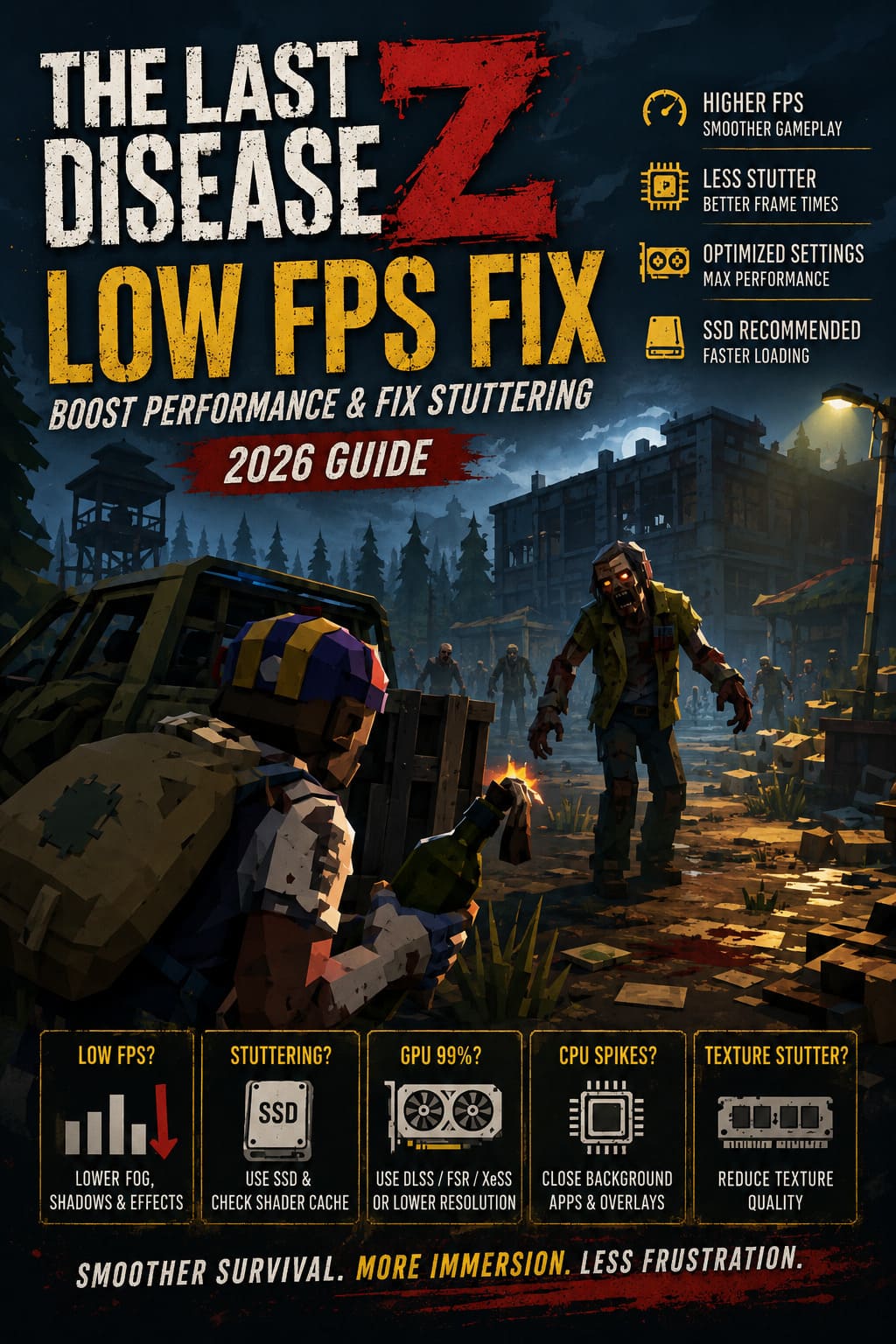
| Problem | What I’d Try First | Expected Result |
|---|---|---|
| Low average FPS | Lower fog, shadows and effects | Higher overall frame rate |
| Micro-stuttering | Use an SSD and check shader cache | Better frame consistency |
| GPU at 99% | Use DLSS/FSR/XeSS or lower resolution | Lower GPU load |
| CPU spikes | Close background apps and overlays | Fewer sudden frame drops |
| Texture-related stutter | Reduce texture quality | Less VRAM pressure |
Start With Your Graphics Driver
This is boring advice, but it’s still one of the first things I check when a new PC game behaves badly. GPU manufacturers regularly release driver updates around major releases, and sometimes a new driver can make a surprisingly noticeable difference to frame pacing. If you haven’t updated your graphics driver in a while, don’t start changing twenty different Windows settings before doing this.
NVIDIA users should check for the latest Game Ready Driver through the NVIDIA app, while AMD players can update through Radeon Software. Intel GPU owners should also make sure their graphics driver is current. I’d restart the PC after installing the driver rather than immediately launching the game, especially if the previous driver was significantly older.
The Last Disease Z Graphics Settings I Would Change First
If you’re looking for the fastest way to improve FPS, don’t lower every option at once. That can make the game look awful without actually fixing the setting responsible for the slowdown. In my experience with demanding survival games, a few graphics options tend to have a much bigger performance impact than others.
Lower Volumetric Fog and Atmospheric Effects
Volumetric fog is one of the first settings I’d reduce. It looks great in a horror game because it adds depth and atmosphere, but it can be surprisingly expensive. If you’re playing on High or Ultra, try Medium first. The visual difference during normal gameplay is usually much smaller than the performance difference.
Use Medium Shadows
Ultra shadow quality is another setting I rarely recommend unless you have plenty of GPU headroom. High-quality shadows can affect a huge portion of the scene, including objects that are nowhere near the player. Medium is a much better compromise for The Last Disease Z, particularly if you’re trying to stabilize FPS rather than win a screenshot competition.
Turn Off Motion Blur
This one is personal preference, but I turn motion blur off almost immediately in most games. It doesn’t magically double your FPS, yet removing it makes movement look cleaner and makes performance drops easier to notice. The same goes for excessive depth-of-field effects if you’re trying to squeeze out every last frame.
Be Careful With Texture Quality
Textures are slightly different because lowering them doesn’t always produce a huge average FPS increase. Their bigger impact can be seen when your graphics card runs out of available VRAM. If you have a GPU with limited VRAM, excessively high textures can contribute to hitching as the game moves data between VRAM and system memory.
I’d rather have stable Medium or High textures with consistent frame times than Ultra textures followed by random freezes whenever I move into a new area.
DLSS, FSR and XeSS Can Make a Huge Difference
If your GPU supports modern upscaling, this is probably the easiest performance feature to take advantage of. Instead of rendering every frame at full native resolution, technologies such as DLSS, FSR and XeSS render internally at a lower resolution and reconstruct the image. When configured correctly, the result can look surprisingly close to native resolution while giving your GPU considerably more breathing room.
For NVIDIA RTX hardware, I’d start with DLSS Quality. If you’re playing at 1440p and still struggling, Balanced is worth testing. AMD and Intel users can experiment with FSR or XeSS using a similar approach.
Don’t immediately jump to the most aggressive performance preset. There’s a point where the extra FPS isn’t worth the softer image, especially in a game where spotting enemies and environmental details matters. Quality is usually my starting point, and I only move toward Balanced or Performance when the hardware genuinely needs it.
My Recommended Performance Setup
If I were setting up The Last Disease Z on a mid-range gaming PC, I’d aim for a configuration that keeps the game looking atmospheric without wasting resources on settings that are difficult to notice during actual gameplay.
- Display Mode: Fullscreen
- Resolution: Native monitor resolution
- Textures: High if VRAM allows, otherwise Medium
- Shadows: Medium
- Volumetric Fog: Medium
- Motion Blur: Off
- Depth of Field: Off or Low
- Upscaling: DLSS, FSR or XeSS Quality
- V-Sync: Off if you’re using compatible adaptive sync
This isn’t a magic preset that will produce identical results on every PC. CPU, GPU, RAM, VRAM, storage speed and even the current game build all matter. Think of it as a sensible starting point rather than a universal answer.
Install The Last Disease Z on an SSD
If you’re still running modern games from an old mechanical hard drive, this is one upgrade I’d take seriously. Survival games constantly load new textures, models, sounds and environmental data as you move around the map. A slow storage device can turn that process into visible hitching.
An NVMe SSD is ideal, but even a decent SATA SSD can be a major improvement over an HDD. It won’t necessarily transform a 35 FPS average into 100 FPS, because storage doesn’t directly determine rendering performance. What it can do is reduce the ugly pauses and streaming-related stutters that happen when the game needs new data quickly.
Close Background Programs and Overlays
Before launching the game, take a look at what’s actually running on your PC. Chrome with dozens of tabs, Discord, recording software, RGB utilities, browser processes and other applications can consume CPU and RAM without you noticing. On a high-end system this may not matter much, but on a machine already close to its CPU or memory limit, every background process can make frame-time spikes worse.
I’d also test the game with overlays disabled. Steam, Discord, NVIDIA and other overlays aren’t automatically bad, but troubleshooting becomes easier when you remove extra software from the equation. If the stuttering disappears, you can enable the overlays one by one and figure out which application was responsible.
Try Windows Performance Settings
Windows has several settings that can affect how your system handles demanding games. Hardware-Accelerated GPU Scheduling is worth testing if your hardware and Windows version support it. You can find it under Windows Graphics settings, enable it, and restart the computer before checking the game again.
Your power plan is also worth checking. On desktop PCs, a performance-oriented power profile can prevent aggressive power-saving behavior while gaming. I wouldn’t expect this setting alone to rescue a badly optimized game, but it can help eliminate unnecessary CPU frequency fluctuations when you’re already chasing consistent frame times.
Don’t Ignore Shader Cache Problems
Stuttering during the first minutes of gameplay can sometimes be related to shader compilation. Modern games have to prepare shaders for different materials, lighting effects and hardware configurations, and that process can produce temporary hitching. If the problem continues for a long time or suddenly appears after an update, clearing the DirectX shader cache is worth trying.
Windows Disk Cleanup can be used to remove the DirectX Shader Cache. Afterward, the game may stutter briefly again while rebuilding the necessary data, so don’t judge the result from the first few seconds. Give the game enough time to rebuild its cache and then check whether the frame pacing improves.
Verify The Last Disease Z Game Files
If your performance suddenly became worse after an update, don’t overlook Steam’s file verification tool. A damaged or incomplete asset can cause strange behavior that looks like a performance problem even though the underlying issue is corrupted game data.
Open Steam, find The Last Disease Z in your Library, open its Properties and navigate to the installed files section. Run Verify integrity of game files and let Steam replace anything it finds missing or corrupted. It only takes a few minutes in many cases, and it’s a much safer first step than deleting random configuration folders from your PC.
What If FPS Is Fine but the Game Still Feels Bad?
This is an important distinction. A game showing 70 FPS on an overlay can still feel terrible if frame times are inconsistent. That’s why I pay more attention to how movement actually feels than to the biggest number displayed in an FPS counter.
If the average FPS looks good but you experience tiny freezes every few seconds, I’d focus on frame pacing, CPU usage, asset streaming, shader compilation, overlays and storage speed. Lowering every graphics setting may not help because the GPU isn’t necessarily the component causing the problem.
My Final Take on The Last Disease Z Performance
I wouldn’t recommend turning The Last Disease Z into an ugly Low-settings survival game just to chase a bigger FPS number. The atmosphere is one of the reasons to play it, and some of the environmental effects are doing real work when it comes to making the world feel threatening. Instead, I’d sacrifice Ultra shadows and heavy volumetric effects first, then use upscaling to recover performance while keeping textures reasonably high.
If you’re dealing with The Last Disease Z low FPS, stuttering or sudden frame drops, work through the fixes one at a time. Update your GPU driver, reduce fog and shadows, enable a sensible upscaling mode, make sure the game is installed on an SSD, close unnecessary background software and verify the game files. Most importantly, don’t assume that a powerful graphics card automatically means perfect performance; survival games can hit the CPU, storage and streaming systems just as hard as the GPU.
And if you’ve already tried all of this and the game still refuses to behave, I wouldn’t spend an entire evening destroying your Windows installation in search of five extra frames. Sometimes the problem genuinely sits on the developer’s side, and the best fix is simply waiting for a patch that improves optimization. That’s especially true for newer releases, where performance can change dramatically between updates.