How to Fix The Division Resurgence Application Not Responding on Windows 11
If there’s one thing I’ve learned after spending years playing online shooters, it’s that nothing kills the mood faster than finally getting into a session only to watch the game freeze before you even reach the first firefight. The Division Resurgence delivers the familiar tactical gameplay that fans of the series expect, but like many modern online games, it can occasionally run into technical issues on Windows 11. One of the most common problems players report is the frustrating ‘Application Not Responding’ error.
I’ve seen this happen in plenty of PC games over the years, and the good news is that this problem usually isn’t caused by failing hardware. In most cases, the issue comes from a combination of Windows settings, graphics configuration, background applications, or damaged game files. After testing different solutions myself and comparing fixes shared by other players, I found several reliable methods that can help bring The Division Resurgence back to stable performance.
How to Fix The Division Resurgence Crashed to Desktop Kernel Error on PC
Why Does The Division Resurgence Stop Responding on Windows 11?
Unlike traditional offline games, The Division Resurgence constantly communicates with online servers while loading environments, checking player data, and streaming resources in real time. Because of this, multiple parts of your PC system work together every second. Your graphics card, storage drive, network connection, and Windows security settings can all affect whether the game runs smoothly or suddenly freezes.
When one part of this chain fails or becomes interrupted, Windows 11 may incorrectly identify the game as unresponsive. Sometimes the application is actually waiting for data, but the operating system assumes the process has crashed and displays the classic frozen white window.
Common reasons behind The Division Resurgence freezing:
- Windows 11 fullscreen optimization conflicts.
- The game launching with the wrong graphics processor.
- Corrupted cache files or incomplete resource downloads.
- Overlay programs interfering with rendering.
- Temporary network interruptions.
- Damaged installation files.
The good news is that most of these problems can be solved without replacing hardware or performing complicated system changes.
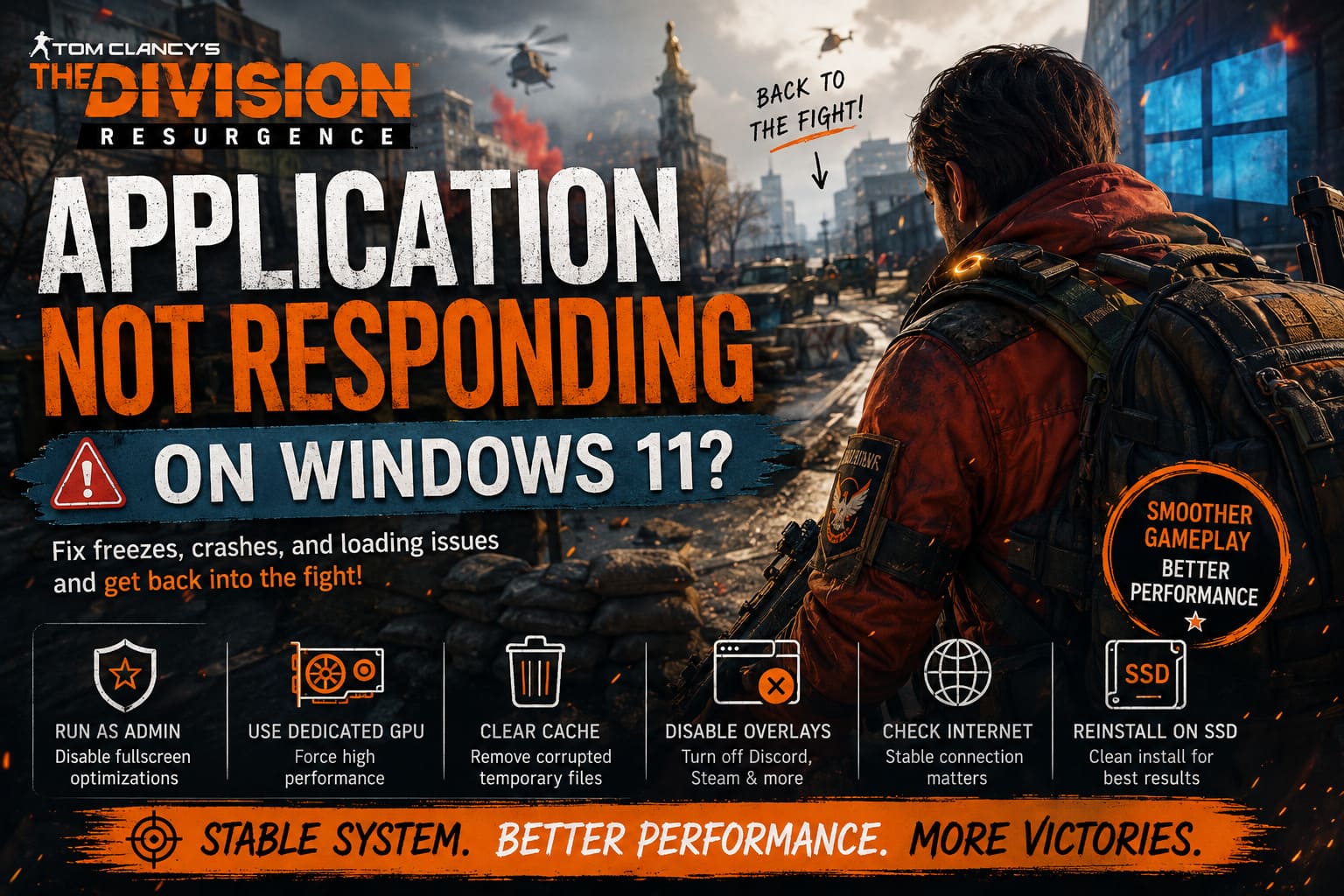
Run The Game as Administrator and Disable Fullscreen Optimizations
This is one of the first fixes I recommend trying because it is simple, safe, and surprisingly effective. Windows 11 includes several compatibility features designed to improve older applications, but sometimes these same features create conflicts with modern games, especially titles running through alternative clients or emulation environments.
Giving the game administrator access allows it to properly read and write necessary files while disabling fullscreen optimization prevents Windows from forcing its own display management layer over the application.
Follow these steps:
- Find the main game executable file (.exe).
- Right-click the file and choose Properties.
- Open the Compatibility tab.
- Enable Run this program as an administrator.
- Check Disable fullscreen optimizations.
- Click Apply and restart the game.
From my experience with PC gaming, this small adjustment has fixed many strange startup problems in Ubisoft games and other online shooters where Windows compatibility settings caused unexpected freezes.
Force Windows 11 to Use Your Dedicated GPU
One of the most common problems on gaming laptops is Windows choosing the wrong graphics processor. Instead of using a powerful NVIDIA or AMD GPU, the system may launch the game using integrated graphics. This can instantly cause performance problems, crashes, or a complete freeze during loading.
I’ve personally encountered this issue with several demanding games, and manually assigning the correct GPU often makes an immediate difference.
How to select high-performance graphics:
- Press Windows Key + I to open Settings.
- Go to System → Display → Graphics.
- Add The Division Resurgence executable if it is missing.
- Select the game from the list.
- Choose High Performance under Graphics Preference.
- Save the changes and restart the game.
This forces Windows 11 to use your main graphics card instead of automatically deciding which GPU should handle the workload.
Clear Corrupted Cache and Temporary Game Files
After years of playing PC games, I’ve learned that cache problems are among the most annoying issues because they can appear randomly. A game may work perfectly one day and then freeze after an update because a temporary file became corrupted.
The Division Resurgence downloads additional resources during operation, and if one of those files becomes damaged, the game may get stuck during loading or display the Application Not Responding message.
Cleaning cache files:
- Close the game completely.
- Open Task Manager with Ctrl + Shift + Esc.
- End any remaining Ubisoft or launcher processes.
- Press Windows Key + R.
- Enter %localappdata%.
- Find folders related to Ubisoft, the launcher, or the game.
- Remove temporary cache and update folders.
After restarting the launcher, missing files should download again automatically. This creates a cleaner installation state and often removes freezing problems caused by broken resources.
Disable Game Overlays and Background Applications
Overlays are useful features, but they are also frequent causes of crashes. Discord notifications, FPS counters, recording software, and graphics utilities all inject themselves into games, which can sometimes conflict with rendering systems.
Applications worth disabling temporarily:
- Discord Overlay.
- Steam Overlay.
- NVIDIA GeForce Experience Overlay.
- Xbox Game Bar.
- MSI Afterburner and RivaTuner.
I enjoy using performance overlays myself, but when troubleshooting crashes, removing every unnecessary background layer is one of the fastest ways to identify the cause.
Use Windowed or Borderless Mode Instead of Fullscreen
Exclusive fullscreen used to be the best choice for PC gaming, but Windows 11 handles borderless modes much better than older operating systems. In many modern games, borderless window mode provides similar performance while reducing compatibility problems.
If The Division Resurgence gives you the option, try switching from fullscreen to Borderless Windowed or standard Windowed Mode. This can prevent display-related freezes and improve stability.
If your launcher offers graphics API settings, using DirectX 11 can also help. While newer APIs may provide additional features, DirectX 11 is often more predictable when running games through compatibility layers or specialized clients.
Check Your Internet Connection
Because The Division Resurgence is built around online gameplay, unstable internet connections can sometimes look like graphics problems. The game may freeze because it is waiting for server communication rather than because your PC cannot handle the graphics.
If freezes happen randomly during gameplay, try these solutions:
- Restart your router.
- Use an Ethernet cable instead of Wi-Fi.
- Test another network connection.
- Disable VPN software.
- Stop large downloads running in the background.
A simple network change has solved strange freezing issues for many online games, and The Division Resurgence can behave the same way.
Reinstall The Division Resurgence on an SSD
Sometimes there is no quick fix because the installation itself is damaged. If every troubleshooting method fails, a clean reinstall is the final option that usually removes hidden problems.
| Step | Recommendation |
|---|---|
| Uninstall the game | Remove all existing files completely. |
| Restart your PC | Clear remaining background processes. |
| Delete leftover folders | Prevent old corrupted settings from returning. |
| Install on SSD | Improve loading and resource streaming speed. |
| Download fresh files | Replace damaged game data. |
Installing games on an SSD is especially important today because many modern titles constantly stream assets during gameplay. A slow mechanical drive can create loading delays that sometimes look like crashes.
Additional Tips for Better Stability
Besides the main fixes, several smaller improvements can make your overall experience smoother. These steps may not solve every issue individually, but together they can greatly improve system stability.
- Update your NVIDIA, AMD, or Intel graphics drivers.
- Install the latest Windows 11 updates.
- Close unnecessary background programs.
- Keep enough free space on your SSD.
- Temporarily disable antivirus software for testing.
- Verify game files when your launcher supports it.
Final Thoughts
I’ve played enough online shooters to know that technical problems are almost unavoidable, especially with games that depend on constant server communication. The Division Resurgence Application Not Responding error may look serious at first, but in most situations it can be fixed with a few targeted adjustments.
The solutions that usually make the biggest difference are running the game as administrator, forcing Windows 11 to use the dedicated GPU, clearing corrupted cache files, and disabling overlays. These methods solve the majority of freezing problems reported by PC players.
If nothing else works, reinstalling the game on an SSD is the best final step. It takes more time, but it removes damaged files and gives the game a clean foundation. Once everything is configured correctly, The Division Resurgence delivers the tactical action and cooperative gameplay that fans expect without being interrupted by constant freezes.