Sephiria 1.0 Steam Deck Optimization Guide: Best Settings for 60FPS Performance
If you’ve spent years playing roguelites on handheld PCs like I have, you quickly learn that beautiful pixel art doesn’t always mean effortless performance. Some games look deceptively simple until dozens of enemies, projectiles, explosions, and visual effects begin filling the screen. Sephiria 1.0 is one of those games. Despite its charming presentation, the action can become surprisingly demanding during longer runs, especially when late-game rooms throw everything at you at once.
Developed by TEAM HORAY, the creators of Dungreed, Sephiria feels like another carefully crafted indie gem. It combines responsive combat, rewarding progression, and an addictive inventory system that constantly encourages experimentation. After spending many hours exploring the tower and tweaking Steam Deck settings, I found that the game can deliver an impressively stable experience without sacrificing its visual style.
If your goal is a reliable 60 FPS, cooler temperatures, and longer battery life, these settings offer the best balance I’ve found.
Sephiria 1.0 Ultimate Great Sword Upgrade Tree and Best Endgame Builds Guide
Why Sephiria Performs Better Than It First Appears
At first glance, Sephiria doesn’t seem like a game that would challenge modern handheld hardware. It uses gorgeous pixel art instead of realistic 3D graphics, and the environments initially appear relatively simple. However, after several runs it becomes obvious that a lot is happening behind the scenes.
Enemy AI constantly updates, dozens of status effects remain active, magical attacks overlap across the battlefield, and every artifact can introduce additional visual interactions. During intense encounters, your screen may be filled with projectiles coming from every direction while multiple enemies apply different buffs and debuffs simultaneously.
This creates moments where both the CPU and GPU receive considerably more work than players might expect from a 2D action RPG. Fortunately, Sephiria is also very well optimized, meaning the Steam Deck only needs a few adjustments to eliminate occasional frame drops.
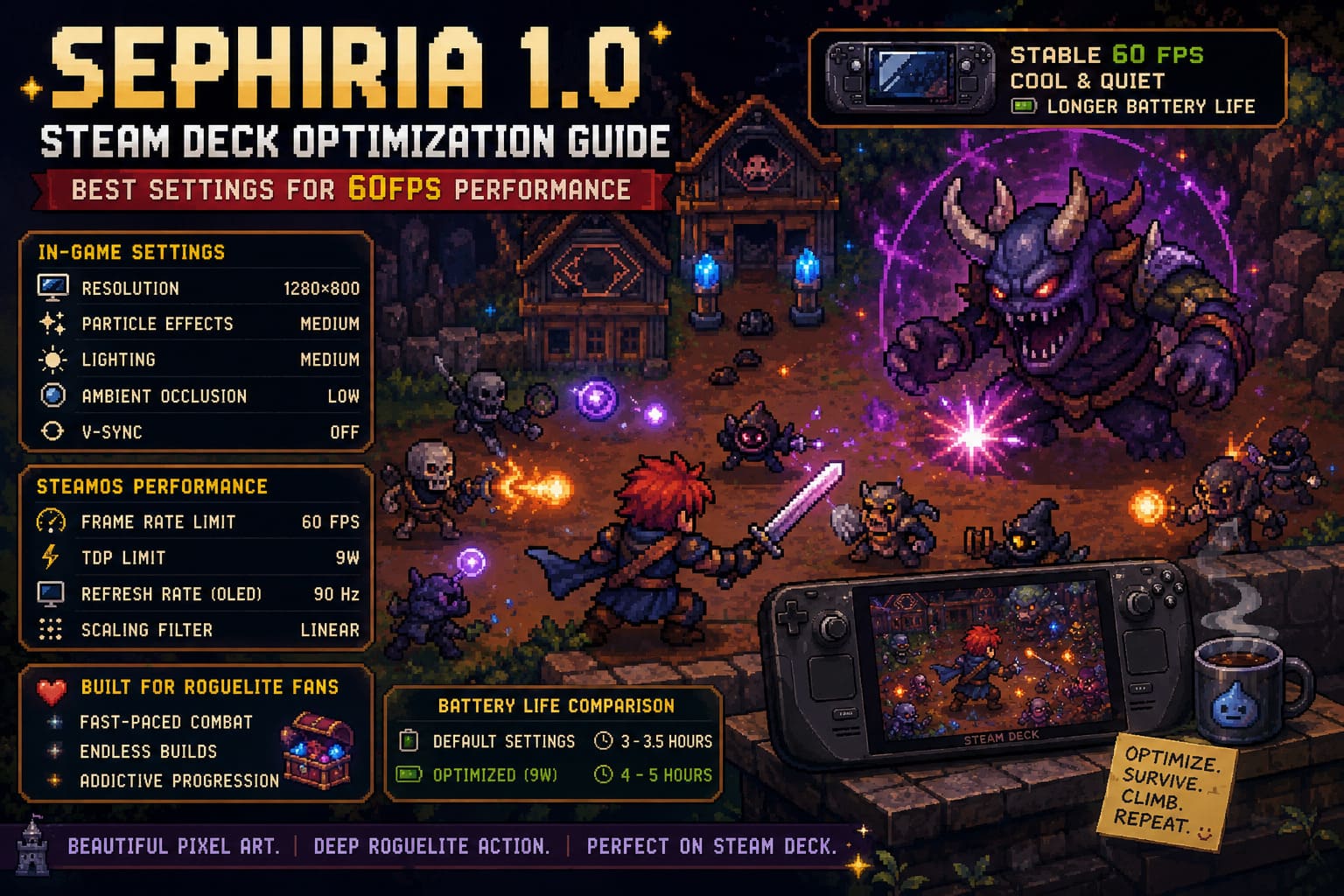
My Recommended Steam Deck Graphics Settings
After testing several different configurations, I found that chasing maximum graphical quality simply isn’t worth it on the Steam Deck’s display. The visual differences are tiny, but the extra performance headroom makes combat noticeably smoother. The following settings provide the best balance between image quality and responsiveness.
| Setting | Recommended Value | Reason |
|---|---|---|
| Resolution | 1280×800 | Native resolution keeps pixel art perfectly sharp. |
| Display Mode | Fullscreen | Provides stable performance and minimizes interruptions. |
| V-Sync | Off | SteamOS delivers better frame pacing. |
| Particle Effects | Medium | Reduces slowdowns during chaotic combat. |
| Lighting | Medium | Maintains atmosphere while reducing GPU load. |
| Ambient Occlusion | Low or Off | Very small visual improvement on a handheld display. |
One thing I particularly appreciate is how well Sephiria scales. Even after lowering a few graphical options, the game still looks fantastic because the artwork itself carries the presentation. The crisp animations, colorful spell effects, and detailed environments remain attractive while battles become much easier to read.
SteamOS Performance Settings That Make the Biggest Difference
The in-game options are only part of the optimization process. SteamOS includes several performance tools that can noticeably improve consistency without affecting gameplay. These are the settings that worked best throughout my testing.
- Frame Rate Limit: 60 FPS
- Refresh Rate (Steam Deck OLED): 90 Hz
- TDP Limit: 9W
- GPU Clock: Auto
- Scaling Filter: Linear or Nearest Neighbor
The 9W TDP limit deserves special attention. Unlike many AAA releases that constantly push the Steam Deck to its limits, Sephiria rarely requires the system’s maximum available power. Lowering the power limit reduces temperatures, keeps fan noise under control, and significantly improves battery life without introducing noticeable performance issues.
Maintaining Stable 60 FPS During Heavy Combat
Performance problems rarely occur while exploring the tower. Instead, they appear during the most demanding moments when the screen is overflowing with enemies, explosions, and magical attacks. These situations are exactly where consistent optimization matters the most.
Most Demanding Combat Scenarios
- Large boss encounters.
- Elite enemy waves.
- Projectile-heavy battles.
- Multiple spell effects on screen.
- Late-game rooms packed with enemies.
Using the recommended settings, these encounters remain impressively smooth. Minor shader compilation stutters can occasionally appear, which is common for many PC games, but overall frame pacing stays consistent throughout an entire run.
Most importantly, combat remains responsive. Dodge timing, quick attacks, and directional aiming feel reliable even when the battlefield becomes chaotic. For an action roguelite where a single mistake can end a run, responsiveness is much more valuable than pushing every visual option to its maximum setting.
Improving Controller Responsiveness
One issue I noticed early wasn’t related to graphics at all. While the default controls are perfectly playable, they can feel slightly sluggish once ranged weapons become part of your regular build. Fortunately, this is easy to improve.
Recommended Controller Adjustments
- Try one of the community controller layouts.
- Increase right stick sensitivity slightly.
- Use a Twin-Stick Shooter style layout.
- Configure the right stick for smoother 360-degree aiming.
These small changes make a surprisingly large difference during intense encounters. Faster aiming makes boss fights feel more natural and greatly improves reaction speed when enemies suddenly attack from multiple directions.
Best Proton Version for Steam Deck
Most players should enjoy a smooth experience without changing compatibility settings. However, if you experience crashes, launch problems, or unusual stuttering after future updates, switching Proton versions is one of the first troubleshooting steps worth trying.
| Proton Version | Recommendation |
|---|---|
| Proton Experimental | Best choice after major game updates. |
| Proton 9 Stable | Excellent compatibility and reliable performance. |
Changing Proton versions only takes a few seconds and has resolved compatibility issues in numerous indie games over the years.
Battery Life Results
Battery performance naturally varies depending on brightness, wireless usage, and whether you’re using the LCD or OLED Steam Deck. Even so, limiting the TDP to 9W consistently produced excellent results throughout my testing.
| Configuration | Estimated Battery Life |
|---|---|
| Default Settings | Approximately 3–3.5 Hours |
| Optimized 9W Profile | Approximately 4–5 Hours |
That extra hour or more makes a noticeable difference when you’re trying to squeeze in several runs during travel or simply don’t want to keep the charger nearby. The quieter cooling fan is another welcome bonus during long gaming sessions.
Should You Lower the Resolution?
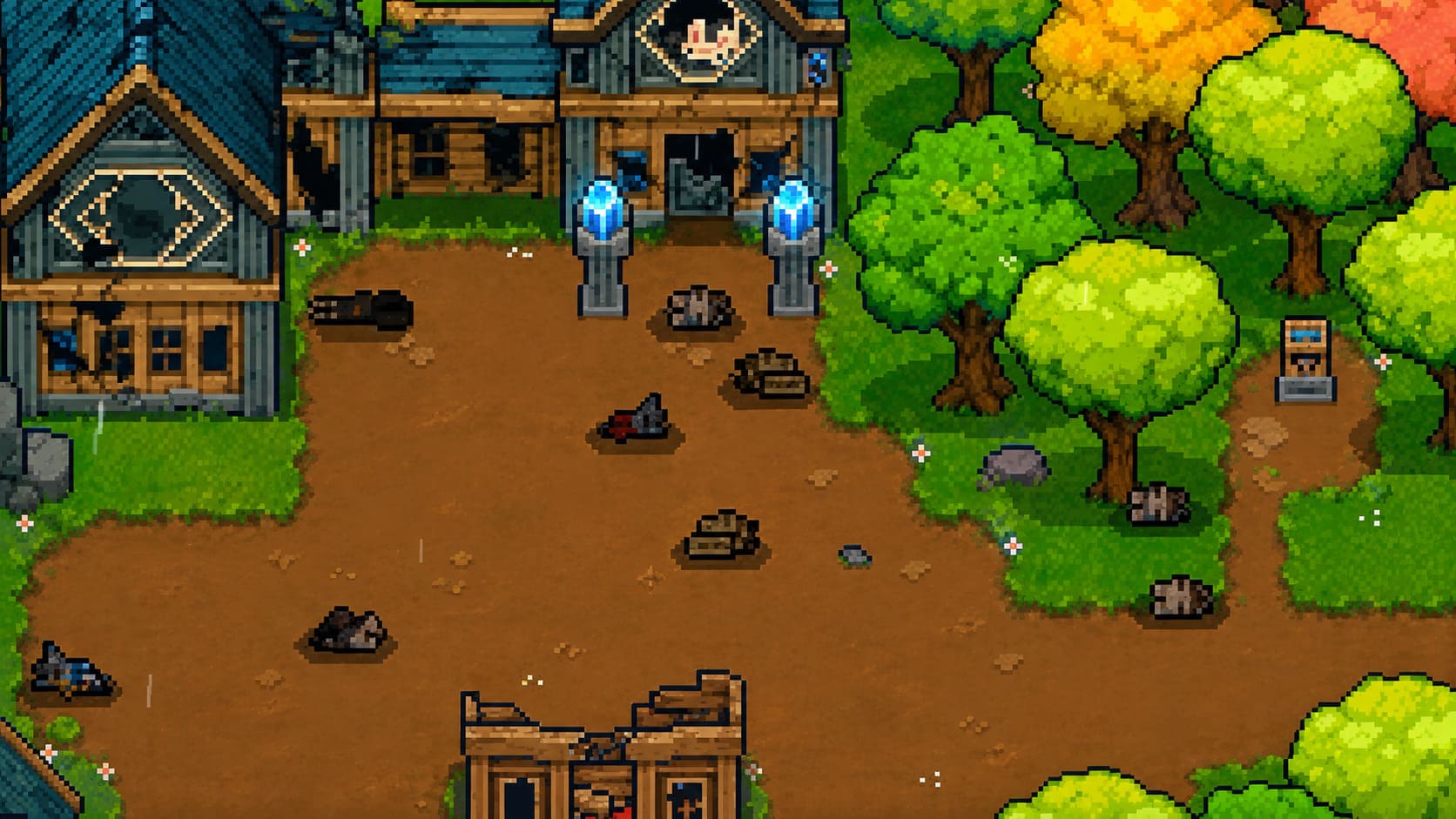
Personally, I don’t think lowering the resolution is necessary for most players. Sephiria’s pixel art already looks incredibly sharp at the Steam Deck’s native 1280×800 resolution, and reducing it only provides a relatively small performance gain.
The only situation where I would recommend dropping to 1152×720 is when maximizing battery life is more important than image quality. Otherwise, native resolution remains the best option for preserving the game’s detailed artwork.
My Overall Steam Deck Experience
After spending many hours experimenting with builds, exploring different floors, and replaying difficult encounters, I came away genuinely impressed with how well Sephiria fits the Steam Deck. Combat feels responsive, loading times remain quick, and once the controls are adjusted, the gameplay feels incredibly natural on a handheld.
What impressed me most is that the game doesn’t demand major compromises. You don’t need to sacrifice visual quality just to achieve smooth gameplay. TEAM HORAY has clearly built a well-optimized title that respects both the player’s hardware and their time.
Their previous work already demonstrated an excellent understanding of addictive roguelite progression, and Sephiria successfully continues that tradition. Every run encourages experimentation, every new artifact changes your strategy, and the smooth Steam Deck performance only makes the experience even more enjoyable.
Final Thoughts
If you’re planning to play Sephiria 1.0 on a Steam Deck, the optimization process is refreshingly straightforward. Running the game at its native 1280×800 resolution, limiting the frame rate to 60 FPS, using a 9W TDP cap, and selecting medium graphical settings creates an outstanding balance between visual quality, responsiveness, battery life, and system temperatures.
The result is exactly what I want from a portable action roguelite: responsive controls, stable frame rates during the most demanding encounters, quiet operation, and enough battery life to comfortably enjoy multiple runs away from a charger.
For Steam Deck owners, Sephiria is an easy recommendation. With only a few minutes of tweaking, it transforms into one of those rare games that genuinely feels like it was designed with handheld gaming in mind from the very beginning.