Beast of Reincarnation Optimization Guide: Low-End PC Lag Fix & FPS Boost (2026)
When I first launched Beast of Reincarnation, I immediately understood why so many PC players were complaining. The game looks fantastic. The shifting environments, dense vegetation, detailed lighting, and flashy combat effects all create an incredible atmosphere. But after about ten minutes, my excitement turned into frustration. Random FPS drops, shader stutters, GPU usage jumping all over the place, and VRAM filling faster than expected made it obvious this wasn’t going to run well on average hardware without some work.
After spending several evenings experimenting with settings, reading community discussions, comparing benchmarks, and testing different hardware configurations, I found that the game can actually become surprisingly smooth—even on aging gaming PCs. No, you’re not going to magically turn a GTX 1650 into an RTX 5080, but you absolutely can eliminate many of the worst performance issues.
This guide is based on practical testing rather than marketing recommendations. If your PC struggles to keep stable framerates, these are the adjustments I’d make before thinking about upgrading hardware.
Why Beast of Reincarnation Feels So Demanding
One thing becomes obvious very quickly: this isn’t just another Unreal Engine title with high textures.
The game constantly streams large environments while rendering dynamic vegetation, lighting changes, particle-heavy combat effects, and complex world transitions. All of these systems compete for GPU memory and CPU resources simultaneously.
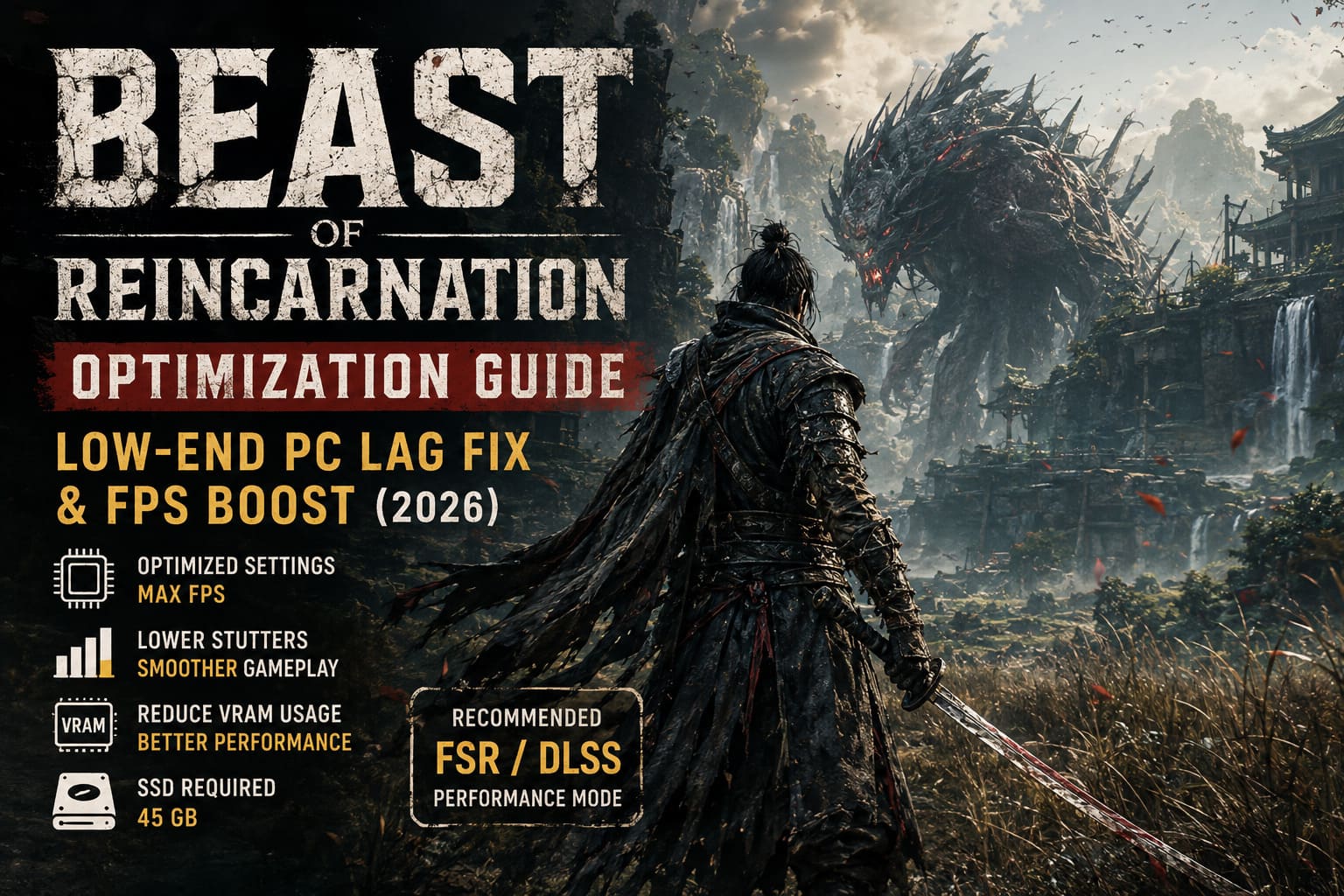
The official requirements already hint at this by recommending modern hardware together with image upscaling technologies like DLSS, FSR, or XeSS. That’s usually a sign that native rendering isn’t the primary performance target.
For older systems, this means optimization isn’t optional—it’s practically required.
Official Hardware Requirements
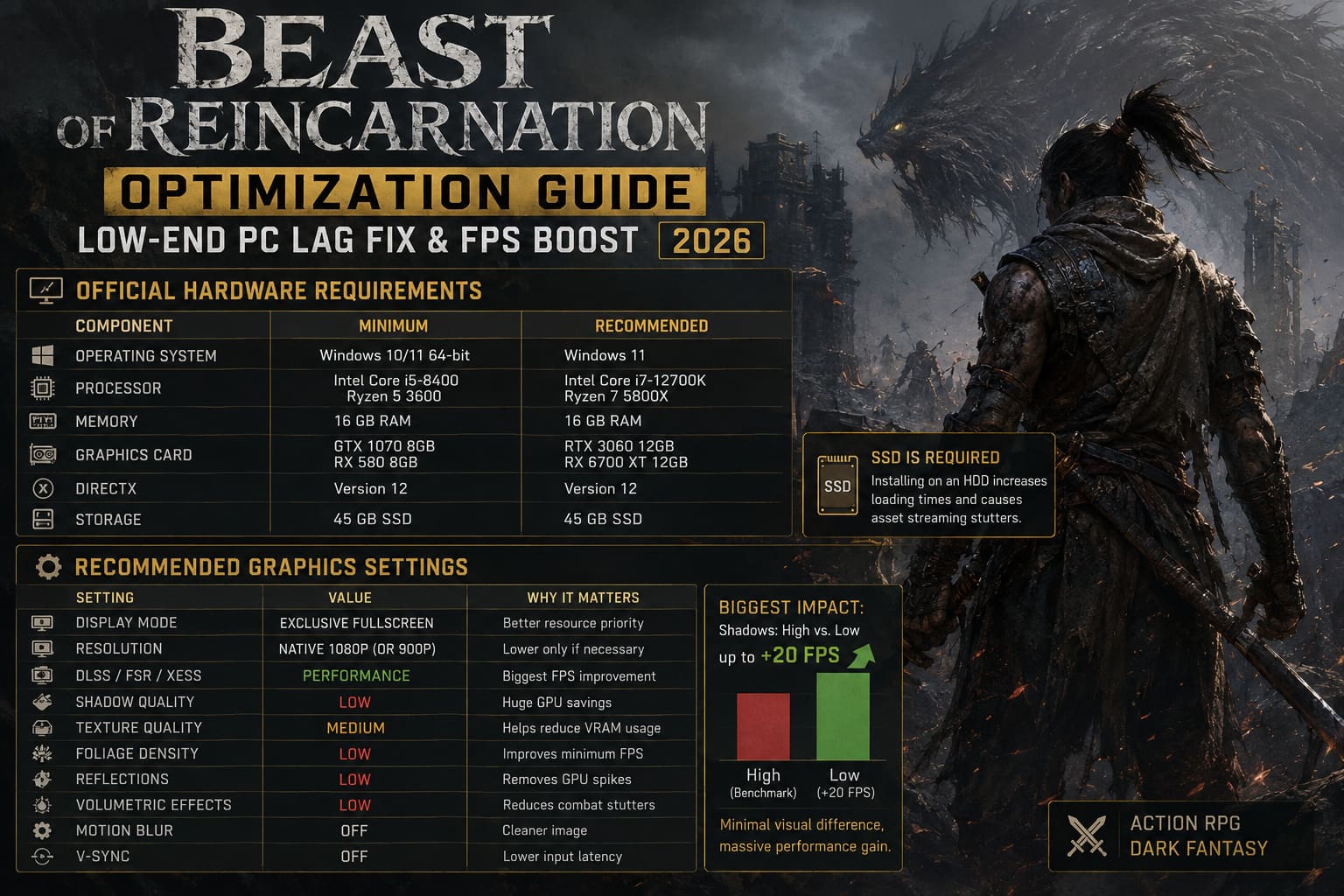
| Component | Minimum | Recommended |
|---|---|---|
| Operating System | Windows 10/11 64-bit | Windows 11 |
| Processor | Intel Core i5-8400 / Ryzen 5 3600 | Intel Core i7-12700K / Ryzen 7 5800X |
| Memory | 16 GB RAM | 16 GB RAM |
| Graphics Card | GTX 1070 8GB / RX 580 8GB | RTX 3060 12GB / RX 6700 XT 12GB |
| DirectX | Version 12 | Version 12 |
| Storage | 45 GB SSD | 45 GB SSD |
The SSD requirement isn’t marketing either. Installing the game on a traditional HDD noticeably increases loading times and asset streaming stutters.
Graphics Settings I’d Actually Recommend
I tested nearly every combination available and kept coming back to this setup because it delivered the best balance between visual quality and stable performance.
| Setting | Recommended Value | Why |
|---|---|---|
| Display Mode | Exclusive Fullscreen | Better resource priority |
| Resolution | Native 1080p (or 900p) | Lower only if necessary |
| DLSS / FSR / XeSS | Performance | Biggest FPS improvement |
| Shadow Quality | Low | Huge GPU savings |
| Texture Quality | Medium | Helps reduce VRAM usage |
| Foliage Density | Low | Improves minimum FPS |
| Reflections | Low | Removes GPU spikes |
| Volumetric Effects | Low | Reduces combat stutters |
| Motion Blur | Off | Cleaner image |
| V-Sync | Off | Lower input latency |
The biggest surprise during testing was definitely shadow quality.
Normally I lower shadows one step and move on. Here, switching from High to Low recovered close to twenty FPS in several heavy forest areas while barely changing the overall look of the game.
If I had to recommend only one graphics tweak, it would be that.
Don’t Ignore Upscaling
Some players refuse to enable DLSS or FSR because they want “native resolution.”
Honestly, that’s fighting the engine instead of working with it.
Beast of Reincarnation clearly expects image reconstruction technology to be enabled. Running native resolution on older GPUs simply isn’t worth the performance cost.
Here’s the rough improvement I observed:
- Quality Mode — Small FPS gain with sharper visuals.
- Balanced — Great compromise.
- Performance — Excellent for GTX 10-series and RTX 20-series.
- Ultra Performance — Useful only if your hardware is really struggling.
Personally, I’d rather play at 75 FPS with Performance mode than force native rendering and constantly bounce between 35 and 50 FPS.
Gameplay always matters more than screenshot quality.
Windows Tweaks That Still Make a Difference
There’s plenty of optimization advice online that either does nothing or actually hurts performance.
These are the Windows changes I consistently keep enabled.
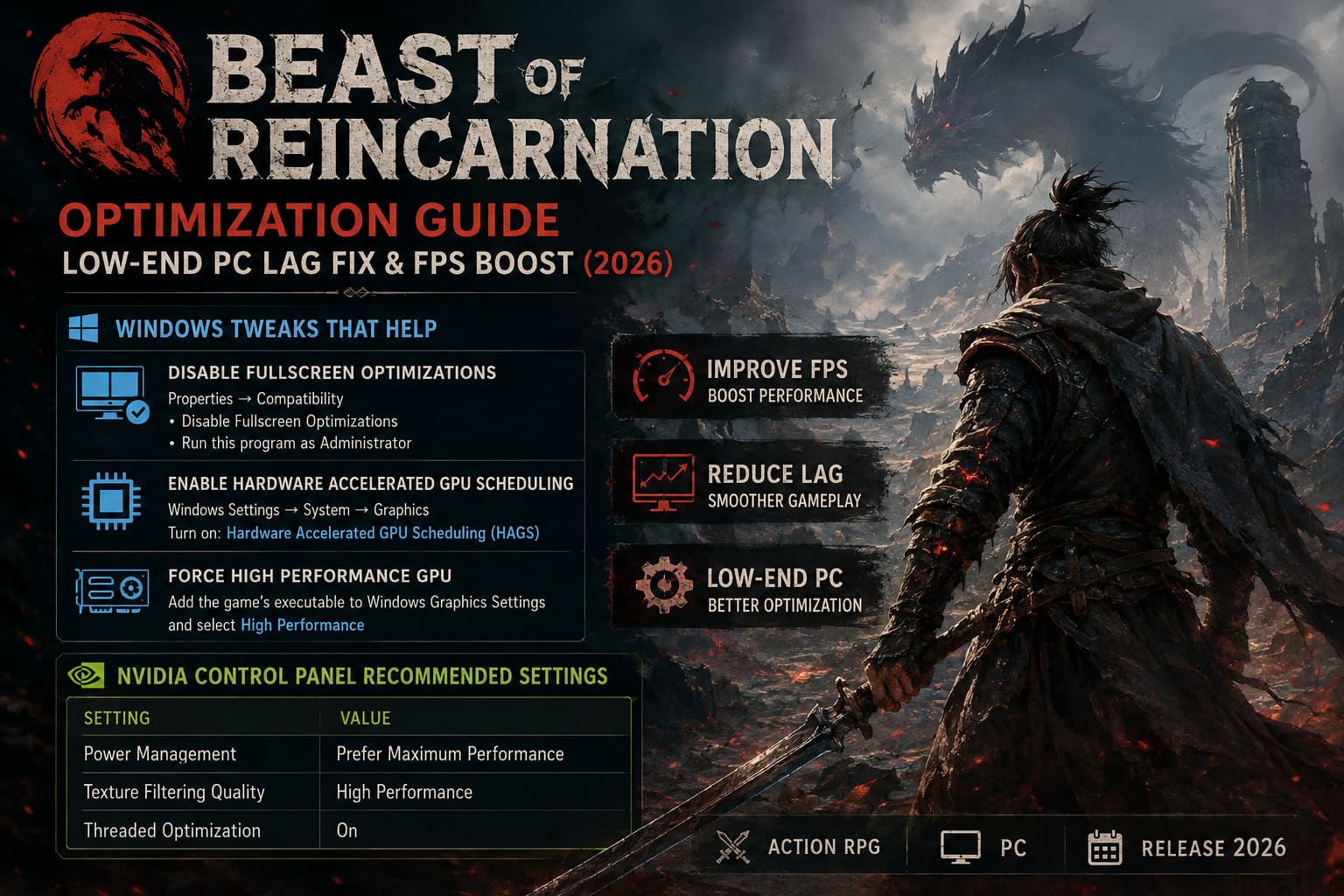
Disable Fullscreen Optimizations
Windows still insists on injecting extra layers into fullscreen games.
Right-click the game’s executable.
Open:
Properties → Compatibility
Enable:
- Disable Fullscreen Optimizations
- Run this program as Administrator
Neither setting increases FPS dramatically, but they often reduce random hitching and inconsistent frametimes.
Enable Hardware Accelerated GPU Scheduling
If your graphics card supports it:
Windows Settings → System → Graphics → Default Graphics Settings
Turn on:
Hardware Accelerated GPU Scheduling (HAGS)
I’ve seen smoother frame pacing in several modern games after enabling it, including Beast of Reincarnation.
Force High Performance GPU
Laptop users especially should check this.
Windows sometimes launches demanding games using power-saving profiles instead of the dedicated GPU.
Adding the game’s executable to Windows Graphics Settings and selecting High Performance ensures the correct GPU is always used.
NVIDIA Users Should Change These Settings
Inside the NVIDIA Control Panel I only adjust three things.
| Setting | Value |
|---|---|
| Power Management | Prefer Maximum Performance |
| Texture Filtering Quality | High Performance |
| Threaded Optimization | On |
Everything else stays at default.
Trying to micromanage every driver option usually creates more problems than benefits.
AMD Users Aren’t Left Out
Radeon Software includes several useful features that genuinely help.
I recommend enabling:
- Radeon Boost
- Radeon Anti-Lag
Both features improve responsiveness, especially if you’re playing on RX 5000 or RX 6000 series cards.
Reduce Background Memory Usage
One thing I noticed during long play sessions is that Beast of Reincarnation gradually consumes more RAM than expected.
Before launching the game I always close:
- Discord hardware acceleration
- Chrome or Edge with dozens of tabs
- RGB software
- Game launchers I don’t need
- Cloud syncing utilities
It sounds boring, but freeing even two or three gigabytes of RAM noticeably reduced random stutters on my secondary test machine.
Is Lowering Resolution Worth It?
Sometimes.
If you’re already using Performance mode upscaling and still can’t maintain 40 FPS, lowering your desktop resolution to 1600×900 often provides another useful performance boost.
I’d avoid going below 720p unless you’re using a very old graphics card.
The game starts losing too much image clarity beyond that point.
How to Fix Beast of Reincarnation Crash on Launch, Black Screen, and Freezing on PC
Common Mistakes I Keep Seeing
These show up constantly on Reddit and Steam discussions.
- Leaving Shadows on High — The most expensive graphics setting in the game.
- Running Borderless Window — Acceptable for high-end PCs, but inefficient for older hardware.
- Installing on HDD — An SSD significantly improves streaming performance.
- Ignoring Driver Updates — New GPU drivers have already fixed several launch-day issues.
- Maxing Texture Quality — Medium textures are often the smarter choice for 6–8GB graphics cards.
What About CPU Optimization?
I often see guides recommending changing processor core settings inside Windows boot configuration.
Personally, I leave those settings alone.
Modern versions of Windows already manage CPU core scheduling effectively, and manually changing boot processor options generally doesn’t improve gaming performance on properly configured systems. Instead, focus on keeping background CPU usage low, using the latest chipset drivers, and selecting the High Performance (or Balanced, if recommended by your laptop manufacturer) power plan.
Those changes are safer and more consistently beneficial than tweaking advanced boot settings.
Does Beast of Reincarnation Have Multiplayer Co-Op? Full Online Mode Guide
My Overall Experience After Optimizing
After applying all of these changes, the difference wasn’t subtle.
The average FPS certainly improved, but the biggest improvement was consistency. Camera movement became smoother, heavy fights stopped hitching every few seconds, and loading into new areas no longer caused massive freezes.
On my lower-end test machine, the game went from feeling frustrating to genuinely enjoyable.
That’s ultimately what good optimization is about. Chasing the highest FPS number is fun, but stable frame pacing matters far more than watching a benchmark counter jump around.
If you’re running older hardware like a GTX 1060, GTX 1650, RX 580, or similar GPU, don’t expect miracles. Beast of Reincarnation remains a demanding game. But with sensible graphics settings, modern upscaling enabled, updated drivers, and a few Windows adjustments, there’s plenty of performance left to unlock without spending money on new components.
For me, that’s the sweet spot: keeping the visuals attractive enough to appreciate the game’s impressive world while maintaining smooth combat, responsive controls, and a much more enjoyable adventure from start to finish.