No Man’s Sky Cosmos Update Steam Deck Optimization Guide: Best Settings for 7.0
No Man’s Sky has never been a small game, but the Cosmos Update 7.0 pushes that idea even further. After years of updates, Hello Games is still finding ways to make the universe more complicated, more interactive, and, unfortunately for handheld players, more demanding.
The new update brings a lot to the table: customizable orbital bases, ownership of deep-space stations, player alliances, expanded asteroid fields, enormous space hulks, biological derelicts, and a redesigned star-system map. There is a lot more happening in the background now, and that matters when you are playing on a machine as compact as the Steam Deck.
I have always liked playing No Man’s Sky on the Deck because the game feels almost tailor-made for handheld exploration. Sitting somewhere with headphones on and jumping between planets is one of those experiences that works surprisingly well on portable hardware. Cosmos 7.0 changes the balance, though. The Deck can still handle the game, but you need to stop chasing high frame rates and start thinking about frame-time consistency.
That is the key difference.
A Steam Deck running No Man’s Sky at 60 FPS for a few seconds is impressive. A Steam Deck holding a stable 30 FPS through most of an exploration session is much more useful.
And with Cosmos, I strongly recommend building your settings around stability first.
Steam Deck Performance After Cosmos 7.0
The first thing to understand is that No Man’s Sky does not behave consistently across different areas of the game. Space is relatively easy. Atmospheric flight is harder. Busy planets, large bases, multiplayer hubs, and complex structures can push the CPU and GPU in completely different ways.

With unrestricted settings, the Deck can produce surprisingly high numbers while flying through open space. Seeing 60 FPS or more is not unusual in light workloads. The problem starts when the game has to suddenly process terrain, creatures, structures, lighting, simulation, and other players.
That is when frame rates can fall dramatically.
The result is not just a lower average FPS. It is the sudden change that makes the game feel bad. Going from a smooth 60 to the mid-20s during planetary descent creates noticeable hitching, while frame-time spikes make camera movement feel uneven.
This is why I would not recommend running Cosmos uncapped on Steam Deck.
The hardware is already working hard, and allowing the system to constantly chase higher frame rates also increases power consumption. An unrestricted configuration can push total system consumption toward the high 20-watt range, which is terrible news for battery life.
For most players, two configurations make much more sense.
| Profile | Steam Deck Model | Target | Main Advantage |
|---|---|---|---|
| Stable Handheld | LCD / OLED | 30 FPS | Best consistency and battery life |
| Smooth OLED | OLED | 45 FPS | Much smoother motion with 90Hz display |
| Experimental | LCD | 40–45 FPS | Possible, but less consistent |
| Uncapped | LCD / OLED | 60+ FPS | High peaks, poor consistency |
My personal pick is 30 FPS, especially if you spend a lot of time building bases or visiting busy locations. It may sound conservative, but No Man’s Sky actually feels pretty good at a locked 30 when frame times stay consistent.
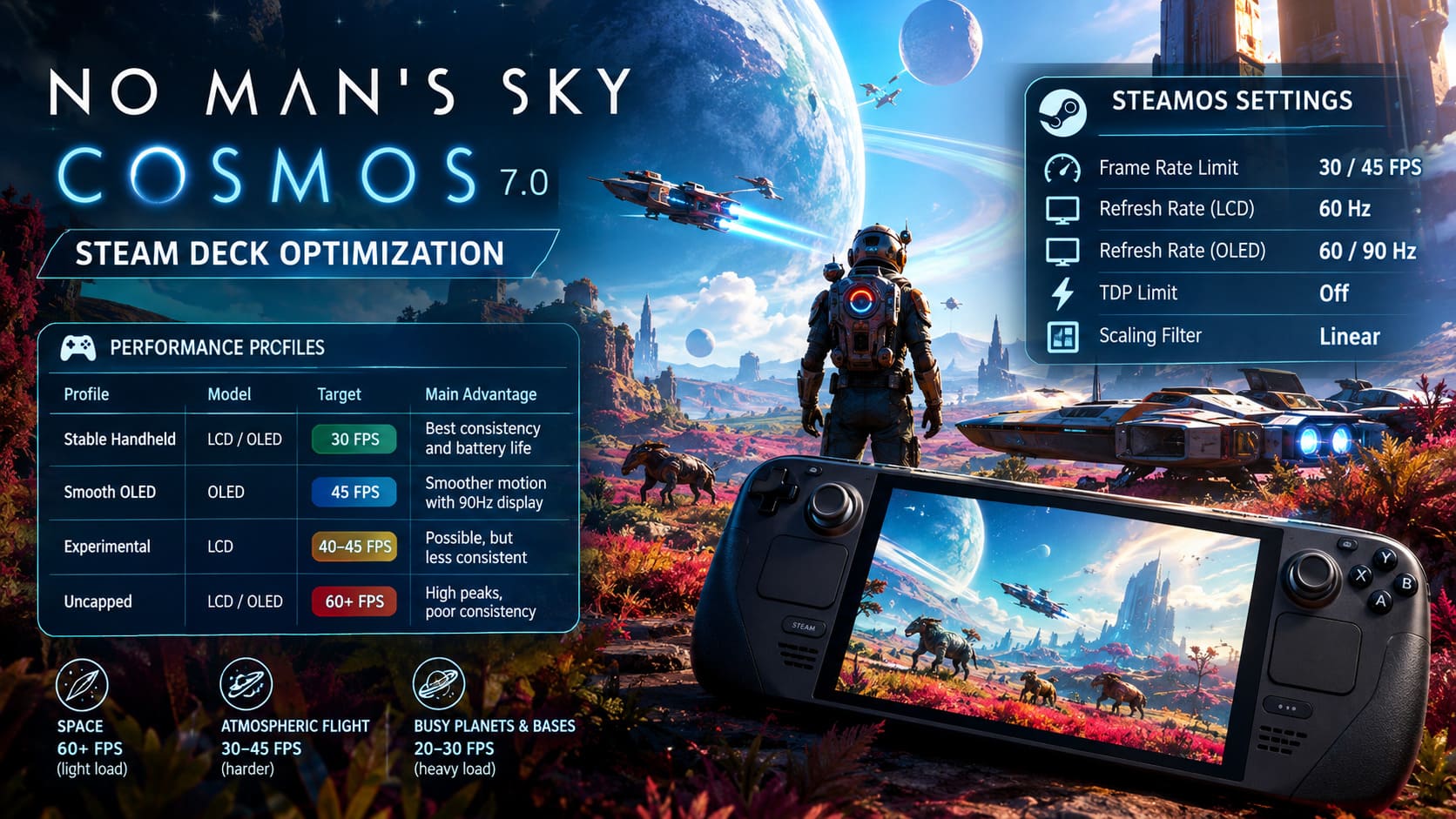
The OLED Deck has another option worth considering: 45 FPS at 90Hz. When it works, this is probably the nicest way to play Cosmos handheld.
My Recommended SteamOS Settings
Before changing the game’s internal graphics, I would start with SteamOS itself.
Open the Quick Access Menu, go to the Performance section, and create a per-game profile for No Man’s Sky. This prevents the settings from affecting other games.
For the 30 FPS setup, I recommend:
- Frame Rate Limit: 30 FPS
- LCD Refresh Rate: 60Hz
- OLED Refresh Rate: 60Hz
- TDP Limit: Off
- Scaling Filter: Linear
The most important setting here is the frame limiter.
Do not be tempted to leave the FPS limit disabled simply because the Deck can hit higher numbers in space. Those extra frames are not worth the instability once you return to a planet.
For OLED owners who want a smoother experience, use 90Hz with a 45 FPS cap. The combination works particularly well because 45 FPS divides evenly into 90Hz, giving the display a clean presentation.
On an LCD model, you can experiment with lower refresh-rate configurations, but I would still consider 30 FPS the safer recommendation.
Why I Would Leave TDP Unrestricted
This is one of those settings where trying to save power can actually make the game feel worse.
No Man’s Sky is heavily dependent on CPU work. Planet generation, creatures, terrain, physics, simulation and many of the systems running behind the scenes all contribute to the workload.
Cosmos adds even more complexity.
Restricting the APU too aggressively can therefore create additional stutters rather than solving them. I would rather accept slightly higher power consumption and maintain consistent performance.
If battery life is your priority, the 30 FPS cap already does a lot of the work.
Best No Man’s Sky Cosmos 7.0 Graphics Settings for Steam Deck
Once the SteamOS profile is configured, move into the game’s own graphics menu.
The goal here is not to turn everything down. No Man’s Sky can look surprisingly good on Steam Deck, and dropping every option to Low makes the game look worse without necessarily solving the biggest performance problems.
Instead, I prefer a mixed configuration.
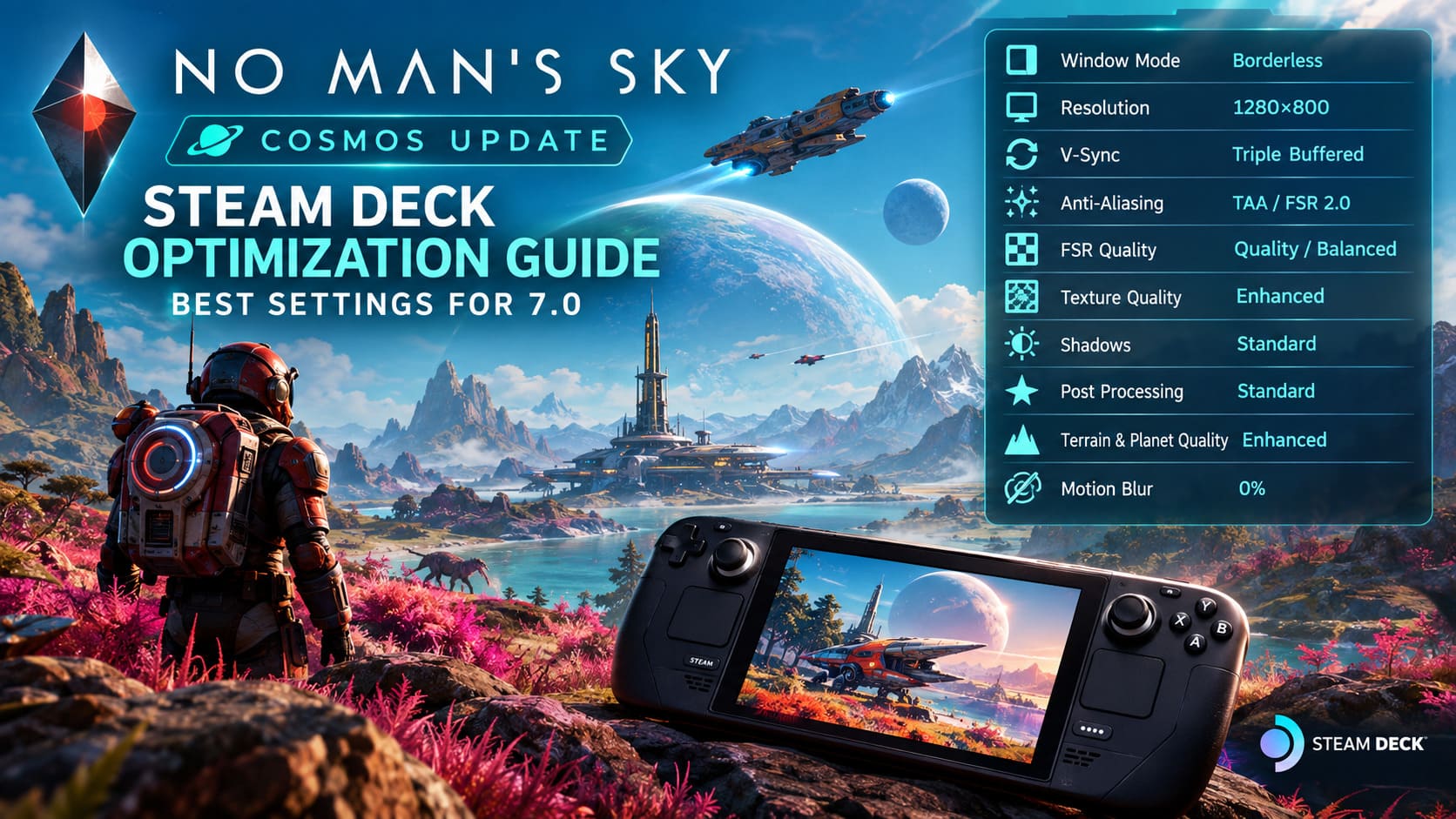
| Graphics Option | Recommended Setting | Why |
|---|---|---|
| Window Mode | Borderless | Works well with SteamOS |
| Resolution | 1280×800 | Native Deck resolution |
| V-Sync | Triple Buffered | Helps reduce tearing |
| Anti-Aliasing | TAA / FSR 2.0 | Depends on FPS target |
| FSR Quality | Quality / Balanced | Best compromise |
| Texture Quality | Enhanced | Good visual detail |
| Animation Quality | Standard | Reduces CPU workload |
| Shadow Quality | Standard | Major performance saving |
| Post Processing | Standard | Keeps effects under control |
| Volumetric Effects | Standard | Helps during atmospheric flight |
| Terrain Quality | Enhanced | Keeps terrain detail |
| Planet Quality | Enhanced | Better distant detail |
| Base Complexity | Standard | Important for large bases |
| Water Quality | Standard | Sensible GPU compromise |
| Reflection Quality | Standard | Reduces expensive reflections |
| GTAO | Standard | Good balance |
| Motion Blur | 0% | Cleaner handheld image |
The important thing is that not every setting needs to be Low.
For example, I prefer Enhanced textures and terrain because those settings have a noticeable impact on how the game looks. No Man’s Sky relies heavily on environmental detail, so making everything blurry just to gain a few frames defeats part of the reason I enjoy exploring it.
TAA or FSR 2.0?
This is probably the biggest decision in the entire menu.
For a locked 30 FPS profile, I would start with TAA. It provides a cleaner image and avoids some of the reconstruction artifacts that become obvious on the Deck’s 800p display.
For the 45 FPS OLED configuration, however, FSR 2.0 becomes much more useful.
Set FSR to Quality first. If performance is still inconsistent in the areas where you play most often, try Balanced.
I would avoid Performance and Ultra Performance at 1280×800 unless you have absolutely no other choice. The image becomes noticeably softer, and distant objects, vegetation, ship details, and interface elements can lose too much clarity.
For me, Quality is the sweet spot.
The Settings That Actually Matter Most
If you do not want to spend half an hour adjusting every graphics option, concentrate on the settings that have the biggest practical effect.
Shadows are one of the first places I would cut back. Standard is a good compromise and prevents the GPU from wasting resources on effects that are not particularly important on a small screen.
Volumetric Effects also deserve attention. No Man’s Sky has beautiful clouds and atmospheric effects, but they can become expensive during planetary flight. Standard keeps the atmosphere looking good without turning every descent into a performance test.
Then there is Base Complexity.
This is especially important after Cosmos because large player-built structures can become extremely demanding. If you are planning to build enormous orbital facilities or visit heavily decorated player hubs, do not set this to High or Ultra on the Deck.
Standard is the safer choice.
The same principle applies to reflections. They look nice inside stations and outposts, but I would happily trade some reflection quality for consistent performance.
What About CryoUtilities and the 4GB UMA Setting?
Advanced Steam Deck users may already be familiar with tools such as CryoUtilities and BIOS-level memory configuration.
For a memory-heavy game like No Man’s Sky, some users choose to increase the UMA Frame Buffer Size to 4GB. The idea is to reserve a larger minimum portion of the shared system memory for graphics workloads.
It can be useful in demanding scenarios, but I would not treat it as a magic performance switch.
The Steam Deck still has a finite amount of shared memory, and No Man’s Sky has workloads that can stress both CPU and GPU resources. If you are already comfortable changing BIOS settings, the 4GB configuration is worth testing. If you are not, I would first optimize the game normally.
Good graphics settings will matter more than chasing obscure tweaks.
Proton Configuration for No Man’s Sky 7.0
No Man’s Sky uses Vulkan, which is one of the reasons it can perform so well on Steam Deck despite the game’s enormous scale.
In Steam, open the game’s Properties and check the Compatibility section.
If you are experiencing unusual problems after the Cosmos update, testing Proton Experimental is a sensible first step. Hello Games updates can occasionally expose compatibility issues that were not present before, and Proton Experimental tends to receive fixes faster than older stable releases.
I would not automatically assume that Experimental is faster, though.
If your current Proton version works perfectly, there is no reason to change it simply because a newer option exists. Stability is more important than chasing a theoretical performance improvement.
How Cosmos 7.0 Performs in Different Situations
The Steam Deck experience changes dramatically depending on where you are.
Open Space and Asteroid Fields
This is where the Deck feels strongest.
Flying through relatively empty space, navigating the new star map, and moving through lighter asteroid fields should allow the system to stay close to your chosen FPS cap.
With a 30 FPS limit, this can feel remarkably stable.
Orbital Bases
This is where things become more complicated.
Large structures can produce short frame-time spikes, particularly when placing or modifying complex objects. You may see brief dips while the game updates the environment or saves changes.
I would not panic over an occasional two- or three-frame drop.
What matters is whether the game immediately recovers.
The Space Anomaly and Nexus
The Anomaly remains one of the toughest places to run No Man’s Sky smoothly on handheld hardware.
There is simply a lot happening there: other players, ships, companions, network activity and player-created content.
Even with optimized settings, you can encounter small stutters when entering the area.
This is exactly where a 30 FPS cap makes the experience feel much better. The game may still have a spike, but the difference between normal performance and a temporary dip is much less dramatic than it would be when trying to maintain 60 FPS.
No Man’s Sky Worlds Update: Guide to Finding Perfect Earth-Like Planets
My Final Steam Deck Setup for Cosmos 7.0
If I were setting up a Steam Deck specifically for No Man’s Sky Cosmos today, I would keep it simple.
Steam Deck LCD Setup
For the LCD model, I would use:
- 30 FPS cap
- 60Hz refresh rate
- TDP unlimited
- 1280×800
- TAA
- Enhanced textures
- Enhanced terrain and planet quality
- Standard shadows, animation, volumetrics and reflections
- Standard base complexity
- Motion blur disabled
Steam Deck OLED Setup
For the OLED model, I would first try the same 30 FPS configuration. If you want something smoother and are willing to accept occasional drops, switch to:
- 90Hz refresh rate
- 45 FPS cap
- FSR 2.0 Quality
- The same Standard/Enhanced graphics mix
That is the setup I would personally use rather than trying to make the Deck behave like a desktop PC.
No Man’s Sky Best Corvette Ships Guide 2026: Top Meta Builds, Parts, and Min-Maxing Strategies
Is No Man’s Sky Cosmos 7.0 Worth Playing on Steam Deck?
Absolutely — with one important caveat.
You have to stop expecting desktop-style performance from the Deck.
Cosmos 7.0 makes No Man’s Sky more ambitious, but that ambition also exposes the limits of handheld hardware. The Deck is not going to maintain a perfect 60 FPS while you fly into a busy planet, enter the Anomaly, or walk around a giant player-built orbital structure.
But that does not mean the game is a poor fit.
Quite the opposite.
Once you lock the frame rate, control the expensive settings, and let the Deck operate within a realistic performance target, No Man’s Sky becomes a very comfortable handheld game again. The difference between a wildly fluctuating 60 FPS and a consistent 30 FPS is enormous, and I would take the latter every time.
For LCD owners, 30 FPS is the sweet spot. For OLED owners, 45 FPS is the luxury option.
The Cosmos Update is a huge technical step for No Man’s Sky, and the Steam Deck needs a little help keeping up. Fortunately, you do not need to destroy the game’s visual quality to get there. A sensible mix of Enhanced and Standard settings, a strict frame cap, and sensible FSR use are enough to make the experience considerably smoother.
And honestly, once I am sitting on a planet watching a sunset, jumping into my ship and heading toward some ridiculous structure on the horizon, I am not thinking about whether every frame was rendered at 16 or 33 milliseconds.
I am just playing No Man’s Sky.
That is exactly what the Steam Deck should be good at.