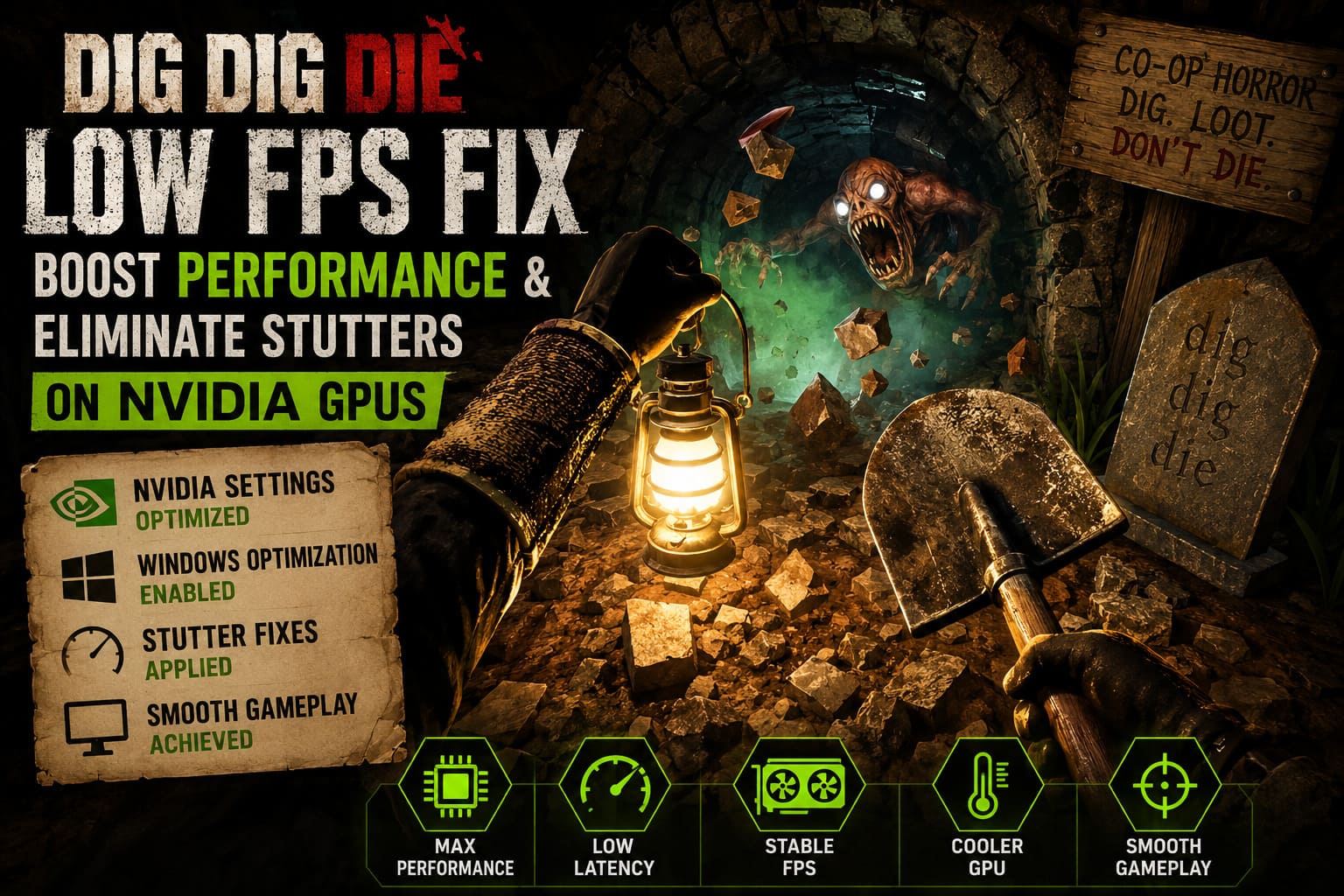
Dig Dig Die Low FPS Fix: How to Boost Performance and Eliminate Stutters on NVIDIA GPUs
I’ve spent more years tweaking PC games than I’d like to admit. Every major release somehow finds a new way to surprise us with strange optimization issues, and indie games are no exception. Some launch perfectly, while others require a little patience before they truly shine. Dig Dig Die falls somewhere in the middle. It’s one of the most entertaining co-op horror games I’ve played this year, but it’s also one of those titles where performance can make or break the experience.
What impressed me most wasn’t just the creepy atmosphere or the unpredictable monsters—it was how every second of gameplay depends on smooth frame pacing. One random stutter while escaping a creature can instantly turn a successful run into a disaster. After experimenting with different NVIDIA settings, Windows optimizations, and in-game tweaks, I finally reached a setup that feels consistently smooth. This guide isn’t just a collection of random internet tips—it’s based on what actually made a noticeable difference during my own time with the game.
Dig Dig Die Casino Minigames Guide: How to Play and Win Big (Alice Games 2026)
Why Dig Dig Die Feels More Demanding Than It Looks
At first glance, Dig Dig Die doesn’t seem like a graphically intensive game. Compared to massive AAA releases, its visuals appear relatively simple. However, appearances can be misleading.
The underground environments constantly change as players dig deeper, destroy terrain, activate traps, and trigger random events. Add multiple players using voice chat, AI monsters reacting dynamically, physics interactions, and procedural generation, and suddenly both the CPU and GPU have a lot more work to do than expected.
From my experience, the biggest problem isn’t average FPS. It’s frame consistency. You might see 120 FPS while standing still, only to experience sudden drops into the 50s when entering a new crypt or when several effects appear simultaneously. Those micro-stutters are far more annoying than simply playing at a lower but stable frame rate.
The First Thing I Changed: NVIDIA Control Panel
Like many PC gamers, I usually leave the NVIDIA Control Panel untouched unless a game gives me trouble. Dig Dig Die was one of those games. After creating a dedicated profile for the game, I immediately noticed smoother gameplay.
The settings that produced the biggest improvements were:
- Power Management Mode: Prefer Maximum Performance
- Low Latency Mode: Ultra
- Texture Filtering Quality: High Performance
- Threaded Optimization: Enabled
- Vertical Sync: Disabled
None of these settings magically doubled my FPS, but together they removed a surprising amount of input delay and helped stabilize frame times during exploration. In horror games where every reaction counts, even a small reduction in latency feels noticeable.
Shader Cache Was Secretly Causing Most of My Stutters
This has become a recurring issue across modern PC games. Whenever a new monster appeared or I entered an unexplored section of the map, the game would freeze for a split second. At first, I assumed the engine simply needed optimization.
Instead, the culprit turned out to be shader compilation. After clearing the DirectX Shader Cache through Windows Disk Cleanup and allowing NVIDIA to rebuild its cache from scratch, most of those random freezes disappeared after the first match.
The initial session still included a few small hitches as new shaders were generated, but every game afterward became dramatically smoother. In my opinion, this is one of the most overlooked fixes for modern PC releases.
Fullscreen Still Wins
Borderless Window has become the default option for many players because switching between Discord, browsers, and streaming software is convenient. Unfortunately, convenience doesn’t always equal performance.
Switching Dig Dig Die into Exclusive Fullscreen immediately improved frame consistency on my system. Average FPS barely changed. However, the annoying frame pacing issues became much less noticeable. If you’re primarily focused on performance rather than multitasking, this is an easy recommendation.
Shadows Look Nice… Until They Destroy Your FPS
One thing I’ve learned after testing hundreds of games is that shadows are often among the most expensive graphical settings. Dig Dig Die follows exactly the same pattern.
Reducing shadow quality from Ultra to Medium barely affected visual quality inside the underground environments, yet it noticeably reduced GPU usage. Reflections produced similar results. The atmosphere remained intact while performance became far more stable.
If I had to choose only one graphics setting to lower, shadows would always be my first pick.
DLSS Is Easily Worth Using
Owners of RTX graphics cards should absolutely enable DLSS. Personally, I prefer Quality Mode because the image remains sharp while gaining valuable extra frames.
On older RTX models like the RTX 2060 or RTX 3050, Balanced Mode often provides the best compromise. Players using GTX cards obviously don’t have access to DLSS, but NVIDIA Image Scaling (NIS) is still worth trying. While it isn’t quite as impressive, it can recover enough performance to keep gameplay smooth without making the image look overly blurry.
Windows Gaming Features Are Better Than They Used To Be
Years ago, many PC players recommended disabling every Windows gaming feature. Today, that advice feels outdated.
For Dig Dig Die, I actually found several Windows options beneficial. The settings I recommend enabling include:
- Game Mode
- Hardware-Accelerated GPU Scheduling (HAGS)
- Optimizations for Windowed Games (only if you play Borderless)
These options won’t solve every performance problem, but together they help Windows prioritize gaming workloads more effectively. The improvements aren’t dramatic individually. Combined, they contribute to a noticeably smoother experience.
Clean Drivers Can Solve Problems You Didn’t Know Existed
One lesson I’ve learned after countless GPU upgrades is simple: sometimes the graphics driver itself is the problem.
I’ve encountered situations where updating drivers actually reduced performance until I completely removed the old installation. Using Display Driver Uninstaller (DDU) before installing the newest NVIDIA Game Ready Driver remains one of the safest troubleshooting methods available.
It takes a little more time than a normal update, but it’s often worth the effort if you’ve recently noticed unexpected FPS drops, severe stuttering, or unstable frame pacing.
Common Performance Problems and Their Solutions
| Problem | Possible Cause | Recommended Fix |
|---|---|---|
| Random FPS drops | Corrupted driver files | Clean DDU reinstall |
| Micro-stuttering | Shader cache conflicts | Clear and rebuild shader cache |
| High GPU temperatures | Incorrect power profile | Maximum Performance mode |
| Input lag | Driver latency | Enable Low Latency Mode |
| Uneven frame pacing | Borderless rendering | Switch to Exclusive Fullscreen |
My Recommended Settings
After several evenings experimenting with different configurations, this became my preferred setup. It offers an excellent balance between smooth gameplay and visual quality without sacrificing the atmosphere that makes Dig Dig Die so enjoyable.
| Setting | Recommendation |
|---|---|
| Display Mode | Exclusive Fullscreen |
| DLSS | Quality |
| Shadows | Medium |
| Reflections | Medium |
| Motion Blur | Off |
| V-Sync | Off |
| NVIDIA Low Latency | Ultra |
| Power Management | Prefer Maximum Performance |
| Texture Filtering | High Performance |
| Threaded Optimization | On |
Performance Is About Stability, Not Just FPS
One mistake many players make is obsessing over the average FPS counter. Personally, I’d rather play at a perfectly stable 90 FPS than watch the game constantly bounce between 160 and 60.
Dig Dig Die rewards smooth gameplay far more than high benchmark numbers. When monsters suddenly appear, teammates start shouting through voice chat, or the environment collapses around you, stable frame pacing becomes far more valuable than peak performance.
That consistency makes aiming easier, movement feel more responsive, and every encounter significantly less frustrating. Chasing huge FPS numbers is tempting, but in this game stability is what truly improves the experience.
Final Thoughts
Dig Dig Die is one of those rare multiplayer horror games that genuinely creates memorable stories every time you play. Between bizarre alien encounters, terrifying underground creatures, and the constant pressure to escape with your loot, it’s easy to lose track of time.
Unfortunately, technical issues can get in the way of that experience. The good news is that most NVIDIA users don’t need expensive hardware upgrades to improve performance. In my testing, careful driver configuration, a clean shader cache, sensible graphics settings, and a few Windows tweaks made a far bigger difference than lowering every visual option to Low.
If there’s one takeaway from all my testing, it’s this: don’t chase the highest FPS number. Focus on eliminating stutters, improving frame consistency, and reducing latency. Once those three areas are under control, Dig Dig Die transforms into the tense, atmospheric co-op horror adventure it was clearly meant to be.