The Relic: First Guardian Config File Location Guide (2026 Update)
After spending countless hours with different action RPGs, soulslikes, and Unreal Engine-powered titles, I have learned one important thing: the in-game settings menu rarely tells the whole story. The Relic: First Guardian is a perfect example. Project Cloud Games created a visually impressive action RPG with a dark fantasy atmosphere, huge environments, and demanding combat mechanics, but like many modern Unreal Engine 5 games, it can push PC hardware surprisingly hard.
The game’s world of Arsiltus looks incredible, with detailed landscapes, cinematic lighting, and intense boss encounters that rely heavily on visual effects. However, those same features can create performance problems for some players. Stuttering, unstable frame rates, incorrect resolutions, excessive motion blur, and other graphical issues are not uncommon, especially on systems that are not using high-end GPUs.
After testing many PC games with similar technical setups, I always recommend checking configuration files when standard options are not enough. The Relic: First Guardian config files allow deeper control over graphics settings, FPS limits, Unreal Engine parameters, and visual effects that cannot always be changed from the main menu. This guide explains where to find these files and which tweaks are worth trying for a smoother 2026 PC experience.
Where Is The Relic: First Guardian Config File Located?
Because The Relic: First Guardian runs on Unreal Engine 5, the game stores its configuration data inside the Windows local application directory. This is the same structure used by many modern UE5 games, making it relatively easy to locate if you know where to look.
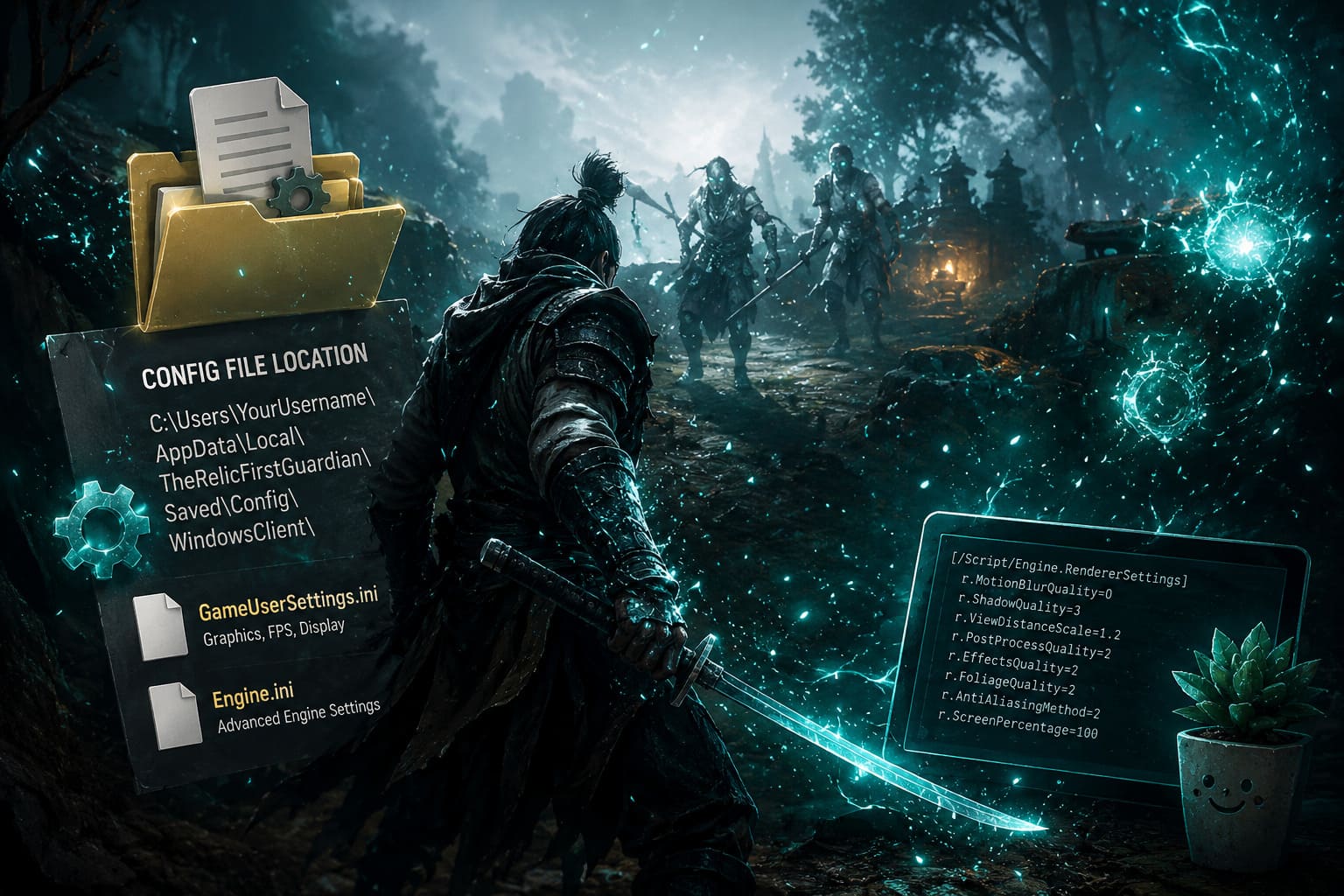
The main configuration folder can be found here:
C:\Users\[YourUsername]\AppData\Local\TheRelicFirstGuardian\Saved\Config\WindowsClient\
Inside this directory, you will see several files with the .ini extension. These files contain important settings that control how the game behaves on your PC.
The two most important configuration files are:
| File Name | Main Purpose |
|---|---|
| GameUserSettings.ini | Controls resolution, fullscreen mode, V-Sync, FPS limits, audio settings, and standard graphics options. |
| Engine.ini | Contains advanced Unreal Engine parameters related to rendering, effects, memory handling, and performance. |
If you have ever optimized other Unreal Engine titles, this process will feel familiar. These files are basically the hidden control panel that developers use internally to manage how the game renders and responds to different hardware configurations.
The Fastest Way to Open The Relic: First Guardian Config Folder
Instead of manually searching through multiple Windows folders, you can open the configuration directory instantly using the Run command. This method is faster, safer, and prevents mistakes when navigating through hidden system locations.
Follow these steps:
- Press Windows Key + R to open the Run window.
- Copy and paste this command:
%localappdata%\TheRelicFirstGuardian\Saved\Config\WindowsClient\
- Press Enter, and Windows will immediately open the correct folder.
This method works on modern versions of Windows and is usually the easiest way to reach the configuration files without manually opening several directories.
How To Access The Hidden AppData Folder
Some players cannot find the configuration location because the AppData folder is hidden by default in Windows. Microsoft hides this directory because it contains important application data, but enabling access takes only a few seconds.
Windows 11
- Open File Explorer.
- Select the View option from the top menu.
- Choose Show.
- Enable Hidden items.
Windows 10
- Open File Explorer.
- Click the View tab.
- Enable the Hidden items checkbox.
Once activated, the AppData folder will become visible and you can manually access The Relic: First Guardian configuration files whenever you need to adjust advanced settings.
The Relic: First Guardian Config Location on Steam Deck and Linux
Players using Steam Deck or Linux through Steam Play Proton will find the files in a slightly different location. Proton creates a virtual Windows environment where the game stores its normal Windows-style folders.
The configuration path is:
~/.steam/steam/steamapps/compatdata/2827820/pfx/drive_c/users/steamuser/AppData/Local/TheRelicFirstGuardian/Saved/Config/WindowsClient/
The number 2827820 represents the Steam App ID for The Relic: First Guardian. Steam Deck users often benefit from these tweaks because Unreal Engine 5 games can be demanding on portable hardware. Reducing unnecessary visual effects and removing FPS limitations can sometimes improve consistency significantly.
Always Create a Backup Before Editing Configuration Files
Before changing anything inside GameUserSettings.ini or Engine.ini, make a backup copy. I have seen many PC games break their graphics settings after a small configuration mistake, and while restoring the original file usually fixes the issue, having a backup saves time and frustration.
Simply copy the original .ini files to another folder or your desktop before making changes. This small step can prevent unnecessary troubleshooting later.
How To Fix Resolution Problems and Ultrawide Issues
One of the most common PC problems is incorrect resolution detection. This can happen with ultrawide monitors, unusual aspect ratios, or displays with high refresh rates.
Open GameUserSettings.ini and adjust these values:
ResolutionSizeX=3440
ResolutionSizeY=1440
LastUserConfirmedResolutionSizeX=3440
LastUserConfirmedResolutionSizeY=1440
FullscreenMode=0
Replace the resolution numbers with your monitor’s native resolution. For example, a 2560×1440 display should use those values instead.
| Value | Result |
|---|---|
| 0 | Exclusive fullscreen mode. |
| 1 | Borderless window mode. |
For players who care about responsiveness and input delay, exclusive fullscreen is usually the better choice. It gives the game more direct control over the display pipeline.
How To Remove FPS Limit and Disable V-Sync
The Relic: First Guardian can sometimes limit performance depending on default settings. If you have a 144Hz, 240Hz, or higher refresh-rate monitor, removing the FPS cap may improve responsiveness and make combat feel smoother.
Inside GameUserSettings.ini, change these settings:
bUseVSync=False
FrameRateLimit=0.000000
The value 0.000000 tells Unreal Engine to remove the artificial frame limit and allow your hardware to render as many frames as possible.
However, unlimited FPS is not always the best option. If your graphics card constantly runs at maximum load, a stable FPS cap can sometimes provide a smoother experience with fewer frame-time spikes.
Best Engine.ini Performance Tweaks for Lower-End GPUs
Unreal Engine 5 games often rely on demanding effects such as volumetric fog, motion blur, and advanced post-processing. These effects create impressive visuals, but they can also reduce performance significantly on mid-range and budget graphics cards.
Open Engine.ini, scroll to the bottom, and add the following:
[SystemSettings]
r.SceneColorFringeQuality=0
r.MaxAnisotropy=16
r.MotionBlurQuality=0
r.DepthOfFieldQuality=0
r.Tonemapper.GrainQuantization=0
r.Tonemapper.Quality=3
r.VolumetricFog=0
What These Tweaks Change
| Setting | Effect |
|---|---|
| r.SceneColorFringeQuality=0 | Removes chromatic aberration and makes the image cleaner. |
| r.MotionBlurQuality=0 | Disables motion blur for sharper combat visuals. |
| r.VolumetricFog=0 | Reduces expensive fog rendering and can improve FPS. |
| r.Tonemapper.GrainQuantization=0 | Removes artificial film grain effects. |
Personally, I usually recommend disabling motion blur first. In fast action games, especially during boss fights, it often makes tracking enemies easier without sacrificing visual quality.
How To Stop The Game From Resetting Your Config Files
A frustrating issue with many Unreal Engine games is that updates or launches can sometimes overwrite custom settings. If The Relic: First Guardian keeps restoring default options, you can protect your configuration files.
Follow these steps:
- Right-click GameUserSettings.ini or Engine.ini.
- Select Properties.
- Find the Attributes section.
- Enable Read-only.
- Click Apply and confirm.
The game will no longer be able to automatically overwrite your custom settings. If you want to edit the files again later, simply disable Read-only, make your changes, and enable it again afterward.
Final Thoughts on The Relic: First Guardian PC Configuration Tweaks
After playing many demanding PC games, I have become convinced that configuration files are often the difference between a frustrating experience and a smooth one. The Relic: First Guardian is visually impressive, but Unreal Engine 5 comes with a heavy performance cost, especially when every effect is enabled.
For most players, I would start with simple changes: disable motion blur, remove FPS limits if your hardware allows it, fix resolution settings, and then move toward deeper Engine.ini adjustments if needed.
These tweaks will not magically transform every PC into a high-end gaming machine, but they can make the game feel more responsive, cleaner, and more stable. For a challenging action RPG where timing and precision matter, a smoother frame rate can genuinely improve the entire experience.