How to Fix Marvel Tokon Fighting Souls Network Error & Failed to Connect (2026 Guide)
If you’ve been staring at a “Network Error” or “Failed to Connect” message in Marvel Tokon: Fighting Souls, trust me—you aren’t the only one. I was ready to jump into the open beta the moment it launched, only to spend more time troubleshooting than actually throwing punches with my favorite Marvel characters.
After digging through community discussions, testing different fixes myself, and comparing notes with other players, I realized that not every connection issue has the same cause. Some problems come from overloaded servers, while others are hidden deep inside Windows, Steam, or PlayStation account authentication.
Instead of wasting hours trying random YouTube “fixes,” here’s everything that genuinely helped me and many other players get back online.
Why Marvel Tokon Keeps Showing Network Errors
When a game launches with this much hype, server problems are almost guaranteed.
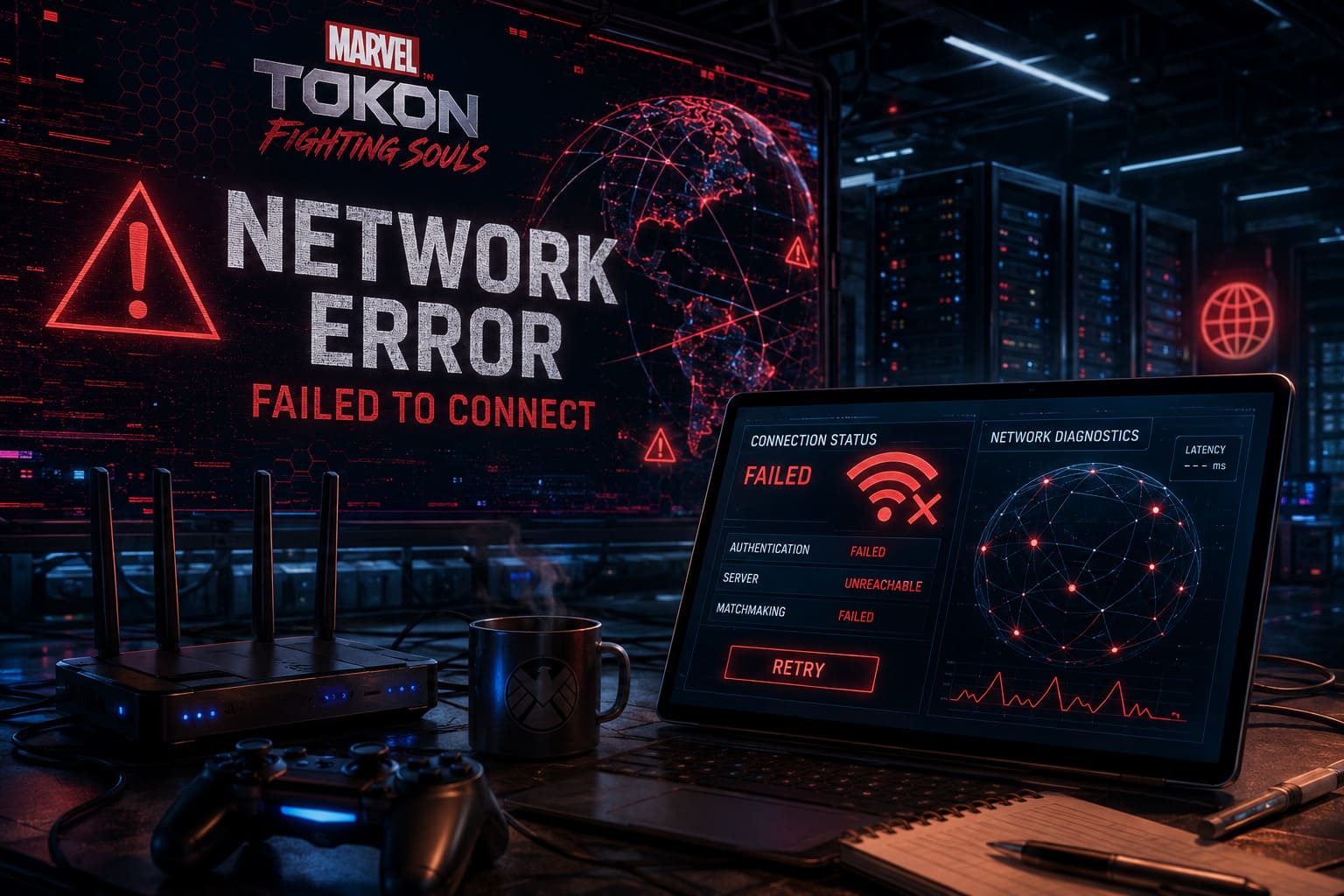
The first open beta attracted an enormous number of players within minutes. That kind of traffic can overwhelm authentication systems, matchmaking servers, and PlayStation Network itself. The result is the same frustrating message everyone sees—even though your own internet connection may be perfectly fine.
That said, server overload isn’t the only culprit.
I’ve seen players solve the issue by repairing missing PC files, reinstalling PlayStation components, fixing Easy Anti-Cheat, or simply syncing their system clock.
So before assuming the game is broken forever, it’s worth checking a few things.
Start With the Obvious: Are the Servers Actually Online?
This is always my first step.
There is no point reinstalling drivers or resetting Windows networking if Sony or the game servers are offline.
Here’s what I usually check:
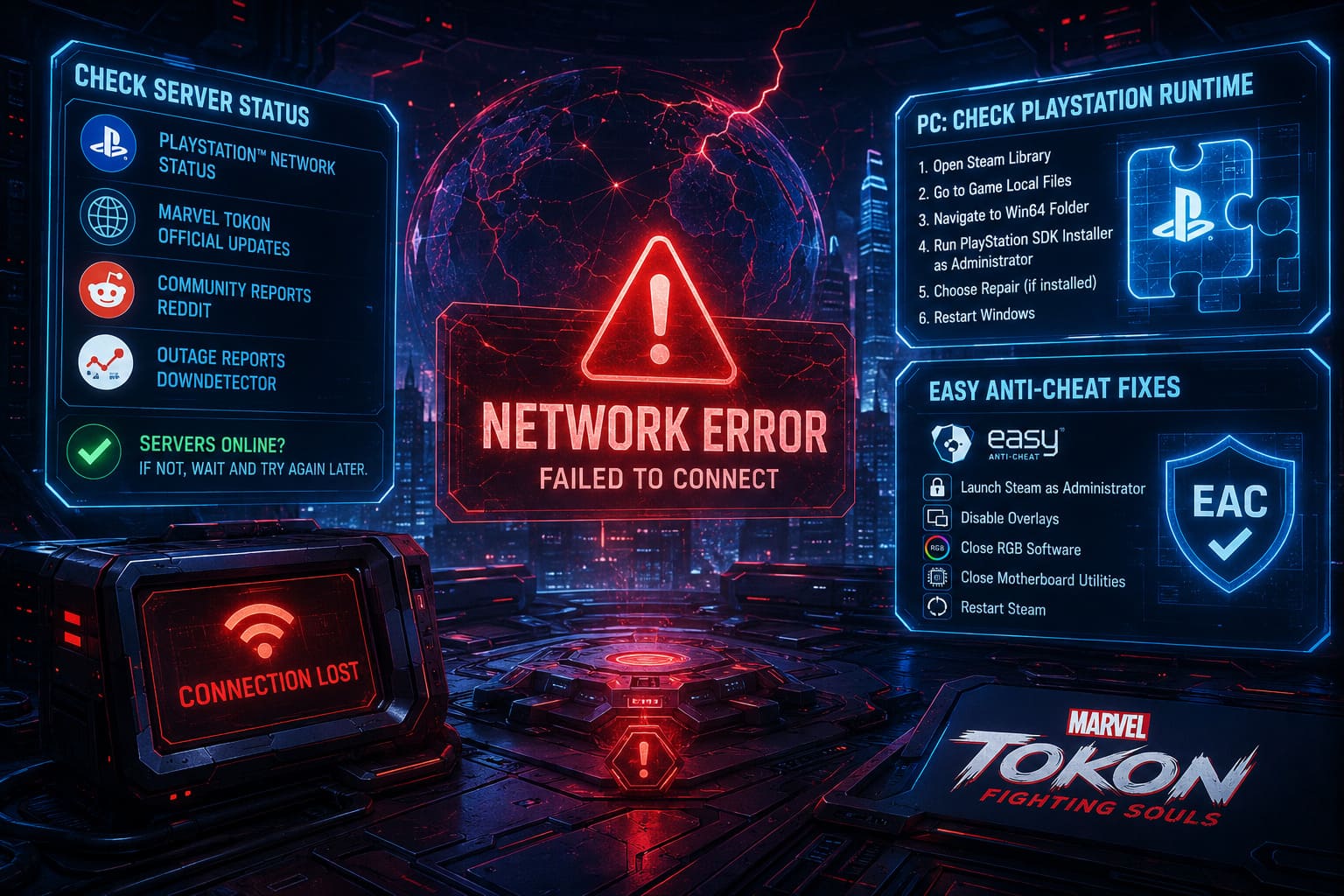
- Official PlayStation Network status.
- Marvel Tokon social media updates.
- Community reports on Reddit.
- Downdetector outage reports.
If thousands of players suddenly report login failures at the same time, chances are nothing is wrong on your end.
My advice: wait an hour before changing system settings. I’ve seen plenty of “fixes” magically work simply because the servers came back online.
PC Players Should Check the PlayStation Runtime
This turned out to be the biggest surprise.
Marvel Tokon depends on PlayStation account authentication even when you’re playing through Steam.
If the PlayStation PC runtime didn’t install correctly, the game may endlessly loop between login attempts before throwing a network error.
Repairing that component solved the issue for quite a few players.
What to Do
- Open your Steam Library.
- Browse the game’s local files.
- Navigate to the Win64 installation folder.
- Find the PlayStation SDK installer.
- Run it as Administrator.
- Choose Repair if it’s already installed.
- Restart Windows.
It’s a five-minute fix that can save hours of frustration.
Easy Anti-Cheat Can Trigger Connection Failures
This one confused a lot of people.
Normally, you’d expect an anti-cheat problem to generate an anti-cheat error—not a network error.
Unfortunately, Marvel Tokon sometimes reports authentication failures instead.
If Easy Anti-Cheat doesn’t initialize correctly, the game may never finish connecting to online services.
A few things helped me:
- Launch Steam as Administrator.
- Disable unnecessary overlays.
- Close RGB software.
- Close motherboard utilities.
- Restart Steam completely.
Some motherboard monitoring tools appear to interfere with the game’s security checks.
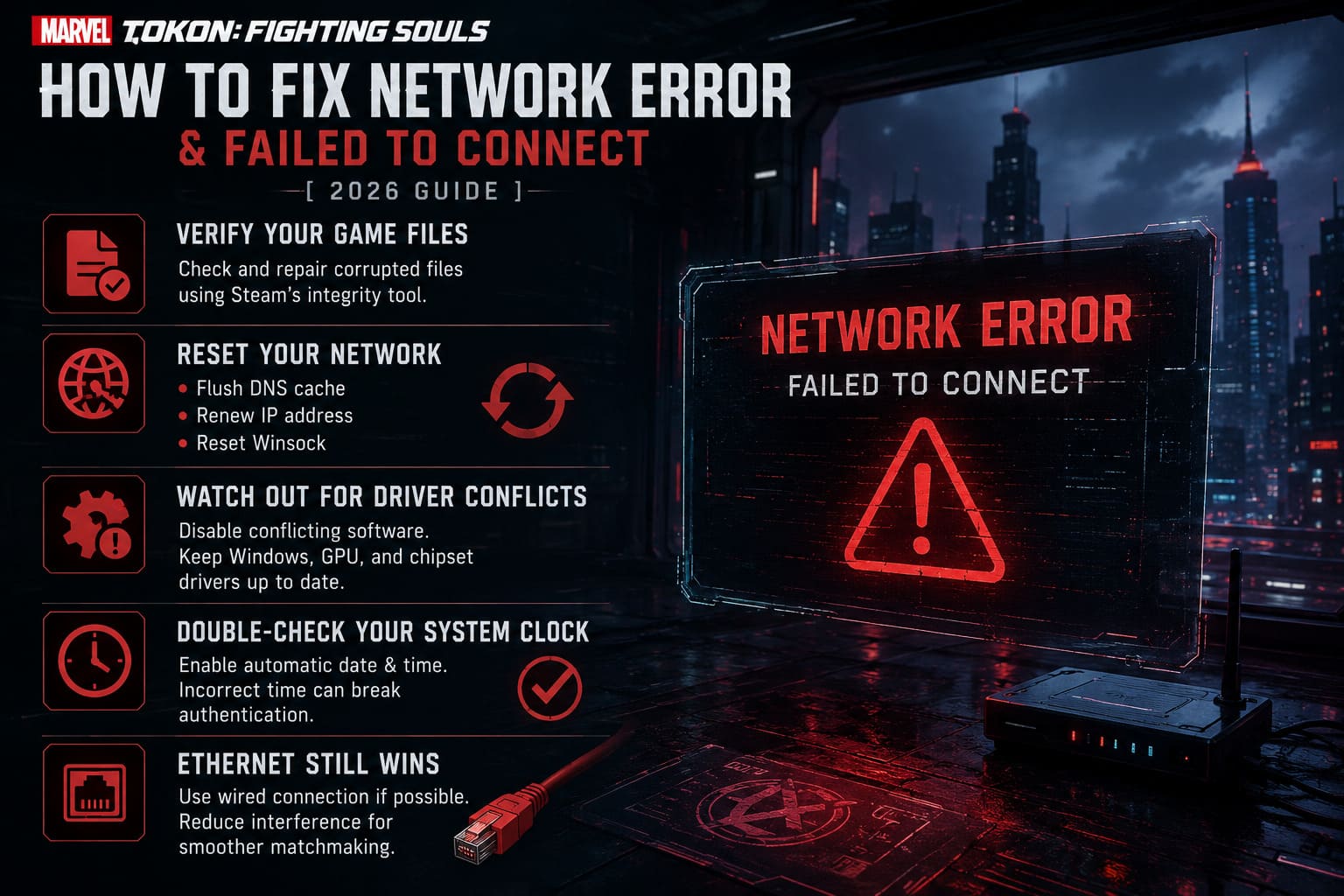
Verify Your Game Files
Whenever a beta launches, downloads sometimes get corrupted.
Steam’s integrity checker has rescued me more times than I can count.
The verification process compares your installation with the official version and automatically replaces damaged files.
It takes a few minutes but is far quicker than reinstalling the entire game.
Reset Your Network (Without Overcomplicating It)
Many guides recommend changing DNS providers, editing registry settings, or reinstalling network adapters.
Personally, I’d keep it simple first.
A standard Windows network refresh is usually enough.
That includes:
- Flushing the DNS cache.
- Renewing your IP address.
- Resetting Winsock.
Afterward, restart your computer before launching Marvel Tokon again.
It’s a basic step, but surprisingly effective if Windows cached a bad route during launch day.
Watch Out for Driver Conflicts
One of the stranger errors players encountered is D0000207.
This isn’t really a network problem.
Instead, the anti-cheat system detects software or drivers it doesn’t like.
From what I’ve seen in community discussions, common offenders include motherboard utilities, hardware monitoring software, and low-level driver tools.
If you’re using programs that interact directly with system hardware, temporarily disabling them is worth trying.
Also make sure:
- Windows is fully updated.
- Your graphics drivers are current.
- Your chipset drivers aren’t years old.
Outdated drivers often create problems that look completely unrelated.
Double-Check Your System Clock
It sounds ridiculous.
Yet this tiny detail has fixed login problems in multiple online games over the years.
Authentication servers rely on secure certificates.
If your PC clock is several minutes off, the security handshake can fail.
Turning on automatic internet time synchronization takes less than a minute and eliminates one possible cause immediately.
I always check this whenever an online game refuses to connect.
Ethernet Still Wins
I know Wi-Fi has improved a lot.
Mine is usually fast enough for almost everything.
But competitive fighting games are extremely sensitive to packet loss.
Even a brief interruption during authentication can throw you back to the title screen.
If you have the option, plug in an Ethernet cable.
If not, try to:
- Move closer to your router.
- Pause downloads.
- Stop video streaming temporarily.
- Disconnect unused devices.
A cleaner connection often makes matchmaking noticeably smoother as well.
Quick Comparison of the Most Effective Fixes
| Problem | Most Likely Cause | Recommended Solution |
|---|---|---|
| Network Error immediately after launch | Server outage | Wait and check official server status. |
| Infinite login loop | Missing PlayStation runtime | Repair the PlayStation SDK installation. |
| Failed to Connect after authentication | Corrupted game files | Verify Steam files. |
| Anti-cheat message | Easy Anti-Cheat failed | Launch Steam as Administrator. |
| Error D0000207 | Driver conflict | Disable incompatible drivers and update Windows. |
| Random disconnects | Unstable network | Use a wired Ethernet connection. |
How to Fix MARVEL Tokon Fighting Souls Crash on Launch, Low VRAM, and Startup Errors on PC
The Mistake I Think Many Players Make
I noticed something interesting while browsing community discussions.
Many players immediately assume their internet is broken.
Then they spend hours restarting routers, changing DNS settings, reinstalling Windows components, or even factory-resetting their console.
In reality, launch-week connection issues are usually caused by overloaded servers or authentication services.
That’s why I always work through troubleshooting in this order:
- Check server status first.
- Verify game files.
- Repair PlayStation runtime (PC).
- Fix Easy Anti-Cheat permissions.
- Refresh Windows networking.
- Update drivers.
- Use Ethernet if available.
That sequence has consistently saved me the most time.
Marvel Tokon Fighting Souls Burst Guide: How to Trigger and Master Soul Burst
Final Thoughts
As frustrating as these errors are, the good news is that most Marvel Tokon: Fighting Souls connection problems are temporary. Launch-week betas almost always experience heavy server traffic, emergency maintenance, and authentication hiccups as developers scramble to stabilize online services.
If the servers are healthy, the fixes that tend to make the biggest difference are repairing the PlayStation PC runtime, verifying your Steam installation, resolving Easy Anti-Cheat permission issues, and ensuring your system time and drivers are fully up to date. These are simple checks that can eliminate many of the most common causes without resorting to drastic measures.
From my own experience with online game launches, patience is just as important as troubleshooting. Sometimes the best solution really is to wait for the developers to finish backend maintenance instead of endlessly changing settings that were never the problem in the first place.
Hopefully, after working through these steps, you’ll spend less time staring at connection errors—and more time pulling off spectacular tag-team combos with your favorite Marvel heroes.