How to Enable DLSS 3 in The Ranchers (2026): Frame Generation Guide
After spending hundreds of hours testing different survival games, farming simulators, and open-world sandboxes, I have learned one thing: performance matters just as much as gameplay. A beautiful world can lose its charm quickly when your FPS drops every time you enter a crowded area, drive a vehicle, or load a massive farm filled with machines and animals.
The Ranchers is exactly the type of game where smooth performance makes a huge difference. Developed by RedPilzStudio, this open-world farming and life simulation combines relaxing countryside gameplay with exploration, construction, vehicles, multiplayer adventures, and dangerous underground areas. While the game looks cozy on the surface, large farms, busy locations, and four-player sessions can put serious pressure on your PC.
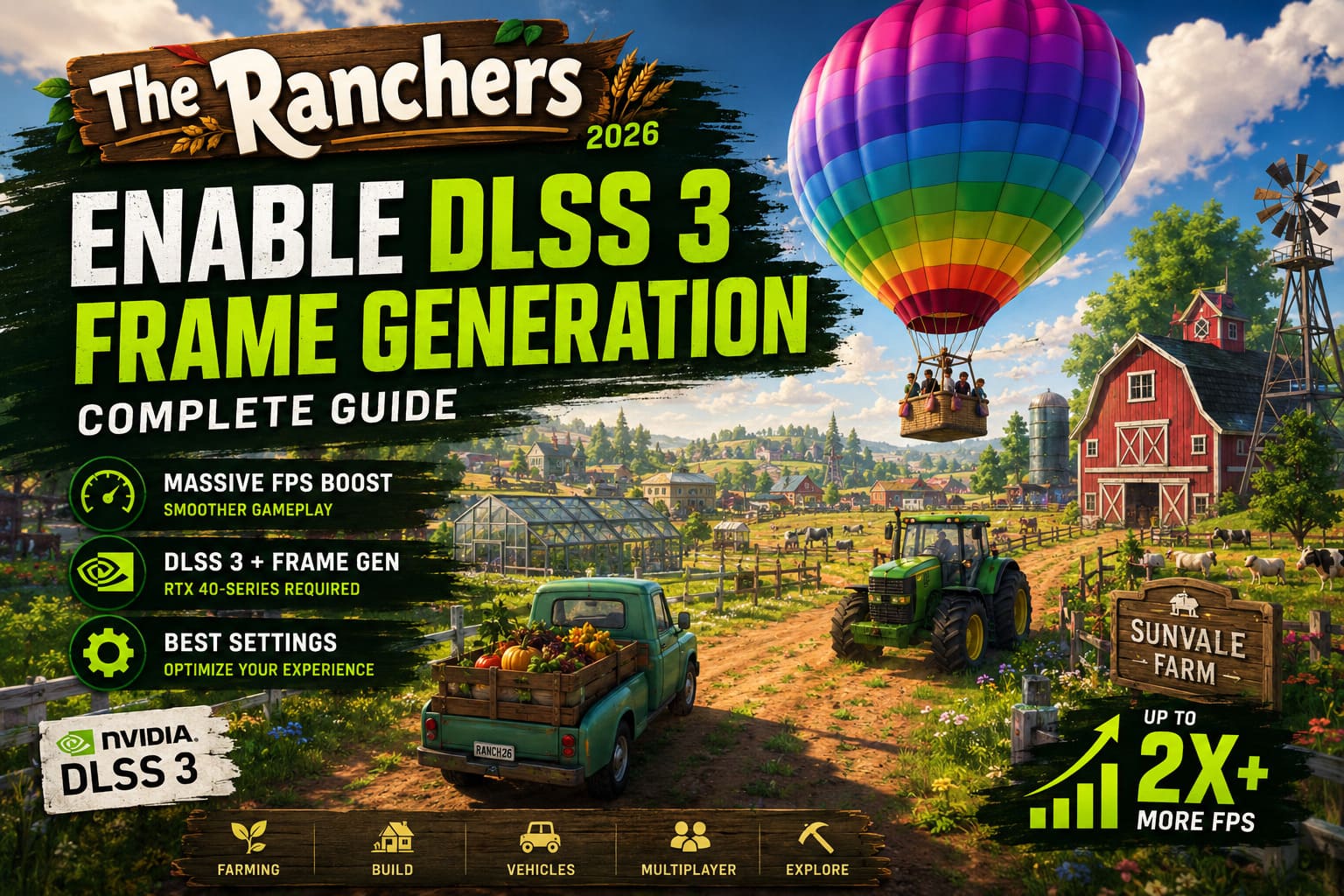
For players using modern NVIDIA graphics cards, DLSS 3 with Frame Generation can completely change the experience. When properly configured, it can provide a massive FPS boost while keeping the colorful visual style of The Ranchers intact. In this guide, I will explain how to enable DLSS 3, optimize the settings, and fix the most common problems players encounter.
The Ranchers Best Settings: RTX 4060 Laptop Optimization Guide for Max FPS
What Is DLSS 3 and Why Does It Matter in The Ranchers?
Before changing settings, it is important to understand what DLSS 3 actually does. NVIDIA’s DLSS technology uses artificial intelligence to improve performance by rendering the game internally at a lower resolution and reconstructing a higher-quality image.
DLSS 3 goes further by adding Frame Generation, a feature that creates additional AI-generated frames between traditionally rendered frames. Instead of your GPU producing every single frame, the system analyzes movement, lighting, and previous frames to insert extra images, making gameplay appear much smoother.
In a game like The Ranchers, this technology is especially useful because the performance load changes constantly. Walking around a small farm may run perfectly, but driving through Sunvale City, exploring large environments, or playing multiplayer can create noticeable FPS drops.
From my own experience with similar open-world games, Frame Generation works best when your base FPS is already stable. It is not magic that turns a struggling system into a high-end machine, but when paired with a capable GPU, the difference can feel surprisingly close to upgrading your hardware.
DLSS 3 Requirements for The Ranchers
Not every NVIDIA graphics card supports the complete DLSS 3 feature set. Standard DLSS Super Resolution works with older RTX GPUs, but Frame Generation requires RTX 40-Series hardware or newer.
Your PC should meet these requirements:
| Component | Requirement |
|---|---|
| GPU | NVIDIA GeForce RTX 40-Series or newer |
| Operating System | Windows 10 or Windows 11 64-bit |
| Drivers | Latest NVIDIA Game Ready Driver |
| Display Mode | Fullscreen recommended |
| Feature Support | Hardware-Accelerated GPU Scheduling enabled |
Compatible graphics cards include:
- RTX 4060
- RTX 4070
- RTX 4080
- RTX 4090
- Newer NVIDIA architectures
If you own an RTX 20-Series or RTX 30-Series card, you can still use DLSS upscaling, but the Frame Generation option will not appear.
How to Enable DLSS 3 Frame Generation in The Ranchers
The setup process is fairly simple, but several Windows and NVIDIA options need to be prepared first.
Step 1: Enable Hardware-Accelerated GPU Scheduling
DLSS Frame Generation depends on Windows allowing your GPU to handle scheduling more efficiently. Without this option enabled, the Frame Generation toggle may remain unavailable.
Follow these steps:
- Open the Windows Start menu.
- Go to Settings.
- Select System.
- Open the Display section.
- Scroll down and select Graphics Settings or Default Graphics Settings.
- Find Hardware-Accelerated GPU Scheduling.
- Turn the option On.
- Restart your PC.
This small change is often overlooked, but it is one of the most common reasons why DLSS 3 features fail to appear.
Step 2: Update NVIDIA Drivers
Before launching The Ranchers again, make sure your NVIDIA drivers are updated.
Open the NVIDIA App or GeForce Experience and install the latest Game Ready Driver available for your graphics card.
Driver updates are not only about adding new features. NVIDIA regularly improves game profiles, stability, and compatibility with technologies like DLSS. Many players who report missing DLSS options are simply running outdated drivers.
Step 3: Enable DLSS 3 Inside The Ranchers
After restarting your system, launch the game through Steam and follow these steps:
- Open the main menu.
- Select Options.
- Enter the Video or Graphics settings.
- Choose Fullscreen or Borderless Windowed mode.
- Find the Upscaling or Anti-Aliasing section.
- Change the Upscaler option to NVIDIA DLSS.
- Select your preferred DLSS quality mode.
- Enable DLSS Frame Generation.
- Apply the settings and return to your ranch.
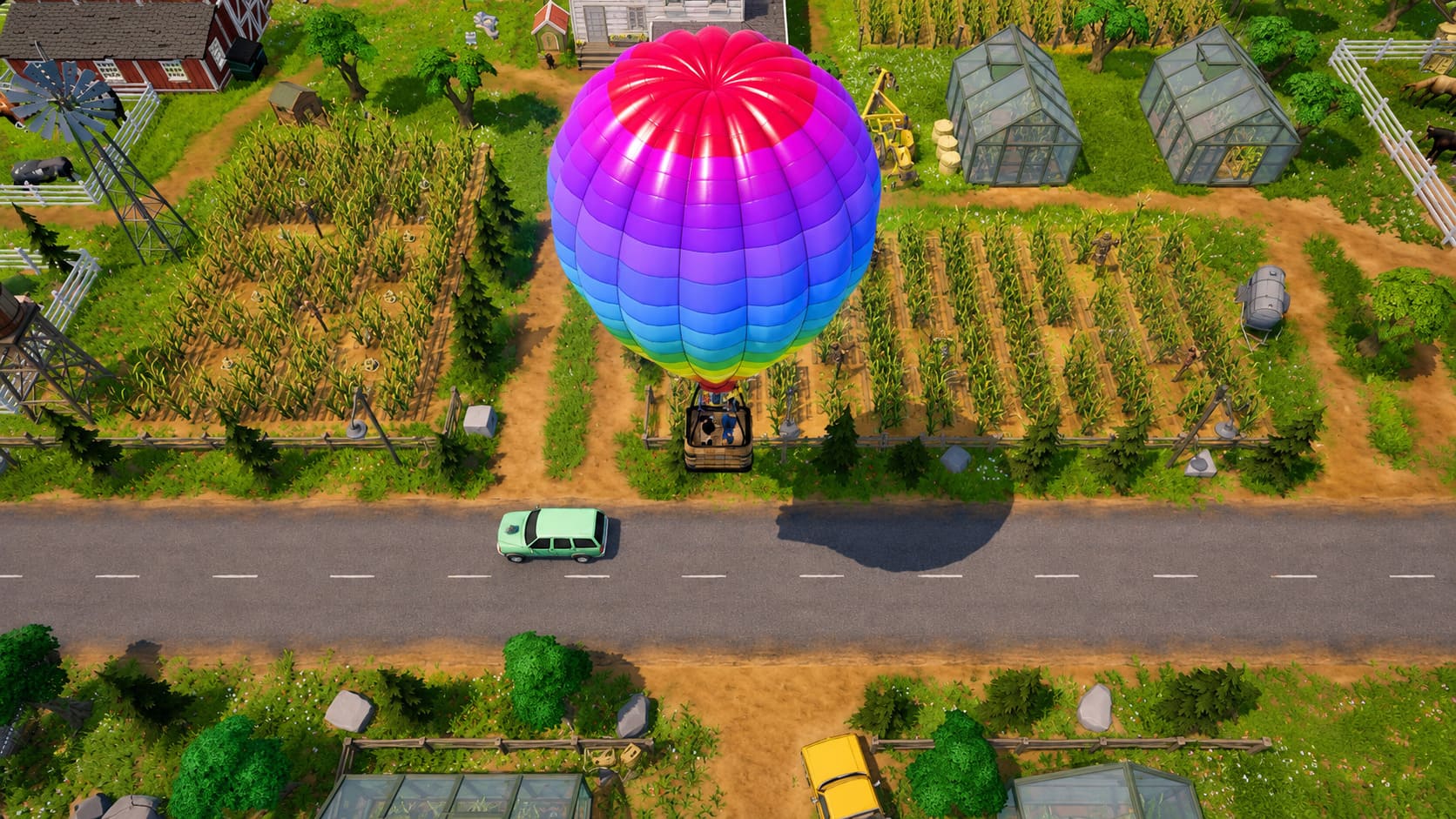
Once enabled, you should immediately notice smoother movement, especially while driving vehicles, moving through large farms, or exploring areas with many objects on screen.
Best DLSS 3 Settings for The Ranchers
Simply turning on DLSS 3 is not enough. The wrong settings can create unnecessary blur or input issues. After testing different configurations, these are the options I would recommend.
| Resolution | Recommended DLSS Mode | Reason |
|---|---|---|
| 1080p | Quality | Keeps textures and details sharp |
| 1440p | Quality or Balanced | Best mix of FPS and image quality |
| 4K | Balanced or Performance | Gives a major performance boost |
At 1080p, I would avoid Performance mode. The internal rendering resolution becomes too low, and small details like tree leaves, signs, and interface elements can look noticeably softer.
For 1440p gaming, Quality mode usually feels like the sweet spot. It provides extra performance without making the world lose its visual character.
For 4K players, Balanced or Performance mode makes much more sense because the GPU workload is significantly higher.
NVIDIA Reflex and DLSS Frame Generation
When DLSS Frame Generation is enabled, NVIDIA Reflex Low Latency should also be activated.
Some players try to disable Reflex because they think it reduces performance, but that is usually a mistake. Frame Generation adds extra frames into the rendering process, and Reflex helps reduce the delay between your CPU, GPU, and input devices.
In practical gameplay, this means your mouse movement and controls remain responsive instead of feeling delayed.
For a farming game this might not seem important, but The Ranchers includes driving, exploration, and multiplayer activities where responsiveness still matters.
Fixing Common DLSS 3 Problems in The Ranchers
Even with compatible hardware, some players may experience issues. Here are the most common fixes.
DLSS Frame Generation Option Is Missing
If the option is unavailable, check these things:
- Confirm you have an RTX 40-Series GPU or newer.
- Make sure Hardware-Accelerated GPU Scheduling is enabled.
- Update your NVIDIA drivers.
- Restart the game after changing Windows graphics settings.
Remember that RTX 3070, RTX 3080, and RTX 3090 cards support DLSS Super Resolution but not Frame Generation.
Flickering or Visual Glitches After Enabling DLSS 3
Some players may notice flickering around:
- UI elements
- Inventory screens
- Speech bubbles
- Character menus
Try these fixes:
- Switch from Borderless Windowed to Fullscreen mode.
- Disable Discord overlays.
- Disable recording software overlays.
- Turn off third-party monitoring tools like RTSS while testing.
Frame Generation interacts differently with the rendering pipeline, so external overlays can sometimes cause conflicts.
Is DLSS 3 Worth Using in The Ranchers?
After playing many simulation and open-world games, I think DLSS 3 is one of the most useful technologies for titles like The Ranchers. These games often become more demanding as your world grows, and performance problems usually appear several hours into a save file rather than at the beginning.
A large farm with automation systems, animals, buildings, vehicles, and multiplayer players creates a completely different workload compared to a fresh starting area. DLSS 3 helps maintain smoother gameplay during those demanding moments.
The best part is that you do not need to sacrifice the relaxing atmosphere of the game. With the right DLSS mode, the world still looks detailed while your GPU gets much more breathing room.
Final Thoughts
Enabling DLSS 3 in The Ranchers takes only a few minutes, but the performance improvement can be impressive. By activating Hardware-Accelerated GPU Scheduling, updating NVIDIA drivers, and choosing the correct DLSS settings, RTX 40-Series players can enjoy a much smoother farming and exploration experience.
For most players, I recommend starting with DLSS Quality mode and Frame Generation enabled. It provides the best balance between sharp visuals and improved FPS. Once your dream farm starts expanding and the world becomes busier, you will appreciate every extra frame.