How to Fix Boxed Language Bug in The Ranchers (2026 Update)
If you’ve been enjoying The Ranchers, you’ve probably noticed that it’s one of those games that mixes cozy farming with survival mechanics better than many recent releases. Between building your ranch, exploring the world, fighting monsters, managing resources, and playing with friends, there is a lot to keep you busy. However, like many ambitious Early Access titles, the game still has a few technical issues, and one of the most annoying problems players encounter is the boxed language bug.
Instead of normal text, menus, dialogue options, and interface descriptions suddenly appear as empty squares or strange placeholder symbols. The game itself usually continues running, but trying to manage crafting recipes, inventory items, quests, or settings becomes extremely frustrating. After playing plenty of PC games with similar localization problems, I can say this bug looks worse than it actually is, and in most cases, it can be fixed without reinstalling everything.
This guide explains why the boxed language bug happens in The Ranchers and covers the most effective solutions players can try in 2026. From simple Steam updates to Windows font fixes, these methods should help restore readable text and get you back to enjoying your ranch.
The Ranchers Stuck on Guardrail: How to Reset Your Vehicle in 2026
Why Does The Boxed Language Bug Happen?
The boxed language bug is usually caused by a text-rendering problem. The game attempts to load language files, fonts, or localization data, but something goes wrong during the process. When the required characters cannot be found, the engine replaces them with square placeholders instead of displaying normal letters.
This issue is not exclusive to The Ranchers. Similar problems have appeared in many PC games, especially during Early Access launches where developers are still improving localization systems. In most cases, the problem comes from corrupted files, incorrect language settings, or conflicts between the game and Windows regional configuration.
The most common causes include:
- Corrupted language files after an update or installation.
- Steam downloading incomplete game assets.
- A broken localization profile created during the first launch.
- Windows regional settings causing character encoding conflicts.
- Damaged system font cache files.
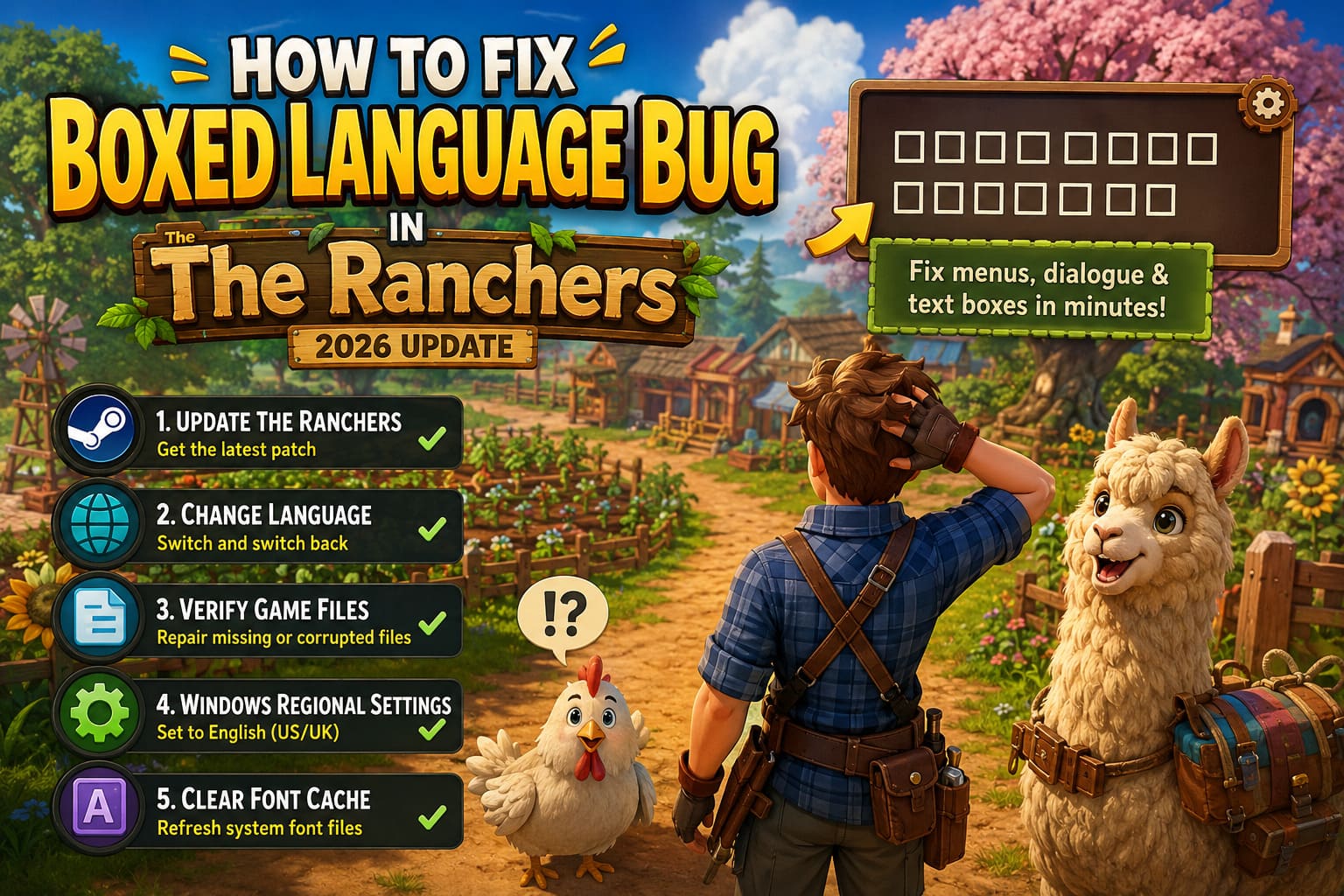
Fix 1: Update The Ranchers to the Latest Version
The first thing I would always recommend is checking whether your game is fully updated. Developers often release hotfixes for problems like missing fonts, broken UI elements, and localization errors. If Steam failed to download the latest patch automatically, you might still be running an older version with the bug.
Updating the game only takes a few minutes and should always be your first step before changing files or system settings.
How to Force a Steam Update:
- Close The Ranchers completely.
- Exit Steam and launch it again.
- Open your Steam Library.
- Right-click on The Ranchers.
- Select Properties.
- Open the Updates section.
- Make sure automatic updates are enabled.
- Download any available update before launching the game.
Many players overlook this simple solution because the game still launches normally. However, UI and language bugs are often fixed through small patches that are easy to miss.
Fix 2: Change The Language Settings Inside The Game
This is one of the most useful workarounds for the boxed language bug. Sometimes the game creates a broken localization profile during the first startup. Instead of loading the correct language files, it keeps using damaged settings from the original configuration.
Changing the language forces the game to refresh its localization system and reconnect the correct font files. This trick has worked in many games with similar problems, and it is definitely worth trying before more complicated fixes.
Follow These Steps:
- Launch The Ranchers.
- Open the main menu.
- Go to Settings.
- Find the Language or Localization option.
- Change the language to another option, such as French, German, or Spanish.
- Save the changes and wait a few seconds.
- Switch back to English or your preferred language.
- Restart the game.
The process forces the game to rebuild its language connection instead of relying on the corrupted settings created during the first launch.
Fix 3: Verify The Ranchers Game Files Through Steam
If some language files or UI assets were damaged during installation, Steam’s built-in repair system can usually fix the problem. This method checks your local installation and replaces missing or corrupted files with fresh copies from Steam servers.
I personally recommend trying file verification whenever a PC game suddenly develops strange visual issues. It has fixed everything from missing textures to broken audio files in many titles, and it takes very little effort.
How to Verify Game Files:
- Open Steam.
- Right-click The Ranchers in your Library.
- Select Properties.
- Open the Installed Files tab.
- Click Verify integrity of game files.
- Wait until Steam completes the scan.
If Steam finds damaged files, it automatically downloads replacements. This can repair missing fonts, language packs, and UI resources without requiring a full reinstall.
Fix 4: Adjust Windows Regional Settings
Many players forget that Windows language settings can affect how games display text. Modern games often use system information to determine character encoding, date formats, and localization behavior.
If your Windows setup uses a specific regional format, the game may fail to load the correct character set. Changing it temporarily can solve the boxed text issue.
Change Regional Format Settings:
- Open Windows Settings.
- Select Time & Language.
- Choose Language & Region.
- Find the Regional Format option.
- Change it to English (United States) or English (United Kingdom).
- Restart your computer.
- Launch The Ranchers again.
This fix might seem unrelated, but Windows regional conflicts have caused similar problems in many PC games over the years.
Fix 5: Clear Windows Font Cache
If none of the previous methods work, the problem may come from Windows itself. The operating system stores font information in a cache, and if those files become corrupted, certain applications may display missing characters or incorrect symbols.
Clearing the font cache forces Windows to rebuild these files automatically.
Steps to Clear Font Cache:
- Press Windows + R.
- Type services.msc and press Enter.
- Find Windows Font Cache Service.
- Right-click and select Stop.
- Open File Explorer.
- Navigate to C:\Windows\ServiceProfiles\LocalService\AppData\Local.
- Delete files containing FontCache with the .dat extension.
- Return to Services and start the Windows Font Cache Service again.
- Restart your PC.
Windows automatically recreates these files, so this process is safe and does not remove your installed fonts permanently.
Should You Reinstall The Ranchers?
A complete reinstall should be your final option. Most players can solve the boxed language bug through updates, language switching, or Steam file verification. Reinstalling takes more time and usually does not solve problems caused by Windows settings.
However, if your original installation was interrupted or some files were seriously damaged, a clean reinstall can help.
| Recommendation | Reason |
|---|---|
| Install the game on an SSD | Provides faster loading and smoother asset streaming. |
| Delete remaining folders before reinstalling | Removes corrupted cached files. |
| Restart Steam before reinstalling | Prevents download cache problems. |
| Launch without mods | Rules out compatibility issues. |
Additional Tips That May Help
If the boxed text problem continues after trying all major fixes, there are a few extra things worth checking. These solutions are not guaranteed, but they can eliminate other possible causes.
- Disable Steam overlays and third-party overlays.
- Remove custom fonts or interface modifications.
- Update your graphics drivers.
- Install the latest Windows updates.
- Restart Steam after changing language settings.
Final Thoughts
After spending time with The Ranchers, I think the boxed language bug is one of those annoying technical problems that damages the experience more than the actual gameplay. The game itself can still run perfectly, but trying to manage farming systems, crafting menus, and inventory while everything appears as squares quickly becomes unbearable.
The good news is that most players can fix this issue in just a few minutes. Start with the easiest solutions: update the game, switch the language settings, and verify Steam files. Only move to Windows regional changes or font cache cleaning if the basic methods fail.
With continued developer support and future updates, problems like this should become less common. Until then, these fixes should help restore your menus and allow you to return to building your farm, exploring the world, and enjoying everything The Ranchers has to offer.