Dinoblade Steam Deck Best Graphics Settings & Low FPS Fix Guide (2026)
When I first booted up Dinoblade, I expected a demanding game. A souls-like where you control a gigantic Spinosaurus swinging an oversized greatsword through dense prehistoric forests was never going to be lightweight. What I didn’t expect was how inconsistent the performance could be depending on a handful of graphics options.
After spending several evenings experimenting with settings, comparing notes with other players, and testing both a Steam Deck OLED and a Windows desktop, I realized something important: Dinoblade doesn’t actually need top-tier hardware to feel smooth—it simply needs the right configuration.
If you’re struggling with random FPS drops, stuttering during boss fights, or your Steam Deck sounding like it’s preparing for liftoff, these are the tweaks that genuinely made a difference for me.
Why Dinoblade Can Feel So Inconsistent
The game is visually impressive, but some of its rendering systems are surprisingly demanding.
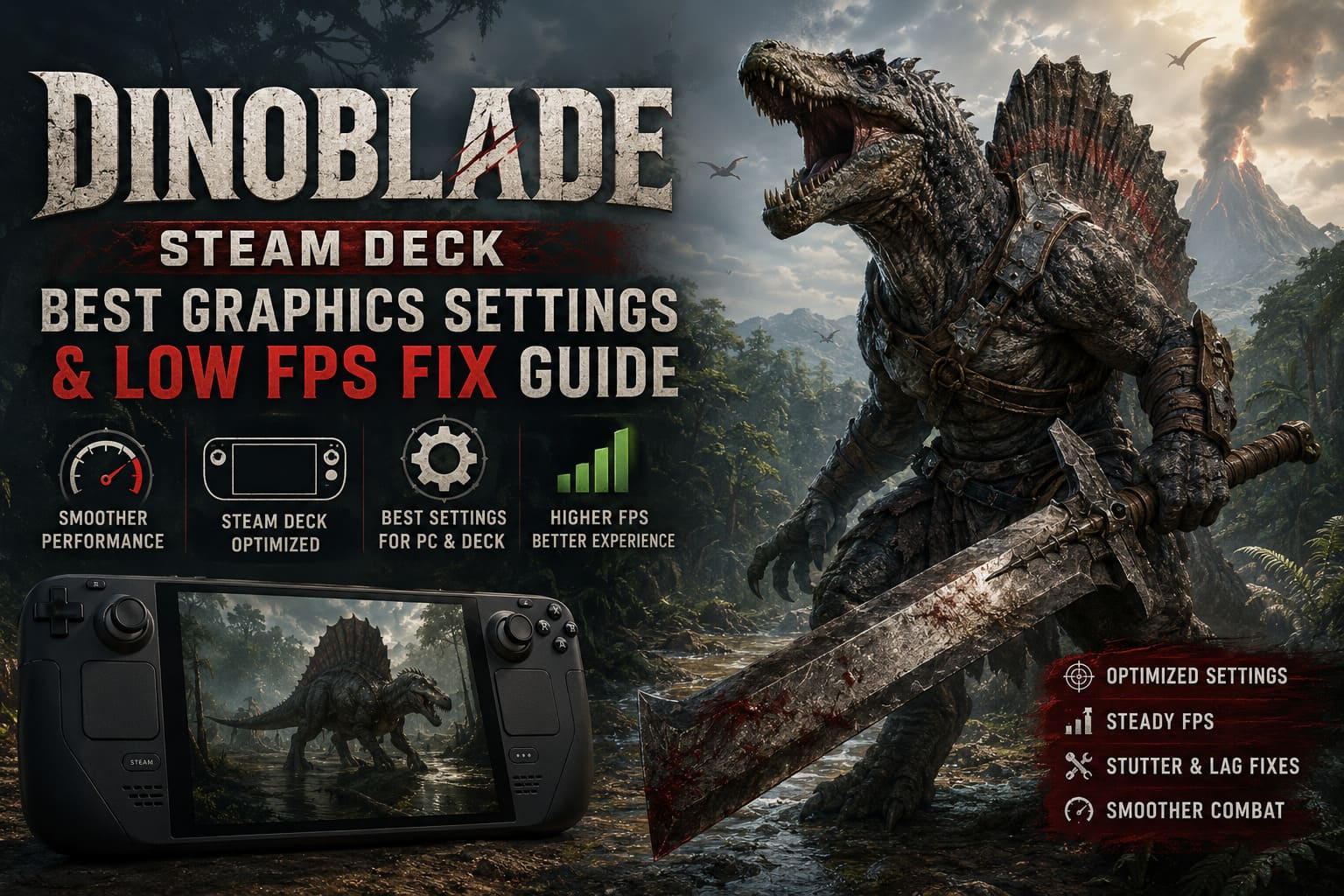
Large areas filled with dense vegetation, dynamic lighting, reflections, and heavy particle effects all compete for GPU resources at once. Even on stronger hardware, certain graphics options seem to cost much more performance than they should.
The good news is that most of the visual impact comes from textures and world design—not from expensive effects that are difficult to notice during combat.
That means you can gain a surprising amount of FPS without making the game look dramatically worse.
Best Steam Deck Graphics Settings
Although the Steam Deck is perfectly capable of running Dinoblade, the default graphics preset isn’t ideal.
I found that a custom setup produces much smoother frame pacing while still keeping the game attractive.
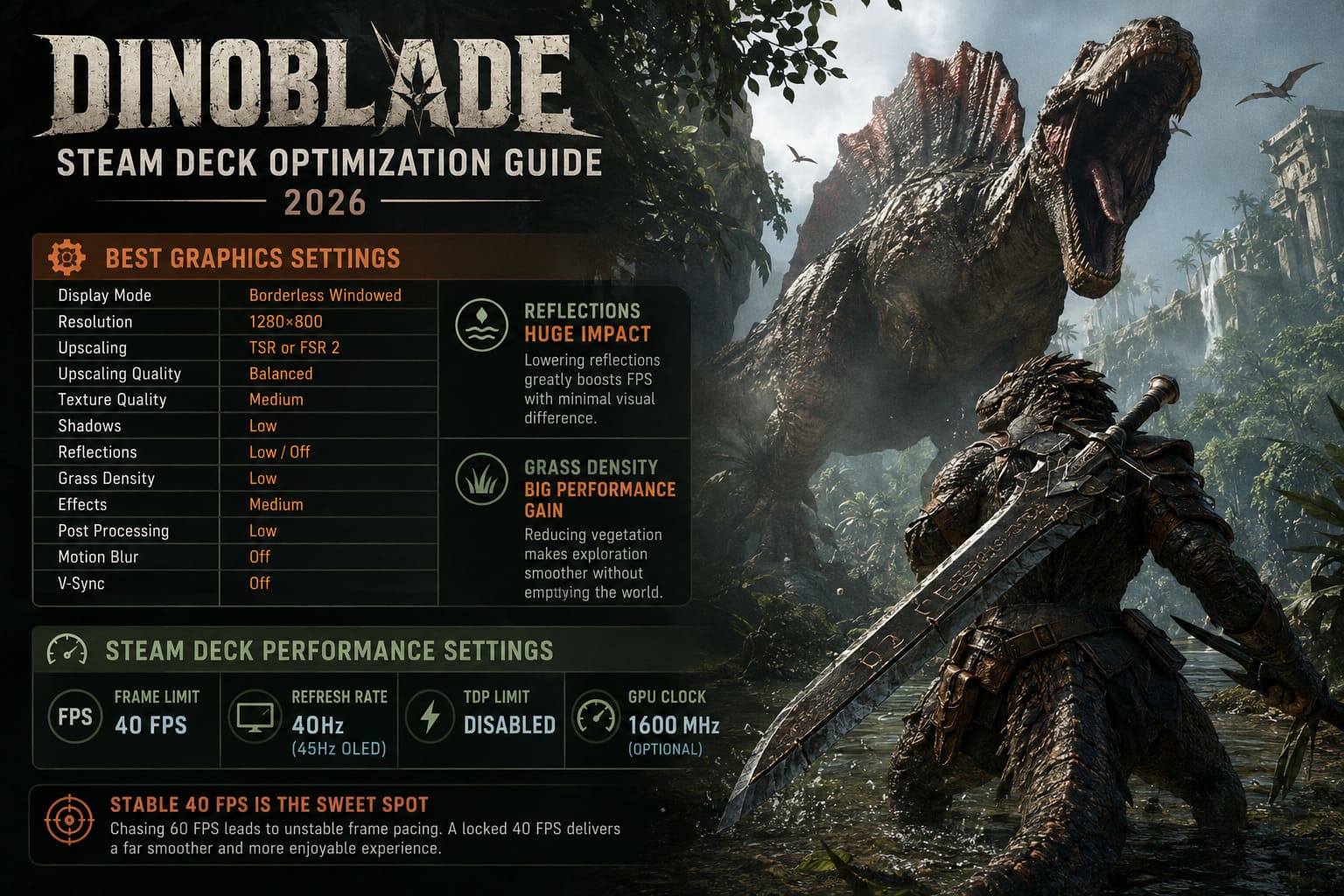
| Setting | Recommended Value |
|---|---|
| Display Mode | Borderless Windowed |
| Resolution | 1280×800 |
| Upscaling | TSR or FSR 2 |
| Upscaling Quality | Balanced |
| Texture Quality | Medium |
| Shadows | Low |
| Reflections | Low or Off |
| Grass Density | Low |
| Effects | Medium |
| Post Processing | Low |
| Motion Blur | Off |
| V-Sync | Off |
The biggest surprise during testing was reflections.
Turning reflections down had a larger impact than reducing textures or effects. In motion, I honestly couldn’t tell much visual difference, but performance improved immediately.
Grass density was another major performance killer.
The prehistoric jungles look incredible, but lowering vegetation density made traversal much smoother without making the environments feel empty.
Steam Deck Performance Settings That Actually Matter
The in-game settings are only half of the story.
SteamOS offers several performance controls that noticeably improve frame pacing.
These are the values that worked best for me:
- Frame Limit: 40 FPS
- Refresh Rate: 40Hz (or 45Hz on OLED if preferred)
- TDP Limit: Disabled
- GPU Clock: Around 1600 MHz (optional)
I tried chasing a stable 60 FPS for quite a while.
Honestly, it simply wasn’t worth it.
The game constantly bounced between the mid-40s and upper-50s depending on the area, which actually felt less smooth than a perfectly locked 40 FPS.
Once I accepted that target, the experience became far more enjoyable.
Proton Version Can Make a Difference
If you’re playing on SteamOS, don’t overlook Proton.
Running Proton Experimental produced fewer shader-related stutters during my testing than older compatibility layers.
If you’re using an outdated Proton version, updating it is one of the easiest improvements you can make.
Consider Increasing the Steam Deck UMA Buffer
This tweak isn’t required for everyone, but it helped reduce long-session slowdowns.
Changing the UMA Frame Buffer from 1GB to 4GB gives the integrated GPU additional dedicated memory, which can reduce streaming hiccups in larger environments.
It’s especially helpful if you notice:
- Crashes after extended play.
- Severe asset pop-in.
- Stuttering after exploring for a long time.
Best PC Graphics Settings
Even powerful gaming PCs can struggle if every graphics option is pushed to Ultra.
Instead of simply lowering everything, I recommend focusing on the settings that have the biggest impact.
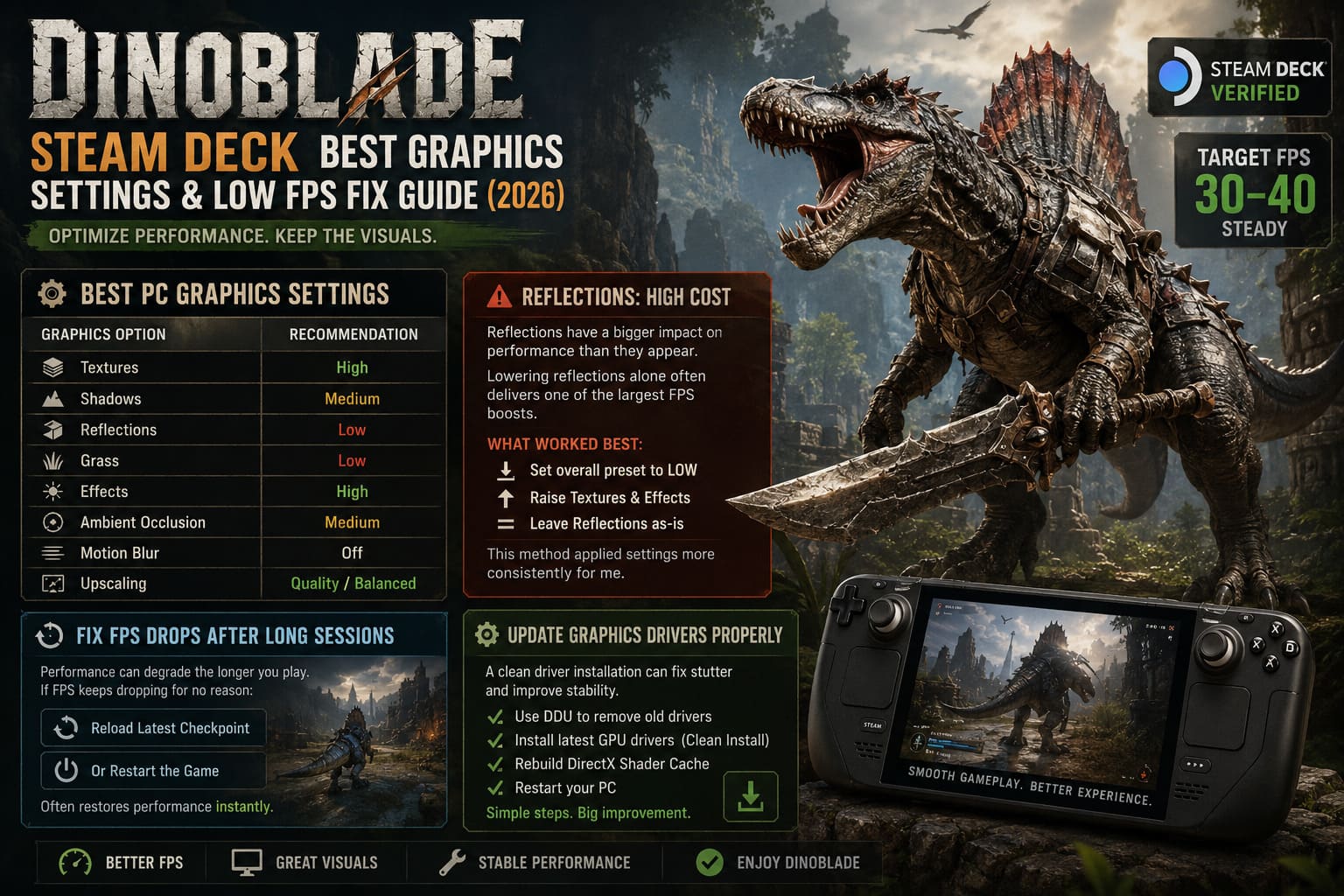
| Graphics Option | Recommendation |
|---|---|
| Textures | High |
| Shadows | Medium |
| Reflections | Low |
| Grass | Low |
| Effects | High |
| Ambient Occlusion | Medium |
| Motion Blur | Off |
| Upscaling | Quality or Balanced |
This combination keeps the game looking excellent while avoiding the biggest performance traps.
The Reflections Setting Is More Expensive Than It Looks
One thing I kept noticing was how disproportionate the reflections setting felt.
Lowering reflections alone often produced one of the largest FPS improvements available.
Some players have even reported that changing only the reflections option doesn’t always apply correctly.
What consistently worked for me was:
- Switch the overall graphics preset to Low.
- Increase textures and effects manually.
- Leave reflections untouched.
This approach seemed to apply the settings more reliably than adjusting reflections independently.
Fixing FPS Drops After Long Play Sessions
One issue that stood out during longer gaming sessions was gradual performance degradation.
Everything would start at a smooth frame rate before slowly becoming less responsive over time.
Instead of endlessly changing graphics settings, I discovered something much simpler.
Reloading the latest checkpoint—or restarting the game entirely—often restored performance immediately.
If your FPS keeps dropping despite nothing changing on screen, this is one of the first things I’d try.
Update Graphics Drivers Properly
Most players update drivers.
Far fewer perform a clean installation.
Old shader data and leftover driver files can create unnecessary instability, especially after major GPU updates.
A clean graphics driver installation followed by rebuilding the DirectX shader cache noticeably reduced hitching on my system.
It’s a simple maintenance step that many people overlook.
Clear the DirectX Shader Cache
Windows stores compiled shaders, but those files don’t always age gracefully after driver updates.
To rebuild everything:
- Open Disk Cleanup.
- Select your Windows drive.
- Check DirectX Shader Cache.
- Remove the cache.
- Restart Windows.
The first launch afterward may take slightly longer, but gameplay usually becomes smoother once new shaders finish compiling.
Disable Steam Overlay
Normally I leave the Steam Overlay enabled.
For Dinoblade, I turned it off just to compare performance.
The difference wasn’t massive, but frame pacing became a bit more consistent in heavier areas.
If you’re trying to squeeze every possible frame out of your hardware, it’s an easy setting worth testing.
Launch Options Worth Trying
These launch parameters worked well during testing:
-high -useallavailablecores -dx12They’re not magic performance boosters, but they can help ensure the game launches using DirectX 12 and gives Windows appropriate scheduling priority.
Windows Graphics Settings
Windows doesn’t always assign demanding games to the correct GPU.
It’s worth checking that Dinoblade is running on your dedicated graphics card instead of integrated graphics.
Also consider enabling the Ultimate Performance power plan if you’re using a desktop.
This prevents unnecessary CPU downclocking during demanding gameplay.
For NVIDIA users, these Control Panel settings produced reliable results:
| Setting | Value |
|---|---|
| Power Management | Prefer Maximum Performance |
| Texture Filtering | High Performance |
| Low Latency Mode | On |
| Vertical Sync | Application Controlled or Off |
Expected Performance
Your experience will obviously depend on your hardware, but these are realistic expectations after optimization.
| Hardware | Expected Result |
|---|---|
| Steam Deck LCD | 40 FPS at 800p |
| Steam Deck OLED | 40–45 FPS |
| GTX 1050 / RX 560 | 40–50 FPS at 1080p Low |
| RTX 3060 | 60+ FPS at High |
| RTX 4070+ | High refresh gameplay with optimized settings |
Small Tweaks That Add Up
A lot of optimization guides focus on one magical fix.
Dinoblade really isn’t that kind of game.
Instead, it’s dozens of small improvements working together:
- Lower reflections first.
- Reduce grass density.
- Target a locked frame rate instead of chasing the highest FPS.
- Keep GPU drivers updated.
- Clear old shader caches after major driver installs.
- Restart the game occasionally during very long sessions.
None of these changes completely transform performance on their own, but together they make the experience feel dramatically more consistent.
How to Fix Dinoblade Crash on Launch on Steam: 2026 Complete Troubleshooting Guide
Final Thoughts
After spending quite a bit of time experimenting with different hardware, I came away with the impression that Dinoblade is much closer to being well optimized than many people initially assumed. Its biggest problem isn’t raw performance—it’s that a few graphics options have an unusually large impact, while the default presets don’t do players any favors.
Once I stopped trying to max everything out and instead focused on the settings that actually matter, the game became significantly smoother on both Steam Deck and PC. A locked 40 FPS on the Deck felt surprisingly satisfying, and on desktop hardware, simply lowering reflections and grass while keeping textures high preserved almost all of the visual quality.
If you’re still dealing with inconsistent frame rates, don’t immediately assume your hardware is the problem. Spend ten minutes adjusting the settings above, clear your shader cache, and give the game a fresh launch. Those simple changes made a much bigger difference than any expensive hardware upgrade—and they let me focus on what Dinoblade does best: delivering challenging combat in one of the most unique dinosaur action RPGs I’ve played in years.