Scrap Mechanic 1.0 Low FPS Fix: Optimize the New Graphics Engine for Maximum Performance
After almost a decade in Early Access, Scrap Mechanic 1.0 ‘Drilling Thunder’ finally arrived with a huge wave of excitement from sandbox survival fans. I have played plenty of building and automation games over the years, from physics-heavy simulators to complex factory management titles, and I know exactly what happens when developers push a sandbox world to the next level. More features, bigger machines, better visuals, and deeper simulation systems always come with one major risk: performance problems.
The full release of Scrap Mechanic brings a completely redesigned custom graphics engine, improved lighting, dynamic environments, new physics systems, a story campaign, voiced characters, and much larger worlds. Visually, the upgrade is impressive. The forests feel more alive, machines look better, and the world has much more atmosphere compared to the Early Access version. However, many players quickly noticed that their FPS was suffering, especially near large factories, automated farms, and complicated vehicle builds.
If you are experiencing low FPS, sudden stuttering, input delay, freezing, or massive frame drops in Scrap Mechanic 1.0, the problem is not always your PC hardware. The new engine combines advanced rendering technology with an extremely demanding physics simulation, and certain settings or player creations can push the game far beyond normal limits.
This guide covers the most effective Scrap Mechanic 1.0 performance fixes, including graphics adjustments, configuration tweaks, cache cleanup, and building techniques that reduce unnecessary physics calculations.
Scrap Mechanic 1.0 Cookbot Guide Everything That Changed in Chapter 2
Why Scrap Mechanic 1.0 Has FPS Problems
Unlike many survival games that mainly depend on GPU power, Scrap Mechanic has two major systems working at the same time: the new rendering engine and the physics simulation system.
The updated engine handles advanced lighting, improved shadows, detailed terrain, vegetation, shaders, and larger world streaming distances. These features make the game look much better, but they also increase GPU and VRAM usage.
The second problem is physics. Scrap Mechanic is not just rendering a world; it is calculating machines. Every rotating bearing, suspension part, piston, loose object, and connected block has to be tracked constantly. A giant drilling vehicle with multiple wheels, moving parts, and automated systems can create thousands of calculations every second.
From my experience with sandbox games, this is the same issue that appears in titles where players build increasingly complex creations. The game works perfectly at the beginning, but after hundreds of hours of construction, your own machines become the biggest performance enemy.
To improve FPS, you need to reduce both graphics workload and physics calculations.
Step 1: Adjust Scrap Mechanic 1.0 Graphics Settings
The first thing you should do is optimize the in-game settings. The new engine includes several options that look great but can heavily affect frame rate.
| Setting | Recommended Option | Performance Impact |
|---|---|---|
| Foliage Density | Low | Reduces vegetation rendering and improves frame times |
| Draw Distance | Medium or Low | Lowers world streaming and CPU load |
| Shadow Quality | Medium or Low | Reduces GPU usage from dynamic shadows |
| Shader Quality | Medium | Improves stability without destroying visuals |
| VSync | Enabled if stuttering occurs | Prevents unnecessary frame rendering |
Foliage Density is one of the biggest FPS killers in Scrap Mechanic 1.0. The new engine renders much richer vegetation, but large forests can create unnecessary GPU stress. Lowering foliage settings can provide a noticeable performance improvement, especially on mid-range systems.
Draw Distance is another important option. The larger the visible world area, the more terrain, objects, and environmental details your PC needs to process. Reducing this setting can help prevent sudden FPS drops while exploring.
For shadows, I usually recommend keeping them at medium. Completely disabling them makes the game look flat, but ultra settings are often not worth the performance cost.
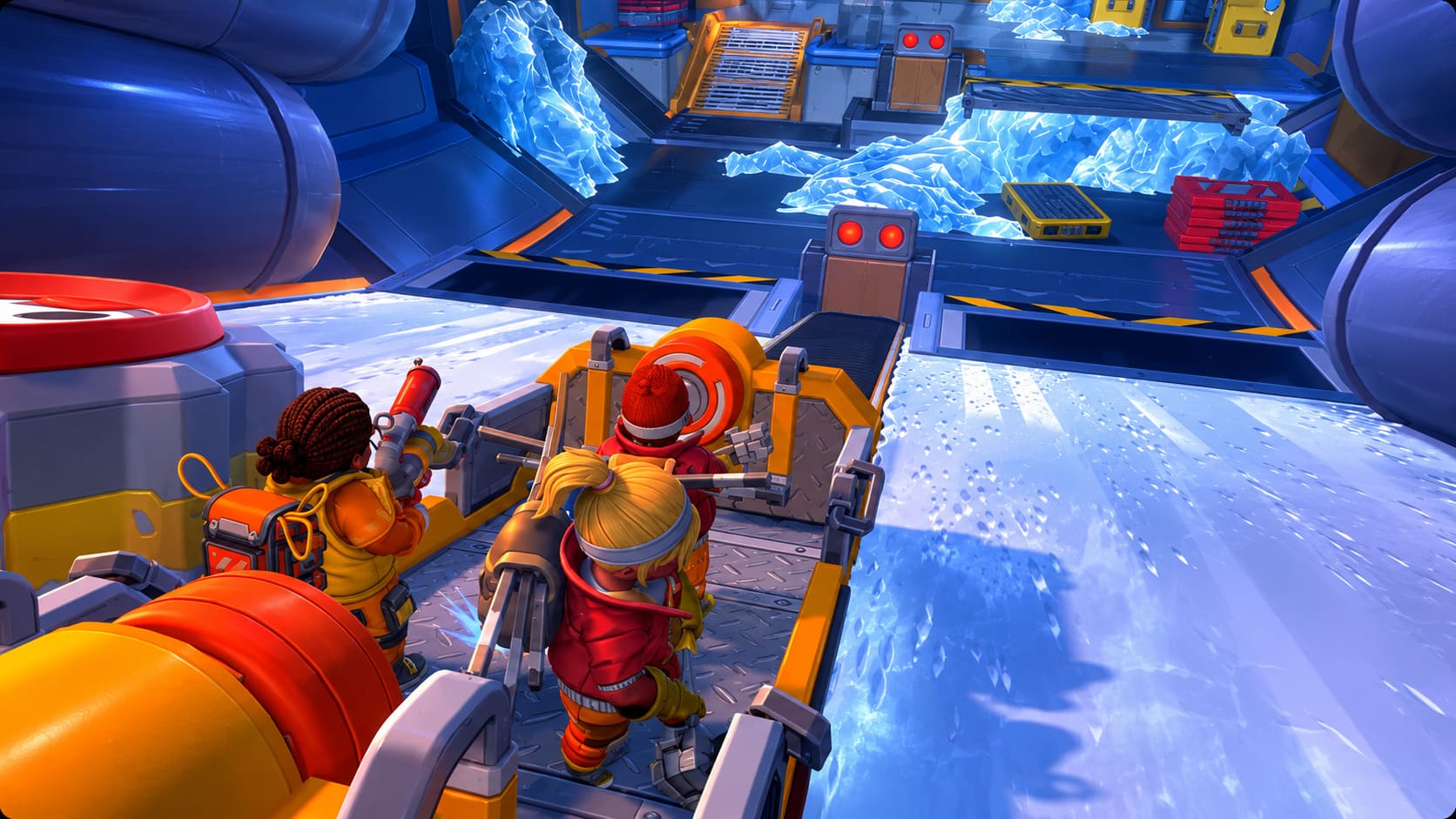
Step 2: Edit the Scrap Mechanic Settings Configuration File
One of the classic optimization methods discovered by the community involves manually adjusting the game’s configuration file.
Before changing anything, close Scrap Mechanic completely.
Follow these steps:
- Press Windows + R.
- Type %appdata% and press Enter.
- Open: Axolot Games → Scrap Mechanic → User → User_xxxxxxxxxxxxxx.
- Find the settings.json file.
- Open it with Notepad.
- Search for DrawDistance.
- Adjust the value according to your preferred performance level.
- Save the file and restart the game.
The configuration file can sometimes bypass limitations from the normal graphics menu. Some players report smoother performance after manually reducing rendering distances and preventing the engine from pushing unnecessary visual calculations.
Always create a backup copy before editing configuration files. A small mistake can cause settings problems, and having the original file makes recovery simple.
Step 3: Clear Scrap Mechanic Cache Files
After large updates, especially a major version launch like 1.0, old cached assets can sometimes create strange performance issues.
Textures, modified worlds, and previous game data may conflict with the updated rendering system, causing micro-stutters or delayed asset loading.
To clean the cache:
- Open Steam.
- Right-click Scrap Mechanic.
- Select Manage → Browse Local Files.
- Open the cache folder.
- Remove old Textures and Mesh cache files.
- Launch the game again.
The engine will rebuild these files automatically.
This method will not magically double your FPS, but it can remove annoying stutters caused by corrupted or outdated cached resources.
Step 4: Optimize Your Machines and Factory Builds
Many players blame graphics settings when the real problem is their creations.
Scrap Mechanic is a physics sandbox, and your machines directly affect performance. A massive automated factory with hundreds of moving components can be more demanding than the entire open world.
Keep Unused Creations Parked Properly
Do not leave giant vehicles or machines sitting loosely around your base.
When creations interact with terrain, the physics engine continues calculating collisions and movement. Place unused machines on lifts or attach them securely to avoid unnecessary calculations.
Remove Loose Objects
Small objects can become surprisingly expensive.
- Broken Totebot parts
- Loose metal pieces
- Tree fragments
- Stone chunks
- Random dropped resources
In survival mode, many objects remain in the world instead of disappearing. A huge amount of scattered items can destroy your FPS.
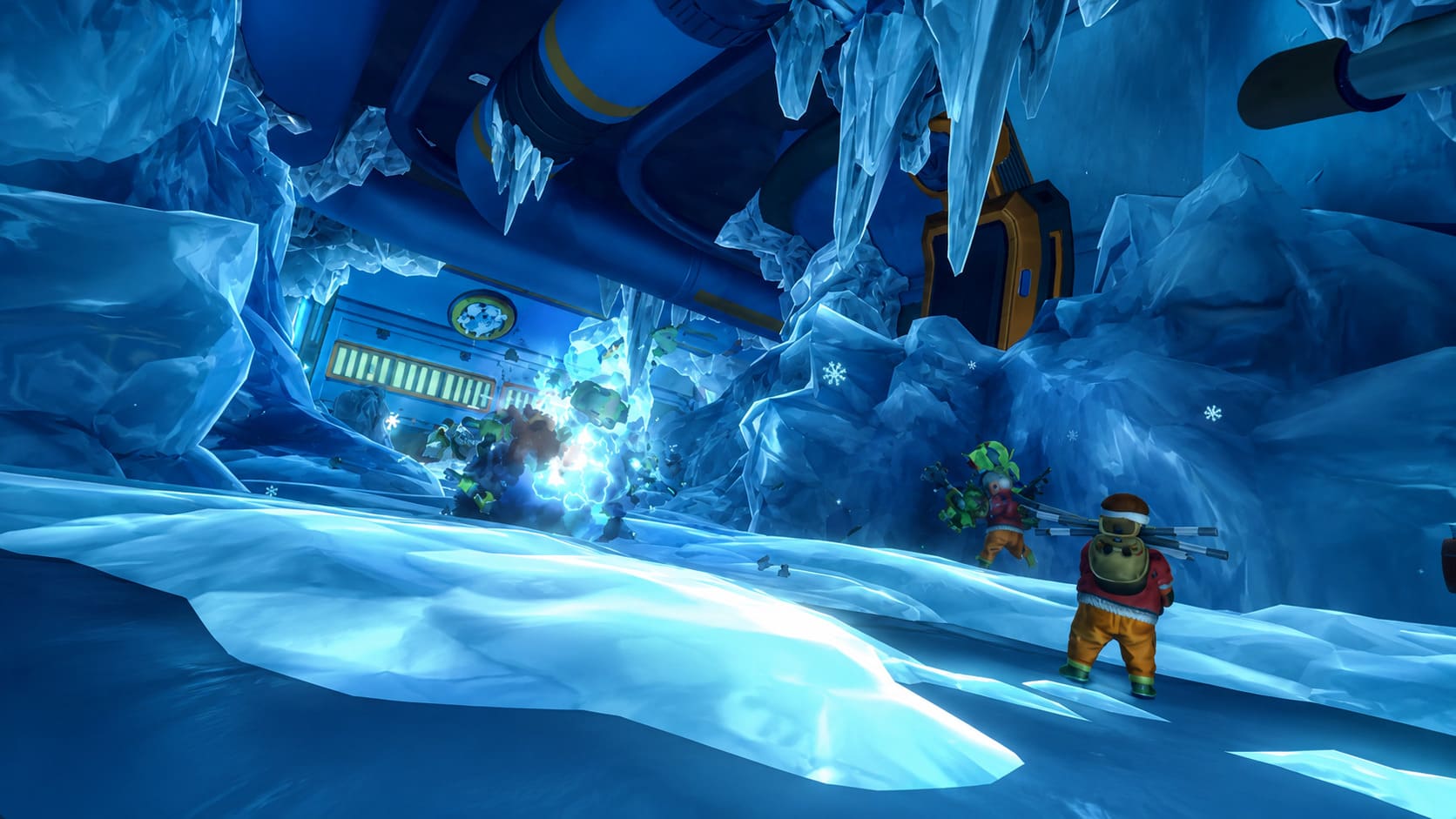
Separate Large Structures
Avoid creating one enormous connected base containing everything.
A better approach is building separate sections:
- Storage area
- Production machines
- Vehicle garage
- Farming zone
Leaving small gaps between structures allows the physics engine to process them more efficiently.
Reduce Excessive Mechanical Parts
Bearings, pistons, suspensions, and complex moving systems are expensive.
A machine with fewer optimized parts will usually perform better than an over-engineered creation with hundreds of unnecessary components.
Step 5: Optimize Windows and GPU Settings
Sometimes Windows does not correctly prioritize Scrap Mechanic after a major engine update.
Force High Performance GPU Mode
Open Windows Graphics Settings:
- Search for Graphics Settings.
- Add ScrapMechanic.exe.
- Select High Performance.
- Restart the game.
This ensures the game uses your dedicated graphics card instead of integrated graphics.
Adjust NVIDIA or AMD Settings
For NVIDIA users, open NVIDIA Control Panel, find Scrap Mechanic, select your dedicated GPU, and apply performance-focused settings.
For AMD users, use Radeon Software and create a Scrap Mechanic profile with maximum performance enabled.
Disable Fullscreen Optimizations
Find ScrapMechanic.exe, right-click it, open Properties, go to Compatibility, and enable:
Disable Fullscreen Optimizations
This can fix input delay, unstable frame pacing, and random FPS drops for some players.
Final Thoughts: Getting Smooth FPS in Scrap Mechanic 1.0
Scrap Mechanic 1.0 is a massive upgrade, but the new engine clearly demands more from both hardware and player creations. After playing many physics-heavy sandbox games, I think the biggest mistake players make is focusing only on graphics settings. Sometimes the real problem is a factory with hundreds of moving parts quietly destroying performance in the background.
The best results come from combining several improvements:
- Lower demanding graphics options.
- Clean old cache files.
- Optimize Windows GPU settings.
- Build smarter machines.
- Avoid unnecessary physics complexity.
With these changes, most players should see smoother gameplay, fewer stutters, and a much more enjoyable experience exploring the Drilling Thunder update. Scrap Mechanic is at its best when creativity is unlimited, but keeping your creations efficient is the key to maintaining high FPS.