How to Fix eBaseball PRO SPIRIT 2026 Crash on Launch on Steam: Complete PC Troubleshooting Guide
When eBaseball PRO SPIRIT 2026 finally arrived on PC, I couldn’t wait to jump into my first season. Konami’s newest baseball simulator looks fantastic, the player models are incredibly detailed, and the stadium atmosphere is among the best I’ve seen in a sports game. Unfortunately, my excitement lasted only a few seconds because the game simply refused to launch.
At first, I thought it was just another one of those “restart Steam and it’ll work” situations. It wasn’t. The game either closed immediately after the splash screen, became stuck in Steam forever, or threw an annoying LowLevelFatalError before I even reached the main menu.
After spending hours reading Steam discussions, Reddit posts, Unreal Engine troubleshooting threads, and trying dozens of different solutions myself, I eventually found the fixes that actually made a difference. Some worked instantly, while others only helped after combining multiple methods.
If you’re dealing with the same problem, this guide collects everything that has consistently solved launch crashes for players around the world.
Why Does eBaseball PRO SPIRIT 2026 Crash Before It Even Starts?
Modern Unreal Engine 5 games are far more demanding than older sports titles. They’re constantly compiling shaders, loading massive textures, verifying DRM, and communicating with online services before you even see the menu.
That means one small issue somewhere in Windows can prevent the entire game from launching.
The most common reasons include:
| Problem | How Serious Is It? | Difficulty to Fix |
|---|---|---|
| Corrupted Steam files | Very Common | Easy |
| Broken UE5 shader cache | Common | Easy |
| Outdated GPU drivers | Very Common | Easy |
| Windows permission issues | Common | Easy |
| Overlay software conflicts | Common | Easy |
| Damaged configuration files | Less Common | Medium |
| Antivirus blocking the executable | Occasional | Medium |
The good news is that almost all of these problems can be fixed without reinstalling Windows or replacing hardware.
1. Verify the Game Files First
Whenever a newly released Steam game crashes immediately, this is always the very first thing I try.
Even if Steam says the installation completed successfully, one damaged file is enough to stop Unreal Engine from loading.
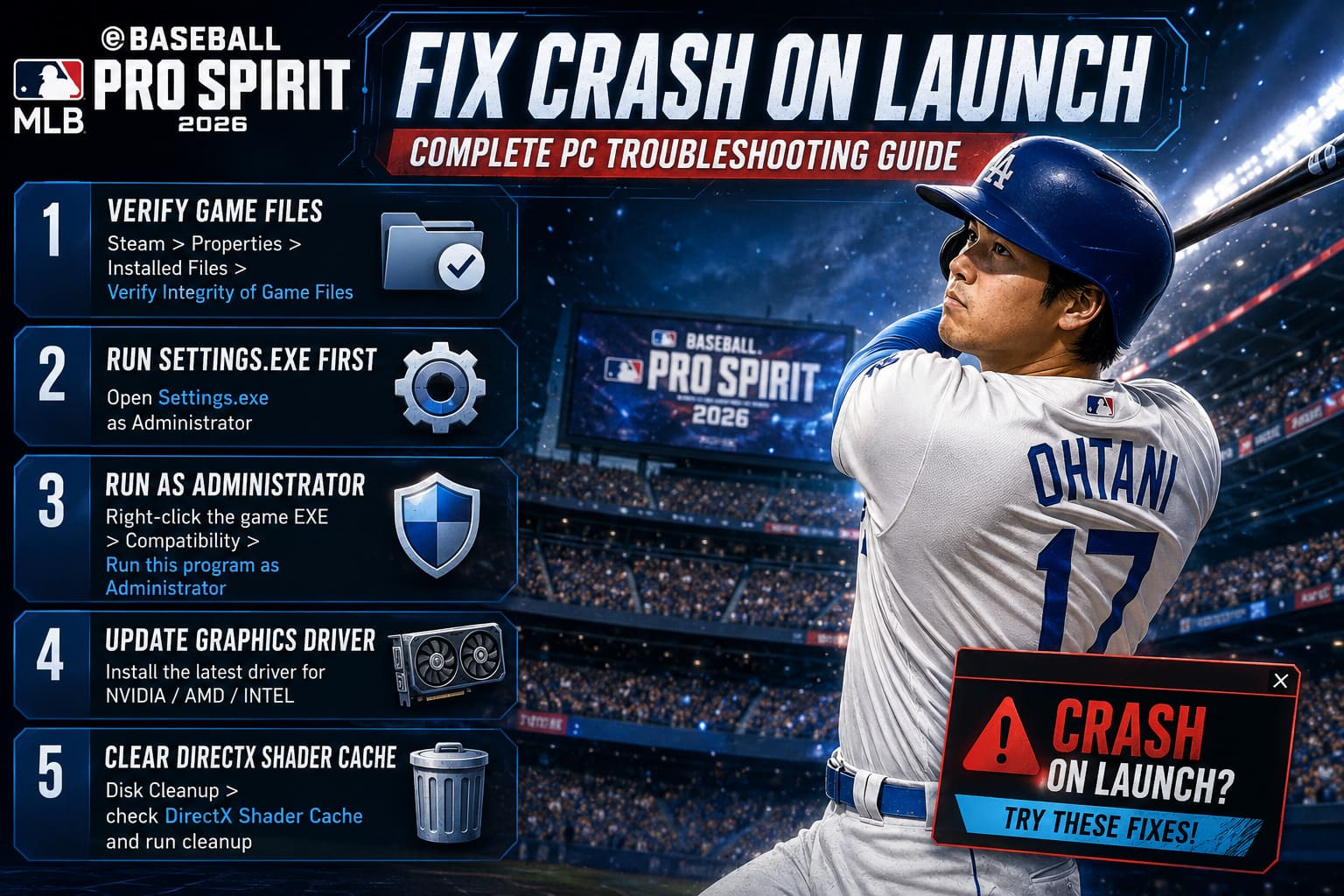
To verify the installation:
- Open Steam.
- Go to your Library.
- Right-click eBaseball PRO SPIRIT 2026.
- Select Properties.
- Open Installed Files.
- Click Verify Integrity of Game Files.
Steam compares every installed file against the official servers and automatically downloads anything that’s missing or corrupted.
I’ve seen this solve launch problems more times than I can count.
2. Open the Game Through Settings Instead of Steam
This one surprised me.
Several players discovered that launching the configuration utility first forces the game to rebuild certain startup settings.
Navigate to the installation folder and locate:
Settings.exe
Run it as Administrator.
From there:
- Choose your monitor.
- Select the correct resolution.
- Save the settings.
- Close the utility.
Instead of immediately pressing Play inside Steam, try launching the main executable directly from the installation folder once.
If your configuration files became corrupted during the first launch, this often rebuilds them.
3. Give Windows Fewer Reasons to Block the Game
Windows security has become much stricter over the years.
Sometimes UE5 games simply don’t receive permission to create shader caches or configuration folders.
I always recommend enabling administrator privileges.
Here’s how:
- Browse Local Files through Steam.
- Locate the game’s main executable.
- Right-click it.
- Choose Properties.
- Open the Compatibility tab.
- Enable Run this program as Administrator.
If you’re using Windows 11 and the crashes started immediately after upgrading your operating system, you can also experiment with Windows 10 Compatibility Mode.
It doesn’t help everyone, but it’s easy to test.
4. Update Your Graphics Driver
This sounds obvious, but it’s especially important for Unreal Engine 5 games.
UE5 depends heavily on modern DirectX 12 features, shader compilation, and memory management.
Older GPU drivers frequently cause startup crashes before the first menu even appears.
Whether you’re using:
- NVIDIA GeForce
- AMD Radeon
- Intel Arc
- Intel integrated graphics
Install the latest stable graphics driver directly from the manufacturer.
I also recommend performing a clean installation if your GPU software provides that option.
Several Intel Arc users reported that newer drivers completely eliminated LowLevelFatalError crashes.
5. Delete the DirectX Shader Cache
One of the biggest causes of mysterious Unreal Engine crashes is corrupted shader data.
Instead of rebuilding shaders correctly, Windows keeps loading damaged cached files.
Clearing them takes less than two minutes.
Open Windows Search → Disk Cleanup.
Choose your Windows drive.
Check DirectX Shader Cache.
Leave everything else as you prefer.
Run the cleanup.
The next launch will take a little longer because the game has to rebuild every shader from scratch, but many players reported that this completely stopped startup crashes.
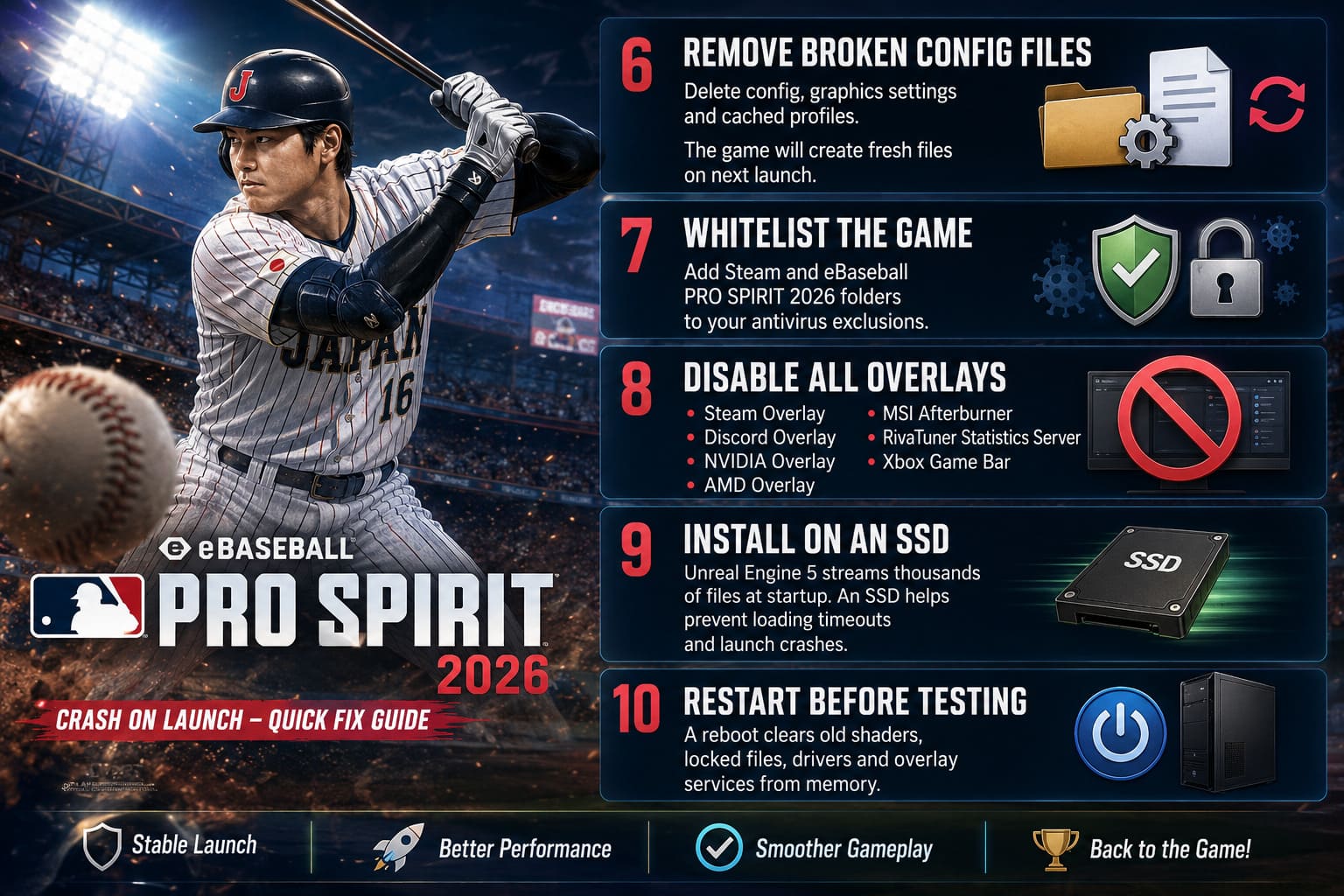
6. Remove Broken Configuration Files
Sometimes the game itself isn’t broken.
Your saved settings are.
This usually happens after:
- A major update.
- Changing graphics hardware.
- Cloud synchronization conflicts.
- Interrupted game shutdowns.
Navigate to the game’s configuration folders inside either Documents or Local AppData.
Before deleting anything, make a backup.
Then remove:
- Configuration files.
- Graphics settings.
- Cached profiles.
Leave your backup somewhere safe.
When the game launches again, it generates completely fresh configuration files.
I’ve fixed multiple Unreal Engine titles this way over the years.
7. Don’t Let Antivirus Kill the Process
Modern DRM can sometimes look suspicious to antivirus software.
That’s especially true for games protected by Denuvo.
Even Windows Defender occasionally blocks startup components without making it obvious.
Add the following folders to your antivirus exclusions:
- Steam installation folder.
- eBaseball PRO SPIRIT 2026 installation folder.
If you’re using software like Bitdefender, Norton, Avast, or another third-party antivirus, create an exception there as well.
Once you’ve done that, restart your PC before testing again.
8. Turn Off Every Overlay You Can Find
This is another fix that consistently works across Unreal Engine games.
Every overlay injects additional code into the rendering pipeline.
Most of the time that’s harmless.
Sometimes it’s exactly what causes the crash.
Disable:
- Steam Overlay.
- Discord Overlay.
- NVIDIA Overlay.
- AMD Overlay.
- MSI Afterburner Overlay.
- RivaTuner Statistics Server.
- Xbox Game Bar.
I personally disable every overlay while troubleshooting.
Once the game launches normally, you can turn them back on one by one to discover which one was causing the conflict.
9. Reinstall the Game on an SSD
If you’re still using a traditional mechanical hard drive, this might be worth considering.
UE5 streams thousands of files during startup.
While HDD support technically exists, slower drives sometimes cause timeout errors during the loading process.
Moving the installation to an SSD won’t magically improve performance, but it can eliminate loading-related startup failures.
If you already own an NVMe SSD, it’s definitely the best place to install the game.
10. Restart Before Trying Again
This might sound too simple, but after making several changes, always restart Windows.
Why?
Because Windows often keeps the following loaded in memory until the next reboot:
- Old shader data.
- Locked DLL files.
- Driver components.
- Overlay services.
Testing without restarting sometimes makes you think a fix didn’t work when Windows simply hasn’t applied the changes yet.
eBaseball PRO SPIRIT Achievement Guide: 100% Full Completion Strategy
My Recommended Troubleshooting Order
If someone asked me today where to start, I’d use this order:
| Priority | Solution | Success Rate |
|---|---|---|
| ⭐⭐⭐⭐⭐ | Verify Steam files | Excellent |
| ⭐⭐⭐⭐⭐ | Update GPU driver | Excellent |
| ⭐⭐⭐⭐☆ | Clear DirectX shader cache | Very High |
| ⭐⭐⭐⭐☆ | Run as Administrator | High |
| ⭐⭐⭐⭐☆ | Disable overlays | High |
| ⭐⭐⭐☆☆ | Delete configuration files | Medium |
| ⭐⭐⭐☆☆ | Antivirus exclusions | Medium |
| ⭐⭐☆☆☆ | Full reinstall on SSD | Situational |
Doing these in sequence usually solves the problem without spending hours randomly changing Windows settings.
eBaseball Pro Spirit Star Player Guide: How to Survive and Dominate a 30-Year Career
Final Thoughts
As someone who enjoys sports games every year, I always expect a few rough edges during launch week, especially when a series makes the jump to more advanced technology. eBaseball PRO SPIRIT 2026 is no exception. The Unreal Engine 5 foundation delivers impressive visuals, but it also introduces a few compatibility headaches that many PC players are running into on day one.
The encouraging part is that the majority of launch crashes aren’t caused by faulty hardware. In most cases, it’s a combination of corrupted game files, outdated graphics drivers, shader cache issues, Windows permissions, or software conflicts running quietly in the background. Once those are addressed, the game generally becomes much more stable.
If I had to recommend only three fixes, I’d start by verifying the Steam installation, installing the latest graphics driver, and clearing the DirectX shader cache. Those three steps alone have resolved the issue for a huge number of players, including myself.
Hopefully Konami continues releasing optimization patches over the coming weeks. Early post-launch updates often improve Unreal Engine stability significantly, especially on systems with newer Intel processors or Arc graphics cards. Until then, working through the solutions above should give you the best chance of getting onto the field instead of staring at another crash window.