Assassin’s Creed Black Flag Resynced Steam Deck OLED: Best Settings for Maximum Battery Life (2026 Guide)
When I first launched Assassin’s Creed Black Flag Resynced on my Steam Deck OLED, I had exactly the reaction I expected: “Wow… this looks incredible.” Then, about two hours later, I looked at the battery indicator and thought, “Well… that’s not going to work on a long trip.”
The remake is stunning. Better lighting, redesigned environments, more detailed character models, modern effects, dynamic weather—it really feels like a current-generation Assassin’s Creed game rather than a simple remaster. But all those visual improvements come at a cost, especially on handheld hardware.
After spending quite a few evenings experimenting with different settings, reading what other Steam Deck players were trying, and comparing my own battery results, I finally found a setup that I genuinely enjoy using. Is it the absolute highest visual quality? No. Is it the sweet spot between image quality, stable performance, and battery life? For me, absolutely.
If your goal is getting several hours of uninterrupted pirate adventures instead of searching for the nearest charger, these are the settings I’d recommend.
Why the Steam Deck OLED Makes This Game Better
The OLED version already has several advantages over the original Steam Deck.
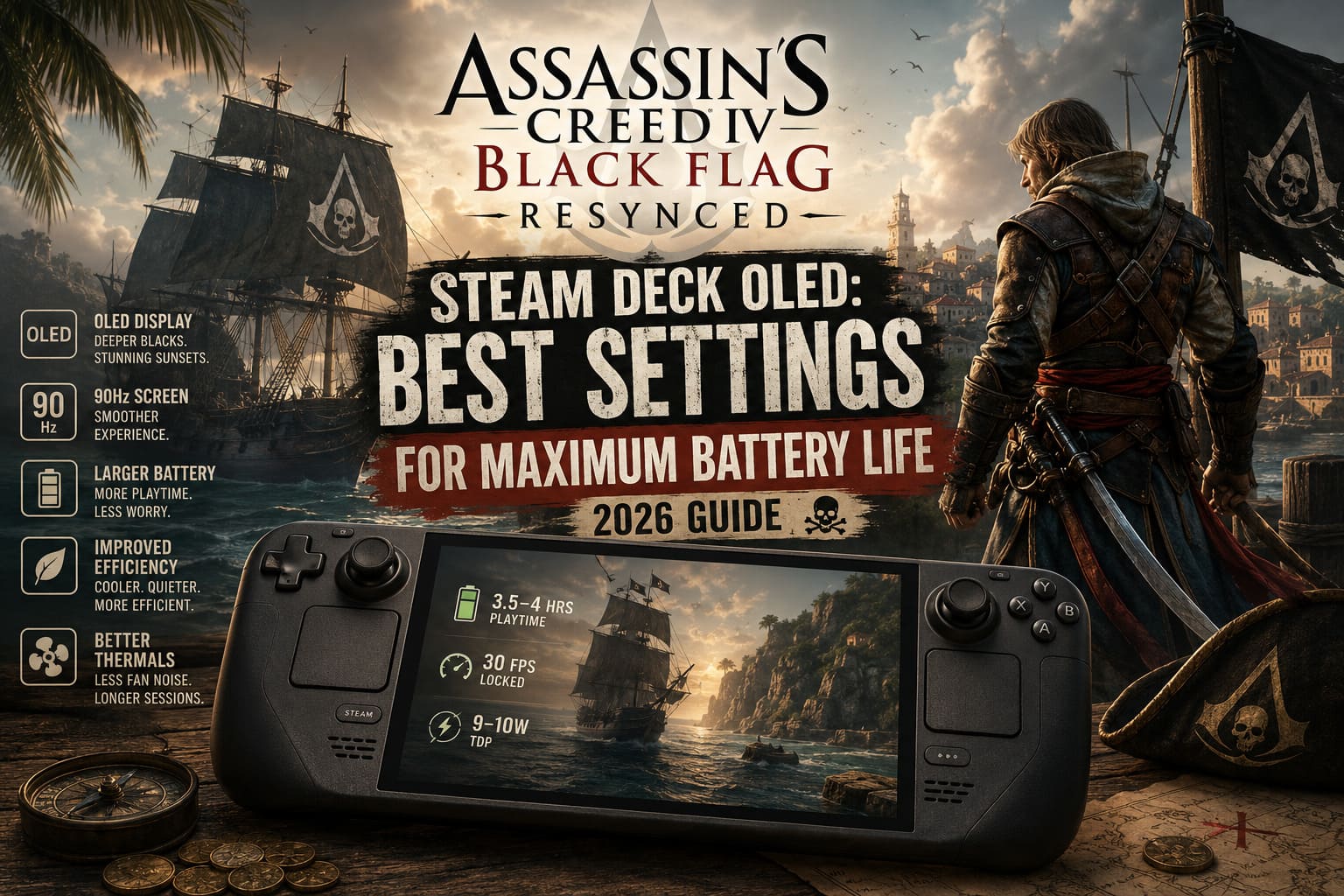
| Feature | Why It Matters |
|---|---|
| OLED Display | Better contrast and deeper blacks make Caribbean sunsets look fantastic. |
| 90Hz Screen | Gives smoother frame pacing options even when locking the game to 30 FPS. |
| Larger Battery | More playtime before charging. |
| Improved Efficiency | Runs cooler and uses less power under similar workloads. |
| Better Thermals | Less fan noise during long gaming sessions. |
Even with these upgrades, Black Flag Resynced is still a demanding game. The modern engine simply asks much more from the CPU and GPU than the original 2013 release ever did.
My Philosophy: Stop Chasing Ultra Settings
One thing I’ve learned after years of gaming on handheld PCs is that chasing maximum graphics almost never gives the best experience.
On a desktop monitor?
Sure.
On a 7.4-inch OLED screen?
Not really.
I honestly stopped noticing whether shadows were Ultra or Medium after five minutes. What I did notice was when the battery disappeared twice as fast or when busy cities started dropping frames.
That’s why I prefer building settings around consistency rather than screenshots.
SteamOS Settings I Actually Recommend
Before touching the in-game graphics menu, I always configure SteamOS first.
These settings make a surprisingly large difference.
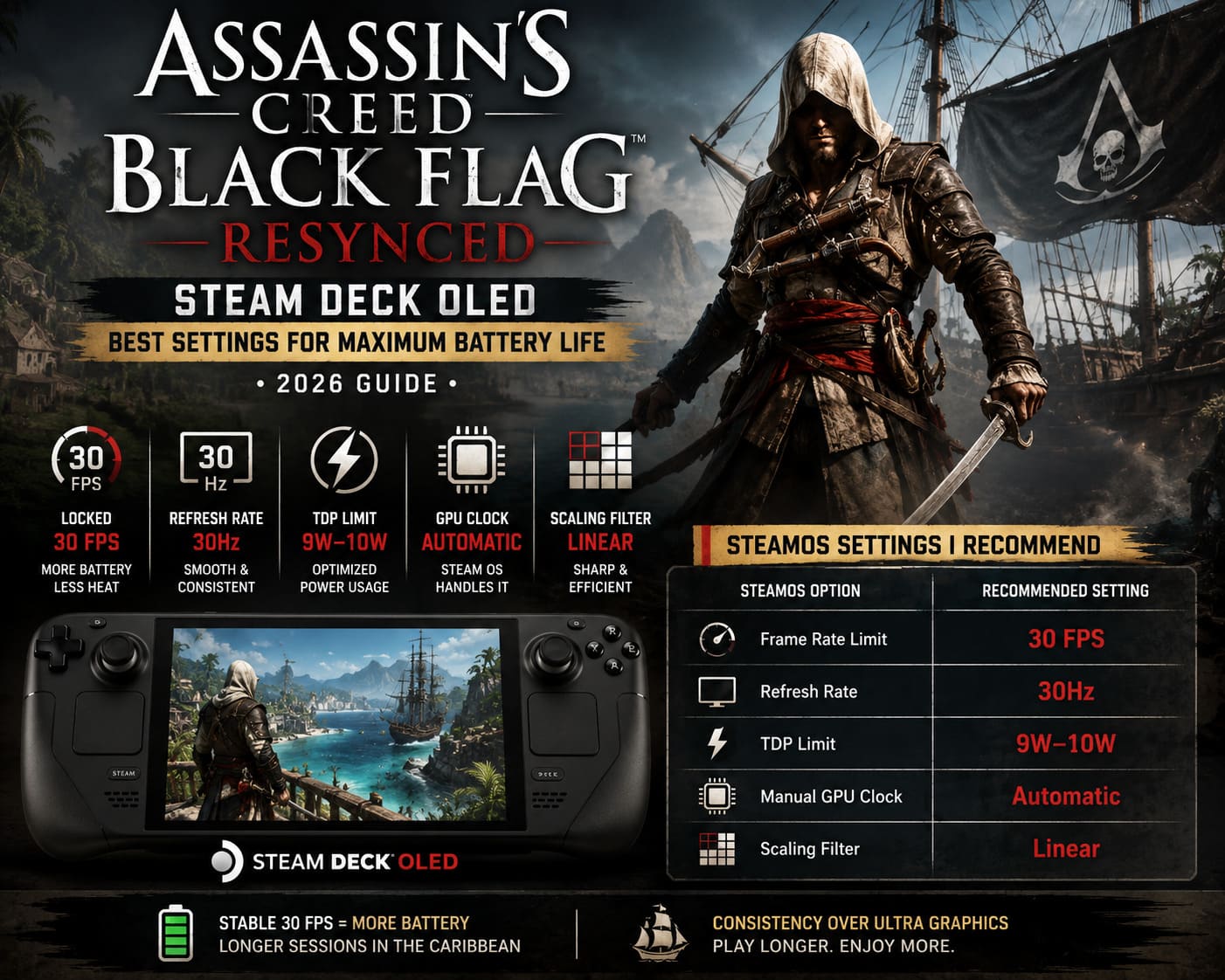
| SteamOS Option | Recommended Setting |
|---|---|
| Frame Rate Limit | 30 FPS |
| Refresh Rate | 30Hz |
| TDP Limit | 9W–10W |
| Manual GPU Clock | Automatic |
| Scaling Filter | Linear |
The 30 FPS cap is probably the biggest battery saver.
I know some players insist on 40 FPS because it feels smoother, and I understand why. But after sailing around the Caribbean for hours, I personally prefer the extra battery life.
With a stable frame rate, the game actually feels surprisingly cinematic.
Graphics Settings That Offer the Best Balance
These are the settings I eventually settled on after plenty of testing.
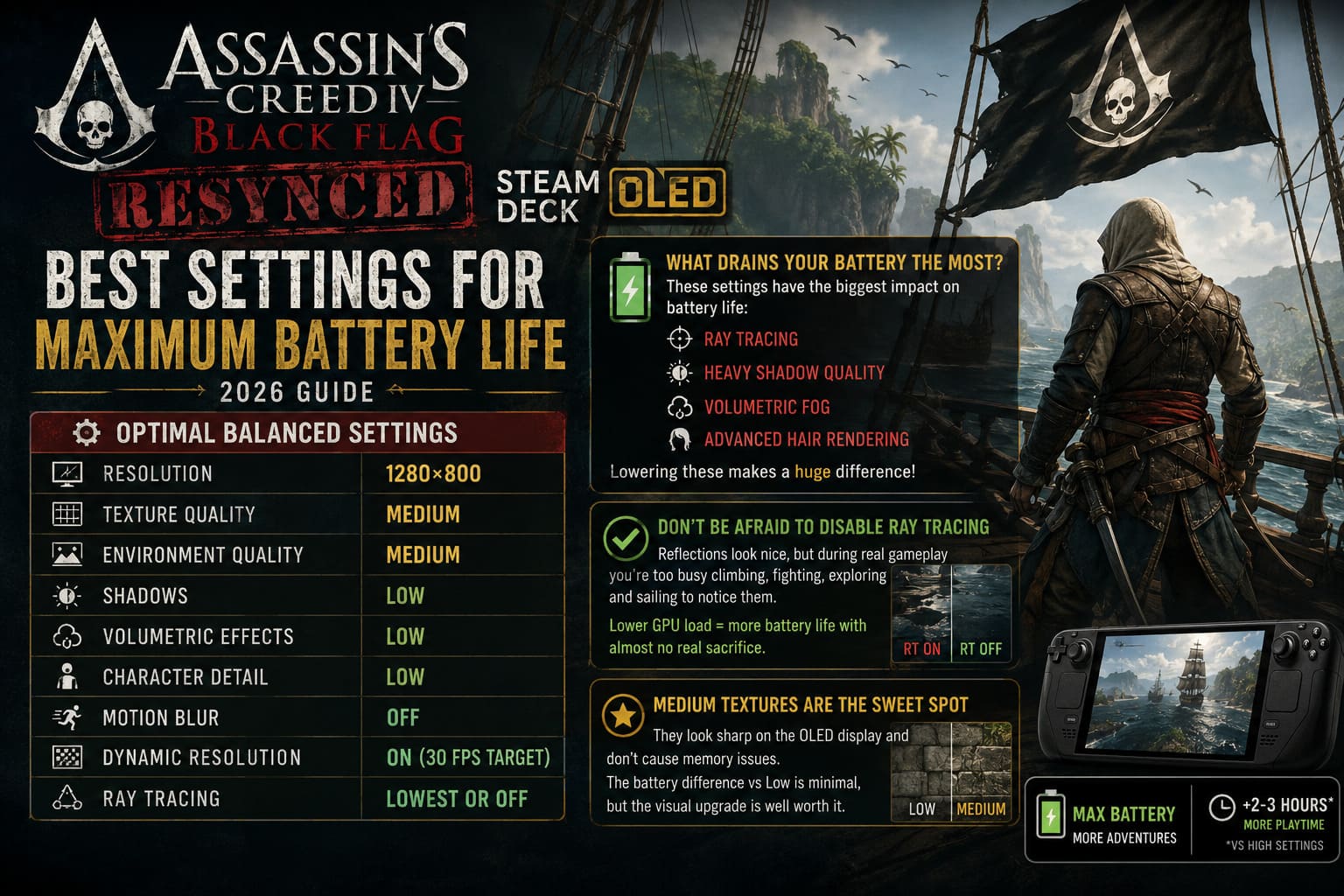
| Graphics Option | Recommended |
|---|---|
| Resolution | 1280×800 |
| Texture Quality | Medium |
| Environment Quality | Medium |
| Shadows | Low |
| Volumetric Effects | Low |
| Character Detail | Low |
| Motion Blur | Off |
| Dynamic Resolution | On (30 FPS Target) |
| Ray Tracing | Lowest Available or Disabled |
There are only a few settings that dramatically affect battery life.
The biggest offenders are:
- Ray tracing
- Heavy shadow quality
- Volumetric fog
- Advanced hair rendering
Lowering these has a much bigger impact than reducing texture quality.
Don’t Be Afraid to Disable Ray Tracing
This might be an unpopular opinion, but I honestly don’t think ray tracing is worth it on the Steam Deck.
Yes, reflections can look impressive.
Yes, lighting becomes more realistic.
But during actual gameplay?
I’m usually climbing ships, sword fighting, exploring jungles, or sailing through storms. I simply don’t spend time admiring reflective puddles.
Turning ray tracing down immediately lowers GPU load while barely changing the overall experience on such a small display.
For me, that’s an easy trade.
Medium Textures Are the Sweet Spot
I’ve seen plenty of people recommending Low textures just to save a little extra power.
Personally, I don’t agree.
Medium textures still look crisp on the OLED display and don’t seem to create memory issues.
The difference in battery life between Medium and Low isn’t nearly as significant as the visual downgrade.
If there’s one setting I’d keep higher than most guides suggest, it’s this one.
The Secret Is Stable Power Draw
Something many optimization guides overlook is consistency.
Instead of watching only FPS, I like monitoring total system power.
With my preferred setup, the Steam Deck usually stays somewhere around 12–14 watts during normal gameplay.
That means:
- less heat
- quieter fan
- longer battery
- fewer sudden performance drops
The experience simply feels more polished.
Playing Offline Really Helps
This tip surprised me.
Once you’ve completed any required online authentication, I recommend switching to Offline Mode whenever possible.
Besides saving a little battery by reducing constant network activity, it also removes one annoyance that almost every Ubisoft game seems to have: background connectivity.
If I’m playing a single-player pirate adventure on a train, I don’t really need cloud synchronization every few minutes.
Offline Mode makes the entire experience feel cleaner.
Screen Brightness Matters More Than People Think
The Steam Deck OLED display is gorgeous.
It’s also incredibly bright.
When I first bought the OLED model, I had brightness set much higher than necessary simply because the screen looked amazing.
Eventually I realized that lowering brightness indoors barely changed the experience.
Now I usually play around 40–50% brightness, and honestly, the display still looks fantastic.
Deep OLED blacks do a lot of the work.
BIOS VRAM Adjustment: Worth Doing?
Many experienced Steam Deck users recommend increasing the UMA Frame Buffer to 4GB.
Here’s my opinion.
If you’re comfortable entering the BIOS, it’s a useful tweak.
It won’t magically increase battery life.
What it can improve is overall stability, especially during large naval battles or crowded settlements where memory usage becomes heavier.
If you’re not comfortable changing BIOS settings, though, don’t worry. The game is still perfectly playable without it.
Battery Life Expectations
Here’s roughly what I experienced.
| Setup | Estimated Playtime |
|---|---|
| Default Settings | Around 2 hours |
| Optimized Settings | Around 3.5–4 hours |
Of course, your results will vary depending on:
- brightness
- Wi-Fi usage
- game location
- ambient temperature
- future patches
Still, doubling battery life without making the game look terrible feels like a fantastic trade-off.
How to Fix Backyard Baseball Crash on Launch on Windows 11 (2026 Mega Cat Studios Guide)
Visual Quality Isn’t Everything
One thing I appreciate about this remake is how good its art direction is.
Even after reducing several graphics options, the game still looks beautiful because the environments themselves are so well designed.
The tropical islands, colorful ports, rolling waves, jungle interiors, and weather effects carry the presentation much more than ultra-quality shadows ever could.
Sometimes developers create games where lowering settings completely ruins the atmosphere.
I don’t think this is one of them.
My Final Steam Deck OLED Preset
If someone handed me a Steam Deck OLED today and asked me to configure Black Flag Resynced in under two minutes, this is exactly what I’d choose.
| Setting | Value |
|---|---|
| FPS Limit | 30 FPS |
| Refresh Rate | 30Hz |
| TDP | 9–10W |
| Resolution | 1280×800 |
| Textures | Medium |
| Environment | Medium |
| Shadows | Low |
| Fog & Clouds | Low |
| Ray Tracing | Disabled or Lowest |
| Motion Blur | Off |
| Brightness | 40–50% |
| Wi-Fi | Offline when possible |
Final Thoughts
Assassin’s Creed Black Flag Resynced proves just how capable the Steam Deck OLED has become. Running a modern open-world Ubisoft title on a handheld still feels a little surreal, especially when you’re exploring tropical islands from the comfort of a couch, a plane seat, or a hotel room.
After experimenting with countless combinations, I’ve realized that the best settings aren’t necessarily the ones that squeeze out every extra graphical effect—they’re the ones that let you forget about the hardware entirely. A locked 30 FPS, sensible power limits, Medium textures, and a few carefully chosen reductions create a far more enjoyable experience than constantly chasing higher frame rates while watching the battery melt away.
If I had to sacrifice ray tracing, ultra shadows, and fancy hair physics in exchange for nearly twice the playtime, I’d make that decision every single time. On the Steam Deck OLED’s beautiful screen, the game still looks impressive, runs consistently, stays cooler, and remains quiet enough that I can simply enjoy being Edward Kenway again.
At the end of the day, that’s what portable gaming is all about—not benchmarking every frame, but getting lost in the adventure for hours without worrying about where the next power outlet is waiting.