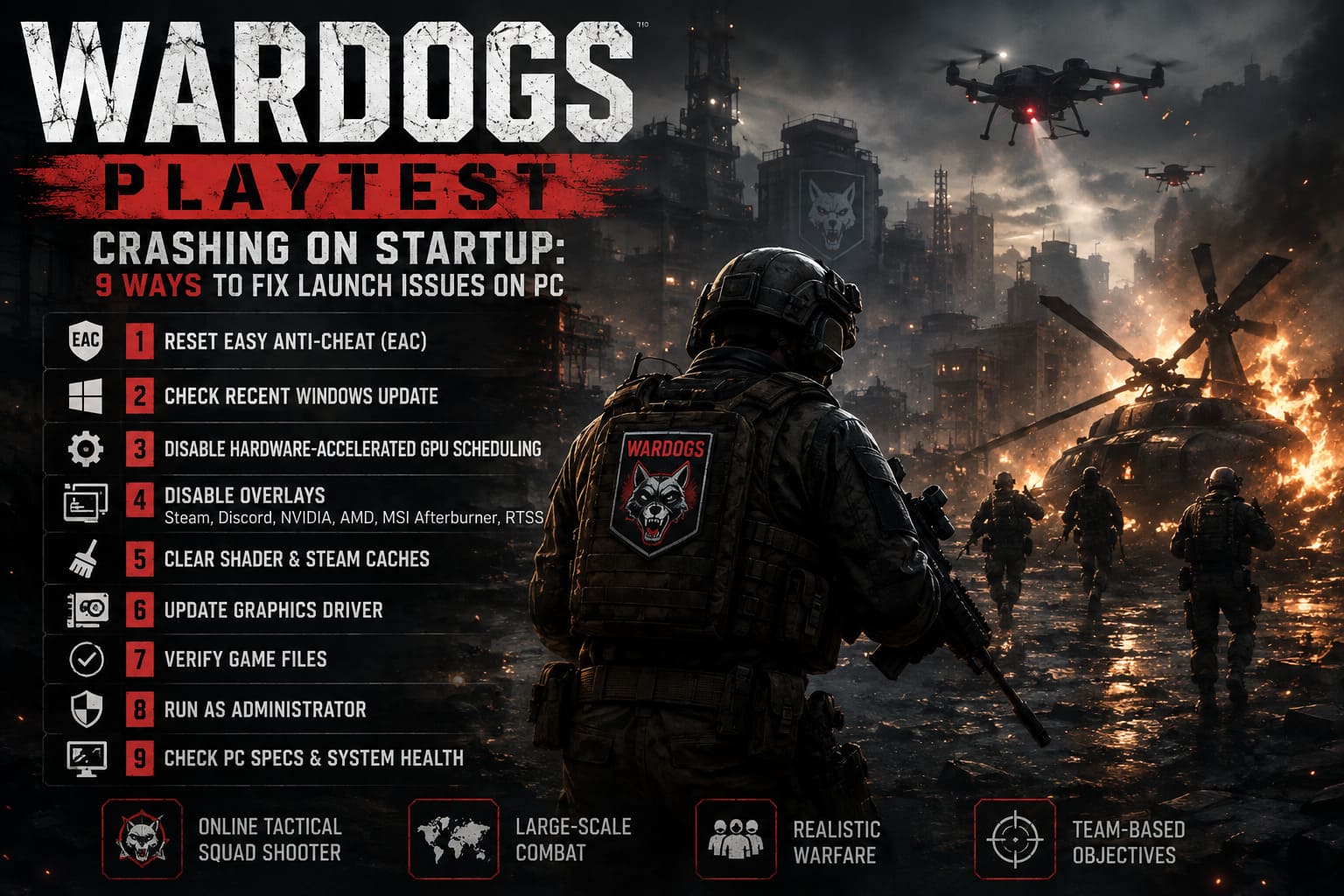
WARDOGS Playtest Crashing on Startup: 9 Ways to Fix Launch Issues on PC
If you’ve been waiting to finally get into the WARDOGS Playtest, there’s nothing more annoying than clicking Play, watching the game compile shaders for a few seconds, and then getting dumped straight back to the desktop.
I’ve seen this kind of PC launch nightmare plenty of times. You spend ten minutes staring at a black screen, another five minutes verifying files, then Steam decides everything is “fine” while the game still refuses to boot. Classic PC gaming.
The good news is that a startup crash doesn’t automatically mean your hardware is too old or that the WARDOGS build is completely broken. Early playtests can be especially sensitive to anti-cheat services, graphics settings, overlays, cached shaders, Windows components, and background drivers.
Below are nine practical fixes worth trying, starting with the ones I’d personally test first. Some are quick and harmless; others are more advanced and should be approached carefully.
Quick warning: Windows update numbers, driver conflicts, and community-reported fixes can change as the WARDOGS Playtest receives new builds. If a specific update or driver is not present on your PC, don’t try to force-remove something just because it appears in a troubleshooting guide.
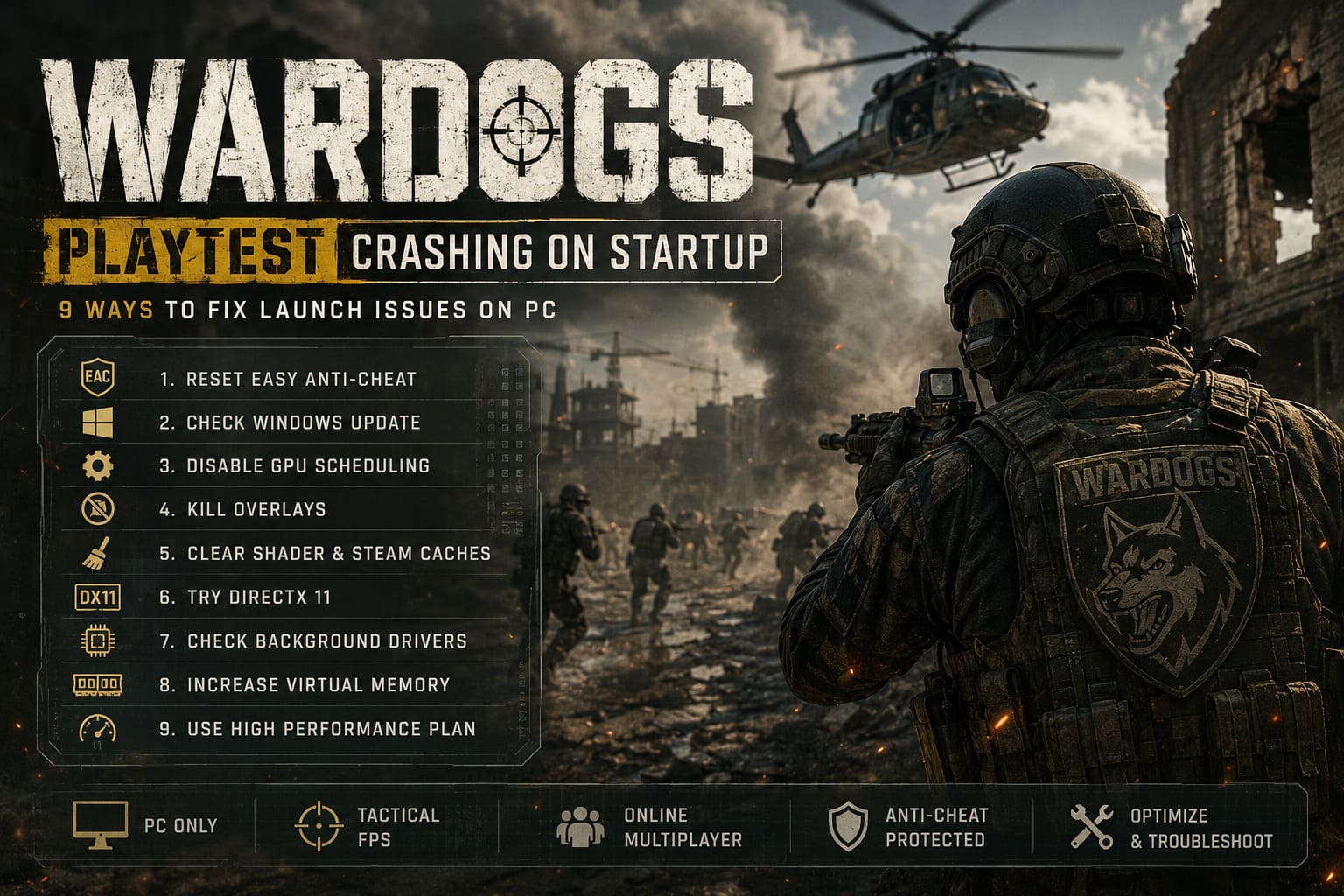
1. Reset Easy Anti-Cheat Before Doing Anything Extreme
For a game that relies on Easy Anti-Cheat (EAC), damaged or mismatched anti-cheat files can cause a crash before you ever reach the main menu.
This is one of the first things I’d investigate because it’s relatively straightforward and doesn’t require messing around with BIOS settings or registry entries.
Try this:
- Completely exit Steam.
- Open Task Manager and make sure no WARDOGS or Steam processes are still running.
- Check your Windows installation for the EasyAntiCheat folder.
- If the installation is clearly corrupted, remove the relevant EAC components.
- Restart Steam.
- Open your Steam Library and right-click WARDOGS Playtest.
- Select Properties → Installed Files.
- Choose Verify integrity of game files.
- Let Steam replace anything missing or damaged.
- Launch WARDOGS again.
I prefer this approach over randomly reinstalling the entire game. A 50 GB reinstall just to discover that one anti-cheat component was broken is exactly the sort of PC gaming ritual nobody asked for.
2. Check Whether a Recent Windows Update Is Causing the Crash
This one is more situational, but it can be important if WARDOGS worked perfectly one day and started crashing immediately after a Windows update.
Community reports may point toward particular Windows builds or security updates causing compatibility problems, but don’t assume a specific KB package is responsible without checking your own system.
Windows updates can be identified through:
Settings → Windows Update → Update History
You can also use:
Control Panel → Programs → View installed updates
If a problematic Windows update has genuinely been confirmed by the developer or Microsoft and the affected package is installed on your machine, rolling it back may be worth considering.
I would put this relatively low on my personal troubleshooting list. Removing security updates should never be your first reaction to a game crash.
3. Disable Hardware-Accelerated GPU Scheduling
Hardware-Accelerated GPU Scheduling (HAGS) is one of those Windows features that can be great on one PC and surprisingly troublesome on another.
If WARDOGS crashes during shader compilation, rendering initialization, or immediately after the first loading screen, testing the game with HAGS disabled is absolutely reasonable.
Go to:
Settings → System → Display → Graphics → Change default graphics settings
Find:
Hardware-Accelerated GPU Scheduling
Turn it OFF, then restart Windows.
After rebooting, try WARDOGS again.
If the crash disappears, you’ve probably found a compatibility issue involving your current Windows build, graphics driver, or the game’s rendering pipeline.
And if nothing changes? Simply turn HAGS back on. No harm done.
4. Kill Every Overlay You Can Find
This is probably my favorite “why the hell was that causing it?” troubleshooting category.
Overlays hook themselves into games. Usually that’s harmless. During an unstable playtest, however, multiple hooks can become a recipe for a black screen or instant crash.
For testing, I’d temporarily disable:
- Steam Overlay
- Discord Overlay
- NVIDIA in-game overlay
- AMD Adrenalin overlay
- MSI Afterburner
- RivaTuner Statistics Server
For Steam, right-click WARDOGS in your Library, open Properties, and disable the Steam Overlay.
In Discord, go to the game’s overlay settings and switch off the in-game overlay.
If you use Afterburner and RivaTuner for FPS monitoring, close both completely before launching.
This is especially important if you’re using custom frame limits, hardware monitoring, overclocking, or aggressive performance profiles. For troubleshooting, I want the game running as close to a clean Windows environment as possible.
5. Clear Your Shader and Steam Caches
A game crashing right after shader compilation immediately makes me suspicious of cached graphics data.
Shaders are normally there to improve performance, but corrupted cache data can create the exact opposite result: stuttering, black screens, graphical glitches, or a crash during startup.
NVIDIA
Open the NVIDIA Control Panel and look under the 3D settings for shader cache options.
You can also clear the relevant NVIDIA shader cache through Windows’ stored graphics data and driver-specific cache locations.
AMD
Open AMD Software: Adrenalin Edition, navigate to the gaming/graphics settings, and use the available Reset Shader Cache option.
Steam
Steam also has its own download cache.
Go to:
Steam → Settings → Downloads → Clear Download Cache
You’ll normally need to log back into Steam afterward.
Then restart your PC and try WARDOGS again.
Personally, I’d do this before reinstalling the entire game. It takes minutes instead of hours.
6. Test DirectX 11 Instead of DirectX 12
If WARDOGS is launching with a modern rendering API and your particular GPU driver combination doesn’t like it, forcing an alternative rendering mode can sometimes get you past the crash.
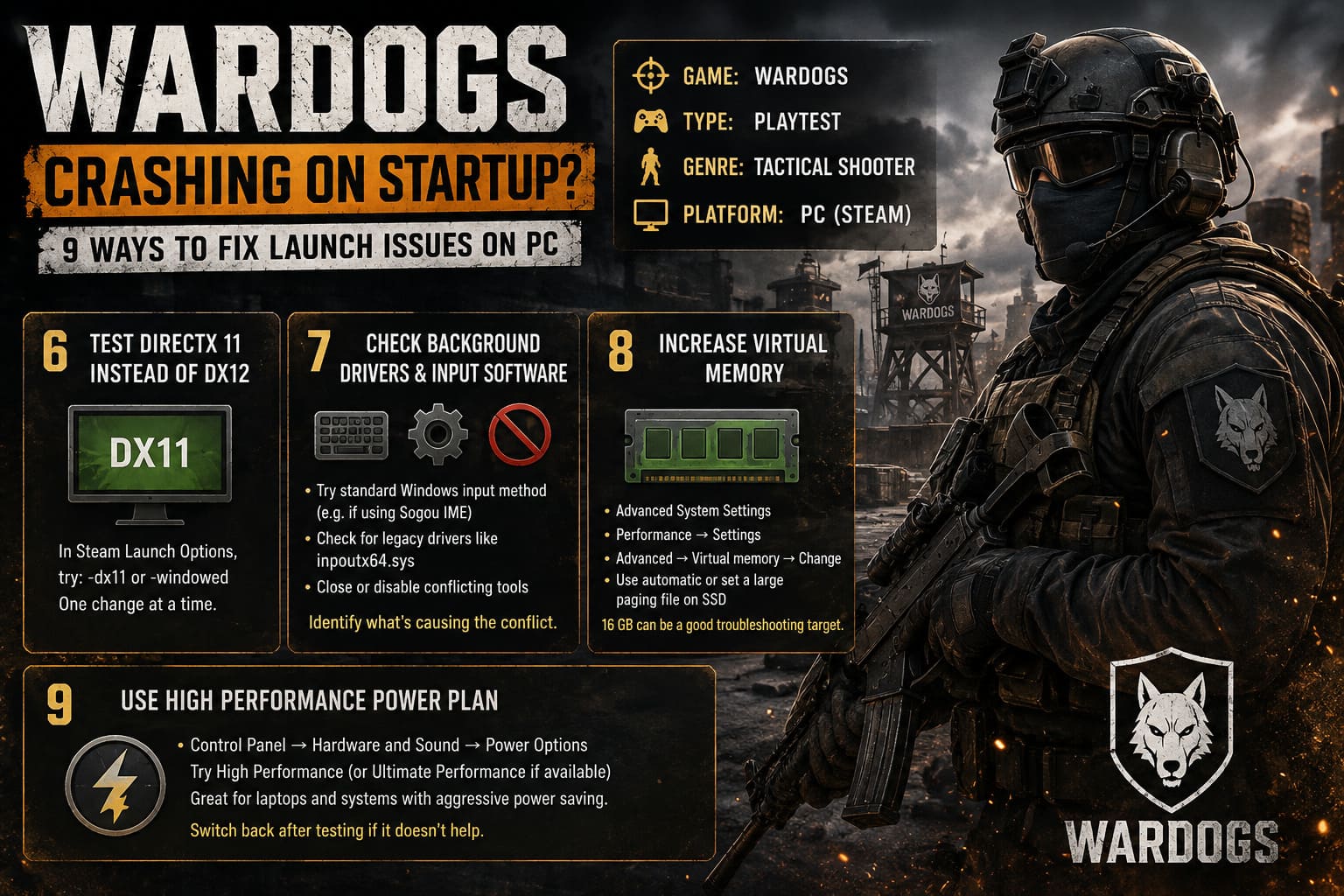
In Steam:
Library → WARDOGS Playtest → Properties → General → Launch Options
If the build supports it, you can test:
-dx11
You can also experiment with:
-windowed
The important part is not to throw ten launch commands into the box at once. Change one thing at a time.
If -dx11 suddenly gets you into the main menu, that’s valuable information. It suggests the crash may be connected to the default rendering path rather than your entire WARDOGS installation.
Keep in mind that launch parameters are game-build dependent. If a particular option does nothing, don’t assume your PC is broken.
7. Look for Weird Background Drivers and Input Software
This is the more obscure section, but it’s exactly the kind of stuff that can drive experienced PC players insane.
Some games interact badly with third-party input software, hardware-monitoring tools, legacy drivers, or software that injects DLLs into running applications.
One example that has appeared in community troubleshooting discussions is Sogou Input Method. If you’re running it, temporarily switch to a standard Windows input method and test WARDOGS again.
Another reported culprit is the legacy inpoutx64.sys driver.
If you find this driver on your machine, don’t immediately delete random system files. First identify which application installed it and whether that application actually needs it.
This is a much safer strategy than going full cowboy mode in System32.
If WARDOGS works after closing or disabling a particular background utility, you’ve got a much stronger clue about the real cause.
8. Give Windows More Virtual Memory
WARDOGS crashing doesn’t necessarily mean you’re out of physical RAM.
Windows also relies on virtual memory, and demanding games can behave badly when the paging file is heavily restricted or manually configured to an extremely small size.
To check it:
- Search Windows for Advanced System Settings.
- Open View advanced system settings.
- Under Performance, select Settings.
- Open the Advanced tab.
- Find Virtual memory and click Change.
- Check your current paging-file configuration.
- If necessary, enable automatic management or configure a sufficiently large paging file on an SSD.
- Restart Windows.
A figure such as 16 GB is sometimes used as a troubleshooting target, but there is no universal magic number for every PC.
If you have plenty of RAM and Windows is already managing the paging file properly, I would not start manually forcing huge values just because a game crashed once.
9. Try Windows’ High Performance Power Plan
This is the last fix I’d test, but it can make sense on systems that aggressively manage CPU and GPU power states.
Open:
Control Panel → Hardware and Sound → Power Options
If available, test High Performance.
Some systems also expose Ultimate Performance, although availability depends on the Windows edition and configuration.
The idea is simple: eliminate aggressive power-saving behavior while you’re troubleshooting.
This is particularly worth testing on laptops, hybrid systems, and machines with unusual OEM power-management software.
If it changes absolutely nothing, switch back to your normal power plan. There’s no reason to run your PC at maximum performance 24/7 just because WARDOGS is having a bad day.
My Recommended Order for Fixing WARDOGS
If you don’t want to spend an entire evening changing every Windows setting under the sun, I’d go through these fixes in this order:
| Priority | Fix | Why Try It |
|---|---|---|
| 1 | Verify Game Files / EAC | Fast and relatively safe |
| 2 | Disable Overlays | Common source of game-hook conflicts |
| 3 | Clear Shader Cache | Especially useful after shader crashes |
| 4 | Disable HAGS | Good compatibility test |
| 5 | Try DX11 | Can isolate rendering issues |
| 6 | Check Background Drivers | Useful for stubborn crashes |
| 7 | Check Virtual Memory | Helps identify memory-allocation problems |
| 8 | Check Windows Updates | Worth investigating after a recent system change |
| 9 | High Performance Power Plan | Last-resort performance test |
Don’t Immediately Blame Your GPU
One thing I really want to emphasize: a WARDOGS startup crash doesn’t automatically mean your graphics card can’t handle the game.
Playtests are messy by nature. You’re dealing with experimental builds, changing server infrastructure, fresh anti-cheat configurations, new shader packages, evolving graphics settings, and drivers that may have never been tested against the exact build you’re playing.
If WARDOGS crashes immediately after shader compilation, pay attention to when it crashes.
Does it:
- Crash before the splash screen?
- Die during shader compilation?
- Show a black screen?
- Reach the main menu and then close?
- Freeze Windows entirely?
- Restart the entire PC?
- Display an access violation?
- Only crash when an overlay is active?
Those details matter.
A simple desktop crash and a complete system restart are not the same problem. Neither is a game-specific crash and a Windows blue screen.
How to Get WARDOGS Closed Beta Steam Key: Legitimate Ways to Play Right Now
Final Verdict: Troubleshoot Smart, Not Desperately
WARDOGS crashing on startup is frustrating, especially when you’ve been waiting to play and Steam appears to insist that everything is perfectly normal.
I’d start with the boring fixes: verify the files, reset EAC components, disable overlays, clear shader caches, and reboot. Those steps are quick and have a much better risk-to-reward ratio than immediately uninstalling Windows updates or deleting system drivers.
If that doesn’t work, move into the deeper troubleshooting: HAGS, alternative DirectX settings, background drivers, virtual memory, and power-management settings.
And please don’t change ten things simultaneously. That’s the fastest way to “fix” a crash without ever discovering what actually caused it.
Change one setting, launch WARDOGS, observe the result, and keep track of what happened. That’s how you turn a frustrating PC crash into an actual diagnosis.
Hopefully, the next WARDOGS update makes this entire guide obsolete. Honestly, that’s the best possible outcome. I’d much rather be complaining about getting destroyed in an actual match than spending my evening fighting Easy Anti-Cheat and Windows settings.