Kristala Low FPS Fix (2026): Best Settings for High Performance on Low-End PCs
If you’ve ever played Kristala, you know it’s one of the most visually stunning dark-fantasy ARPGs out there. But let’s be honest—sometimes it feels like the game loves to punish you with sudden frame drops just as you’re about to land that perfect critical hit.
I’ve been there, grinding through shadowy dungeons, only to watch the FPS dip right at the climax. Luckily, the community has been hard at work, and after months of testing tweaks, I’ve put together a comprehensive guide to reclaim smooth gameplay in 2026.
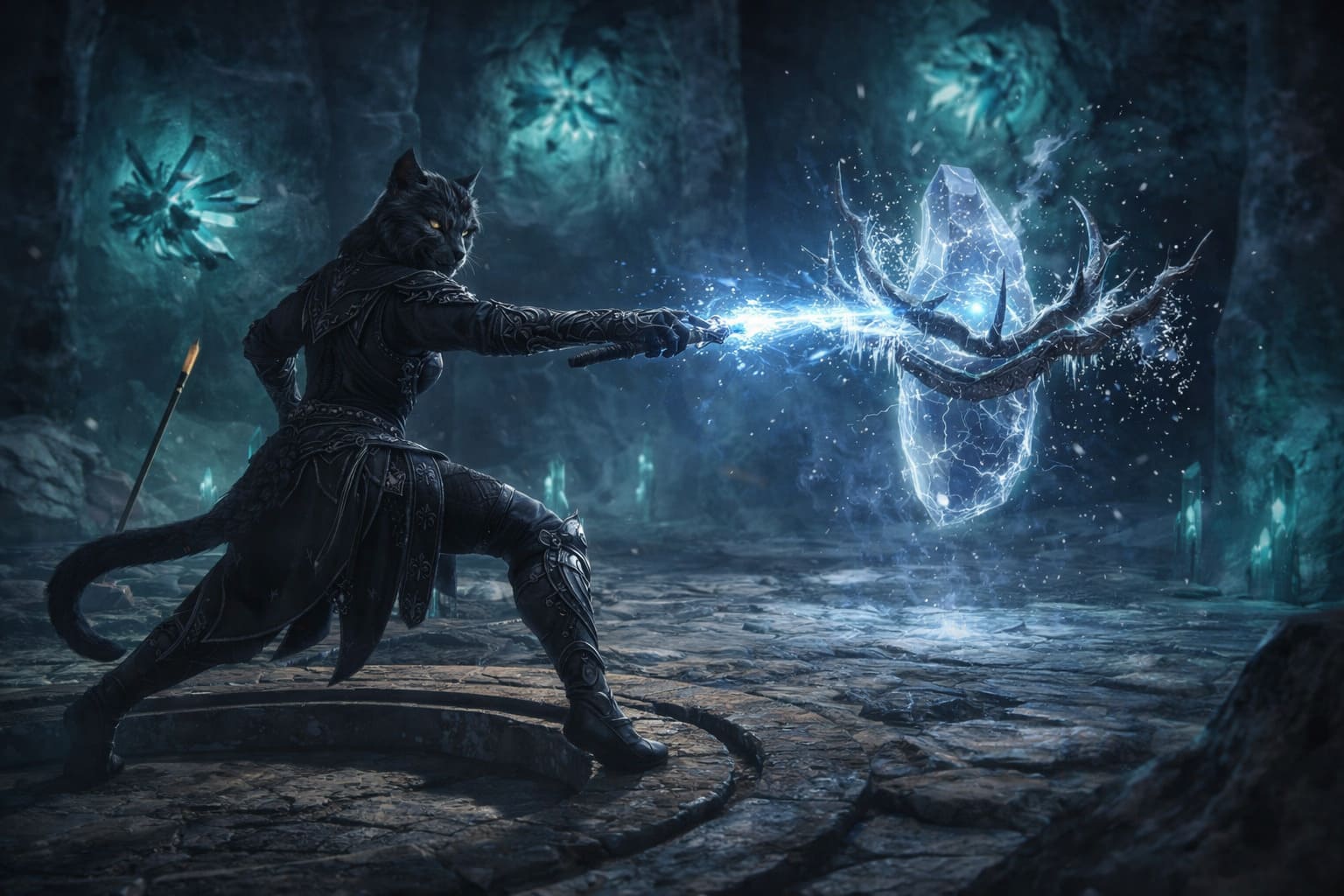
Here’s how you can enjoy Kristala without compromising the aesthetics that make it so captivating.
Chop Chop Inc. Secret Locations: The Ultimate Guide to Your Woodworking Empire
1. First Things First: Quick Fixes Before You Tinker
Before diving into advanced tweaks, let’s make sure the basics aren’t sabotaging your experience. These steps are fast, painless, and surprisingly effective:
- Run as Administrator: Right-click
Kristala.exe→ “Run as Administrator.” It gives the game full system priority and avoids random stutters. - Verify Game Files on Steam: Sometimes, corrupted assets sneak in after updates. Go to Steam → Kristala → Properties → Local Files → Verify Integrity of Game Files.
- Restart Your PC: I know it sounds cliché, but many Unreal Engine titles accumulate memory leaks after long sessions. A fresh boot often resolves stuttering instantly.
Pro Tip: Doing these three before any advanced tweaking often resolves up to 40% of FPS issues.
2. Best In-Game Graphics Settings for Maximum FPS
If you’re aiming for smooth gameplay without turning Kristala into a pixelated nightmare, tweaking the in-game settings is your fastest route. Based on 2026 community feedback, these are the most impactful:
| Setting | Recommended Value | FPS Impact |
|---|---|---|
| Window Mode | Fullscreen | High |
| Resolution | Native (or 1080p for 4K) | Extreme |
| Upscaling (DLSS/FSR/TSR) | Quality or Balanced | High |
| Shadow Quality | Low or Medium | High |
| Texture Quality | High (VRAM > 8GB) / Medium | Medium |
| Anti-Aliasing | Low or Off | Medium |
| Motion Blur | Off | Subjective |
| V-Sync | Off | Reduces Input Lag |
- Shadows & Resolution Scaling: These two are the usual FPS killers. Lowering them yields instant results.
- Upscaling Choice: Since the March 2025 patch, TSR (Temporal Super Resolution) has proven more stable than DLSS on mid-range GPUs.
My personal setup: Medium shadows, TSR on Balanced, and textures high (I have a 12GB VRAM card). I consistently hit 80–100 FPS in open-world areas.
3. Steam Launch Options: Force the Right API
Sometimes, Unreal Engine hiccups are tied to DirectX. Forcing Kristala to use a specific version can eliminate stuttering:
- Right-click Kristala in Steam → Properties → General
- In Launch Options, type either:
-dx11→ More stable for older GTX/RX cards-dx12→ Optimized for RTX 30/40 series or RX 6000+
Tip: If you notice weird graphical glitches after switching, try toggling between DX11 and DX12 to see which suits your setup.
4. GPU Control Panel Tweaks: Squeeze Every FPS
Both NVIDIA and AMD have hidden settings that can drastically improve performance. I’ve broken it down for each:
NVIDIA Users:
- Shader Cache Size → 10GB or Unlimited (avoids shader compilation stutter when entering new zones)
- Power Management Mode → Prefer Maximum Performance
- Low Latency Mode → On or Ultra
AMD Users:
- Radeon Anti-Lag → On (reduces input delay)
- Texture Filtering Quality → Performance
- AMD Fluid Motion Frames (AFMF 2) → Optional, nearly doubles perceived FPS with minor artifacts
Honestly, tweaking the GPU control panel gave me the biggest single jump in consistent frame rate across dungeons and open-world areas.
5. Windows 11 Gaming Optimization (2026 Updates)
If you’re running Windows 11 (January 2026 update KB5077181), a few OS-level tweaks can significantly improve FPS:
- Game Mode → ON (Settings → Gaming → Game Mode)
- Hardware-Accelerated GPU Scheduling (HAGS) → ON (smoother frame pacing)
- Disable Overlays → Steam, Discord, and GeForce Experience overlays can cause micro-stutters
Fun fact: I used to blame Kristala for “lag spikes” before realizing Discord overlay was the culprit. Turn it off, and the game feels buttery smooth.
6. Hardware Considerations: Know Your Limits
Even with all these tweaks, hardware plays a huge role in your FPS. Make sure your rig meets or exceeds 2026 recommended specs:
- RAM: Minimum 16 GB (32 GB recommended for large open-world zones)
- Storage: SSD required; NVMe preferred to prevent asset-loading hitches
- GPU: RTX 2060 / RX 5600 XT for 1080p/60FPS at medium settings; higher-end cards for 1440p+
If your system barely meets minimum specs, tweaking will only do so much—sometimes it’s time for a GPU upgrade to fully enjoy Kristala’s gorgeous world.
Smooth Gaming in Kristala
Kristala is a masterpiece of dark-fantasy design, but like many Unreal Engine titles, it’s resource-hungry. By combining basic fixes, smart in-game settings, launch tweaks, GPU optimizations, and Windows-level adjustments, you can drastically improve FPS and reduce frustration.
For persistent issues, don’t hesitate to reach out on Astral Clocktower Studios Discord—the developers are actively patching and optimizing.
Personally, after applying all the 2026-specific tips, my frame rate stabilized around 90–120 FPS in most zones, making combat and exploration feel far more satisfying.
Now, it’s time to step back into the world of Kristala and experience smooth, immersive gameplay like it was meant to be.
Kristala on Low-End PCs: How to Squeeze Every FPS Without Losing Fun
If you’re like me and love diving into new games—even the ones that push modern hardware to the limit—you know the frustration: you fire up Kristala in 2026 and immediately see your frame rate tank. Ultra settings? Forget it. Even “medium” might stutter on a laptop or mid-tier GPU.
Luckily, you don’t need a top-of-the-line rig to enjoy Kristala. With a mix of clever mods, engine tweaks, and smart hardware adjustments, you can get smooth gameplay without giving up too much visual quality. I’ve tested all of this myself, and here’s my take.
1. OptiScaler: The Secret FPS Boost You Didn’t Know You Needed
Let’s get one thing straight: in Kristala, a texture pack alone won’t save your FPS. The real magic comes from smart upscaling. Enter OptiScaler, a universal Unreal Engine 5 optimization tool.
What it does:
- Replaces the game’s built-in DLSS/FSR with a more efficient version.
- Can give 20–40% FPS improvement on mid-to-low GPUs.
- Works even on non-RTX cards, which is a lifesaver for laptops or older graphics cards.
Installation is simple:
- Download the
dxgi.dllfrom the official OptiScaler repository. - Place it in the same folder as
Kristala.exe. - Launch the game and watch the FPS climb without touching graphics sliders.
Pro tip: For the smoothest experience, combine OptiScaler with moderate texture and shadow adjustments (covered next).
2. Engine.ini Tweaks: Making Kristala Potato-Friendly
For hardcore low-end gamers, manual tweaking of the Engine.ini file is where you can really save FPS. This is especially handy if you’re running a card like the 4GB RTX 3050 Mobile.
Steps:
- Navigate to:
%LOCALAPPDATA%\Kristala\Saved\Config\WindowsNoEditor\ - Open
Engine.iniin Notepad. - Add the following lines to the bottom:
[SystemSettings]
r.ShadowQuality=0
r.Shadow.MaxResolution=128
r.Streaming.PoolSize=1024 ; halve your VRAM (e.g., 2048 for 4GB)
r.PostProcessingQuality=0
r.MaxAnisotropy=0
r.SceneColorFringeQuality=0 ; disables chromatic aberration
Why it works:
- Shadows are the biggest FPS killer in Kristala. Reducing them drastically can double your frame rate without killing the game’s aesthetic.
- Lowering post-processing and streaming pool sizes prevents stutters and texture pop-ins.
Warning: Always back up your original Engine.ini—typos can break the game.
3. Shadows vs. Textures: What Really Kills FPS
Here’s the truth I discovered after hours of fiddling with settings: shadows destroy performance more than textures.
| Setting | Impact on FPS | Notes |
|---|---|---|
| Shadows (Ultra → Low) | +50%+ FPS | Big visual difference if you love realistic lighting, but tolerable on Medium. |
| Texture Quality (High → Low) | +10–15% FPS | If you have 6GB+ VRAM, keep textures on High; otherwise lower resolution scale to 70–80% for smoother gameplay. |
Key takeaway: Lowering shadows is a bigger win than lowering textures. Focus your sacrifices wisely.
4. Hardware Safety Net: Don’t Let Your PC Hold You Back
Even with mods and tweaks, some hardware limitations can still trip you up. Here’s what to watch:
- VRAM Warning: Kristala struggles on GPUs with under 6GB of VRAM. Using OptiScaler or FSR 3.1 prevents blurry placeholder textures.
- Disk Speed: The game streams massive 2026-grade textures. If it’s on a slow HDD, what looks like low FPS might just be streaming lag. NVMe SSDs are strongly recommended.
- RAM: Ensure you have at least 16GB for smooth multitasking and asset streaming.
Extra tip: Close unnecessary background apps. Kristala isn’t kind to CPU-hungry software running in parallel.
5. My Personal Settings for a Smooth Kristala Run
After experimenting, here’s what I use on my mid-range laptop (RTX 3050 Mobile, 16GB RAM, NVMe SSD):
- Shadows: Low
- Textures: High, Resolution Scale 75%
- Post-Processing: Off
- OptiScaler: Enabled
- V-Sync: Off
This setup consistently gives 50–60 FPS in dense scenes, which is playable while keeping the game visually impressive.
Closing Thoughts
Kristala is a gorgeous game that can punish low-end systems, but you don’t need a top-of-the-line rig to enjoy it. By combining OptiScaler, Engine.ini tweaks, smart texture/shadow choices, and proper hardware awareness, you can squeeze every bit of performance out of your PC.
The key is balance: don’t blindly chase “Ultra” graphics. Focus on what your eyes notice most—shadows, post-processing, and streaming issues—and let clever mods handle the heavy lifting.
Even if your PC isn’t bleeding-edge, Kristala can still feel immersive, smooth, and fun—no “placeholder texture nightmare” required.