How to Fix Diablo 4 Out of Video Memory Error on Launch (RTX 3060 Laptop Guide)
There are few things more annoying than sitting down for a Diablo 4 session, launching the game, and getting kicked straight back to the desktop before you even reach Sanctuary. The “Out of Video Memory” error is especially brutal because it can appear on hardware that technically meets the game’s requirements.
For owners of an RTX 3060 Laptop GPU with 6GB of VRAM, this problem can become particularly stubborn. The desktop RTX 3060 is commonly associated with 12GB of VRAM, but the laptop version is a very different beast. Most RTX 3060 Laptop GPUs are limited to 6GB, and Diablo 4 can push that memory pool surprisingly hard.
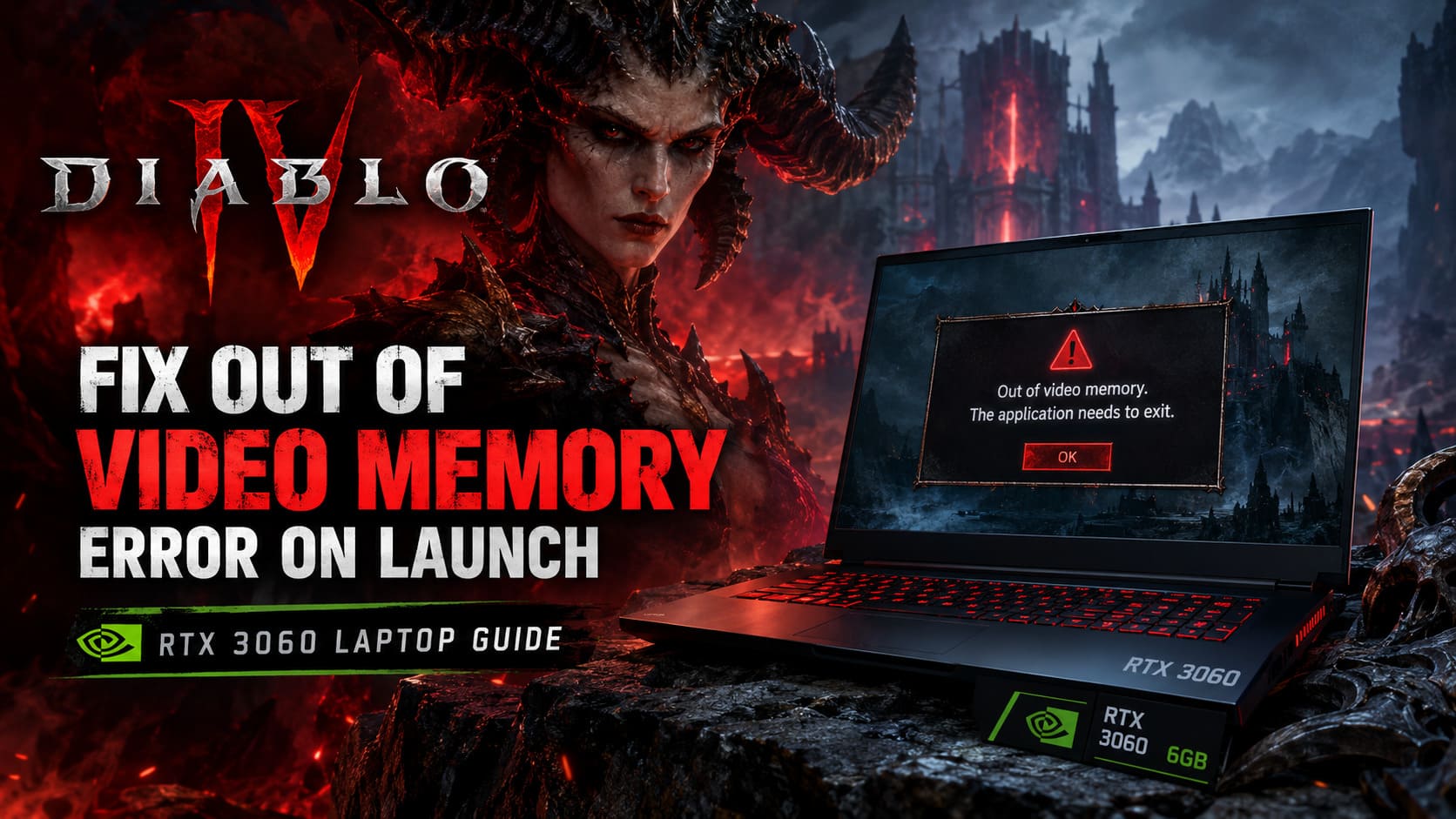
The situation has become more noticeable as Diablo 4 has grown through seasons, patches, expansions, new content, higher-quality assets, and increasingly aggressive texture streaming. A laptop that handled the game perfectly well in an earlier version can suddenly start throwing a Fenris crash or the dreaded Windows message:
“Diablo IV has run out of memory and the application needs to exit.”
I’ve seen plenty of PC games throw misleading memory errors, and Diablo 4 can absolutely feel like one of those cases. An instant crash doesn’t automatically mean your GPU is dying. In many situations, the problem is a combination of VRAM pressure, Windows virtual memory, texture settings, shader cache problems, overlays, and background applications.
If you’re playing Diablo 4 on a 6GB RTX 3060 laptop, the goal isn’t to make the game look like a PS3 title. You just need to stop feeding the engine more data than the laptop can comfortably handle.
Why Diablo 4 Runs Out of Video Memory on an RTX 3060 Laptop
Diablo 4 relies heavily on asset streaming. Instead of loading an entire zone and leaving it untouched, the game constantly moves textures, models, effects, UI elements, environmental assets, and other data in and out of memory.
That’s great for creating a huge seamless world, but it can be rough on a GPU with only 6GB of VRAM.
The problem becomes more obvious during moments when the game suddenly needs a lot of assets at once. Launching the game, entering the character selection screen, loading into a crowded area, teleporting rapidly between zones, or fighting a visually chaotic encounter can all increase memory pressure.
And VRAM isn’t the only thing involved.
Windows can use shared GPU memory, while applications such as Chrome, Discord, Steam, the NVIDIA App, and other background software can also consume graphics resources. Once the available memory gets squeezed hard enough, Diablo 4 may fail during initialization instead of gracefully lowering its demands.
This is why you shouldn’t immediately assume that your RTX 3060 is defective.
The 6GB VRAM Problem
A 6GB laptop GPU doesn’t have much breathing room for modern texture-heavy games.
| Component | RTX 3060 Laptop Situation |
|---|---|
| Dedicated VRAM | 6GB |
| High-Resolution Textures | Very Heavy |
| Ray Tracing | Expensive |
| Background Overlays | Additional Memory Usage |
| Windows Pagefile | Important Safety Net |
| Recommended Texture Setting | Medium |
The important thing here is headroom. You don’t want Diablo 4 sitting on the edge of the VRAM limit every second you play.
Fix #1: Increase the Windows Pagefile
If Diablo 4 crashes before you can even reach the graphics menu, this is one of the first things I’d try.
The Windows pagefile acts as additional virtual memory. It isn’t a magical replacement for VRAM, and it won’t suddenly turn an RTX 3060 into a 12GB GPU, but it can give the system additional breathing room when memory usage spikes.
Windows normally manages the pagefile automatically. That’s convenient, but a fixed allocation can sometimes help systems that struggle during large memory bursts.
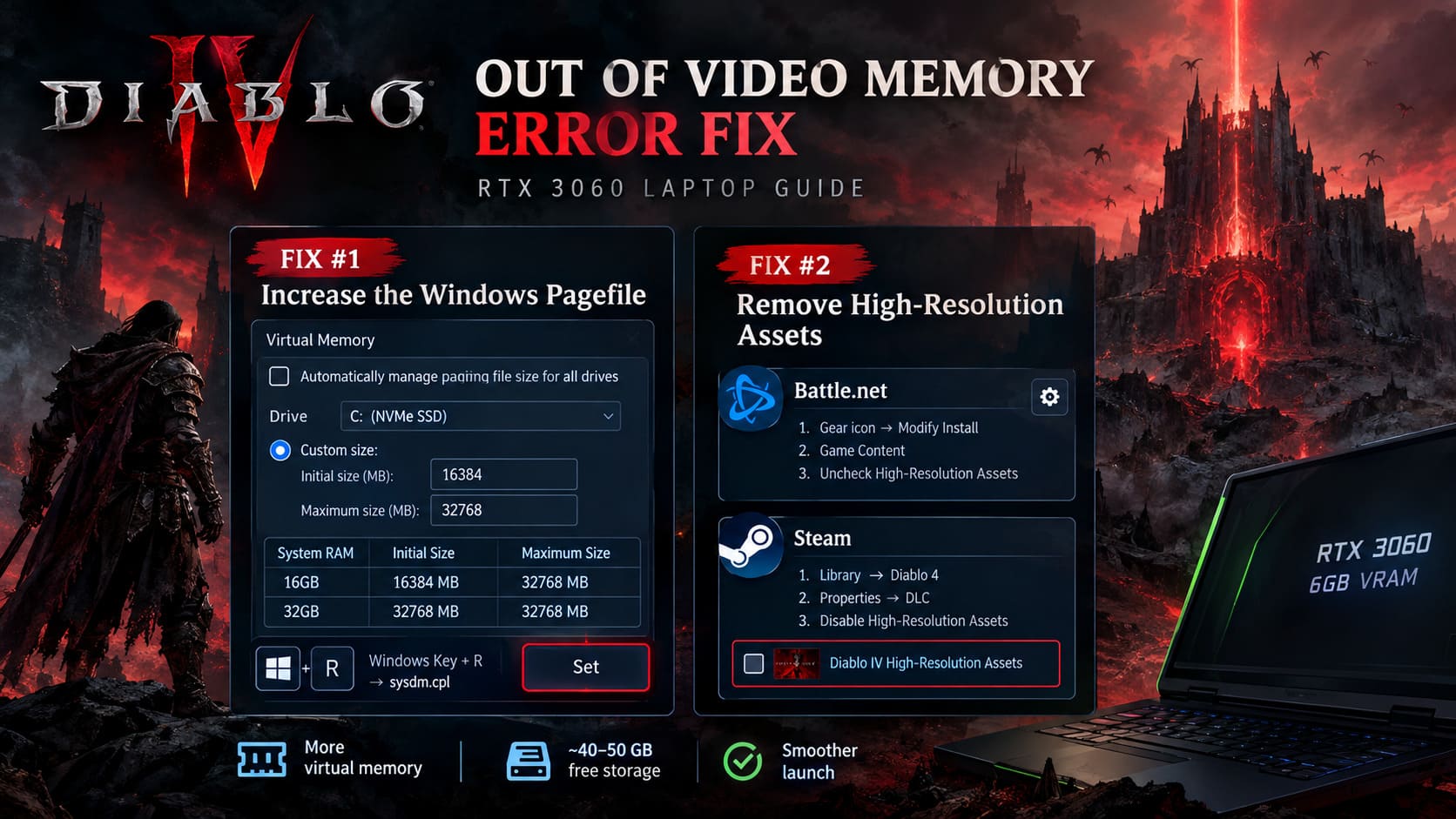
How to Change the Pagefile
- Press Windows Key + R.
- Enter
sysdm.cpland press Enter. - Open the Advanced tab.
- Under Performance, click Settings.
- Select the Advanced tab again.
- Find Virtual Memory and click Change.
- Disable Automatically manage paging file size for all drives.
- Select the drive where Diablo 4 is installed, preferably a fast NVMe SSD.
- Select Custom Size.
- Use the following values as a starting point:
| System RAM | Initial Size | Maximum Size |
|---|---|---|
| 16GB RAM | 16384 MB | 32768 MB |
| 32GB RAM | 32768 MB | 32768 MB |
- Click Set.
- Press OK and apply the changes.
- Restart the laptop.
That Set button is easy to miss. Don’t skip it. I’ve seen Windows configuration guides explain the values perfectly and then forget the one click that actually applies them.
Also, don’t put the pagefile on some ancient mechanical drive if your laptop has an NVMe SSD available. Diablo 4 already has enough streaming work to do.
Fix #2: Remove Diablo 4’s High-Resolution Assets
This is probably the most obvious thing to check if you’re running the game on a 6GB laptop GPU.
The High-Resolution Assets package is designed for systems with considerably more graphics memory. If you’re trying to squeeze Diablo 4 into a 6GB VRAM budget, installing several gigabytes of ultra-heavy textures isn’t exactly helping.
Removing the package can also free up roughly 40GB to 50GB of storage, depending on the current game installation.
Battle.net
Open Diablo 4 in Battle.net and:
- Click the gear icon beside the Play button.
- Select Modify Install.
- Open Game Content.
- Select Modify Install again.
- Find High-Resolution Assets.
- Uncheck it.
- Confirm the changes.
Steam
For the Steam version:
- Open your Steam Library.
- Right-click Diablo 4.
- Select Properties.
- Open the DLC section.
- Find Diablo IV High-Resolution Assets.
- Disable the package.
For a 6GB RTX 3060 laptop, I’d much rather have a stable Medium-texture game than spend hours fighting launch crashes just to keep a texture pack installed that my GPU can’t comfortably exploit.
Fix #3: Force Lower Graphics Through LocalPrefs.txt
Here’s the trick that becomes extremely useful when Diablo 4 crashes before you can touch the settings menu.
The game stores local graphics configuration in LocalPrefs.txt. You can edit this file manually and force the game to start with lower settings.
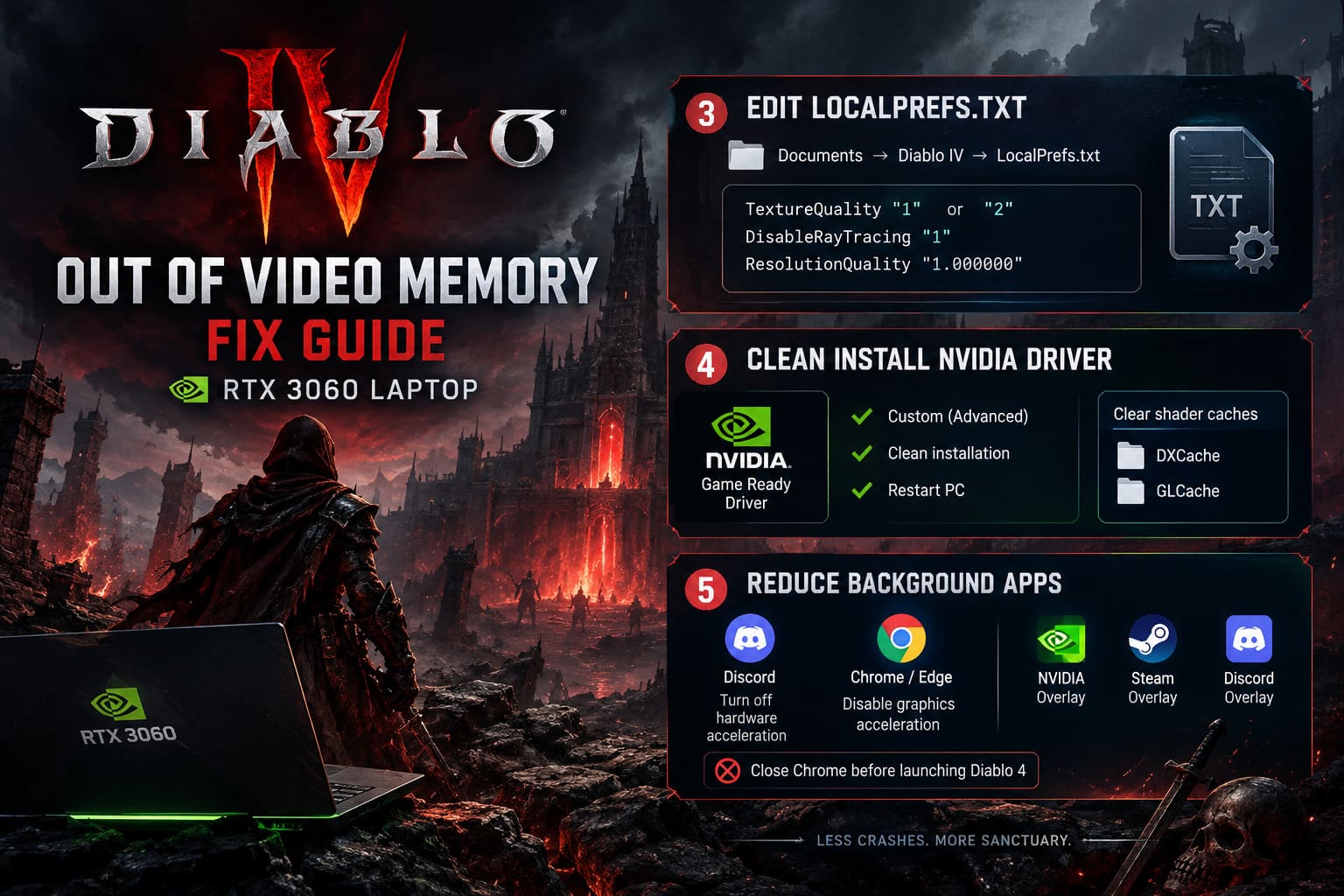
Navigate to:
Documents → Diablo IV → LocalPrefs.txt
Open the file with Notepad.
If the file doesn’t exist, launch Diablo 4 once if possible so the game can generate it. If the game crashes too early, creating a blank file may also be worth trying.
Search for:
TextureQuality "X"
Change it to:
TextureQuality "1"
or:
TextureQuality "2"
The goal here is to force a substantially lighter texture configuration before the game starts throwing another memory tantrum.
You should also look for the following parameters:
DisableRayTracing "1"
ResolutionQuality "1.000000"
Make sure ray tracing is disabled and save the file.
Then launch Diablo 4 again.
If you finally get past the splash screen, do not immediately crank everything back to High. Give the game a few minutes and make sure the crash is actually gone first.
Fix #4: Clean Install the NVIDIA Driver
Driver problems can create some incredibly weird GPU errors. Sometimes a game reports an out-of-memory problem when the underlying issue is actually a corrupted shader cache, driver profile, or graphics configuration.
For an RTX 3060 laptop, download the appropriate NVIDIA Game Ready notebook driver and perform a clean installation.
During setup:
- Select Custom (Advanced).
- Enable Perform a clean installation.
- Complete the installation.
- Restart Windows.
After that, clearing old shader data is worth doing.
Press Windows Key + R, enter:
%localappdata%
Look for NVIDIA cache folders such as DXCache and GLCache and clear their contents.
You can also check the Blizzard-related folders inside Local AppData and remove stale game cache data where appropriate.
The first launch after clearing shader caches can behave differently because Diablo 4 needs to rebuild them. Don’t panic if that first startup takes a little longer than usual.
Fix #5: Kill Discord, Chrome, and Overlay Memory Usage
This is the fix people often overlook because everyone thinks, “It’s just Discord.”
On a 6GB GPU, “just Discord” + Chrome + Steam + NVIDIA overlay + Diablo 4 can become a meaningful chunk of available graphics memory.
Start by disabling hardware acceleration.
Discord
Go to:
User Settings → Advanced → Hardware Acceleration
Turn it off and restart Discord.
Chrome or Edge
Open the browser’s system settings and disable:
Use graphics acceleration when available
Restart the browser afterward.
Then disable unnecessary game overlays:
- NVIDIA App / GeForce overlay
- Steam Overlay
- Discord Overlay
You don’t necessarily have to uninstall anything. The idea is simply to prevent multiple applications from fighting Diablo 4 for graphics resources during startup.
For troubleshooting, I’d go even further: close Chrome completely before launching Diablo 4. Once you’ve confirmed the game is stable, you can experiment with running your normal background applications again.
Diablo 4 Settings for a 6GB RTX 3060 Laptop
Once you’re finally inside the game, don’t waste the opportunity.
A stable baseline for a 6GB RTX 3060 Laptop GPU should look something like this:
| Setting | Recommended Value |
|---|---|
| Texture Quality | Medium |
| Shadow Quality | Medium or Low |
| Ray Tracing | Off |
| NVIDIA DLSS | Quality or Balanced |
| Frame Generation | Off |
| Display Mode | Borderless or Fullscreen |
| Max Foreground FPS | Match Display Refresh Rate |
Texture Quality is the big one. If you’re dealing with repeated VRAM crashes, don’t start by lowering tiny visual options that barely affect memory usage. Texture settings are where I’d begin.
Ray tracing should also stay disabled. It can introduce another significant memory and performance burden that simply isn’t worth it on this particular hardware configuration when stability is already the problem.
DLSS, on the other hand, can be useful. Quality or Balanced is a sensible place to start.
I’d also disable Frame Generation while troubleshooting. Frame Generation isn’t necessarily the direct cause of every memory crash, but when you’re already fighting a limited VRAM budget, adding more complexity isn’t what I’d do first.
Finally, cap your FPS to the laptop’s refresh rate. If you’re using a 60Hz panel, try 60 FPS. With a 120Hz or 144Hz display, use the corresponding limit if the system can maintain it consistently.
What I Would Do First
If this were my own RTX 3060 gaming laptop and Diablo 4 suddenly started throwing the Out of Video Memory error, I wouldn’t spend an entire evening randomly changing twenty graphics settings.
I’d go in this order:
- Remove High-Resolution Assets.
- Disable ray tracing and lower textures to Medium.
- Close Discord, Chrome, and overlays.
- Increase the Windows pagefile.
- Clean-install the NVIDIA driver.
- Clear NVIDIA and Diablo 4 shader/cache data.
- Edit LocalPrefs.txt if the game still crashes before reaching the menu.
That gives you a clean baseline instead of changing everything at once and having no idea which fix actually worked.
Diablo 4 Socket Guide: How to Add Sockets to Jewelry and Weapons (2026)
Final Thoughts
The Diablo 4 Out of Video Memory crash looks scary, especially when it happens before the game even reaches the main menu. But on an RTX 3060 Laptop GPU, the first assumption shouldn’t be that the graphics card is dying.
The bigger issue is that 6GB of VRAM leaves very little room for error in a modern, constantly streaming game like Diablo 4.
The combination of lower texture quality, removing the High-Resolution Assets package, disabling unnecessary overlays, maintaining a healthy Windows pagefile, and cleaning up NVIDIA driver caches can dramatically reduce the memory pressure that causes these crashes.
And honestly, there’s no shame in running Diablo 4 at Medium textures. In the middle of a hectic Helltide, Nightmare Dungeon, or boss fight, you’re not going to stop and admire the pores on a demon’s face. Stable FPS and a game that actually stays running beat Ultra textures followed by a desktop crash every single time.
If your RTX 3060 laptop can boot Diablo 4 reliably after these changes, keep the conservative settings for a while and gradually raise individual options. Change one setting at a time. That way, if the dreaded Fenris crash comes back, you’ll know exactly what pushed the system over the edge.