How to Fix Aion 2 Not Loading, Crashing on Launch, and Fatal Errors (2026 Guide)
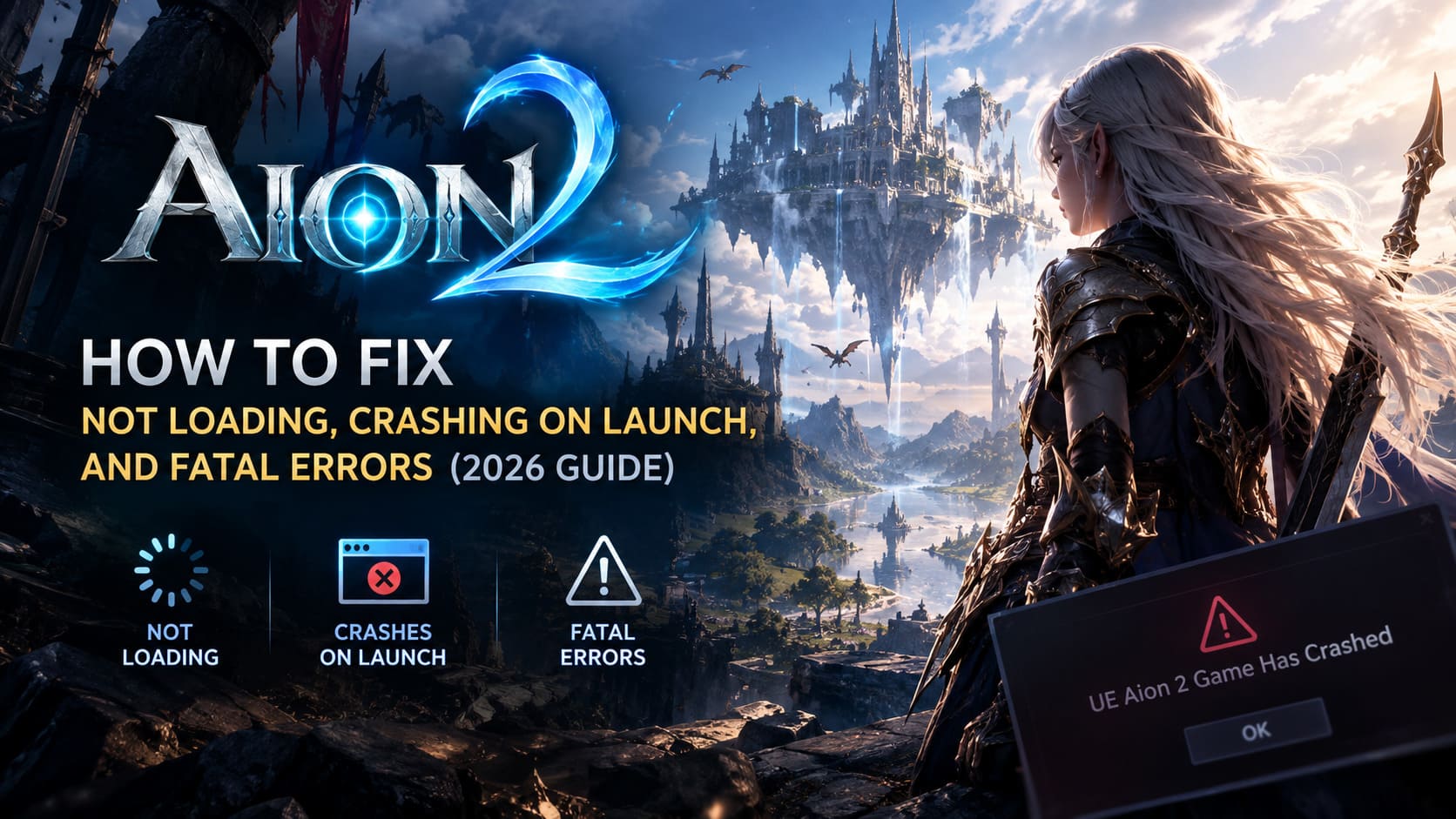
Aion 2 looks absolutely brutal when everything is running correctly. The Unreal Engine 5 visuals, huge environments, flashy combat effects, and large-scale MMORPG battles can make your PC work overtime. The problem is that some players are discovering the less glamorous side of a modern UE5 MMO: crashes on startup, infinite loading screens, black screens, sudden desktop exits, and the dreaded “UE Aion 2 Game Has Crashed” Fatal Error.
I’ve dealt with enough PC game launches to know that there usually isn’t one magical setting that fixes everything. A crash can come from a corrupted launcher cache, a broken game file, an overlay trying to hook into the renderer, a driver problem, unstable hardware, or even a bad network route. Aion 2 can be particularly annoying because several of these problems look almost identical from the player’s side.
This guide focuses on the fixes that are actually worth trying before you start randomly reinstalling Windows or blaming your GPU. Work through them from top to bottom. The early solutions are quick and low-risk, while the later sections deal with Windows services, hardware stability, temperatures, and network problems.
Aion 2 Crash and Loading Problems at a Glance
| Problem | Most Likely Cause | First Fix to Try |
|---|---|---|
| Game closes after the logo | PURPLE cache or authentication session | Clear PURPLE cache and sign in again |
| Fatal Error on startup | Corrupted files or overlay conflict | Repair files and disable overlays |
| Infinite loading screen | Network routing or packet loss | Use Ethernet and check routing |
| Black screen with game audio | GPU, driver, thermal, or CPU stability issue | Check temperatures and hardware stability |
| Heavy stuttering after entering areas | Shader compilation | Preload skills, effects, and nearby environments |
| Game works after a clean boot | Third-party background software | Find the conflicting service or startup app |
1. Clear the PURPLE Launcher Cache First
If Aion 2 crashes immediately after the logo, don’t jump straight into complicated Windows tweaks. Start with the PURPLE launcher. Corrupted temporary data can cause the launcher and game client to get out of sync, especially after updates or authentication changes.
Completely close Aion 2 and PURPLE. Open Task Manager with Ctrl + Shift + Esc and check that there isn’t a leftover PURPLE.exe or Aion2.exe process sitting in the background. If you find one, terminate it before continuing.
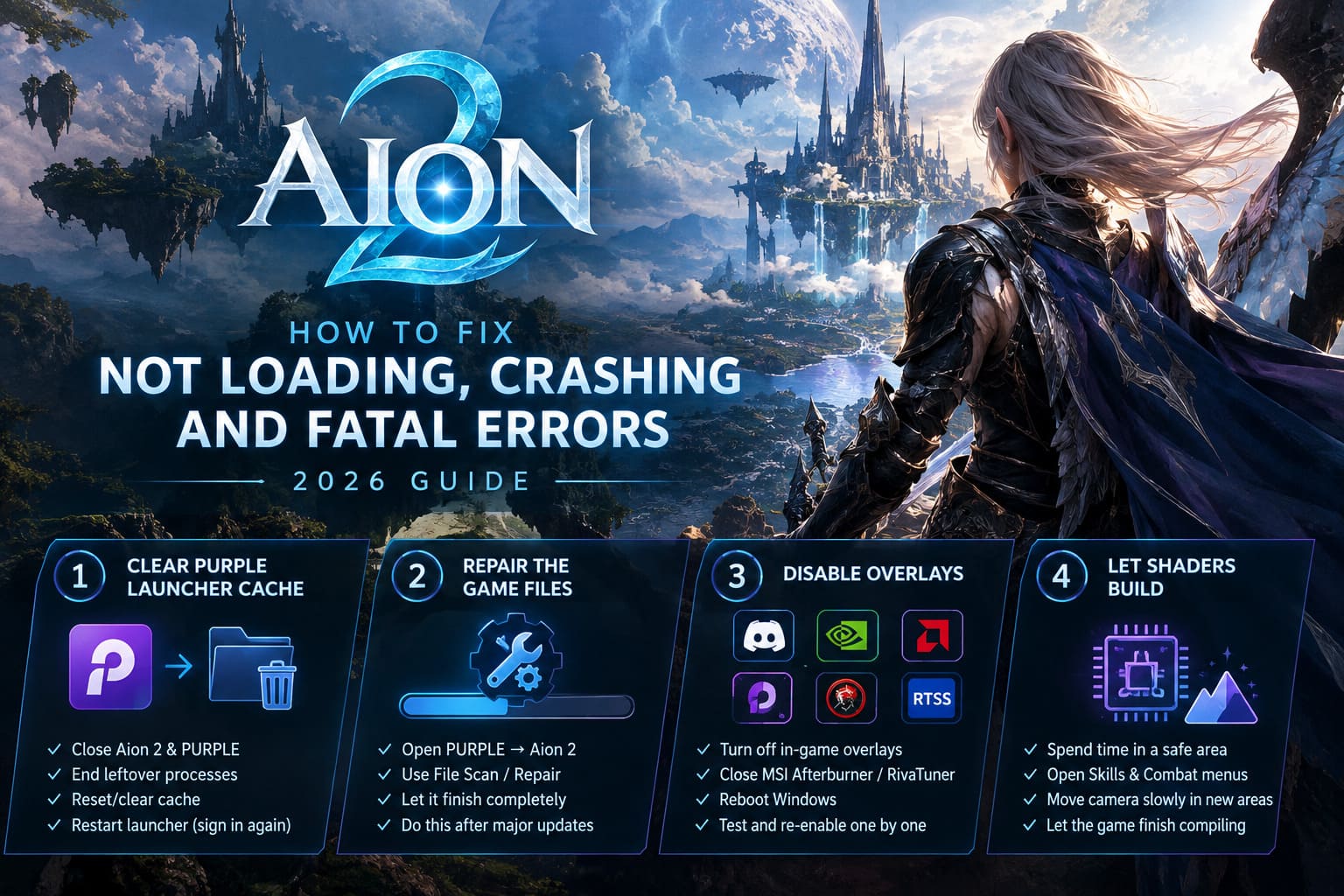
Open PURPLE again and check its settings around the Aion 2 launch options. If there is a cache reset or cleanup option available, use it. If the launcher doesn’t provide the option, press Windows + R, enter %localappdata%, and look for the PURPLE folder. If a Cache directory is present, removing it can force the launcher to rebuild its temporary data.
Restart PURPLE afterward. You may have to sign into your NCSOFT account again. That is intentional: you’re effectively forcing a fresh launcher session instead of continuing to use potentially stale temporary authentication data.
2. Repair the Aion 2 Installation
This is the boring fix that players love to skip and then regret later. If an update was interrupted, your storage drive had a hiccup, or one of the large UE5 asset packages became corrupted, Aion 2 can crash as soon as it tries to load the damaged data.
Open the PURPLE launcher, select Aion 2, and open the options menu beside the main launch button. Look for an option such as File Scan, Repair, or Repair Game Files.
Let the scan finish completely. Don’t launch another game, close PURPLE, or restart the computer halfway through the process. If damaged files are detected, the launcher should replace them with fresh copies.
Especially try this after a major Aion 2 patch. A game can appear to launch normally while still crashing when it reaches one particular texture, animation, map, or shader-related asset.
3. Turn Off Every Overlay You Don’t Need
This is one of the first things I’d test when dealing with an Unreal Engine crash. Overlays are convenient, but they also inject themselves into the game. When several different programs try to hook into the same rendering pipeline, things can get ugly very quickly.
- PURPLE Overlay: Disable the in-game overlay through the launcher settings if the option is available.
- Discord Overlay: Go to Discord’s Game Overlay settings and disable it.
- NVIDIA Overlay: Turn off the NVIDIA in-game overlay.
- AMD Radeon Overlay: Disable the equivalent overlay if you’re using an AMD GPU.
- MSI Afterburner / RivaTuner: Close both completely while troubleshooting.
Don’t underestimate that last one. RivaTuner is fantastic when you’re tuning frametimes and monitoring a game, but when you’re trying to determine why an Unreal Engine title is crashing during initialization, you want as few variables as possible.
After disabling the overlays, reboot Windows and launch Aion 2 again. If the crash disappears, you can start re-enabling your utilities one at a time to find the offender.
4. Give Aion 2 Time to Build Its Shader Cache
Some of the stuttering people experience in modern UE5 games isn’t necessarily a broken installation. Shader compilation can hammer the CPU and GPU when the game encounters new effects, skills, environments, and materials.
Aion 2 doesn’t give players a huge, obvious pre-launch shader compilation sequence that explains what is happening. Instead, shader-related work can appear while you’re actually playing. The result can be sudden frame drops, hitching, or even a driver crash when entering a new area.
One practical workaround is to spend some time in a relatively safe location after updating the game or graphics driver. Open your Skills and Combat menus and cycle through your abilities. Triggering different skills can force the engine to load their associated effects and animations.
When moving into a new region, slowly rotate your camera around the environment rather than sprinting straight through it. It sounds ridiculous, but it gives the engine more time to process new assets instead of hitting everything at once.
If your Aion 2 performance becomes smoother after several minutes in the same area, shader compilation may be part of the problem rather than a permanent FPS issue.
5. Check Windows Security and Antivirus Exceptions
Security software can occasionally interfere with games, especially when a launcher, anti-cheat system, network component, and game executable are all communicating with each other.
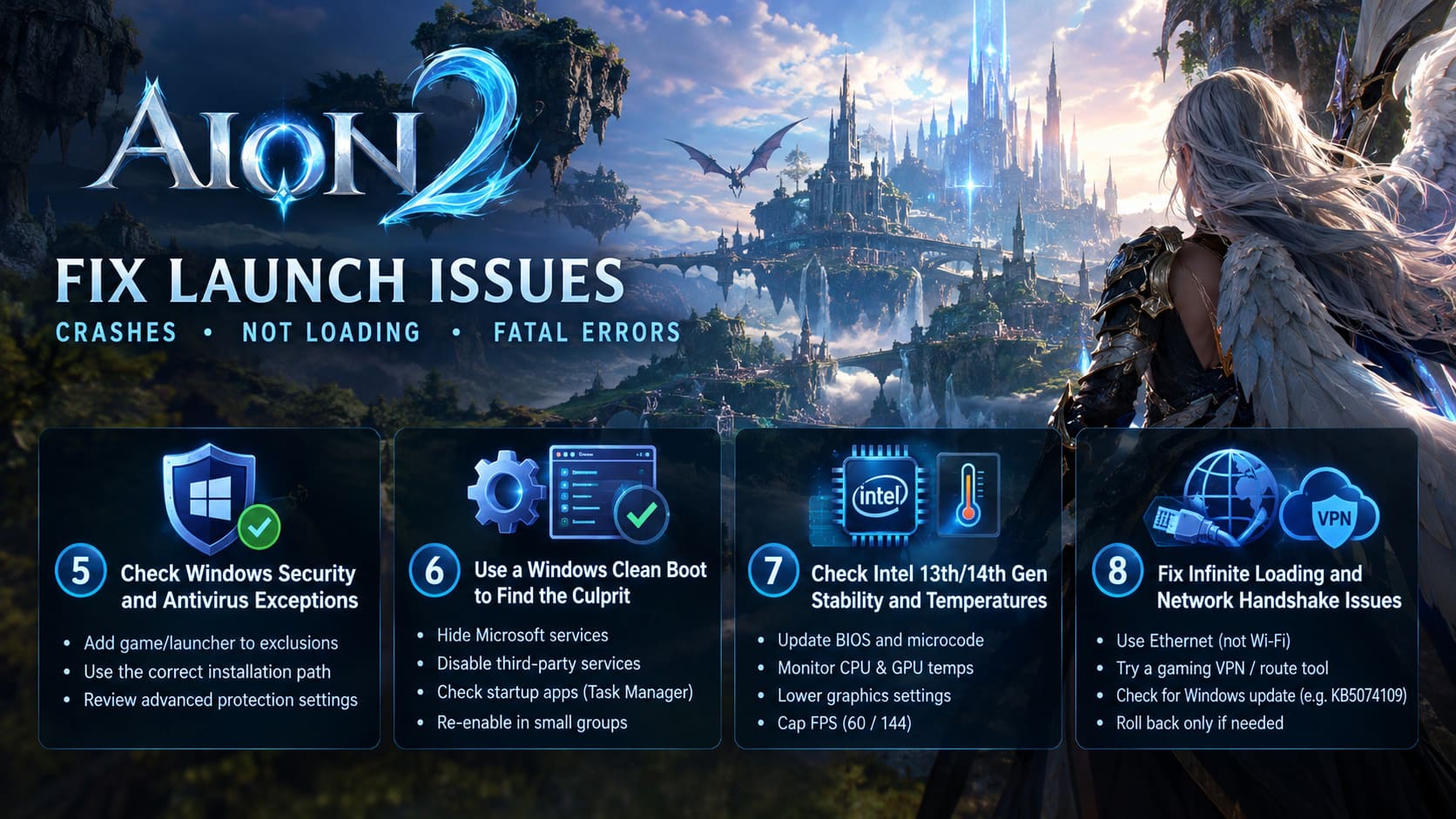
If Aion 2 suddenly closes without a useful error message, check your antivirus and Windows Security configuration. Look for the Exclusions or Exceptions section and review whether the launcher or game executable has been blocked.
If you choose to add an exclusion, use the actual installation directories on your PC rather than blindly copying a path from someone else’s setup. The game may be installed on another drive or in a custom directory.
Depending on the security software you’re using, you may also need to review advanced protection modules that monitor suspicious applications or network activity. Some players have reported crashes associated with security software incorrectly interfering with Aion 2 processes.
Don’t disable your entire antivirus permanently. The goal is to identify a conflict and create a targeted exception when necessary.
6. Use a Windows Clean Boot to Find the Hidden Culprit
If Aion 2 instantly disappears from your screen and doesn’t give you anything useful to work with, a clean boot is one of the best diagnostic tools available in Windows.
Press Windows + R, type msconfig, and press Enter. Open the Services tab and, most importantly, enable Hide all Microsoft services. Only after hiding Microsoft’s services should you disable the remaining third-party services.
Next, open the Startup section and use Task Manager to disable unnecessary startup applications. Restart the PC and test Aion 2.
If the game suddenly works, you have learned something important: the problem probably isn’t the core Aion 2 installation. A background program is interfering with it.
Common suspects include peripheral utilities, RGB software, hardware monitoring tools, motherboard utilities, overclocking applications, and other programs that inject overlays or hooks into games.
Don’t leave everything disabled forever. Re-enable services in small groups and test the game after each change. It’s basically A/B testing for your PC.
7. Investigate Intel 13th/14th Gen Stability and Temperatures
A black screen deserves more attention than an ordinary game crash. If the monitor loses signal but you can still hear Aion 2 audio, the problem may extend beyond the game itself.
Owners of some Intel 13th and 14th Gen desktop processors should make sure their motherboard BIOS and CPU microcode are up to date. These generations have had widely documented stability concerns, and demanding workloads can expose problems that lighter games never reveal.
Check your motherboard manufacturer’s latest BIOS release and use the manufacturer’s recommended update procedure. Avoid randomly changing CPU voltage or multiplier settings if you don’t know exactly what you’re doing.
Temperature is another major clue. Monitor CPU and GPU temperatures while playing. If crashes happen specifically during massive battles, high particle effects, or other heavy scenes, thermal behavior deserves investigation.
Try lowering the graphics preset, reducing unnecessary effects, and applying a sensible FPS cap such as 60 FPS or 144 FPS depending on your display. A stable frame rate is much more useful for troubleshooting than pushing the GPU at maximum load all the time.
8. Fix Aion 2 Infinite Loading and Network Handshake Problems
If Aion 2 launches correctly but gets stuck forever after selecting your character or server, the problem may not be your PC at all. Network routing, packet loss, authentication communication, or an unstable connection can leave the client waiting for a response that never arrives.
The first test is simple: use Ethernet instead of Wi-Fi. Wireless connections can work perfectly for browsing and still introduce enough packet loss to cause problems in an online MMO.
If your normal ISP route appears unstable, some players have experimented with gaming VPNs or network-routing tools such as LagoFast and GearUP Booster. These services attempt to route traffic through different nodes. Results can vary heavily by region and ISP, so treat this as a troubleshooting test rather than a guaranteed solution.
Also check whether the problem began immediately after a Windows update. The supplied community reports specifically mention KB5074109 as a possible trigger for some DirectX 12-related issues. If your crashes or black screens started directly after a particular Windows update, check Settings > Windows Update > Update History and compare the timing.
Before uninstalling any Windows update, however, make sure you’re dealing with the actual update in question and understand the security implications of removing it. Rolling back system updates should be a troubleshooting step, not your first reaction to one bad gaming session.
My Recommended Aion 2 Troubleshooting Order
If you don’t want to spend an entire evening changing random settings, here’s the order I’d personally follow. Start with the fixes that take minutes and don’t touch your system configuration deeply.
- Restart Aion 2 and PURPLE completely.
- Clear the PURPLE cache and sign in again.
- Run the Aion 2 file repair/scan.
- Disable Discord, PURPLE, NVIDIA/AMD, Afterburner, and RTSS overlays.
- Restart Windows and test the game.
- Check GPU/CPU temperatures and graphics drivers.
- Perform a clean boot if the crash continues.
- Investigate network routing if the problem is an infinite loading screen.
- Only then investigate BIOS, CPU stability, Windows updates, or deeper system-level problems.
Aion 2 Best Solo Classes Guide: Starter Class Tier List For Solo Players (2026 Launch)
Don’t Reinstall Windows Just Yet
Aion 2 crashing on launch is frustrating, especially when you just want to log in and start playing instead of becoming an unpaid PC technician. The good news is that you can eliminate a surprising number of possible causes without reinstalling the entire game or operating system.
Start with PURPLE cache cleanup, file repair, and overlay removal. Those three checks are fast and cover several common launch problems. If the game still crashes, move toward clean-boot testing, antivirus exclusions, temperatures, CPU/GPU stability, and finally network diagnostics.
For infinite loading, think differently from the start. If the launcher works, the game reaches the character screen, and everything breaks when you connect to the world, don’t immediately blame your graphics card. Test the connection, use Ethernet, and investigate routing.
For black screens and complete signal loss, treat the problem more seriously. Check temperatures, drivers, BIOS updates, and hardware stability rather than assuming Aion 2 itself is simply broken.
The key is to change one thing at a time. If you simultaneously reinstall drivers, disable security software, change BIOS settings, install a VPN, and remove overlays, you won’t know which change actually fixed the problem. A methodical approach takes a little longer, but it saves you from chasing the same crash all weekend.
Aion 2 is a demanding modern MMORPG, and UE5 games can expose weaknesses that older titles never touched. That doesn’t mean every crash is a hardware failure. In many cases, the fix is something surprisingly mundane: a stale launcher cache, one corrupted file, an overlay fighting with the renderer, or a background application quietly getting in the way.
Work through the list, keep track of what you change, and test after every major step. That’s the fastest way to turn an annoying “UE Aion 2 Game Has Crashed” message into an actual diagnosis instead of another rage quit.