Exit Ways Controller Support on PC Steam: Complete Setup and Troubleshooting Guide
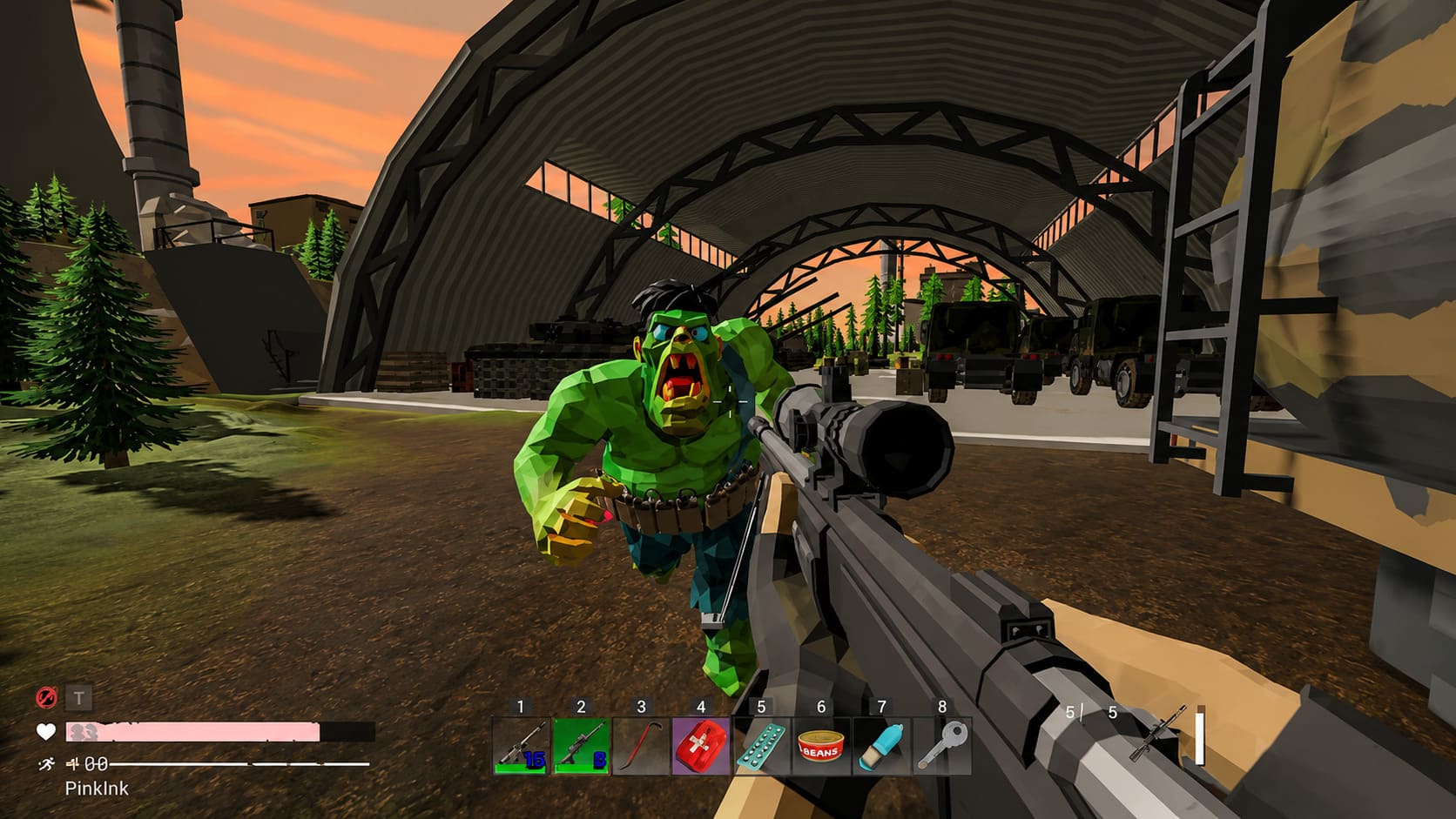
If there is one thing I have learned from playing a ridiculous number of PC shooters, it is that a controller can either feel fantastic or completely ruin a game, depending on how well it is configured. That matters even more in an extraction shooter like Exit Ways, where a bad input, missed interaction, or delayed movement can cost you an entire backpack of gear. ASKES’ post-apocalyptic PvEvP survival shooter puts players into dangerous zones filled with infected enemies, other players, valuable resources, and plenty of reasons to keep moving.
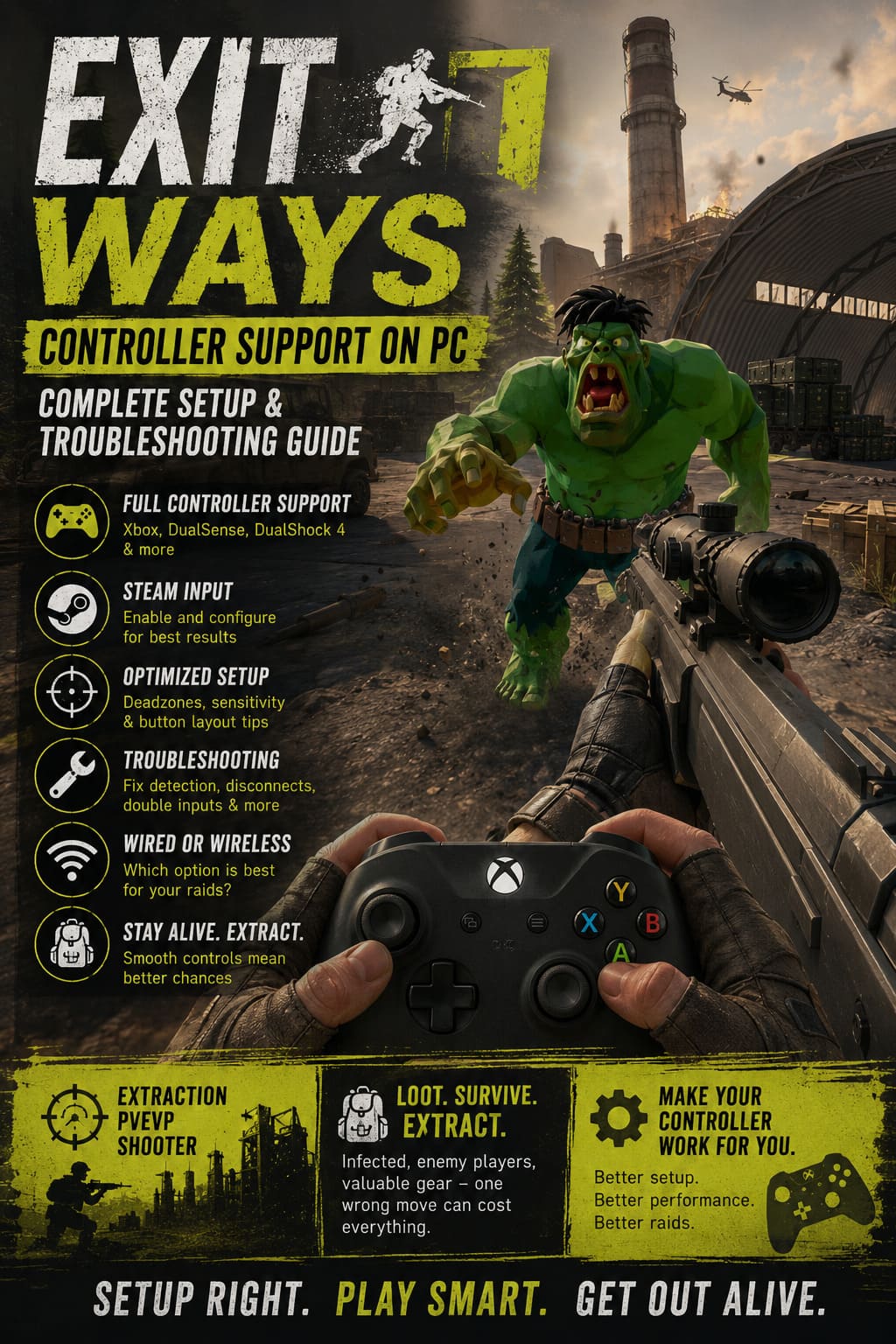
Keyboard and mouse will probably remain the preferred setup for players who want maximum aiming precision, but I would not dismiss a gamepad here. If you are more comfortable with an Xbox controller, DualSense, DualShock 4, or another modern gamepad, Exit Ways controller support on PC through Steam can provide a very comfortable way to play. The trick is getting Steam Input, button mappings, sensitivity, and deadzones working together instead of simply plugging the controller in and hoping everything behaves.
This guide covers the practical setup I would use, the controller settings worth experimenting with, and the fixes to try when Exit Ways refuses to recognize your gamepad properly.
Is Exit Ways Coming to Xbox Series X? Console Release Date Rumors and Studio News
Does Exit Ways Support Controllers on PC?
Controller support on PC can sometimes be confusing, especially with newer or early-access games. There is a difference between a game having complete native controller support and Steam being able to translate controller inputs through Steam Input.
For Exit Ways, Steam Input is particularly useful because it gives PC players another layer of compatibility. Modern controllers such as the Xbox Wireless Controller, PlayStation DualSense, DualShock 4, and Nintendo Switch Pro Controller can generally be configured through Steam’s controller system rather than relying entirely on the game to recognize every device directly.
That distinction is important. If your controller works perfectly in other Steam games but does nothing inside Exit Ways, the hardware itself probably isn’t the problem. In many cases, the issue is simply the way the game and Steam are communicating with the controller.
Controllers Worth Considering
| Controller | PC Experience | What I Like |
|---|---|---|
| Xbox Wireless Controller | Excellent | Straightforward XInput compatibility |
| DualSense | Very Good | Comfortable ergonomics and excellent sticks |
| DualShock 4 | Good | Still a solid option with Steam Input |
| Switch Pro Controller | Good | Comfortable for longer sessions |
| Third-Party XInput Pad | Varies | Can be excellent if properly supported |
Personally, an Xbox-style controller is the easiest starting point on Windows. It tends to require less fiddling, while PlayStation controllers can sometimes benefit more from Steam Input configuration.
How to Enable Steam Input for Exit Ways
If your controller isn’t being detected correctly, I would start with Steam Input before changing anything else. There is little point adjusting sensitivity or button assignments if Steam itself isn’t passing the inputs correctly.
First, connect the controller to your PC. A USB cable is my preferred choice when troubleshooting because it removes Bluetooth from the equation. Once you know everything works, you can switch back to wireless play if you want.
Open Steam and go to your Library, then find Exit Ways. Open the game’s properties and look for the Controller section. Depending on the current Steam interface, you should find an option controlling how Steam Input is handled for the game.
If Steam Input is available, set it to Enable Steam Input rather than relying on the default behavior. This allows Steam to translate your controller inputs into commands the game can understand.
After changing the setting, completely close Exit Ways if it was already running and launch it again. I recommend doing this rather than switching settings while the game is active because some games only detect their active input device when they start.
Configure Your Controller Before Entering a Raid
Getting the controller recognized is only half the job. An extraction shooter puts very different demands on a gamepad compared with a slower third-person adventure.
You want important actions to be accessible without constantly removing your thumb from the right stick. Movement, aiming, sprinting, jumping or vaulting, reloading, interacting, and weapon handling all compete for a surprisingly small number of buttons.
Steam’s Controller Configurator gives you the opportunity to experiment with different layouts. You can start with the game’s recommended configuration and then modify it rather than building an entire control scheme from zero.
One change I strongly recommend experimenting with is moving important contextual actions to the shoulder buttons where possible. Having to move your thumb away from the aiming stick just to interact with something can be surprisingly costly when another player is nearby.
Rear Paddles Can Be a Huge Advantage
If your controller has rear paddles, this is where they become genuinely useful rather than just a fancy extra.
I would consider assigning one paddle to sprint and another to an action such as jump, crouch, or another frequently used command. The idea is simple: keep your thumbs on the sticks while performing movement actions.
This is particularly valuable while looting. Extraction shooters constantly put you in situations where you need to interact with an object while remaining ready to aim. A well-configured controller can make that process much smoother.
Find the Right Stick Deadzone
Deadzone settings are one of those things many players ignore until their controller starts behaving strangely.
The deadzone determines how far you need to move an analog stick before the game registers that movement. A large deadzone can make a controller feel sluggish, while an extremely small deadzone can expose stick drift.
For a relatively new controller, I would start with a modest deadzone and gradually reduce it. Move the stick slowly and test whether you can make small aiming adjustments without accidentally triggering movement.
If your character or camera moves without you touching the controller, increase the deadzone slightly. Do not automatically assume the game is broken—stick drift is often a hardware issue that becomes obvious when the deadzone is too aggressive.
For precision weapons, lower deadzones can feel much better because tiny stick movements are actually registered. For an older controller with noticeable drift, however, stability is more important than maximum responsiveness.
Controller Sensitivity: Don’t Copy Someone Else’s Settings
Sensitivity recommendations are everywhere, but after playing different shooters, I think copying somebody else’s exact numbers is usually a mistake.
Your preferred sensitivity depends on the controller, stick condition, display setup, field of view, and—most importantly—your own muscle memory. Start somewhere comfortable and adjust gradually instead of making massive changes between matches.
I generally prefer a setup that lets me turn reasonably quickly without making small aiming adjustments feel nervous. Extraction shooters reward consistency more than flashy sensitivity settings.
Spend a few minutes testing your controller before an important run. Losing an expensive loadout because your sensitivity suddenly feels wrong is a much worse way to discover the problem.
What to Do If Exit Ways Doesn’t Detect Your Controller
One of the most frustrating situations is launching the game only to discover that none of the controller buttons work.
Before assuming that the controller is incompatible, go through the basics:
- Confirm that Windows detects the controller.
- Test it in another Steam game.
- Restart Steam completely.
- Check the game’s Steam Input setting.
- Reconnect the controller before launching the game.
- Try USB instead of Bluetooth.
- Close third-party controller remapping applications.
That last point is particularly important.
Programs such as DS4Windows, JoyToKey, and other remapping utilities can potentially interfere with Steam Input. Running multiple translation layers at the same time can result in duplicate inputs, incorrect button prompts, or a controller that works inconsistently.
If Steam Input is handling your controller, I would normally close additional remapping software unless you have a specific reason to use it.
Fix Double Inputs and Keyboard/Controller Prompt Switching
Another annoying problem occurs when the interface constantly switches between keyboard and controller prompts.
For example, you might see controller icons one second and keyboard keys the next. This can happen when multiple input devices are sending signals simultaneously.
Disconnect unnecessary peripherals temporarily. You probably don’t need a second keyboard, racing wheel, flight stick, or another gamepad connected while troubleshooting Exit Ways.
After disconnecting them, restart the game and test again. If the problem disappears, reconnect your devices one at a time until you identify what is causing the conflict.
This sounds basic, but isolating hardware conflicts is often much faster than changing dozens of software settings at random.
Controller Disconnects During Gameplay
Wireless controllers are convenient, but connection problems become much more painful during an extraction run.
If your controller disconnects because of battery-saving behavior or a Bluetooth problem, reconnecting it doesn’t always guarantee that Exit Ways will immediately recognize it again. If that happens, I would stop trying random button combinations and reset the input chain.
Turn the controller off, exit the game, and restart Steam. You can also launch Steam in Big Picture Mode, which is designed around controller navigation and can sometimes provide a cleaner detection path.
Then reconnect the controller and launch Exit Ways again.
For serious raids, I would personally use a wired connection. Bluetooth has improved enormously, but when losing a gunfight means losing your equipment, eliminating one possible source of latency or interference is worth it.
Wired vs. Wireless Controller for Exit Ways
There is no universal rule that wired is always better. A modern wireless controller can feel extremely responsive, and for casual sessions the difference may be irrelevant.
However, Exit Ways is not exactly a casual game when you are carrying valuable equipment. A USB connection removes battery concerns and reduces the number of variables between your controller and PC.
If I were preparing for a particularly important raid, I would choose wired. For relaxed scavenging or shorter sessions, wireless is perfectly reasonable if your Bluetooth connection is stable.
My Recommended Setup
If I were configuring Exit Ways on my own PC, I would keep things relatively simple rather than trying to create an overly complicated competitive layout.
| Setting | Starting Recommendation |
|---|---|
| Connection | USB while testing |
| Steam Input | Enabled if native detection is unreliable |
| Stick Deadzone | Low-to-medium |
| Aim Sensitivity | Comfortable rather than extreme |
| Important Actions | Easy-access shoulder buttons |
| Rear Paddles | Sprint / movement actions |
| Extra Remapping Software | Disabled while troubleshooting |
| Competitive Raids | Wired connection preferred |
The important part is that these are starting points, not universal rules. Your controller and playstyle should ultimately determine the final configuration.
Final Thoughts
After spending plenty of time with different PC shooters, I have come to appreciate just how much controller configuration can affect the experience. A gamepad will never feel exactly like a mouse when you are trying to make tiny head-level corrections, but that doesn’t mean controller players should feel disadvantaged by poor setup.
With Exit Ways, the key is to make the controller disappear into the background. You should be thinking about the infected, enemy players, extraction routes, and your loot—not wondering why your character refuses to sprint.
Start with a reliable USB connection, configure Steam Input, build a sensible button layout, tune your stick deadzones, and eliminate conflicting remapping software. Once everything feels consistent, give yourself a few matches to build muscle memory before judging the setup.
For me, that is the real test of a good controller configuration: after an hour of playing, I shouldn’t be thinking about the controls at all. If the gamepad lets you move, aim, loot, and react naturally under pressure, it is doing its job. In a brutal extraction shooter where one mistake can erase an entire run, that kind of reliability is worth far more than a fancy configuration filled with unnecessary tweaks.