How to Change Voiceover Language in Zenless Zone Zero PC (2026 Guide)
One of the first things I do when starting any story-driven game is check the voice acting options. For me, the right voiceover can completely change how characters feel, how emotional scenes hit, and even how enjoyable combat becomes. That’s especially true in Zenless Zone Zero, HoYoverse’s stylish action RPG that blends fast-paced battles with a surprisingly engaging cast of characters.
Whether you’re a longtime anime fan who prefers Japanese voice acting, someone who enjoys the original Chinese performances, or a player who simply wants clear English dialogue during intense combat sequences, Zenless Zone Zero gives you plenty of flexibility. The best part is that changing the voice language on PC takes only a few moments and doesn’t require progressing through hours of gameplay.
In this guide, I’ll walk you through the easiest ways to switch voiceover languages, manage downloaded audio packs, save storage space, and fix common problems that can appear after changing language settings.
Why Voiceover Language Matters in Zenless Zone Zero
Voice acting is a huge part of the ZZZ experience. Every Agent has a unique personality, and different language tracks often deliver completely different vibes.
Personally, I switch between English and Japanese depending on which characters I’m using. Some characters sound fantastic in English, while others feel more natural in Japanese. That’s one of the strengths of HoYoverse games—every localization receives a significant amount of attention.
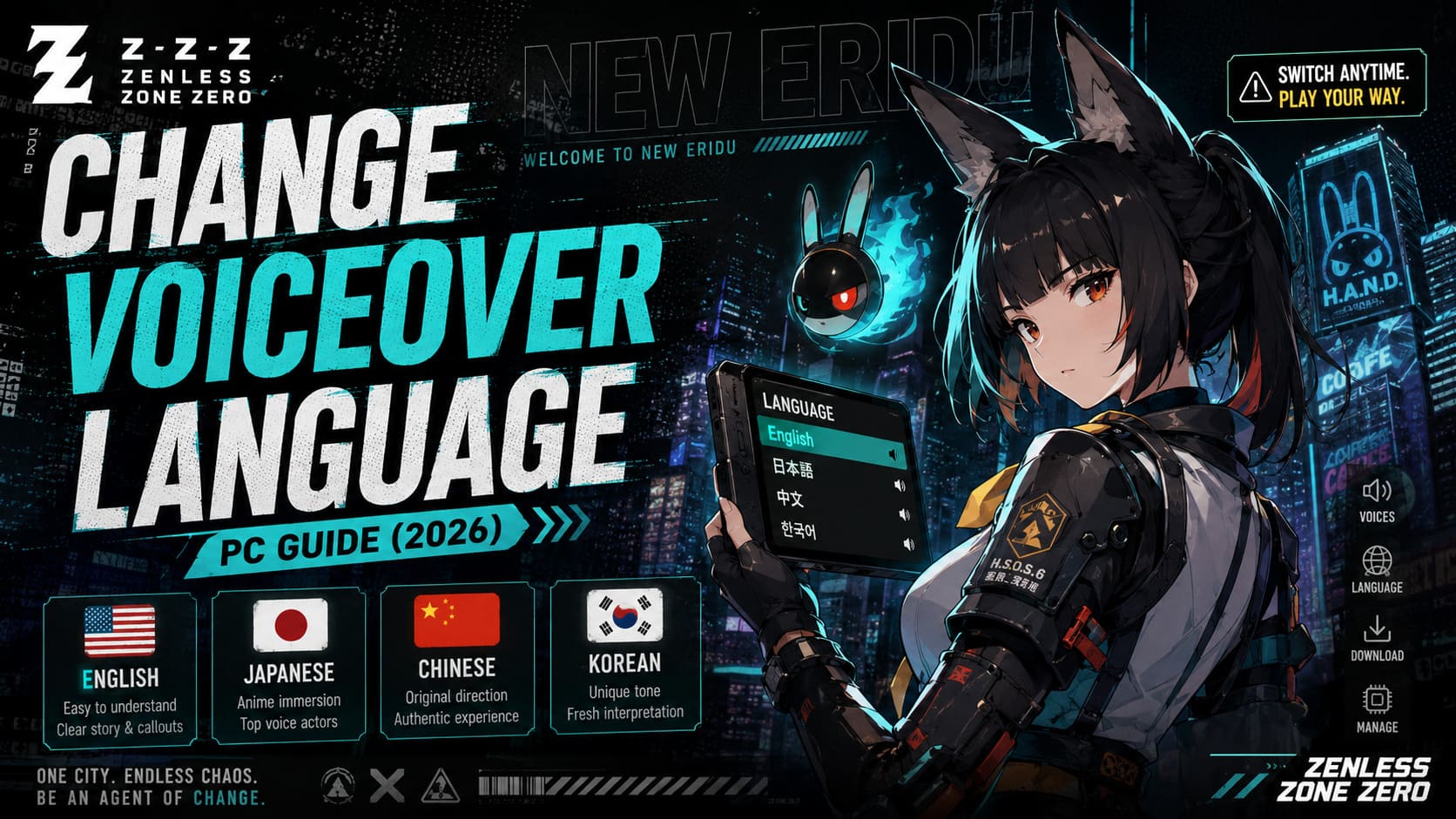
Available voiceover options currently include:
| Voice Language | Best For |
|---|---|
| English | Easy story comprehension and combat callouts |
| Japanese | Anime-style immersion and popular voice actors |
| Chinese | Original performance direction |
| Korean | Unique character interpretations and tone |
The nice thing is that you’re not locked into a single choice forever. You can experiment and switch whenever you want.
Method 1: Change Voice Language from the Main Menu
If you’re launching the game for the first time or simply want to adjust settings before entering New Eridu, this is probably the fastest method.
Steps:
- Launch Zenless Zone Zero on your PC.
- Wait until you reach the main login screen.
- Find the Settings or Options icon.
- Open the settings menu.
- Navigate to the Language section.
- Locate Voice-Over Language.
- Select your preferred language.
- Confirm the download if the language pack isn’t installed.
- Wait for the files to finish downloading.
- Return to the main screen and start playing.
In my experience, downloading an additional voice pack usually takes only a few minutes depending on your internet connection.
Method 2: Change Voiceover Language During Gameplay
One feature I really appreciate in Zenless Zone Zero is that you don’t need to quit your current session to switch audio languages.
Here’s how:
- Press Esc while in-game.
- Open the Options menu.
- Select Language from the left sidebar.
- Find Voice-Over Language.
- Choose the language you want.
- Download any missing files if required.
- Close the menu and continue playing.
Most voice changes become active almost immediately after installation, making it easy to compare different performances.
Which Voice Language Is the Best?
This is obviously subjective, but after spending a lot of time with the game, here’s my personal ranking:
Japanese Voiceover
For anime fans, Japanese is difficult to beat. The delivery feels energetic, emotional, and often fits the game’s urban fantasy atmosphere perfectly.
Pros:
- Excellent voice actor lineup
- Strong emotional performances
- Authentic anime-style experience
English Voiceover
English dubbing in modern games has improved dramatically over the years, and ZZZ is no exception.
Pros:
- Easy to follow story scenes
- Great for multitasking during combat
- High-quality localization
Chinese Voiceover
Since HoYoverse is a Chinese developer, many players enjoy experiencing the original performances.
Pros:
- Closest to original creative direction
- Unique character delivery
- Excellent production quality
Korean Voiceover
Often overlooked, but surprisingly strong.
Pros:
- Distinct interpretations
- Great vocal energy
- Fresh experience for veteran players
My recommendation? Download at least two language packs and spend an evening testing them. You may be surprised by which version becomes your favorite.
Managing Voice Packs and Saving Storage Space
Voice files can occupy a significant amount of disk space, especially if you install multiple languages.
If you’re using a smaller SSD, it’s worth cleaning up unused language packs occasionally.
To remove unnecessary voice packs:
- Open the game’s settings menu.
- Navigate to Language.
- Locate the audio file management section.
- View installed voice packs.
- Select the language you want to remove.
- Confirm deletion.
The game won’t allow you to delete the language currently in use, which helps prevent accidental issues.
Storage Overview
| Content | Approximate Size |
|---|---|
| Single Voice Pack | 3–5 GB |
| Two Voice Packs | 6–10 GB |
| All Voice Packs | 12–20 GB+ |
For players with limited storage, keeping only your primary language can free up several gigabytes instantly.
Common Problems After Changing Voice Language
Although the process is usually smooth, some issues can occasionally appear.
No Voice Audio After Switching Languages
This is one of the most common complaints.
Symptoms include:
- Silent cutscenes
- Missing combat voices
- NPC dialogue not playing
Fix:
- Close the game completely.
- Open the launcher.
- Use the Repair Files function.
- Allow the launcher to verify game data.
- Download any missing files.
In most cases, corrupted audio files are responsible.
Language Download Stuck or Failing
Sometimes the download starts but never finishes.
Possible causes:
- Insufficient disk space
- Interrupted connection
- Damaged temporary files
Solutions:
- Free up additional storage space.
- Restart the launcher.
- Pause and resume the download.
- Verify game files.
If your SSD is nearly full, the installer may not have enough temporary space to unpack audio archives.
Missing Language Options in the Menu
I’ve seen players think certain language options disappeared entirely.
Usually, this is a UI scaling issue rather than a missing feature.
Quick Fix:
- Hover over the language list.
- Use the mouse wheel to scroll.
- Check display scaling settings.
- Try a different resolution temporarily.
The hidden options are often simply located below the visible portion of the menu.
Zenless Zone Zero 3.0 Banners: Should You Pull Velina or Norma?
Does Voice Language Affect Gameplay?
Not really.
Changing voiceovers will not impact:
- Damage output
- Character performance
- Progression
- Rewards
- Matchmaking
The only difference is the spoken dialogue and combat audio.
However, I would argue that voice acting can indirectly improve your enjoyment of the game. A favorite voice performance can make a character feel more memorable and engaging.
Zenless Zone Zero Version 3.0 Walkthrough: Roscaelifer Guide and Best Builds
Final Thoughts
Zenless Zone Zero gives players one of the better language customization systems available in modern action RPGs. Unlike some games that lock settings behind lengthy tutorials or require restarts for every change, ZZZ lets you switch voiceovers quickly from either the main menu or during active gameplay.
For newcomers, I usually recommend starting with the English voice pack to understand the story and mechanics. Once you’re comfortable with the game’s world, try Japanese, Chinese, or Korean and see which interpretation resonates most with you.
At the end of the day, the “best” voice language is simply the one that makes your adventures through New Eridu more enjoyable. Fortunately, Zenless Zone Zero makes experimenting with different audio experiences incredibly easy, allowing every player to tailor the game exactly to their personal taste.