Best Total War: Warhammer 3 Steam Deck Settings For Patch 9.0 (2026 Optimization Guide)
There is something slightly ridiculous about playing Total War: Warhammer 3 on a Steam Deck. You are holding a machine small enough to disappear into a backpack while trying to command thousands of soldiers, monsters, artillery pieces, spellcasters, and whatever else the AI has decided to throw at you.
And yet, it works.
It just doesn’t work particularly well if you treat the Steam Deck like a miniature gaming PC and turn every graphics option up because the game looks prettier that way.
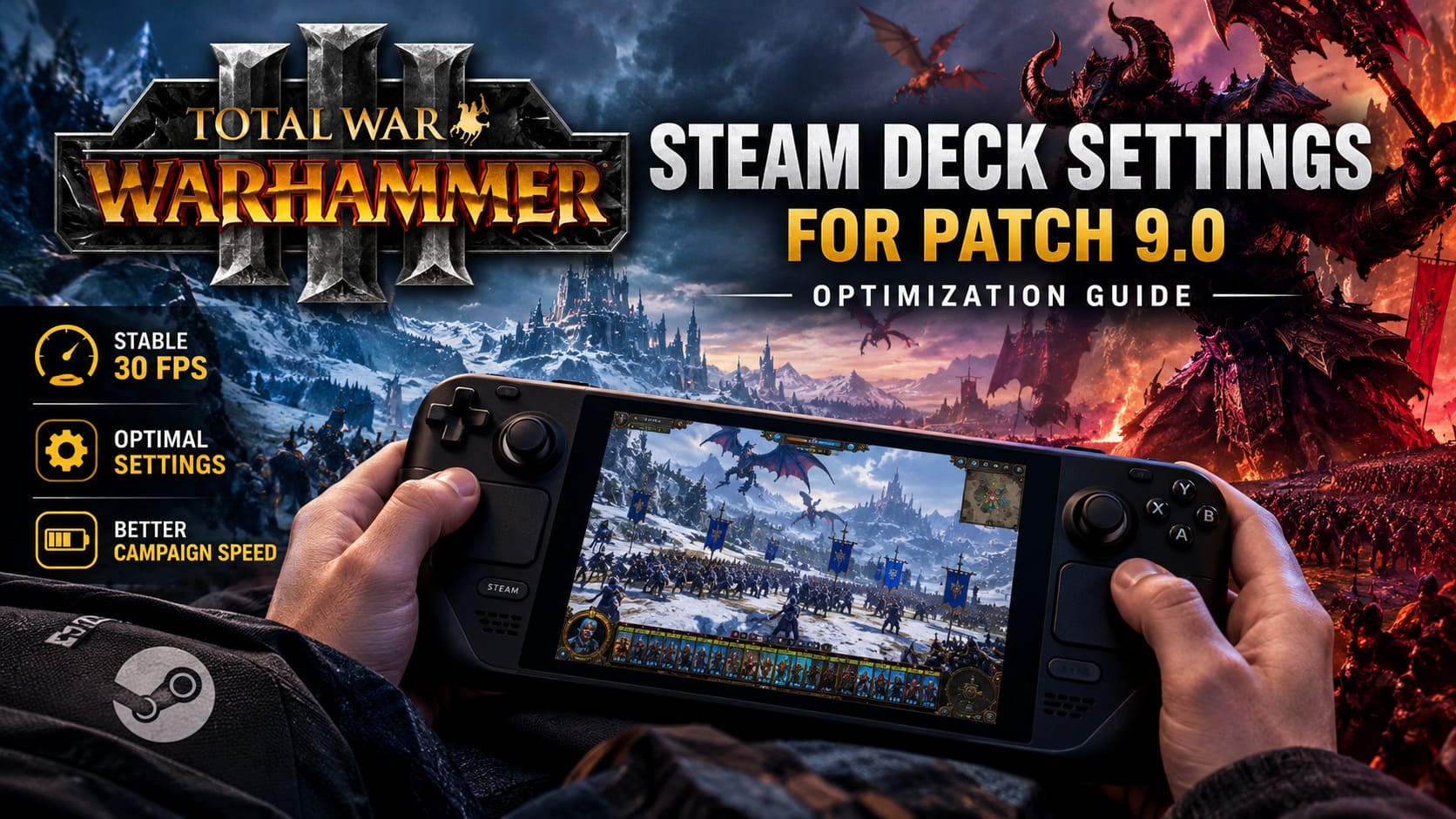
With Patch 9.0 and the Lords of the End Times DLC, Warhammer 3 has received some meaningful performance improvements, particularly on the campaign side. The biggest change for handheld players is the reported reduction in AI processing time during end turns, with some campaign calculations becoming up to 30% faster.
That matters more than it might sound.
Anyone who has played a long Immortal Empires campaign knows that waiting for every faction to finish its turn can become part of the gameplay loop. If Patch 9.0 can cut some of that waiting, the Steam Deck becomes a much more attractive way to play the campaign from the sofa, in bed, or wherever you happen to be.
But battlefield performance is another story.
My approach with the Steam Deck is simple: I would rather have a stable 30 FPS than chase 40–45 FPS that constantly collapses when a real battle starts. Warhammer 3 is exactly the kind of game where consistency matters more than a pretty benchmark number.
So here is the setup I would use for Patch 9.0.
The First Decision: Native Linux or Proton?
Before touching the graphics menu, there is one surprisingly important choice to make.
Warhammer 3 can run through the native Linux environment or through Proton, which runs the Windows version through Steam’s compatibility layer.
The Steam Linux Runtime is worth testing if you want to prioritize campaign performance. The native version can provide good CPU behavior and may benefit from Linux-specific optimization, which is particularly relevant after Patch 9.0’s improvements to campaign processing.
The downside is that native Linux releases can sometimes behave differently from the Windows build when a major update arrives. You may also encounter individual UI or graphical problems that don’t appear under Proton.
Proton Experimental is the alternative I would keep ready. It generally provides excellent compatibility with the current Windows version and can be a safer choice if something breaks after an update.
For Patch 9.0, my starting point would be:
- Steam Linux Runtime if campaign turn speed is your priority.
- Proton Experimental if you encounter crashes, graphical glitches, or strange behavior.
- Proton GE can also be worth testing if you already use it for other Steam Deck games.
Don’t get too attached to one option. If the game behaves perfectly under Proton, there is no prize for forcing yourself to use the native runtime.
Why I Would Lock Warhammer 3 to 30 FPS
This is probably the most important recommendation in the entire guide.
Lock the Steam Deck to 30 FPS.
Warhammer 3 isn’t a twitch shooter. You aren’t losing a competitive gunfight because the frame rate isn’t 60 FPS. What matters is that the camera moves smoothly and battles don’t suddenly turn into a slideshow when two enormous armies collide.
Open the Steam Deck Quick Access Menu and use a 30 FPS limit. If you’re using the OLED model, you can also run the display at 60 Hz while maintaining a 30 FPS cap.
I strongly prefer this over allowing the frame rate to bounce around.
A game that jumps between 35, 42, and 27 FPS can feel much worse than a game that simply holds a dependable 30 FPS. Large battles expose every inconsistency, especially when magic effects, projectiles, monsters, and hundreds of individual units are visible simultaneously.
The goal here isn’t benchmark bragging.
The goal is predictable frame pacing.
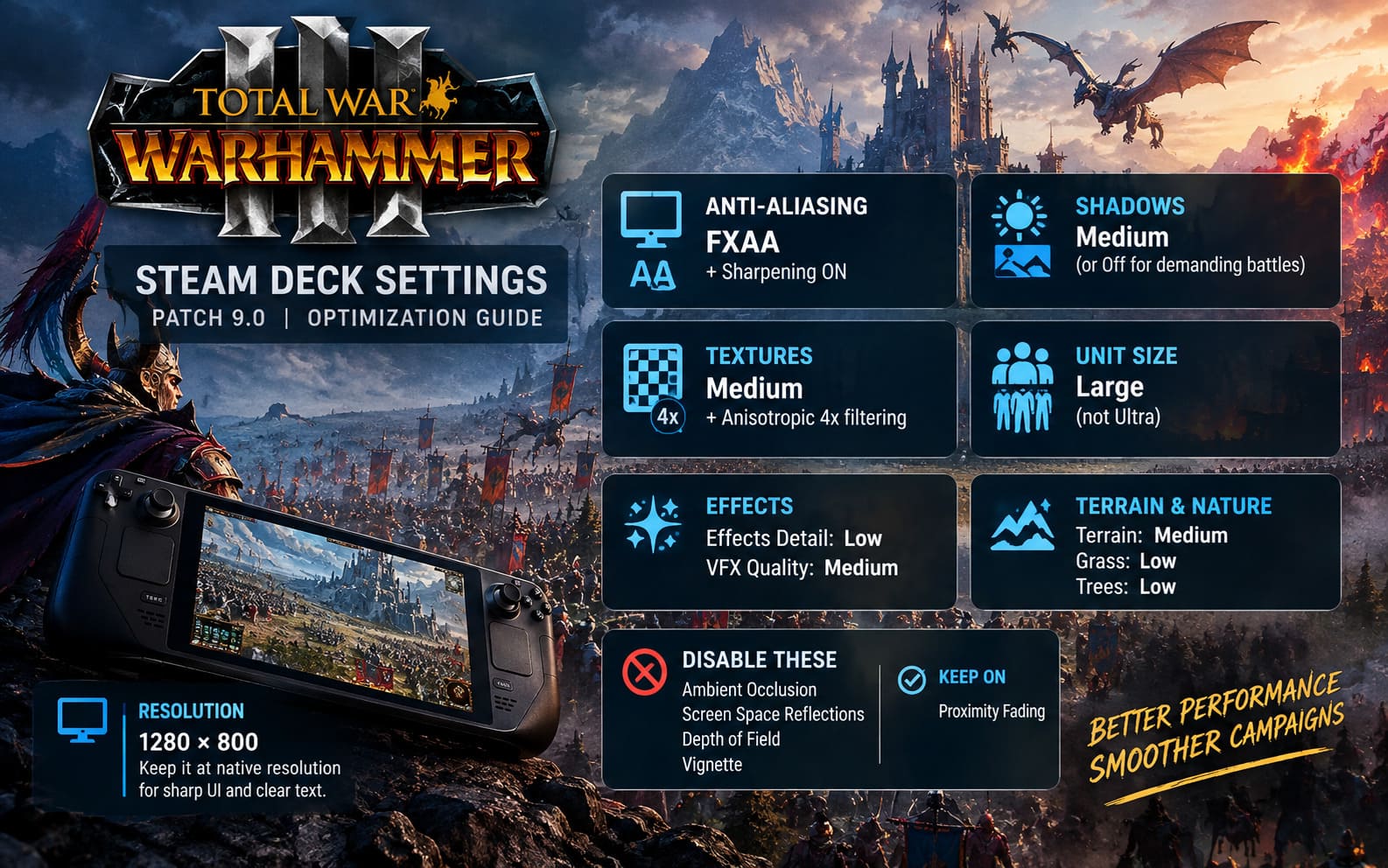
My Recommended Warhammer 3 Steam Deck Settings
Here’s the configuration I’d start with on either the LCD or OLED Steam Deck.
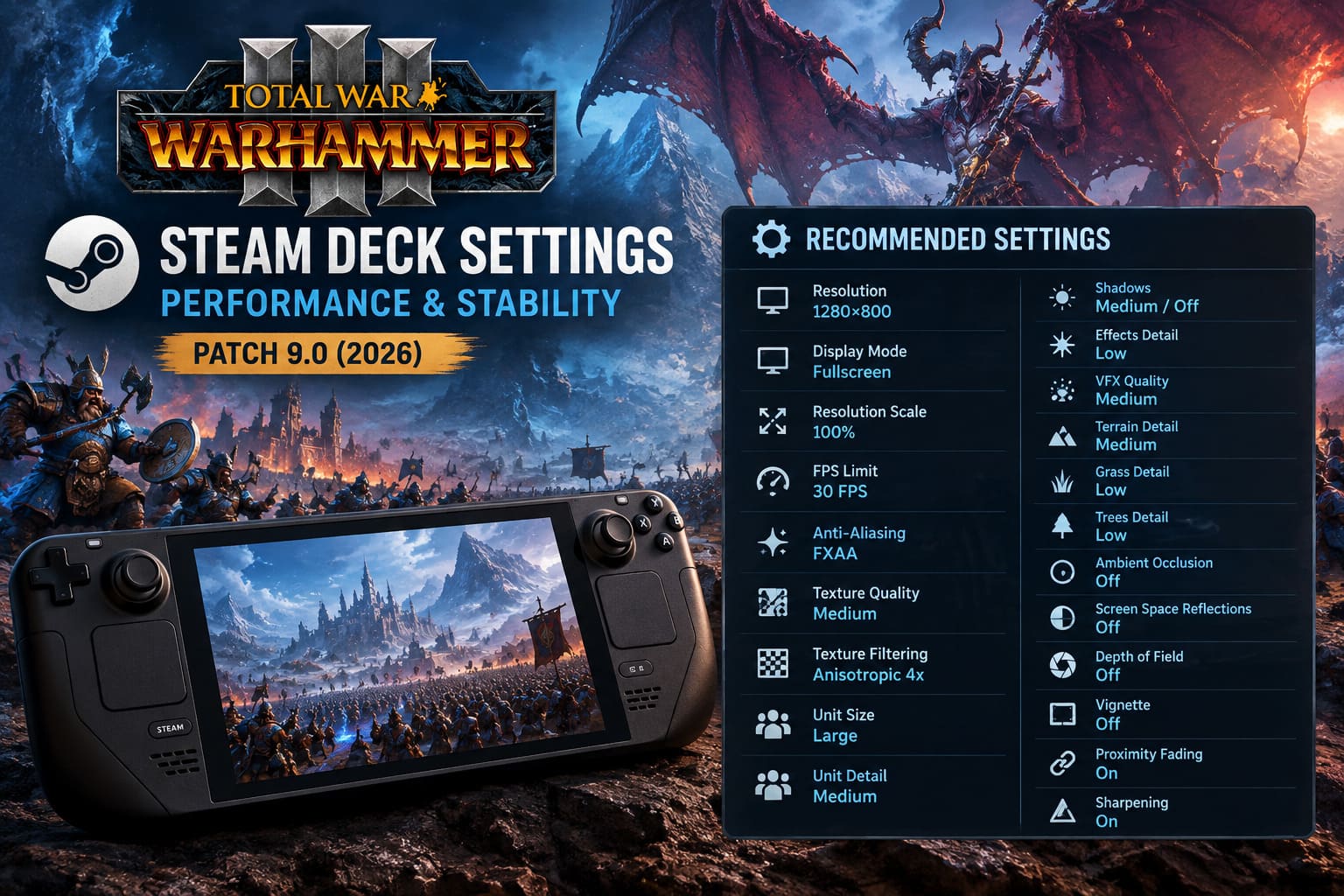
| Setting | Recommended Value |
|---|---|
| Resolution | 1280×800 |
| Display Mode | Fullscreen |
| Resolution Scale | 100% |
| FPS Limit | 30 FPS |
| Anti-Aliasing | FXAA |
| Texture Quality | Medium |
| Texture Filtering | Anisotropic 4x |
| Unit Size | Large |
| Unit Detail | Medium |
| Shadows | Medium / Off |
| Effects Detail | Low |
| VFX Quality | Medium |
| Terrain Detail | Medium |
| Grass Detail | Low |
| Trees Detail | Low |
| Ambient Occlusion | Off |
| Screen Space Reflections | Off |
| Depth of Field | Off |
| Vignette | Off |
| Proximity Fading | On |
| Sharpening | On |
This isn’t the configuration that makes Warhammer 3 look spectacular.
It’s the configuration that makes me actually want to play a three-hour Immortal Empires session without constantly watching the frame counter.
Keep the Resolution at 1280×800
I’d keep the native 1280×800 resolution whenever possible.
The temptation with demanding games is always the same: lower the internal resolution until the frame rate improves.
That works, but Warhammer 3 has a particularly annoying downside. You spend a huge amount of time reading campaign information, faction names, tooltips, unit descriptions, event windows, settlement information, and tiny UI elements.
Blurry text gets old very quickly.
I’d keep the resolution scale at 100% and only start reducing it if you’re genuinely struggling to maintain your target frame rate.
On a small Steam Deck screen, sharp UI is worth protecting.
FXAA Is the Sensible Anti-Aliasing Choice
For anti-aliasing, I’d use FXAA.
Temporal Anti-Aliasing can make the image look smoother in some situations, but on the Steam Deck I find the trade-off harder to justify. The additional GPU workload and potential ghosting around moving units, projectiles, and effects aren’t particularly attractive on such a small display.
FXAA isn’t perfect. You may notice a little softness.
That’s why I pair it with Sharpening enabled.
The combination gives the image enough definition without asking the GPU to do unnecessary work.
Don’t Waste Performance on High Shadows
If there is one setting I’d happily sacrifice for performance, it’s Shadows.
Warhammer 3 can produce some beautiful battlefield lighting, but rendering dynamic shadows for enormous armies is expensive. When hundreds or thousands of models are moving around, shadows become another workload the Steam Deck doesn’t really need.
I’d start at Medium.
If you’re playing a particularly demanding siege battle and performance is struggling, turn shadows Off.
The visual difference is obvious when you stop and look for it. During an actual battle, though, you’re usually watching formations, spell effects, health bars, objectives, and unit movements.
I’d rather have stable performance.
Medium Textures Are Enough
The Steam Deck has 16GB of shared memory, so it is easy to assume that High textures should be fine.
I wouldn’t.
Warhammer 3 can become increasingly demanding during long campaigns, especially when many factions and asset-heavy armies are involved. Medium textures leave more memory headroom and reduce the chance of nasty spikes.
And honestly, on a 7-inch screen, Medium textures still look good.
This is one of those settings where the screenshot comparison looks much more dramatic than the difference you actually notice while playing.
Use Anisotropic 4x filtering, though. It helps keep terrain readable at angles and costs comparatively little performance.
Unit Size: Large, Not Ultra
This is another setting where I would resist the temptation to go maximum.
Unit Size: Large.
Ultra unit sizes can look incredible when you zoom in and watch a gigantic army march across the battlefield. Unfortunately, the Steam Deck’s Zen 2 CPU has to deal with all those individual entities.
When huge formations collide, CPU limitations become painfully visible.
Large keeps the game feeling like Warhammer 3 without asking the processor to simulate an unnecessary number of models.
For me, this is the sweet spot.
You still get the scale that makes Total War battles special, but you aren’t turning every major engagement into a CPU stress test.
Turn Down Effects Before Sacrificing Everything Else
Patch 9.0’s visual effects can make battles particularly expensive when multiple spells and abilities trigger at once.
I’d use:
- Effects Detail: Low
- VFX Quality: Medium
This preserves enough visual information to understand what’s happening while avoiding the worst GPU spikes.
This is especially important during battles involving magic-heavy factions. When the screen fills with explosions, smoke, fire, particles, and magical effects, the Steam Deck can suddenly have a lot more work to do than it did five seconds earlier.
Keeping Effects low makes those moments more manageable.
Terrain, Grass, and Trees Should Stay Modest
I recommend Medium Terrain Detail, Low Grass Detail, and Low Trees Detail.
Terrain still benefits from some detail because it contributes significantly to the visual identity of the battlefield. Grass, on the other hand, doesn’t need to be spectacular.
Low grass also has another advantage: it makes units easier to see.
The same goes for trees. Dense forests can become expensive rendering environments, particularly when you’re moving the camera across them.
You lose some visual richness, but the battlefield remains easier to read.
Disable the Expensive Post-Processing
On the Steam Deck, I would disable the following:
- Ambient Occlusion
- Screen Space Reflections
- Depth of Field
- Vignette
These effects can make screenshots prettier, but they aren’t what makes a Total War campaign enjoyable.
In fact, some of them are barely noticeable once you’re concentrating on the battle.
Proximity Fading should stay enabled. It helps prevent unnecessary rendering when the camera gets close to large groups of units.
This is exactly the kind of small optimization that makes sense on handheld hardware.
Campaign Map Performance Is a Different Problem
Don’t assume that good battlefield performance automatically means a perfect campaign map.
Immortal Empires can be surprisingly demanding because you’re dealing with a huge 3D world, environmental effects, faction leaders, corruption, terrain, and a lot of activity happening outside the immediate area you’re looking at.
Patch 9.0’s improvements to AI processing should help with end-turn calculations, but they don’t magically eliminate graphical bottlenecks.
If campaign panning feels sluggish, keep the same philosophy:
Medium textures, restrained shadows, and conservative environmental settings.
The important distinction is that the campaign can also expose CPU-related performance limitations. That’s another reason I don’t recommend chasing ultra-high graphical settings on the Deck.
What About the 4GB UMA Buffer Trick?
Steam Deck enthusiasts have experimented with changing the UMA Frame Buffer Size from its default value to 4GB through the BIOS.
The idea is to give the GPU a larger reserved memory pool for demanding games.
It’s an interesting tweak, but I wouldn’t treat it as mandatory.
If you’re comfortable navigating the Steam Deck BIOS and experimenting with system-level configuration, it’s something you can test. If you’re not comfortable doing that, don’t feel like you’re missing some secret performance switch.
The same goes for CryoUtilities and custom swap configurations.
A larger swap file and modified memory behavior can potentially help with long sessions and memory-heavy workloads, but these are advanced community tweaks rather than settings I’d recommend blindly applying to every Steam Deck.
Start with the game settings first.
Total War Warhammer 3 Neferata Guide: Campaign Strategy, Web of Power, and Battle Build
The Setup I’d Actually Use
If I were sitting down with a Steam Deck and starting a fresh Immortal Empires campaign after Patch 9.0, this would be my baseline:
1280×800, 30 FPS, 100% resolution scale, FXAA, Medium textures, 4x anisotropic filtering, Large units, Medium unit detail, Low effects, Medium terrain, Low grass and trees, Medium or Off shadows, and the expensive post-processing effects disabled.
Then I’d play.
That’s important.
Don’t spend an hour chasing the perfect benchmark if the game already feels good. Start a real campaign, fight a large battle, zoom into a siege, move across the campaign map, and watch what happens.
If performance remains stable, leave everything alone.
If battles collapse into the low 20s, reduce shadows and effects first.
If the campaign map feels heavy, look at environmental detail and resolution scale before destroying texture quality.
And if everything is stable at 30 FPS?
Stop tweaking and start conquering.
Is Total War: Warhammer 3 Coming to PS5 and Xbox? Console Port Release Rumors and Analysis
Final Thoughts
The Steam Deck isn’t the ideal machine for Total War: Warhammer 3, but it doesn’t need to be.
The whole appeal is that this enormous strategy game can fit into a handheld device and still retain the basic magic of commanding armies across the Warhammer world.
Patch 9.0 makes that proposition more interesting, especially with its improvements to campaign processing and the faster end-turn experience. The key is understanding what the Steam Deck should be asked to do.
Don’t chase Ultra.
Don’t chase 60 FPS.
Don’t sacrifice readability just to make a benchmark number look better.
Aim for a stable 30 FPS, keep the CPU-heavy settings under control, preserve sharp UI text, and spend your performance budget where you’ll actually notice it.
Once configured properly, Warhammer 3 becomes surprisingly comfortable on Steam Deck. The battles won’t look identical to a high-end desktop PC, but when you’re lying on the couch watching your army crash into an enemy line at a steady 30 FPS, that distinction becomes much less important.
For a game this enormous, consistent performance is what makes the handheld experience work.