How to Fix Control Resonant Out of VRAM Error on NVIDIA RTX Cards (2026 Guide)
CONTROL Resonant is exactly the kind of game that can make a high-end gaming PC sweat. Remedy has pushed its Northlight technology into a much larger, stranger version of the Control universe, with a warped Manhattan, heavy environmental effects, supernatural abilities, dense combat encounters, and a visual style that practically begs you to crank every setting to Ultra. The game officially launches on PC on September 24, 2026, alongside its console release.
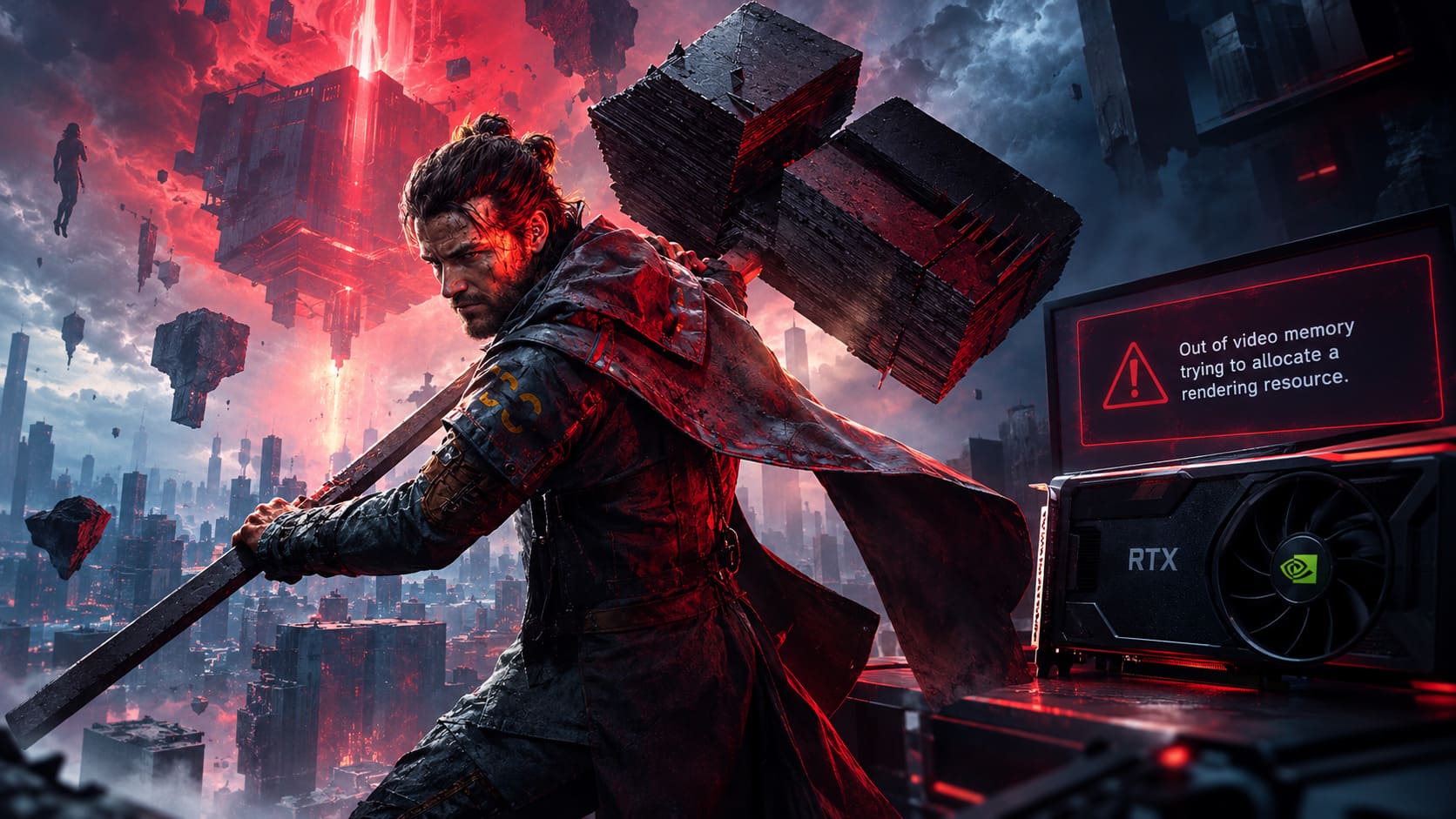
And then comes the dreaded crash:
“Out of video memory trying to allocate a rendering resource.”
If you’re staring at that message on an RTX 3070, 3080, 4070, 4080, 4090, or even a newer RTX 50-series card, don’t immediately assume your GPU is simply too weak.
That is one of the most frustrating things about VRAM-related crashes: having a lot of VRAM doesn’t guarantee that a game will never hit a memory allocation problem. A game can run into a bad allocation, driver issue, shader-compilation problem, extreme texture demand, or a temporary memory spike without your GPU technically being “full” in the way you’d expect.
I’ve spent enough time fighting PC game crashes to know the drill. You change one setting, restart the game, get excited because the loading screen doesn’t explode—and then 20 minutes later you’re back on the desktop. So rather than throwing random tweaks at the wall, here’s the troubleshooting route I’d use first on an NVIDIA RTX machine.
Why Can CONTROL Resonant Report “Out of Video Memory”?
The important thing to understand is that an Out of VRAM message doesn’t automatically mean your physical VRAM capacity has been exhausted.
CONTROL Resonant is built on Remedy’s Northlight engine and is designed around large-scale environments, rapid traversal, demanding lighting effects, and a lot of visual information being processed simultaneously. Remedy has described the game as its most ambitious title to date, with a larger, more open take on the Control formula.
That creates several possible pressure points on a PC.
| Possible Cause | What It Can Do | First Thing I’d Try |
|---|---|---|
| Very high textures | Pushes VRAM consumption upward | Lower Texture Quality |
| Ray tracing / path tracing | Creates additional rendering workload | Reduce or disable RT |
| Shader compilation | Can cause temporary stutters or instability | Clear shader cache |
| Driver problems | Can produce GPU allocation or device errors | Update/reinstall driver |
| Overlays & monitoring tools | Can interfere with some games | Disable overlays |
| Insufficient system memory/page file | Can worsen overall memory pressure | Leave Windows paging enabled |
| Overclock instability | Can appear only under heavy workloads | Return GPU to stock |
The big takeaway: don’t treat every “Out of VRAM” crash as a broken graphics card.
1. Start With the NVIDIA Driver
Before changing Windows memory settings or digging through obscure folders, do the boring thing first.
Update your NVIDIA graphics driver.
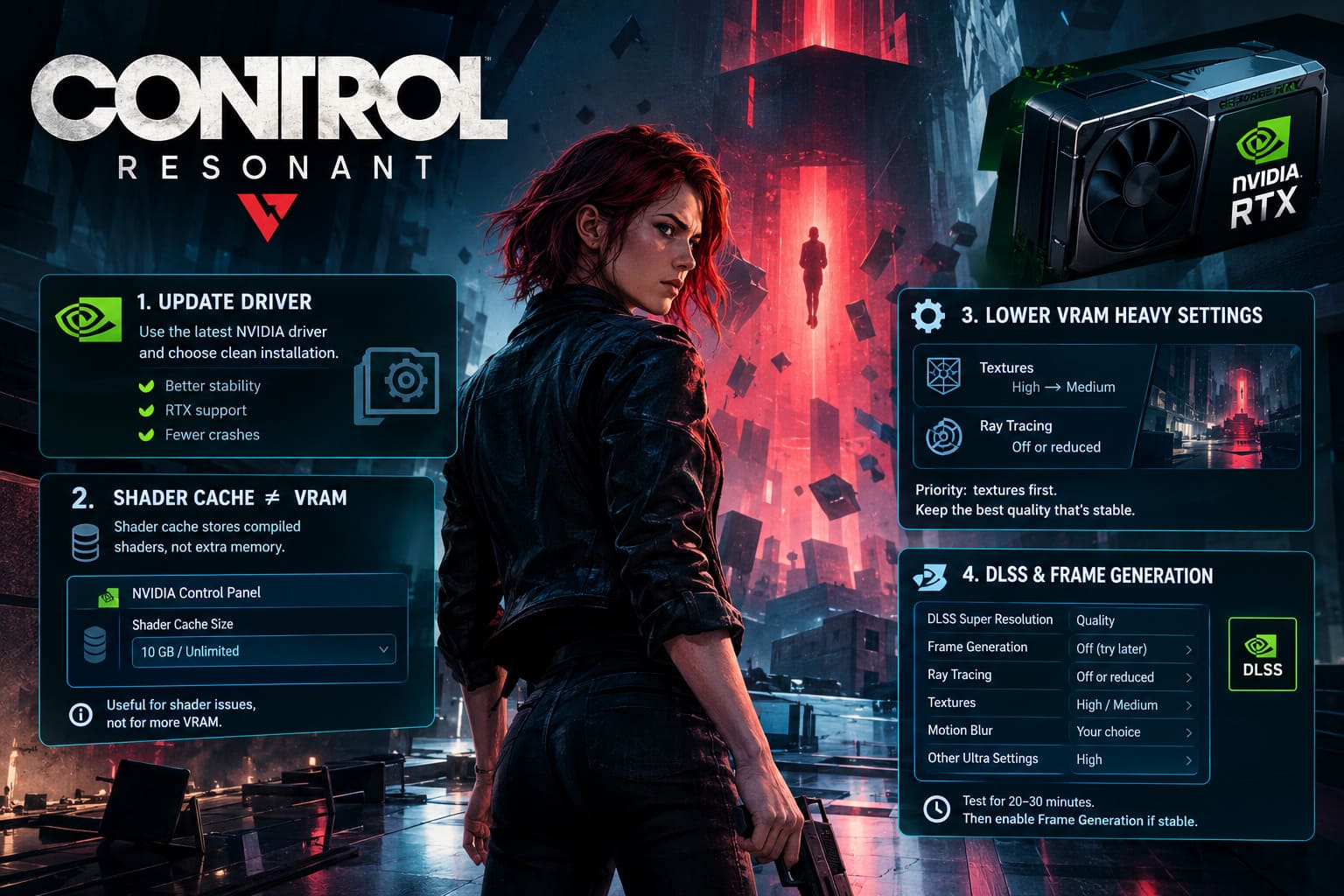
For a brand-new AAA release, driver support can matter enormously. NVIDIA frequently releases Game Ready driver updates around major launches, and CONTROL Resonant is explicitly part of NVIDIA’s RTX ecosystem, including support for advanced RTX technologies.
If the newest driver was installed over several previous versions, I’d go one step further.
Perform a clean driver installation.
You don’t necessarily need to start wiping your entire Windows installation or use a dozen third-party utilities. During NVIDIA driver installation, choose the clean-install option when available. If you’ve had repeated GPU crashes across multiple games, then a more thorough driver cleanup can be considered.
After installing the driver:
- Restart Windows.
- Launch CONTROL Resonant.
- Don’t immediately enable every RTX feature.
- Test the game at conservative settings first.
- Increase graphical options gradually.
This gives you an actual baseline instead of changing six variables simultaneously.
2. Don’t Confuse Shader Cache With VRAM
This is an important correction because there is a lot of misleading PC troubleshooting advice floating around.
You’ll sometimes see guides claiming that increasing NVIDIA Shader Cache Size to 10 GB or Unlimited “gives your GPU more VRAM.”
It doesn’t.
Shader cache storage and physical VRAM are not the same thing.
The shader cache stores compiled shader data so the driver doesn’t have to compile everything from scratch every time. Increasing the cache limit can be useful for some games, particularly when dealing with repeated shader compilation, but it shouldn’t be presented as magically expanding your graphics card’s memory pool.
If CONTROL Resonant is crashing during shader compilation or after repeated launches, experimenting with the NVIDIA shader-cache setting can still be worthwhile.
Open:
NVIDIA Control Panel → Manage 3D Settings → Shader Cache Size
If your driver exposes the option, you can use a larger setting such as 10 GB or Unlimited and test again.
But here’s my rule: change it because you’re troubleshooting shader behavior, not because you expect it to turn a 12GB RTX card into a 16GB card.
That’s an important distinction.
3. Turn Down the Settings That Actually Consume VRAM
This is where I’d spend most of my time.
If you’re running an RTX card with 8GB of VRAM, throwing everything at Ultra and enabling every ray-traced feature is basically asking for trouble in a modern AAA game.
And even with 12GB, 16GB, or more, there is no prize for making the VRAM meter sit permanently at the ceiling.
Texture Quality Comes First
Textures are one of the first settings I’d reduce when troubleshooting an Out of VRAM crash.
If you’re using an 8GB GPU, try:
Texture Quality: High → Medium
With a 12GB card, you can usually start higher and only reduce textures if the crashes persist.
The goal isn’t to make CONTROL Resonant look like a game from 2012. You’re looking for the smallest reduction that makes the game stable.
At 1440p, High textures can still look excellent, and the difference between High and Ultra isn’t necessarily worth sacrificing stability.
Ray Tracing Is the Next Suspect
Ray tracing is gorgeous when it works.
It is also one of the easiest ways to turn a comfortable GPU workload into a much more demanding one.
If you’re getting crashes during heavy combat, entering visually complex areas, or loading new zones, temporarily disable ray tracing.
Test the game.
If the crashes disappear, you’ve learned something valuable.
You can then re-enable individual RT features one by one rather than immediately returning everything to maximum.
For cards with 8GB VRAM, I’d be particularly conservative. With 12GB, you have more breathing room, while 16GB+ gives you substantially more room for demanding settings—but it still doesn’t guarantee perfect stability.
4. Be Careful With DLSS Frame Generation
DLSS is generally one of the first technologies I’d enable on an RTX card because it can dramatically improve performance.
But remember that DLSS Super Resolution and Frame Generation are doing different jobs.
If your game crashes specifically during fast movement, intense combat, or moments where the rendering workload suddenly spikes, try this configuration:
- DLSS Super Resolution: Quality
- Frame Generation: Off
- Ray Tracing: Off or reduced
- Textures: High or Medium
- Motion Blur: Personal preference
- Other Ultra settings: High
Run the game for 20–30 minutes.
If stability improves, turn Frame Generation back on and test again.
This is much more useful than randomly changing five settings and then having no idea which one fixed the problem.
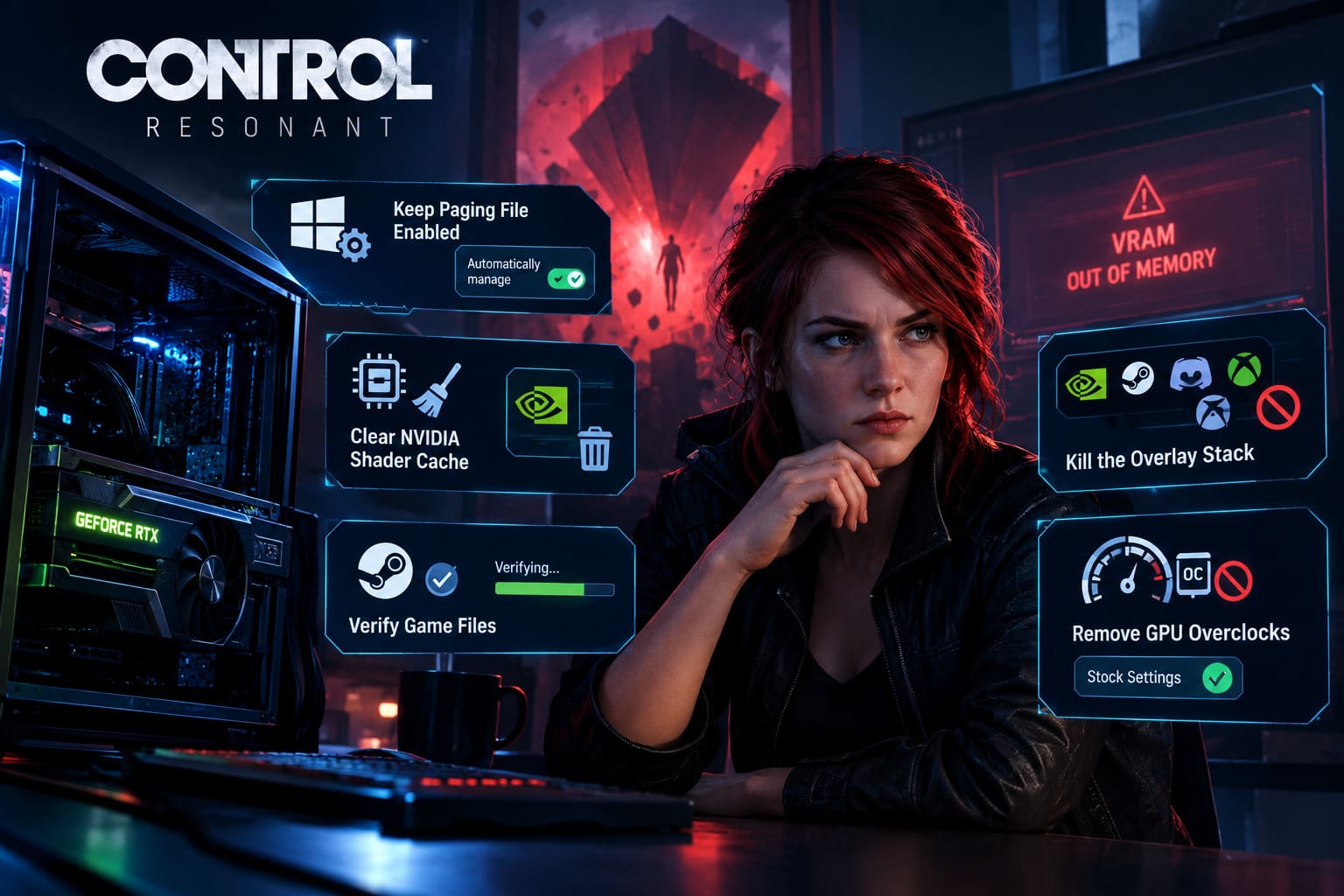
5. Don’t Make Your Windows Paging File Smaller
This is another area where PC gaming advice can get unnecessarily complicated.
Windows uses a paging file on your storage drive as part of its virtual-memory system. It is not an extension of your GPU’s physical VRAM.
So setting a gigantic 32GB paging file does not turn a 10GB GPU into a 42GB GPU.
What it can do is provide Windows with additional virtual-memory capacity when applications and the operating system need it.
For most gaming PCs, I recommend keeping the paging file enabled and system-managed unless you have a specific reason to configure it manually.
If you’ve previously disabled the page file or set an unusually tiny maximum size, that’s worth correcting.
You can check it through:
Windows Search → Advanced System Settings → Performance → Settings → Advanced → Virtual Memory
For a normal gaming system, the easiest approach is usually:
Automatically manage paging file size for all drives.
If you’re troubleshooting a specific system with very high RAM usage, a manual configuration can make sense—but don’t assume that assigning 32GB of page file space directly solves a VRAM allocation failure.
6. Clear the NVIDIA Shader Cache
Now this one is actually worth trying if the game has crashed repeatedly around loading screens or after a driver update.
A corrupted or problematic cached shader can cause weird behavior, and clearing the cache forces the driver to rebuild it.
You can use Windows’ storage/cache tools or NVIDIA’s current driver controls where available. Depending on your driver version, cache locations and folder names can differ, so don’t blindly delete random NVIDIA directories you find online.
If you’re manually cleaning old cache files, make sure the game and NVIDIA applications are closed first.
Afterward:
Restart Windows → launch CONTROL Resonant → wait for shaders to rebuild.
The first launch may take longer.
That’s normal.
Don’t panic and kill the process because the game appears to be doing nothing. Shader compilation can take time, especially after clearing cached data.
7. Verify the Game Files
If the crash started after an interrupted update, failed shader compilation, or system crash, verify the installation.
On Steam:
Library → CONTROL Resonant → Properties → Installed Files → Verify integrity of game files
Let Steam complete the process.
This won’t repair every graphics-driver problem under the sun, but it’s such a painless step that there’s little reason not to do it when you’re troubleshooting unexplained crashes.
If corrupted files are found, Steam will replace them.
8. Kill the Overlay Stack
This is one of my favorite “just test it” fixes for stubborn PC crashes.
If you’ve got:
- NVIDIA overlay
- Steam overlay
- Discord overlay
- Xbox Game Bar
- MSI Afterburner
- RivaTuner Statistics Server
- RGB/monitoring utilities
- Recording software
running simultaneously, you’re giving the game a lot more software to interact with.
That doesn’t mean these programs are inherently bad. I use monitoring tools myself. But when a game is crashing, simplicity is your friend.
Temporarily disable the NVIDIA in-game overlay and other overlays.
Close RTSS and hardware monitoring software.
Launch CONTROL Resonant again.
If the crashes disappear, start re-enabling your utilities individually.
That gives you a much cleaner diagnosis.
9. Remove GPU Overclocks While Troubleshooting
Here’s the uncomfortable truth about overclocking:
A GPU can be perfectly stable in nine games and crash instantly in the tenth.
Different engines stress different parts of the GPU.
If you’ve manually overclocked your RTX card, return it to stock settings before blaming the game.
I’d also avoid immediately applying an aggressive undervolt or underclock as a “fix.” Some users swear by these techniques, and they can help particular systems, but the first goal should be establishing whether the GPU is stable at its manufacturer defaults.
If stock settings eliminate the crash, you’ve found a major clue.
If the card is factory-overclocked, you don’t necessarily need to touch it. Start with the manufacturer’s default configuration before experimenting.
My Recommended RTX Troubleshooting Presets
If I were sitting down with an RTX PC that kept throwing the CONTROL Resonant Out of VRAM error, these are the configurations I’d test.
| GPU VRAM | Textures | Ray Tracing | DLSS | Frame Generation |
|---|---|---|---|---|
| 8GB | Medium | Off | Quality | Off |
| 10GB | High | Off/Low | Quality | Off initially |
| 12GB | High | Medium | Quality | Test On |
| 16GB | High/Ultra | High | Quality | On |
| 24GB+ | Ultra | High/Max | Quality | On |
These aren’t official Remedy requirements or guaranteed crash-proof presets. They’re practical troubleshooting starting points. The actual sweet spot will depend on resolution, driver version, CPU, system RAM, and the specific workload.
Control Resonant Trophy Guide & Achievement List: How to Get the Platinum
What I Would NOT Do First
There’s a temptation in PC gaming to find one terrifying-looking registry tweak and declare victory.
Don’t.
I wouldn’t start by:
- Editing random Windows registry values.
- Disabling the Windows page file.
- Claiming a larger shader cache gives you more VRAM.
- Forcing enormous virtual-memory allocations without understanding why.
- Flashing GPU BIOS firmware.
- Applying extreme GPU underclocks.
- Deleting random folders inside
AppData. - Running five “FPS optimizer” programs simultaneously.
Most of the time, the boring fixes are the smart fixes.
Driver. Stock GPU settings. Lower VRAM-heavy graphics options. Clear shader cache. Disable overlays. Verify files. Test.
That sequence gives you useful information at every stage.
Control Resonant Aberrant Form Guide: Best Weapons, Combos, and Builds
The Bottom Line
The CONTROL Resonant “Out of video memory” crash can be especially annoying because it can appear on hardware that looks more than powerful enough on paper.
But don’t immediately assume your RTX card is defective or that the game literally requires more physical VRAM than your GPU has.
The sensible approach is to reduce the game’s peak memory pressure and eliminate software conflicts one at a time.
I’d start with this exact order:
- Update or clean-install the NVIDIA driver.
- Return the GPU to stock clocks.
- Disable overlays and monitoring tools.
- Set textures one step below maximum.
- Disable ray tracing temporarily.
- Turn Frame Generation off for testing.
- Clear the shader cache and allow shaders to rebuild.
- Verify CONTROL Resonant’s game files.
- Make sure Windows virtual memory is enabled and reasonably configured.
- Only then start increasing graphics settings again.
And honestly, this is how I’d troubleshoot any demanding PC release. Don’t chase the prettiest benchmark screenshot while the game is crashing every half hour. Get the game stable first, then turn the eye candy back up.
CONTROL Resonant is deliberately pushing Remedy’s technology into a much bigger playground, and the studio has emphasized the scale of the new Manhattan setting and the technology behind it. That ambition is exactly what makes the game exciting—and exactly why PC players should expect to spend a little time finding the right settings for their hardware.
If you’ve got an RTX 40 or 50-series card, there’s no reason to panic because Windows throws an “Out of VRAM” message once. Treat the error as a troubleshooting clue, not a verdict on your GPU.
Get the driver clean, remove the overclock, tame ray tracing, keep textures sensible, rebuild the shader cache, and test systematically.
That’s a far better way to get back into the action than spending your evening staring at a crash dialog while Dylan is waiting to tear Manhattan apart.