The Dead We Knew Optimization Guide: Best Settings for Low-End PCs to Fix Lag, Stuttering, and Boost FPS
THE DEAD WE KNEW: Open World Survival is exactly the kind of survival game that can make you forget about your frame rate for a few minutes. The atmosphere does a lot of heavy lifting: huge environments, buildings you can actually enter, dangerous weather, changing visibility, and zombies that become considerably more threatening when the world turns against you. Then you notice the hitching, the sudden FPS drop, or that horrible half-second freeze when you’re sprinting through an area you’ve never visited before.
I’ve played plenty of demanding survival games over the years, and this is one of those cases where simply selecting the Low preset isn’t necessarily enough. Open-world survival games are particularly annoying to optimize because they don’t stress your PC in one predictable way. One moment you’re GPU-bound while looking at a dense forest, and the next your CPU and RAM are getting hammered because the game is streaming buildings, AI, loot, physics, and other world data.
The good news is that you don’t automatically need a new graphics card to make THE DEAD WE KNEW run better on a low-end PC. You can get meaningful improvements by attacking the problem from several directions: graphics settings, resolution, storage, shader cache behavior, Windows background processes, and memory management. You probably won’t turn an old gaming laptop into a high-end machine, but you can make the game considerably more stable.
Why THE DEAD WE KNEW Can Be So Difficult to Run
The first thing I’d change about the way people troubleshoot this game is the idea that every FPS problem is caused by the GPU. That’s simply not how modern open-world games work. A demanding survival game can hit your processor, graphics card, RAM, VRAM, and storage at different moments, which is why your performance can feel perfectly fine in one location and awful five minutes later.
THE DEAD WE KNEW is particularly demanding because of its large-scale environments and emphasis on exploration. You’re not moving through a collection of small levels where the game knows exactly what needs to be loaded. Instead, the system has to constantly prepare new environmental assets and gameplay data as you travel through the world.
There are three areas I’d pay special attention to:
- System RAM and VRAM: Insufficient memory can lead to asset streaming problems, texture swapping, and noticeable hitching.
- Volumetric effects and fog: Atmospheric fog looks great, but volumetric rendering can be expensive, particularly on older GPUs.
- CPU workload: AI, world simulation, physics, environmental systems, and background processes can create CPU-side bottlenecks even when your GPU isn’t at 100%.
This is why lowering everything blindly isn’t always the best strategy. Some options barely affect your FPS while others can make a surprisingly large difference. The goal is to find those expensive settings first.
My Recommended Low-End PC Settings
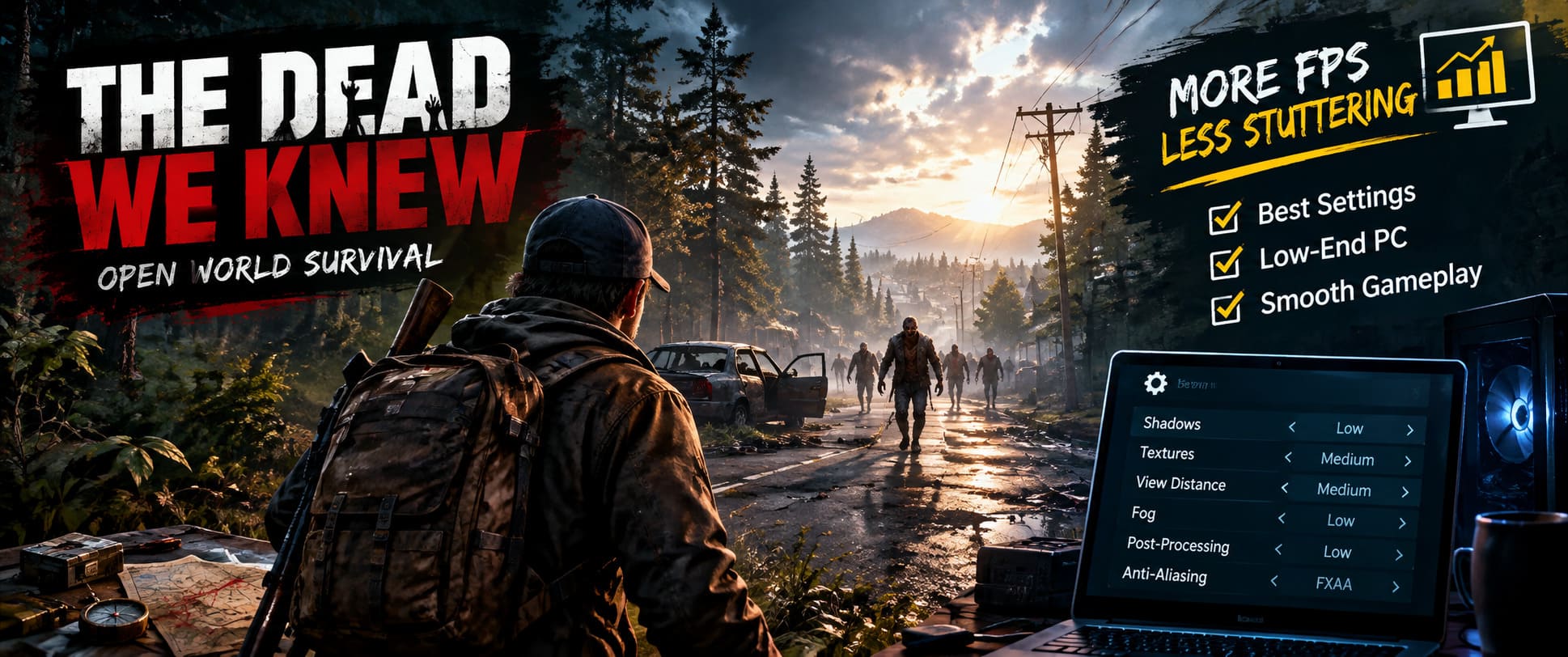
If you’re playing on an older or budget system, I’d start with a custom graphics profile rather than immediately accepting the game’s lowest preset. Personally, I prefer keeping a few settings at Medium when they don’t cost much performance, because a game that looks like a blurry PS2 remaster isn’t much fun to stare at for several hours.
Start with these settings and then adjust them depending on your hardware:
| Setting | Recommended Value | Why |
|---|---|---|
| Display Mode | Fullscreen | Can reduce unnecessary desktop/window overhead. |
| Resolution | 1920×1080 | Start native; lower it only if necessary. |
| V-Sync | Off | Reduces input latency and avoids some frame pacing issues. |
| Texture Quality | Low/Medium | Depends heavily on available VRAM. |
| Shadow Quality | Low | Usually one of the easiest GPU-heavy settings to sacrifice. |
| Fog/Volumetric Quality | Low | Important for maintaining FPS during heavy fog. |
| View Distance | Low/Medium | Can reduce rendering and CPU workload. |
| Anti-Aliasing | Low/FXAA | Good compromise between clarity and performance. |
| Foliage | Low | Helps considerably in forests and dense outdoor areas. |
| Post-Processing | Low | Removes several expensive visual effects. |
| Motion Blur | Off | Improves visual clarity during combat. |
| Effects | Low | Can help reduce drops during intense encounters. |
Don’t Lower Resolution Too Quickly
This might sound strange in an optimization guide, but I wouldn’t immediately drop a 1080p monitor to 720p. Resolution is one of the most powerful ways to increase GPU performance, but it’s also one of the settings you notice instantly. If your graphics card can maintain an acceptable frame rate at 1920×1080 with reduced shadows, fog, foliage, and effects, I’d much rather keep the sharper image.
If you’re still sitting below 30 FPS after optimizing the other settings, then it’s time to experiment. 1600×900 can be a useful middle ground, while 1280×720 is more of an emergency option for genuinely weak hardware. A stable 30 FPS at a slightly lower resolution is still much better than bouncing between 20 and 40 FPS at native resolution.
Textures Are a Different Story
Texture quality deserves special treatment because it doesn’t always behave like other graphics options. Lowering textures can improve performance when you’re running out of VRAM, but if your graphics card has enough memory, dropping textures from Medium to Low may provide very little FPS improvement while making the entire game look noticeably worse.
If your GPU has around 4 GB of VRAM, I’d be conservative. If you have 6 GB or more, Medium textures may be perfectly reasonable depending on the rest of your hardware. The important thing is to watch for stuttering rather than just average FPS. A game showing 45 FPS isn’t really performing well if it freezes every time you enter a new building.
Shadows and Fog: The Two Settings I’d Attack First
If I had to optimize this game quickly for an older PC, shadows would be one of the first things I would reduce. High-quality shadows require the GPU to render additional information throughout the environment, and the performance cost becomes much more noticeable in large outdoor scenes.
Then there’s the fog. The fog is one of the game’s coolest atmospheric features, but it’s also exactly the kind of effect that can punish older graphics hardware. Low fog quality doesn’t remove the mechanic itself; it simply reduces the visual complexity required to render it. That’s a trade-off I’m absolutely willing to make when a zombie horde is approaching and I need consistent frame delivery more than cinematic lighting.
View Distance Can Help More Than You Expect
View distance is another setting worth experimenting with because it can affect more than just GPU rendering. Large open worlds need to keep track of objects and environmental details that exist far away from the player. Depending on how the engine handles world streaming, reducing the distance can take some pressure off both the processor and graphics card.
I recommend Medium first rather than immediately selecting Low. If you’re still experiencing major drops while exploring large areas, move it down another step. The difference can be surprisingly difficult to notice during normal gameplay, while the performance improvement may be much easier to feel.
Why an SSD Matters for Open-World Stuttering
If you’re still using a mechanical hard drive, this is probably the upgrade I’d prioritize before buying a more expensive graphics card purely to solve stuttering. An SSD doesn’t magically increase your GPU’s FPS, but it can dramatically improve how quickly the system handles loading and streaming data.
Open-world games constantly move data between storage and memory. When you’re driving, running, or simply moving quickly through an unfamiliar area, the game may suddenly need assets that weren’t previously loaded. A slow HDD can turn that process into visible hitching, long loading pauses, and texture pop-in.
If possible, install THE DEAD WE KNEW on an SSD with plenty of free space. This is especially worthwhile if your current installation is on an older 7200 RPM drive that’s already struggling with other applications.
Clean Up Your Shader Cache Carefully
Shader compilation is another common source of stuttering in modern PC games. Graphics drivers and games can store compiled shader data so that the same work doesn’t have to be repeated every time you launch the game. Normally, that’s useful. Problems can appear after major driver updates or significant game changes when older cached data no longer behaves well.
Rather than randomly deleting folders you aren’t sure about, use the shader-cache clearing options provided by your GPU driver or Windows where available. After clearing the cache, expect the game to stutter temporarily while shaders are rebuilt. That first session may actually perform worse, so don’t judge the optimization after five minutes of testing.
Windows Tweaks That Are Actually Worth Trying
There are hundreds of Windows ‘gaming optimization’ guides online promising ridiculous performance gains from registry edits and mysterious services. I’ve tried enough of these over the years to tell you that most aren’t worth the risk. For THE DEAD WE KNEW, I’d stick to boring changes that have a reasonable chance of helping.
Before launching the game, close applications that consume significant RAM or CPU resources. Browsers with dozens of tabs, video editors, RGB utilities, recording software, and unnecessary launchers can all compete for resources. If you’re already close to your RAM limit, even a few background applications can make asset streaming problems much worse.
Also make sure Windows and your GPU drivers are reasonably up to date. Driver updates don’t guarantee higher FPS, but they can contain game-specific fixes and improvements to shader compilation or rendering behavior.
What About Increasing the Windows Pagefile?
If your system has limited RAM, Windows virtual memory can be useful as a safety net. It should not be treated as a replacement for physical RAM, though. When a game is constantly forced to use the pagefile because your RAM is completely exhausted, performance can still become extremely sluggish.
For a PC with 8 GB or 12 GB of RAM, I’d make sure the pagefile is enabled and located on your fastest SSD. In most cases, letting Windows manage the pagefile automatically is perfectly fine. If you’re troubleshooting crashes caused by memory exhaustion, a sufficiently large system-managed pagefile can prevent certain out-of-memory situations, but it won’t turn an 8 GB machine into a 16 GB machine.
Should You Use Steam Launch Options?
This is where I’d be much more cautious than many optimization guides. You may see launch commands such as -dx11, -high, -USEALLAVAILABLECORES, or -malloc=system recommended as universal performance fixes. They aren’t universal fixes, and some commands may do nothing at all depending on the game’s engine and how its current build handles command-line parameters.
If the developer specifically documents a launch option, that’s the one I’d trust. Otherwise, test commands individually rather than dumping a huge string into Steam and assuming everything is working. In particular, forcing a different graphics API can sometimes improve performance on one PC and make another PC less stable.
My rule is simple: if a launch option doesn’t produce a measurable improvement, remove it. Don’t collect optimization commands like Pokémon.
How to Find Your Actual Bottleneck
This is probably the most useful advice in the entire guide. Before changing twenty settings, monitor your CPU, GPU, RAM, and VRAM usage while playing. If your GPU is sitting around 98-100% while your CPU has plenty of headroom, you’re probably GPU-limited. Lower resolution, shadows, fog, effects, and other GPU-heavy options.
If the GPU is sitting at 50-70% but one or more CPU cores are heavily loaded, you may have a CPU bottleneck. Lowering resolution won’t necessarily solve that problem. Instead, experiment with view distance, foliage, crowd or AI-related settings if available, and background applications.
If RAM usage is constantly near the physical limit and you experience hitching when entering new areas, memory capacity may be the real problem. In that situation, upgrading from 8 GB to 16 GB can provide a much bigger improvement to the overall experience than chasing another five FPS through graphics settings.
A Practical Low-End PC Optimization Checklist
If you don’t want to spend an hour tweaking every individual option, this is the order I’d use:
- Install the game on an SSD.
- Use Fullscreen mode.
- Disable V-Sync while testing performance.
- Set shadows and volumetric fog to Low.
- Reduce foliage and post-processing.
- Keep textures as high as your VRAM comfortably allows.
- Try Medium view distance before going all the way to Low.
- Close unnecessary background applications.
- Update your GPU driver.
- Monitor CPU, GPU, RAM, and VRAM usage before buying hardware.
The Best FPS Strategy Is Usually Balance, Not Everything on Low
After playing games on everything from old budget PCs to much stronger systems, I’ve become less interested in chasing a maximum FPS number. What matters more to me is consistency. I’d take a stable 45 FPS over a wildly inconsistent 60 FPS that collapses into the twenties whenever I enter a new area or fight a group of enemies.
That’s especially true for a survival game. When resources are scarce and enemies are dangerous, a sudden freeze at exactly the wrong moment can ruin an otherwise successful run. Stable frame pacing, reasonable input latency, and fewer traversal stutters are much more valuable than making screenshots look pretty.
Final Verdict
THE DEAD WE KNEW: Open World Survival can be demanding, especially on older PCs, but you don’t necessarily need a complete hardware overhaul to make it playable. The biggest wins usually come from reducing expensive effects such as shadows and volumetric fog, managing view distance, keeping textures appropriate for your VRAM, and making sure the game is installed on an SSD.
Don’t expect every internet optimization trick to work. Some launch commands are outdated, some tweaks are highly hardware-dependent, and a few can actually make troubleshooting harder. Instead, change one thing at a time, monitor what happens, and keep the settings that genuinely improve your experience.
For me, the ideal low-end configuration isn’t the one that produces the absolute highest FPS. It’s the one that lets me explore, loot buildings, fight through bad weather, and survive a chaotic encounter without the game suddenly turning into a slideshow. If you can get THE DEAD WE KNEW running consistently, even with reduced visual quality, that’s a much bigger victory than squeezing a few extra frames out of an already unstable setup.