PolyClassic: Wild Save File Location: PC & Steam Backup Guide (2026)
There are few things more annoying in gaming than losing progress you were actually proud of. You can deal with a bad run, a difficult boss, or even a crash that sends you back a few minutes. What really hurts is starting up a game one day and realizing that hours of progress have simply disappeared.
That is why I always recommend knowing where a game’s save files are stored, especially with smaller PC games. PolyClassic: Wild has that old-school shooter energy that makes it surprisingly easy to lose track of time. You jump in for a quick session, clear a few more encounters, unlock something new, and suddenly you’ve spent another evening playing. The last thing you want is for a corrupted save or Steam Cloud problem to wipe that work.
If you’re trying to find the PolyClassic: Wild save file location on Windows, the good news is that the process is straightforward once you know where to look. The local saves are stored inside your Windows AppData directory, while Steam maintains its own userdata structure for cloud-related synchronization.
Below, I’ll walk through the locations, explain what I recommend backing up, and cover what to do if Steam Cloud decides that your older save is somehow the one you should be using.
PolyClassic: Wild Save File Location on Windows
For the PC version, the main local save directory is:

C:\Users\[Your Windows Username]\AppData\Local\PolyClassicWild\Saved\SaveGames\
This is the folder I would check first if you’re troubleshooting missing progress, moving to a new PC, or simply creating a backup before changing anything.
The save files inside should contain the information responsible for things such as progression, checkpoints, unlocks, statistics, and other persistent game data. You will generally see files using the .sav extension.
| Save Information | Location |
|---|---|
| Main Local Saves | AppData\Local\PolyClassicWild\Saved\SaveGames |
| Game Saved Data Root | AppData\Local\PolyClassicWild\Saved |
| Steam Userdata | Steam\userdata\[Steam ID]\1631850\remote |
| Steam App ID | 1631850 |
| Typical Save Extension | .sav |
The important part here is PolyClassicWild. Don’t search only for a folder named after the full game title because the actual Windows directory uses a compact version of the name.
The Fastest Way to Open the Save Folder
Personally, I wouldn’t bother digging through C:\Users manually unless I’m already looking around the system. Windows has a much faster method.
Press Windows + R to open the Run window and enter:
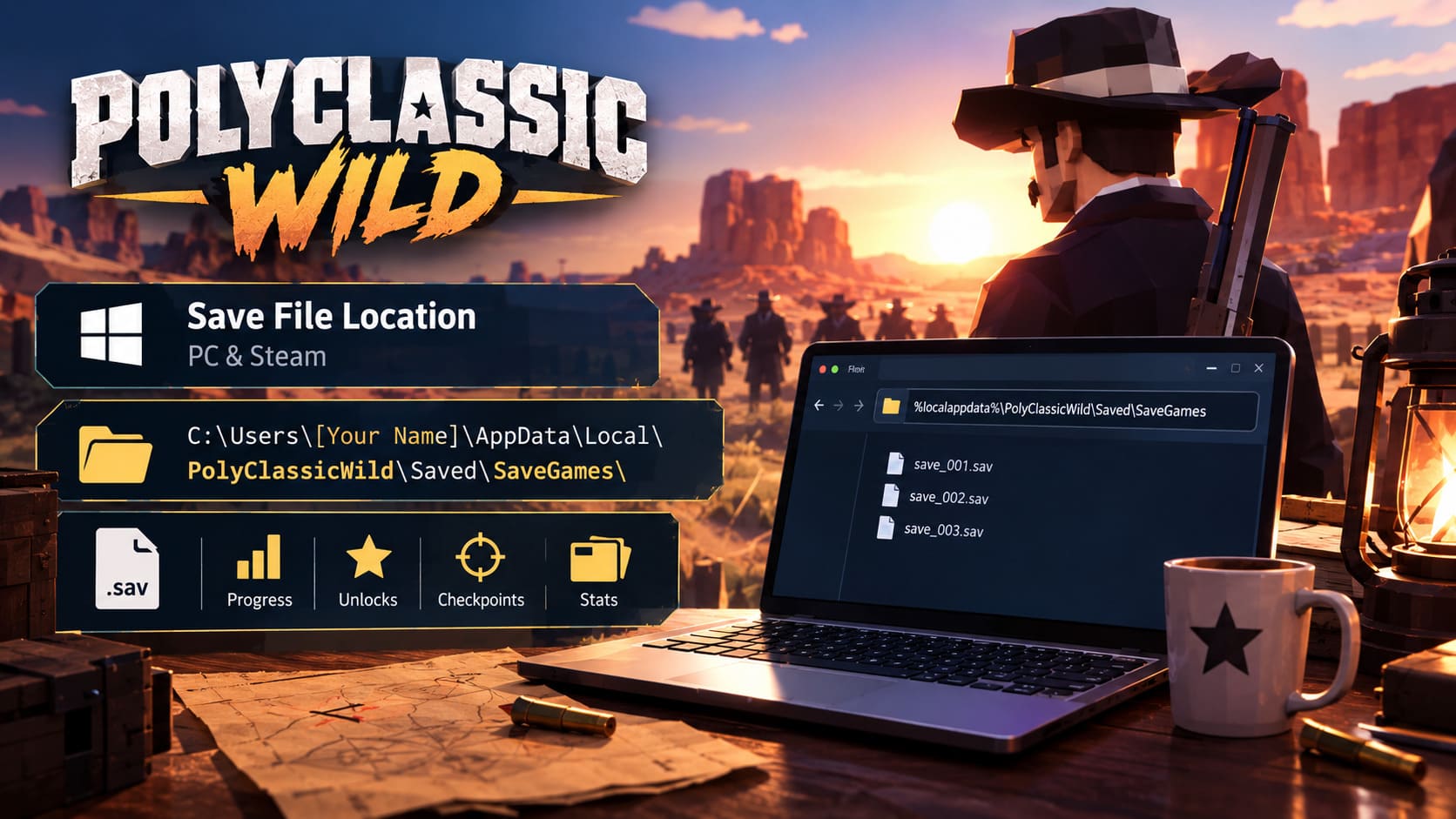
%localappdata%\PolyClassicWild\Saved\SaveGames
Press Enter and Windows should take you directly to the save directory.
That’s it.
This is also the method I prefer when writing down a save location for future reference because %localappdata% works without needing to remember your exact Windows username.
If the folder doesn’t appear, don’t immediately assume your saves are gone. The first thing I’d check is whether PolyClassic: Wild has been launched and actually created local save data on that Windows account.
Finding the Folder Manually
There is nothing wrong with using File Explorer if you prefer seeing the entire directory structure.
Open your Windows drive and go through:
C: → Users → Your Username → AppData → Local → PolyClassicWild → Saved → SaveGames
There is one little Windows annoyance here: AppData is hidden by default.
If you don’t see it, open File Explorer and enable Hidden items from the View menu. Once that is enabled, AppData should become visible.
From there, open Local, find PolyClassicWild, and continue into Saved and then SaveGames.
I recommend not changing or deleting anything while you’re simply trying to locate the files. If you’re investigating a save problem, make a backup first. It takes seconds and can save you from turning a small problem into a much bigger one.
What Is the Steam App ID for PolyClassic: Wild?
If you’re looking through Steam’s folders, the number you need is:
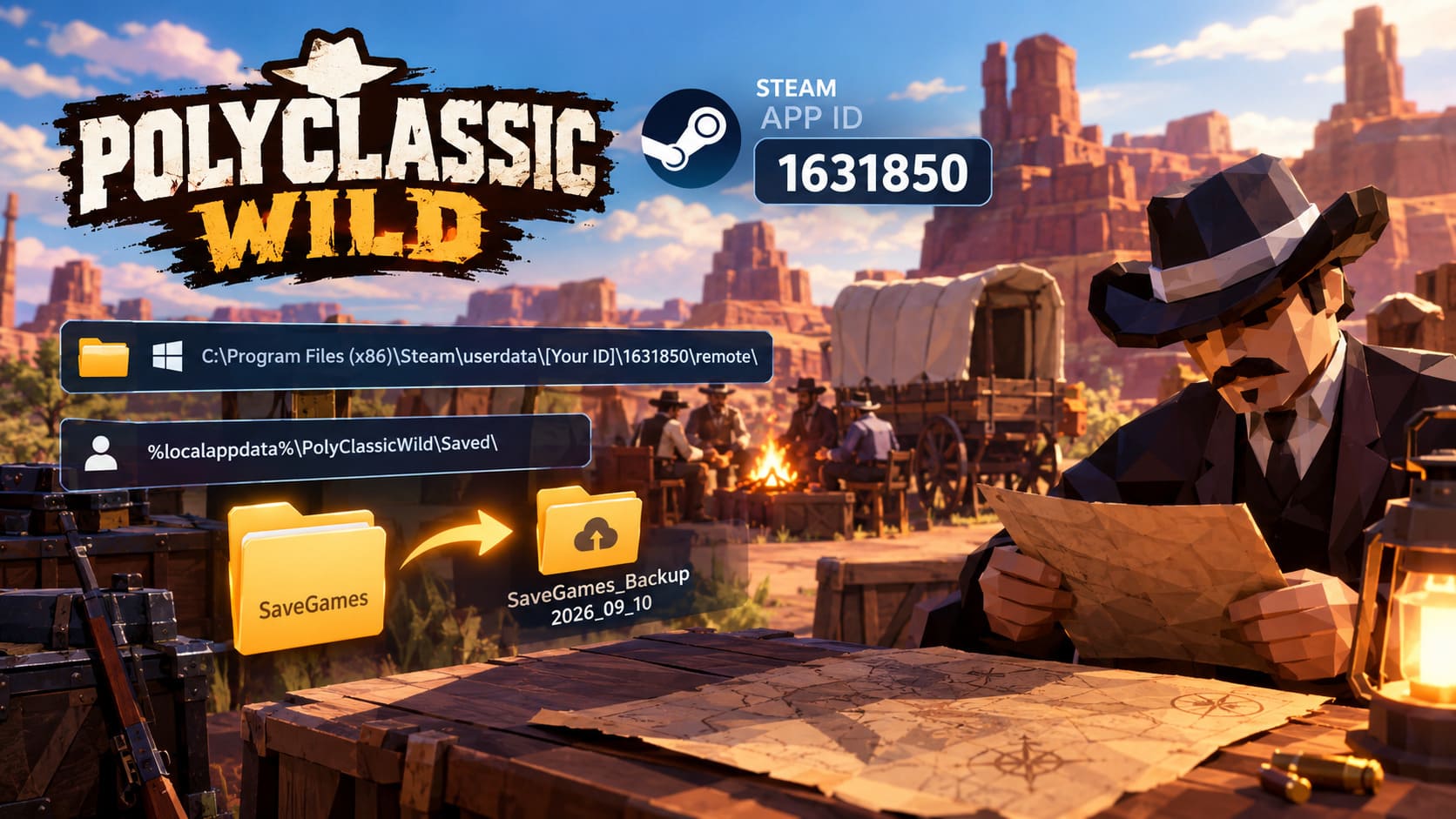
1631850
Steam uses App IDs rather than normal game names for its userdata directories. That means you won’t necessarily find a folder called PolyClassic: Wild.
Instead, look under your Steam userdata directory:
C:\Program Files (x86)\Steam\userdata\[Your Steam ID]\1631850\remote\
Your actual Steam installation may be somewhere else, of course. If you installed Steam on another drive, use that installation’s userdata folder instead.
Inside userdata, you’ll normally see one or more folders containing long numerical IDs. These correspond to Steam accounts that have been used on the machine.
Open the account folder you use, find 1631850, and then check the remote directory.
One important distinction: I would treat the local AppData save folder as the primary place to inspect first. The Steam userdata directory is particularly relevant when you’re troubleshooting synchronization or trying to understand what Steam is keeping locally for cloud-enabled data.
Why I Always Make a Manual Save Backup
Steam Cloud is convenient, but convenience isn’t the same thing as a real backup.
I’ve had enough experience with PC games to know that cloud synchronization can sometimes make a bad situation more confusing. A conflict between local and cloud data can leave you staring at two versions of your progress and wondering which one is actually the good save.
That’s why I like keeping a manual copy before doing anything risky.
The process is incredibly simple:
- Close PolyClassic: Wild completely.
- Make sure Steam has finished any synchronization activity.
- Open %localappdata%\PolyClassicWild\Saved\.
- Copy the entire SaveGames folder.
- Paste it somewhere separate from the original game directory.
- Give the backup a useful name, such as SaveGames_Backup_2026_09_10.
I recommend keeping at least one backup that isn’t sitting in the same location as the original files. An external drive, another storage location, or a trusted cloud-storage folder works much better than simply making a second copy next to the original.
The reason is obvious: if the drive develops a problem, both copies sitting on that drive aren’t much of a backup.
How to Restore a PolyClassic: Wild Save
Restoring a backup is basically the reverse process, but this is where I would slow down and pay attention.
First, close the game and Steam. You don’t want the game or Steam Cloud immediately replacing the files you’re trying to restore.
Navigate to:
%localappdata%\PolyClassicWild\Saved\
If your current SaveGames folder is clearly corrupted or you are intentionally replacing it with an older backup, remove or move the existing folder somewhere safe rather than permanently deleting it immediately.
Then copy your backed-up SaveGames folder into the Saved directory.
The final structure should look like:
PolyClassicWild\Saved\SaveGames\
Don’t leave your backup name attached to the active folder. For example, Windows should not end up with something like SaveGames_Backup_2026_09_10 as the directory the game expects to read.
After restoring the files, launch the game and check your progression before doing anything else.
If everything looks correct, you’ve successfully restored the older save.
Be Careful With Steam Cloud Conflicts
This is probably the part where I’d be most cautious.
If Steam reports a Cloud Sync Conflict, don’t blindly pick an option just to get the game running. Take a moment and figure out which version contains your latest progress.
If you were playing recently on the current PC and know the local files are newer, the local version is probably the one you want to preserve.
If you’re setting up a new computer and your old machine contained the most recent progress, the cloud version may be the better choice.
The exact wording Steam uses can change, but the principle doesn’t: know which copy is newer before choosing what gets uploaded or downloaded.
If you choose incorrectly, you can potentially replace a good version with an older one.
Temporarily Turning Off Steam Cloud
If you’re troubleshooting repeated overwrites, temporarily disabling Steam Cloud can make the situation much easier to control.
In Steam:
Library → Right-click PolyClassic: Wild → Properties → General → Steam Cloud
Turn the cloud-save option off while you work with your local files.
I wouldn’t leave synchronization disabled forever unless you have a specific reason. The point is to prevent Steam from automatically changing your test environment while you’re trying to determine which save is healthy.
Once you’ve confirmed that the local files work correctly, you can decide whether to turn cloud synchronization back on.
What If Your Saves Are Missing?
If you open the expected folder and find nothing, don’t panic yet.
There are several possibilities worth checking.
First, make sure you’re logged into the same Windows account that originally played the game. A different Windows profile means a completely different AppData directory.
Second, check whether the game has actually generated save data. If you recently installed it and haven’t reached a point where the game creates persistent progress, an empty folder isn’t necessarily an error.
Third, check the Steam userdata directory using App ID 1631850. This can be useful when investigating cloud synchronization.
Finally, if the files were recently deleted or damaged, Windows backup features may help. If you use File History or another backup system, right-click the relevant SaveGames folder, open Properties, and check whether previous versions are available.
PolyClassic: Wild Beginner’s Guide and All Levels Walkthrough (2026 Edition)
Verify the Game Files Before Blaming Your Save
Not every crash or loading problem is caused by a broken save.
If PolyClassic: Wild crashes while loading, freezes unexpectedly, or behaves strangely after an update, I’d also verify the game installation through Steam.
Go to:
Steam Library → PolyClassic: Wild → Properties → Installed Files → Verify integrity of game files
This checks the installed game data and replaces damaged files where necessary.
The nice thing about this approach is that you’re addressing the game installation itself rather than immediately deleting your personal progress.
Don’t start deleting save files just because the game crashed once. That’s usually the fastest way to turn a technical problem into a lost-progress problem.
Is PolyClassic: Wild Worth Playing in 2026? Gameplay, Price, and Honest Review
My Recommended PolyClassic: Wild Backup Routine
For a game like PolyClassic: Wild, you don’t need some elaborate professional backup system.
I’d simply make a manual copy whenever you’ve reached a meaningful milestone or before doing something potentially risky, such as changing hardware, reinstalling Windows, experimenting with modifications, or troubleshooting Steam Cloud.
The most important thing is knowing where the files actually live.
Once you’ve memorized or bookmarked:
%localappdata%\PolyClassicWild\Saved\SaveGames
you’ve already done most of the work.
Steam Cloud is great as a convenience layer, but I still prefer having a physical copy of a save that I know is working. When you’ve spent hours unlocking content and pushing through a difficult shooter, a few seconds spent copying a folder is a pretty cheap insurance policy.
And honestly, that’s the biggest lesson here: don’t wait until PolyClassic: Wild loses your progress before you learn where the save files are. Find the folder while everything is working, make a clean backup, and you’ll have a much easier time recovering if Windows, Steam, or the game itself decides to misbehave.