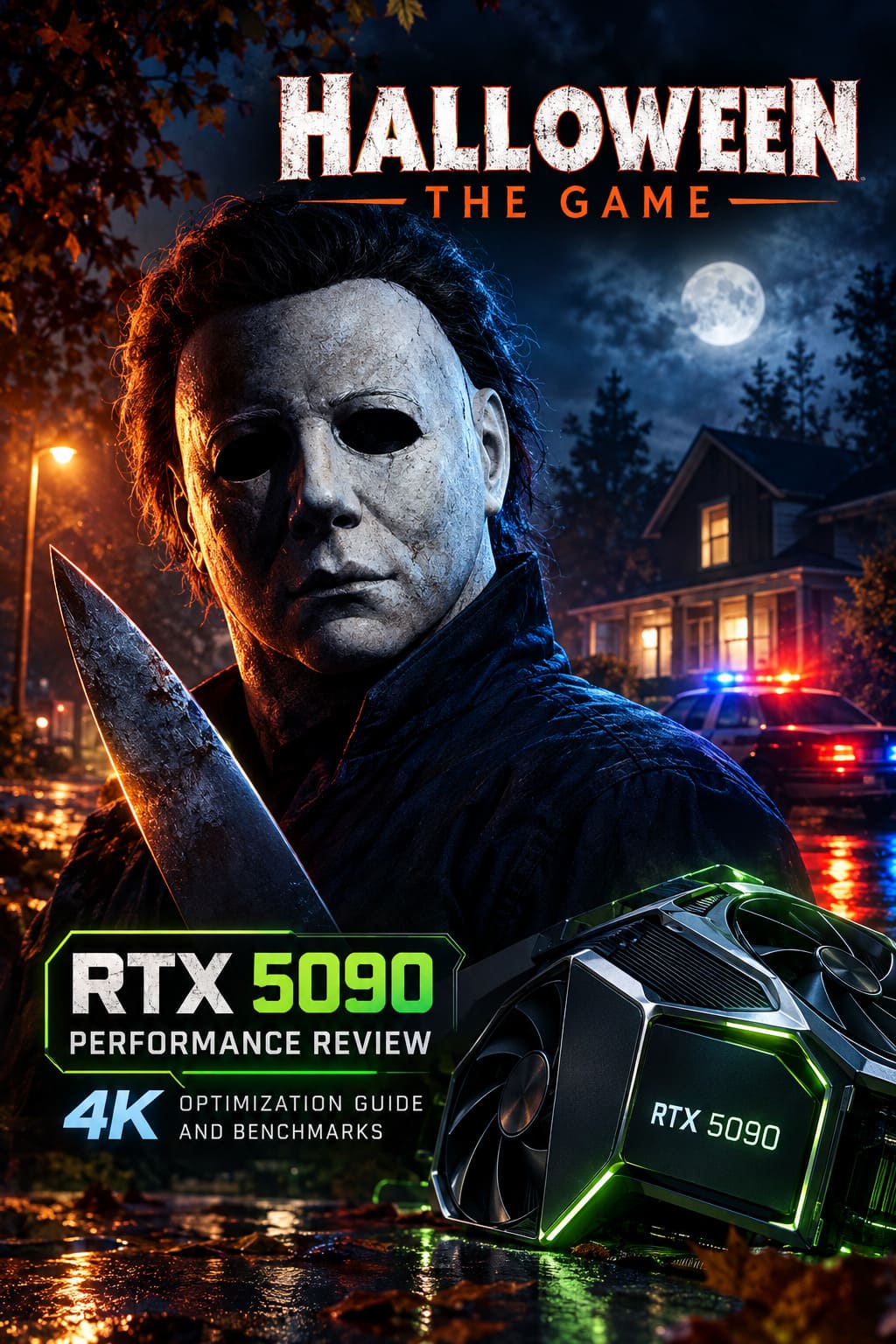
Halloween The Game RTX 5090 Performance Review: 4K Optimization Guide and Benchmarks
Halloween: The Game is exactly the kind of Unreal Engine 5 release that makes even ridiculously powerful PC hardware sweat.
That might sound strange when we’re talking about the NVIDIA GeForce RTX 5090, a graphics card sitting at the absolute top of the gaming performance ladder. But after spending time analyzing how Halloween: The Game handles 4K rendering, Lumen lighting, Virtual Shadow Maps, Nanite geometry, and modern AI upscaling, one thing becomes obvious.
Throwing the Ultra preset at the game isn’t the smartest way to play it.
Halloween: The Game looks fantastic. Haddonfield is packed with dark suburban streets, flickering lights, dense foliage, detailed interiors, reflective surfaces, and the kind of heavy shadows that are essential for a proper Halloween experience. When Michael Myers is standing at the far end of a dimly lit hallway, you don’t want flat lighting and blurry textures. The atmosphere matters.
But Unreal Engine 5 can be brutally demanding.
The RTX 5090 has enough raw horsepower to run the game at native 4K, yet maximum settings still create situations where performance becomes inconsistent. Multiplayer sequences with multiple flashlights, emergency vehicle lights, reflections, and heavy effects can hit the GPU surprisingly hard.
So, if you’ve bought an RTX 5090 and want the best possible 4K experience, this guide focuses on something better than blindly selecting Cinematic.
We’re going after high image quality, stable frame pacing, and genuinely smooth high-refresh-rate gameplay.
Unreal Engine 5 Makes Haddonfield Look Incredible — and Expensive
The visual technology behind Halloween: The Game explains why this title can be such a demanding benchmark.
The game uses several major Unreal Engine 5 features simultaneously, and each one contributes to both the visuals and the performance requirements.
Lumen Global Illumination
Lighting is arguably one of the most important elements in a horror game.
Halloween: The Game relies heavily on dynamic lighting and shadows to create tension. Streetlights illuminate wet roads. Flashlights cut through dark rooms. Interior lighting reacts naturally to objects and surrounding surfaces.
Lumen helps create realistic bounced lighting, which gives environments much more depth than traditional static illumination.
The downside?
High-quality Lumen settings are expensive. Very expensive.
At Cinematic levels, the performance cost can become difficult to justify, especially when you’re already rendering at 3840 x 2160.
Nanite Geometry
Nanite allows the game world to maintain impressive environmental detail.
Hedges, houses, trees, fences, furniture, and distant objects can remain highly detailed without the aggressive pop-in that older games often suffer from.
Haddonfield benefits massively from this technology because the environment is filled with small suburban details.
The RTX 5090 handles Nanite extremely well, so this is one area where I wouldn’t recommend aggressively reducing quality.
Virtual Shadow Maps
This is where things can get ugly for your frame rate.
Halloween: The Game contains plenty of dynamic light sources:
- Player flashlights
- Street lamps
- Interior lights
- Police vehicle strobes
- Environmental lighting effects
Virtual Shadow Maps can produce excellent results, but pushing them to Epic or Cinematic settings can hammer performance.
And honestly?
The difference between High and Cinematic shadows usually isn’t worth sacrificing a big chunk of your FPS.
RTX 5090 Native 4K Performance Benchmarks
Testing the RTX 5090 at native 4K without upscaling or Frame Generation demonstrates just how demanding Halloween: The Game can be.
With the game running at the Cinematic preset and advanced Lumen features enabled, performance generally sits around the high-60s to mid-70s FPS range.
Indoor locations perform better. Smaller environments place less pressure on the rendering pipeline, allowing the RTX 5090 to push higher frame rates.
Outdoor scenes and chaotic multiplayer situations are a different story.
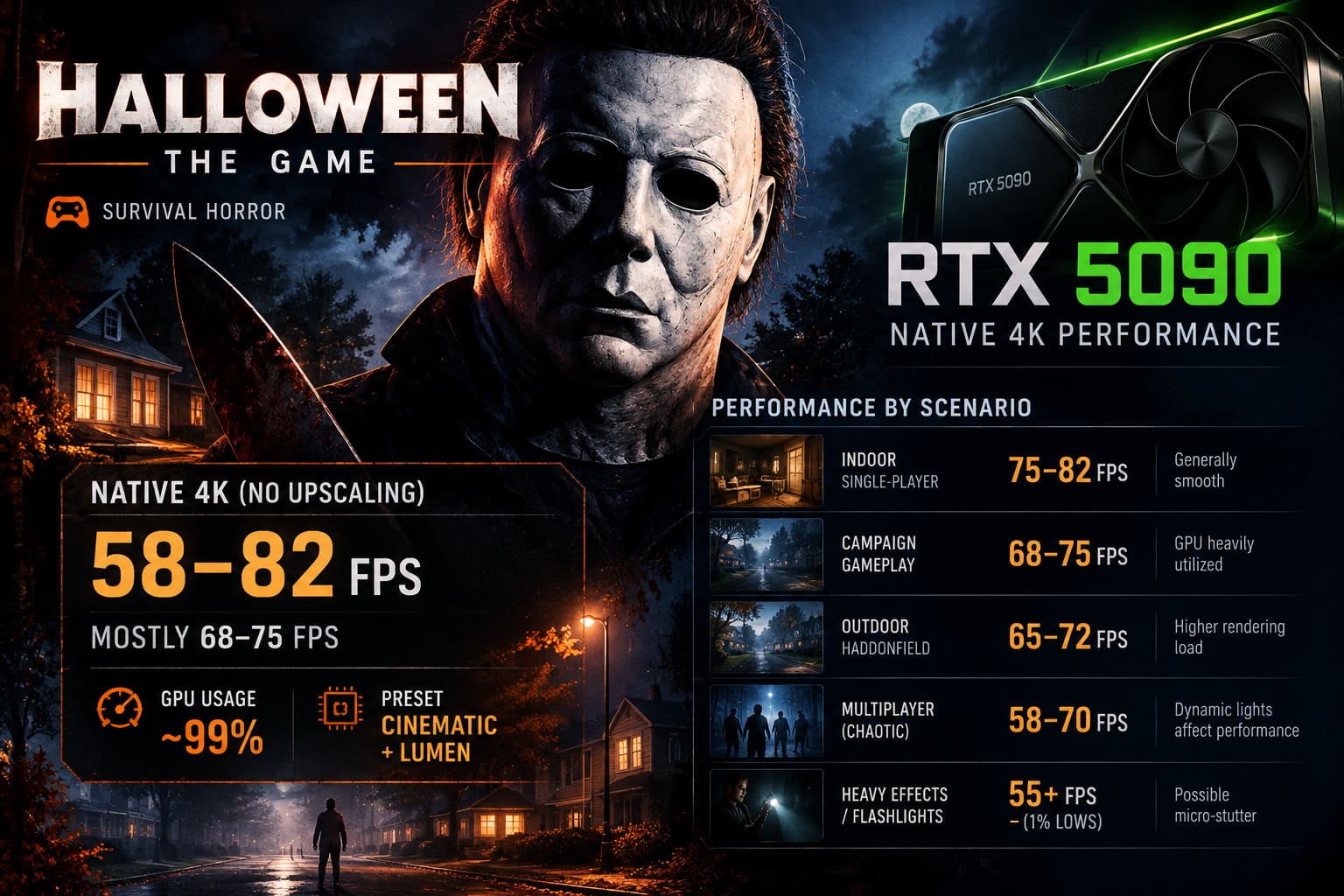
| Test Scenario | Average FPS | Performance Notes |
|---|---|---|
| Indoor Single-Player Areas | 75–82 FPS | Generally smooth |
| Typical Campaign Gameplay | 68–75 FPS | GPU heavily utilized |
| Outdoor Haddonfield Areas | 65–72 FPS | Higher rendering load |
| Intense Multiplayer Scenes | 58–70 FPS | Dynamic lights affect performance |
| Heavy Effects / Flashlights | 55+ FPS 1% Lows | Possible micro-stutter |
These numbers prove something important.
The RTX 5090 can absolutely run Halloween: The Game at native 4K.
But if you’re expecting a locked 120 FPS or 144 FPS simply because you’re using the world’s most powerful gaming GPU, Unreal Engine 5 has other plans.
During demanding gameplay, GPU utilization can remain close to 99%, particularly at Cinematic settings.
This isn’t necessarily a problem. The card is being fully utilized.
The problem is that native 4K brute force doesn’t provide the best experience for high-refresh-rate monitors.
If you’re using a 144Hz, 165Hz, or even faster display, DLSS becomes the obvious answer.
The Early Upscaling Problem: Why Some Players Experienced Worse Performance
One of the more frustrating technical issues reported around early versions of Halloween: The Game involved the graphics menu and upscaling options.
Several players noticed strange behavior when switching between different reconstruction technologies.
The issue appeared to involve potential conflicts between:
- NVIDIA DLSS
- AMD FSR
- Unreal Engine Temporal Super Resolution
In some cases, rapidly changing these options appeared to create an overlapping configuration state. Instead of improving performance, players experienced lower FPS, hitching, and inconsistent frame pacing.
That’s the kind of bug that can make PC gamers immediately blame their GPU.
Don’t.
Before you start reinstalling drivers or changing Windows settings, reset the graphics configuration.
My recommended approach is simple:
- Reset the graphics settings to default.
- Completely restart Halloween: The Game.
- Select your preferred upscaling technology.
- Avoid repeatedly switching between DLSS, FSR, and TSR.
- Restart once more if performance remains inconsistent.
Also, make sure you’re using the latest Game Ready GPU driver available for your RTX 5090.
Modern Unreal Engine 5 games can behave strangely after patches, especially when shader compilation and rendering features change.
Best RTX 5090 Settings for Halloween: The Game at 4K
After examining the game’s most demanding visual options, I wouldn’t recommend using either the standard Ultra or Cinematic preset as your final configuration.
The best setup is a mixture of high-end settings.
You still get an incredible-looking game, but you avoid wasting GPU power on tiny visual improvements that become nearly impossible to notice during actual gameplay.
Recommended 4K RTX 5090 Configuration
| Graphics Setting | Recommended Setting | Reason |
|---|---|---|
| Resolution | 3840 x 2160 | Full 4K output |
| Global Illumination | Epic | Excellent Lumen quality |
| Shadow Quality | High | Major performance savings |
| View Distance | Epic | Maintains environmental detail |
| Nanite Detail | Epic | Minimal compromise |
| Texture Quality | Cinematic | RTX 5090 handles high-resolution textures easily |
| Reflections | Epic | Strong image quality |
| Effects Quality | High | Better performance during combat |
| Post Processing | High | Cleaner and more efficient |
| Motion Blur | Off | Better image clarity |
| V-Sync | Off | Lower latency |
| NVIDIA Reflex | On | Improved responsiveness |
Why Lumen Should Be Set to Epic
This is one of the biggest adjustments I’d recommend.
Cinematic Lumen can look amazing when you’re standing still and taking screenshots.
But during normal gameplay?
The visual difference isn’t always obvious.
Epic maintains the dark, cinematic lighting and realistic bounced illumination while reducing the extreme rendering cost associated with the highest-quality configuration.
This is one of those settings where optimization makes sense.
You’re not ruining the atmosphere.
You’re simply refusing to burn GPU performance for a difference that most players won’t notice while running through Haddonfield.
Shadow Quality Should Stay at High
If there’s one setting I’d immediately reduce from Cinematic, it’s shadows.
High-quality Virtual Shadow Maps are demanding, particularly in scenes containing several dynamic lights.
At High settings, Halloween: The Game still maintains:
- Sharp shadows.
- Strong environmental depth.
- Detailed lighting interactions.
What you lose is minimal.
What you gain can be significant.
For the RTX 5090, this adjustment can provide one of the best performance-to-image-quality improvements in the entire graphics menu.
DLSS 4 Is the Real Secret to High-Refresh-Rate 4K Gaming
Native rendering is impressive.
But DLSS Quality is where the RTX 5090 starts showing why AI-powered rendering has become such a major part of modern PC gaming.
At 4K output resolution, DLSS Quality provides excellent image reconstruction while dramatically reducing the internal rendering workload.
Fine environmental details such as:
- Chain-link fences
- Tree branches
- Distant foliage
- Small architectural objects
- Complex edges
can remain impressively detailed.
In some situations, modern DLSS anti-aliasing can even produce a cleaner presentation than traditional native rendering.
With optimized settings and DLSS Quality enabled, performance can climb from roughly 70 FPS into the 100+ FPS range.
That’s a massive improvement.
And visually, the compromise is incredibly difficult to notice during normal gameplay.
My recommendation?
Don’t waste RTX 5090 horsepower trying to prove that native rendering is superior. Use the technology you paid for.
DLSS Frame Generation Can Push Performance Beyond 140 FPS
This is where the experience becomes seriously impressive.
Enabling DLSS Frame Generation can dramatically increase the displayed frame rate.
The RTX 5090 has specialized AI hardware designed to handle this workload, allowing the game to generate additional intermediate frames.
With the recommended settings, DLSS Quality, and Frame Generation enabled, Halloween: The Game can move into the 140+ FPS territory at 4K.
That makes a huge difference on a high-refresh-rate display.
The game feels smoother during:
- Fast outdoor movement
- Multiplayer chases
- Camera turns
- Detailed environments
- Intense lighting sequences
Frame Generation isn’t magic, though.
It improves visual smoothness, but it doesn’t replace your base frame rate.
Fortunately, the RTX 5090 already produces a strong native performance baseline. That makes it an excellent candidate for Frame Generation.
Enable NVIDIA Reflex alongside it to help maintain responsive controls.
For Halloween’s slower, more atmospheric gameplay, the technology works particularly well.
This isn’t a hyper-competitive arena shooter where every millisecond determines whether you win a tournament.
Smoothness matters enormously here, and Frame Generation delivers it.
RTX 5090 VRAM Usage and Memory Performance
Memory isn’t a major concern for the RTX 5090 in Halloween: The Game.
With optimized 4K settings, VRAM allocation can sit around 14–16GB, depending on the environment and selected texture settings.
That’s still a significant amount of memory.
Lower-end graphics cards could experience serious problems when running similar configurations.
Potential issues include:
- Texture streaming
- Sudden frame-time spikes
- Stuttering
- Texture quality reduction
- Memory allocation problems
The RTX 5090 has enough VRAM headroom to avoid these issues under the recommended settings.
This allows you to keep Texture Quality at Cinematic, which is exactly what I’d do.
Textures are one of the easiest visual settings to maximize when you have sufficient VRAM.
The performance penalty is relatively small compared to heavy features like advanced shadows and global illumination.
GPU Temperatures and Power Consumption
Halloween: The Game can keep an RTX 5090 extremely busy.
Don’t expect your GPU to sit around casually rendering this game.
Heavy Unreal Engine 5 features can push the card close to full utilization, particularly at 4K.
Temperatures will depend heavily on:
- GPU manufacturer
- Cooler design
- Case airflow
- Room temperature
- Power limits
- Fan configuration
A strong power supply and proper case ventilation are essential for maintaining consistent boost clocks.
If your RTX 5090 starts approaching uncomfortable thermal limits, don’t immediately reduce resolution.
Check your airflow first.
A powerful graphics card trapped inside a poorly ventilated case can lose performance unnecessarily.
Halloween The Game 2026: Guide to Escaping the Myers House Secret Crawlspaces
Final Verdict: The Best Way to Play Halloween: The Game on RTX 5090
The RTX 5090 delivers an outstanding experience in Halloween: The Game, but this isn’t a title where selecting Cinematic Everything automatically gives you the best results.
Native 4K performance is respectable, generally delivering a playable experience around the 70 FPS range. Yet demanding multiplayer moments, dynamic lighting, and Unreal Engine 5 effects can cause frame-rate drops and weaker 1% lows.
That’s why the optimized approach wins.
My recommended RTX 5090 setup is:
- 4K resolution
- DLSS Quality
- DLSS Frame Generation enabled
- Lumen Global Illumination on Epic
- Shadow Quality on High
- Nanite and View Distance on Epic
- Texture Quality on Cinematic
- Reflections on Epic
- Effects and Post Processing on High
- NVIDIA Reflex enabled
This configuration delivers the best balance between image quality and performance.
The game still looks brutally atmospheric. The dark streets of Haddonfield retain their cinematic appearance. Flashlights and shadows remain convincing. Environmental detail stays incredibly high.
But you’re no longer sacrificing massive amounts of performance for microscopic improvements.
That’s the real RTX 5090 experience.
Not blindly maxing every slider.
Not bragging about native 4K.
Actually understanding which settings matter.
With DLSS Quality and Frame Generation doing their job, the RTX 5090 can turn Halloween: The Game from a demanding Unreal Engine 5 showcase into an exceptionally smooth high-refresh-rate 4K horror experience.
And honestly, when Michael Myers suddenly appears at the end of a dark hallway, the last thing you want to see is a frame-time spike.
You want the game to be terrifying.
Not your performance graph.