Withering Realms Steam Deck Settings: Best Graphics & Layout Configuration Guide
If there’s one thing I love about horror games on Steam Deck, it’s how much more personal they feel. Sitting in bed with headphones on while some horrible creature is shambling toward you is somehow much more uncomfortable than playing the same scene on a big monitor.
That’s exactly why Withering Realms caught my attention. Moonless Formless has already demonstrated that it understands how to make a small indie horror game feel much bigger than its budget suggests, and this new action RPG pushes that idea considerably further. The combination of the 3/4 perspective, occult atmosphere, sprawling environments, monsters, fog, and flashy combat makes it a surprisingly demanding game for a handheld.
After spending time experimenting with different settings, I’ve found that the Steam Deck doesn’t need everything turned down to Low to make Withering Realms enjoyable. In fact, that’s probably the wrong approach. The game benefits from keeping its textures and native resolution high while selectively reducing the effects that actually hammer the GPU.
So, if you’re looking for the best Withering Realms Steam Deck settings, here’s the setup I’d personally start with.
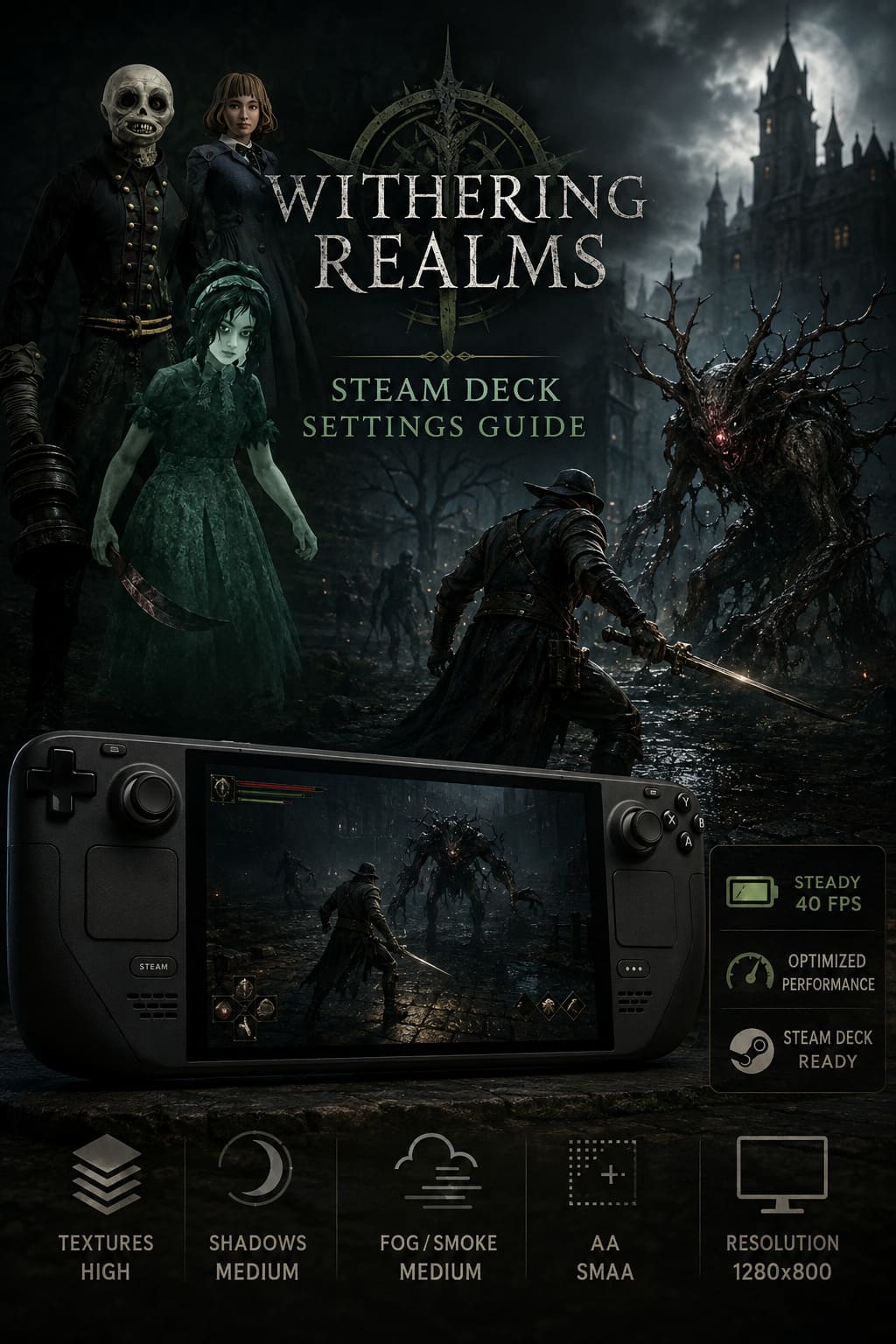
My Recommended Steam Deck Settings
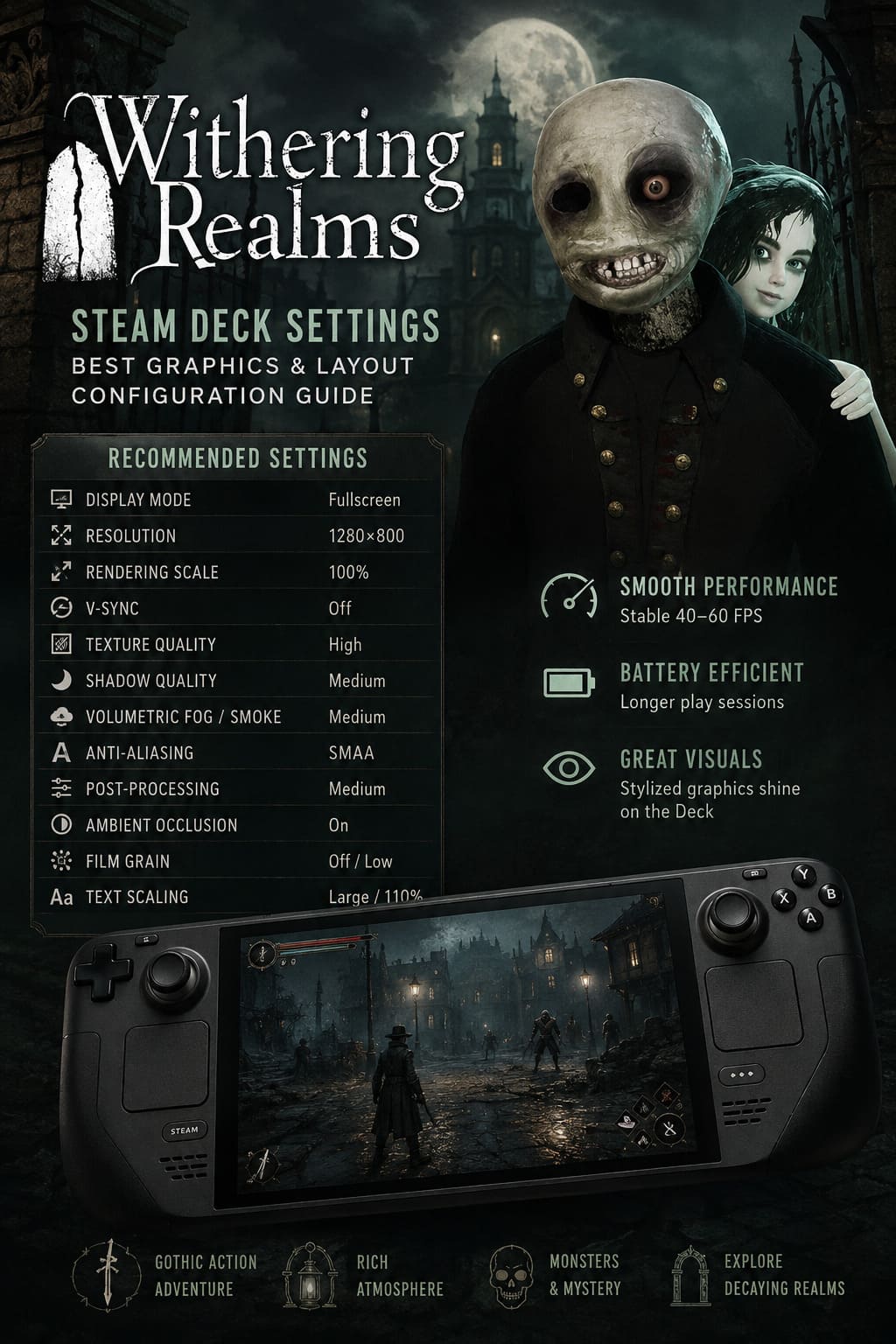
Before getting into the little details, here’s the configuration I currently prefer. It strikes a very nice balance between image quality, responsiveness, and battery consumption.
| Setting | Recommended Value |
|---|---|
| Display Mode | Fullscreen |
| Resolution | 1280×800 |
| Rendering Scale | 100% |
| V-Sync | Off |
| Texture Quality | High |
| Shadow Quality | Medium |
| Volumetric Fog / Smoke | Medium |
| Anti-Aliasing | SMAA |
| Post-Processing | Medium |
| Ambient Occlusion | On |
| Film Grain | Off / Low |
| Text Scaling | Large / 110% |
The important thing here is that I’m not trying to make Withering Realms look like a low-spec PC game.
The Deck is capable of presenting this game’s stylized visuals beautifully. The trick is simply figuring out where the expensive graphical effects are hiding.
1. Why Withering Realms Needs Some Steam Deck Tweaking
Withering Realms isn’t a simple pixel-art indie game where you can throw everything on Ultra and forget about it.
You’ve got large outdoor spaces, multiple sprawling dungeons, lots of enemies on screen, atmospheric lighting, environmental effects, and combat abilities that can suddenly fill the screen with particles.
And that’s where the Steam Deck can occasionally struggle.
The most noticeable performance dips aren’t necessarily going to happen when you’re standing in a quiet room. They tend to appear when several demanding effects happen at once.
For example, entering a fog-heavy area while enemies are attacking and you’re using a weapon with a lot of visual effects can put substantially more pressure on the GPU.
Personally, I’d rather sacrifice a little fog quality than have the game suddenly hitch during combat.
That’s why Medium is the sweet spot for volumetric effects.
2. Keep the Native 1280×800 Resolution
This is one setting I wouldn’t mess with unless you absolutely need extra performance.
Set the game to:
1280×800
That’s the Steam Deck’s native resolution and, in my experience, it gives the game a noticeably cleaner presentation than dropping unnecessarily to 1280×720.
Withering Realms relies heavily on its art direction. The environment details, character models, weapons, and gloomy lighting are doing a lot of the visual storytelling.
Reducing the resolution can make all of that look softer than it needs to.
I’d therefore leave Rendering Scale at 100% as well.
If you’re fighting a particularly demanding boss and getting uncomfortable frame drops, dropping the scale to around 90% is a reasonable emergency option. But I wouldn’t start there.
3. Don’t Waste Performance on Shadows
This is probably the easiest performance win.
Set Shadow Quality to Medium.
High-quality shadows can look fantastic on a desktop monitor, but the difference is much harder to appreciate on a seven-inch screen. Meanwhile, the performance cost can still be significant.
Withering Realms has enough going on visually that Medium shadows don’t suddenly make the world look flat.
You still get the atmosphere.
You still get the lighting.
You still get those creepy silhouettes.
You just aren’t spending precious GPU resources rendering unnecessarily detailed shadows in every corner of Penwyll.
Medium is the setting I’d recommend to almost everyone.
4. Volumetric Fog Is the Big One
If you’re only going to change one graphics setting after reading this guide, make it this one.
Volumetric Fog / Smoke: Medium
The fog is obviously part of Withering Realms’ identity. Turning it down too far can make certain areas lose some of their horror atmosphere, so I wouldn’t immediately throw it on Low.
But High can be unnecessarily expensive.
Medium gives you most of the visual effect while reducing the workload during those fog-heavy outdoor areas and underground locations.
And honestly? I barely notice the difference once I’m actually playing.
I’m much more interested in seeing a stable frame rate when something horrifying comes sprinting out of the darkness.
5. High Textures Are Worth Keeping
Here’s where I disagree with the instinct to simply lower everything on Steam Deck.
Texture Quality: High
Keep it there.
Textures generally aren’t the first thing I’d sacrifice when optimizing a game for the Deck, particularly when the developers have already done a good job with their assets.
Withering Realms has a lot of interesting environmental detail. Wood, stone, metal, clothing, weapons, character models, and the various pieces of equipment all benefit from retaining higher texture quality.
On the small Steam Deck display, High textures provide visual sharpness without necessarily destroying performance in the way more aggressive lighting or shadow settings can.
So I’d rather run:
High Textures + Medium Shadows
than:
Low Textures + High Shadows
That combination makes much more sense to me.
6. SMAA vs. TAA: Pick the Look You Prefer
Anti-aliasing is one of those settings where there isn’t necessarily a single correct answer.
I’d personally start with SMAA.
The reason is simple: Withering Realms has a stylized visual identity, and SMAA tends to preserve that crispness nicely.
TAA is worth trying if you notice too much shimmering around edges or moving objects. It can produce a smoother image, but it may also make the presentation look a little softer.
So my preference is:
- SMAA: Sharper, cleaner image
- TAA: Smoother edges, slightly softer presentation
Neither choice is going to transform your performance, so this is mostly about personal taste.
7. Turn Down the Film Grain
I know some people absolutely love film grain in horror games.
I’m not one of them.
At least, not on Steam Deck.
On a large display, subtle film grain can reinforce the cinematic look. On the Deck’s relatively small screen, though, heavy grain can make dark environments harder to read.
And Withering Realms already has plenty of darkness.
I’d use Low or Off.
For long sessions, I find the cleaner image much easier on the eyes. It also makes small environmental details easier to distinguish when you’re wandering around a dark dungeon.
8. Don’t Forget Text Scaling
This is an easy setting to overlook.
Withering Realms has plenty of menus, item descriptions, map information, equipment details, and other interface elements to read. Nobody wants to squint at their Steam Deck screen every five minutes.
If the game gives you the option, set text scaling to approximately Large / 110%.
This isn’t really a performance setting. It’s a quality-of-life improvement.
And for a handheld game, I’d argue that it’s just as important.
A technically perfect 60 FPS experience isn’t much fun if you’re constantly holding the Deck six inches from your face to read an item description.
9. My SteamOS Performance Profile
For the Steam Deck LCD, I’d use a straightforward 60 FPS profile when plugged in or when battery isn’t a major concern:
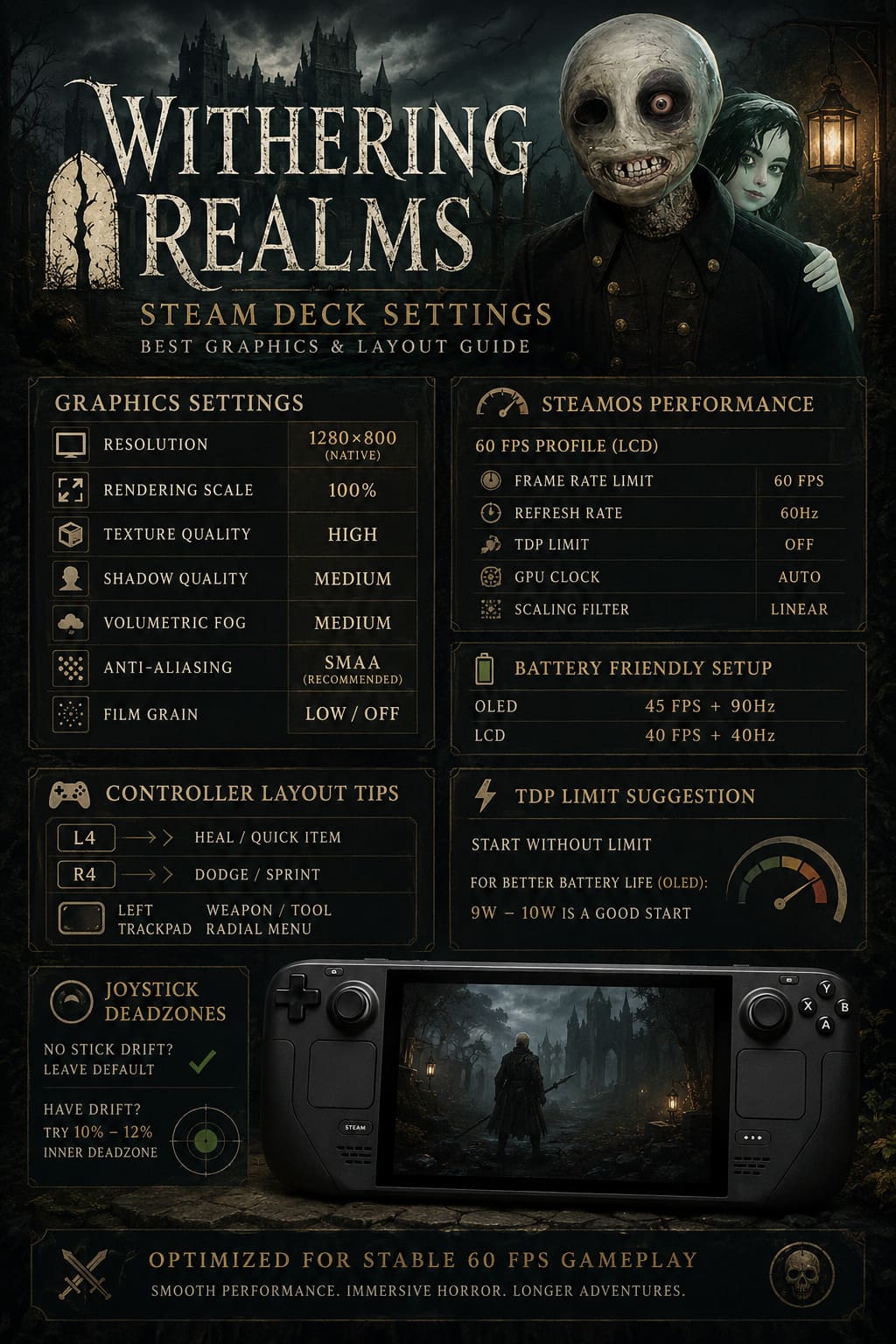
| SteamOS Setting | 60 FPS Profile |
|---|---|
| Frame Rate Limit | 60 FPS |
| Refresh Rate | 60Hz |
| TDP Limit | Off |
| GPU Clock | Auto |
| Scaling Filter | Linear |
This is the profile I’d use for serious combat sessions.
However, there’s another option that I actually prefer for casual exploration.
10. The 45 FPS OLED Setup Is Surprisingly Good
The Steam Deck OLED gives us a very nice opportunity to prioritize battery life without making Withering Realms feel sluggish.
Try:
45 FPS + 90Hz
That 2:1 relationship between the refresh rate and frame rate makes the game feel surprisingly smooth.
And because you’re not constantly chasing 60 FPS, the Deck doesn’t have to work quite as hard.
For me, this is the best overall battery-friendly Withering Realms Steam Deck configuration.
If you’re playing on an LCD model, I’d instead try:
40 FPS + 40Hz
It’s not quite as fluid as 60 FPS, obviously, but it’s an excellent compromise for longer sessions.
11. Should You Use a TDP Limit?
This is where I’d experiment rather than blindly copying someone else’s settings.
Start without a TDP limit.
If performance is already stable, there isn’t much reason to restrict the hardware further.
For OLED users who are primarily interested in battery life, however, 9–10W is a sensible starting point.
Then play for 15–20 minutes in a few different environments.
If you’re still getting the frame rate you want, great. You’ve effectively found free battery life.
If the game starts dropping frames during combat, simply raise the limit or turn it off.
12. My Steam Deck Controller Layout
The default controls are perfectly usable, but this is where the Steam Deck’s extra buttons can make a genuine difference.
My favorite adjustment is putting a frequently used action on L4.
I’d choose either:
L4 → Heal / Quick Item
Then:
R4 → Dodge / Sprint
Why?
Because it means your thumbs don’t have to constantly leave the sticks during combat.
This sounds like a tiny improvement, but after playing for a while, it becomes second nature.
If you’re fighting something aggressive, having dodge available under a rear grip feels much more natural than constantly moving your thumb away from the camera or movement controls.
A Better Weapon-Swapping Setup
The left trackpad can also be useful.
I’d configure it as either a four-way D-pad or radial menu for weapon/tool shortcuts.
This is especially useful if you’re frequently changing between melee weapons and specialized equipment.
Instead of navigating menus in the middle of a fight, you can simply tap the direction you need.
It’s one of those Steam Input tweaks that doesn’t seem important until you’ve used it for a few hours.
Then going back to the default layout feels strangely slow.
13. What About Joystick Deadzones?
If your Deck has no stick drift, leave the deadzone alone.
Seriously.
There’s no advantage to increasing it just because another guide says you should.
If you’re experiencing unwanted movement or aiming drift, then try increasing the inner deadzone gradually. Around 10–12% is a reasonable troubleshooting range.
Don’t immediately jump to a huge deadzone, though. You want the sticks to remain responsive.
14. Proton Settings If Something Goes Wrong
Early Access games can occasionally behave differently between SteamOS versions and Proton releases.
If Withering Realms launches normally, don’t change Proton just for the sake of changing it.
But if you’re dealing with a crash, black screen, or strange startup behavior, forcing another compatibility layer is worth trying.
In Steam:
Properties → Compatibility → Force the use of a specific Steam Play compatibility tool
From there, I’d test Proton Experimental first.
If that doesn’t work, another installed Proton version can be worth testing.
The important thing is to change one thing at a time. Otherwise, you’ll never know which adjustment actually solved the problem.
How to Fix Withering Realms Crashing on Startup on PC (Windows 10/11)
15. My Final Withering Realms Steam Deck Setup
After all the tweaking, this is the configuration I’d personally recommend as the starting point:
Graphics
- 1280×800
- Fullscreen
- 100% Rendering Scale
- V-Sync Off
- High Textures
- Medium Shadows
- Medium Volumetric Fog
- SMAA
- Medium Post-Processing
- Ambient Occlusion On
- Film Grain Off
SteamOS
- 60 FPS / 60Hz for maximum responsiveness
- 45 FPS / 90Hz on OLED for better battery life
- 40 FPS / 40Hz on LCD for a battery-focused profile
- GPU Clock: Auto
- TDP: Start unrestricted, then experiment around 9–10W for battery savings
Controls
- L4 → Heal / Quick Item
- R4 → Dodge / Sprint
- Left Trackpad → Weapon/Tool shortcuts
- Stick Deadzone → Increase only if drift is actually present
Withering Realms Guide: Best Early Game Loadouts, Stamina Management, and Dodge Tips
Final Verdict: Don’t Over-Optimize the Horror
The biggest mistake you can make with Withering Realms on Steam Deck is treating optimization like a race to push every graphical option to Low.
You don’t need to do that.
The game has a distinctive visual style, and its atmosphere is a huge part of what makes exploring Penwyll work. Fog, shadows, lighting, and environmental detail aren’t just decoration—they’re part of the horror.
Instead, I’d make a few targeted compromises.
Keep the resolution native. Keep textures high. Reduce shadows and volumetric effects. Turn off unnecessary post-processing. Then use SteamOS’s frame-rate controls to decide whether you’re chasing 60 FPS or battery life.
For me, 60 FPS is the obvious choice for intense combat, while 45 FPS at 90Hz on the OLED is the setup I’d use for a long evening of exploration.
And that’s ultimately what makes the Steam Deck such a good fit for Withering Realms. You can keep most of the game’s gloomy visual character while gaining the convenience of playing it anywhere.
Just remember to wear headphones.
The Steam Deck’s screen is small.
The nightmares aren’t.