Star Wars Zero Company Best PC Graphics Settings: Guide to Max Quality at 60FPS
There is something uniquely frustrating about a tactical game running badly. In a fast shooter, a random frame drop is annoying. In a turn-based strategy game like Star Wars Zero Company, it can completely ruin the flow of a battle. You are carefully lining up a move, checking cover, watching enemy positions, and then suddenly the camera starts hitching because your GPU is getting hammered by volumetric effects and explosions.
That is exactly why getting the PC settings right matters.
Star Wars Zero Company brings Clone Wars-era tactical combat to PC, PlayStation 5, and Xbox Series X/S, with modern visual effects designed to make every battlefield feel cinematic. Lighting, reflections, smoke, particles, detailed environments, and character models can look fantastic, but you don’t need to run every slider at Ultra just because your graphics card gives you the option.
After spending way too much time tweaking PC graphics settings in demanding games, my philosophy here is simple: keep the settings that actually make the game look better, cut the options that mostly waste GPU power, and target consistent frame times instead of chasing a meaningless peak FPS number.
For most players, 60 FPS with high-quality textures, strong geometry detail, good shadows, and Quality upscaling is the sweet spot.
First, Know What Your PC Is Actually Capable Of
Before touching individual graphics settings, check where your hardware sits relative to the game’s recommended specifications. There is no magic configuration that will turn an entry-level GPU into a 1440p Ultra machine.
Electronic Arts’ hardware targets provide a useful starting point.
| Target | Resolution / FPS | CPU | GPU | RAM |
|---|---|---|---|---|
| Minimum | 1080p / 30 FPS, Low | Intel Core i5-8400 / Ryzen 5 2600X | GTX 1080 / RX 5600 XT / Intel Arc B580 | 16 GB |
| Recommended | 1440p / 60 FPS, High | Intel Core i7-10700K / Ryzen 7 3700X | RTX 3080 / RX 7800 XT | 32 GB |
The minimum configuration is really a 30 FPS target, so expecting flawless 60 FPS at high settings from similar hardware is unrealistic.
The recommended specification is much more interesting. A system around the RTX 3080/RX 7800 XT level with a modern six- or eight-core CPU should be your reference point if you’re aiming for 1440p at a stable 60 FPS on High settings.
The game also requires around 50 GB of available storage, while Windows 10 or Windows 11 64-bit is supported. If you’re building a new setup specifically for modern games, though, Windows 11 is the direction I’d take.
My Recommended Star Wars Zero Company Graphics Settings
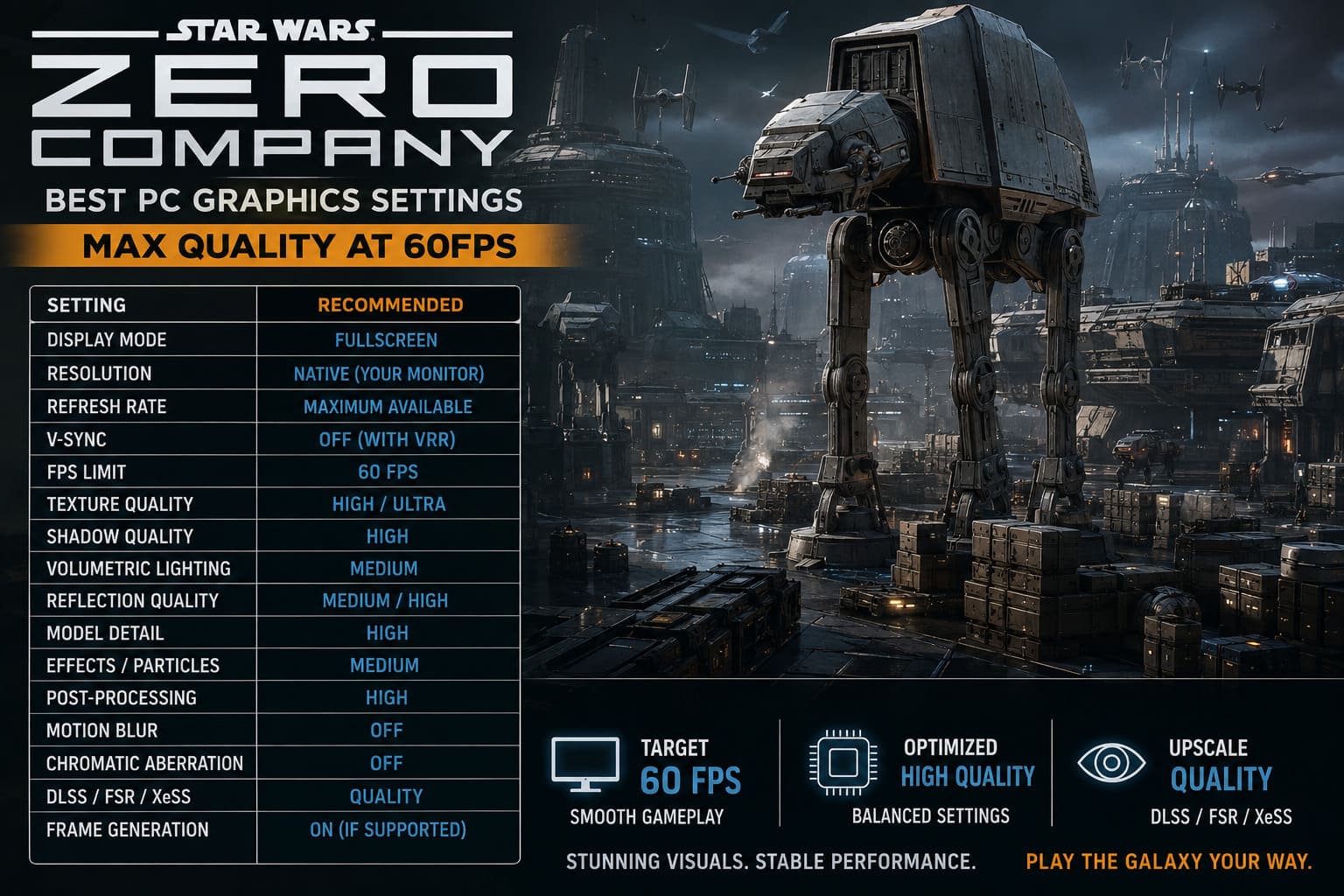
If you simply want the configuration I’d start with, use this as your baseline:
| Setting | Recommended Value |
|---|---|
| Display Mode | Fullscreen |
| Resolution | Native Monitor Resolution |
| Refresh Rate | Maximum Available |
| V-Sync | Off with VRR |
| FPS Limit | 60 FPS |
| Texture Quality | High / Ultra |
| Shadow Quality | High |
| Volumetric Lighting | Medium |
| Reflection Quality | Medium / High |
| Model Detail | High |
| Effects / Particles | Medium |
| Post-Processing | High |
| Motion Blur | Off |
| Chromatic Aberration | Off |
| DLSS / FSR / XeSS | Quality |
| Frame Generation | On, If Supported |
This isn’t about blindly turning everything down. Quite the opposite. The goal is to spend your GPU budget where your eyes actually notice it.
Display Mode: Fullscreen Is My First Choice
If you’re chasing the cleanest frame delivery, start with Fullscreen.
Borderless Windowed is convenient, especially if you’re constantly jumping between multiple monitors, Discord, browser windows, or other applications. But exclusive fullscreen can still provide cleaner latency and fewer weird interactions with Windows’ desktop compositor.
For a dedicated gaming setup, I would use fullscreen and forget about it.
Resolution
Keep the game at your monitor’s native resolution whenever possible.
- 1920×1080 for a 1080p display
- 2560×1440 for a 1440p display
- 3840×2160 for a 4K display
Don’t immediately lower resolution when performance drops. Modern upscalers are usually a much better solution.
Running a game at a lower native resolution can make the image look noticeably soft, especially around character models, weapons, and environmental geometry. I’d rather use Quality DLSS, FSR, or XeSS than butcher the internal resolution.
Refresh Rate, V-Sync, and FPS Limits
Set your refresh rate to whatever your monitor can actually deliver. If you have a 144Hz panel, Windows and the game should both be configured for 144Hz.
If you’re using G-Sync or FreeSync/VRR, I’d normally keep V-Sync disabled inside the game and use an FPS cap to keep the GPU from running unnecessarily hard.
For a 60 FPS target, simply cap the game at 60 FPS.
This isn’t just about reducing power consumption. A frame-rate cap can make frame delivery more consistent and stop your GPU from sitting at 99–100% utilization when it doesn’t need to.
And honestly, in a tactical game, I’d take a rock-solid 60 FPS over wildly fluctuating 80–110 FPS every single time.
Shadow Quality: High Is the Sweet Spot
Recommended: High
Shadows are one of those settings developers love to crank because Ultra screenshots look fantastic. The problem is that high-resolution shadow maps can consume a surprising amount of GPU resources.
In Zero Company, shadows affect clone troopers, droids, buildings, cover objects, terrain, and other battlefield elements.
I’d use High unless your GPU is struggling.
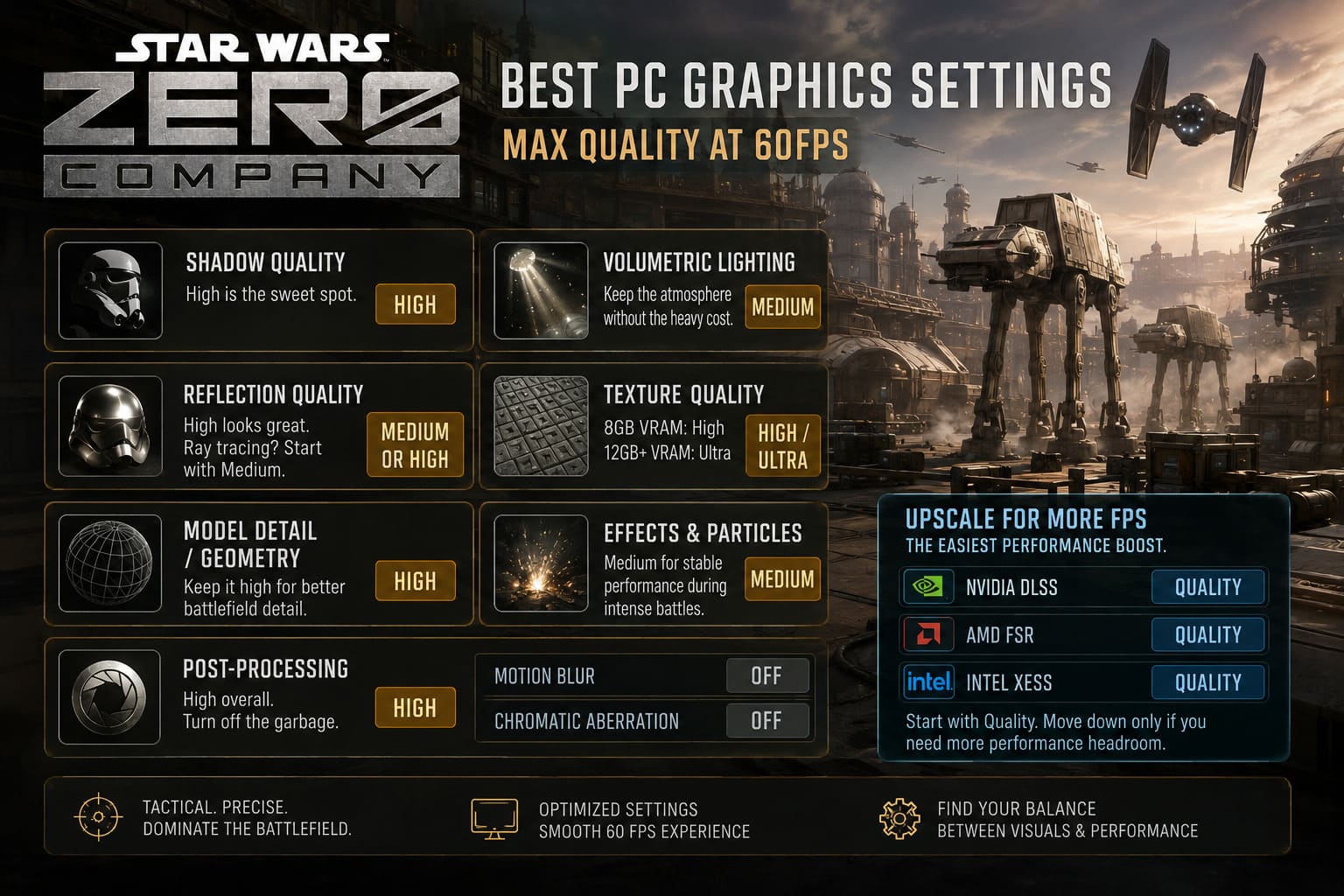
Dropping from Ultra to High can provide a worthwhile performance improvement without turning the battlefield into a flat-looking mess. Medium is also a good emergency setting if you’re trying to rescue a struggling GPU.
My pick: High.
Volumetric Lighting: Turn the Cinematic Excess Down
Recommended: Medium
This is one of the first settings I’d reduce.
Volumetric lighting is responsible for those gorgeous beams of light, atmospheric haze, smoke interaction, dusty environments, and cinematic battlefield effects. It can make a Star Wars environment look incredible.
Unfortunately, it can also be expensive.
When explosions, smoke, and particle effects fill the screen, volumetric calculations can become particularly demanding. That’s exactly when you don’t want your frame time exploding.
Medium is the sweet spot.
You still get the atmosphere. You still get dramatic lighting. You simply stop paying an enormous performance tax for effects that aren’t always obvious during actual gameplay.
Reflection Quality: High If Your GPU Can Handle It
Recommended: Medium or High
Reflections can be surprisingly expensive, especially if hardware ray tracing is involved.
For conventional screen-space reflections, High can look excellent without completely destroying performance.
If you’re using ray-traced reflections and notice sudden performance drops, this is one of the first places I’d experiment.
For most mid-to-high-end systems, I’d rather use High standard reflections than enable every ray-tracing feature and spend the rest of the game wondering why my GPU sounds like it’s preparing for liftoff.
Texture Quality: Spend Your VRAM Wisely
Recommended: High with 8 GB VRAM, Ultra with 12 GB+
Texture quality is different from many other settings because it is heavily tied to VRAM capacity.
If your graphics card has around 8 GB of VRAM, High is the sensible choice.
With 12 GB or more, Ultra becomes much easier to justify.
Textures primarily affect surface detail: armor, terrain, structures, characters, machinery, and other environmental assets. They can make a huge difference to perceived image quality.
The important thing is not to exceed your available VRAM.
Once you’re constantly running out of VRAM, you can get nasty stuttering as the system starts moving graphical data between VRAM and system memory. At that point, your beautiful Ultra textures aren’t worth much.
High textures with stable frame times beat Ultra textures with constant hitching.
Model Detail / Geometry: Keep It High
Recommended: High
This setting controls the geometric complexity of characters, vehicles, structures, terrain objects, and other assets.
Because Zero Company uses a tactical camera, you’ll frequently be looking across large areas of the battlefield. Lower geometry settings can make distant objects pop into higher detail as the camera moves.
That’s distracting.
High is where I’d keep this setting. Modern CPUs and GPUs should be able to handle it reasonably well, and the visual benefit is much easier to appreciate than some of the more expensive post-processing effects.
Effects and Particles: Medium for Consistency
Recommended: Medium
This is another setting where I prefer consistency over spectacle.
Laser fire, sparks, smoke, explosions, debris, and other combat effects can become extremely demanding when multiple units start firing at once.
You might barely notice the difference between High and Medium while planning a quiet turn, but you’ll absolutely notice the difference when the battlefield suddenly becomes a fireworks show.
Medium is my recommendation for a stable 60 FPS target.
Post-Processing: High, But Disable the Garbage
Recommended: High
Post-processing controls several visual effects, including ambient occlusion and various camera filters.
I recommend leaving the overall quality at High, particularly because ambient occlusion helps objects feel properly grounded in the environment.
But two effects can go straight in the trash:
Motion Blur: Off
Chromatic Aberration: Off
Motion blur has always been one of the first things I disable in PC games. In a tactical title, there is even less reason to keep it. I want sharp units, clean environmental details, and readable battlefield information.
Chromatic aberration can add a cinematic lens effect, but it often makes the image look artificially soft.
Turn both off.
DLSS, FSR, and XeSS: The Easiest Performance Win
If you’re struggling to maintain 60 FPS, don’t immediately destroy your graphics preset.
Try Quality upscaling first.
- NVIDIA DLSS — Quality
- AMD FSR — Quality
- Intel XeSS — Quality
Quality mode renders internally at a lower resolution and reconstructs the image to produce a higher-resolution output.
Depending on the hardware and game workload, this can provide a substantial performance increase while maintaining surprisingly good image quality.
For a system sitting around 40–50 FPS, this can be the difference between frustrating dips and a much smoother experience.
I’d start with Quality. Only move to Balanced or Performance if you genuinely need more GPU headroom.
Frame Generation: Useful, But Don’t Treat It as Magic
If your hardware supports frame generation, it can dramatically increase perceived smoothness.
NVIDIA RTX 40-series hardware and compatible AMD configurations can use frame-generation technologies to insert generated frames between traditionally rendered frames.
But here’s the important part:
Frame Generation works best when your base FPS is already healthy.
If your game is rendering at 25 FPS and you enable Frame Generation to advertise something approaching 50 FPS, the underlying responsiveness is still based on that low base frame rate.
For a good experience, I’d want the game running around 40 FPS or higher before enabling frame generation.
Use it as the finishing touch, not as a desperate attempt to rescue terrible performance.
Intel Arc Users: Check Resizable BAR
Intel Arc owners should pay particular attention to Resizable BAR.
Make sure it is enabled in your motherboard BIOS. Arc GPUs can suffer significant performance problems when Resizable BAR isn’t configured correctly.
If you’re experiencing unusually poor frame rates, heavy stuttering, or performance that seems completely out of line with your hardware, don’t immediately blame the game.
Check:
BIOS → PCIe / Resize BAR → Enabled
The exact menu name varies between motherboard manufacturers, but the feature should be available on modern compatible systems.
Windows Tweaks That Are Actually Worth Doing
Graphics settings aren’t the whole story. Windows can also introduce unnecessary performance problems.
Update Your GPU Drivers
Install the latest NVIDIA, AMD, or Intel graphics driver available for your hardware.
If you’ve repeatedly upgraded GPUs or drivers over the years and your system has accumulated a mountain of old driver files, a clean installation can be worthwhile. DDU is a popular option for users who want to completely remove previous display-driver components before reinstalling.
Enable Windows Game Mode
Go to:
Windows Settings → Gaming → Game Mode
Turn it on.
It’s a small adjustment, but there’s no reason to leave a gaming-focused Windows feature disabled when you’re trying to squeeze consistent performance from the system.
Hardware-Accelerated GPU Scheduling
If your system supports HAGS, try enabling:
Settings → System → Display → Graphics → Default Graphics Settings → Hardware-Accelerated GPU Scheduling
On compatible modern systems, HAGS can improve GPU scheduling behavior and potentially reduce latency. The actual gain varies by hardware and game, so don’t expect miracles, but it’s worth testing.
Use a High-Performance Power Profile
If Windows is aggressively reducing CPU clocks, performance can fluctuate when the game suddenly switches from a quiet tactical scene to a much heavier combat sequence.
A High Performance power profile can help maintain more consistent CPU behavior, particularly on desktop systems where power consumption isn’t a major concern.
Laptop users should be more careful here because aggressive performance profiles can increase heat, fan noise, and battery drain.
How to Fix STAR WARS Zero Company Crashing on Startup on PC (Windows 10 & 11)
Final Star Wars Zero Company 60 FPS Setup
If I were sitting down to play Star Wars Zero Company on a capable 1440p gaming PC, this is the setup I’d personally start with:
| Category | Setting |
|---|---|
| Resolution | Native 1440p |
| Display Mode | Fullscreen |
| Refresh Rate | Maximum |
| V-Sync | Off with VRR |
| FPS Cap | 60 FPS |
| Textures | High / Ultra |
| Shadows | High |
| Volumetrics | Medium |
| Reflections | High |
| Geometry | High |
| Effects | Medium |
| Post-Processing | High |
| Motion Blur | Off |
| Chromatic Aberration | Off |
| Upscaling | DLSS / FSR / XeSS Quality |
| Frame Generation | On if supported |
The important thing is not to obsess over running every single setting at Ultra.
Star Wars Zero Company doesn’t need Ultra everything to look spectacular.
Star Wars Zero Company Beginner Guide: Best Classes, Combat Tips, and Den Strategy
Textures, geometry, lighting, and overall image clarity do most of the heavy lifting. Meanwhile, volumetric effects, excessive shadows, expensive reflections, and particle-heavy combat can quietly eat your performance budget.
If you’re sitting around 45–50 FPS, don’t panic and don’t immediately start lowering everything to Low. Drop volumetrics and effects first, use Quality upscaling, keep textures high enough for your VRAM capacity, and maintain strong geometry detail.
That’s the configuration I’d trust for long tactical sessions: sharp visuals, stable frame times, responsive controls, and a consistent 60 FPS target without making your PC sound like a TIE fighter taking off.
For a tactical Star Wars game, that balance is far more valuable than a benchmark screenshot showing an impressive peak number. You want the battlefield to look cinematic when everything goes sideways—and you want your frame rate to stay calm when it does.