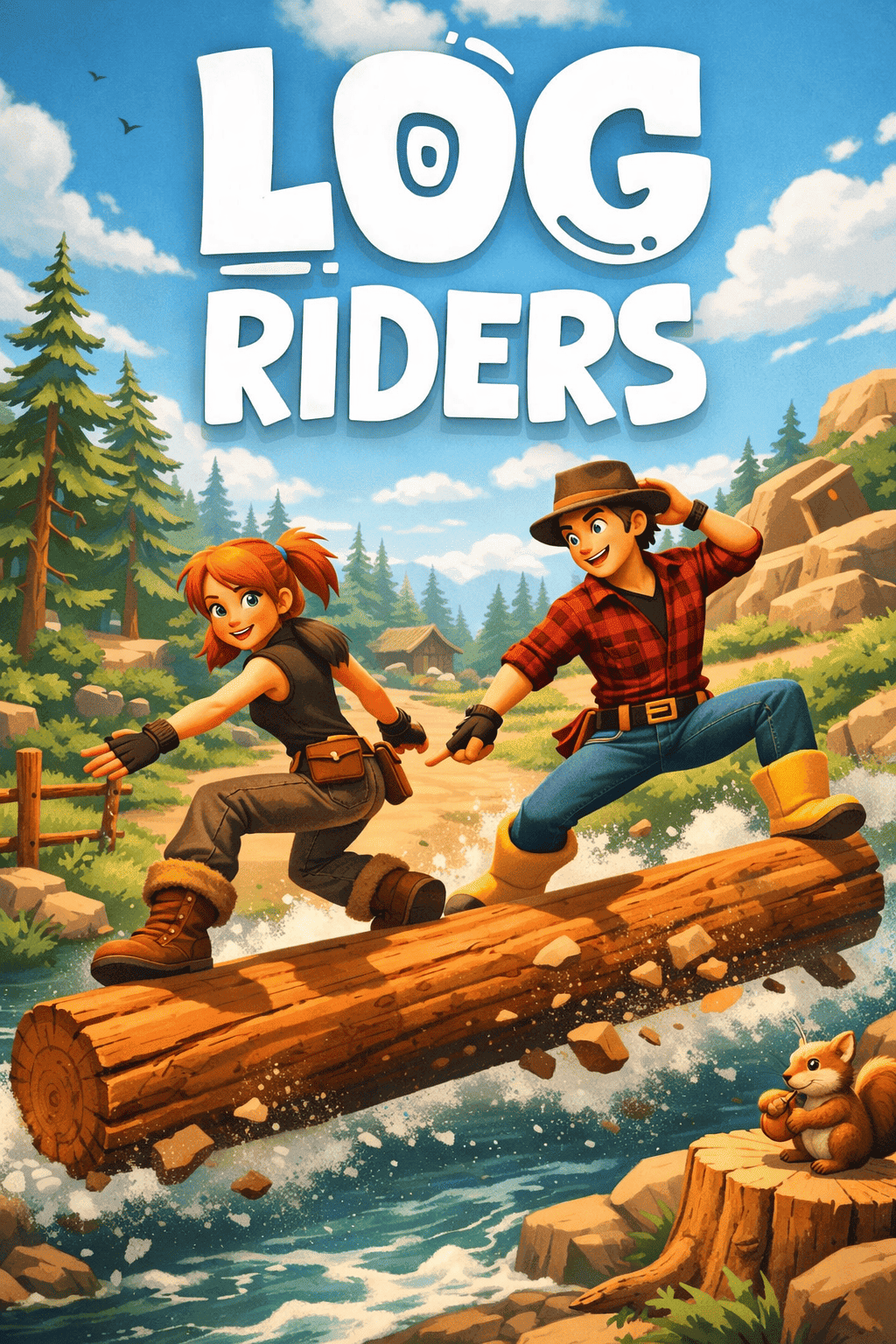
Log Riders Online Issues: Fix Lag & Connection Error 10151-4001
If you’ve been diving into Log Riders co-op, you know the thrill of balancing logs and physics-based chaos. But nothing kills the fun faster than lag—rubberbanding, delayed inputs, or random disconnects. I’ve spent hours testing this game online with friends, and here’s what I’ve learned to keep co-op sessions smooth and stress-free.
AI Rampancy in Marathon (2026) & Hero Shooter Elements Explained

1. Pinpoint the Lag Source: Network or Hardware?
Before tweaking settings, figure out if lag is network-related or hardware-related. This saves you hours of frustration.
- Network Lag: You see your friends teleporting, or your actions happen seconds later.
- Hardware Lag: The screen stutters or slows down even when playing solo.
Pro Tip: If solo mode runs fine but co-op is choppy, 99% of the time it’s a connection issue or the host’s setup.
2. Network Fixes That Actually Work
Log Riders relies heavily on physics syncing, so network hiccups are a common culprit. Here’s what works in the real world:
- Use Ethernet: Ditch Wi-Fi for a wired connection to reduce jitter and keep physics smooth.
- Manual Region Selection: Don’t rely on “Auto” matchmaking. Pick the same region as your co-op partner to minimize lag.
- Check NAT Type: Strict NATs can slow you down. Aim for Open or Type 1/2 by enabling UPnP on your router.
- Flush DNS & Change Servers: Resetting DNS or using a public DNS (Google 8.8.8.8) often fixes routing issues.
3. Software & System Tweaks
Sometimes, the lag isn’t the internet—it’s your system competing for resources. Here’s what helps:
- Disable Overlays: Steam, Discord, NVIDIA overlays can cause micro-stutters. Turn them off for smoother play.
- Close Bandwidth Hogs: Chrome, torrents, or Windows Update in the background can eat packets. Kill them.
- High Performance Mode: On laptops, switch to “High Performance.” Battery-saving throttles CPU and ruins physics syncing.
4. Advanced Solutions For Persistent Lag
If standard tweaks fail, the community has some clever workarounds:
- Steam Remote Play Together: Host a “local” session online. Only the host runs the game, bypassing some netcode headaches (host needs strong upload speed).
- VPN Routing: Poor ISP routing? Gaming VPNs like ExitLag can find faster paths and reduce ping.
- Verify Game Files: Corrupt files can cause weird sync issues. Use Steam’s “Verify Integrity” option to fix them.
Quick Checklist for a Lag-Free Log Riders Session
- Use Ethernet: High Impact – Reduces Jitter
- Match Regions: High Impact – Lowers Ping
- Set NAT to Open: Medium Impact – Improves Connectivity
- Disable Overlays: Low Impact – Reduces Stutter
- Update Drivers: Low Impact – Improves Stability
Following these steps has personally saved my co-op sessions from lag hell multiple times. If you still have problems, check the official forums for patches or hotfixes—developers are actively tweaking online performance. Happy riding!
How to Fix Log Riders Connection Error 10151-4001 – A Gamer’s Friendly Guide
If you’re trying to hop into a session of Log Riders with friends and keep hitting the dreaded Connection Error 10151-4001, you’re definitely not alone. From my experience, this error usually points to a handshake timeout or a hiccup connecting to the game’s backend services. Luckily, most of the time, it’s something you can fix on your own without waiting for a patch.
1. Check Server Status Before Panicking
Before diving into tech fixes, make sure the issue isn’t on the server’s side. Log Riders is a multiplayer-heavy game, so sudden traffic spikes or scheduled maintenance can trigger 10151-4001.
- Community Updates: Check the official Discord or Reddit forums for server status.
- Peak Times: New updates or weekend play sessions can overload servers temporarily.
2. The Power Cycle Trick – Quick and Effective
From personal experience, most handshake errors are caused by stale router connections or minor IP conflicts. Here’s my go-to fix:
- Turn off your PC or console completely.
- Unplug your router/modem for at least 60 seconds.
- Plug it back in, wait for lights to stabilize, then restart your device.
This simple reset solves the problem more often than you’d think.
3. Clear Your Game Launcher Cache
Temporary files can get corrupted, blocking the handshake process. On Steam, you can:
- Go to Settings > Downloads and select Clear Download Cache.
- Verify your game files: Right-click Log Riders > Properties > Installed Files > Verify Integrity.
4. Reset WinHTTP Proxy Settings
Sometimes Windows’ network settings interfere with the game. I’ve fixed timeouts by doing this:
- Open Command Prompt as Administrator.
- Check proxy settings: netsh winhttp show proxy.
- If it’s not Direct Access, reset with netsh winhttp reset proxy and restart your PC.
5. Check Firewall, Antivirus, and VPN
The 4001 part of the error often points to blocked ports or security interference. Here’s the fix I use:
- Add LogRiders.exe to the allowed apps list in Windows Firewall.
- Temporarily disable VPNs, as some IPs get automatically blocked by multiplayer servers.
- Double-check your antivirus isn’t flagging the game.
6. Keep Your Network Drivers Updated
Outdated network drivers can cause packet loss, which the game interprets as a timeout. Update them by:
- Right-click Start > Device Manager.
- Expand Network Adapters > right-click your adapter > Update driver.
Quick Summary of Fixes
| Fix Method | Success Rate | Time to Fix |
|---|---|---|
| Router Power Cycle | High | 2–3 mins |
| Verify Game Files | Medium | 5–10 mins |
| Reset Proxy | Medium | 1 min |
| Disable VPN / Firewall | High | 1 min |
If none of these work, it’s likely a backend issue on the developers’ end. Keep an eye on the official Steam discussion board or Discord for updates. Trust me, most of these connection errors are temporary and fixable with the steps above!