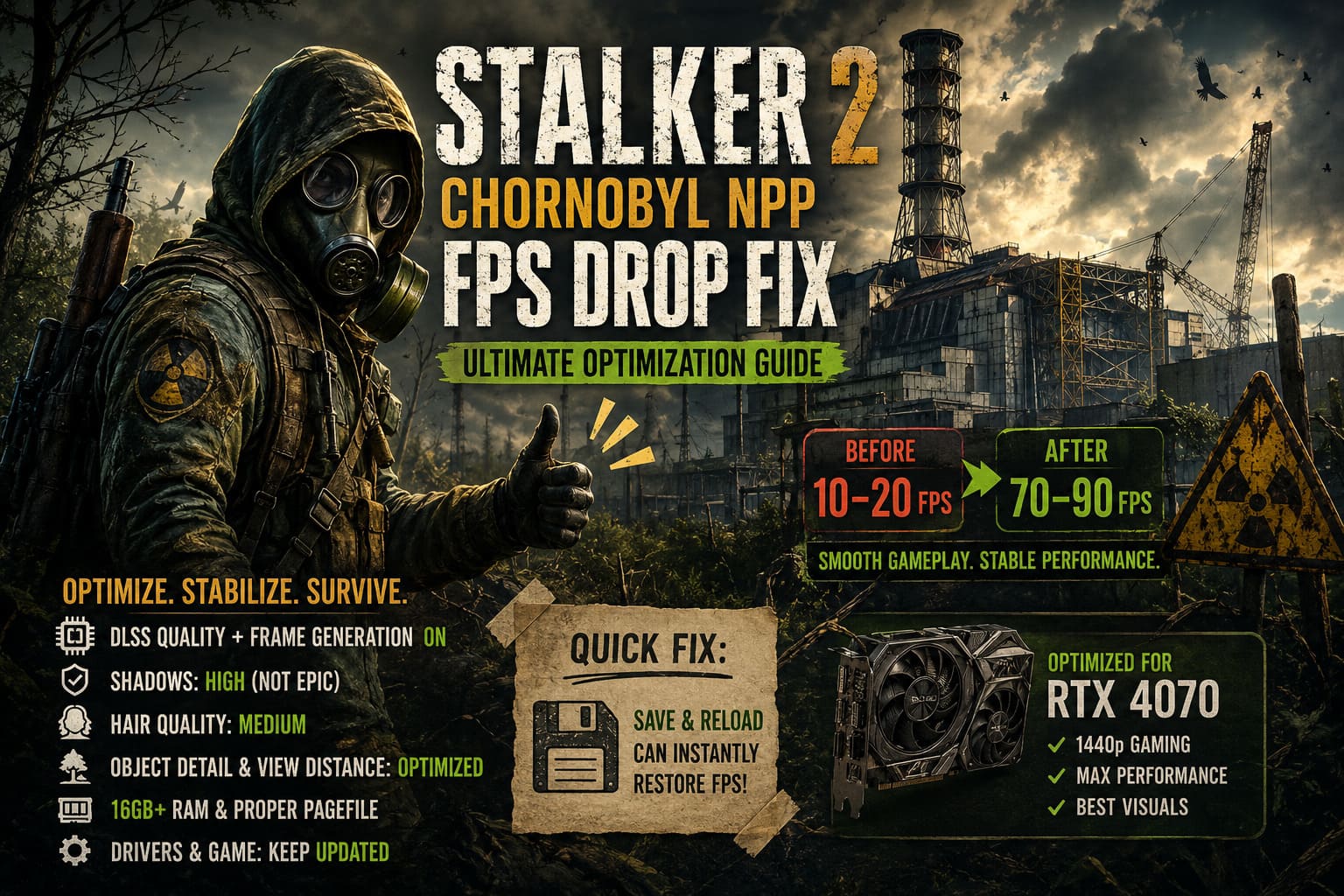
STALKER 2 Chornobyl NPP FPS Drop Fix RTX 4070: Ultimate Optimization Guide
There is something especially annoying about getting great performance in a game, only to watch it collapse the moment you enter one particular area. That is exactly what some RTX 4070 owners can experience in STALKER 2: Heart of Chornobyl, especially around dense locations and the Chornobyl Nuclear Power Plant. You can be cruising along at 70, 80, or even 90 FPS and then suddenly find yourself staring at a slideshow running at 10–20 FPS.
I have played enough demanding PC games to know that a high-end GPU does not automatically guarantee smooth performance. STALKER 2 is a good example. The RTX 4070 has plenty of rendering power for 1440p gaming, but the game can put unusual pressure on VRAM, system memory, CPU resources, and Unreal Engine 5’s asset streaming. The result is a strange situation where the GPU itself is not necessarily the problem.
If your STALKER 2 FPS suddenly drops near Chornobyl NPP, don’t immediately assume that your graphics card is overheating or dying. In many cases, the problem is connected to how the game loads the world, handles NPCs, streams assets, and manages memory. Below are the settings and workarounds I would try first on an RTX 4070 system.
STALKER 2 Cost of Hope Best Settings RTX 3060 Ti: Max FPS and Performance Guide
Why Does STALKER 2 Drop to 10–20 FPS on an RTX 4070?
The RTX 4070 is still a very capable 1440p GPU, particularly when DLSS is used properly. It comes with 12GB of VRAM, which sounds comfortable until you put it inside a huge open-world Unreal Engine 5 game with detailed environments, dynamic lighting, dense vegetation, NPCs, physics, and long-distance asset streaming.
STALKER 2 makes particularly heavy use of technologies such as Nanite and Lumen. These systems can produce fantastic visuals, but they also create a complicated workload for the CPU, GPU, memory subsystem, and storage. When the game moves into a demanding location, it may suddenly have to stream a large amount of geometry, textures, characters, lighting data, and other assets.
The Chornobyl NPP area is exactly the kind of environment where this becomes noticeable. Large structures, complicated geometry, NPC activity and heavy lighting workloads can expose performance weaknesses that aren’t obvious while you’re wandering through less demanding sections of the Zone.
There is another problem that I consider just as important: STALKER 2 can become less stable during longer play sessions. If performance is excellent immediately after launching the game but progressively becomes worse after an hour or two, memory management may be contributing to the problem.
The First Thing I Would Try: Save and Reload
This sounds almost too simple, but it is worth testing before changing half of your Windows installation.
If STALKER 2 suddenly becomes stuck at extremely low FPS after entering a new area, make a quicksave and immediately reload it. The game will rebuild part of the current world state and reload nearby assets. In some situations, this can bring performance back surprisingly quickly.
I wouldn’t call this a permanent fix. It is more of a practical emergency workaround. If the game was running perfectly five minutes earlier and suddenly drops to 15 FPS without an obvious change in GPU temperature or graphics settings, a reload is one of the fastest things to test.
For me, this is preferable to immediately editing configuration files. If a reload restores your normal frame rate, you have already learned something important: the problem is probably related to the current game state or asset streaming rather than raw GPU performance.
Lower Hair Quality Before Destroying Your Graphics Settings
One of the first settings I would experiment with is Hair Quality.
NPCs in STALKER 2 can be surprisingly expensive to render, particularly when several characters are visible at once. Hair and facial details may look insignificant compared with enormous buildings or atmospheric effects, but these small assets can still create a noticeable workload.
Try dropping Hair Quality from Epic to Medium. You don’t need to turn your entire game into a low-quality preset just because the engine struggles with certain characters.
The difference while actually playing is relatively small. You’re usually moving, shooting, exploring, or watching dialogue rather than staring at individual strands of hair. If lowering this setting stops dramatic FPS drops when approaching groups of NPCs, I’d keep it lowered and spend the saved performance budget elsewhere.
Reduce Shadows from Epic to High
Shadows are another setting where I think STALKER 2 can ask for more than the visual improvement is worth.
Epic shadow quality can be expensive, especially in large outdoor environments containing buildings, vegetation and multiple light sources. The Chornobyl NPP is exactly the kind of location where shadow rendering can become a problem.
My recommendation for an RTX 4070 is High rather than Epic.
This is one of those settings where the difference between High and Epic is difficult to appreciate during normal gameplay, while the performance difference can be much easier to notice. If you are chasing stable frame times rather than screenshot-quality graphics, High is the sensible choice.
Adjust Object Detail and View Distance
Another setting I wouldn’t ignore is object detail or view distance.
Open-world games have to decide how much of the world remains active and detailed as you move through it. Increasing these settings means more objects, geometry and environmental information need to be maintained at greater distances.
That does not just affect the GPU. It can also increase CPU workload and asset-streaming activity.
If your FPS collapses when moving toward a huge location, lower Object Detail or View Distance by one step and test the same route again. Don’t immediately push it to Low. The goal is to find the setting that removes the worst performance spikes without making the Zone look empty.
Recommended DLSS Settings for RTX 4070
If you’re playing at 1440p on an RTX 4070, DLSS is one of the easiest ways to get additional performance without completely sacrificing image quality.
My starting point would be:
| Setting | Recommended Value |
|---|---|
| Resolution | 2560×1440 |
| Upscaling | NVIDIA DLSS |
| DLSS Preset | Quality |
| Frame Generation | ON |
| NVIDIA Reflex | ON or ON + Boost |
| Motion Blur | OFF |
| Texture Quality | Epic |
| Shadow Quality | High |
| Effects Quality | High |
| Foliage Detail | High |
| Shading Quality | High |
DLSS Quality at 1440p is the sweet spot I’d test first. If performance is still inconsistent, Balanced is worth trying, especially in the most demanding areas.
The important point is that Frame Generation shouldn’t be treated as a magic solution for terrible base performance. It can make the displayed frame rate much higher, but it doesn’t remove the underlying CPU or streaming bottleneck. If your native frame rate is collapsing to 15 FPS, generating additional frames isn’t going to make the game feel perfect.
That’s why I would stabilize the base performance first and then use Frame Generation to push the experience higher.
Check Hardware-Accelerated GPU Scheduling
If you are using an RTX 4070 with DLSS Frame Generation, Windows settings matter as well.
Open Windows Search and type Graphics Settings. Look for Hardware-Accelerated GPU Scheduling and enable it if it is available. After changing the option, restart the PC.
I wouldn’t expect HAGS to suddenly fix every STALKER 2 stutter. PC performance simply doesn’t work that way. But when you’re using modern NVIDIA features such as Frame Generation, it makes sense to ensure the Windows graphics stack is configured properly.
If you change this setting, test the game before making several other changes. That way you’ll know whether it actually helped your particular system.
Don’t Ignore Your Pagefile
This is one of the less exciting solutions, but it can matter in a large open-world game.
If you have 16GB of RAM, STALKER 2 can put considerable pressure on your system. Even 32GB isn’t an absolute guarantee that you’ll never encounter memory-related slowdowns during long sessions.
Windows uses the pagefile when physical RAM becomes insufficient. If virtual memory is badly configured, extremely aggressive memory usage can turn into hitching, pauses and general system sluggishness.
I prefer leaving the pagefile managed automatically unless there is a specific reason to change it. However, if you’re troubleshooting persistent memory-related stuttering, you can manually configure virtual memory on a fast SSD.
A reasonable troubleshooting range is around 16GB minimum and 32GB maximum on the drive where Windows or the game can access fast storage. Make sure you have enough free SSD space before doing this.
The important part is not to treat the pagefile as a performance upgrade. It isn’t. It is a safety net for memory pressure, and it cannot replace having sufficient physical RAM.
Keep STALKER 2 and NVIDIA Drivers Updated
This sounds obvious, but it is one of the easiest things to overlook when troubleshooting a game that receives frequent updates.
Check that STALKER 2 is fully updated through whichever launcher you use. Then check for a current NVIDIA Game Ready driver through the NVIDIA app.
Game-specific optimization is often improved through both game patches and GPU driver updates. If you are troubleshooting an RTX 4070 FPS problem, testing an old driver and an outdated game build doesn’t make much sense.
I also recommend restarting the PC after major driver updates. It takes a minute and removes another variable from the troubleshooting process.
Should You Edit Engine.ini?
This is where I become more cautious.
You will find various Engine.ini tweaks online claiming to fix STALKER 2 stuttering, streaming problems and VRAM allocation. Some can help specific systems, but copying random Unreal Engine commands from a forum post is not something I’d recommend blindly.
If you understand what you’re changing, you can experiment with the configuration located under the STALKER 2 Saved Config directory. Make a backup of the original file first.
A streaming pool adjustment may sometimes help prevent undesirable behavior, but the correct value depends on your hardware and game version. The RTX 4070 has 12GB of VRAM, but that does not mean you should simply force the engine to allocate every available megabyte to streaming.
Don’t turn an FPS problem into a configuration problem. If changing Engine.ini makes the game less stable, delete the modification and return to the default configuration.
My RTX 4070 STALKER 2 Settings Philosophy
After playing demanding PC games for years, I’ve stopped trying to max out every slider just because the hardware technically allows it.
STALKER 2 looks fantastic even when several settings are one step below Epic. I would much rather have a stable 70–90 FPS experience with sensible compromises than an inconsistent 90 FPS that turns into 15 FPS every time I approach a complicated location.
For an RTX 4070 at 1440p, I would prioritize settings in this order:
- Stabilize frame times and eliminate severe drops.
- Use DLSS Quality.
- Enable Frame Generation after the base performance is reasonable.
- Keep textures high because the RTX 4070’s 12GB VRAM can handle them well.
- Lower shadows before sacrificing texture quality.
- Reduce Hair Quality if NPC-heavy scenes cause major drops.
- Lower View Distance or Object Detail slightly if world streaming becomes problematic.
This approach keeps the game looking like STALKER 2 rather than turning it into a blurry low-preset survival game.
What If the FPS Still Drops Near Chornobyl NPP?
If you have tried the settings above and the game still collapses to single-digit or extremely low FPS, don’t assume another random tweak from the internet will solve it.
Monitor GPU utilization, CPU utilization, VRAM usage, RAM consumption and temperatures while reproducing the problem. If GPU utilization suddenly falls while CPU or RAM usage becomes abnormal, that points toward a bottleneck outside the graphics card itself.
If restarting the game immediately restores performance, that is another useful clue. Likewise, if lowering Hair Quality makes NPC-heavy areas dramatically smoother, you have identified a potential rendering bottleneck.
The best troubleshooting process is not about changing twenty settings at once. Change one or two things, test the same location, and compare the results. It takes longer, but you’ll actually understand what is happening.
Final Thoughts
The RTX 4070 is not a weak GPU, and you shouldn’t need to destroy STALKER 2’s visual quality to enjoy the game at 1440p. The bigger challenge is getting the Unreal Engine 5 technology, memory usage and demanding open-world streaming workload to behave consistently.
If I were fixing STALKER 2 Chornobyl NPP FPS drops on an RTX 4070, I’d start with DLSS Quality, Frame Generation, High shadows, reduced Hair Quality and slightly lower Object Detail. Then I’d check drivers, game updates and memory behavior before touching Engine.ini.
And if the game suddenly drops from 80 FPS to 15 FPS after a long session, I’d try the quicksave/reload trick before doing anything complicated. Sometimes the least glamorous solution is the one that gets you back into the Zone fastest.
STALKER 2 is still the kind of PC game where optimization can vary dramatically from one location to another. That’s frustrating, especially on expensive hardware, but a carefully tuned RTX 4070 setup can deliver a much more consistent experience without sacrificing the atmosphere that makes the Zone worth exploring.