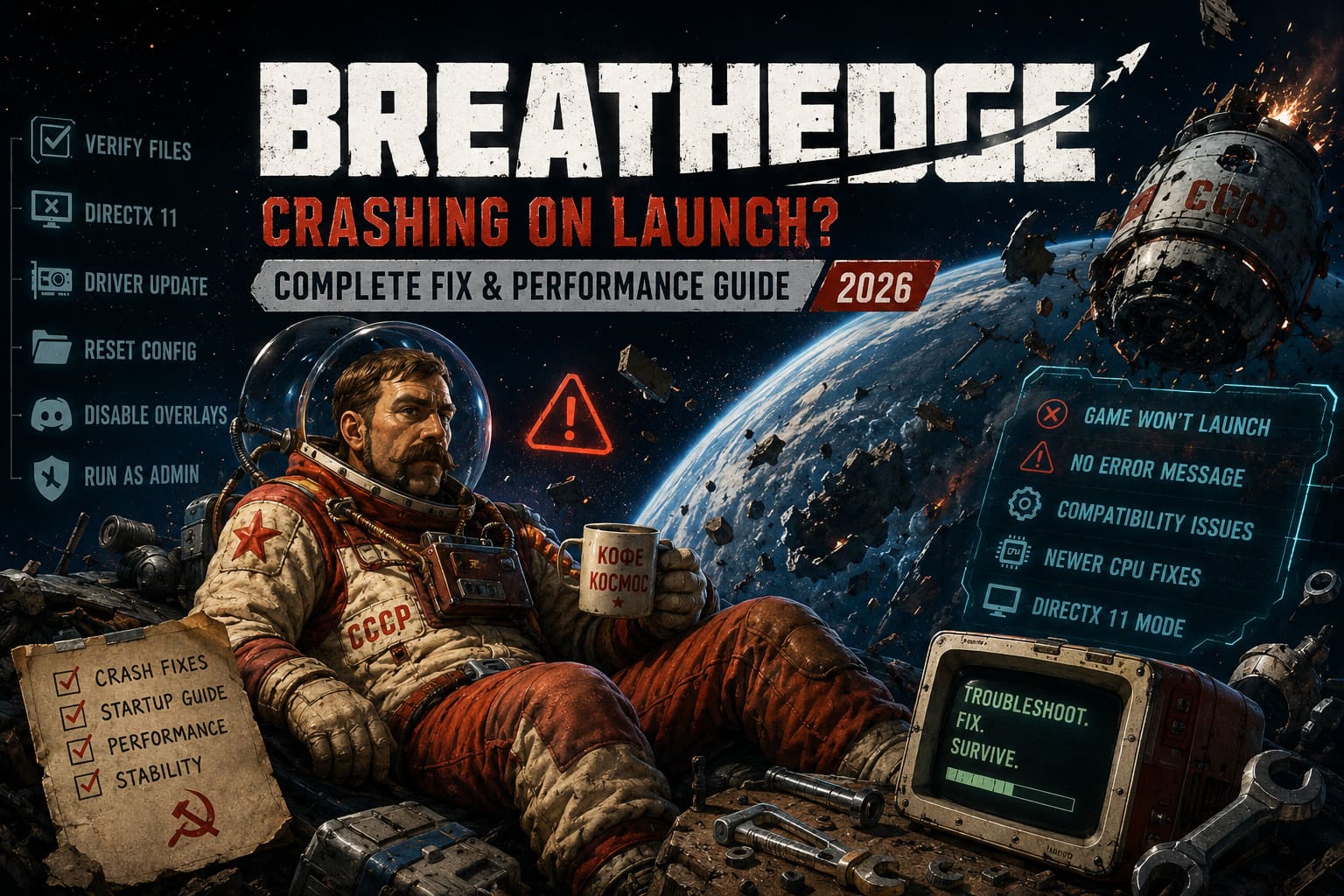
How to Fix Breathedge Crashing on Launch: 2026 Complete Startup & Performance Guide
There are few things more annoying in PC gaming than a game that refuses to get out of the starting gate.
You sit down, fire up Breathedge, maybe you’ve got an hour to kill, and instead of waking up in the middle of space, you get a desktop. No dramatic intro. No error message. No explanation. Just Windows staring back at you like nothing happened.
I’ve always had a soft spot for games that are a little weird, and Breathedge absolutely qualifies. Its combination of survival mechanics, absurd humor, Soviet-style sci-fi aesthetics and lonely space exploration makes it unlike most survival games. But that charm disappears pretty quickly when the game crashes before the main menu.
The good news is that a startup crash doesn’t necessarily mean your PC can’t handle the game. In many cases, it’s something much less dramatic: damaged files, old configuration data, graphics-driver problems, overlays, or an awkward compatibility issue between an older game engine and newer hardware.
So, rather than throwing random fixes at the problem, here’s the order I’d personally try them in.
First Things First: Don’t Start With the Nuclear Option
When a PC game crashes instantly, the temptation is to uninstall everything, reinstall Windows, update twelve different drivers and sacrifice your evening to the troubleshooting gods.
Don’t.
Start with the easy stuff.
A lot of Breathedge startup problems can be fixed without reinstalling the game. In my experience, file verification, resetting configuration files and dealing with graphics/CPU compatibility should be near the top of your list.
| Problem | Fix Worth Trying |
|---|---|
| Corrupted game files | Verify game files |
| Crash before menu | Try DirectX 11 |
| Newer Intel CPU | Try the compatibility workaround |
| Weird behavior after an update | Reset Config/Logs |
| GPU-related crash | Update graphics drivers |
| Crash with Steam/Discord running | Disable overlays |
| Permission-related launch failure | Run as administrator |
If one solution doesn’t work, move to the next. Don’t change ten things at once, because then you’ll never know what actually fixed it.
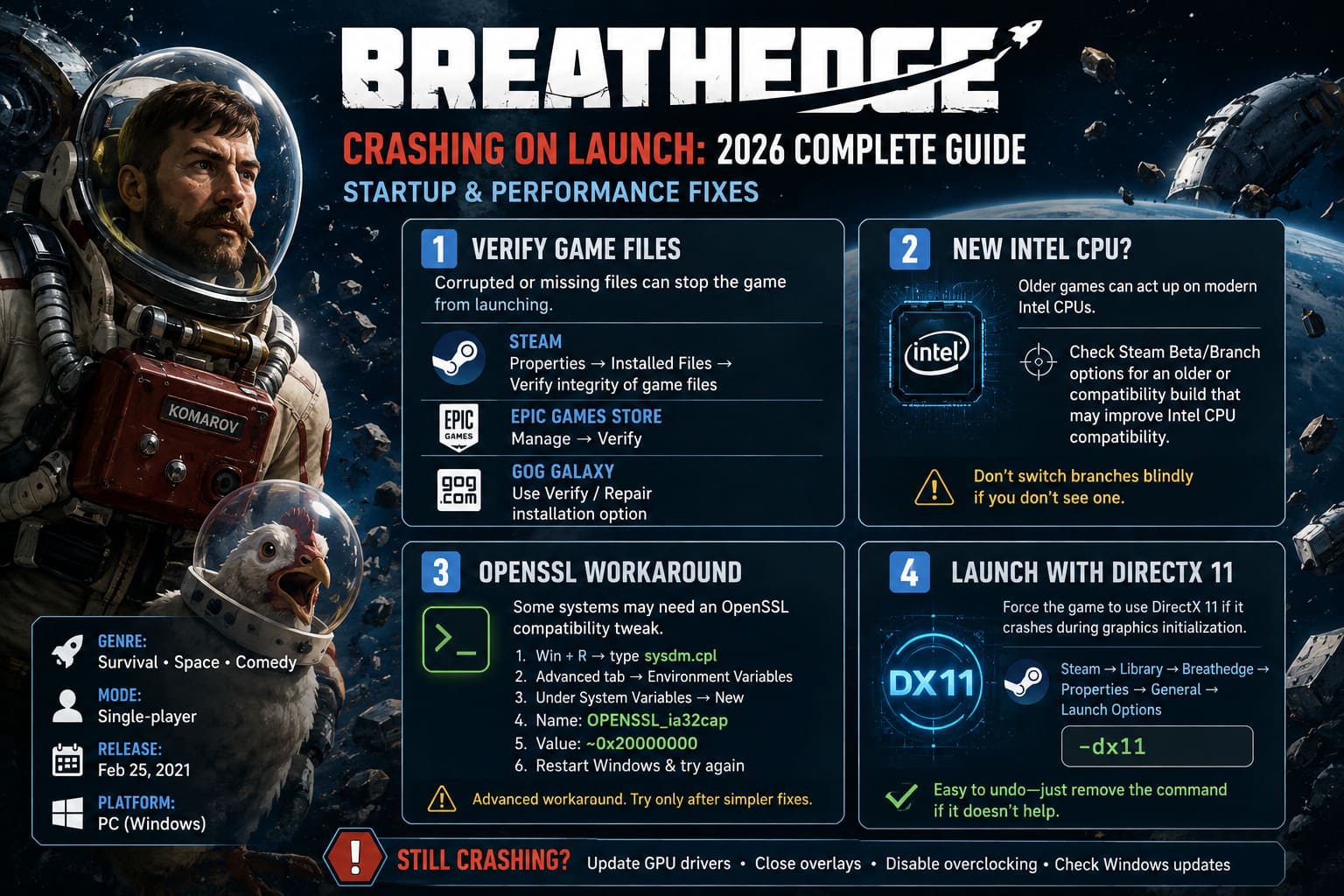
1. Verify Breathedge’s Game Files
This is boring advice, but boring advice works surprisingly often.
A game can end up with damaged or missing files after an interrupted download, disk problem, update, mod installation or even a seemingly harmless launcher hiccup.
If Breathedge suddenly stopped launching after previously working normally, file verification is the first thing I’d do.
On Steam
Open your Steam Library and find Breathedge.
Right-click it and choose:
Properties → Installed Files → Verify integrity of game files
Let Steam finish the scan. If it discovers something wrong, it should download replacement files automatically.
On Epic Games Store
Go to your Library, find Breathedge, click the three-dot menu and choose:
Manage → Verify
Epic will then check the installation and repair files where necessary.
On GOG Galaxy
Open Breathedge in your GOG library and open the game’s installation management options. Look for the Verify / Repair function.
This is a particularly good first step because it doesn’t normally involve deleting your saves or changing Windows settings.
2. If You Have a Newer Intel CPU, Pay Attention
This is the fix I’d investigate if the game crashes almost immediately after launching, especially on a relatively modern Intel system.
Older PC games can sometimes behave strangely on newer CPU architectures. It’s not necessarily about raw performance. In fact, your computer can be dramatically more powerful than the hardware Breathedge was originally designed around and still have trouble launching it.
That’s one of those classic PC gaming situations where newer doesn’t automatically mean more compatible.
If you’re using Steam, check whether the game currently offers a compatibility or previous-version branch under its beta/branch settings.
Depending on the current Steam build and what the developers have made available, you may see an older or compatibility-focused branch. If one specifically addresses Intel CPU compatibility, that’s worth testing.
I would not blindly switch branches if you don’t see one. Available branches can change over time, so don’t assume a particular option must exist on every installation.
3. The Strange OpenSSL Workaround
Here’s where troubleshooting Breathedge gets considerably more niche.
Some older Unreal Engine games can run into compatibility problems involving OpenSSL and newer processor instruction sets. One workaround that has circulated among PC players involves the OPENSSL_ia32cap environment variable.
The idea is to limit certain CPU capabilities used by the OpenSSL library.
If you’re comfortable changing Windows environment variables, you can try:
- Press Windows + R.
- Type
sysdm.cpland press Enter. - Open the Advanced tab.
- Click Environment Variables.
- Under System Variables, select New.
- Set the variable name to
OPENSSL_ia32cap. - Set its value to
~0x20000000. - Confirm the changes.
- Restart Windows.
- Try launching Breathedge again.
This is not the fix I’d recommend to a casual PC user as step one. It’s an advanced workaround, and because environment variables affect system software rather than just Breathedge, I’d only try it after the simpler solutions have failed.
If you’re not comfortable modifying Windows system settings, skip this one and keep troubleshooting.
4. Try Launching the Game With DirectX 11
Graphics initialization is another obvious suspect when a game crashes before the menu appears.
If you’re getting a crash right as the game tries to initialize its renderer, forcing a DirectX 11 path is worth testing.
On Steam, open:
Library → Breathedge → Properties → General → Launch Options
Then enter:
-dx11
Close the window and launch the game.
The nice thing about this test is that it’s extremely easy to undo. If it doesn’t help, simply remove the command.
I’d especially try this if the crash appears immediately after the game window opens, or if you recently changed GPU drivers, Windows settings or display hardware.
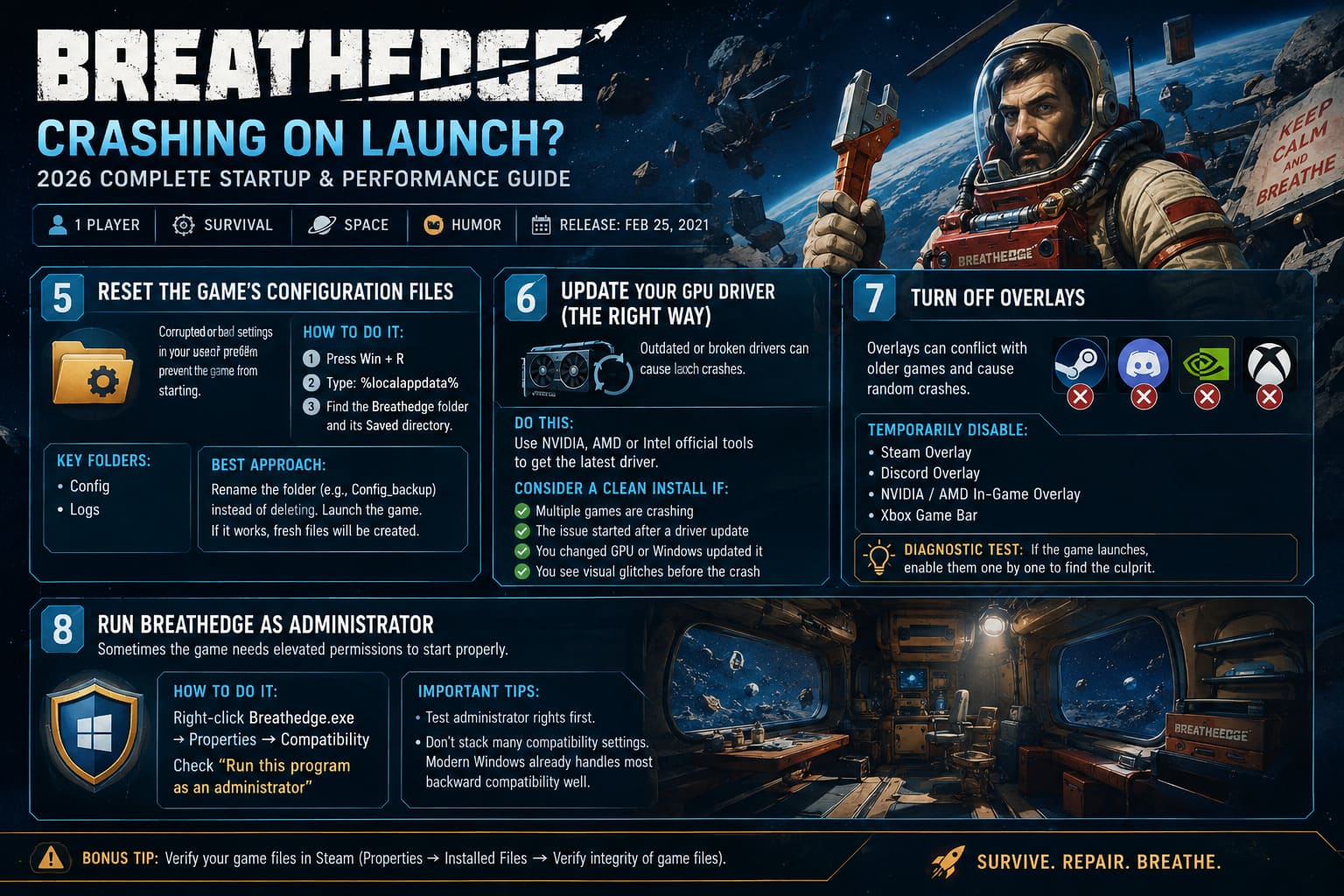
5. Reset the Game’s Configuration Files
This is one of my favorite troubleshooting tricks for older PC games.
Sometimes the actual game installation is perfectly fine. It’s the configuration sitting in your user profile that’s broken.
A bad resolution setting, graphics option, corrupted shader-related data or malformed configuration file can potentially cause a game to fail before you ever reach the settings menu.
Press:
Windows + R
Then enter:
%localappdata%
Look for the Breathedge folder and, if present, its Saved directory.
Before deleting anything, make a backup. Seriously. Copy the folder somewhere safe.
You may find folders such as:
- Config
- Logs
If configuration files are clearly the source of the problem, removing or renaming the configuration data allows the game to generate fresh files the next time it launches.
My preferred approach
Rather than immediately deleting everything, I’d rename the folder first.
For example, you could rename:
Config
to:
Config_backup
Then launch the game.
If Breathedge suddenly works, you’ve learned something useful: the installation itself probably wasn’t the problem.
And because you kept the backup, you can restore your old settings later.
6. Update Your GPU Driver — But Don’t Overcomplicate It
Graphics drivers are an obvious suspect, but there’s a difference between updating a driver and installing every optional graphics utility known to mankind.
Check whether you’re running an NVIDIA, AMD or Intel GPU and get the current driver from the manufacturer’s official support software/site.
If you’ve recently experienced crashes in several games rather than just Breathedge, a clean driver installation becomes more interesting.
For NVIDIA users, for example, the installer provides a clean-installation option in the custom installation process.
I’d consider this if:
- multiple games are crashing;
- the problem started after a driver update;
- you recently replaced your graphics card;
- Windows has recently reinstalled or changed the GPU driver;
- you’re seeing visual glitches before the crash.
If every other game works perfectly and only Breathedge refuses to start, though, I wouldn’t immediately blame the GPU.
7. Turn Off Steam, Discord and GPU Overlays
This is another classic PC troubleshooting move that takes about two minutes.
Temporarily disable:
Steam Overlay
Discord Overlay
NVIDIA/AMD in-game overlay
Xbox Game Bar
Then try launching the game again.
Overlays inject themselves into games to provide recording, chat, FPS counters, browser windows and other features. Most of the time that’s completely fine.
But when an older game and a newer software layer don’t get along, you can end up with a crash that looks completely random.
I wouldn’t permanently disable everything. This is a diagnostic test.
If Breathedge launches normally after you turn the overlays off, enable them one at a time later and figure out which one was causing the conflict.
8. Try Running Breathedge as Administrator
This isn’t the magical fix that some troubleshooting guides make it sound like, but it’s easy enough to test.
Find the game’s executable, usually named something similar to:
Breathedge.exe
Right-click it and select:
Properties → Compatibility
You can test Run this program as an administrator and launch the game again.
I would avoid permanently stacking lots of compatibility settings together. Test administrator privileges by themselves first.
If that doesn’t work, you can experiment with Windows compatibility modes, but don’t assume Windows 8 or Windows 10 compatibility mode is automatically better. Modern Windows versions already provide a surprising amount of backward compatibility, and changing random compatibility settings can sometimes create another problem instead of fixing the first one.
What I Would Actually Try First
If I were sitting at my own PC and Breathedge refused to launch, I wouldn’t follow all eight fixes in a giant chain.
I’d do them in this order:
- Verify the game files.
- Disable Steam/Discord/GPU overlays.
- Try
-dx11. - Reset the game’s configuration files after making a backup.
- Update or clean-install the GPU driver.
- Investigate Intel CPU compatibility if you’re using newer Intel hardware.
- Try administrator privileges.
- Use the OpenSSL environment-variable workaround only as an advanced final step.
That order saves time and, more importantly, helps identify the actual cause.
Breathedge Corrupted Save Game Recovery Guide: How to Fix Lost Progress on PC Windows
Don’t Forget About Saves
One thing I’d emphasize before doing anything involving the Saved folder:
Back it up first.
PC troubleshooting gets a lot less funny when your game finally launches but your save has disappeared.
Even if a particular fix is supposed to affect only configuration files, I’d rather spend 30 seconds making a backup than spend several hours trying to recover a save afterward.
Final Thoughts
Breathedge is exactly the sort of game that deserves a little patience. It’s weird, funny, occasionally janky and unmistakably its own thing. That’s also why technical problems can be particularly frustrating: you don’t want to spend your evening troubleshooting a game when you could be floating around space trying to survive with whatever ridiculous piece of junk you’ve just found.
The encouraging part is that a launch crash doesn’t automatically mean the game is broken beyond repair.
Start with file verification. Then test overlays and DirectX 11. After that, look at configuration files and drivers. If you’re running newer Intel hardware, investigate the CPU compatibility angle.
And keep the more invasive Windows-level workarounds until you’ve exhausted the simple stuff.
That’s generally the best philosophy with PC troubleshooting: change one thing at a time, keep backups, and don’t reinstall half your computer before you’ve checked the obvious fixes.
Hopefully, the next time you hit Play, you’ll get the Breathedge intro instead of an instant trip back to the Windows desktop.
Space is dangerous enough without your PC joining the list of things trying to kill you.