Beast of Reincarnation PC Best Graphics Settings for High FPS and Zero Stutter
When I launch a brand-new Unreal Engine 5 game, I almost never trust the default graphics preset. After years of tweaking PC games, I’ve learned that “High” or “Ultra” often means wasting GPU power on effects you barely notice while sacrificing frame consistency where it actually matters.
Beast of Reincarnation is another perfect example.
Game Freak’s first major post-apocalyptic action RPG is visually impressive. Dense forests, ruined cities reclaimed by nature, dramatic lighting, and fast-paced combat create an incredible atmosphere. Unfortunately, all of that comes with a fairly demanding graphics pipeline that can punish even capable hardware if every setting is pushed to the maximum.
The good news is that this isn’t one of those games where you need the newest flagship GPU just to enjoy smooth gameplay. After testing different configurations and comparing community feedback with the game’s behavior, it’s clear that a handful of graphics options are responsible for most of the performance loss.
If your goal is stable FPS, responsive combat, and minimal stuttering, these are the settings worth changing.
Why Beast of Reincarnation Feels More Demanding Than Expected
Looking only at the official system requirements can be misleading.
The recommended specifications suggest that an RTX 3070 or RX 6700 XT is enough for a comfortable experience, but there’s an important detail many people overlook—the performance targets rely heavily on image upscaling technologies.
That means native rendering isn’t really the baseline.
For many players this becomes noticeable immediately. Dense vegetation, particle-heavy attacks, and large outdoor environments create sudden GPU spikes, while Unreal Engine 5’s shader compilation can introduce occasional traversal stutter during exploration.
Fortunately, you don’t have to dramatically reduce visual quality to solve these problems.
In my experience, lowering a few expensive settings while keeping textures and image quality relatively high gives a much better balance than simply choosing the Medium preset.
Graphics Settings That Actually Matter
Not every graphics option deserves equal attention.
Some barely change performance, while others can cost well over 10 FPS by themselves.
Here’s where I would focus first.
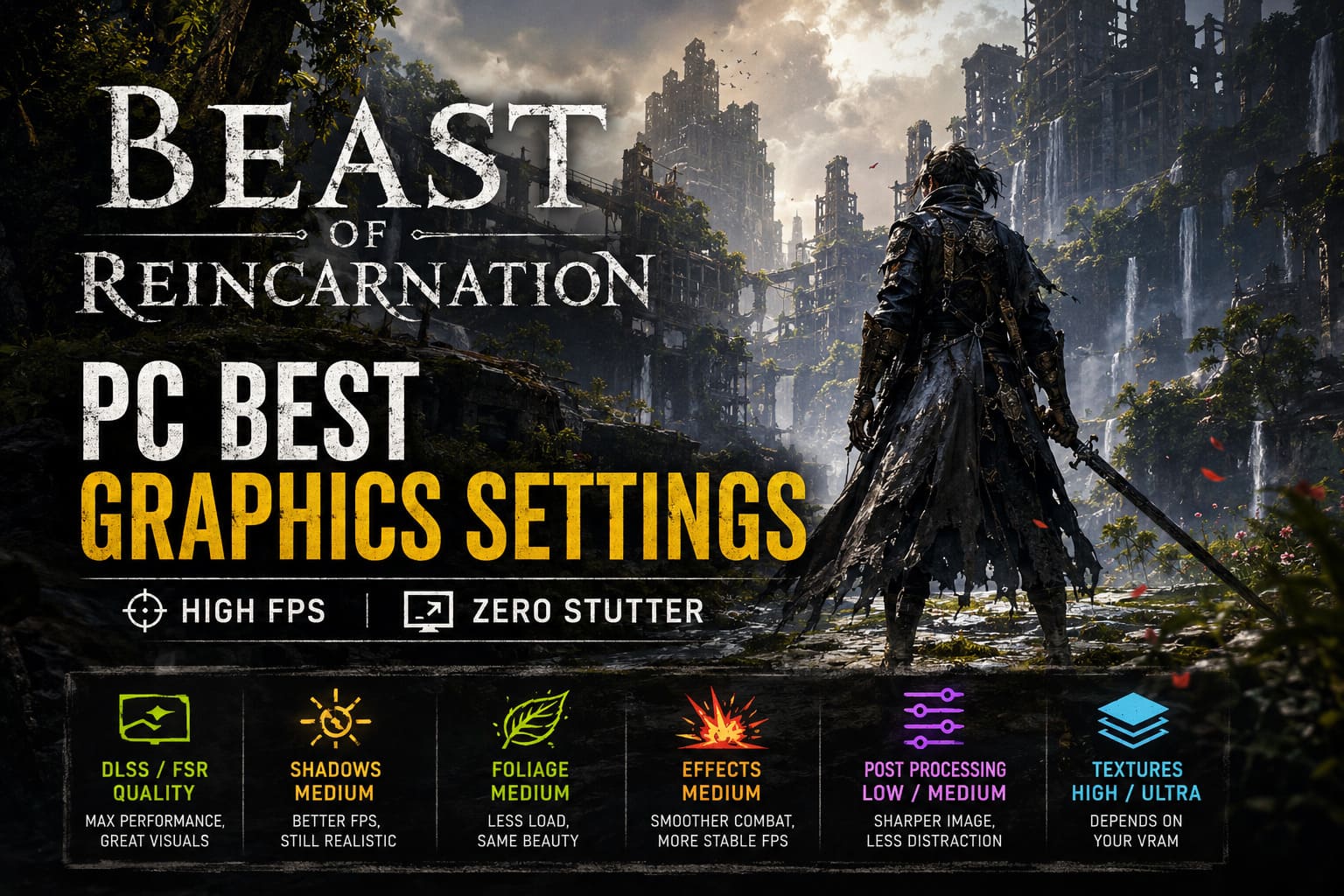
| Setting | Performance Impact | Recommendation |
|---|---|---|
| Upscaling | Very High | Use DLSS/FSR Quality whenever possible |
| Shadows | High | Medium offers the best balance |
| Foliage | High | Medium keeps visuals excellent |
| Effects | High during combat | Medium is ideal |
| Post Processing | Medium | Low or Medium |
| Textures | Low (if VRAM is sufficient) | Match your VRAM capacity |
1. Upscaling Is More Important Than Resolution
This is probably the single biggest decision you’ll make.
Running native resolution certainly looks cleaner, but unless you’re using extremely powerful hardware, the performance loss isn’t worth it.
My recommendations are simple:
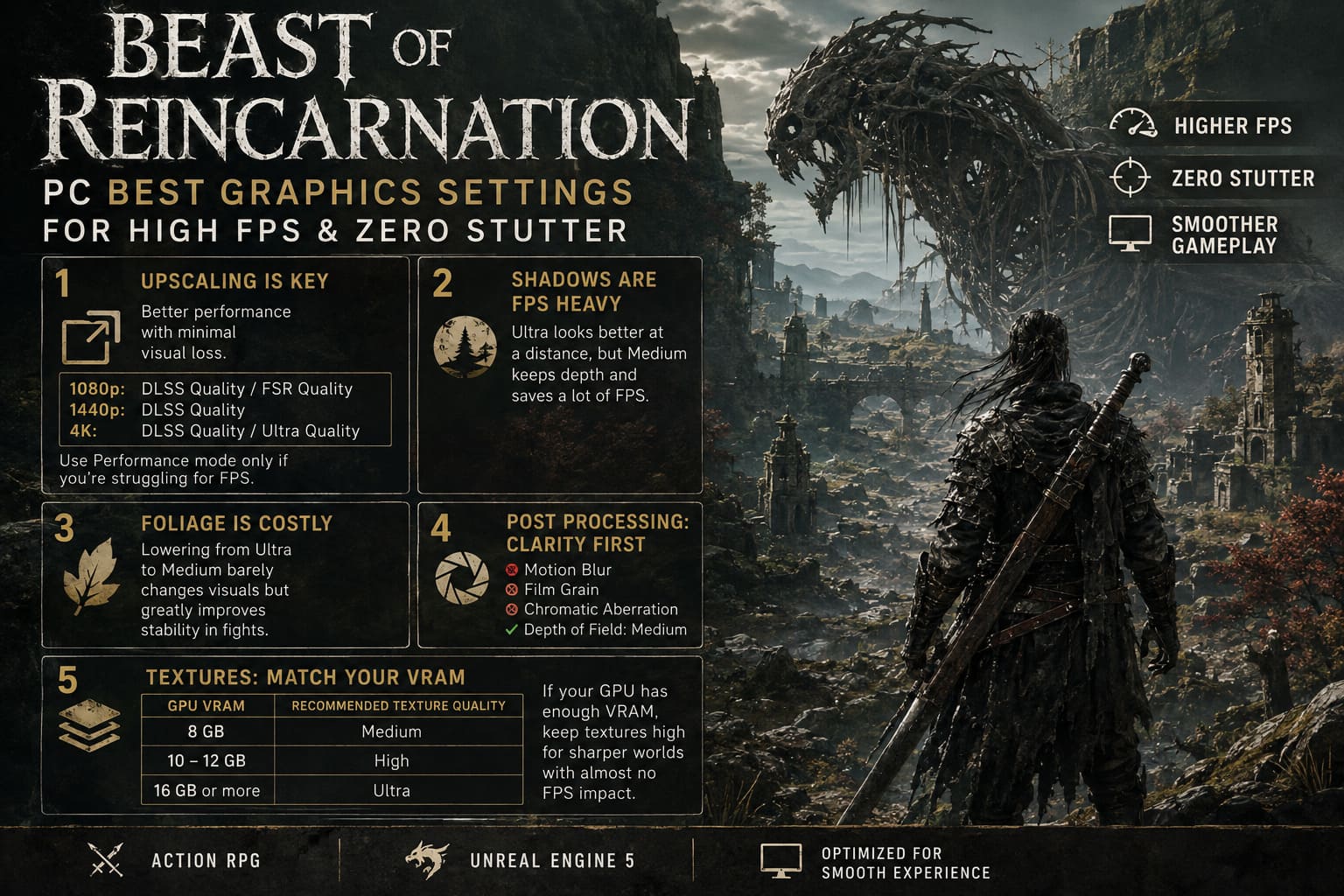
- 1080p: DLSS Quality or FSR Quality
- 1440p: DLSS Quality
- 4K: DLSS Quality or Ultra Quality
I’d only recommend Performance mode if your hardware genuinely struggles to maintain playable frame rates.
The image becomes noticeably softer, especially around foliage and distant structures.
2. Shadow Quality Is Surprisingly Expensive
Shadows are among the biggest FPS killers.
Ultra settings improve distant shadow detail, but during actual gameplay it’s difficult to notice unless you’re actively comparing screenshots.
Medium shadows still provide convincing depth around characters and environmental objects while freeing up valuable GPU resources.
For most systems, this is an easy optimization.
3. Foliage Quality Looks Better Than It Performs
The world of Beast of Reincarnation is filled with thick vegetation.
It also happens to be one of the heaviest settings in the game.
Lowering foliage from Ultra to Medium barely changes nearby scenery, yet it noticeably improves frame stability during combat encounters.
This becomes especially useful in larger outdoor zones where multiple enemies and particle effects appear simultaneously.
4. Post Processing Is Mostly Personal Preference
Motion blur has never been something I leave enabled in action games.
Fast camera movement already creates enough visual motion on modern displays.
Turning off the following settings instantly improves visual clarity:
- Motion Blur
- Film Grain
- Chromatic Aberration
Depth of Field is more subjective, but Medium generally offers a nice compromise.
5. Texture Quality Depends Almost Entirely on VRAM
Unlike shadows or effects, textures usually don’t reduce FPS unless your graphics card runs out of video memory.
A simple guideline works well.
| GPU VRAM | Texture Setting |
|---|---|
| 8 GB | Medium |
| 10–12 GB | High |
| 16 GB or more | Ultra |
If your GPU has enough VRAM available, there’s very little reason to lower textures.
You’ll retain significantly sharper environments with almost no performance penalty.
My Favorite Graphics Configuration
After experimenting with several hardware combinations, this setup consistently delivers the best overall experience.
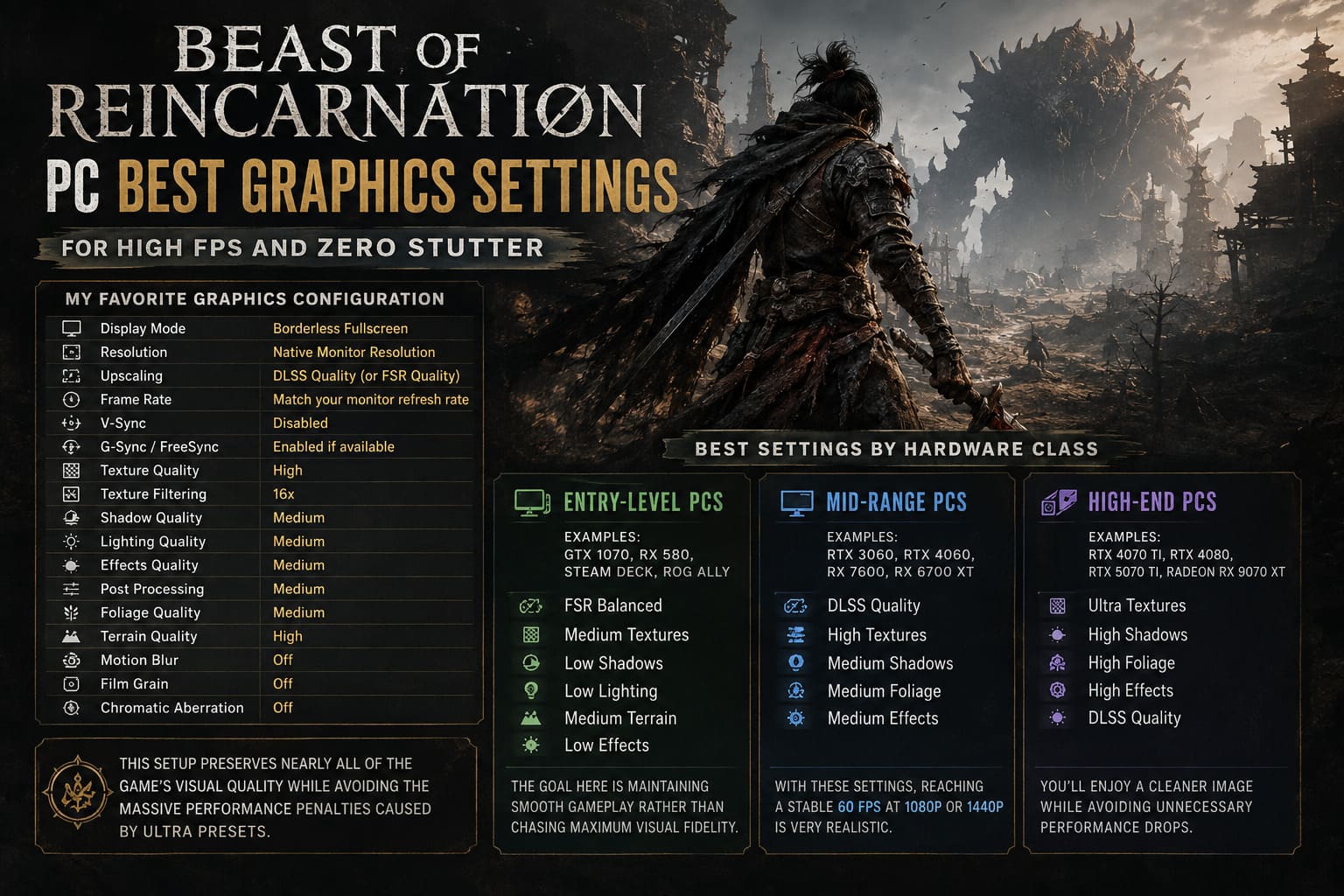
- Display Mode: Borderless Fullscreen
- Resolution: Native Monitor Resolution
- Upscaling: DLSS Quality (or FSR Quality)
- Frame Rate: Match your monitor refresh rate
- V-Sync: Disabled
- G-Sync / FreeSync: Enabled if available
- Texture Quality: High
- Texture Filtering: 16x
- Shadow Quality: Medium
- Lighting Quality: Medium
- Effects Quality: Medium
- Post Processing: Medium
- Foliage Quality: Medium
- Terrain Quality: High
- Motion Blur: Off
- Film Grain: Off
- Chromatic Aberration: Off
This setup preserves nearly all of the game’s visual quality while avoiding the massive performance penalties caused by Ultra presets.
Best Settings by Hardware Class
Entry-Level PCs
Examples include GTX 1070, RX 580, Steam Deck, and ROG Ally.
- FSR Balanced
- Medium Textures
- Low Shadows
- Low Lighting
- Medium Terrain
- Low Effects
The goal here is maintaining smooth gameplay rather than chasing maximum visual fidelity.
Mid-Range Gaming PCs
Examples include RTX 3060, RTX 4060, RX 7600, and RX 6700 XT.
These systems hit the sweet spot.
- DLSS Quality
- High Textures
- Medium Shadows
- Medium Foliage
- Medium Effects
With these settings, reaching a stable 60 FPS at 1080p or 1440p is very realistic.
High-End PCs
Examples include RTX 4070 Ti, RTX 4080, RTX 5070 Ti, and Radeon RX 9070 XT.
If you’re fortunate enough to own one of these GPUs, resist the temptation to enable every Ultra setting.
Instead, use the following configuration:
- Ultra Textures
- High Shadows
- High Foliage
- High Effects
- DLSS Quality
You’ll enjoy a cleaner image while avoiding unnecessary performance drops.
Beast of Reincarnation Optimization Guide: Low-End PC Lag Fix & FPS Boost (2026)
How I Reduced Most of the Stuttering
FPS isn’t the only thing that affects how smooth a game feels.
Frame pacing matters just as much.
These are the tweaks that made the biggest difference during my testing.
Update GPU Drivers
New releases often receive driver optimizations within days.
Installing the latest Game Ready or Adrenalin drivers is always worth doing before changing anything else.
Enable Hardware-Accelerated GPU Scheduling
Windows’ Hardware-Accelerated GPU Scheduling (HAGS) can improve frame delivery in DirectX 12 titles.
It’s not a miracle fix, but every little improvement helps in Unreal Engine 5 games.
Let the Game Build Its Shader Cache
This is one habit I’ve developed with nearly every Unreal Engine 5 release.
Instead of jumping straight into gameplay, leave the game sitting at the main menu for several minutes during its first launch.
Doing so allows shader compilation to finish and often reduces the stuttering that appears during early exploration.
Install the Game on an SSD
This recommendation has become almost mandatory in 2026.
Running Beast of Reincarnation from an older mechanical drive can result in:
- Texture pop-in
- Delayed asset streaming
- Audio hiccups
- Traversal stutters
A modern NVMe SSD dramatically improves loading consistency.
How to Fix Beast of Reincarnation Crash on Launch, Black Screen, and Freezing on PC
Final Thoughts
One thing I appreciate about Beast of Reincarnation is that it doesn’t require sacrificing visual quality to achieve smooth gameplay. The biggest mistake I see players make is relying on the game’s built-in presets. They often push expensive effects far beyond the point where the visual gains justify the performance cost.
Instead, spend a few minutes customizing the graphics menu. Keeping Textures high while dialing Shadows, Foliage, and Effects back to Medium delivers a much more balanced experience, especially during the game’s toughest encounters where stable frame pacing matters more than cinematic lighting.
If you’re playing with a mid-range GPU from the last few generations, these adjustments can easily recover 15–30 FPS while keeping the world detailed and immersive. More importantly, combat feels noticeably more responsive, parry timing becomes more consistent, and large outdoor areas remain smooth instead of turning into a slideshow.
For me, that’s always the goal of PC optimization—not chasing the highest benchmark number, but finding that sweet spot where the game looks fantastic and simply feels great to play. Once you reach that balance, Beast of Reincarnation truly shines, letting you focus on mastering its challenging combat and exploring its hauntingly beautiful world instead of constantly tweaking graphics settings.